This tutorial shows how to create, configure, and analyze Risk Scenarios using Monte Carlo simulations on risks previously identified in risk analyses.
Through the new Risk Scenarios module, you can define the scope of the simulation, configure calculation parameters, select the risks to include, adjust their frequency and impact distributions, execute the simulation, and review the obtained results.
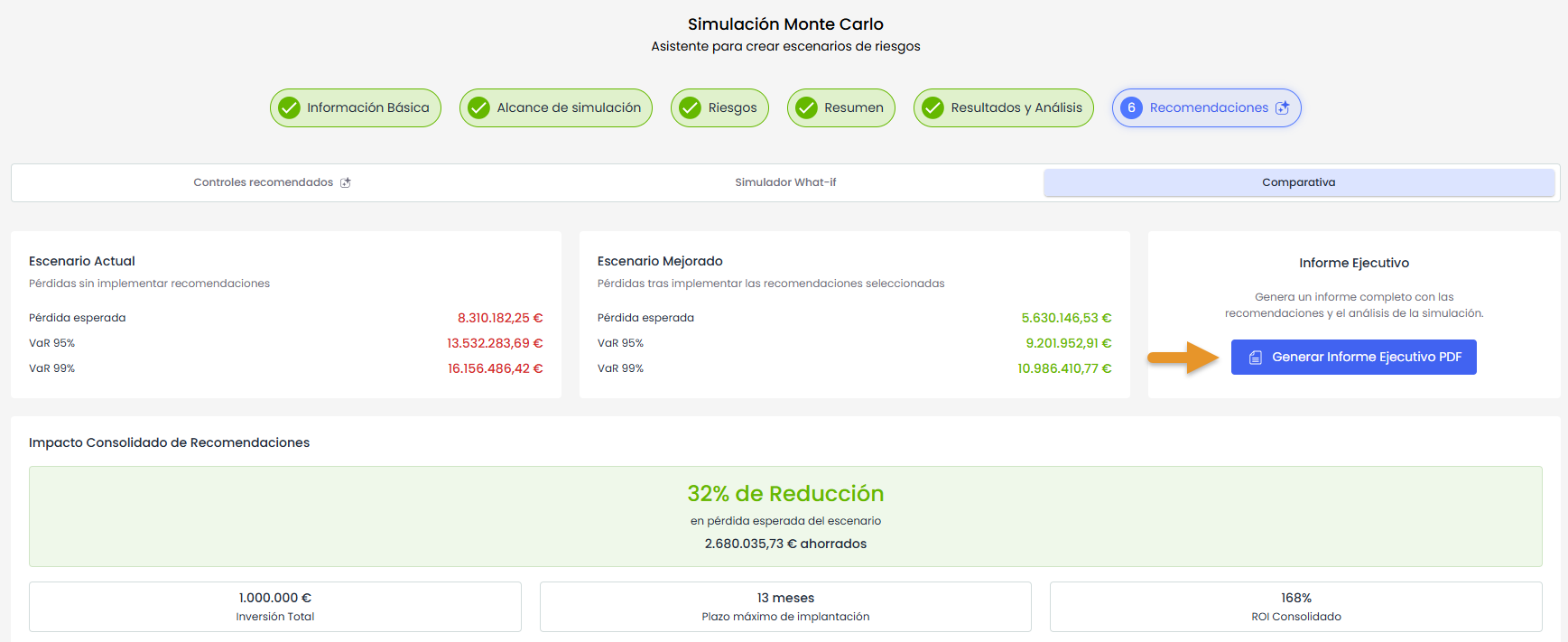
Additionally, the module allows analyzing recommendations generated through AI, simulating the impact of applying controls using the What-if simulator, comparing the current scenario against an improved scenario, and downloading an executive report with the main conclusions.
Video tutorial: Creation and configuration of the risk scenario
This video shows the flow from accessing the module to executing the simulation. It includes the steps:
-
Access the module.
-
Create a new scenario from the Simulation Center.
-
Complete the basic information.
-
Define the simulation scope.
-
Select the risks.
-
Review the summary and execute the simulation.
1. Access the module
To access the module, go to:
Analysis > Risk Scenarios
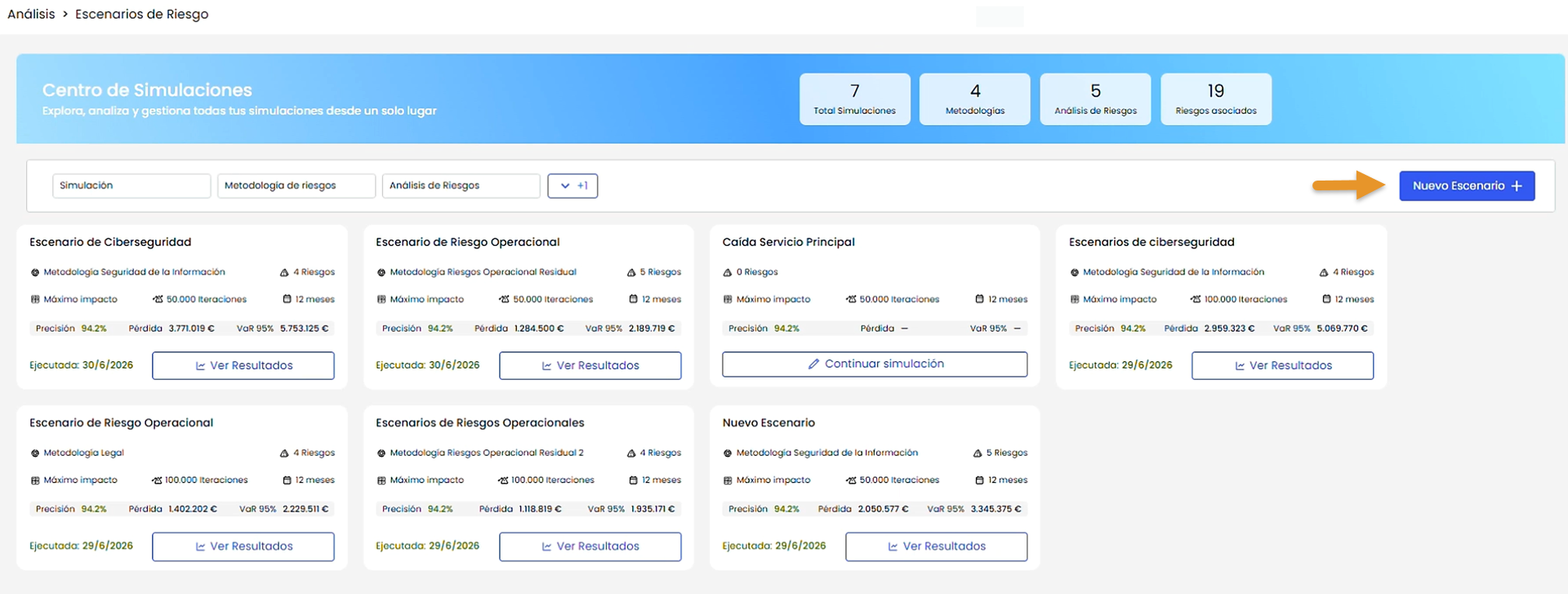
Upon accessing, the Simulation Center is displayed, where you can review existing scenarios and create new risk scenarios.
2. Create a new scenario from the Simulation Center
From the Simulation Center, you can review existing risk scenarios and create new scenarios.
To create a new scenario, click the scenario creation option.
Next, a guided wizard will open, allowing you to define the basic information of the scenario, select the source risk analysis, choose the risks to simulate, and review the configuration before executing the simulation.
3. Complete Basic Information
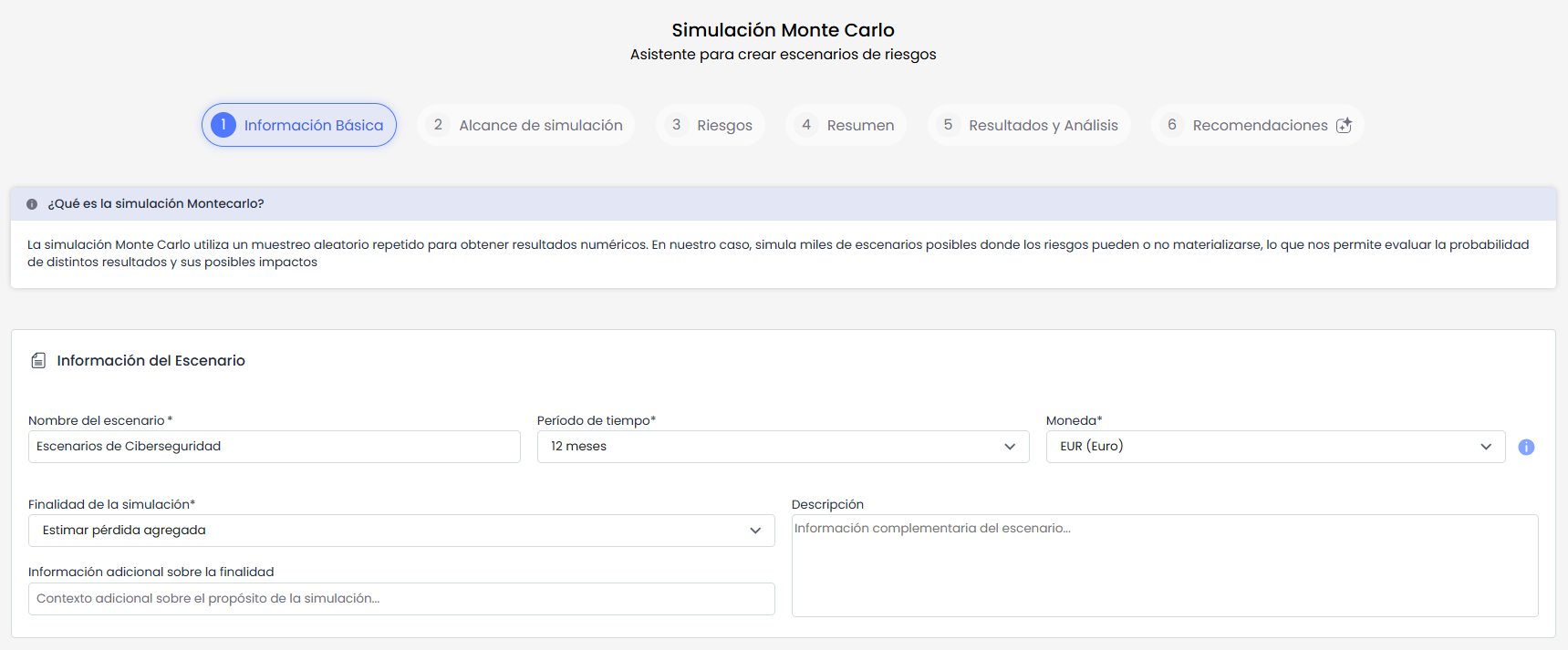
In the first step of the wizard, you must complete the basic information of the scenario.
This step is divided into two sections:
-
Scenario information.
-
Simulation parameters.
3.1. Scenario information
-
Provide the Name of the scenario.
-
Select the Time period.
-
Select the Currency.
-
Indicate the Purpose of the simulation.
-
Add the Description or context of the simulation. (Optional)
-
Complete the Additional information about the purpose, if applicable.
3.2. Simulation parameters
In this section, you configure the values that will determine how the Monte Carlo calculation will be executed.

This section includes three main parameters:
-
Number of iterations.
Define how many simulations will be executed to calculate possible scenarios.
The system proposes three default options:
-
10,000 iterations.
-
50,000 iterations.
-
100,000 iterations.
It is also possible to customize the number of iterations, specifying a value between 1,000 and 1,000,000.
-
Aggregation method.
Define how the results of the selected risks will be combined to obtain the final result of the scenario.
This parameter is important as it directly influences the risk calculation.
The available aggregation methods are:
-
Sum
-
Average
-
Weighted Average
-
Maximum
The selection of the aggregation method should be based on the analysis criteria you want to apply to the scenario.
-
Random seed.
Define the value used to initialize the random generation of the simulation.
This value cannot be edited.
4. Define the simulation scope
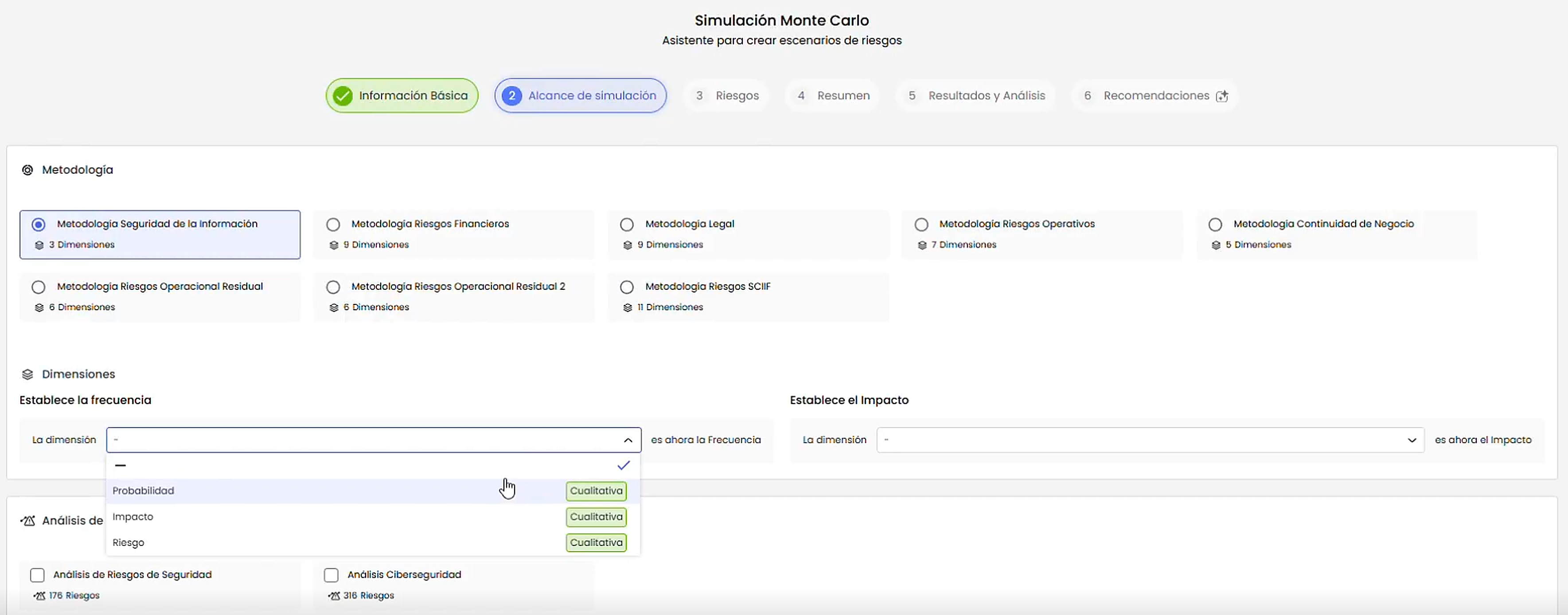
In this step, you define the methodological basis (analysis methodology and dimensions) and the analysis(es) on which the simulation will be executed.
-
Select the risk methodology to be used for the simulation.
-
Map the frequency and impact fields with the corresponding dimensions of the methodology if the configured dimensions are qualitative. If the configured dimensions are quantitative, mapping will not be necessary as the values can be directly used in the calculation.
-
Select one or more risk analyses on which the simulation will be performed.
-
Click Next to continue.
5. Select the Risks
In this step, you select the specific risks to be included in the simulation and review the calculation parameters for each of them.
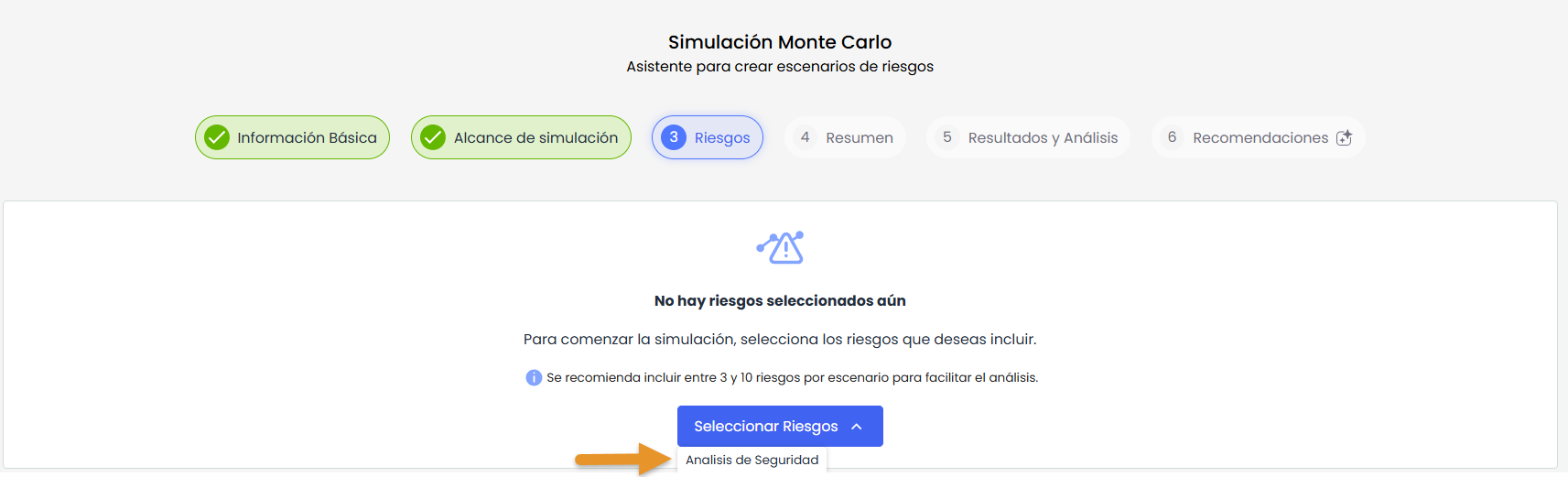
-
Review the list of available risks based on the risk analyses selected in the previous step.
-
Select the risks you want to include in the simulation.
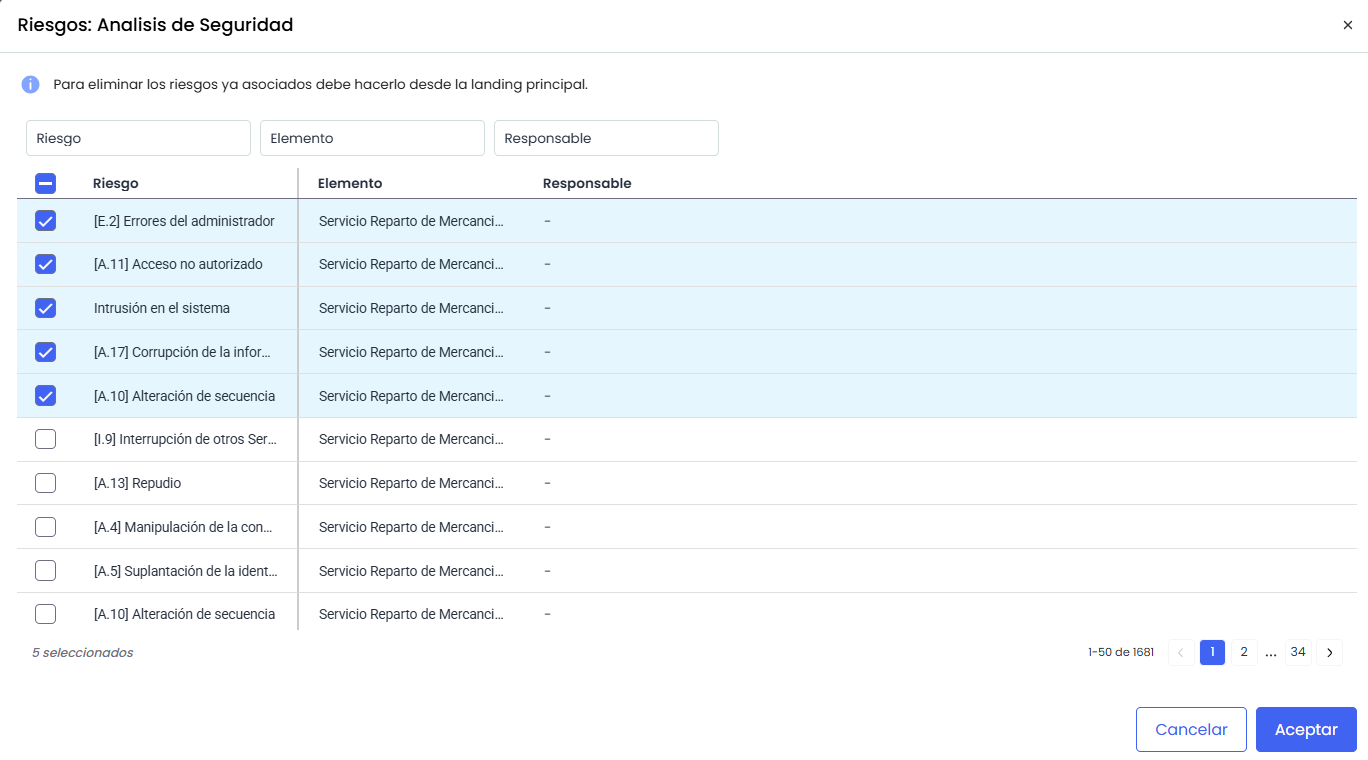
-
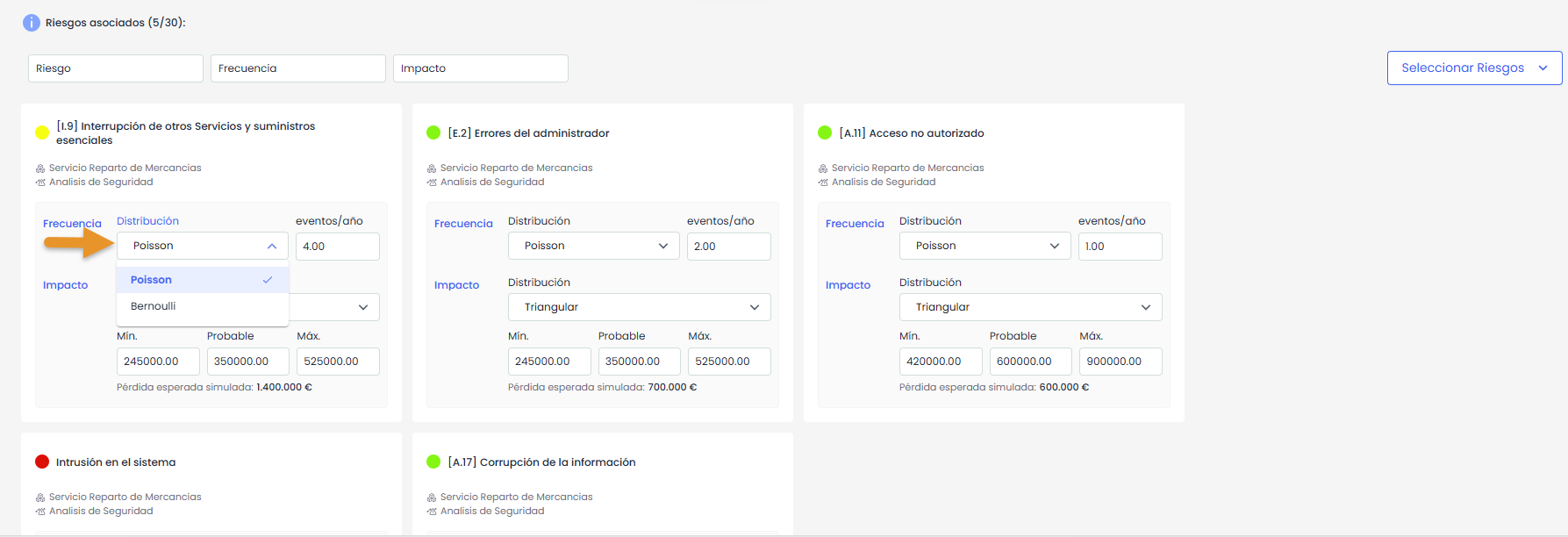
For each included risk, review the frequency and impact configuration.
-
Select the distribution to be used for frequency calculation.
-
Select the distribution to be used for impact calculation.
-
Review the minimum, probable, and maximum values for frequency and impact.
-
Modify the values if necessary.
-
-
Click Next to continue.
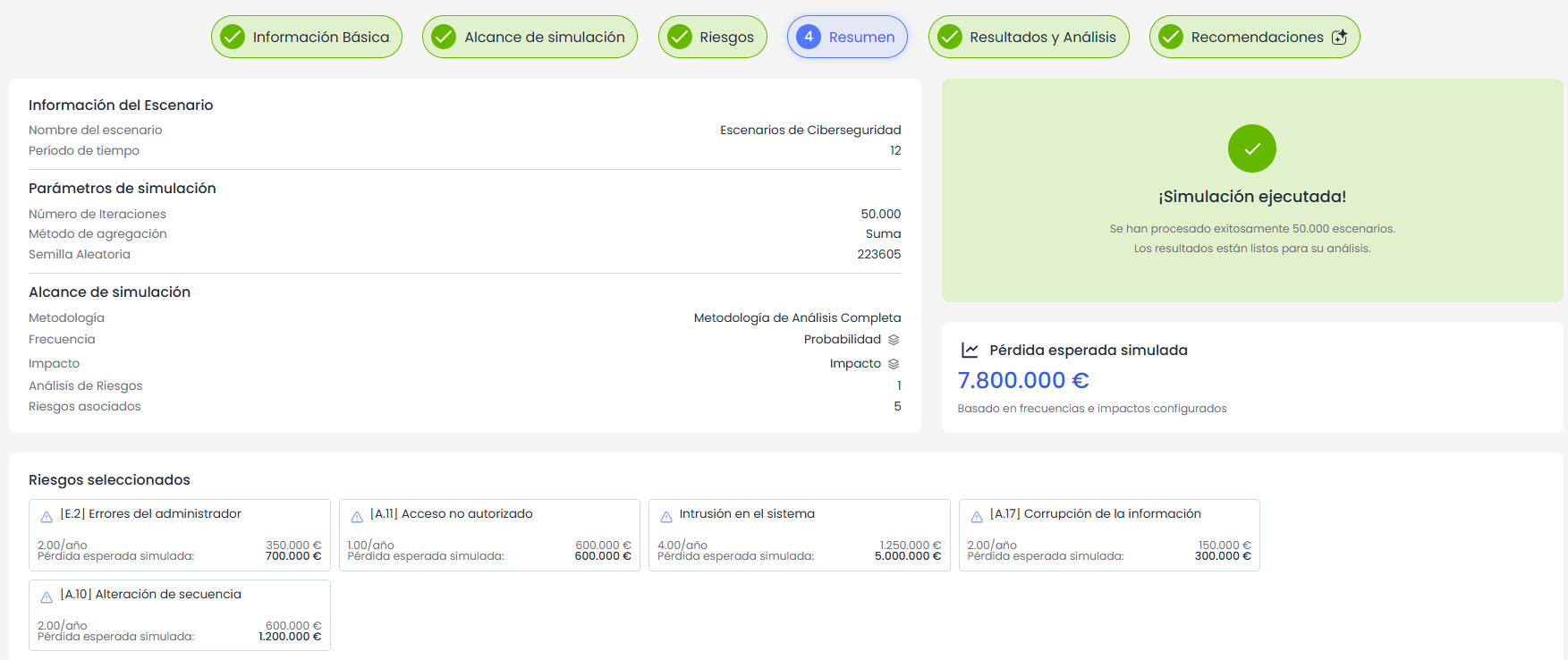
6. Review the preliminary summary
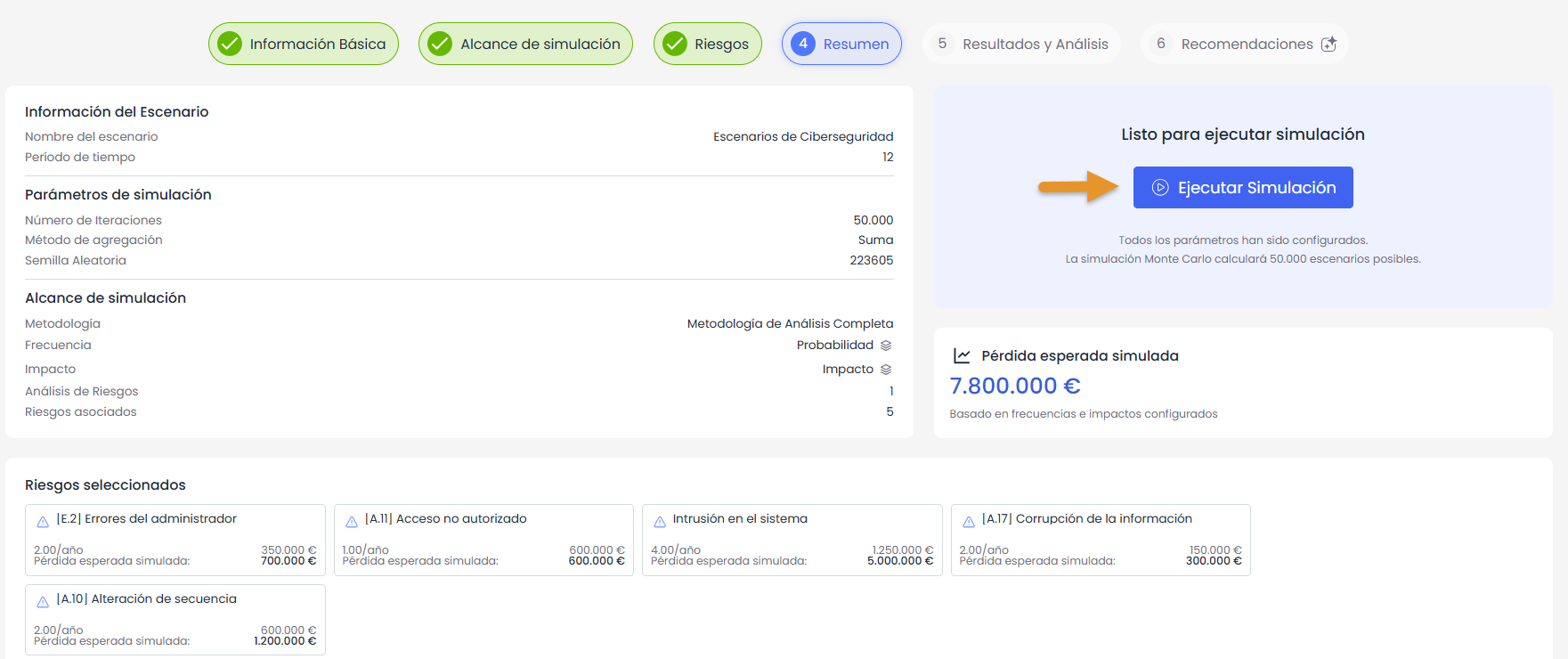
In the Summary step, the complete configuration of the scenario is displayed before executing the Monte Carlo simulation. This screen consolidates the configured information.
-
Review the basic information of the scenario.
-
Review the simulation parameters.
-
Review the simulation scope.
-
Review the selected risks.
-
Check the estimated expected loss before executing the simulation.
-
If the information is correct, execute the simulation.
-
If you need to correct any data, return to the corresponding step of the wizard and make the necessary adjustments.
If you detect any incorrect or incomplete data, return to the corresponding step of the wizard and make the necessary adjustments.
7. Execute the simulation and access Results
Once the summary is reviewed, execute the simulation.
-
Click the option to execute the simulation.
-
When the simulation is executed, the Results and recommendations sections are enabled.
Video tutorial 2: Results and recommendations
This video shows how to review the results and generated recommendations. It includes the steps:
-
Review Results and analysis.
-
Review the Recommendations.
8. Review Results and analysis
From this view, you can review the results obtained from the Monte Carlo simulation and analyze the economic exposure of the scenario from different perspectives.
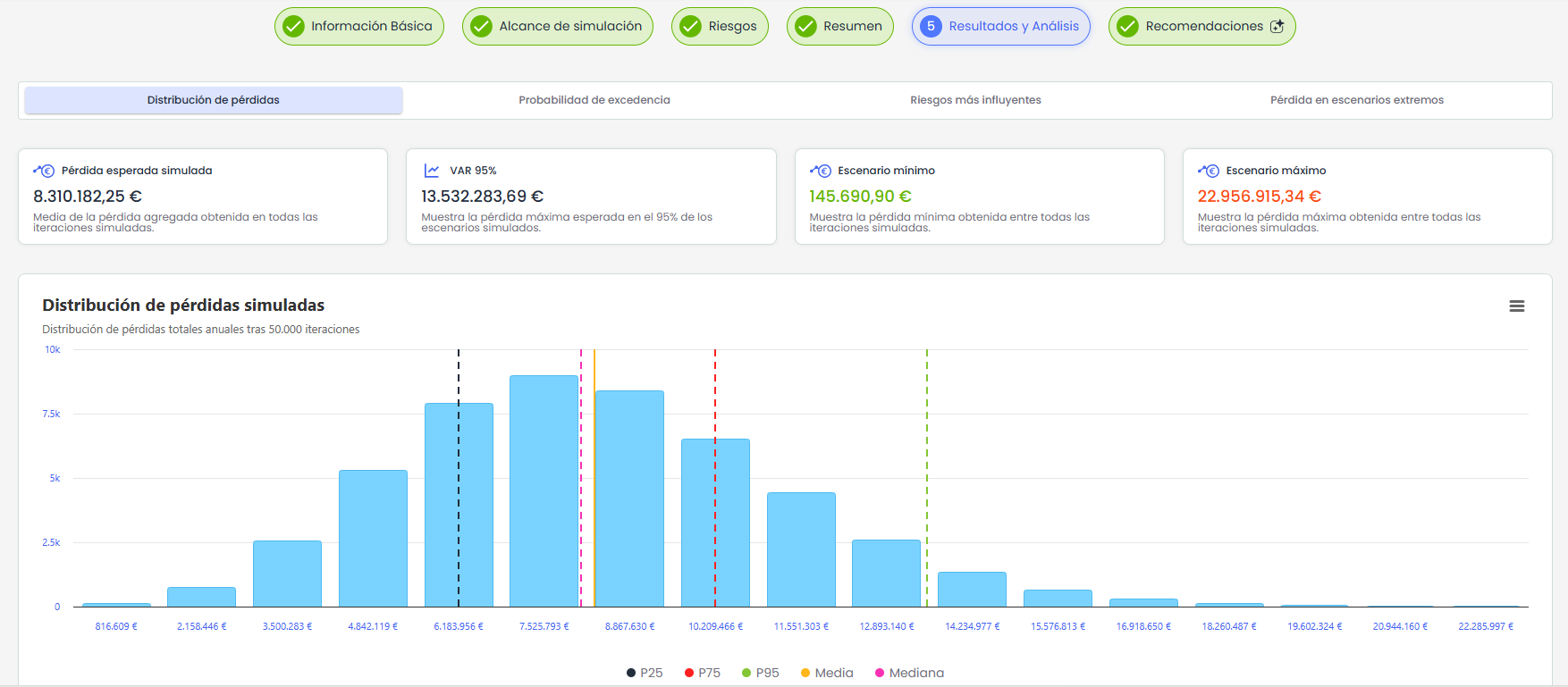
The available views are:
-
Loss distribution.
-
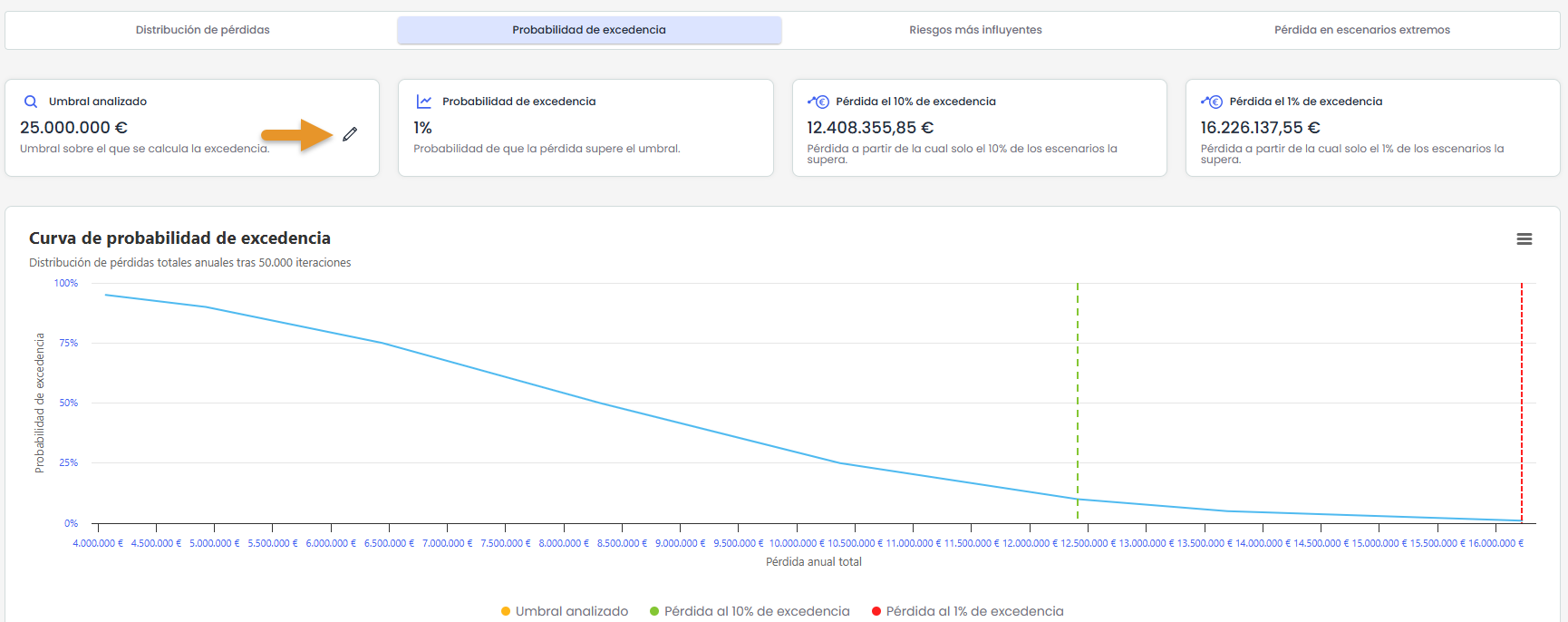
Exceedance probability.
-
Most influential risks.
-
Loss in extreme scenarios.
These views allow analyzing the expected loss, the variability of results, the probability of exceeding certain thresholds, the risks that most influence the result, and the composition of the most severe scenarios.
In the case of Exceedance probability, the system will display as the analyzed threshold by default, the value corresponding to the 95% VaR. However, this value can be edited to analyze the probability of exceeding other thresholds.
9. Review the recommendations
Access the recommendations section to review the controls or mitigation measures proposed for the simulated risks.
This view is divided into three sections:
-
Recommended controls.
-
What-if simulator.
-
Comparison.
9.1. Recommended controls
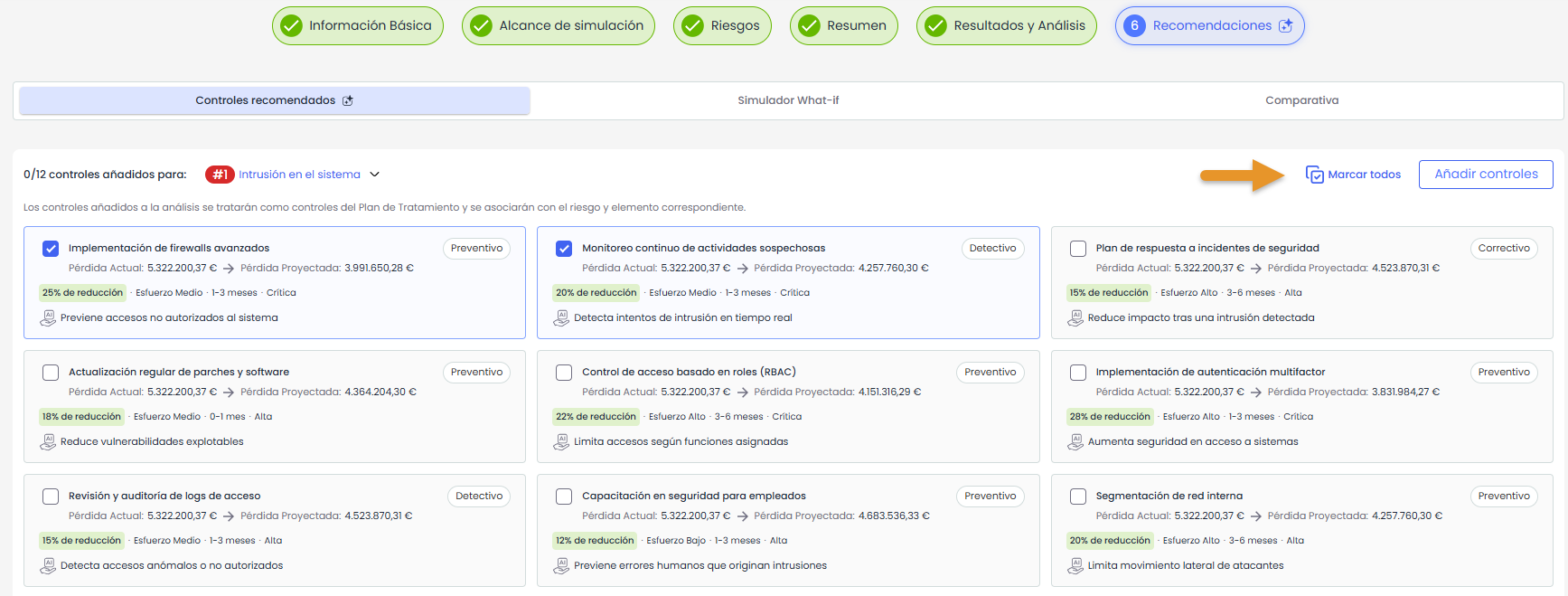
In this section, the proposed controls for the simulated risks are displayed.
These recommendations are generated through AI, using as reference the existing controls in the selected risk analyses.
-
Review the proposed controls for each risk.
-
Review the information associated with each recommended control.
-
Select the controls you want to incorporate into the analysis.
-
Click the Add controls button to incorporate them.
-
The system will add the selected controls to the risk analysis and associate them with the corresponding risk and item.
The added controls will be treated as controls of the Treatment Plan type.
9.2 Use the What-if simulator
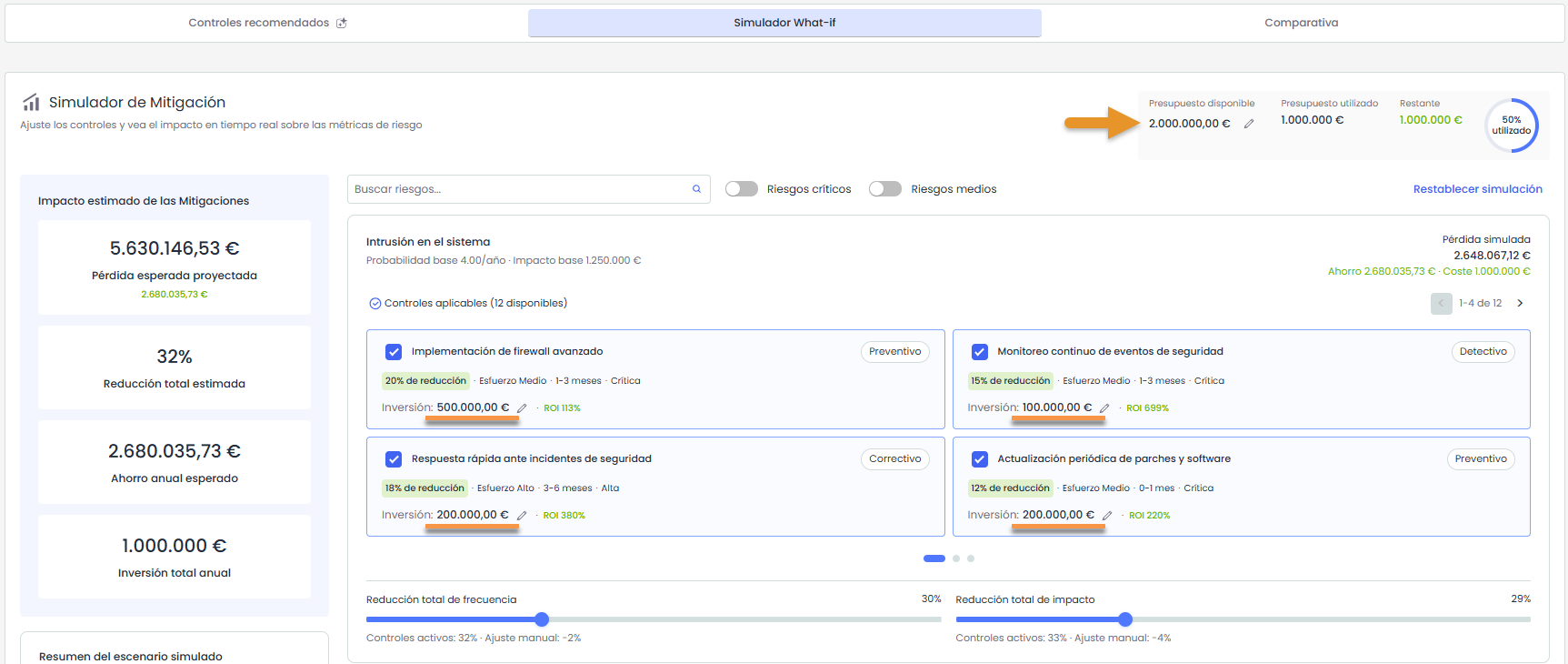
The What-if simulator allows analyzing the expected impact of implementing the controls proposed by AI before definitively incorporating them into the risk analysis.
Based on the recommended controls, it will be possible to indicate a available budget and define the estimated investment needed to implement each control. With this information, the system automatically calculates indicators such as expected savings, net benefit, ROI, and payback, based on the proposed reduction associated with each control.
-
Review the controls proposed by AI.
-
Indicate or adjust the available budget for control implementation.
-
Provide or adjust the estimated investment for each control.
-
Select the controls you want to simulate.
-
When selecting each control, the system will automatically apply the proposed reduction on frequency and impact.
-
Review how the scenario metrics are updated.
-
If needed, manually adjust the frequency reduction and impact reduction.
-
Analyze how the simulation would change if those controls were implemented with the adjusted values.
9.3. Compare the current scenario against the improved scenario
Once the recommendations are selected, access the scenario comparison.
In this section, the difference between the current scenario and the improved scenario is displayed, considering the selected recommendations.
Additionally, an executive report can be downloaded, summarizing the simulation results, the comparison between the current and improved scenarios, the selected controls, and the main economic metrics of the analysis.