This tutorial describes how to identify, register, and assess the items that are part of the management system's scope in GlobalSuite®.
The guide explains how to structure the item tree, associate them with services and processes, perform their individual or general assessment in terms of confidentiality, integrity, and availability, and manage their dependency relationships within the risk analysis.
Definition of the Item Inventory
GlobalSuite® allows the identification and assessment of the items included in the operation of the processes that encompass the scope of the management system. This identification includes the loading of items and their classification according to the configured categories. Additionally, it is possible to model the existing dependency relationships between the items, as well as assess them in the terms defined in the configuration.
Item Tree
From the Analysis > Inventory option, it is possible to register all the items or activities that directly intervene in the processes.
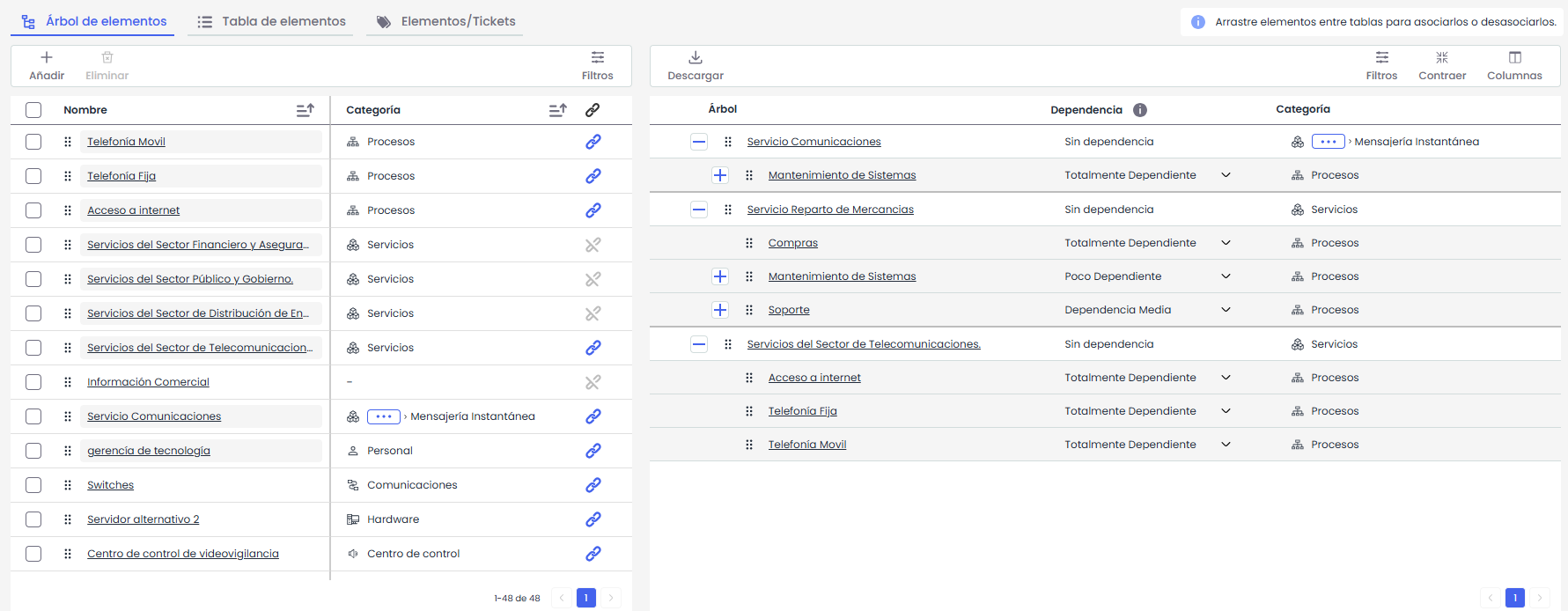
Upon access, the “Item Tree” tab is displayed by default, where the list of all items with their corresponding category is shown on the right side and the defined item tree is displayed on the left side.
Item List:
From the item list, it is possible to create new items in addition to those generated from other GlobalSuite® options.
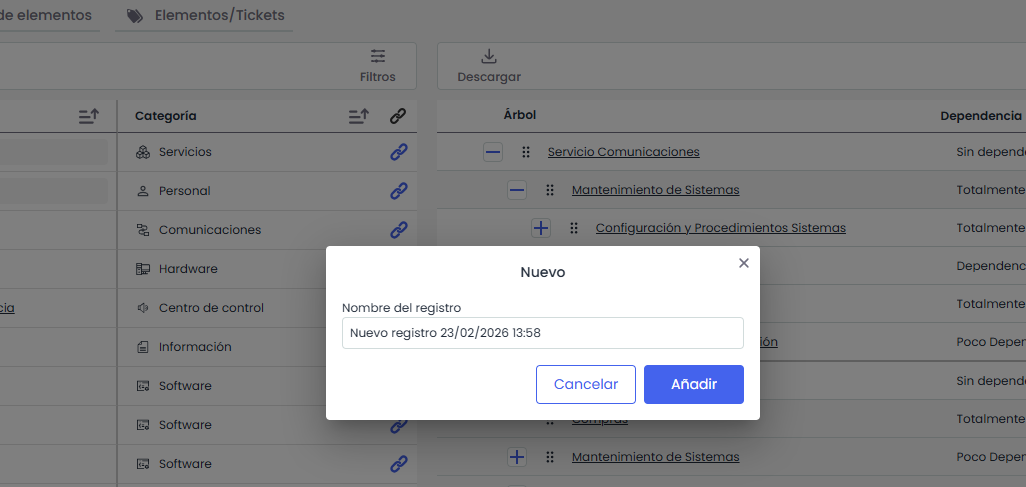
To add a new item, click the “Add” button. The system will display a modal where you must enter the item name. Once saved, the new item will appear in the first position of the list.
Additionally, from this list, you can:
-
Edit the name of items that do not belong to a special category.
-
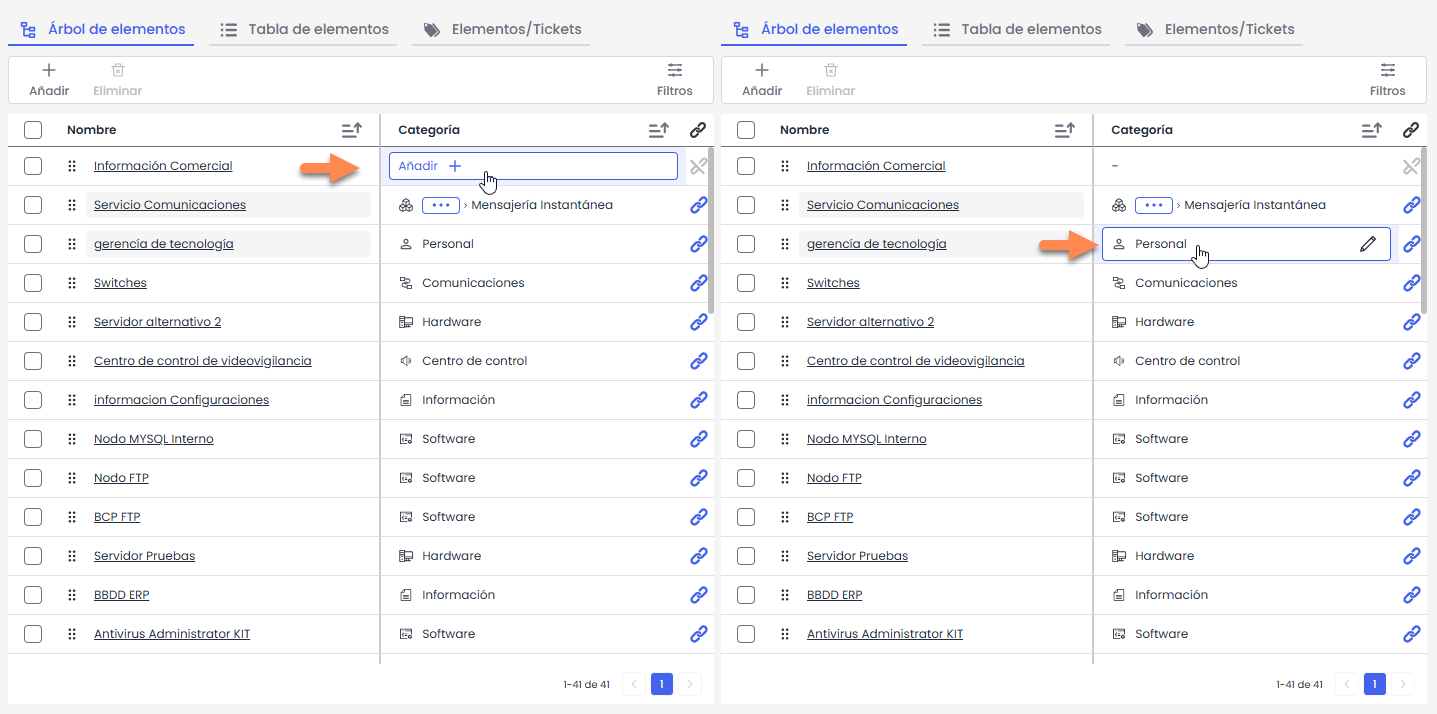
Assign or modify the Category of the item:
-
If the category is empty, the “Add” option will be displayed.
-
If the category is already informed, the pencil icon will be displayed for editing.
-
In both cases, clicking the corresponding option will open a pop-up window where you can select the desired category by double-clicking on the “Category” column.
Item Tree
From the Item Tree view, the hierarchical structure defined for the items is displayed, organized according to the existing dependency relationships between them.
In the “Tree” column, the hierarchical structure is displayed, allowing the expansion or contraction of different levels using the “+” and “–” icons.
The “Dependency” column allows defining the degree of dependency of each item with respect to its superior item. To do this, the corresponding selector must be deployed, and one of the available levels must be chosen (The levels and their percentages are configured in Settings>Items> Dependency Degrees).
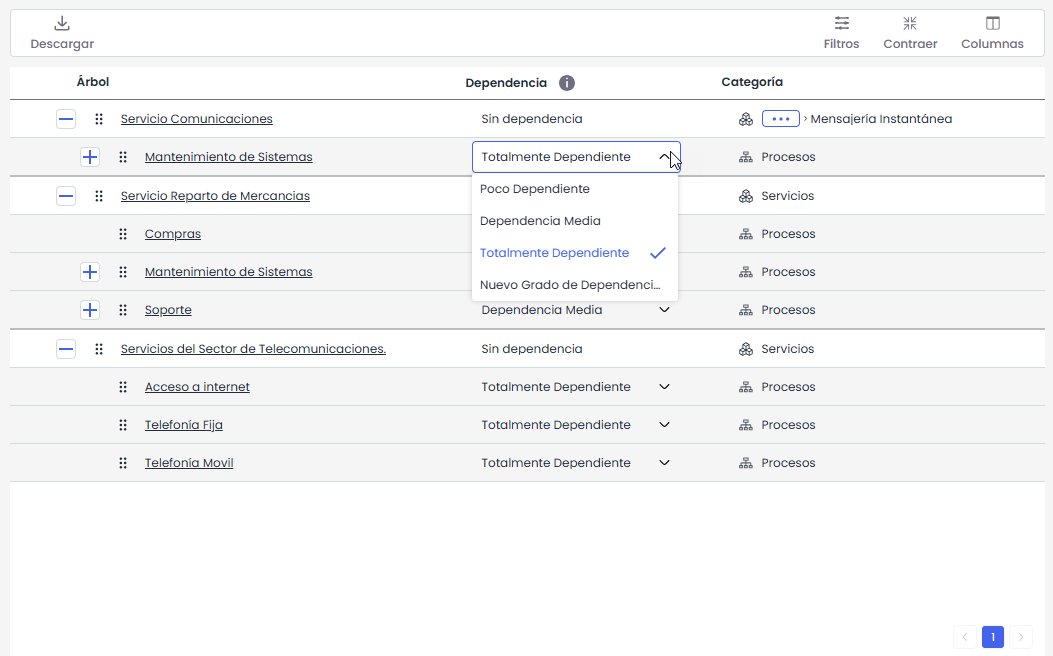
The “Category” column shows the category assigned to the item within the inventory.
The main activity of this tab is the modeling of dependencies between items, as well as the definition of the hierarchy between Services and Processes.
In the table on the left, the hierarchical tree is displayed, which includes both the structure of Services and Processes and the rest of the associated items. From this view, it is possible to directly configure the hierarchical relationship between Services and Processes, as well as model the dependency of the rest of the items within the tree.
The association is carried out using the “Drag and Drop” functionality. To do this, one or more items from the right table must be selected and dragged onto the tree item (left table) to which you want to associate them.
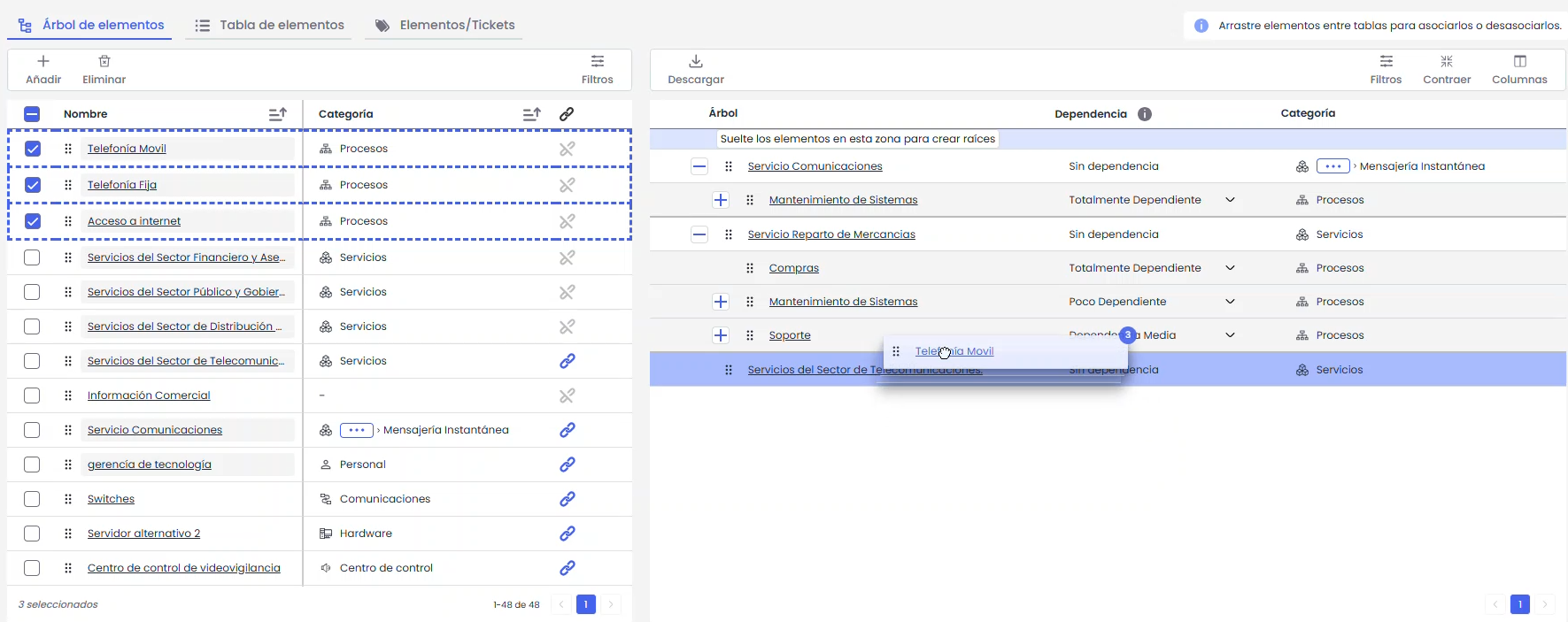
When an item is inserted into a branch of the tree, the icon 
Item Assessment.
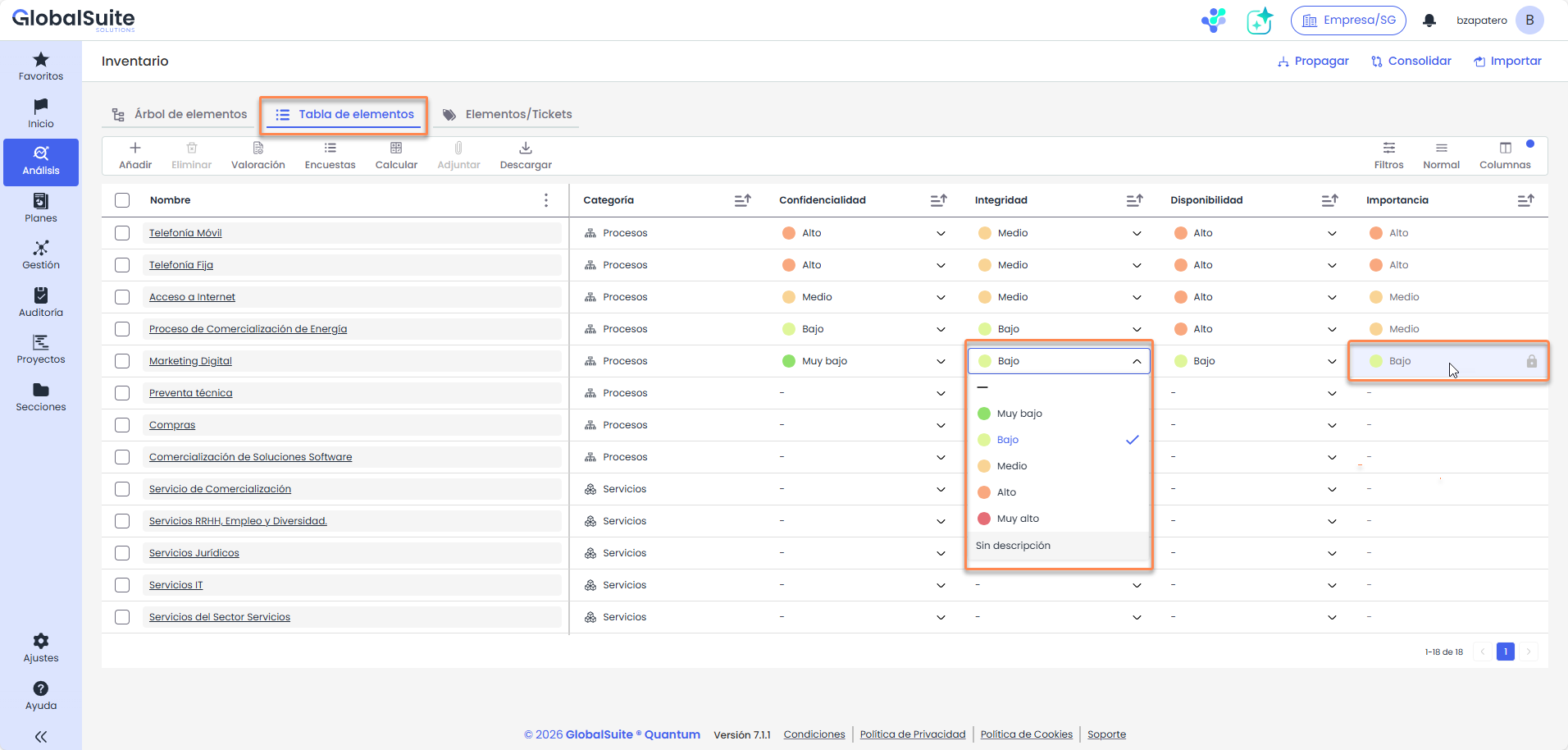
The definition and assessment of items can be performed in the “ Item Table” tab. This tab displays the list of items, allowing the appropriate assessments to be made regarding the dimensions configured, such as Confidentiality, Integrity, and Availability, whose values provide an Importance value (Note: these variables depend on the configuration established for the item inventory in Settings>Methodologies Items ).
To perform assessments on the dimensions of Confidentiality, Integrity, and Availability (dimensions configured as “Manual”), it is necessary to select the row of the corresponding item and click on the corresponding cell, displaying a dropdown with different levels. Selecting the appropriate level in each dimension automatically calculates the Importance variable (according to the configured calculation formula).
From the item table menu, you can:
-
Add/Delete: allows creating/deleting items.
-
General assessment
-
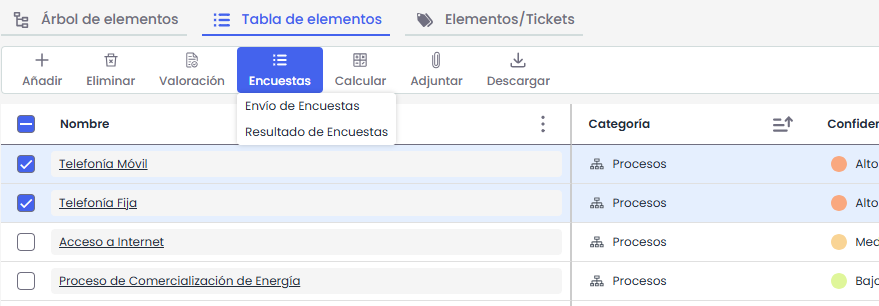
Surveys:
-
Survey Results: allows consulting and managing the results obtained; this option is explained in detail in the survey guide.
-
Send surveys: This option allows, by selecting one or more items, launching surveys from templates and configuring the sending.
-
-
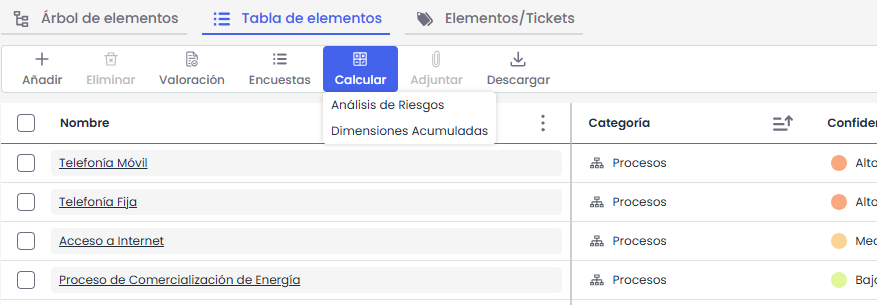
Calculate
-
Calculate accumulated dimensions: performs the calculation of the defined accumulated dimensions based on the dependencies established between the items in the dependency tree.
-
Calculate RA: Performs the calculation of all assessments and modifications made to the risk analysis.
-
-
Attach: This will only be visible if the option Documentation >Visible in item table is marked in Settings>Items, and it will be enabled when one or more items are selected. Clicking the “Attach” button opens the computer's file selector, allowing up to 10 documents to be selected in a single action.
-
Relate Cis: allows relating the configuration items identified in the CMDB with the items included in the Item Inventory.
-
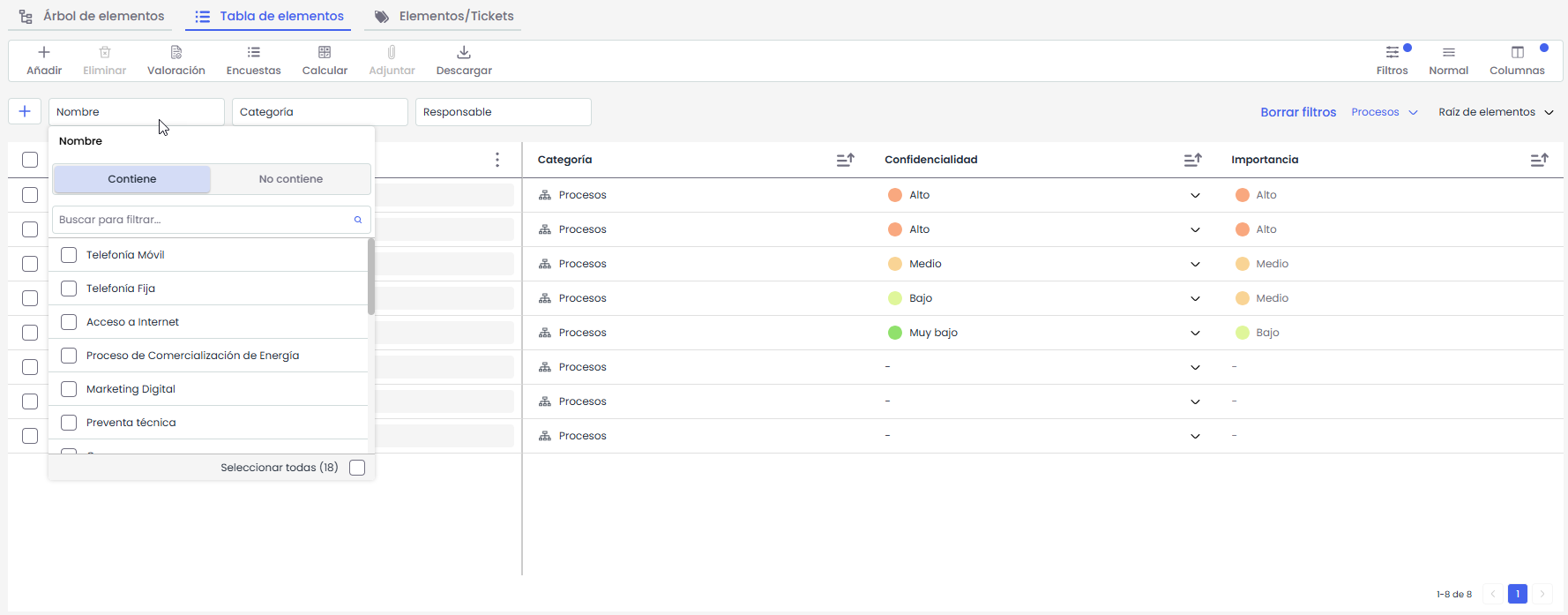
Filters: allows filtering by all table fields. Additionally, on the right are the so-called “Predefined Filters,” which are filters configured from Settings>Methodologies Items , where views can be applied in the item table.
-
-
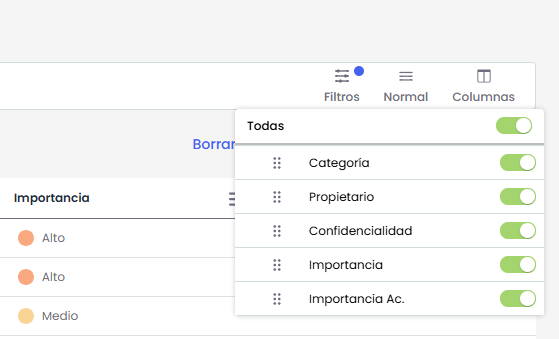
Columns: Option to show, hide, and sort columns
-
Row Height: Allows selecting the height of the table rows to adapt the visualization according to the user's preference.
Clicking the “Row Height” button displays the options Normal, Small, and Comfortable. Each selection dynamically modifies the row height in the table, allowing more information to be displayed on the screen or prioritizing a more comfortable reading, depending on the need.
-
Import: allows loading a list of items using the format found in the download button.

-
Download: Allows downloading the inventory into a file that includes both the existing data and the model necessary for future imports. Additionally, if templates are configured and visible in the Item Table, they will also be included in the download.
General Assessment
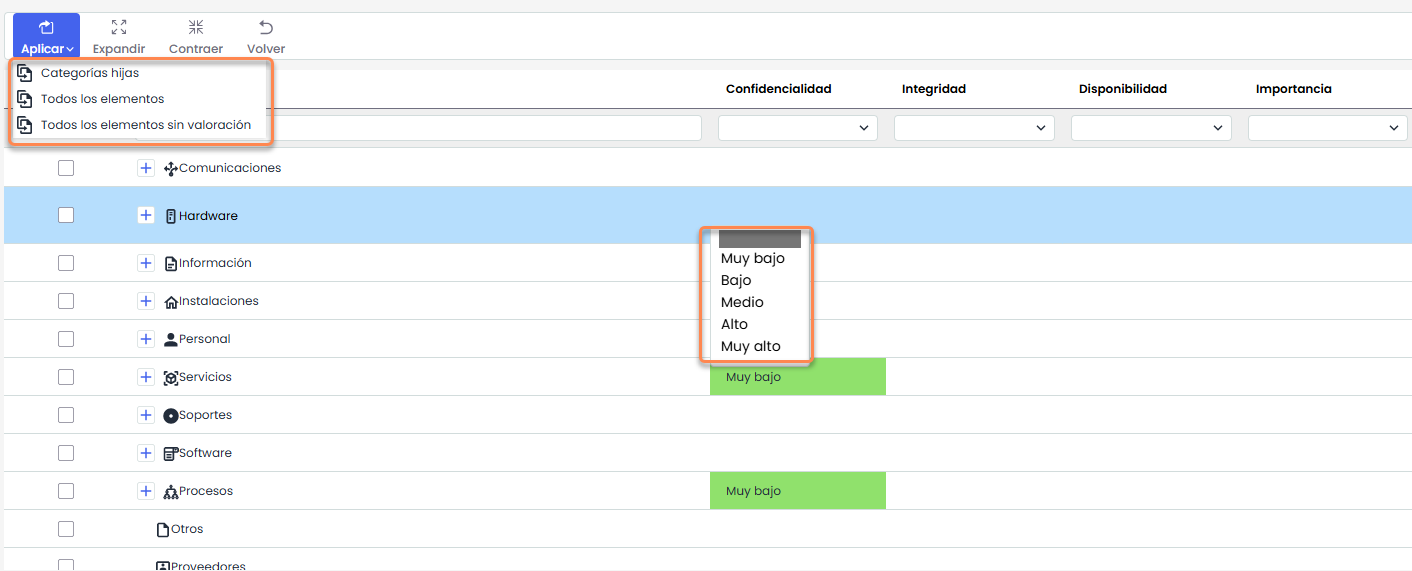
In addition to the specific assessment of the dimensions of Confidentiality, Integrity, and Availability (dimensions configured as “Manual”) for each item, it is also possible to perform an assessment of one or more dimensions globally if any of the dimensions have a common assessment for items of the same category.
Access the General Assessment view of items from the “Item Table” tab using the “ General Assessment” button.
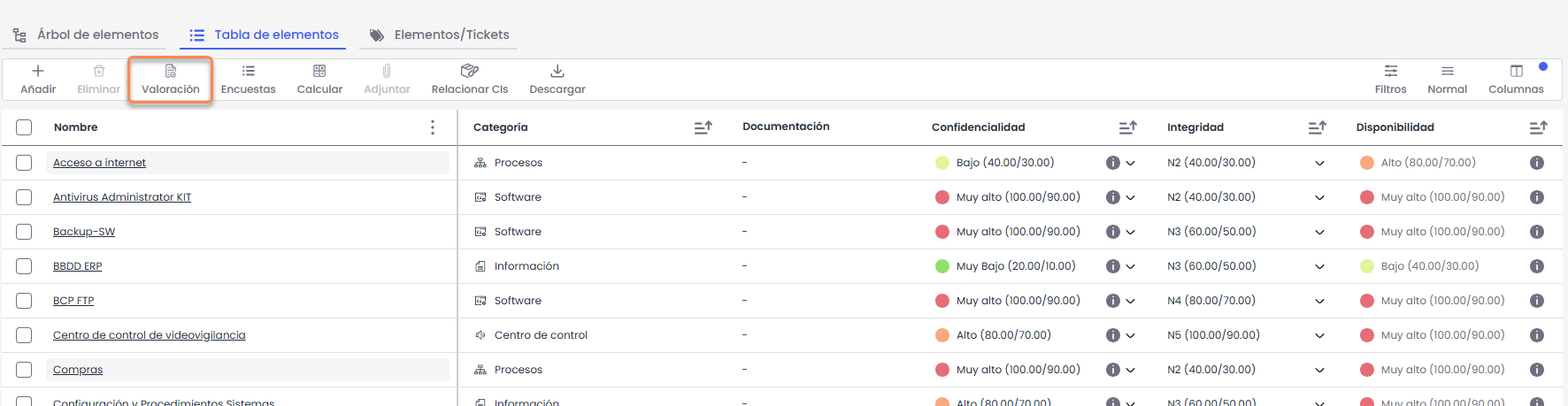
In the General Assessment view, Confidentiality, Integrity, and Availability can be defined for each item category.
This assessment can be applied to all items in that category or lower categories, as well as indicate whether it should be applied to items that have not yet been assessed (All items without assessment) or overwrite existing assessments for items with those categories.