This tutorial explains how to configure and manage the CMDB in GlobalSuite®: from accessing the module and creating/importing items, to their relationship with inventory assets, viewing the relationship graph, and using the detail tabs (data, relationships, processes, history, and baselines). The goal is to maintain a reliable repository of configuration items (CI) and their dependencies to support ITSM, risk analysis, and change control.
Introduction
GlobalSuite® enables the configuration management process through the establishment of a CMDB aligned with the organization's item inventory. It allows for the comprehensive registration of configuration items, as well as the relationships between them. Additionally, all incidents, problems, and changes associated with each item can be consulted in a centralized manner.
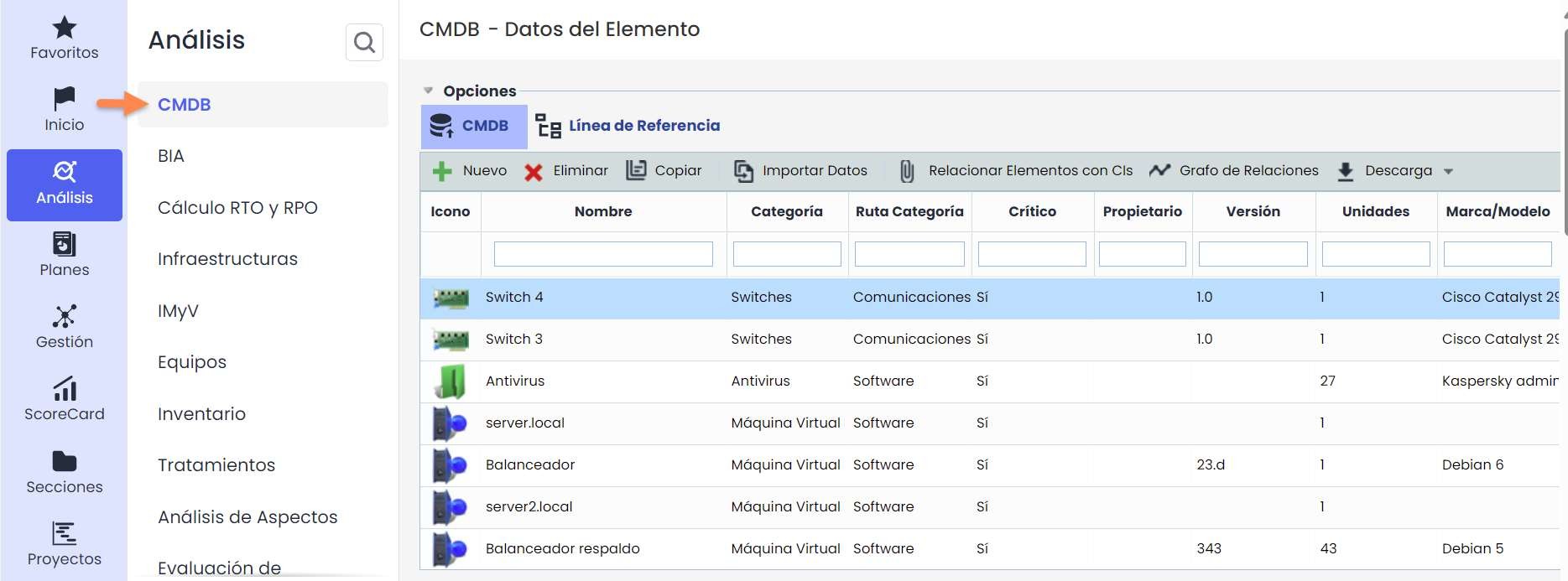
The functionality of GlobalSuite® that allows CMDB management is located in Analysis > CMDB. It is positioned first in the tool's left menu.
Step 1
When accessing the CMDB section, a list is displayed with all the configuration items stored in the database.
Step 2
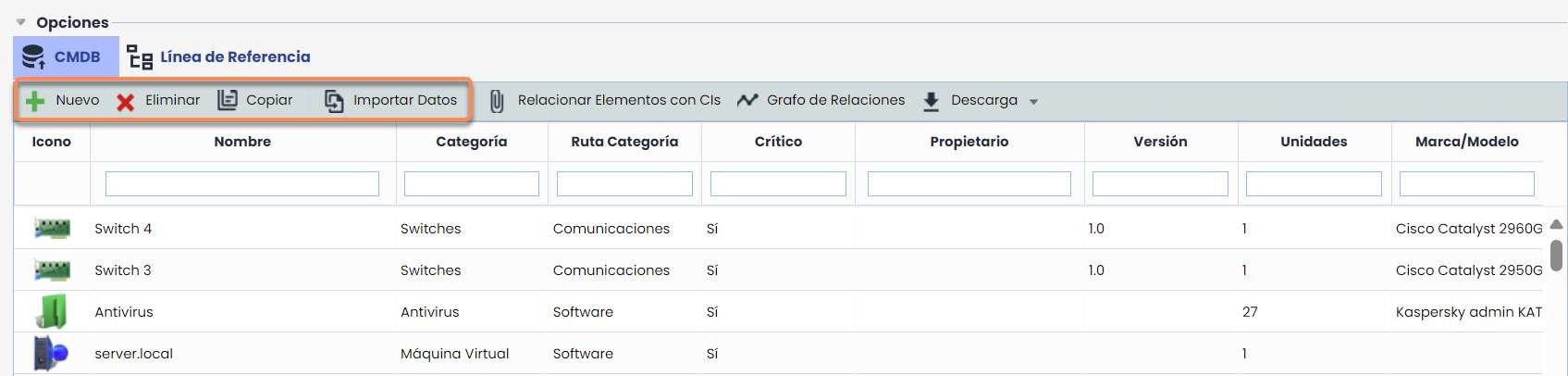
The options provided by the tool are as follows:
-
New: Allows adding a new item to the database.
-
Delete: Allows deleting one or more items stored in the database. To do this, select the desired row or rows and press the "Delete" button.
-
Copy: Enables creating a new item with all the attributes of the selected item, except for the services and files that have been uploaded.
-
Import Data: Allows adding multiple items through a ".csv" file.
Relate Items with Assets
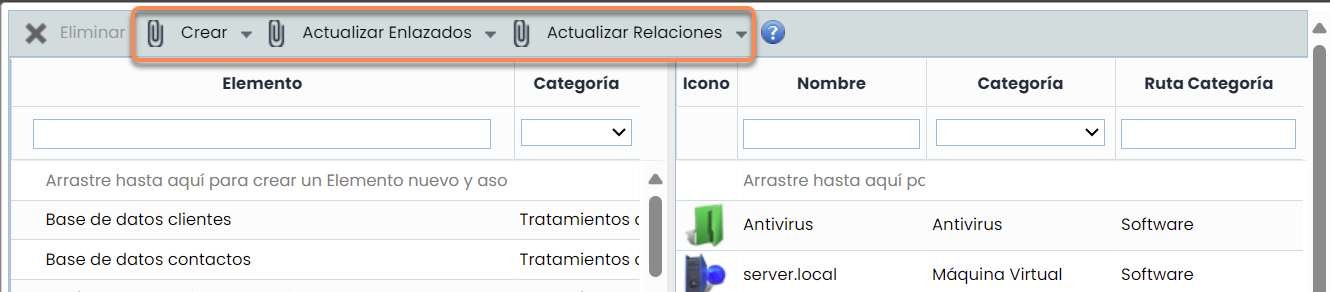
Allows incorporating the desired configuration items into the Analysis > Inventory option to perform risk analysis on those items. To do this, select the configuration item in the right column and drag it to the left column. The list of assets shown in the left column is the same as the one displayed in the "Analysis > Inventory" section.
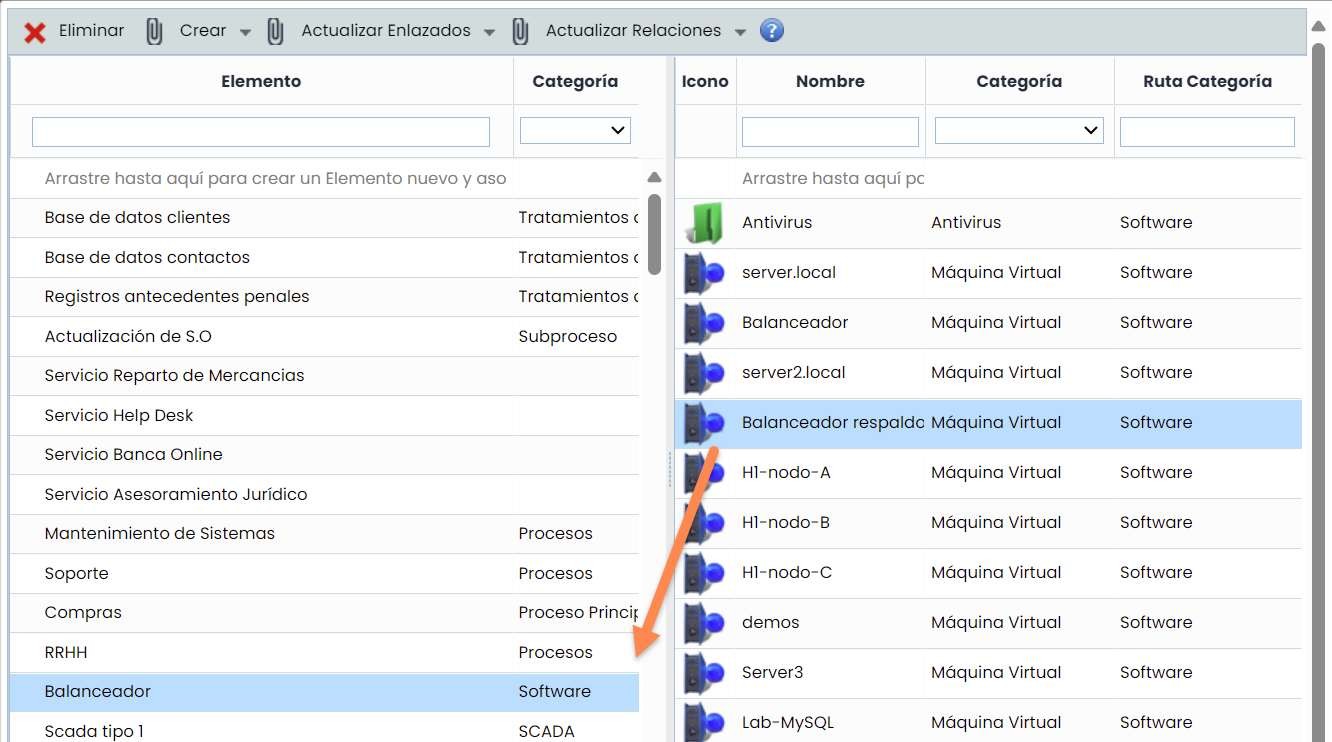
In the header of the "Relate Items with CIs" window, the following options are available:
-
Create Items from CMDB: Creates an Item in the Inventory for each CI that does not have linked items (that are only in the CMDB).
-
Create CIs from Inventory: Creates a CI in the CMDB with the item's name as the main field of the CI and its category.
-
Update Linked - CIs CMDB: Updates the main field and category information of the CIs that have only one linked Item with its data.
-
Update Linked - Items: Updates the name and category of the Items that have only one linked CI with its data.
-
Update Relationships - Item Tree from CMDB: Updates the dependencies between items by adding and removing dependencies based on the associated CIs.
-
Update Relationships - CMDB from Item Tree: Updates the relationships between CIs by adding and removing dependencies based on the associated Items.
Relationship Graph
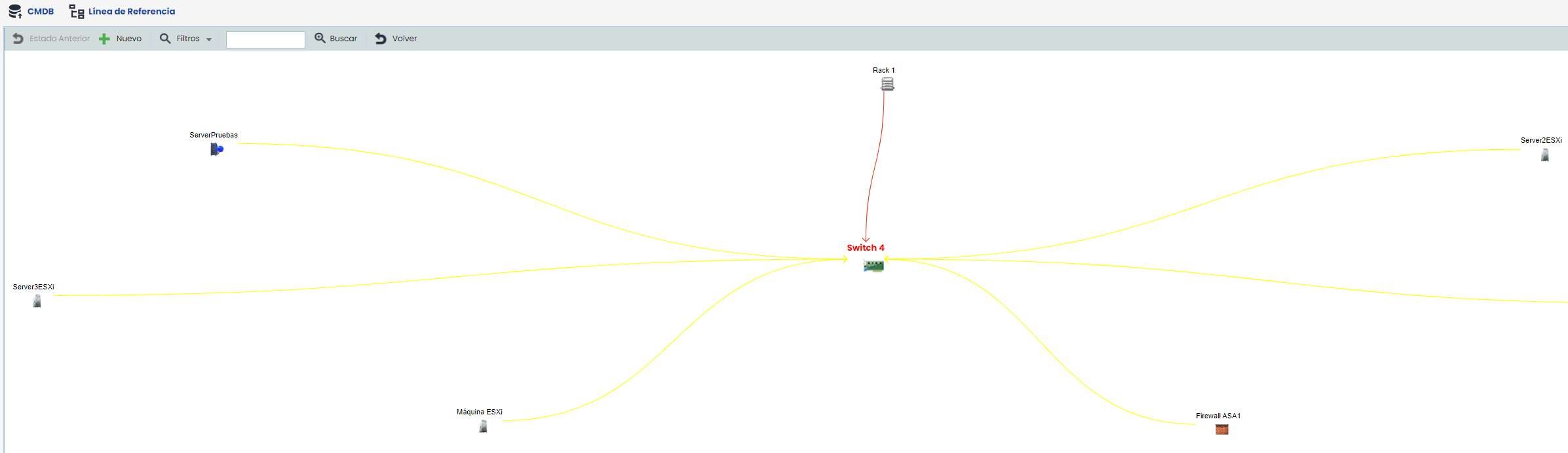
Allows visualizing the relationships of the selected item graphically.
Relationship Graph
-
New: Allows adding a new configuration item to the graph.
-
Filters: Allows applying filters to visualize the different relationships of the selected item. Level 1 shows the item's relationships with the most direct ones. Level 2 shows the relationships of the selected item with the most direct ones and the relationships of the latter with their own, and so on. The Related filter shows all the CMDB items that are related to each other, and the All option shows the list of all CMDB items, whether related or not.
-
Search: Allows searching for a configuration item in the graph.
-
Back: Allows returning to the main screen, where the list of configuration items is displayed.

Lower Tabs
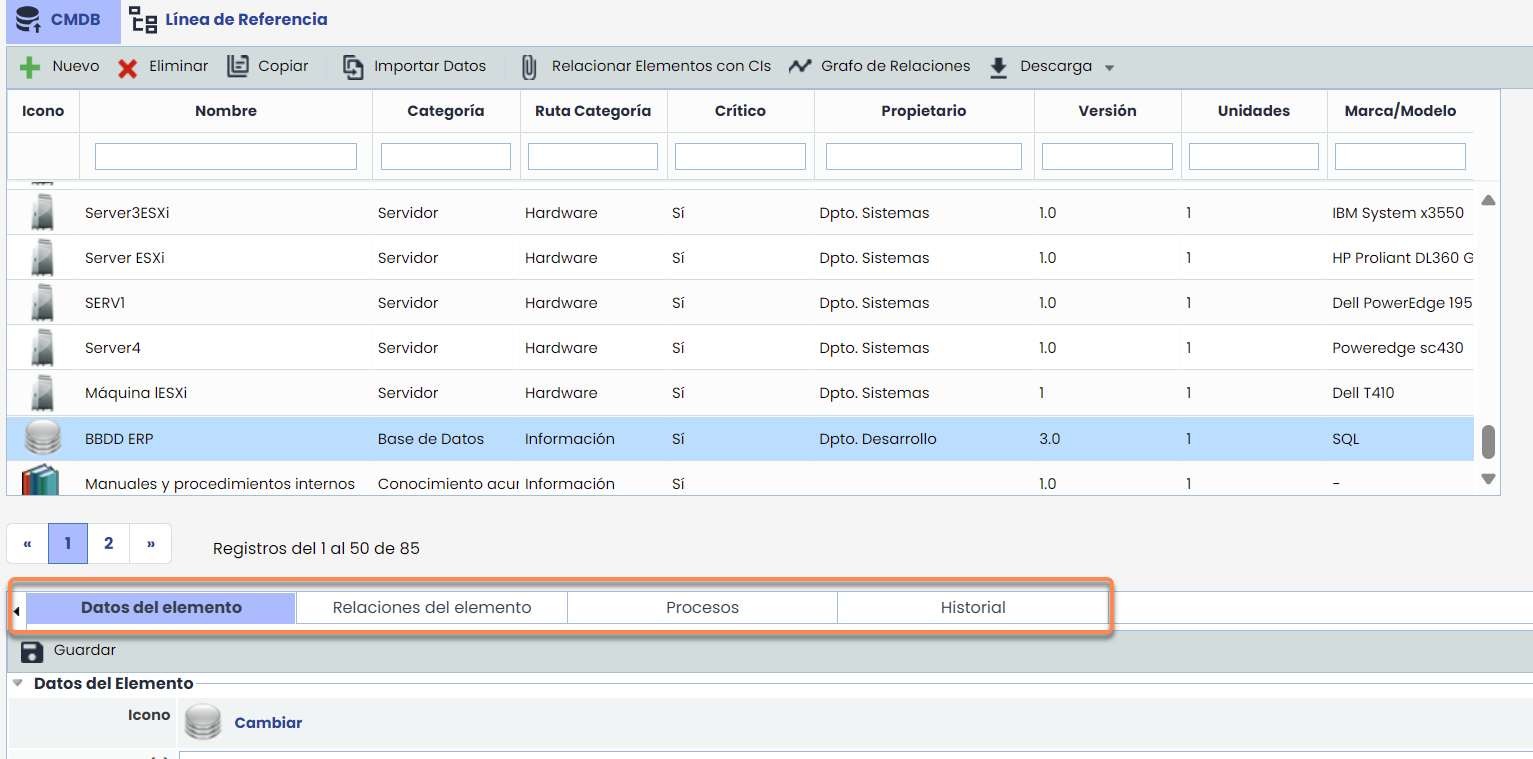
By clicking on an item in the list, a series of tabs are loaded at the bottom that allow editing information related to the configuration item.
Item Data
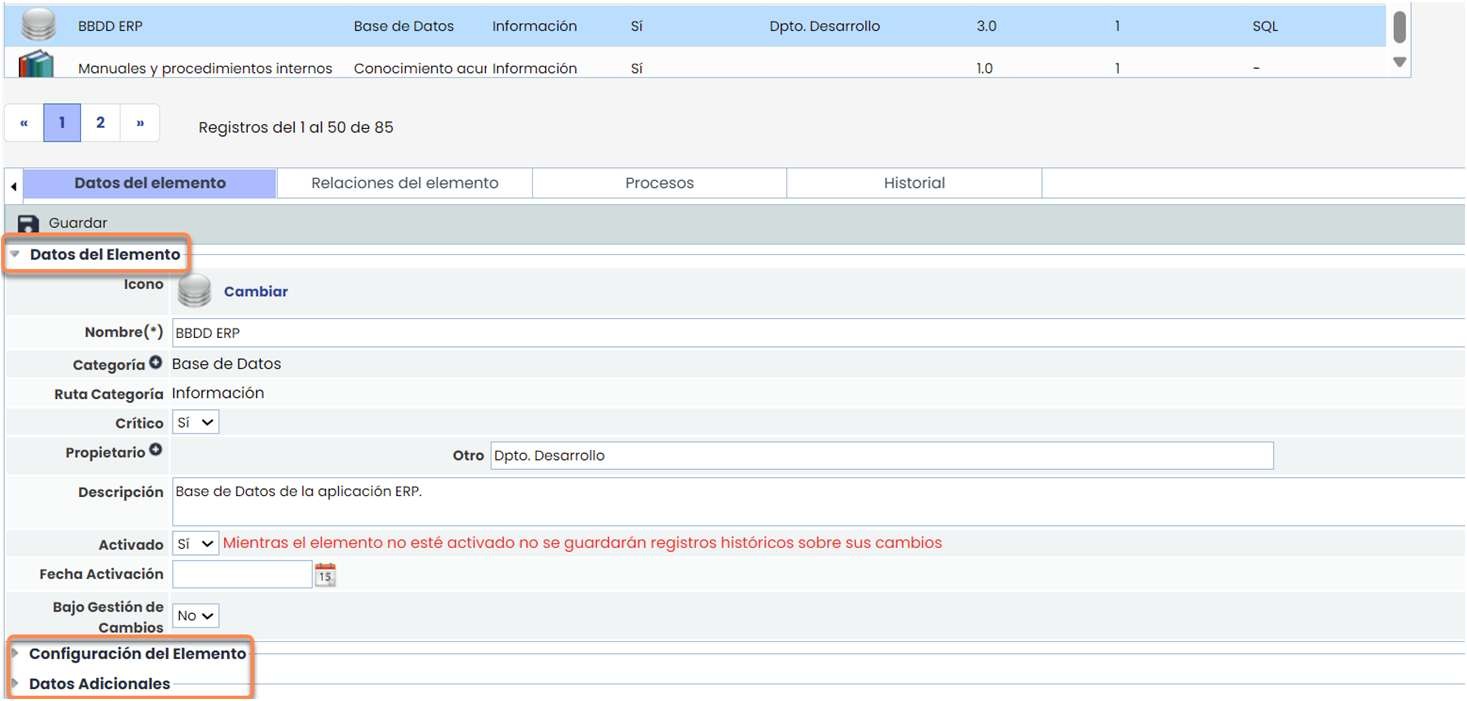
Allows detailing the specific information of the selected item in the table. It is divided into three sections:
-
Item Data
-
Item Configuration
-
Additional Data
Item Relationships
Allows establishing the different relationships between items stored and activated in the CMDB.
To do this, press “Add,” select the desired item in Source, followed by the type of relationship in the dropdown, and finally indicate the item with which the relationship is established in Destination. Once the desired parameters are set, press the “Add” button, which generates a new relationship row.
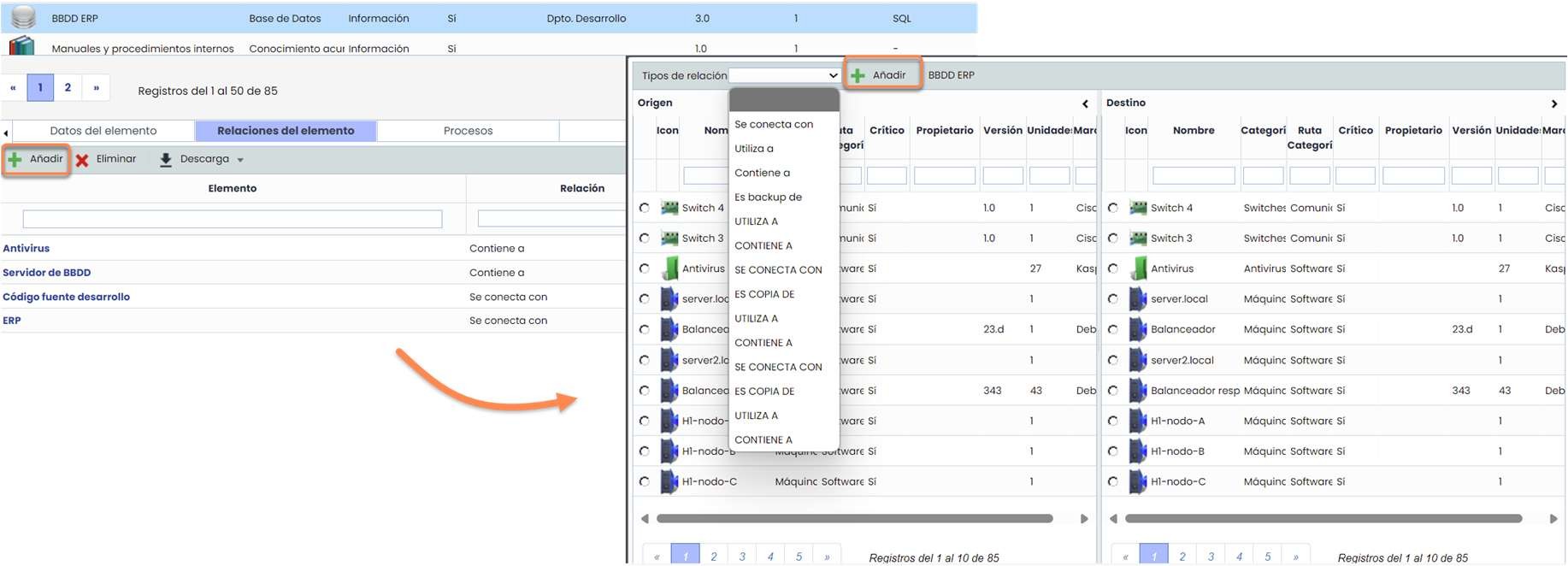
• The item's relationships can be modified in “Settings.”
Processes
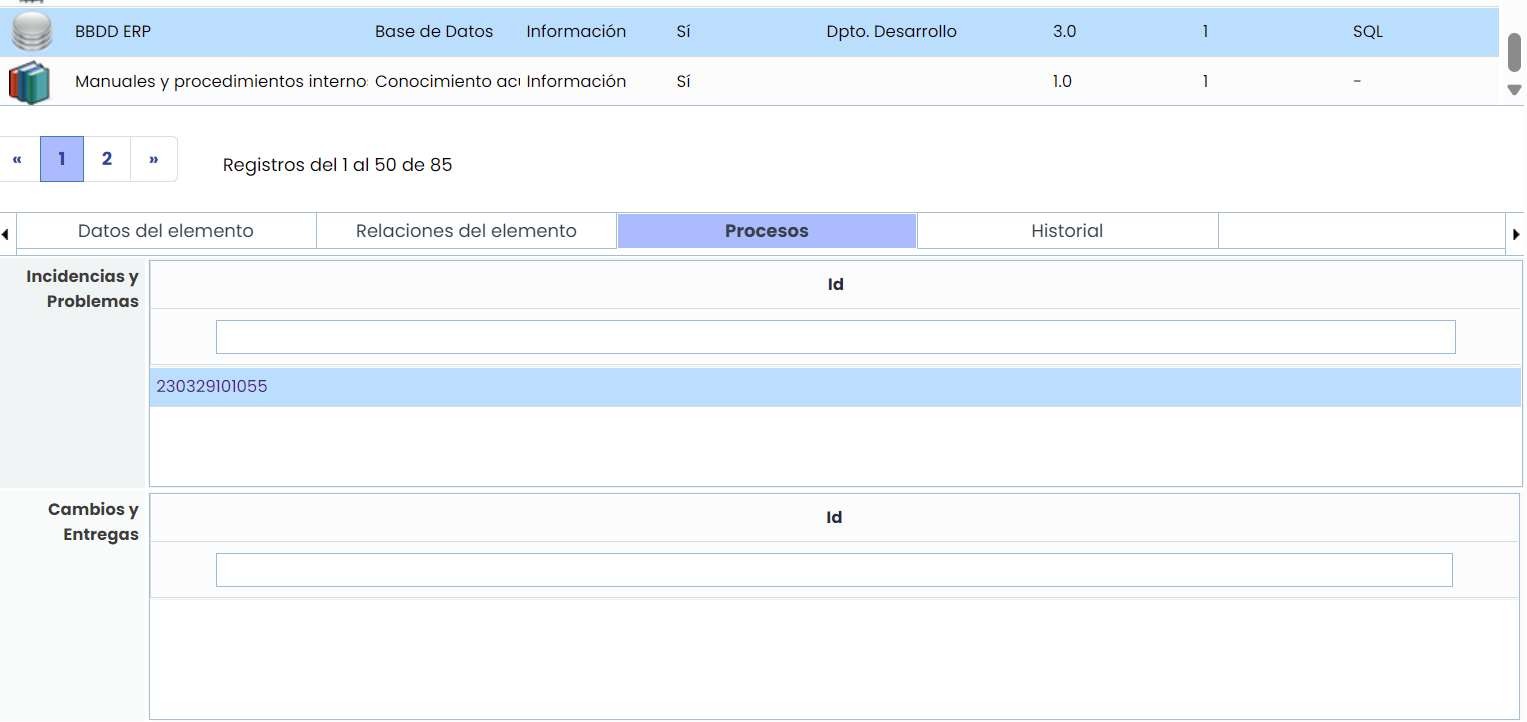
Specifically displays those incidents that have occurred and have the selected item as the affected resource. To do this, the automatic control of incidents, problems, and changes must be established in the “Settings” option, and the corresponding tickets must be registered in GlobalSuite.
History
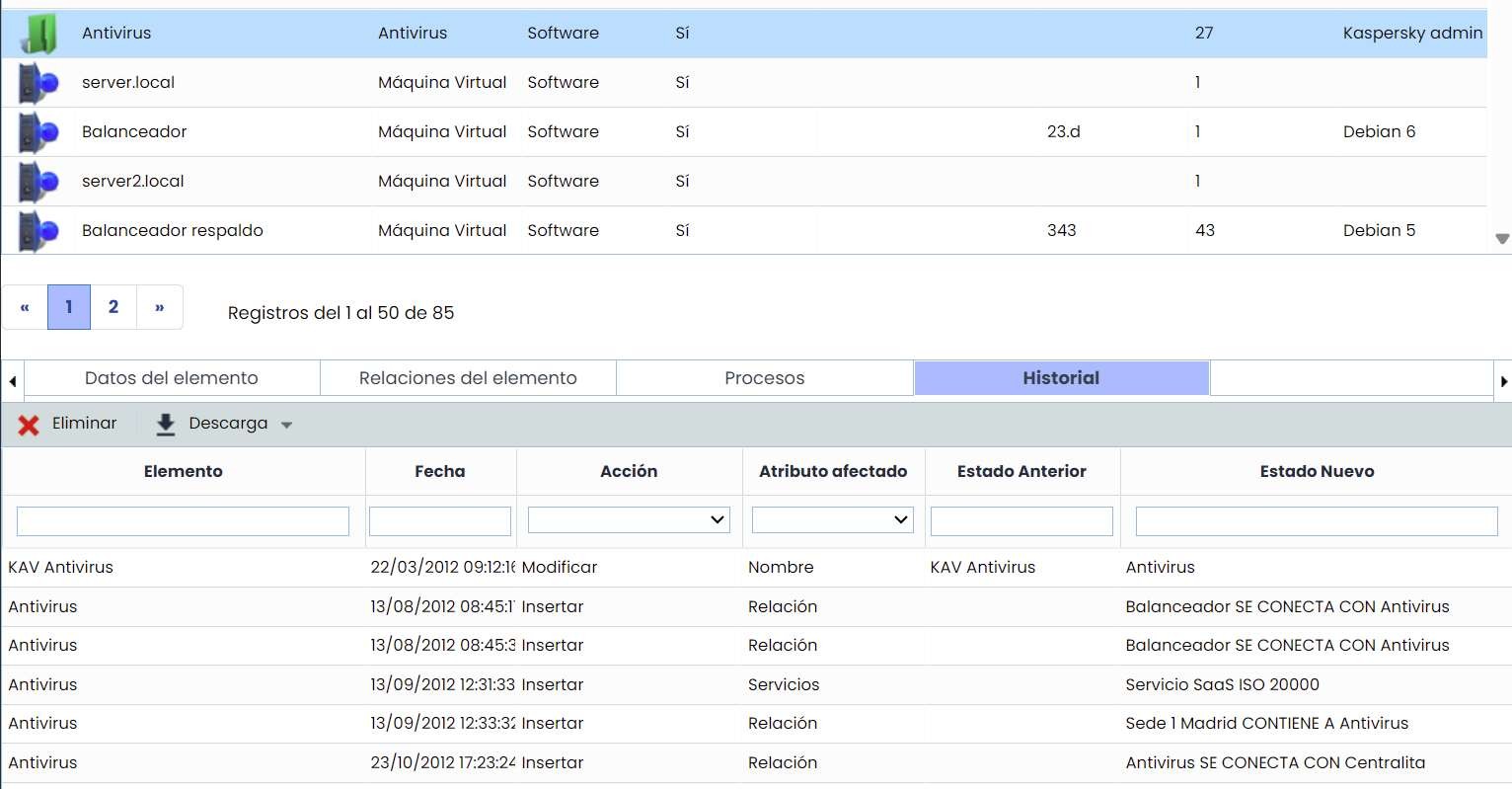
Displays an ordered list of the modifications the item has undergone since it was activated.
Baselines
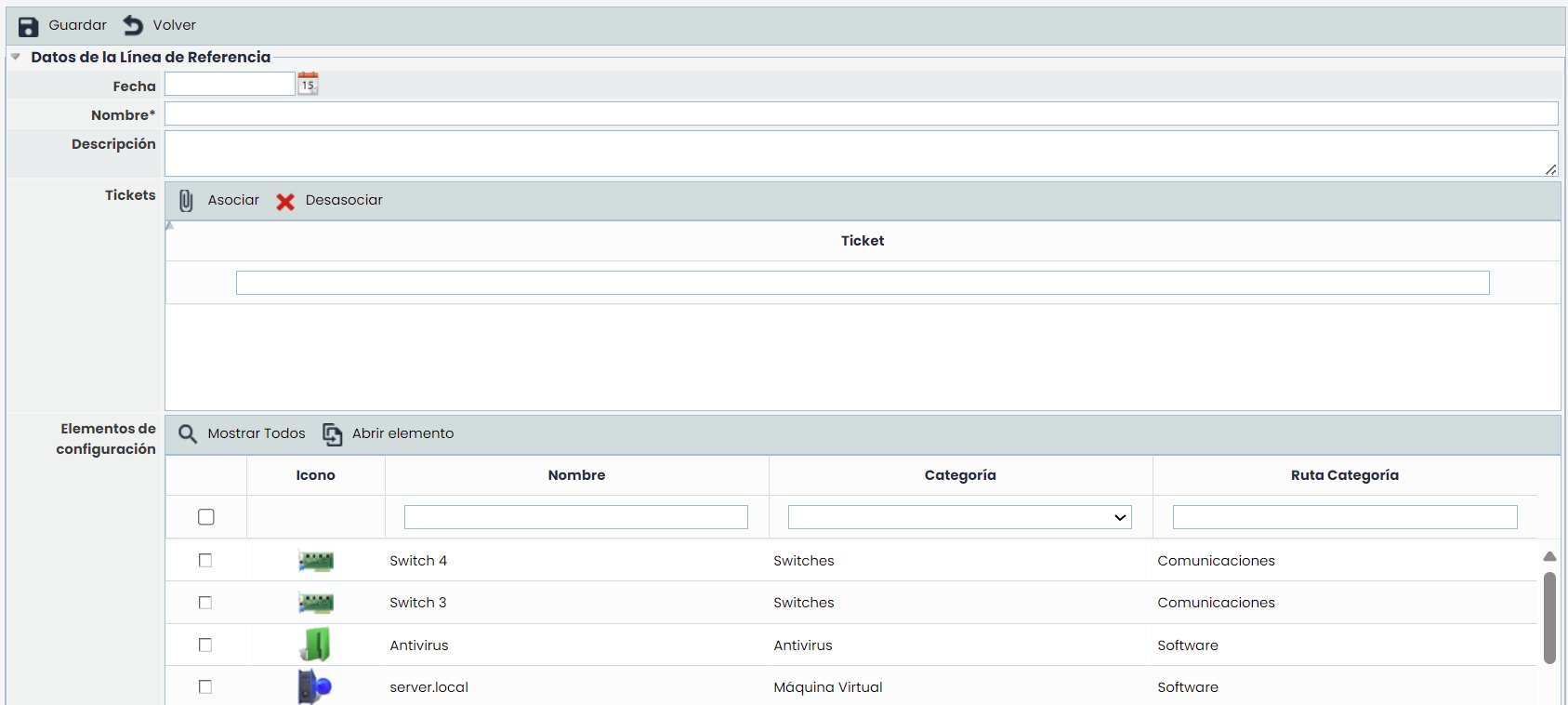
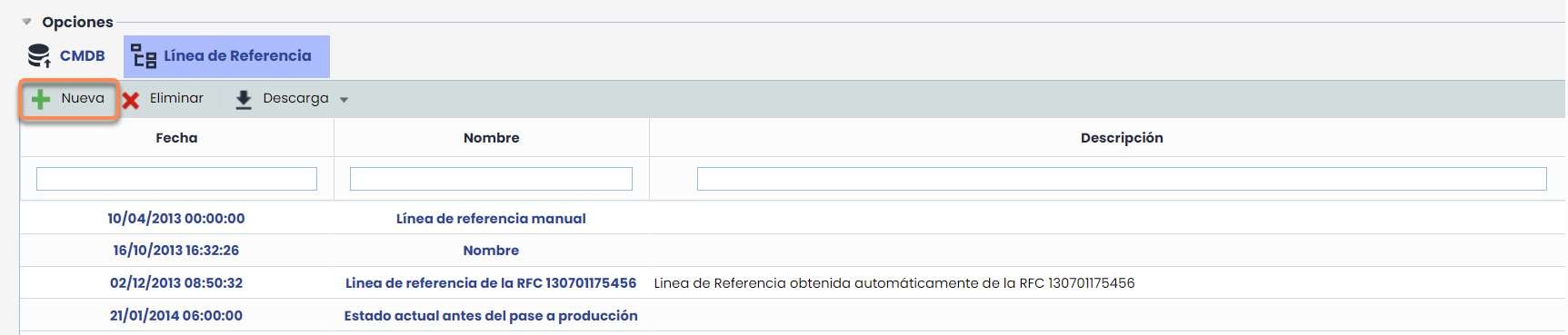
The Baseline option allows the user to generate and store a file with the state of the configuration items at the time of creation. This allows tracking changes in the configuration and relationships of the item after the creation of RFCs.
When the “ New” button is pressed, a form is accessed to enter information related to a baseline.
-
Information related to the date, name, description, and RFCs associated with the Baseline can be entered.
-
Additionally, the list of configuration items that will be part of the Baseline can be selected.
-
Once the information is filled in, the “Save” button must be pressed, and this baseline will then be accessible from the list.