
This option allows the user to define, catalog, and assess the organization's Artificial Intelligence assets (use cases, AI systems, datasets, and models), facilitating their registration and governance in accordance with reference frameworks such as ISO 42001 and the European Artificial Intelligence Regulation (AI Act).
The option is located in the side menu, under Analysis. It is only available for companies that have the AI Governance license.
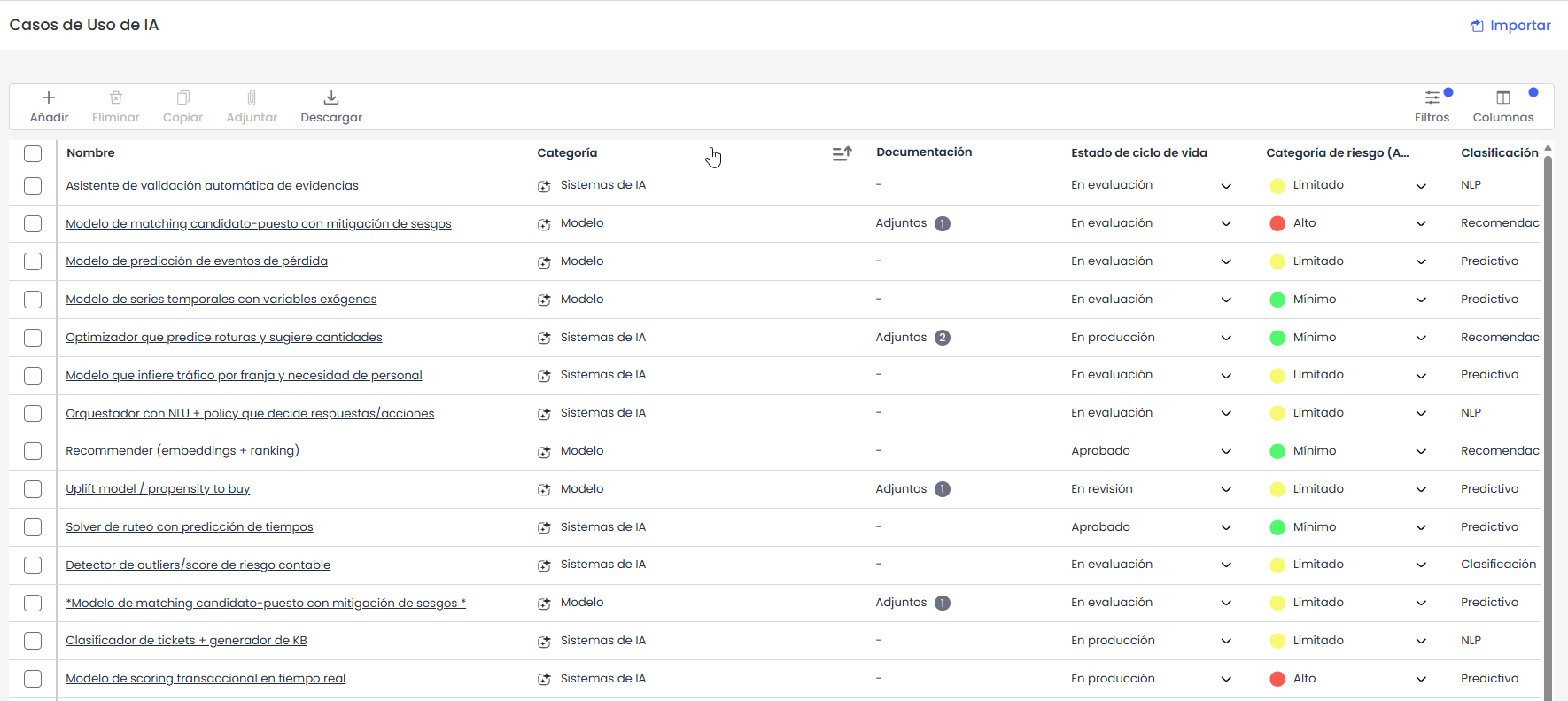
The AI Use Cases table displays the basic data of each asset ( Name, Responsible, Category, and Other Responsible), followed by all the dimensions configured as visible in 'Settings > Methodologies > Items > Table Visibility' for this option. All fields can be edited or completed directly from the table itself, except for the 'Name' field.
The AI Use Cases table allows the following actions:
-
New: Allows inserting a new record into the table. To create a record, at least one category configured with this special type must exist.
If there is only one category of this type, it will be assigned by default to the new record; if there are multiple, the first one will be assigned by default, and it can be modified later from the table.
This new item will also be displayed in the Analysis> Inventory option. -
Delete: Allows deleting a record from the table by selecting the desired row or rows and clicking the 'Delete' button.
-
Copy: Allows copying a record from the table by selecting the desired row or rows and clicking the 'Copy' button.
-
Options - Import: GlobalSuite enables importing lists of AI use cases in Excel format. The 'Download' button contains a file template with the fields that can be imported into the table.
Then, from the “ Import” option, the import can be performed by selecting the file through the 'Select File' button and clicking the 'Continue' button.
The only mandatory field is the name of the item; the rest of the data can be included or omitted in the import. -
Download (Excel Report): Allows downloading a report in Excel format of the records selected in the table. This option also allows downloading the file template for importing AI use cases. The RAT report is not available in this option.
The options related to import (Import and Download > Import Template) will only be visible if the company has the Data Import license.
Associate and Attach Documentation
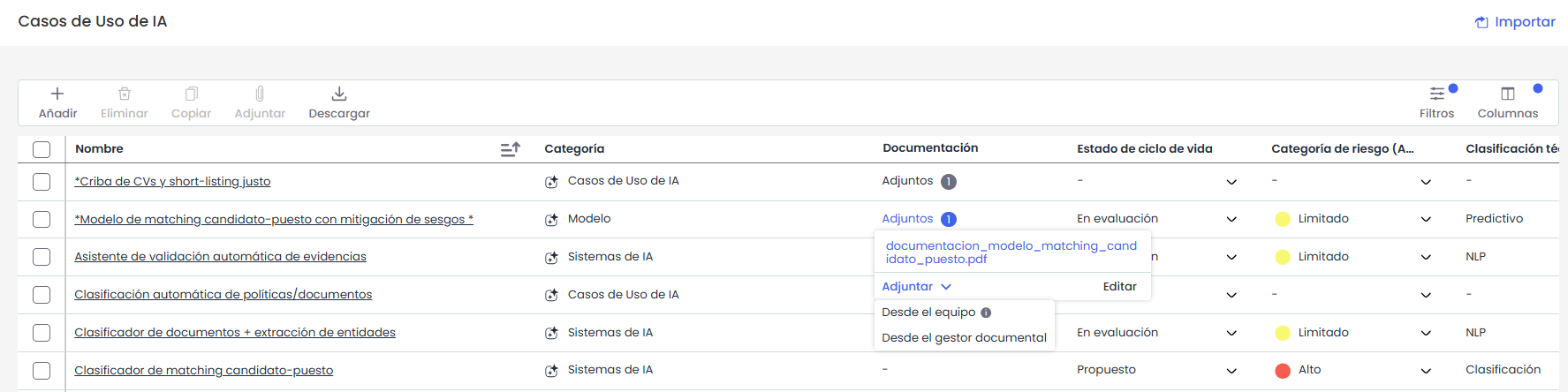
By enabling the visibility of documentation in the table, it will be possible to incorporate documentation from two sources:
-
Attach Documents from Local Device: Documents can be attached directly from each user's local device, simplifying the incorporation of new relevant documentation.
-
Associate Documents from the Document Manager: Documents previously stored in the Document Manager can be associated, as well as disassociated when necessary. This centralizes and facilitates access to all relevant documentation.
All attached documentation will be reflected in the "Documentation" field. From this cell, it is also possible to attach documentation both from the local device and the Document Manager, as in the 'Inventory' option.
Item Record
By clicking on the item's link, the record fields are displayed, allowing the following fields to be filled:
-
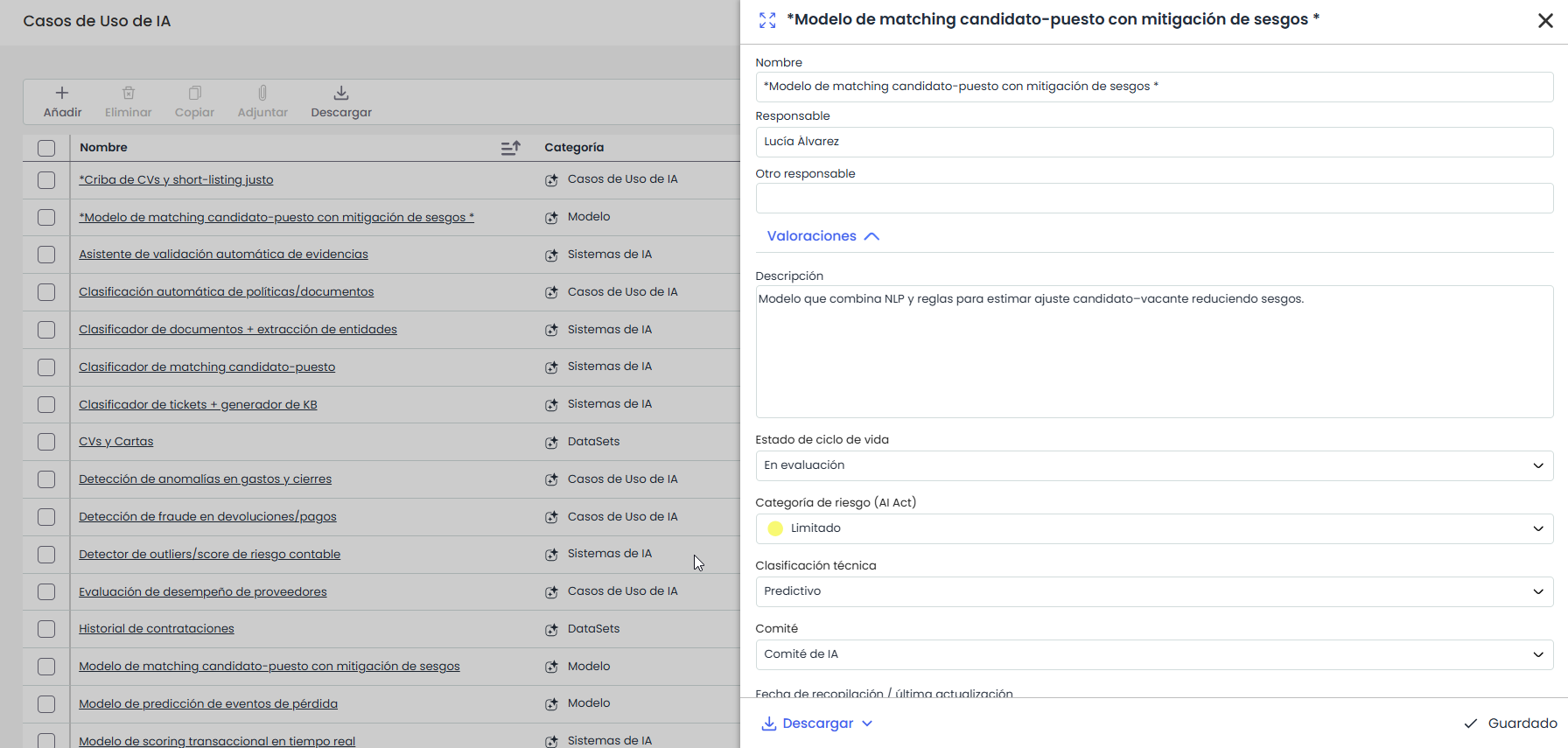
Name: Allows defining the name of the AI use case, system, dataset, or model.
-
Responsible: Identifies the responsible party for the asset within the organization. This responsible party can be selected from the set of Employees (see section in the Management tab).
-
Other Responsible: Identifies the responsible party for the asset within the organization, allowing it to be defined textually.
-
Remaining Fields: Next, all dimensions or fields configured for this option can be filled. The tool displays those dimensions marked as visible in 'Settings > Methodologies > Items > Form Visibility' for 'AI Use Cases'.
If the visibility of documentation is enabled, the record will also display the Documentation section, from which documentation can be attached and associated.