
The Surveys option in the toolbar of the Risk Assessment tab contains two options: Send Survey and Survey Results.
This allows sending surveys to the responsible parties of the items in the analysis and consolidating their responses. Thus, risks and controls are assessed with information from those who know them best.
Send Surveys
This option sends surveys to the responsible parties of the selected items so they can assess their risks and controls.
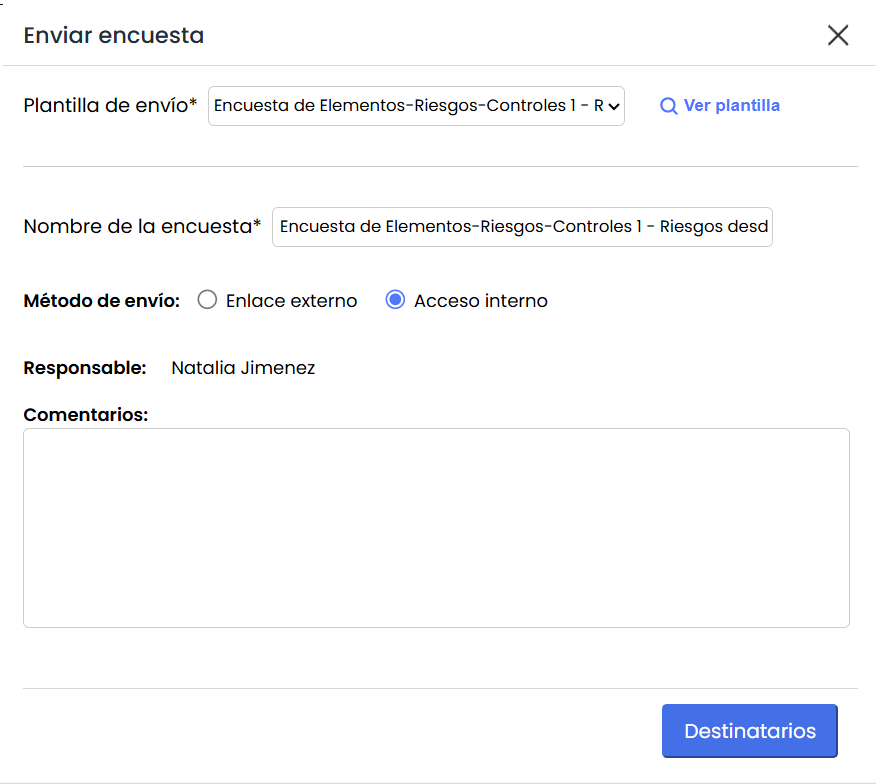
By selecting one or more items in the table and clicking Surveys > Send Survey, the Send Survey window opens.
-
Sending Template: All templates created for Risk-Control or Item-Risk-Control surveys are listed. Templates whose risk source is "Risk Analysis" will be included, while those with the source "Catalog" will only be displayed if they have an associated analysis.
-
View Template: Opens the template details in Survey Configuration
-
Survey Name: The template name is displayed. It can be modified, but this does not change the template name, only the name of the surveys to be sent.
-
Sending Method:
-
Send Surveys Internal Access: Sends the survey without publication
-
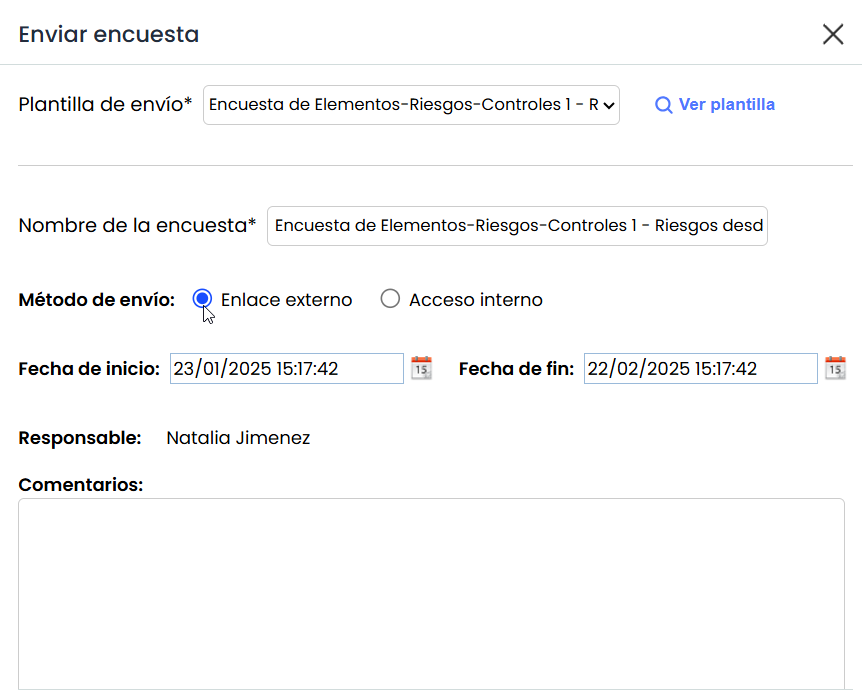
Send Surveys External Link: Sends the survey with publication
-
In this case, the Start Date and End Date fields are displayed.
-
-
-
Responsible: The responsible party configured in the Template.
-
Evidence Documentation: This field is only displayed when selecting Risk-Control or Item-Risk-Control templates whose model has the option "Include evidence documentation" checked.
When selecting " Associate folder", it allows selecting the location in the Document Manager where the evidence associated with the controls evaluated in the survey will be uploaded. Document uploads follow the same workflow validations and visibility rules defined in the survey configuration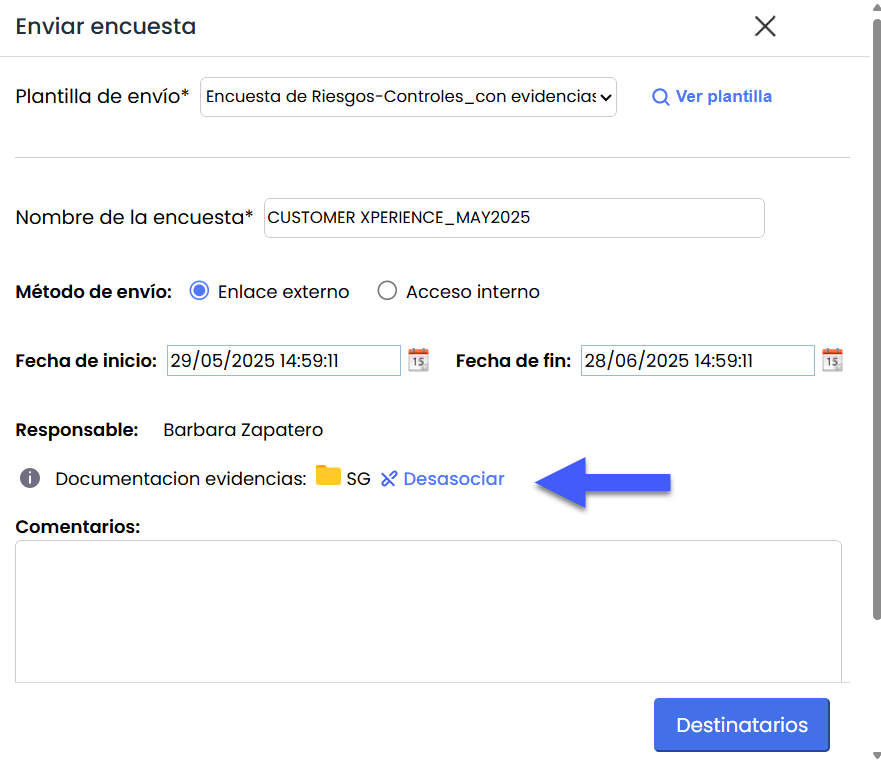
-
Comments: This section displays the text associated with the template, which can be edited. This text will be visible on the landing page of completed surveys. If the field is left empty, a default text will be automatically added.
-
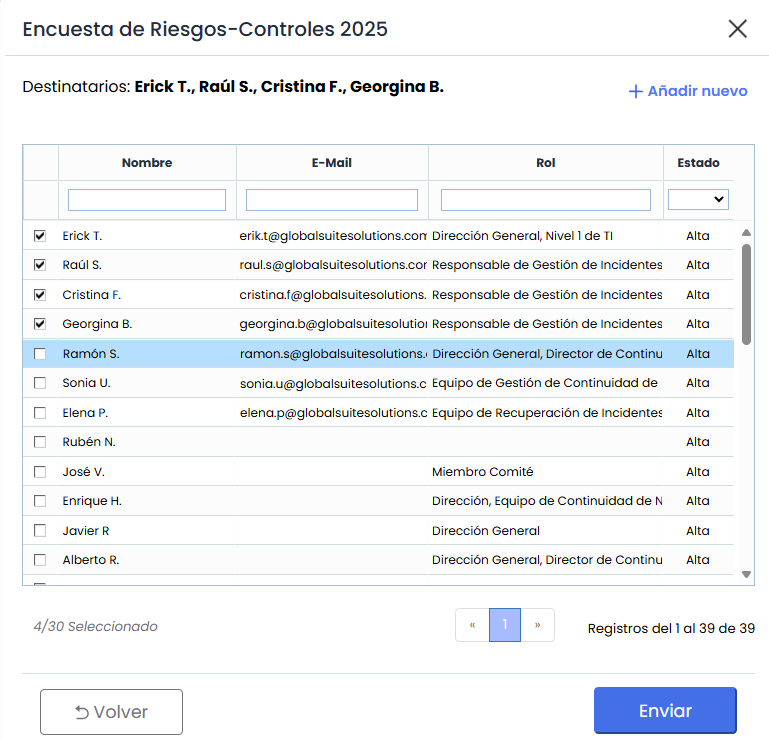
Recipients: In this section, survey recipients can be selected. This field may be pre-filled if the template includes it. If the field is empty, it will automatically be assigned to the responsible party of the item, provided all items have the same responsible party. If this condition is not met, the field will remain empty, and at least one recipient must be selected to enable the "Send" button.
-
Add New: If it is necessary to include a recipient who is not an employee of the company, their email address can be manually entered to add them.
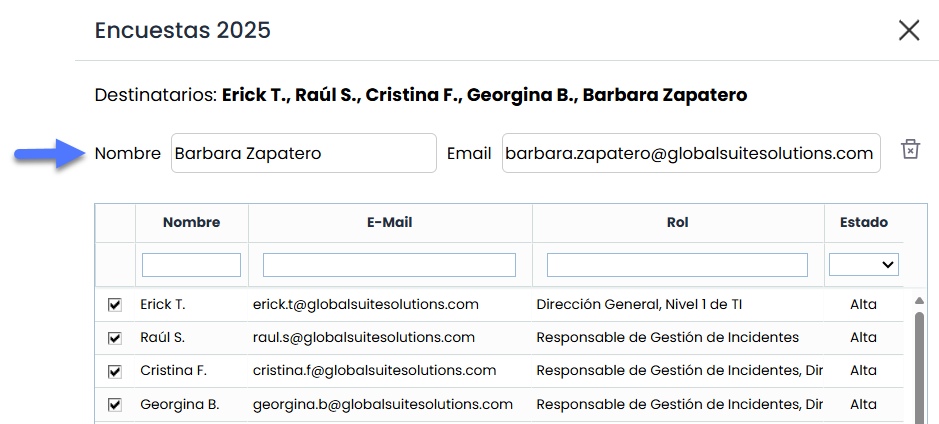
-
-
Recipient and States: If the survey includes states, the recipient table will be pre-filled according to the template configuration. If no recipients are assigned for the first state, which is mandatory, the responsible party of the item will be automatically taken, provided all selected items have the same responsible party. If this condition is not met, the field will remain empty, and at least one recipient must be selected for the first state of the flow to enable the "Send" button.
-
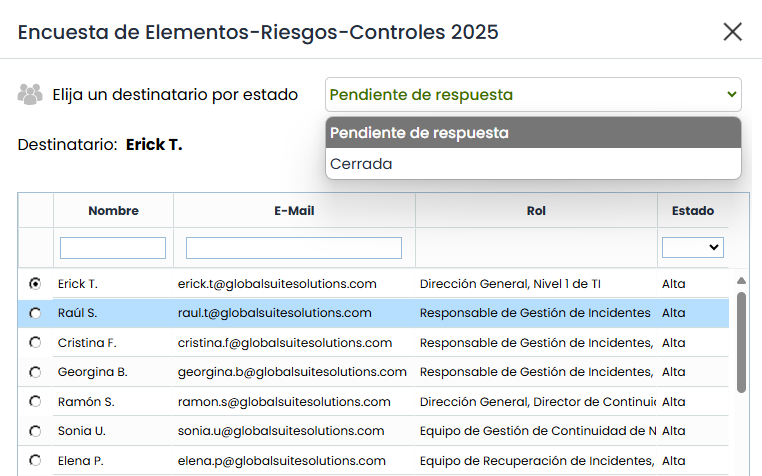
The table changes according to the selected state
-
-
Survey Sending: When pressing the "Send" button, the system performs the following actions:
-
Configuration Creation: The corresponding configuration for the survey is generated.
-
Survey Generation: The system creates a survey for each recipient, linked to the selected items from the analysis.
-
Source "Risk Analysis": Risks and all controls linked to those risks in the risk analysis will be associated with each item.
-
Source "Catalog": Only the selected risks matching the category will be associated with each item. If the item's category does not match the risk's category, it will not be included.
-
-
Publication: If the sending method is "External Link," the system also creates the publication that includes the surveys.
-
Survey Results
This option allows consulting and consolidating the risk and control assessments received in Item, Risk, and Control surveys.
To consult them, select an item from the table and click Surveys > Survey Results
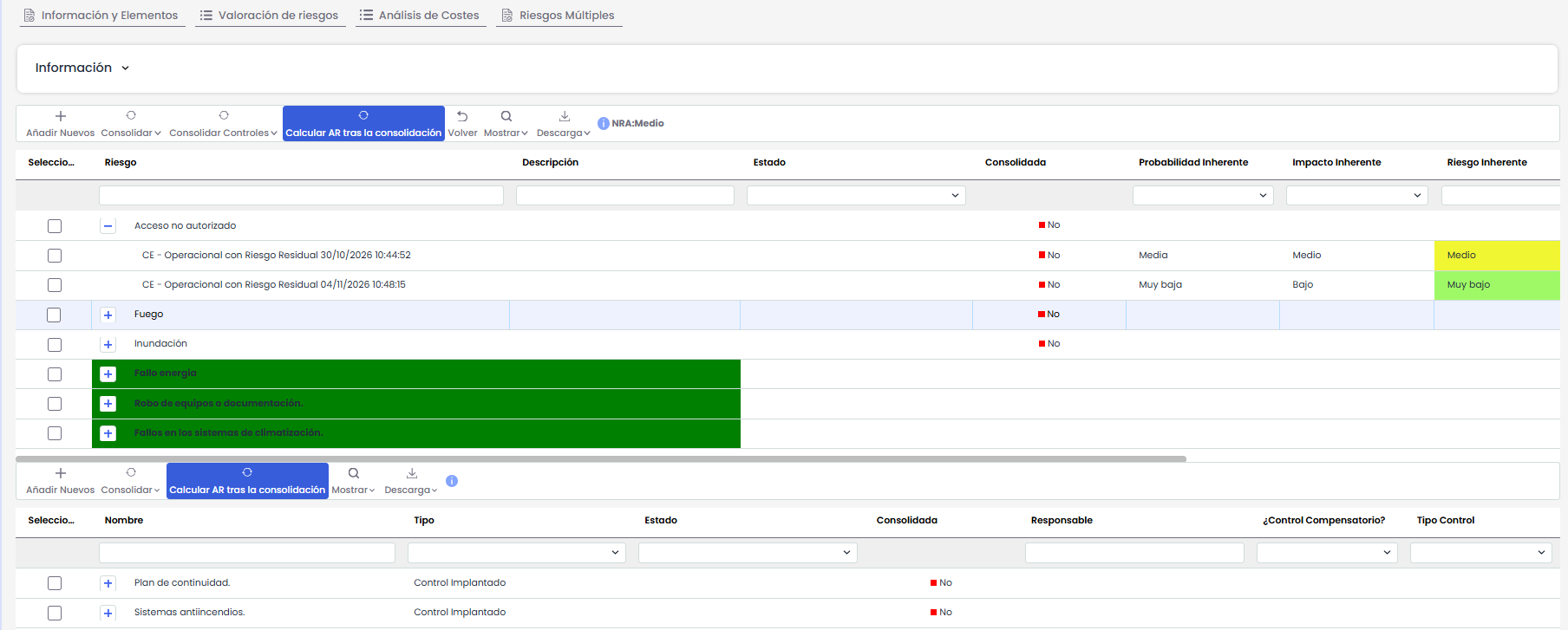
The survey table displays the following information:
-
Methodology Fields: Data of the assessed risk, such as Threat, Vulnerability, and Comment. The columns depend on the fields configured in the risk methodology.
-
State: Survey state.
-
Consolidated: Indicates whether the survey has been consolidated. By default, non-consolidated surveys are displayed.
-
Dimensions: Value recorded for each dimension of the methodology.
The options available in the tool for the table are as follows:
-
Add New: Allows inserting new threats identified in the surveys into the asset's risk analysis. Newly identified threats are highlighted in green, and the tool allows selecting which threats to add and which not to add.
-
Consolidate: Allows the consolidation of different assessments made on the same threat in various surveys, using several consolidation options: Maximum (record of the highest assessment), Minimum (record of the lowest assessment), and Arithmetic Mean (record of the average among the different assessments). This option modifies the asset's threat assessments.
-
Consolidate Controls: Allows the consolidation of registered and evaluated controls associated with a threat. Several consolidation options can be used: Maximum (record of the highest assessment), Minimum (record of the lowest assessment), and Arithmetic Mean (record of the average among the different assessments). This option modifies the assessments of controls associated with each threat.
-
Calculate RA after consolidation: This field is used to select whether, after consolidating the selected surveys, all automatic dimensions of the analysis should be recalculated. By default, it is checked. Since this process may take several minutes, it is possible to uncheck it to perform several consolidations and recalculate the risks at the end.
-
Back: Allows returning to the asset list of the risk analysis.
-
Show: Allows displaying all risk surveys of the selected item or only those pending consolidation.
-
Download: Allows downloading the information displayed in the survey management table in an editable file (.xlsx) or in .PDF format.
Below the previous table, there is a table that allows the consolidation of controls registered for each of the asset's threats. To consolidate the controls of a threat, first select the desired threat in the upper table.
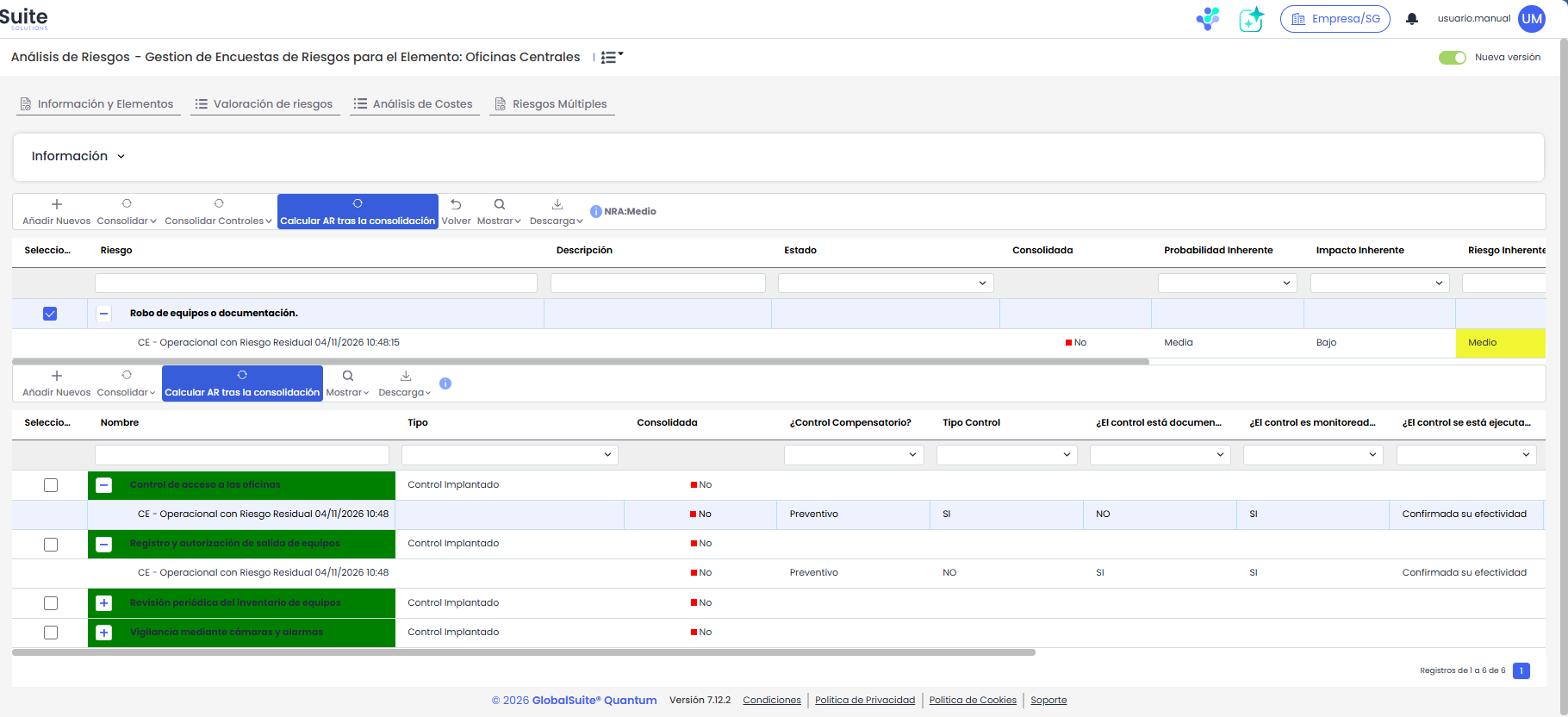
The columns of the table match the dimensions configured to evaluate the controls. The options available in the tool for the table are as follows:
-
Add New: Allows inserting new controls identified in the surveys into the threat's risk analysis. Newly identified controls are highlighted in green, and the tool allows selecting which controls to add and which not to add.
-
Consolidate: Allows the consolidation of registered and evaluated controls associated with a threat. Several consolidation options can be used: Maximum (record of the highest assessment), Minimum (record of the lowest assessment), and Arithmetic Mean (record of the average among the different assessments). This option modifies the assessments of controls associated with each threat.
-
Calculate RA after consolidation: This field is used to select whether, after consolidating the selected surveys, all automatic dimensions of the analysis should be recalculated. By default, it is checked. Since this process may take several minutes, it is possible to uncheck it to perform several consolidations and recalculate the risks at the end.
-
Download: Allows downloading the information displayed in the survey management table in an editable file (.xlsx) or in .PDF format.