
The Multiple Assessment allows jointly modifying several risks of an item and, if desired, extending the changes to matching risks of other items in the analysis.
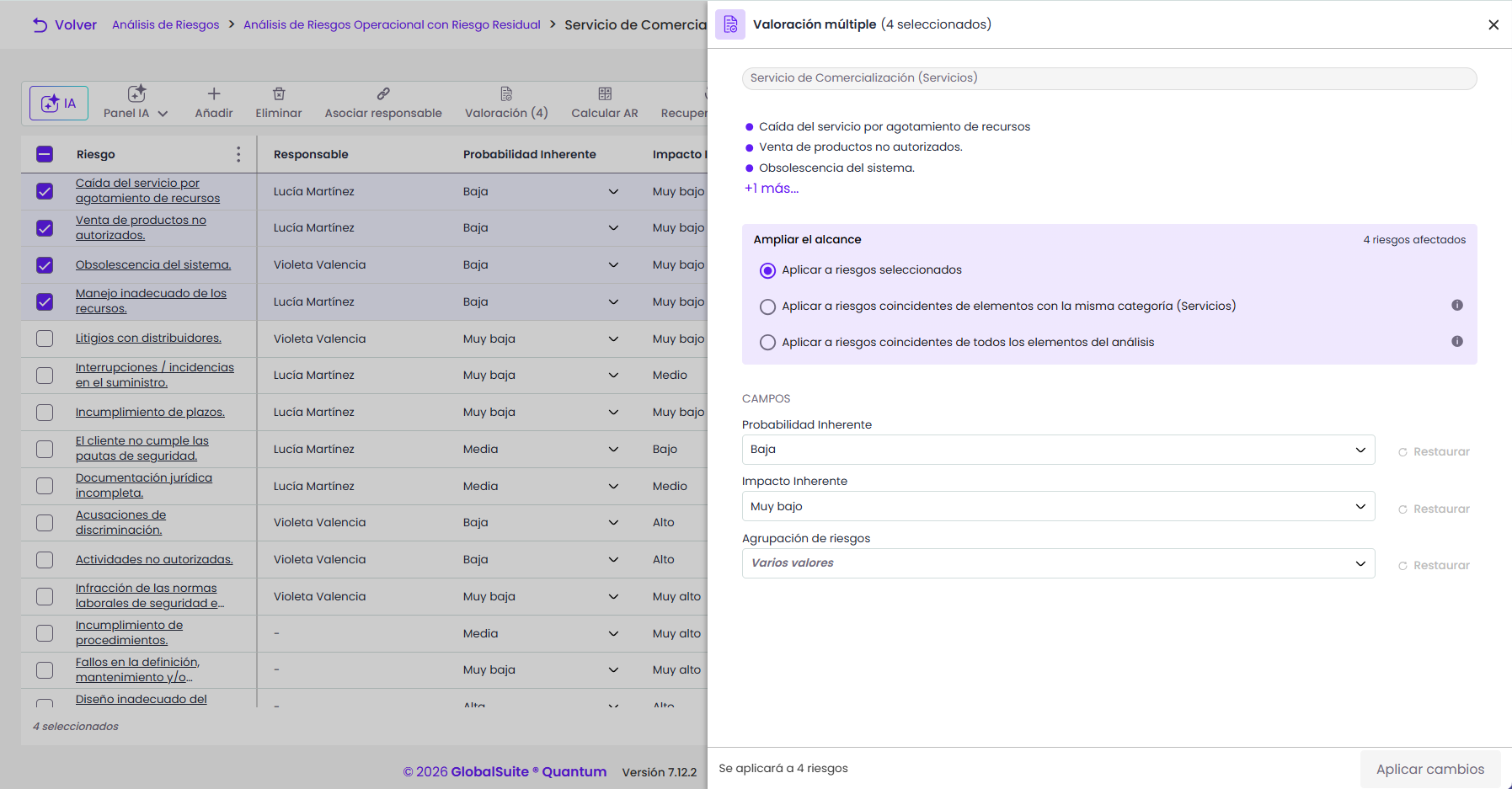
To use it, select one or more risks in the table and click Assessment (N), where N indicates the number of selected risks. Clicking the option opens the side panel Multiple Assessment (N selected).
Source
At the top of the panel, the source item and its category are displayed in the format «Item (Category)», along with the risks selected in the table.
If more than three risks are selected, the option «+N more...» is displayed to expand the full list and «See less» to collapse it.
To change the source risks, close the panel and make a new selection in the table.
Destination / Scope
The Expand Scope block allows defining which risks the changes will apply to.
At the top right, the number of affected risks is displayed, which updates according to the selected option.
The available options are:
-
Apply to selected risks: applies the changes only to the risks selected in the source item. This is the default option.
-
Apply to matching risks of items with the same category: extends the changes to matching risks of other items in the analysis that belong to the same category.
-
Apply to matching risks of all items in the analysis: extends the changes to all matching risks in the analysis, regardless of the item's category.
A matching risk is considered one that has the same name as any of the selected risks.
When changing the scope, the initial values of the fields and the grouping situation for the new set of risks are recalculated.
If any field has already been modified, confirmation is requested before changing the scope:
-
Upon confirmation, the changes made are discarded, and the new scope is applied.
-
Upon cancellation, the previous scope is retained along with the changes made.
Fields
The FIELDS section displays the manual dimensions configured as visible and editable in the analysis, respecting the order defined in the risk methodology.
Automatic dimensions do not appear in the panel, as they are recalculated when applying changes.
The behavior of the fields is as follows:
-
If all affected risks have the same value, the field displays that value.
-
If there are different values, «Multiple values» is displayed.
-
Qualitative dimensions are modified using a level selector.
-
Quantitative dimensions accept numerical values according to the range and decimals defined in the methodology.
-
Textual dimensions allow text input.
-
The Restore option is enabled when modifying a field and allows recovering its initial value without affecting the rest of the fields.
Risk Grouping
The Risk Grouping field allows modifying the groupings of the affected risks using a multi-selection selector.
When risks do not have the same groupings, the field displays «Multiple values».
When modifying groupings:
-
If a grouping is added, it is incorporated into all affected risks.
-
If a grouping is removed, it is removed from all affected risks.
-
The Restore option recovers the existing grouping distribution before the modification.
Apply Changes
At the bottom of the panel, «Will be applied to N risks» is displayed, along with the Apply Changes button.
The button is enabled when at least one field is modified. When applied, only the modified fields are updated, automatic dimensions are recalculated, and a prior history of the affected risks is saved.
The process runs in the background and can be consulted in Job Progress