This view gathers in a table the risks of an item from the analysis to evaluate them, assign a responsible party, and manage them from a single point. Changes are saved automatically.
Accessed from Analysis > Risk Analysis, by clicking the name of the analysis, the Risk Assessment tab, and the name of the item.
Risk table
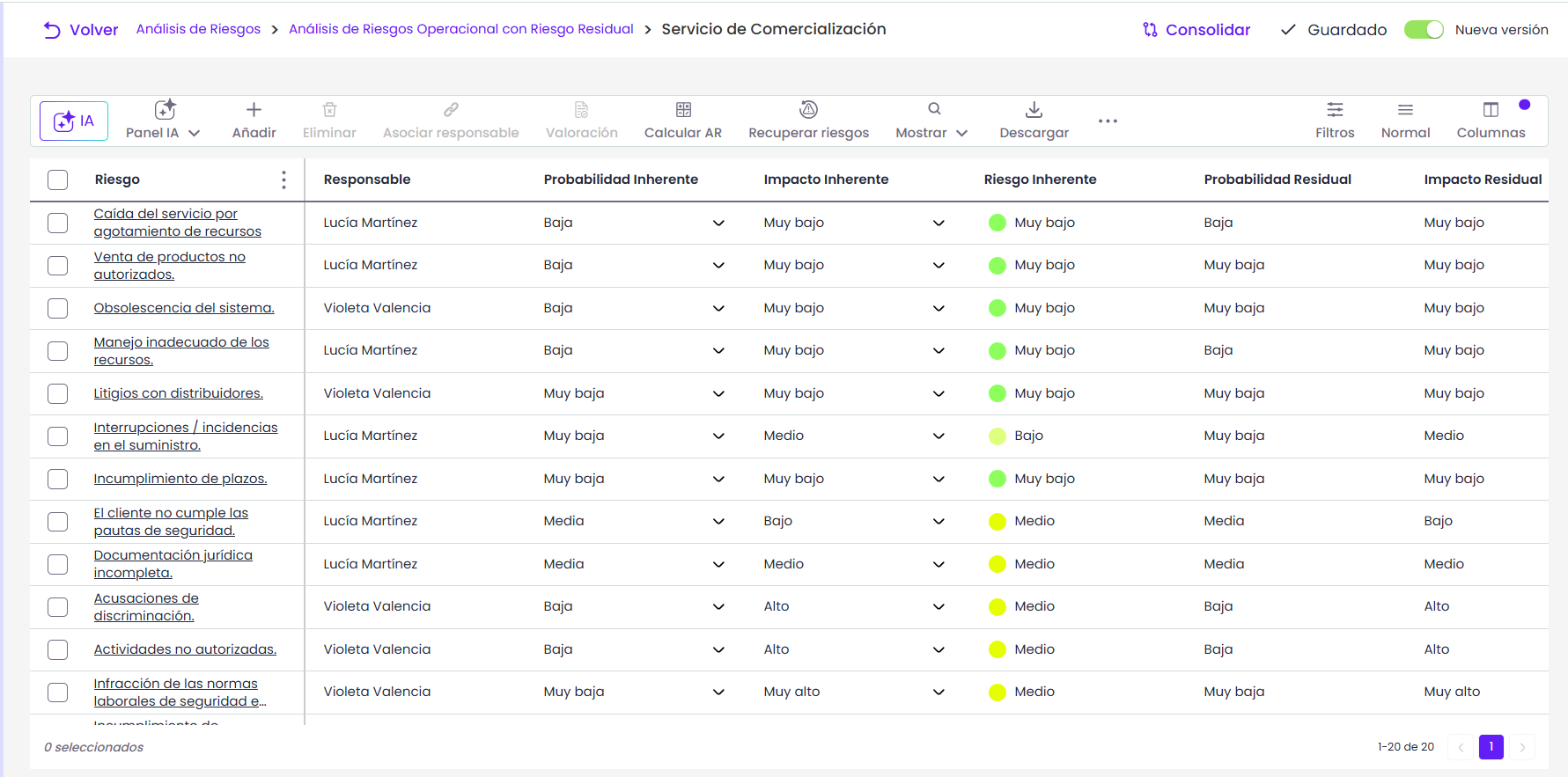
The table displays one row per risk of the item. The columns follow the risk methodology of the analysis:
-
Configurable fields: These appear first, with the name defined in the methodology. The main field (e.g., Threat or Risk) comes first and is a link that opens the Risk Detail. All configurable fields can be edited.
-
Responsible: Responsible party for the risk. Clicking the cell opens a window to select a single responsible party.
-
Dimensions: Risk dimensions, in the order of the methodology. Quantitative dimensions only accept numbers, qualitative dimensions are assessed with a level selector, and textual dimensions accept text. Automatic dimensions are read-only and are recalculated when a manual dimension they depend on is assessed.
-
Risk grouping: Always the last column. Allows assigning one or more groupings associated with the analysis catalogs.
To assess a risk, click the cell and write or select the value. While saving, the header shows "Saving…" and, upon completion, "Saved."
Display, filters, and columns
-
Display: Allows viewing only the dimensions of a group configured in the Risk Methodology. By default, All is selected. Configurable fields, Responsible, and Risk grouping are always displayed. If there are filters on dimensions that will be hidden, those filters are removed upon confirmation; the rest remain.
-
Filters: By default, allows filtering by the main field, Responsible, and the main dimension. Clicking + adds other visible columns.
-
Columns: Allows showing, hiding, and reordering columns, except for the main field, which is always the first. The configuration is saved for each analysis and does not affect others.
-
Row size: Toggles the row height between Normal, Small, and Comfortable.
Actions
Actions that act on the selection require marking one or more risks with the row checkbox. If no selection is made, hovering over these actions displays "Select at least one risk."
-
Add: Allows creating a risk in the item. The New window suggests in Record Name the name of the main field with the date and time; clicking Add creates the risk. The field is mandatory. The risk is created only with the main field informed and appears first in the table.
-
Delete: Allows deleting the selected risks. Upon selecting the row(s), clicking Delete displays a confirmation message.
-
Assign responsible: Allows assigning the same responsible party to one or more risks. Risks are selected, Assign responsible is clicked, a responsible party is chosen, and confirmed. If the risks had different responsible parties, the window indicates "The selected risks have different responsible parties." The chosen responsible party replaces the previous one.
-
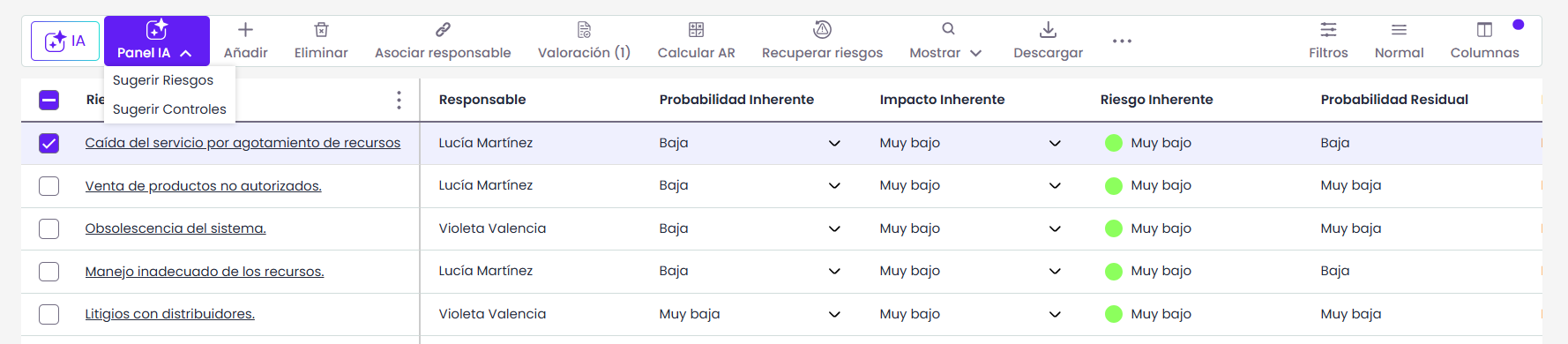
AI Panel: Offers Suggest Risks and Suggest Controls, which propose risks and controls using artificial intelligence. More information in the section Risk and Control Recommender.
-
Assessment (N): Opens the side panel to assess the selected risks simultaneously. N is the number of selected risks. More information in Multiple Risk Assessment.
-
Calculate RA: Launches the calculation of the entire analysis in the background. Progress can be checked in Job Progress. If a calculation is already in progress, the action will be disabled.
-
Retrieve risks: Allows adding risks from the catalogs associated with the analysis to the item. More information in the section Retrieve Risks.
-
Download: Allows downloading the table in CSV format, with the filters and visible columns. It also displays the report templates configured in Settings > Report Templates as visible in " Risk Analysis - Risk List", which are generated for the open item.
-
View tree: Displays the position of the item in the dependency tree. More information in the section View Tree
-
View BIA data: Displays the item's tree with business continuity information. More information in the section View BIA Data.
-
History: Displays the last saved history of the selected risk in a read-only window. Requires selecting a single risk.
Risk and control recommender
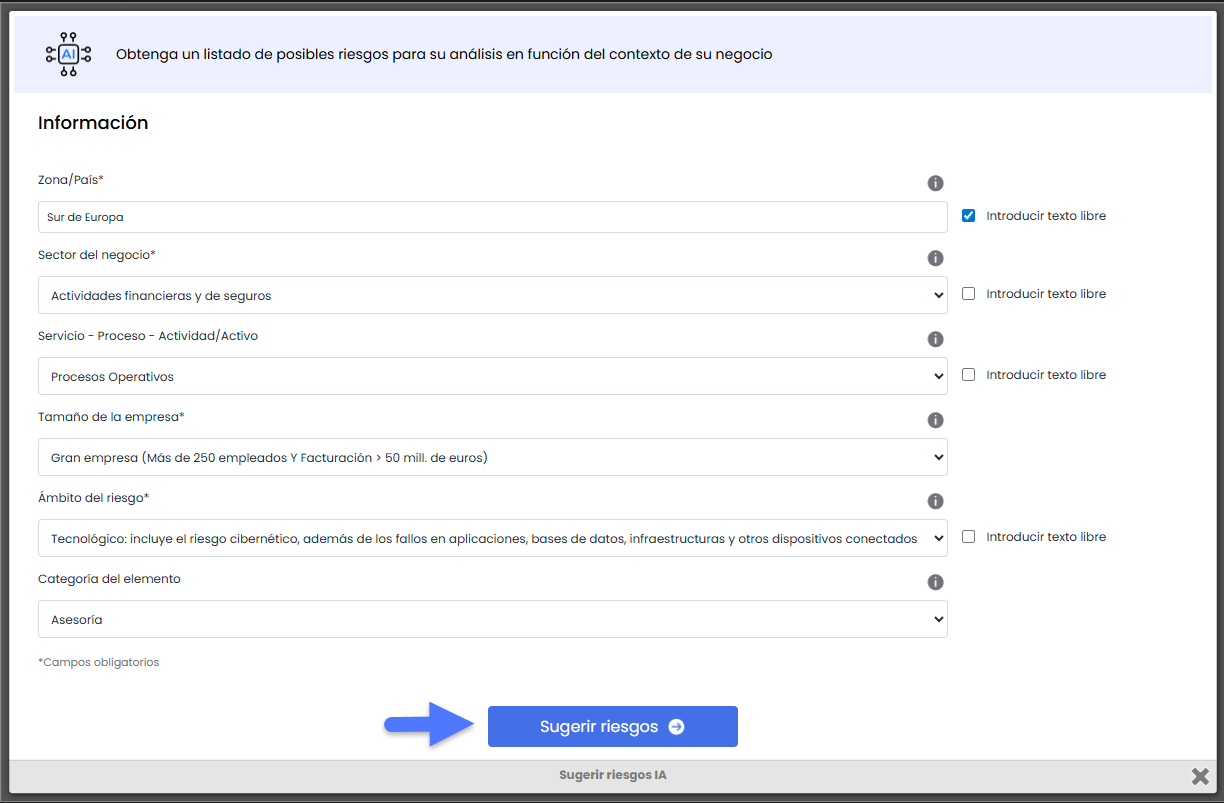
The Risk and Control Recommender of GlobalSuite® incorporates an advanced artificial intelligence engine designed to automatically generate possible risks and controls that can be incorporated into the risk analysis.
It is used from the AI Panel button in the action bar, which offers two options: Suggest Risks and Suggest Controls.
This functionality offers a dynamic and adaptive approach to identifying risks and controls, eliminating the dependency on static catalogs and reducing the need for specialized technical knowledge.
-
Suggest Risks: Proposes risks for the item. It is always available.
-
Suggest Controls: Proposes controls for the selected risks. Requires selecting at least one risk before clicking it.
AI Panel is displayed if Activate Risk and Control Recommender is enabled in Settings > Methodologies > Items. The step-by-step process is explained in Discover Our AI-Powered Risk and Control Recommender.
Retrieve risks
Allows viewing all items in the catalog and selecting one or more risks from the list as needed. The selected risks will be added to the analysis.
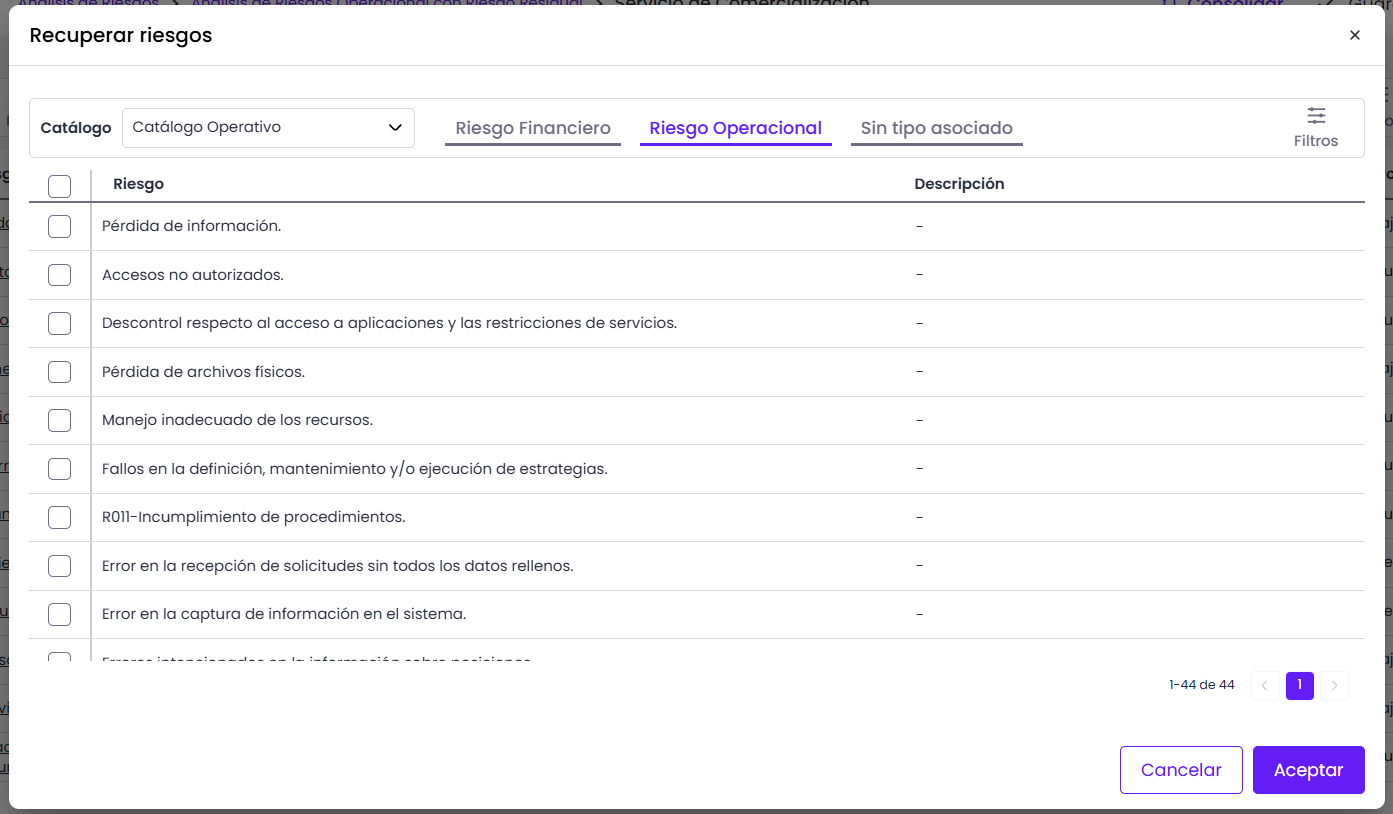
Clicking Retrieve risks opens a window with the risks from the catalog chosen in the dropdown. By default, the first catalog of the analysis is displayed. Risks are distributed in a tab by grouping; those without grouping are in No associated type.
The table displays the fields of the methodology, such as Threat and Vulnerability, and allows filtering by them. To add risks to the item, mark them and click Accept.
If the analysis has no associated catalogs, the window indicates this and offers the button Go to Information and Items to associate them.
Retrieve risks does not control duplicates: the same risk from the catalog can be added multiple times to the item.
View tree
View tree opens the Tree View of the Item window, which is read-only. It displays the items the item depends on and those that depend on it, in all branches where it appears. It helps understand its context without leaving the analysis.
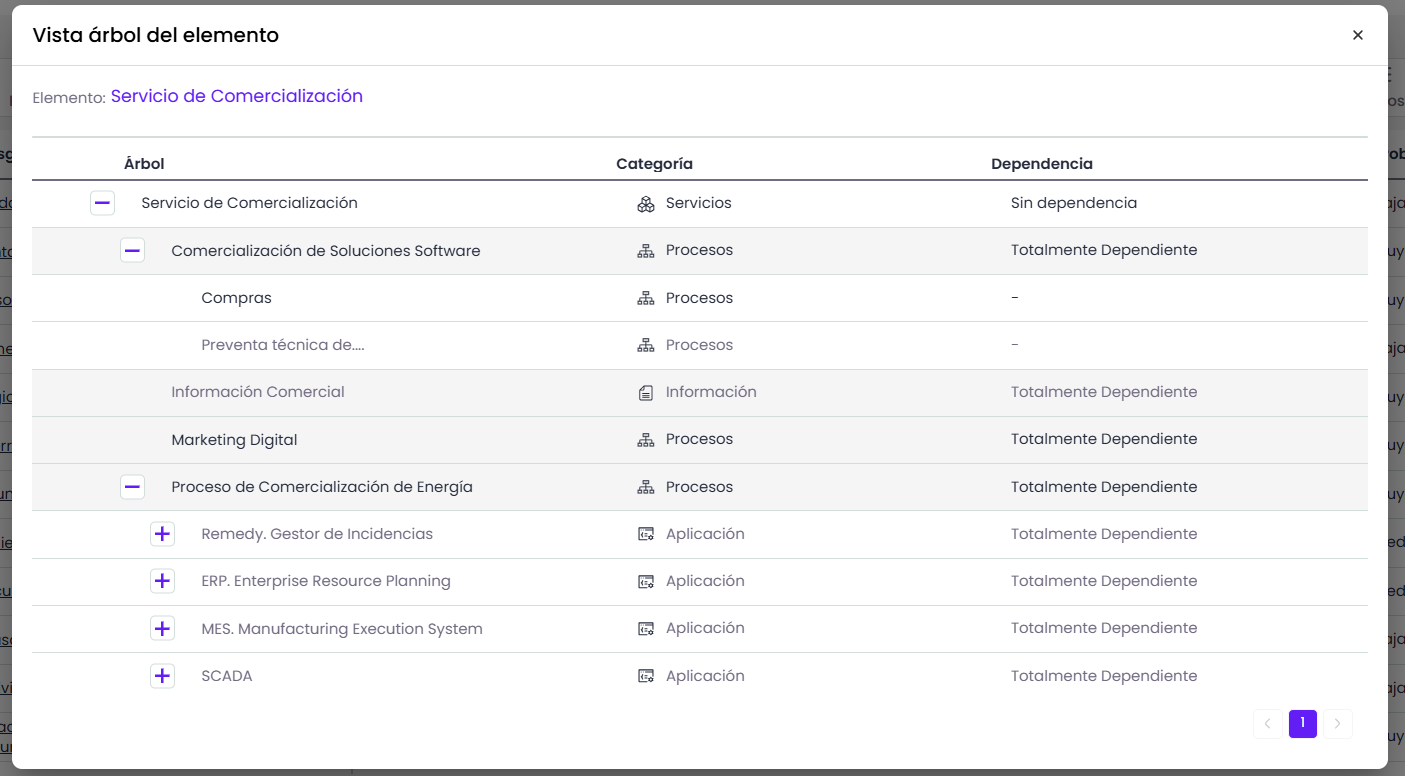
-
Tree: Name of each item in the branch.
-
Category: Category of the item.
-
Dependency: Degree of dependency defined in the item tree of the Inventory.
Items not part of the analysis are displayed in gray; only those necessary to complete the path appear.
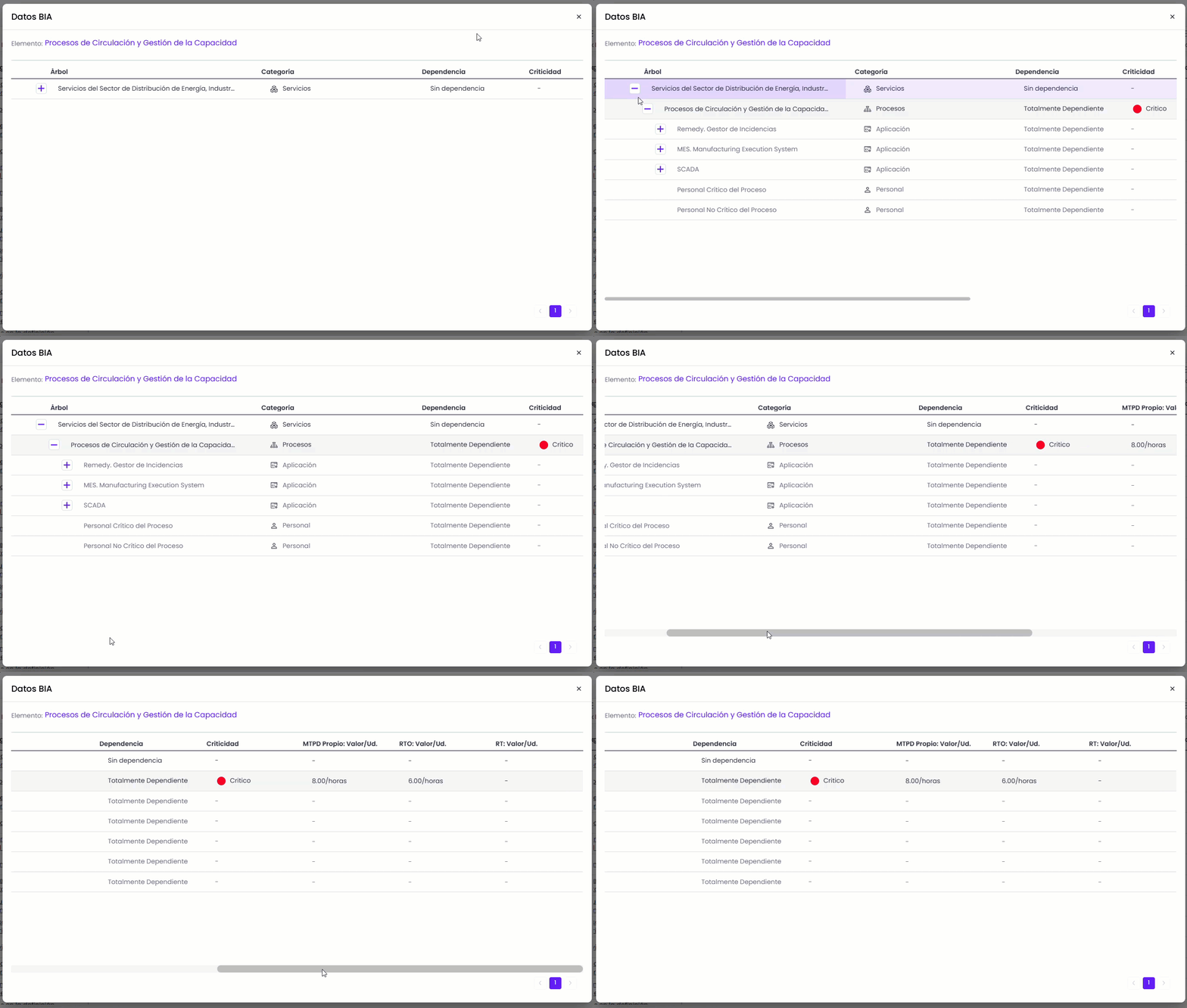
View BIA data
View BIA data displays the same tree as the previous section but with the business continuity data of the consolidated BIAs of the processes. It adds the columns Own MTPD, RTO, and RT, with their value and unit. The column Criticality is displayed if Enable Criticality is activated in the BIA configuration.