
AI Agent in Risk Assessment and Analysis
GlobalSuite® incorporates an AI Agent into Risk Assessment and Risk Analysis: a conversational assistant with which you can query the analysis you have open in natural language. The agent reviews the items, risks, assessments, controls, and treatment plans of the analysis and responds with tables, conclusions, and recommendations based on that data.
Questions that previously required changing views, applying successive filters, and exporting —which risks exceed the acceptable level, which ones lack a responsible party, which controls are still only planned, which actions should be prioritized— are resolved with a single query without leaving the analysis screen. Additionally, the agent prepares reports in HTML, Word, PowerPoint, and Excel using the analysis data and your organization's corporate image, applies changes to the analysis when you approve them, and links attached documents, such as an audit report, to the risks and controls.
What is it for?
The AI Agent supports the interpretation of results and decision-making for those working with risk analysis:
-
Analysis and security managers: obtain a reading of priority risks, their residual level, and their treatment status in seconds, and create risks and controls without filling out forms.
-
Risk and compliance teams: identify information gaps, such as risks without a responsible party or controls without effectiveness assessments, before presenting or closing the analysis.
-
Management and committees: receive executive summaries, presentations with the action plan, and reports ready for distribution, drafted based on the actual data of the analysis.
-
Audit: can cross-check the findings of a report with the risks and controls of the analysis to decide what to address first.
Key features
-
Access from the header of Risk Assessment (“AI Agent”), available in all its tabs, and from the “AI” button in listings and in the assessment of an analysis.
-
Automatic context: the agent always works on the open analysis without you having to specify it.
-
Suggested queries to start with one click and free queries in natural language.
-
Responses with tables, lists, and conclusions that you can copy, and an expanded view for comfortable reading.
-
Downloadable reports in HTML, Word, PowerPoint, and Excel, with your organization's logo and colors if configured.
-
Documents attached to the query, from your device or from the Document Manager.
-
Changes in the analysis —create items, risks, controls, and treatment plans, assess them, and associate them— that are only applied when you approve them, operation by operation.
-
Notifies when a piece of data is unavailable, such as an effectiveness assessment or an economic dimension, instead of assuming it, and asks for missing information to make a change.
-
Same permissions as on the web: the agent only works with the information your user can access.
Where is it located?
Open an analysis in Analysis ▸ Risk Assessment. In the header of the assessment, on the right, the “AI Agent” action appears. It is available in the four tabs of the assessment —List, Groupings, Map, and Summary— and the panel remains open when switching tabs.
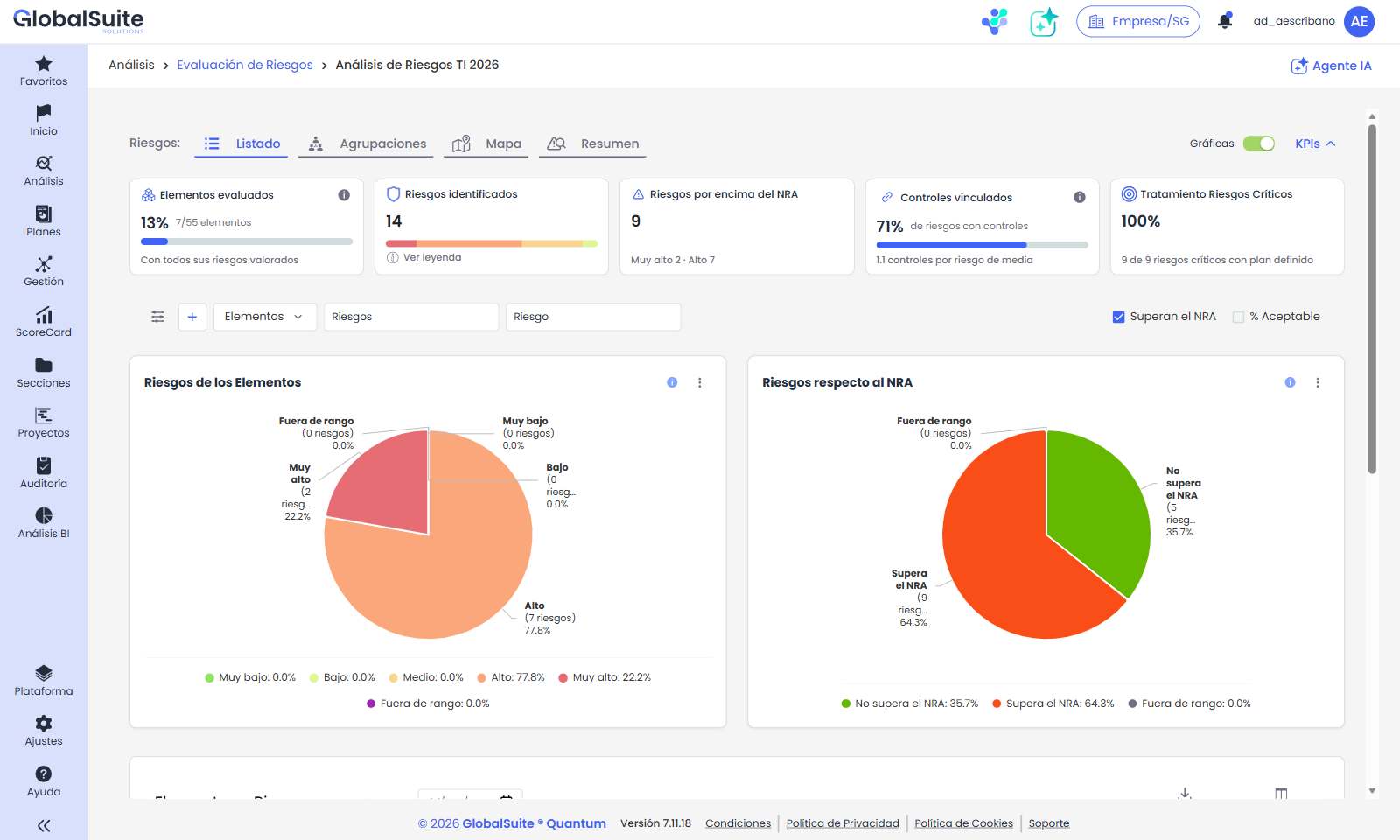
Risk Assessment of an analysis, with the “AI Agent” action in the upper right corner.
The same agent, with the same conversation, also opens from the “AI” button in the toolbar in:
-
the analysis list of Risk Assessment and Risk Analysis;
-
the “Risk Assessment” tab of an analysis detail.
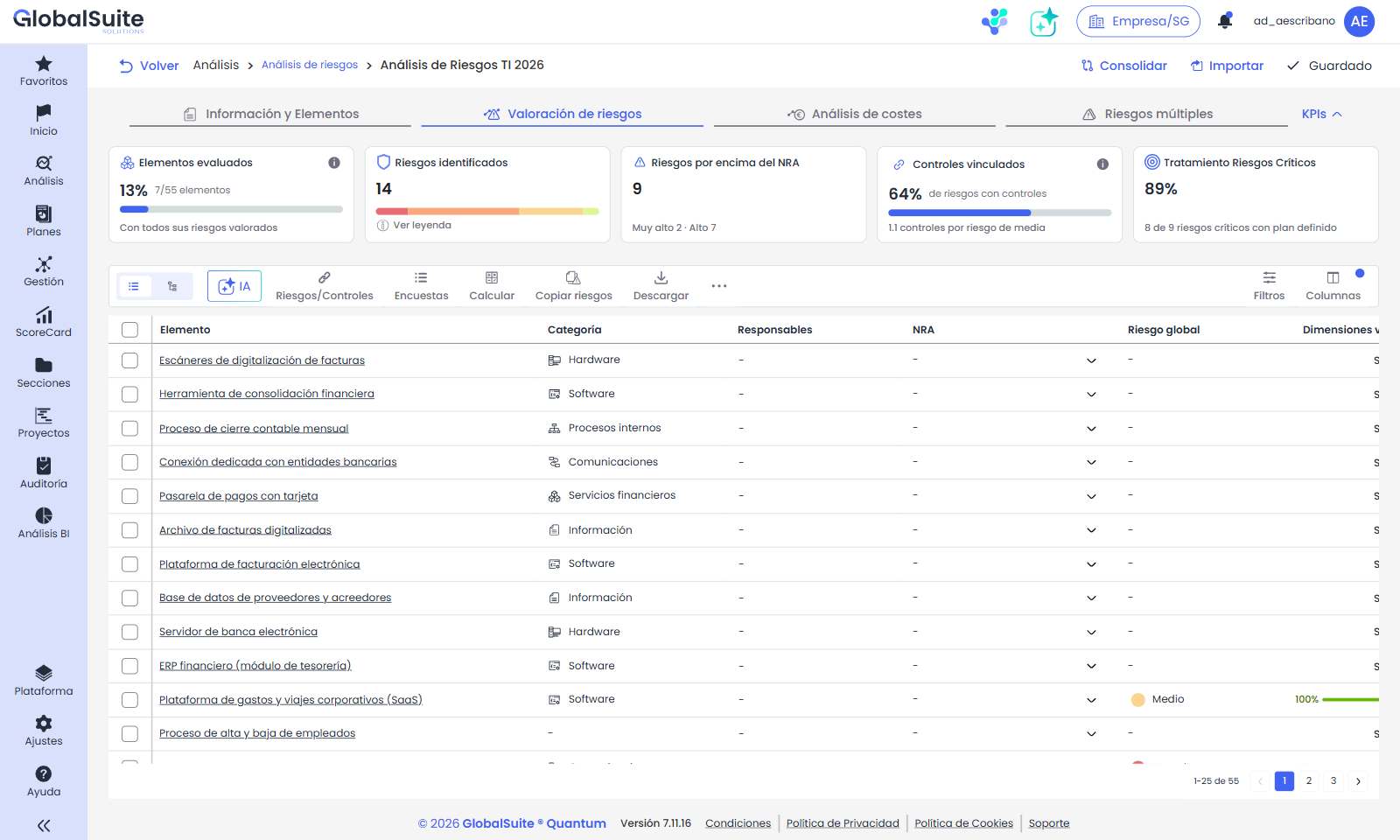
“AI” button in the toolbar of the “Risk Assessment” tab.
The “AI” button in “Risk Assessment” appears when the analysis already has items. To work with a newly created analysis, open the agent from the Risk Analysis list and specify the name of the analysis in the query, or from its Risk Assessment.
How does it work?
The process involves opening the agent, launching a query —suggested or custom, with documents if needed— and reviewing the response. In the same conversation, you can later request a report or a change in the analysis: the agent takes into account what has already been discussed.
1. Open the agent
Click “AI Agent” or “AI”. The panel opens on the right, and the analysis view adjusts to the available space without losing the tab, filters, or position you were in.
At the start, the panel displays the title “How can I help you with this risk analysis?” and eight suggested queries, across two pages navigable with side arrows. Each card shows a title and the query text, which is sent when clicked. In Risk Analysis, they include change proposals; in Risk Assessment, they are for queries and reports:
|
View |
Page 1 |
Page 2 |
|---|---|---|
|
Risk Analysis |
Risks on the ARL · Where it is concentrated · Weak controls · Executive report |
Complete risks · Assess items · Plan actions · Upcoming deadlines |
|
Risk Assessment |
Risks on the ARL · Where it is concentrated · No responsible party · Weak controls |
Three actions · For the committee · Executive report · Presentation |
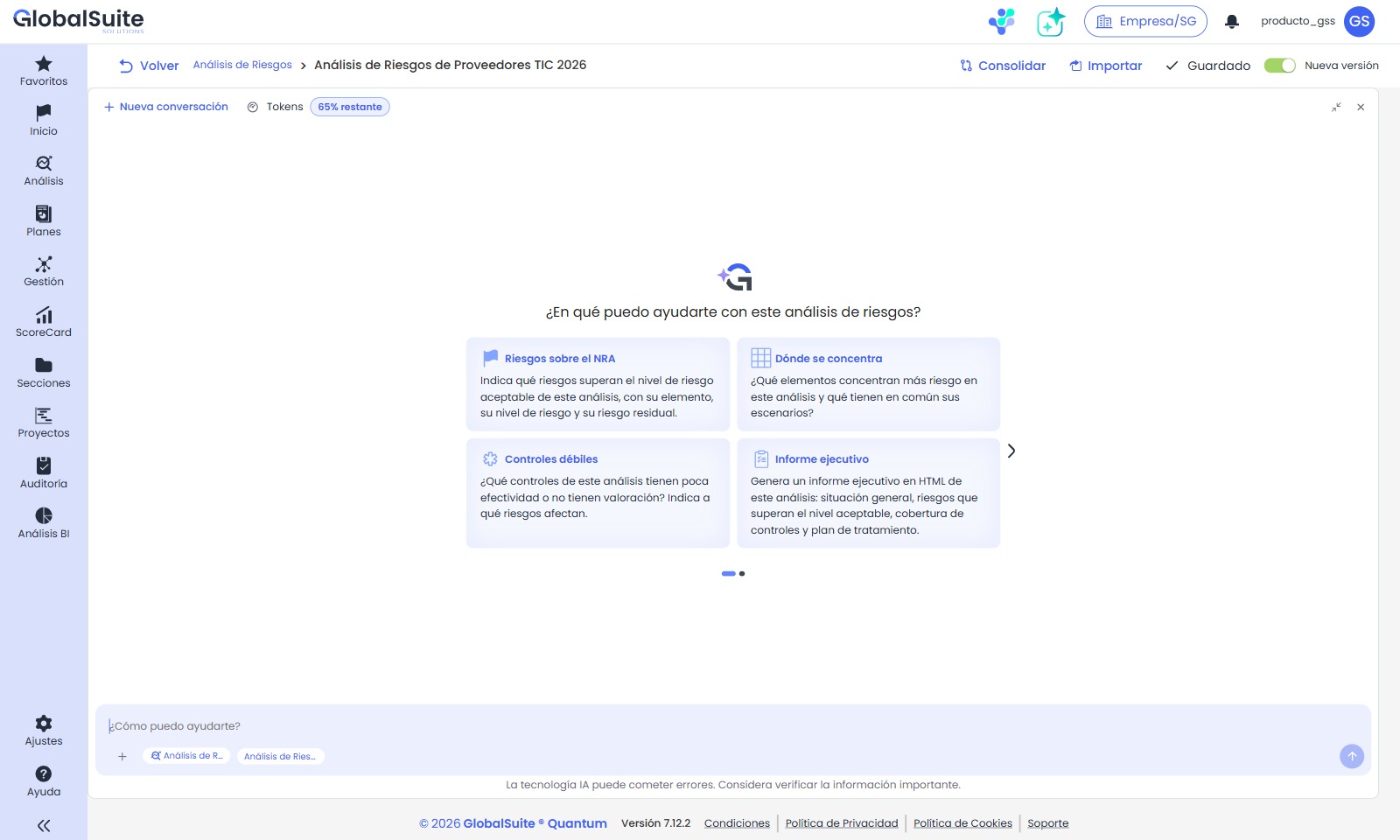
AI Agent panel in Risk Analysis, with the first page of suggested queries.
2. Query context
Below the writing field, two fixed context labels are displayed: the module — “Risk Analysis” or “Risk Assessment”, depending on where you open the agent— and the name of the open analysis. They indicate the data the agent will work on and cannot be removed. If you switch analyses, the label updates, and new questions are answered based on the new analysis. From the Risk Analysis list, only the module label appears: name the analysis in the query.
3. Launch a query
Click a suggested query to send it directly or type your question in the “How can I help you?” field and press Enter or the send button. Suggestions disappear as soon as the conversation starts.
While the response is being prepared, the panel indicates it is analyzing the information, and the send button becomes a button to stop the response. The agent queries the analysis data before answering, so the response usually takes between 15 and 60 seconds; reports and queries that include documents may take several minutes.
If you stop the response, you can continue writing in the same conversation. If you stop it while the agent is applying a change you have already approved, the card changes to “Canceled,” but the change may be saved: check the analysis.
In very large analyses, with thousands of risks, queries that cover all risks may end without a response or with the notice “The AI service has stopped responding.” In that case, narrow the query to an item, a group of items, or a risk level.
4. Review the response
The agent responds based on the open analysis and cites the items, risks, and controls by name. Responses typically combine:
-
Tables with the risks, affected items, their levels, and the status of the controls. Wide tables scroll horizontally, and each has its own button to copy it.
-
Conclusions summarizing what requires attention and why.
-
Next step proposals, such as prioritizing risks or preparing a version for the management committee; simply respond “yes” or request the variant you prefer.
Click “Copy” at the bottom of each response to transfer its content to a report or email.
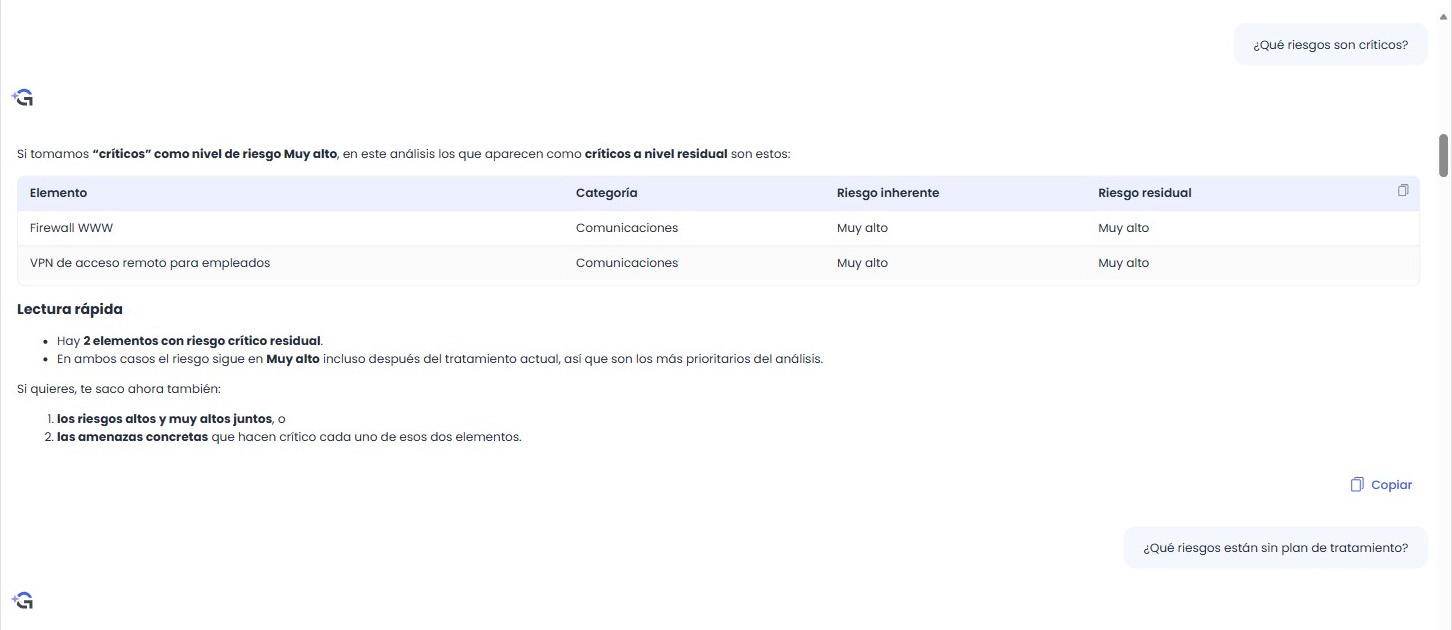
Response to “Which risks are critical?”: the two items with Very High residual risk and a quick reading.
5. Add documents to the query
The “+” button, to the left of the context labels, opens a menu with two options:
-
“Add files”: opens your device's file selector. You can select one or multiple documents.
-
“From the Document Manager”: opens the Document Manager with your folders and the documents you have access to.
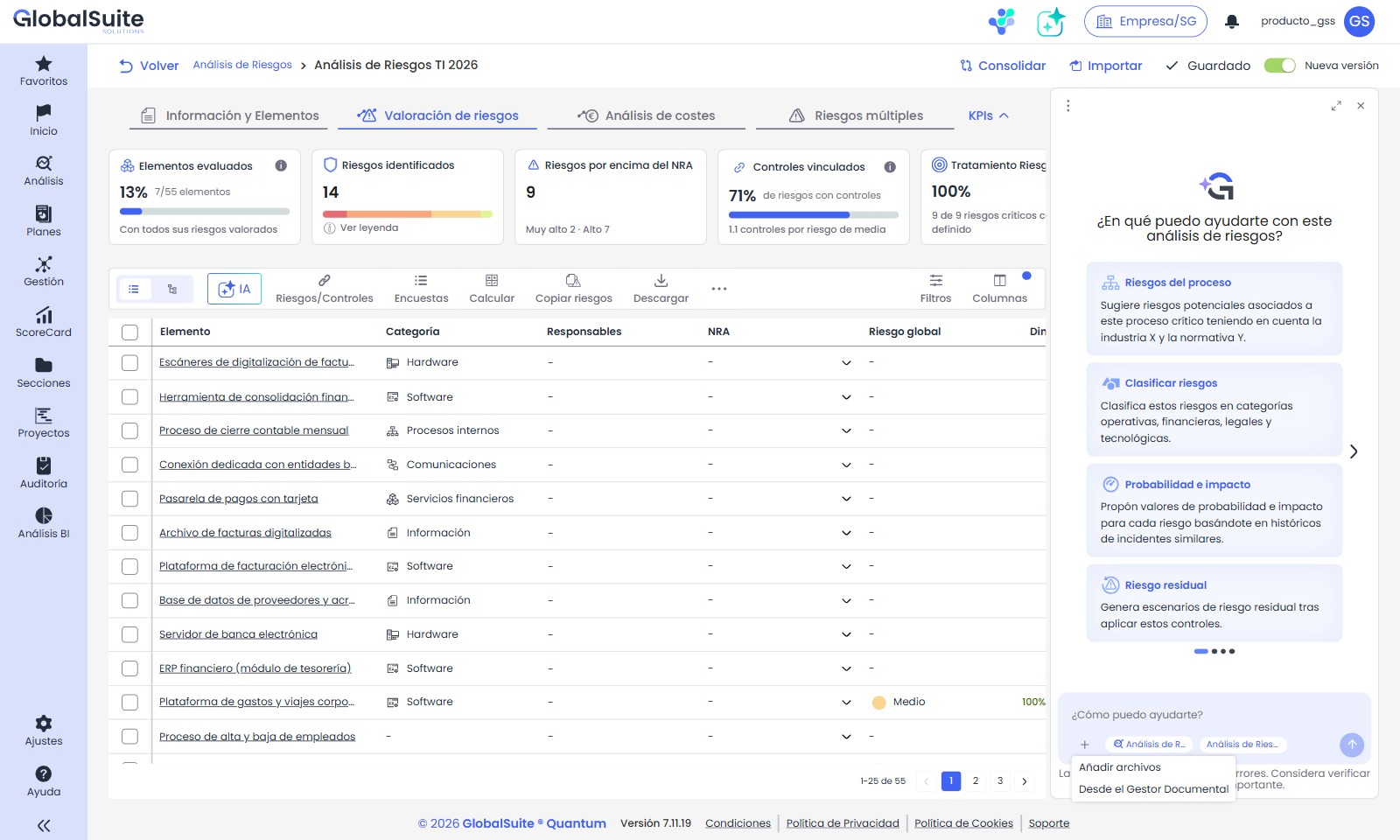
Menu of the “+”: “Add files” and “From the Document Manager.”
Each document appears as a card above the writing field. To remove a file before sending, hover over its card and click the cross. Documents are used in the query you send next. This is useful, for example, to link the findings of an audit report, a vulnerability analysis, or an internal policy to the risks and controls of the analysis, or to summarize the content of a spreadsheet.
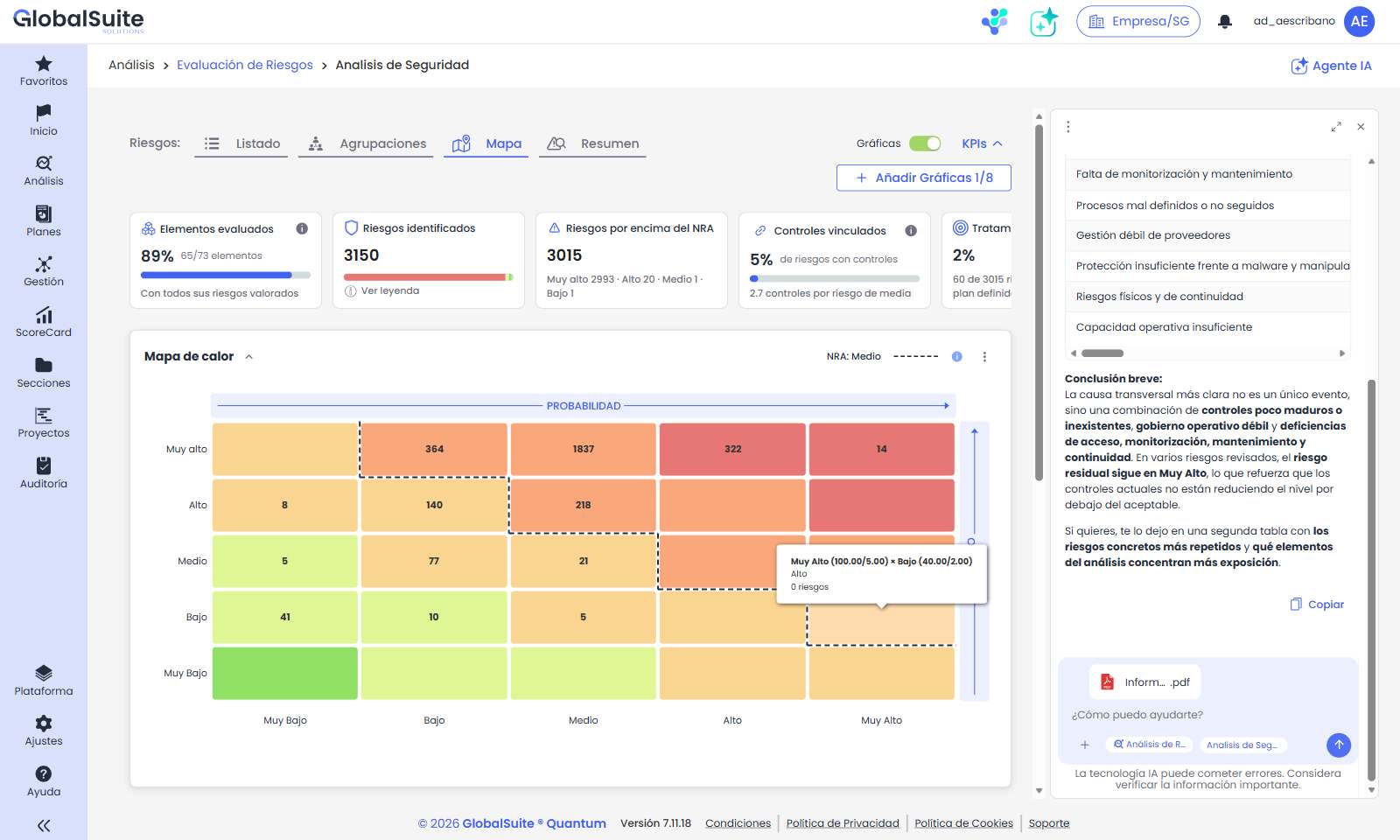
Audit report in PDF added to the query, next to the context labels.
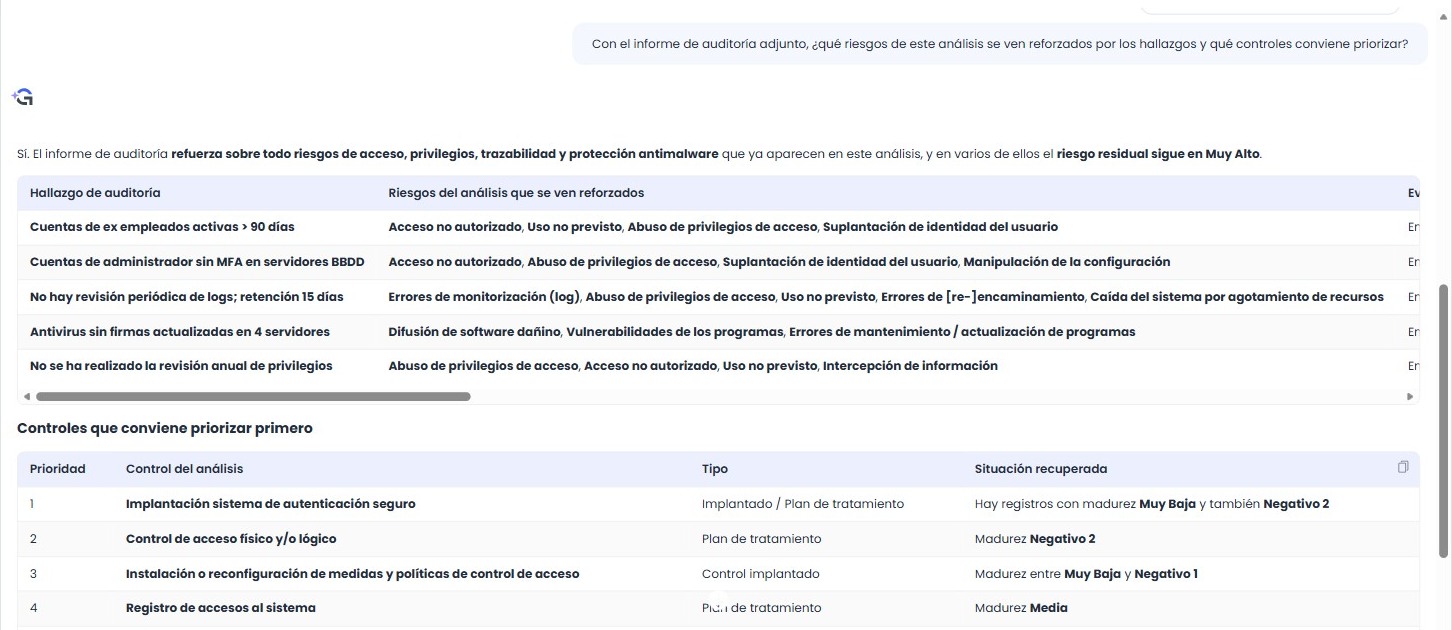
Response linking each finding of the report to the risks of the analysis and prioritizing the controls.
With an attached spreadsheet, you can also ask the agent to register its data; for example: “Register the risks from the attached Excel in this analysis, with their probability and impact, and calculate their risk level.” The agent displays approval cards for each registration, assessment, and calculation, just like with any other change (section 6). Check the result in the analysis.
The AI model has an automatic security filter. If it blocks a query, the agent responds “This query could not be processed because the automatic security filter blocked it. This sometimes happens with normal queries: try rephrasing it or breaking it into simpler steps.” and you can continue the conversation. This may happen with documents that detail attack scenarios or unauthorized access; in that case, include in the query the data you want to register.
6. Apply changes to the analysis with your approval
In addition to querying, you can ask the agent to make changes to the analysis; for example, “Register the risk ‘Unsupervised privileged access by the provider’ in the item ‘Managed SOC 24x7 service,’ with Low probability and Very High impact.” The agent does not modify anything on its own: it displays a card for each operation, detailing what it will do in business language —“Create risk,” “Update risk dimension,” “Link control to risk”…— and waits for your decision.
-
Click «Details» to view the data that will be saved.
-
Click «Approve» to apply the operation or «Reject» to discard it. If you reject it, the card will be marked as «Rejected» and the analysis will remain unchanged.
-
If the request involves multiple operations, such as creating a risk, assessing its probability and impact, and calculating its level, they are displayed in order. You can approve them one by one or, when there are two or more pending, click «All» and choose «Approve all» or «Reject all». Those already applied are marked as «Done» and grouped with a paginator for review.
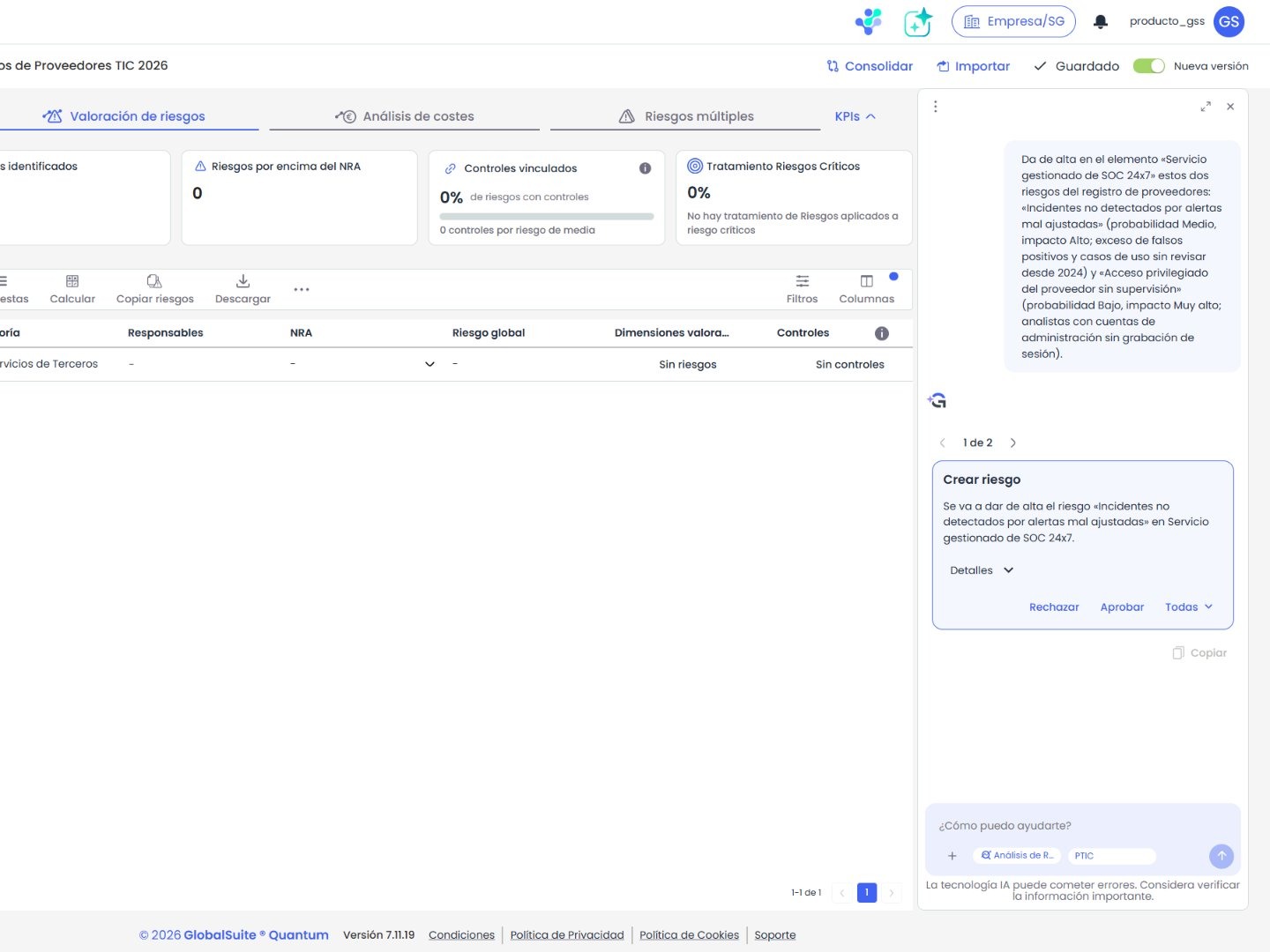
«Create risk» card pending approval, with the actions «Reject» and «Approve».
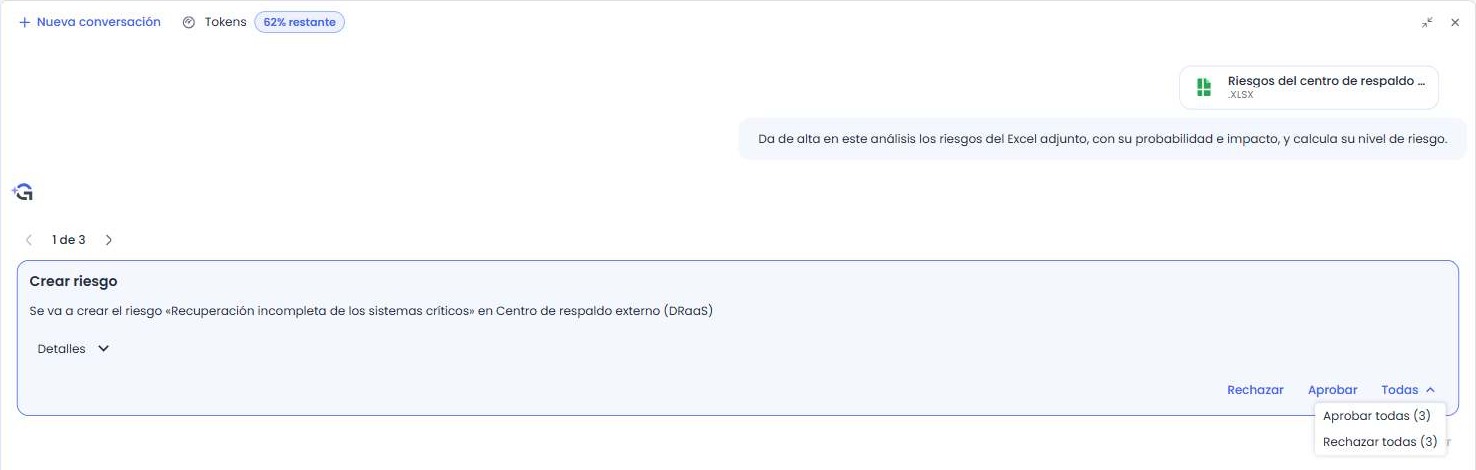
«All» menu: approve or reject all pending operations at once.
At the end, the agent summarizes what has been done, and the analysis indicators are updated immediately.
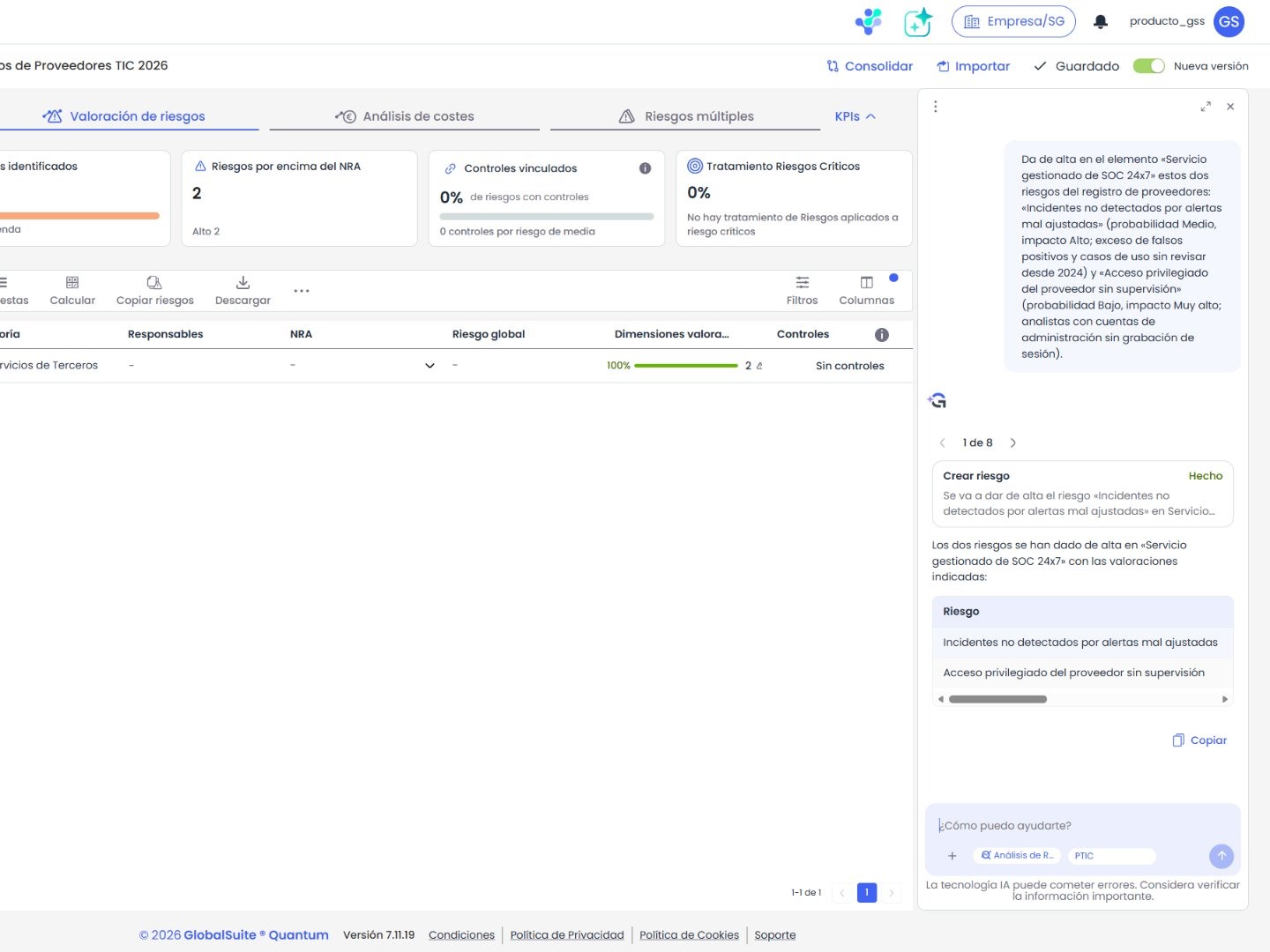
Two risks registered with their assessment: the agent's summary and the updated analysis indicators.
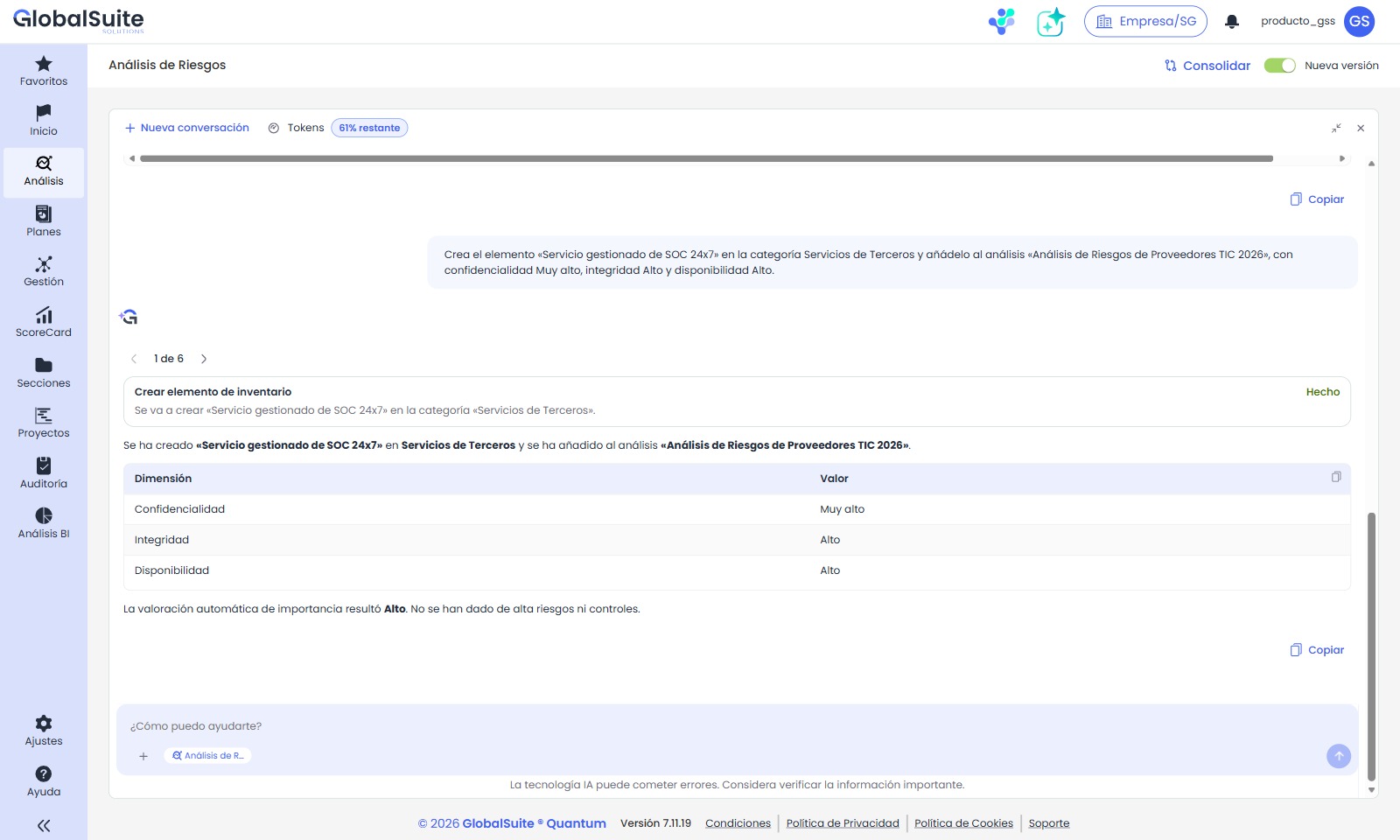
Creation of an inventory item with its assessment and inclusion in the analysis: the applied card («Done») and the summary.
The agent can create inventory items and add them to the analysis, assess items, create risks, controls, treatment plans, and actions, and associate controls with risks, using the same writing actions as MCP GlobalSuite. It works with your permissions, just as if you were making the change from the platform. If a piece of data is missing or it cannot save something you requested —for example, evidence that does not exist— it will inform you and ask before proceeding.
-
Request a proposal first if you want to review it calmly. Start the request with «Propose»: the agent shows the proposal and does not change anything until you ask it to apply it. For example: «For the plan “Treatment - Review and cleanup of perimeter firewall rules,” propose two actions with a responsible party and a deadline to complete them before March 2027.» Once you agree, ask it to create them and approve the cards. If instead you directly request «Create…» or «Register…», the agent moves to the approval cards.
-
Check the result in the analysis. The agent can complete fields you have not indicated, such as resources, description, or follow-up date.
For example, with «Propose the assessment of confidentiality, integrity, and availability of the items in this analysis that are not yet assessed.», the agent locates the unassessed items, proposes an assessment for each dimension, explains its basis, and does not apply anything. Review it with the responsible parties for the items; once you agree, respond «Okay, apply it» and approve the cards «Update item dimension».
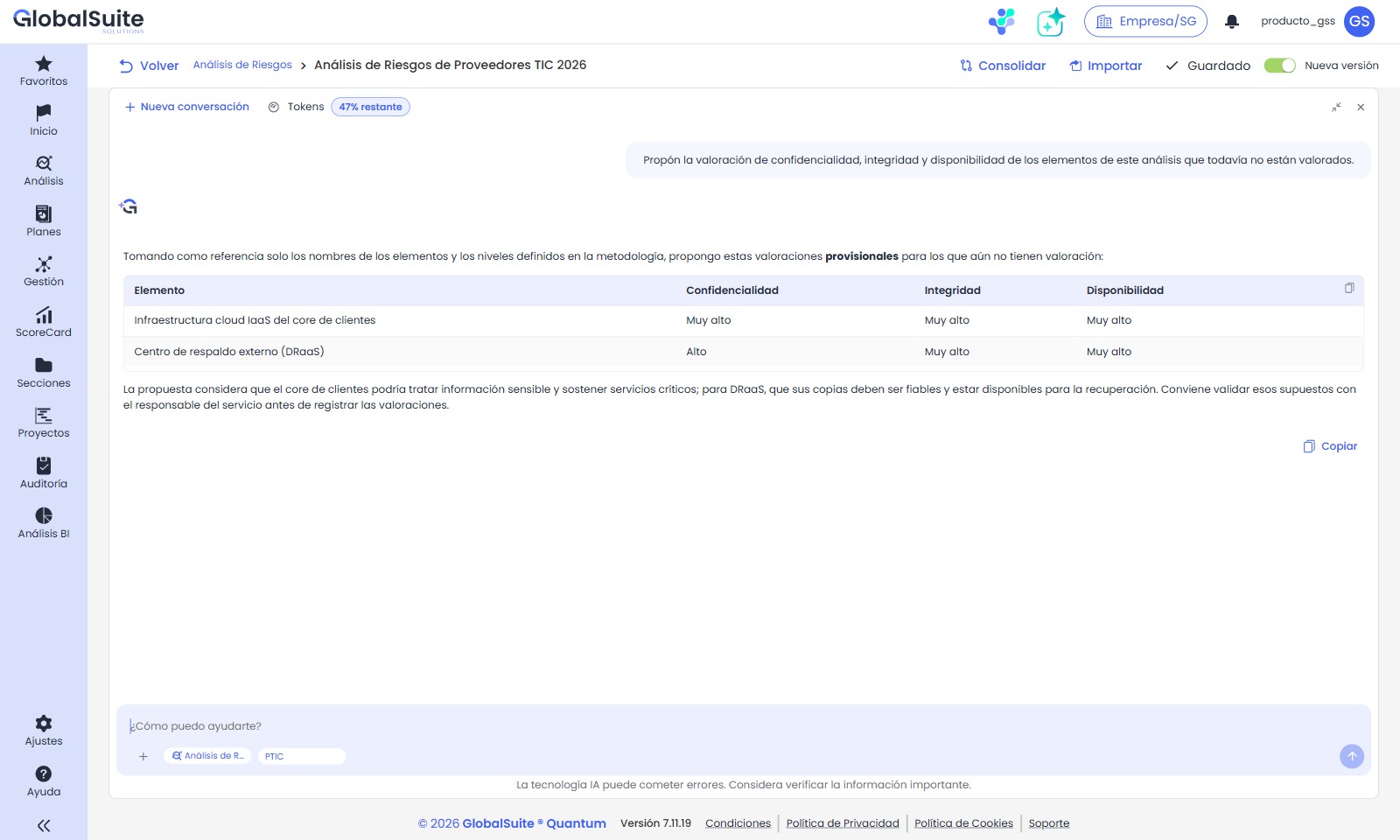
Proposed assessment of confidentiality, integrity, and availability for the items that are not yet assessed: the agent does not apply anything until you request it.
7. Expand, close, and check the balance
|
Action |
What it does |
|---|---|
|
Maximize panel |
Expands the agent to the full width of the workspace without leaving the analysis. Recommended for reading responses with extensive tables. With the expanded panel, the same button changes to «Restore panel». |
|
Close panel |
Hides the agent and returns the space to the analysis view. The conversation is preserved: when you reopen the panel, you will find the previous questions and answers. |
|
Options (⋮) |
Displays «New conversation» and the token balance available for the agent for the month. With the expanded panel, both appear directly in the header. |
|
New conversation |
Requests confirmation («Creating a new chat will erase the entire conversation») and starts a new conversation with suggested queries. Useful for changing topics or analyses. |
8. Generate reports in HTML, Word, PowerPoint, or Excel
Request the report in the conversation, specifying the format, recipient, and what it should include. The agent prepares it with the analysis data and delivers it as a file card in the response; click the download icon to save it. You can chain multiple formats in the same conversation.
|
Format |
Example request |
|---|---|
|
HTML |
Generate an executive report in HTML for this analysis for the Security Committee: general situation, risks exceeding the acceptable level, control coverage, and recommended treatment plan. |
|
Word |
Also prepare a Word version of that report, with a cover page, index, and tables of risks and the treatment plan, to send to the Committee members. |
|
PowerPoint |
Create a 6-slide PowerPoint presentation with the action plan to reduce risks exceeding the ARL to an acceptable level: situation, priority risks, actions with responsible parties and deadlines, and decisions requested from the Committee. |
|
Excel |
Export to Excel the list of risks from the analysis with their item, probability, impact, inherent and residual risk, and the treatment plan with its responsible party and deadline, for filtering purposes. |
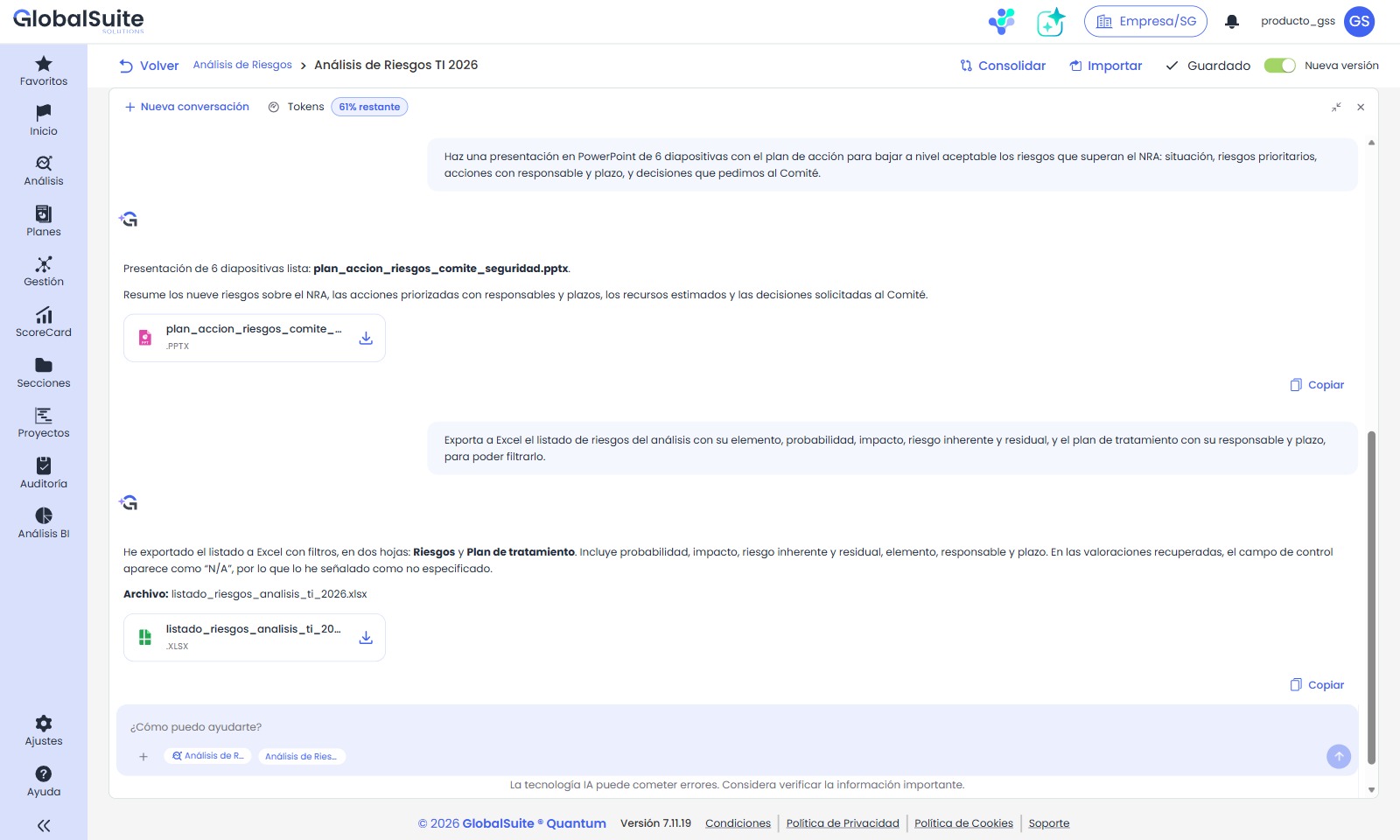
Presentation and Excel list generated in the same conversation, each with its download card.
By default, reports use the GlobalSuite® logo and colors.
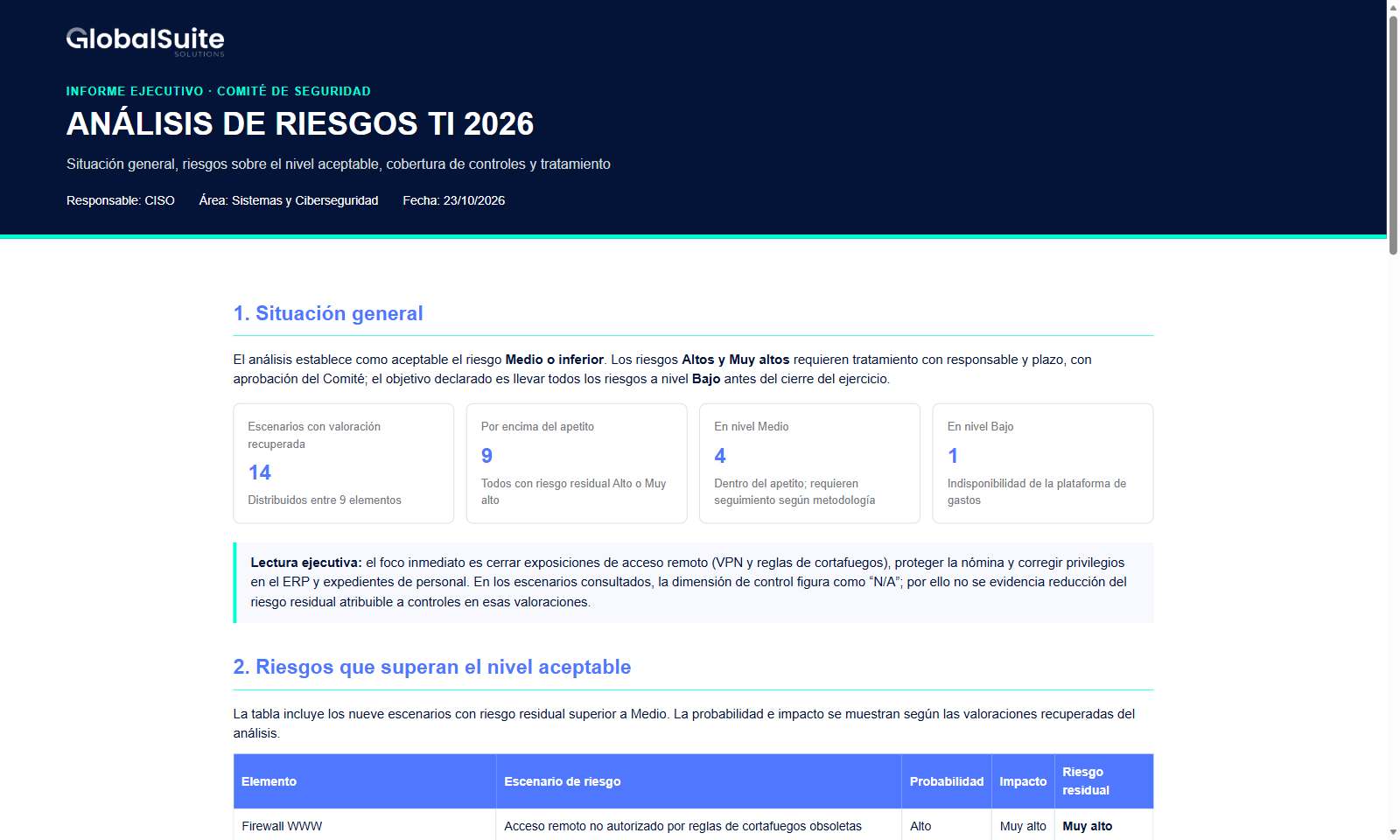
Executive report in HTML for the Security Committee: general situation, indicators, and executive summary.
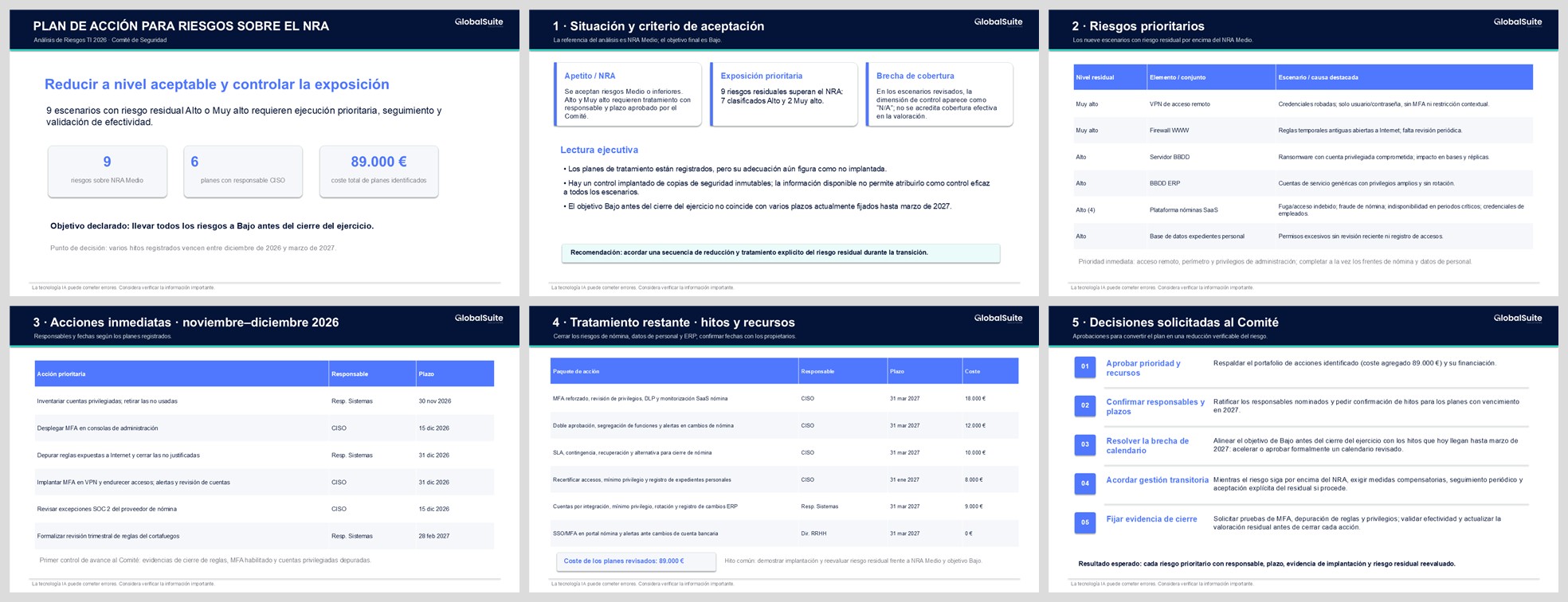
Six-slide presentation with the action plan and decisions requested from the Committee.
Reports take between one and six minutes, depending on the format and the volume of the analysis. Review the figures and dates before distributing them.
9. Reports with your organization's corporate image
If your organization has configured its logo and colors, the agent uses them in the reports without you having to request it. They are configured in Settings ▸ Configuration ▸ General ▸ Customize:
-
Logo: «Upload logo», with a maximum size of 48 × 186 pixels (height × width).
-
Brand colors: primary and secondary colors. From these, state colors (hover, focus, selection) are calculated, and the WCAG validation panel checks the contrast.
-
Click «Save brand». The preview on the right shows how the interface components will look.
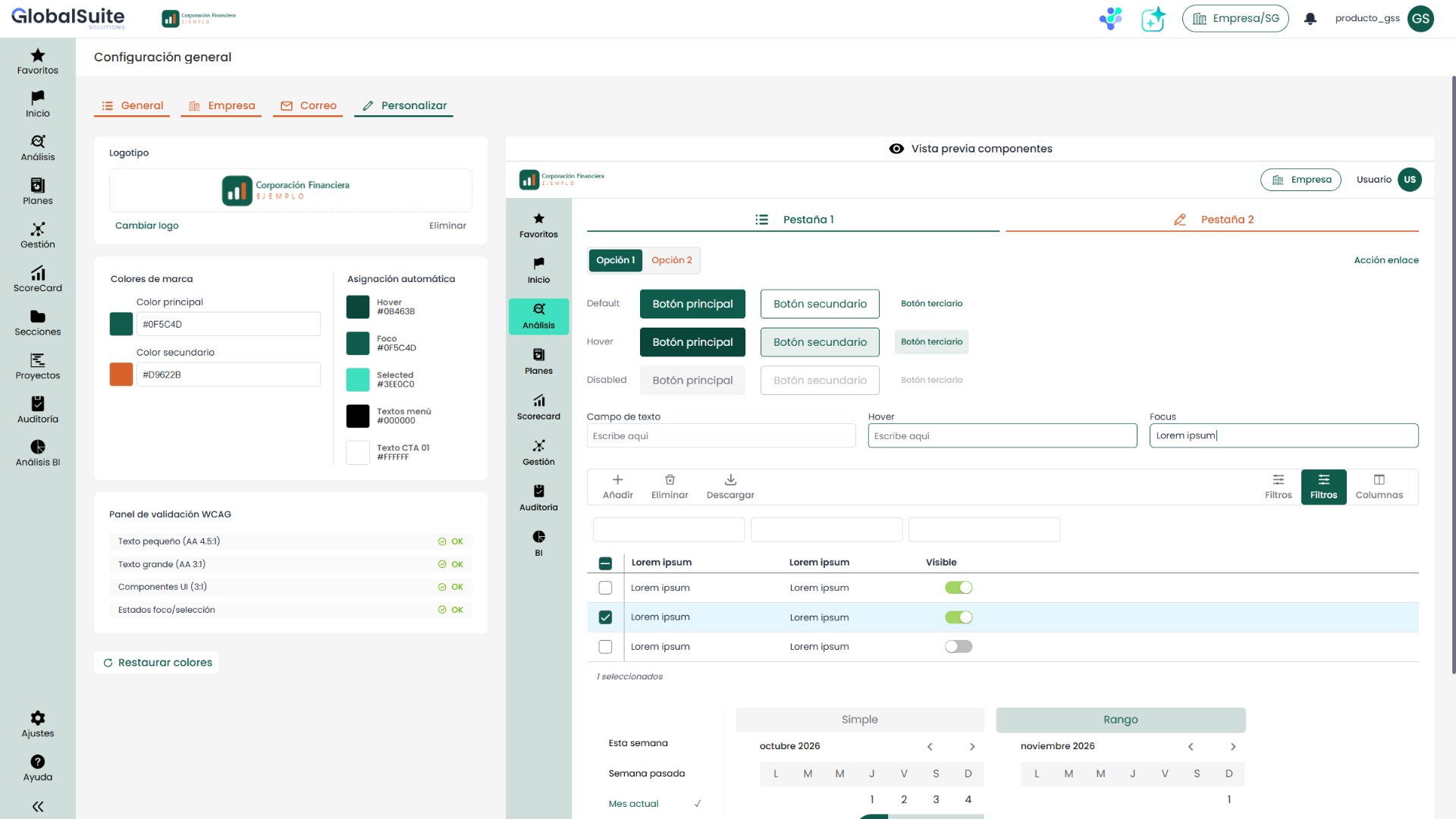
Settings ▸ Configuration ▸ General ▸ Customize, with the logo and colors of an example organization.
With the brand saved, the GlobalSuite® interface and the agent's reports —HTML, Word, and PowerPoint— adopt the organization's logo and colors.
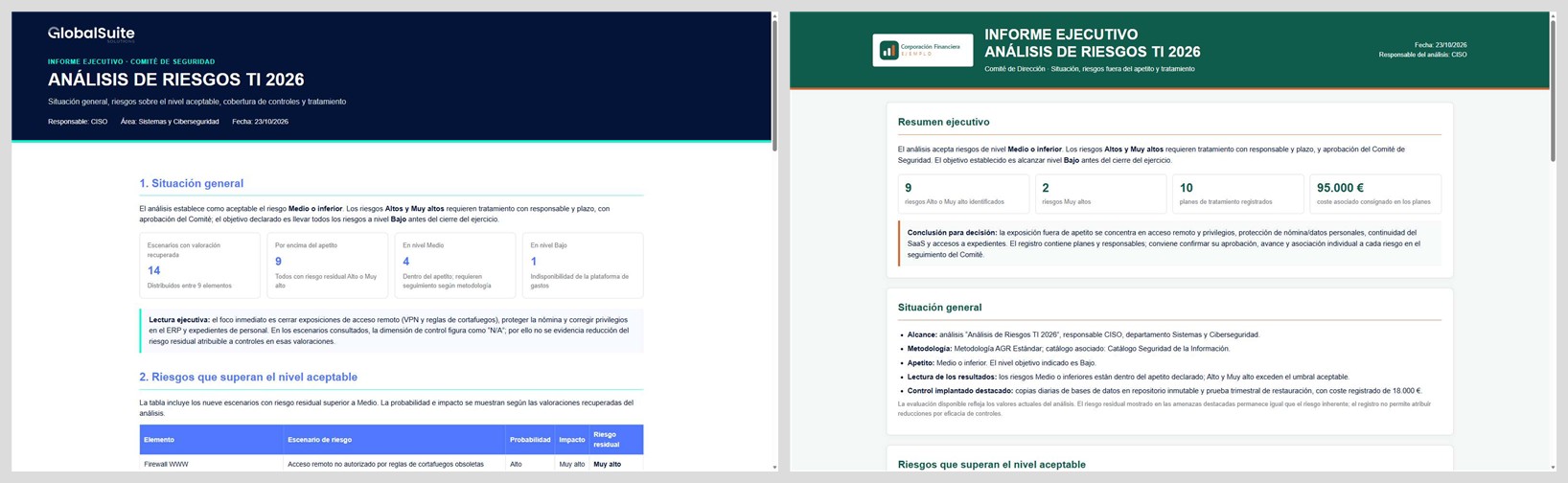
The same executive report in HTML with the GlobalSuite® brand (left) and with an example organization's brand (right).
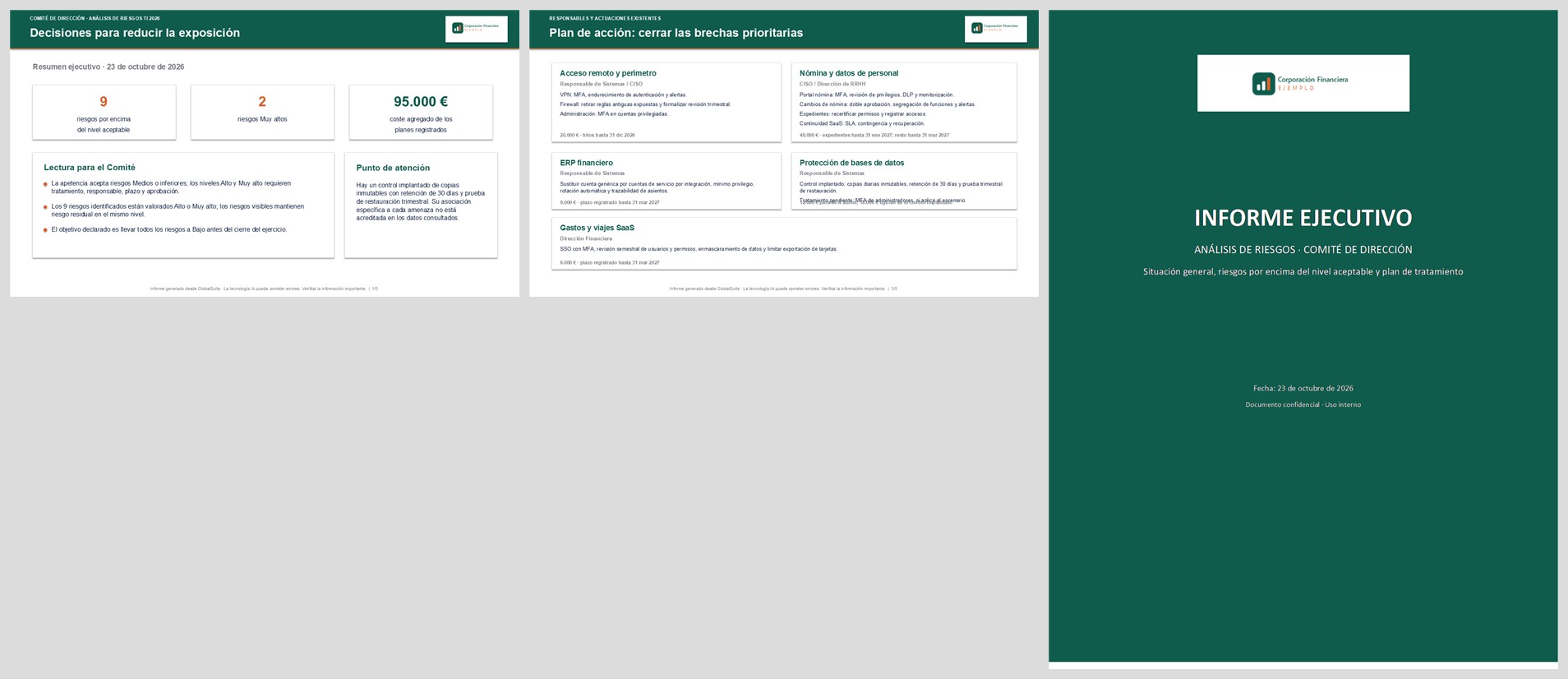
Presentation and Word cover page generated with the organization's logo and colors.
10. Reports with your own Word template
Attach your Word template using «+ ▸ Add files» or from the Document Manager and request its use; for example: «Generate the report for this analysis for the Risk Committee using the attached Word template: fill each section with the analysis data and respect its cover page, styles, header, and footer.» The agent returns a Word document with the template sections completed.
Example queries
These queries work well for any analysis. You can copy them as is: there is no need to name the analysis, as the agent already knows which one you have open.
|
Query |
What you get |
|---|---|
|
Executive summary of the Risk Analysis |
Analysis sheet (responsible party, methodology, scope, acceptable level, and objective), exposure points, treatment status, and a conclusion for management. |
|
Draft a summary of the 5 most relevant risks in this analysis for the committee, with their residual level and the proposed decision. (card «For the committee») |
The five priority risks with their residual level, an executive summary of each, and a proposed decision. |
|
Indicate which risks exceed the acceptable risk level of this analysis, with their item, risk level, and residual risk. (card «Risks above the ARL») |
Risks above the acceptable risk level, with their item, risk level, and residual risk. |
|
Which risks are critical? |
Items and risks with the highest residual level, along with their inherent and residual risk. |
|
Which items concentrate the most risk in this analysis, and what do their scenarios have in common? |
Items with the highest residual risk, their highlighted scenario, and what they have in common. |
|
What is the evolution of Residual Risk? |
The current distribution of residual risk and the comparison between inherent and residual risk; the agent will notify if there is no historical data for comparison. |
|
Identify risks without an assigned responsible party |
Risks without a responsible party, with their item and residual level, to prioritize assignment. |
|
Which controls have low effectiveness? |
Controls with low assessment or, if not assessed, a notification that this data is missing and their status (implemented or treatment plan). |
|
Which risks would have a greater economic impact? |
A prioritization based on potential impact; if the analysis lacks an economic dimension, the agent will indicate this and approximate using importance and residual risk. |
|
Risks by business unit or service |
The distribution of risks by the owning area of the items and by service. |
|
What three actions do you recommend to reduce the residual risk of this analysis below the acceptable level? |
Three prioritized actions, supported by risks exceeding the acceptable level and existing treatment plans, with a roadmap. |
|
With the attached audit report, which risks in this analysis are reinforced by the findings and which controls should be prioritized? |
A cross-reference between the document findings, the analysis risks, and the existing controls, with a proposal for priorities. |
|
Identify the risks without an assigned responsible party, along with their item and residual risk, ranked from highest to lowest. |
Risks without a responsible party, ordered by residual risk, to allocate responsibility starting with the highest ones. |
|
Which controls in this analysis have low effectiveness or lack an assessment? Indicate which risks they affect. |
Implemented controls and treatment plans without effectiveness assessments, along with the risk each one addresses. |
|
Choose the most important item in this analysis that still has no risks and propose three risks with their probability and impact according to the methodology. |
The most important item without risks and three proposed risks with their probability and impact, explained using the methodology levels. Nothing is created until you request it. |
|
Propose the confidentiality, integrity, and availability assessment for the items in this analysis that are not yet assessed. |
The items without assessments and a proposed assessment for each dimension, to review with their responsible parties before applying it. |
|
Propose two actions, with a responsible party and date, for the treatment plan with the nearest deadline, so it can be completed on time. |
The plan with the closest deadline and two actions with dates prior to its deadline; upon confirmation, the cards to create them. |
|
Register these two risks in the item "Managed SOC 24x7 Service": "Incidents not detected due to poorly adjusted alerts" (probability Medium, impact High) and "Provider's privileged access without supervision" (probability Low, impact Very High). |
The cards to create the risks, assess them, and calculate their level; after approval, a summary of what was created. |
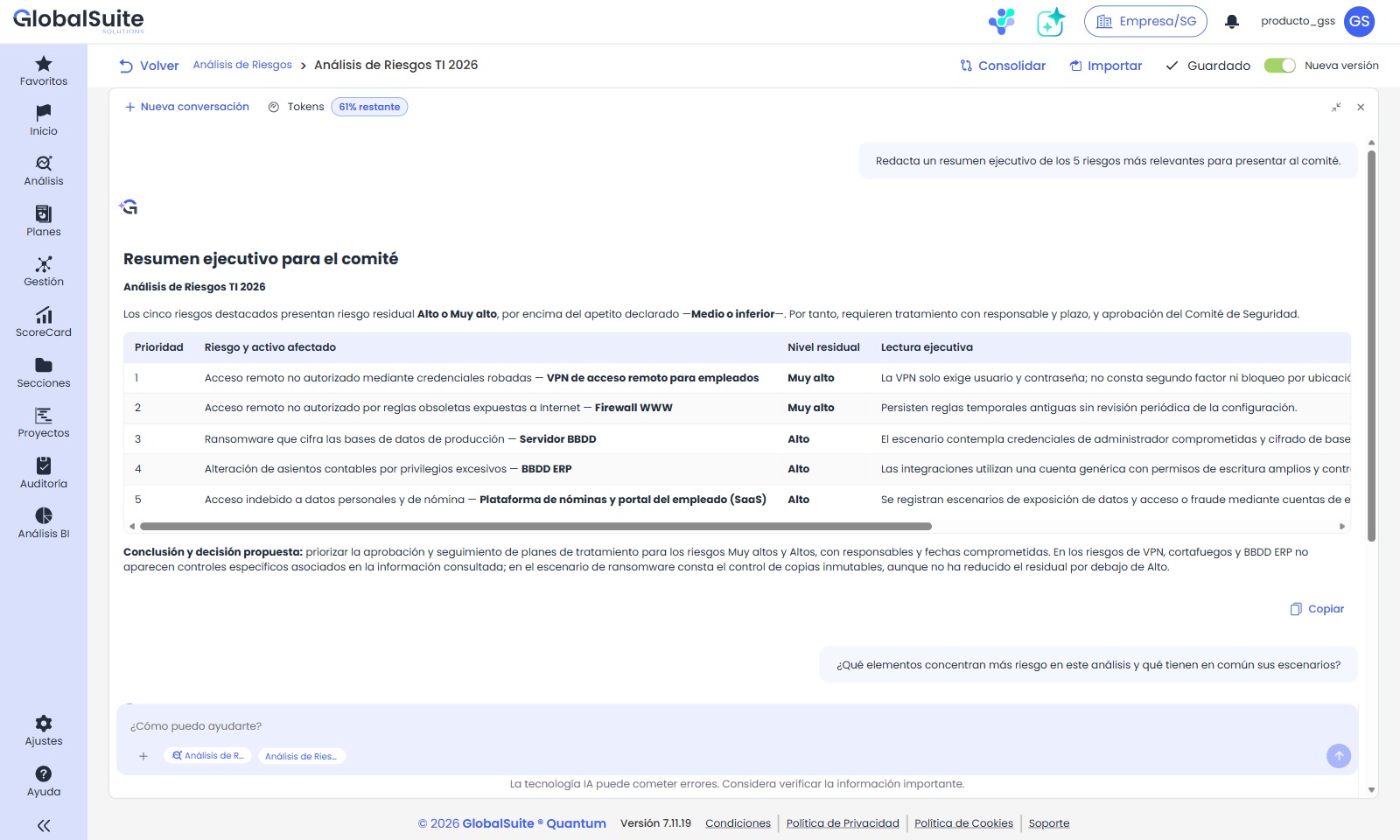
Executive summary of the five most relevant risks for the committee, with their priority and a proposed decision.
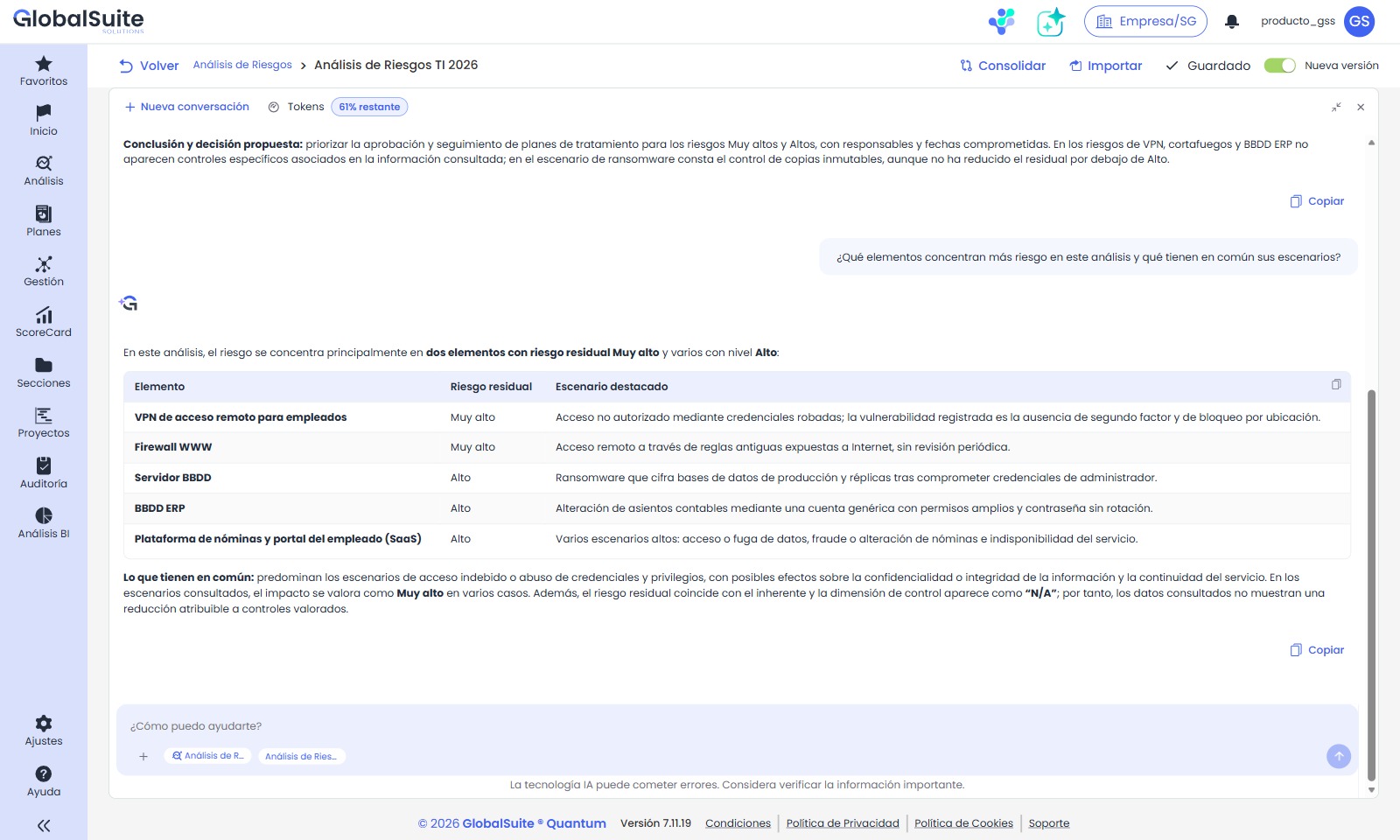
Items that concentrate the most risk in the analysis and what their scenarios have in common.
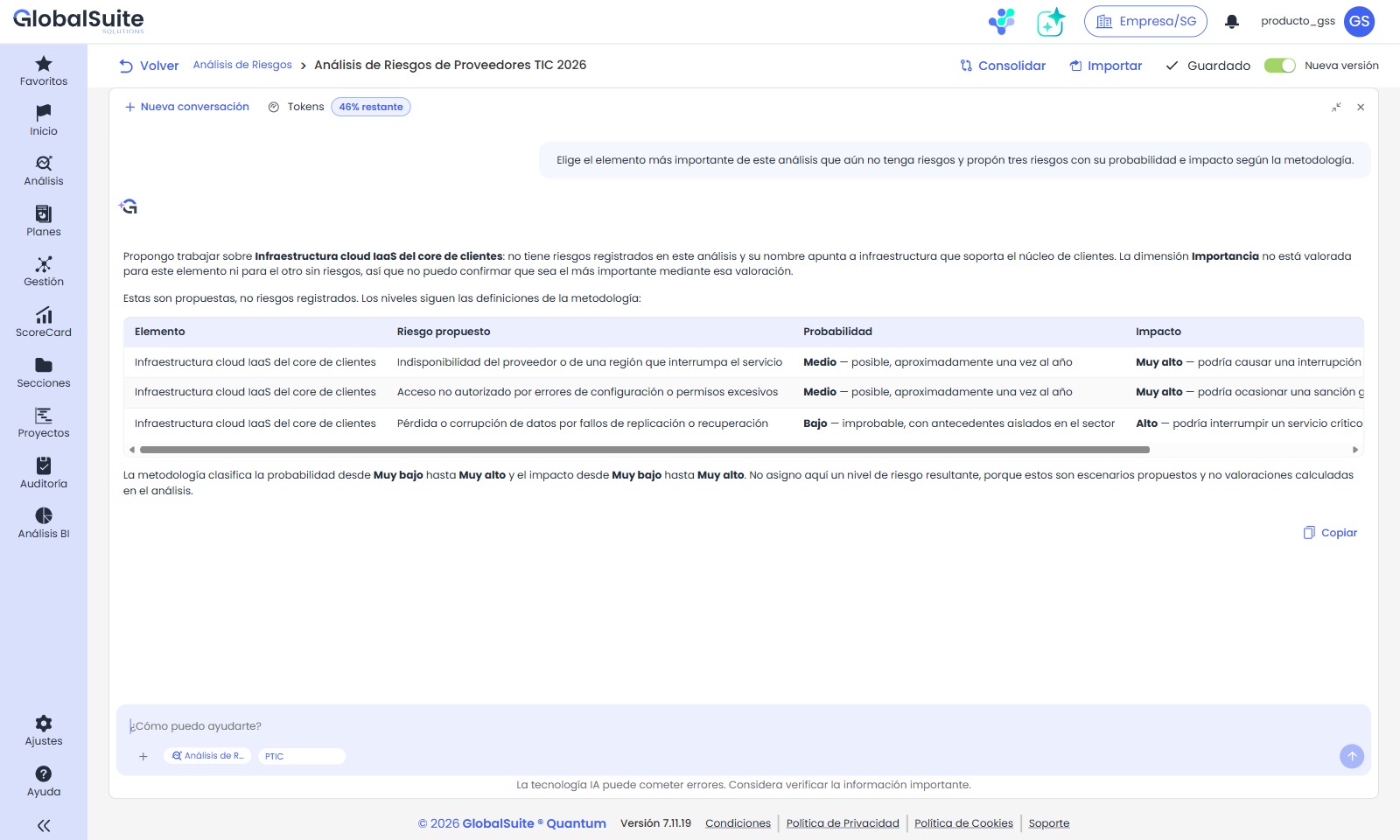
Proposal of three risks, with their probability and impact, for the most important item that still has no risks.
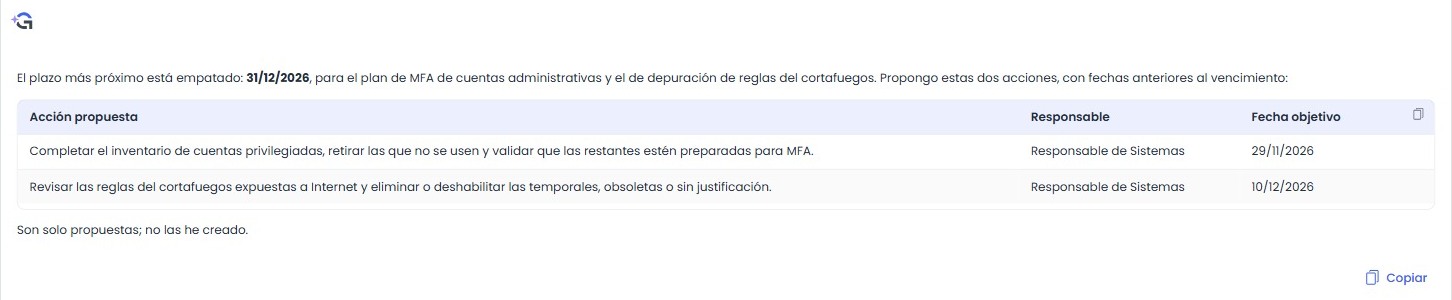
Proposal of two actions, with a responsible party and a date prior to the deadline, for the treatment plans with the nearest deadline.
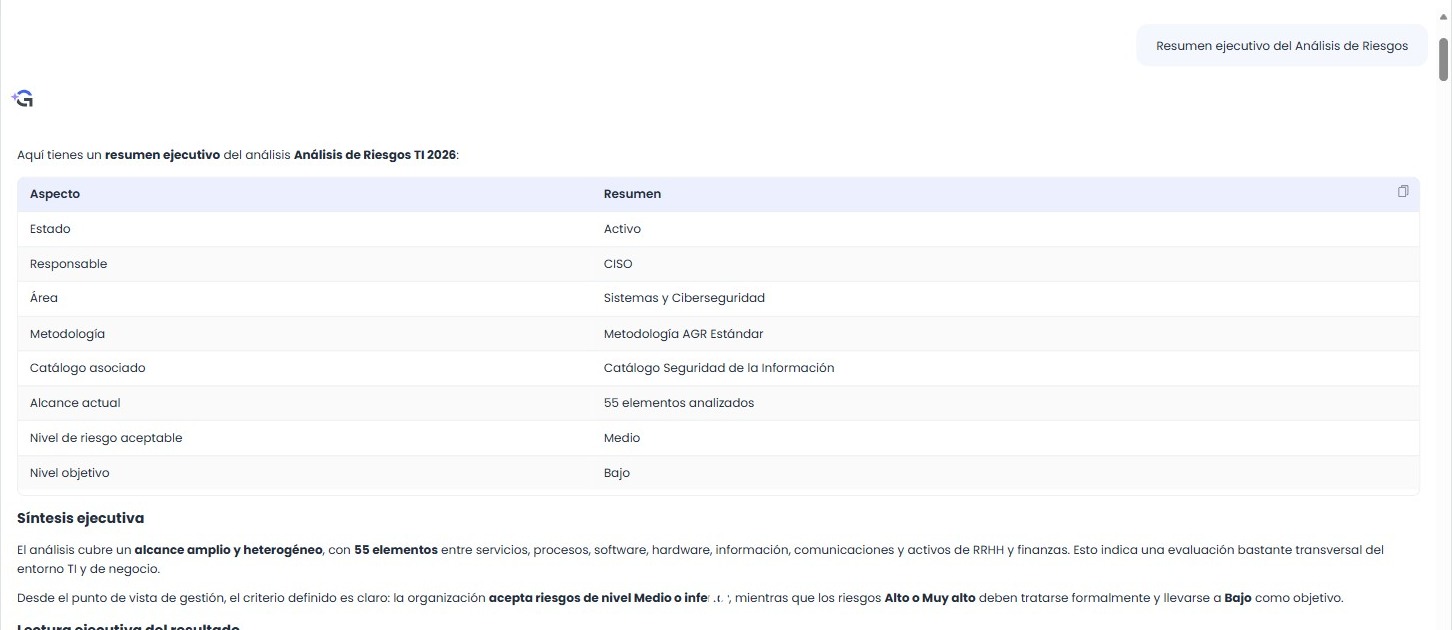
Executive summary of the analysis: file, synthesis, and reading for management.
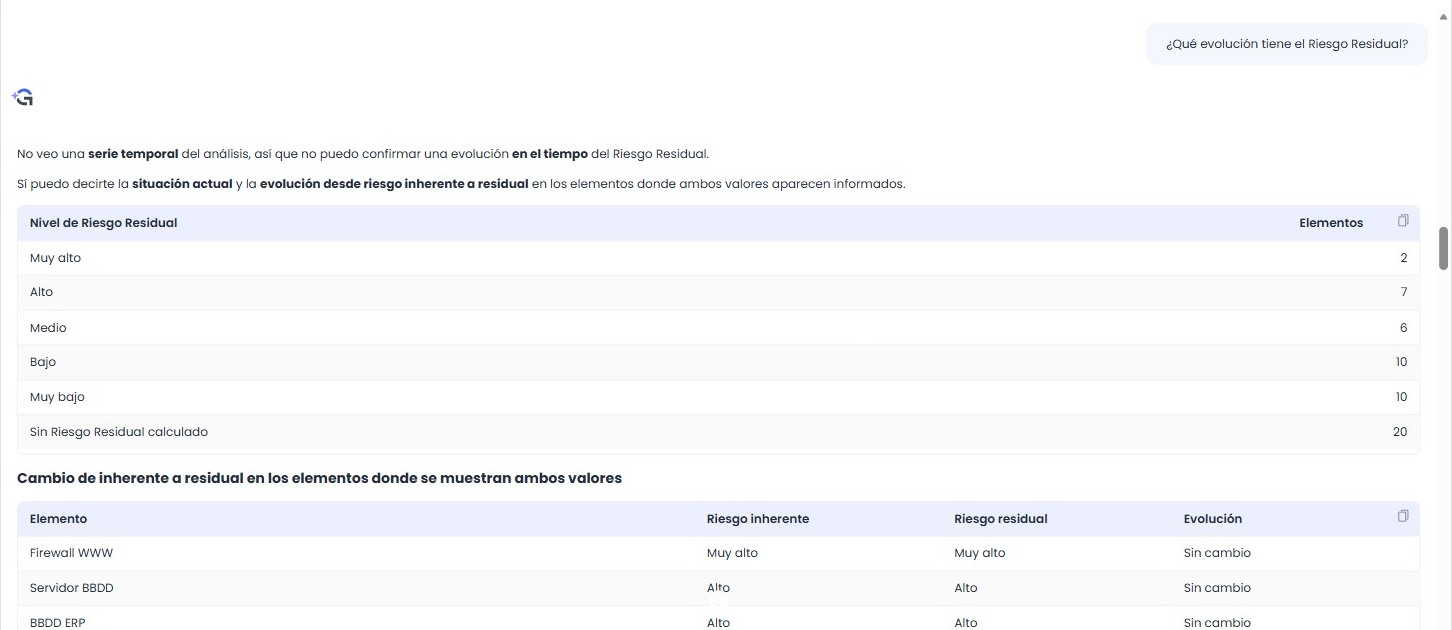
Residual risk evolution: the agent warns that there is no time series and compares inherent and residual risk.
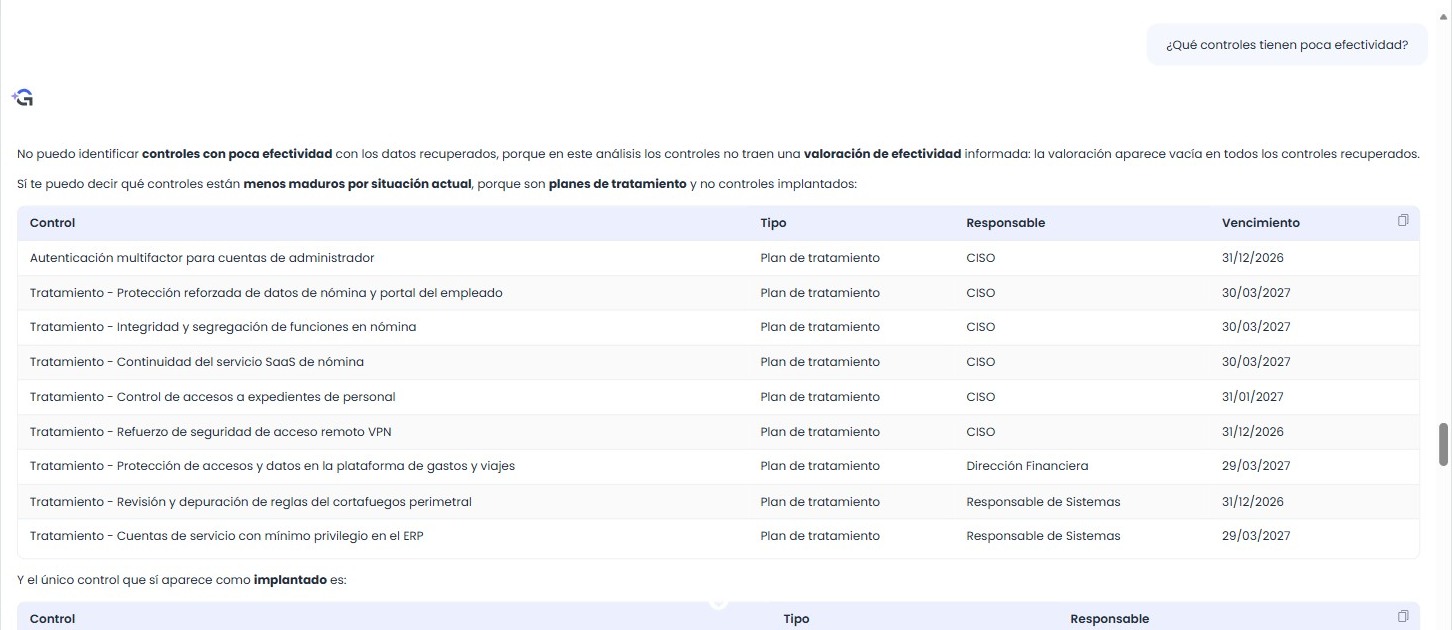
When controls lack effectiveness assessments, the agent indicates it and proposes a useful alternative.
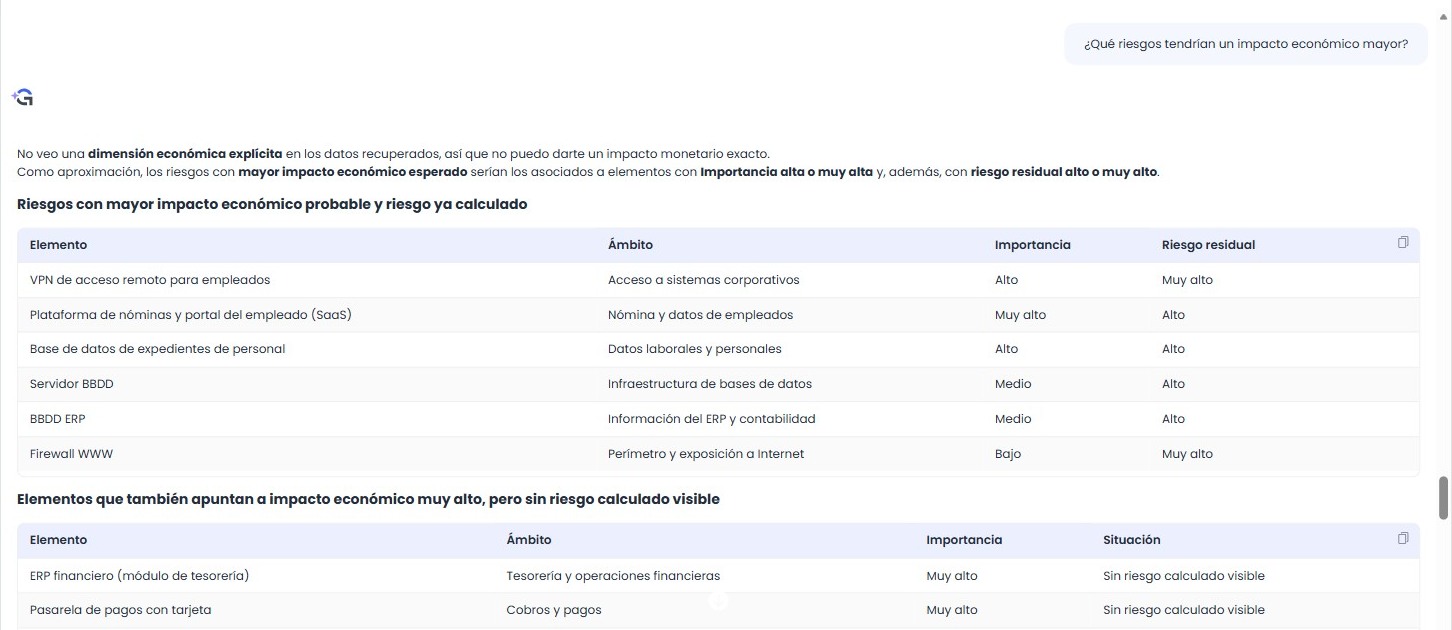
Economic impact: without an economic dimension in the analysis, the agent explains its approach.
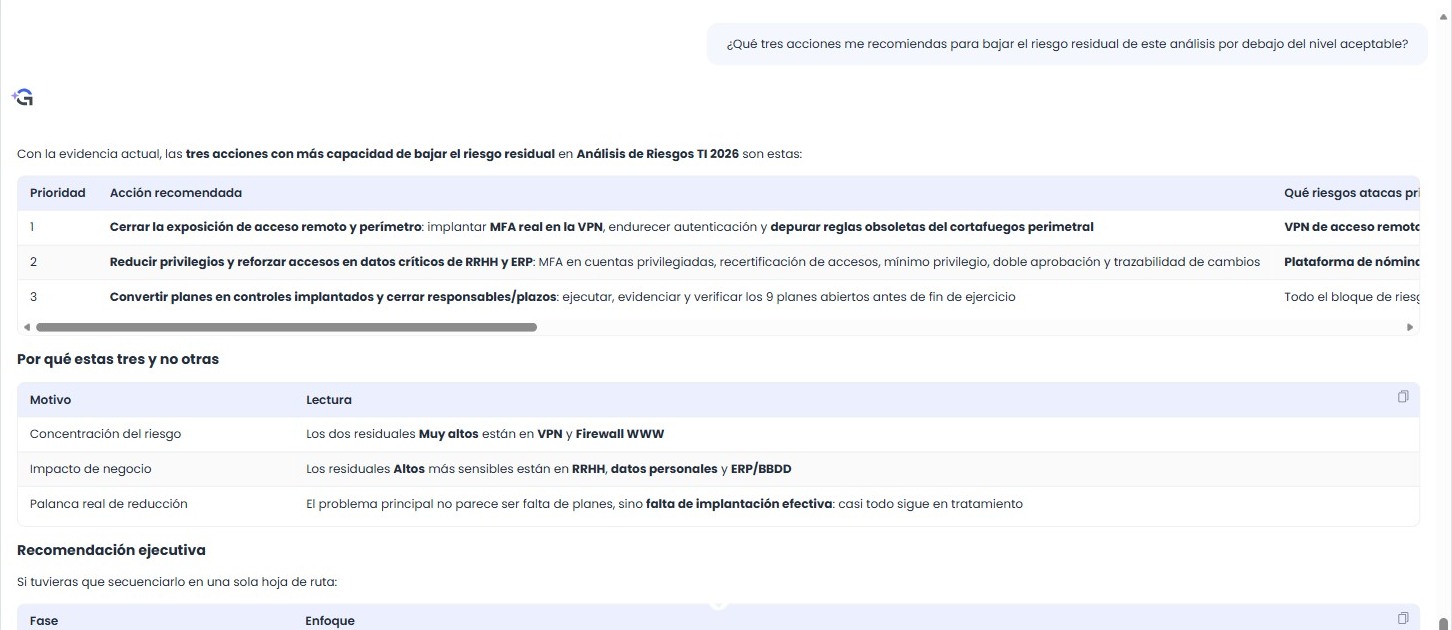
Three prioritized actions to bring residual risk below the acceptable level.
Prompts of MCP GlobalSuite
The AI Agent uses the same capabilities as the MCP GlobalSuite, the connector that allows working with GlobalSuite® from assistants like Claude or ChatGPT, but integrated into the platform and without any configuration. Therefore, the prompts published for the MCP on risk analysis, controls, and treatment plans are also applicable here. When using them in the agent:
-
Replace the name of the analysis in [brackets] with "this analysis": the agent already works on the open analysis.
-
Responses are presented as text and tables within the panel; copy the content with "Copy" or request the result as a report in HTML, Word, PowerPoint, or Excel.
-
Prompts that modify data (risk creation, treatment plans, control association) are also applied with prior approval, card by card.
You will find ready-to-copy examples in these sections of the MCP prompt guide:
-
3. Risk analysis: risks of an item, critical risks, items above the acceptable risk level, how risk is calculated, and where controls are not acting.
-
4. Controls and treatment plans: controls for a risk, controls covering more critical risks, pending plans, weaker controls, and maturity.
-
9. Writing actions: create assessed risks, create a treatment plan and associate it with risks, register actions, and move from diagnosis to action.
-
Tips for obtaining better responses, also applicable to the agent.
Tokens and availability
-
The AI Risk Agent is available to all GlobalSuite® Cloud customers with the Risk module, so they can try it.
-
It has its own monthly quota of 1.5 million tokens per company, like the other AI agents of GlobalSuite®, separate from the platform's general AI assistant. Each query consumes tokens; reports, queries that cover the entire analysis, and those including documents consume more.
-
You can check the available balance in Options (⋮) ▸ Tokens, or in the header of the expanded panel.
-
If the quota is exhausted, the agent displays a notice that the monthly token limit has been exceeded. The quota resets at the start of the next monthly period.
-
If the AI assistant is not enabled for the company, the "AI Agent" action appears disabled with the notice "Functionality available in higher licensing."
Usage recommendations
-
Open the analysis you want to inquire about. The agent takes the open analysis as context; to consult another, open it first.
-
One question per message. Specific questions (an item, a risk level, a type of control) yield more precise and faster responses.
-
Expand the panel to read responses with tables.
-
Wait for the response to finish before sending another question.
-
Compare figures with indicators. Check the totals in the response against the indicators in the header before including them in a report.
-
Review each report before distributing it. Check names, figures, and dates against the analysis.
-
Review each card before approving it. Open "Details" and check the name, responsible party, and deadline before applying a change.
-
Use recommendations as a starting point. The agent's proposals are a decision-making aid; you decide what changes to make in the evaluation.
Frequently asked questions
Can the agent modify my analysis without me noticing?
No. Any change is presented on a card with "Approve" and "Reject," and is only applied if you approve it.
What information does it use to respond?
The data from the open analysis —items, risks, assessments, controls, plans, and methodology— accessible to your user, and the documents you attach to the query.
Is the conversation saved?
Yes. When you close the panel or switch screens, the conversation is preserved and you will find it when reopening the agent. It is specific to each company: when switching companies, a new conversation starts. To start fresh, click "New conversation."
What documents can I attach?
Documents from your team or the Document Manager, such as PDF reports, Word documents, or spreadsheets. Files are used in the query you send next.
In what formats can it generate reports?
HTML, Word, PowerPoint, and Excel. The file appears in the response as a card with its download button.
Can I use my organization's logo and colors in the reports?
Yes. Configure them in Settings ▸ Configuration ▸ General ▸ Customize; from then on, the agent applies them in the reports without you having to request it.
Why does it take time to respond?
Before answering, the agent consults the analysis data; the broader the question or the larger the analysis, the more data it reviews, and a report also requires preparing the file. If the response takes time, wait for it to finish before sending another query.
Does the agent use my data to train the model?
The agent does not provide information about the AI model. For data processing, consult the terms of use of GlobalSuite® AI services.
Keep in mind: the AI Agent is a tool to interpret the analysis and does not replace user review. As stated in the fixed panel notice, "AI technology can make mistakes. Consider verifying important information."
For more information, you can consult: