
The GlobalSuite MCP connects your AI assistant —Claude, ChatGPT, Gemini, Microsoft Copilot, or Cursor— with GlobalSuite®, so you can query and manage your GRC in natural language without leaving the conversation.
What is the GlobalSuite MCP?
MCP (Model Context Protocol) is an open standard that allows AI assistants to securely use the functions of other applications. The GlobalSuite MCP is the official connector of GlobalSuite® for that standard.
It works as a bridge: your assistant requests the information it needs from GlobalSuite® to respond to you, always using your user credentials and permissions, and replies with the actual data from your management system. You don't need to export reports, copy data, or navigate multiple screens: just ask.
Capabilities
The GlobalSuite MCP provides access to the main areas of the platform. In Inventory, Risk Analysis, and Controls, you can query and also act; in Compliance and Document Manager, you can query.
|
Area |
Query |
Act |
|
Inventory |
Items, categories, and assessment of their dimensions (confidentiality, integrity, availability…). |
Add and modify items, assess their dimensions, and recalculate automatic ones. |
|
Risk Analysis |
Analysis, risks of each item with their assessments, and the methodology with its levels and criteria. |
Add or remove items from an analysis, create and assess risks, and trigger the analysis recalculation. |
|
Controls |
Implemented controls and those from the treatment plan, with their assessment, actions, and the risks they mitigate. |
Create and modify controls and actions, associate them with risks, and manage their evidence. |
|
Compliance |
Regulatory evaluations and their compliance level, requirement tree, common controls, and associated incidents. |
Query only. |
|
Document Manager |
Search for documents by name and read their content (Word, PDF, and images). |
Query only. |
|
GlobalSuite® Updates |
Updates for each version and search in the change history. |
— |
Discover what you can ask and copy ready-to-use prompts in Use cases and prompt examples .
Benefits
-
Responses in seconds to questions that previously required navigating multiple views, applying filters, and exporting.
-
Your data, your permissions: the assistant accesses exactly what you see in GlobalSuite®, in your company and your management system.
-
Ready-to-use results: tables, graphs, reports, and Excel or Word files generated directly in the conversation from real data.
-
With the AI your organization already uses: Claude, ChatGPT, Gemini, Microsoft Copilot, or Cursor, without changing tools. If you use another assistant, we can consider including it.
-
Combined context: cross-reference GlobalSuite® information with attached documents or other sources connected to your assistant.
-
You decide: the assistant only changes data when you request it and with your permissions, and you can ask for a proposal to review it first.
How does it work?
Your AI assistant and GlobalSuite® communicate through the GlobalSuite MCP. You write in natural language, and the assistant handles requesting the data it needs from GlobalSuite®.
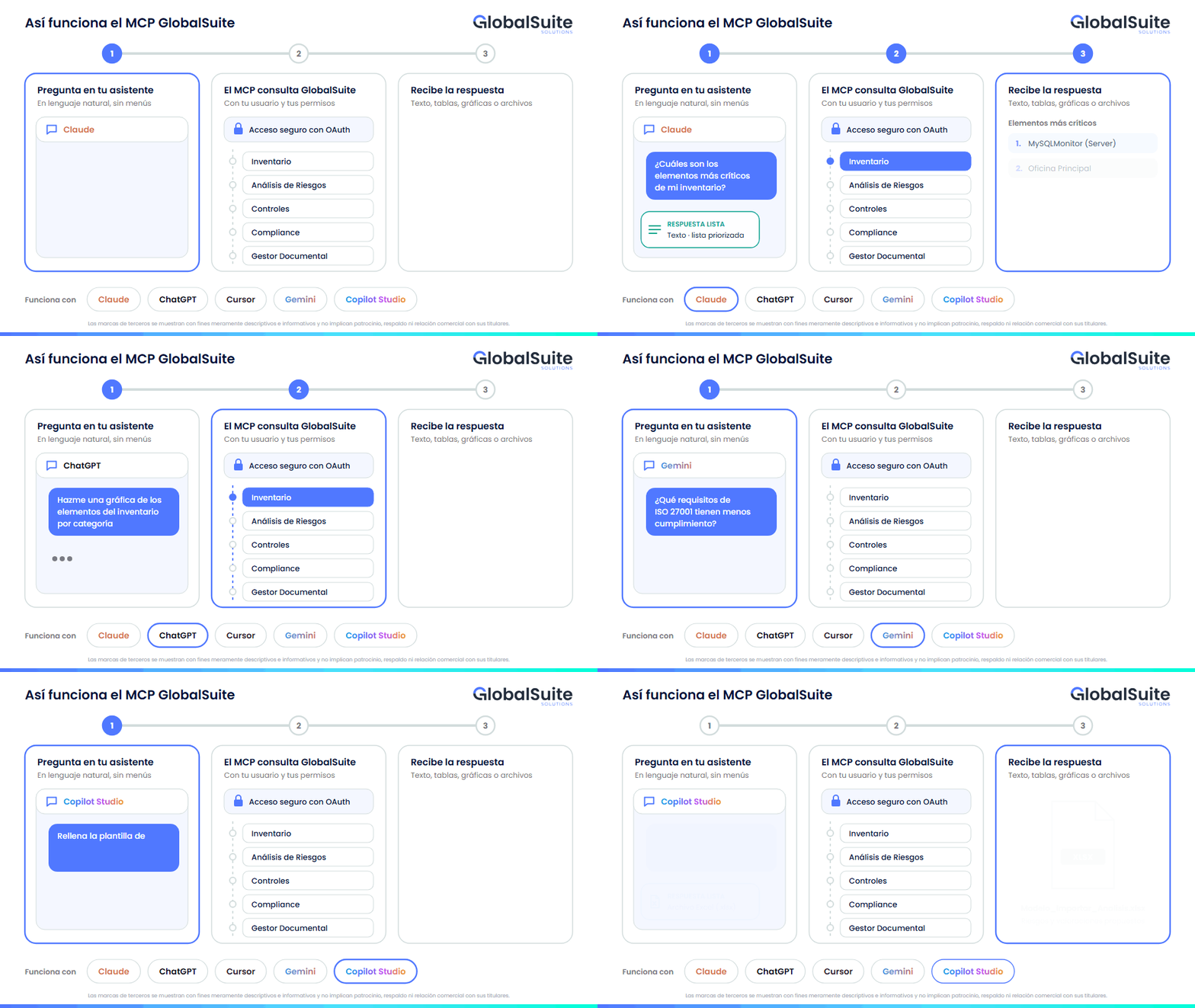
Third-party trademarks are displayed for descriptive and informational purposes only and do not imply sponsorship, endorsement, or commercial relationship with their owners.
Step by step
-
Questions. You write your request in your assistant's chat, for example: "Which risks in the security analysis lack controls?"
-
The assistant chooses the tools. It decides which GlobalSuite MCP functions it needs (query items, risks, controls, requirements, documents…) and invokes them, chaining several if the question requires it.
-
GlobalSuite® verifies your identity. Each request travels with the access you obtained when logging in with your GlobalSuite® user. The MCP validates that access and queries the platform with your permissions, within your company and management system.
-
You receive the response. GlobalSuite® returns the data, and the assistant responds with text, tables, graphs, or files.
-
You control the changes. The assistant only modifies data when you request it. Each assistant manages prior confirmation in its own way: ChatGPT requests it for some actions, and Claude does so depending on its permission mode. To review a change before applying it, first ask for a proposal.
Technical data
|
Aspect |
Detail |
|
Protocol |
Model Context Protocol (MCP) over HTTPS (Streamable HTTP transport). |
|
Connector address |
Depends on your environment: https:///mcp/mcp . For example, in the demo environment: https://demo.globalsuite.es/mcp/mcp . |
|
Authentication |
OAuth 2.1 with PKCE. You log in on the GlobalSuite® screen using your usual method (username and password, Active Directory/LDAP, or SSO) and your two-factor authentication if enabled. |
|
Permissions |
The same as your user on the web: the MCP neither expands nor reduces your access. |
|
Session |
Access lasts 60 minutes, and the assistant renews it automatically. If unused for more than 7 days, you'll be asked to log in again. |
|
Availability |
GlobalSuite® Cloud. Not available for OnPremise installations. |
Also within GlobalSuite®: AI Agent for Risk Analysis and Assessment
If you prefer not to leave the platform, the AI Agent for Risk Analysis and Assessment uses these same capabilities from within GlobalSuite®, without connecting any external assistant. It opens with the "AI Agent" action in the Risk Assessment header or the "AI" button in the analysis lists (Risk Assessment and Risk Analysis) and the "Risk Assessment" tab of each analysis. In a side panel, it answers your questions about the open analysis and applies the changes you request.
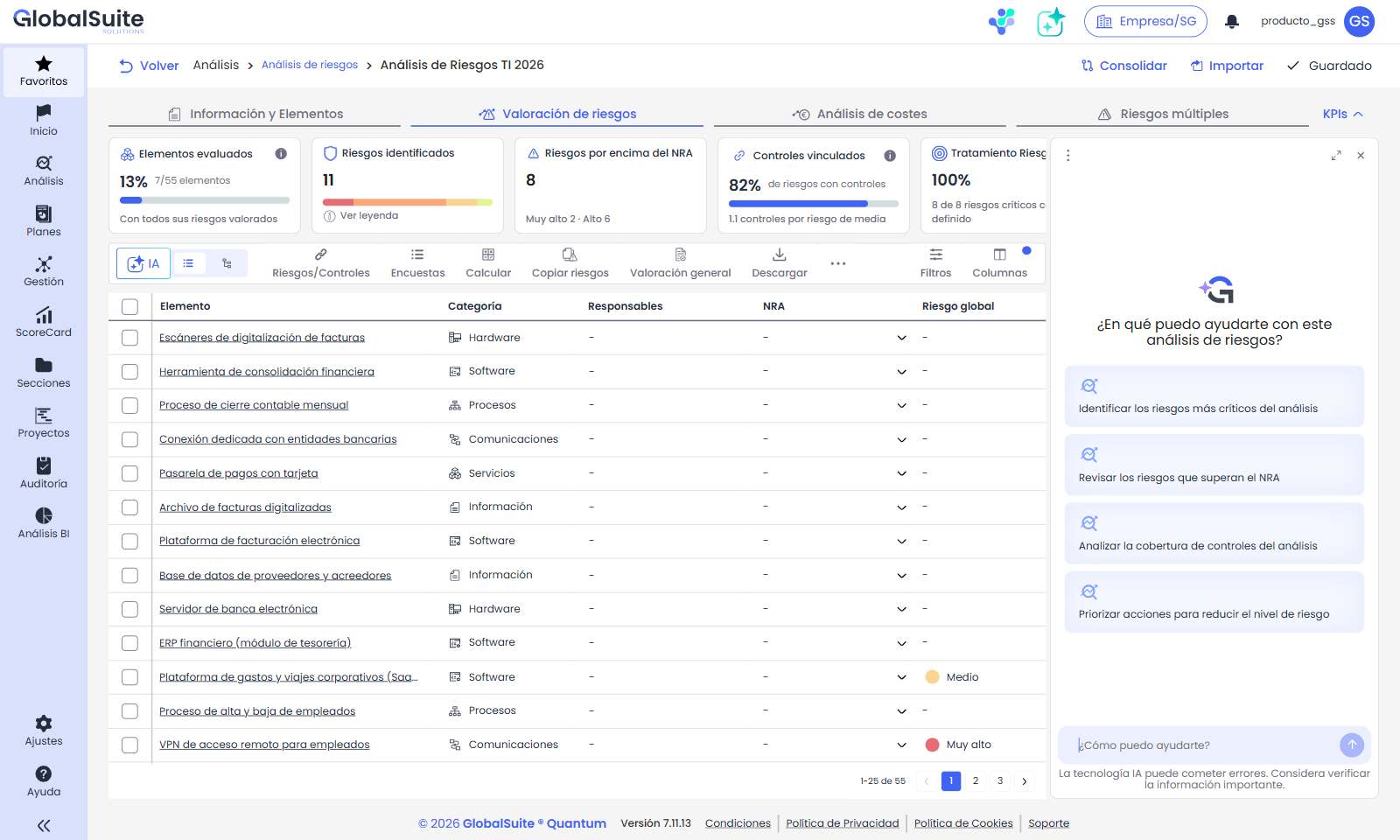
The AI Agent opens in a side panel, next to the analysis assessment, with suggested queries to get started.
More information at AI Agent in Risks .
Coming soon
-
Write actions in Compliance and the Document Manager.
-
Visual and interactive responses within the chat itself (MCP Apps).
-
Connector publication in Claude and ChatGPT directories, to add it without configuring any address.
-
Connection without needing to enter the client identifier.
-
Switching companies or management systems from the assistant, for users with access to multiple ones.
In this section
-
Installation and configuration guide : how to connect your assistant, in personal and corporate accounts.
-
Use cases and prompt examples : what you can ask, with prompts ready to copy.
-
Frequently asked questions : compatible assistants, limits, sessions, permissions, and disconnection.
-
Legal notice and terms of use : responsibilities, data processing, and brand usage.
Keep in mind: responses are generated by the AI assistant you choose and may contain errors. Always review the information before making decisions. The data consulted by the assistant is processed on the service of the AI provider you use, according to their own terms; check the legal notice .