
This guide explains how to connect your AI assistant with GlobalSuite® using MCP GlobalSuite, whether you use your own account or an account managed by your organization, and how to log in with your GlobalSuite® user.
Before you start
To connect MCP GlobalSuite, you need:
-
A GlobalSuite® Cloud environment and an active user with access to the information you want to query.
-
A compatible AI assistant with a plan that allows adding custom MCP connectors or servers.
-
The MCP address of your environment.
MCP address of your environment
Each GlobalSuite® environment has its own MCP address, formed by the domain you use to access GlobalSuite® in the browser followed by /mcp/mcp :
For example, in the GlobalSuite® demo environment, the address is https://demo.globalsuite.es/mcp/mcp . If you have questions about your environment's address, contact GlobalSuite® Support.
OAuth Connection Data
Most assistants automatically discover this data. Some, like Copilot Studio or Gemini Enterprise, require you to provide it when configuring the connector:
|
Data |
Value |
|
Authorization URL |
https:///api/oauth/authorize |
|
Token and Renewal URL |
https:///api/oauth/token |
|
Revocation URL |
https:///api/oauth/revoke |
|
Scopes |
mcp:read and offline_access They are the same for querying and making changes: what you can modify depends on your user permissions in GlobalSuite®. |
|
Verification Method |
PKCE with S256 (mandatory). |
|
Client Identifier |
ChatGPT: chatgpt · Cursor: cursor · Microsoft Copilot: microsoft-copilot · Gemini Enterprise: gemini-enterprise · Claude: no need to specify. Microsoft Copilot and Gemini Enterprise also use a client secret: request it from GlobalSuite® Support. |
Log in with your GlobalSuite® user
The connection is authorized using the standard OAuth protocol. The first time you connect MCP, your assistant opens the GlobalSuite® login screen—the same one you use on the web—and you log in using your usual method:
|
User Type |
How you log in |
|
Username and Password |
With your GlobalSuite® username and password. |
|
Active Directory or LDAP |
With your corporate directory username and password, just like on the web. |
|
Single Sign-On (SAML) |
Through your organization's identity provider. |
|
Two-Factor Authentication (2FA) |
If enabled, it will prompt you just like on the web: code from your authentication app or email code. |
Once completed, you automatically return to your assistant without additional screens. From that moment, the assistant queries GlobalSuite® with your user, in your company and management system, and with your same permissions.
-
Access lasts 60 minutes and is renewed only while you use the assistant.
-
If the connector goes more than 7 days without use, it will prompt you to log in again.
-
You don't need to have GlobalSuite® open in the browser to use MCP.
MCP connects to the company and management system your user belongs to. Soon, you'll be able to switch companies or management systems from the assistant.
Configuration by Assistant
Choose your assistant. In corporate accounts, an administrator usually needs to enable or add the connector for the entire organization first.
Claude (web, desktop, and mobile)
Personal Account (Pro or Max)
-
Open Claude and go to Customize → Connectors.
-
Click Add and select Add Custom Connector.
-
Enter a name (e.g., "GlobalSuite") and paste the MCP address of your environment. No need to fill in advanced settings.
-
Click Add and then Connect. The GlobalSuite® login screen will open: log in.
-
In each conversation, activate the connector from the + → Connectors button.

Customize → Connectors in Claude, with the GlobalSuite® connector added.
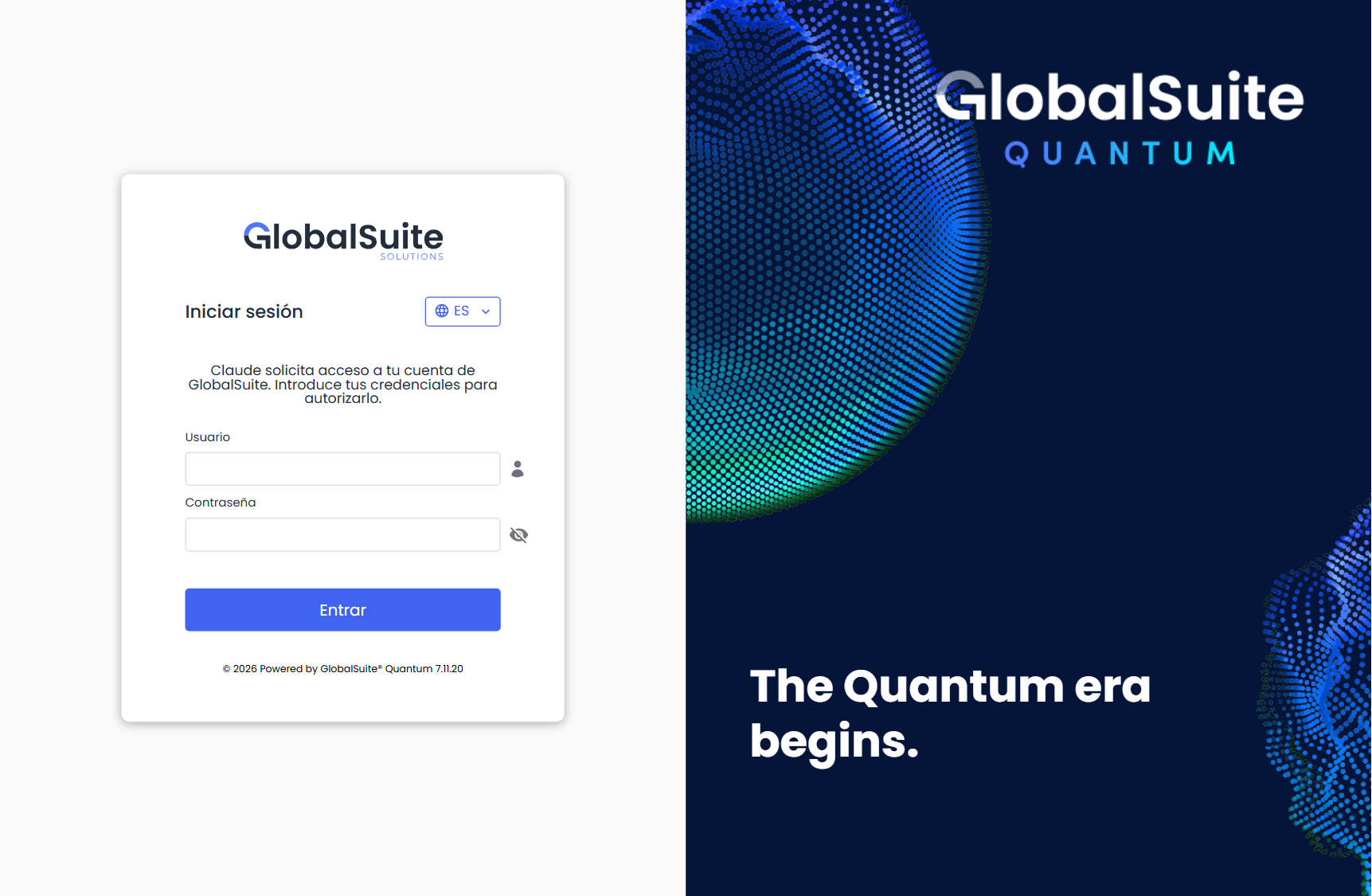
GlobalSuite® login screen that opens when clicking Connect.
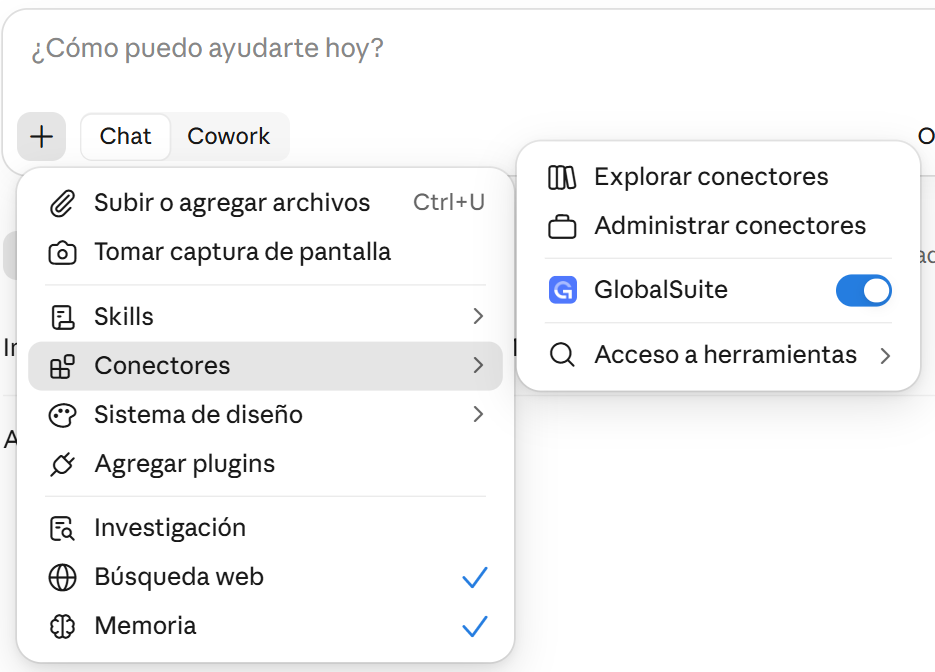
Connector activation in a Claude conversation: + → Connectors.
Organization Account (Team or Enterprise)
-
An organization owner adds the custom connector with the MCP address from the organization's connector settings.
-
Each user goes to Customize → Connectors, searches for GlobalSuite, and clicks Connect to log in with their own GlobalSuite® user.
In the connector tab ( Customize → Connectors → GlobalSuite), you choose, tool by tool, whether Claude can always use it, ask for approval before each use, or have it blocked.
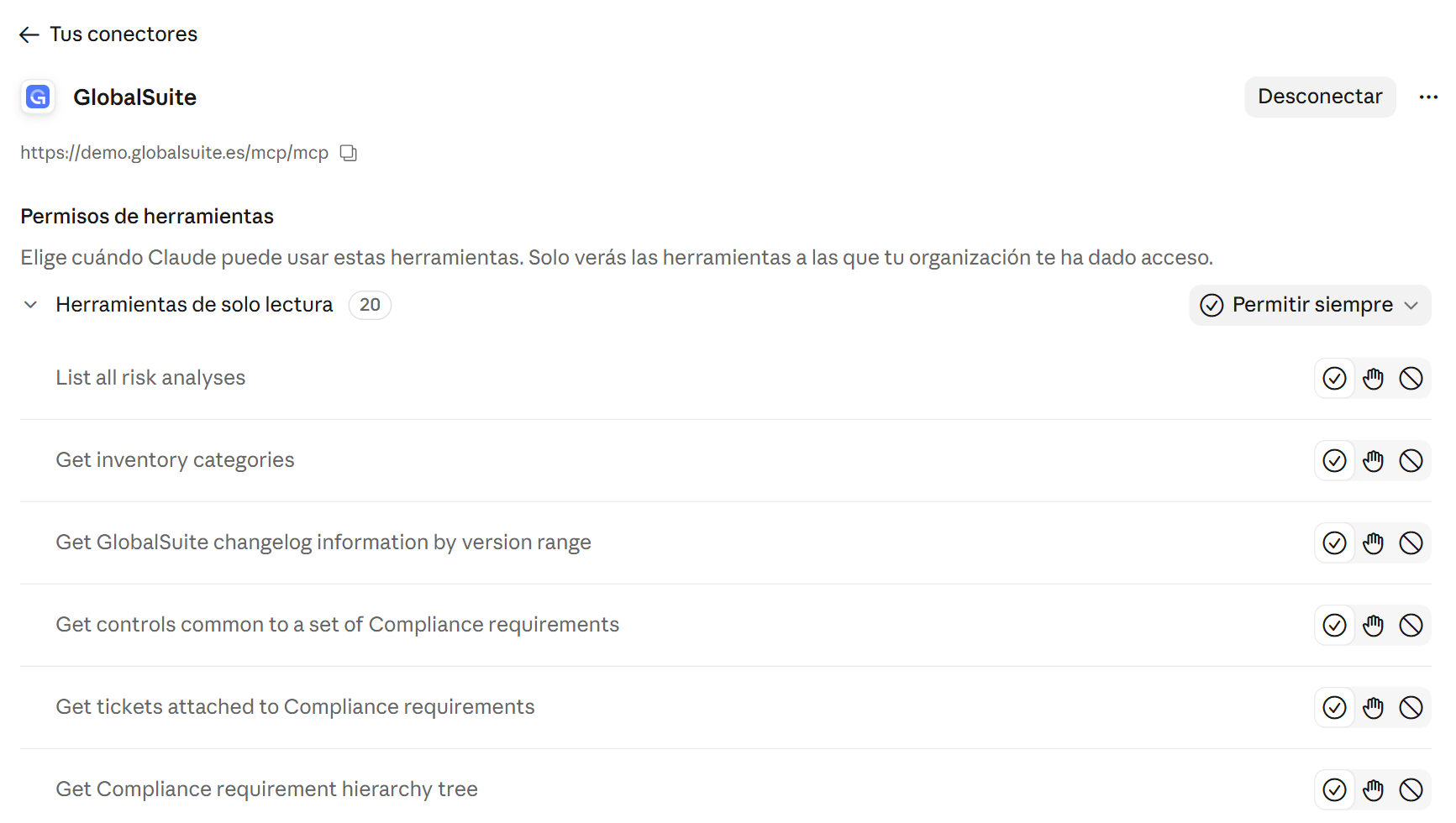
Connector tab in Claude: MCP address and permissions by tool.
More information in the Claude help (custom connectors via remote MCP).
ChatGPT
ChatGPT requires developer mode to add custom MCP servers and a paid plan (Plus, Pro, Business, Enterprise, or Edu).
Personal Account (Plus or Pro)
The connector is added from ChatGPT's developer mode, using the MCP address of your environment and the connection data from this guide. Steps are in the OpenAI help .
Organization Account (Business, Enterprise, or Edu)
You won't be able to add the connector on your own: the workspace administrator must enable developer mode and publish the GlobalSuite connector for members. Then, each user connects it with their own GlobalSuite® user. More information in the OpenAI help .
Once connected, the plugin appears in Settings → Plugins with the GlobalSuite® account you logged in with. In each conversation, select it by typing @GlobalSuite or from the + button.
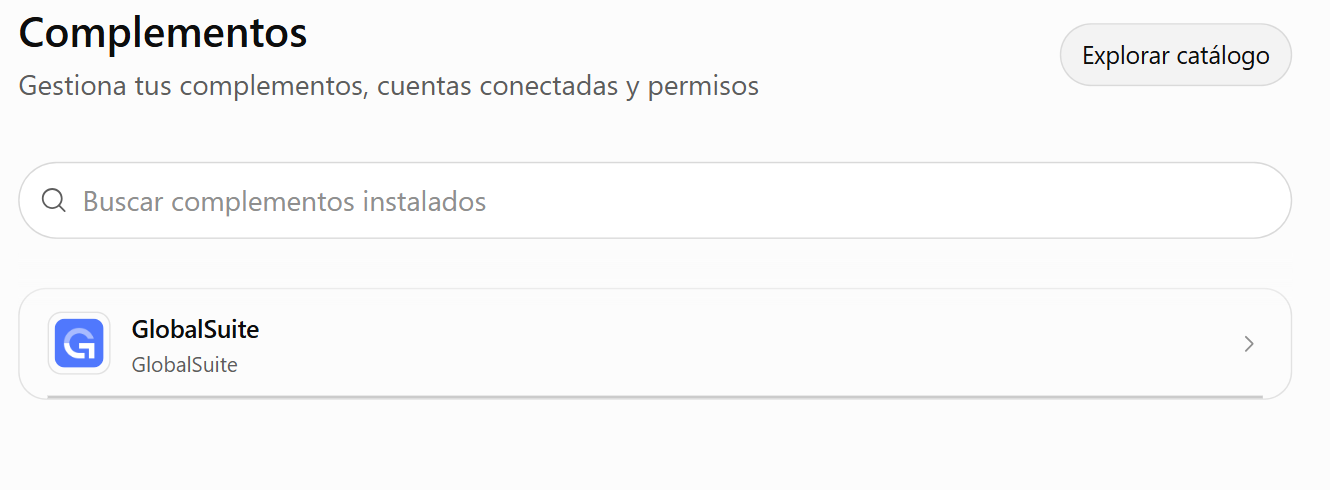
Settings → Plugins in ChatGPT, with the GlobalSuite® plugin.
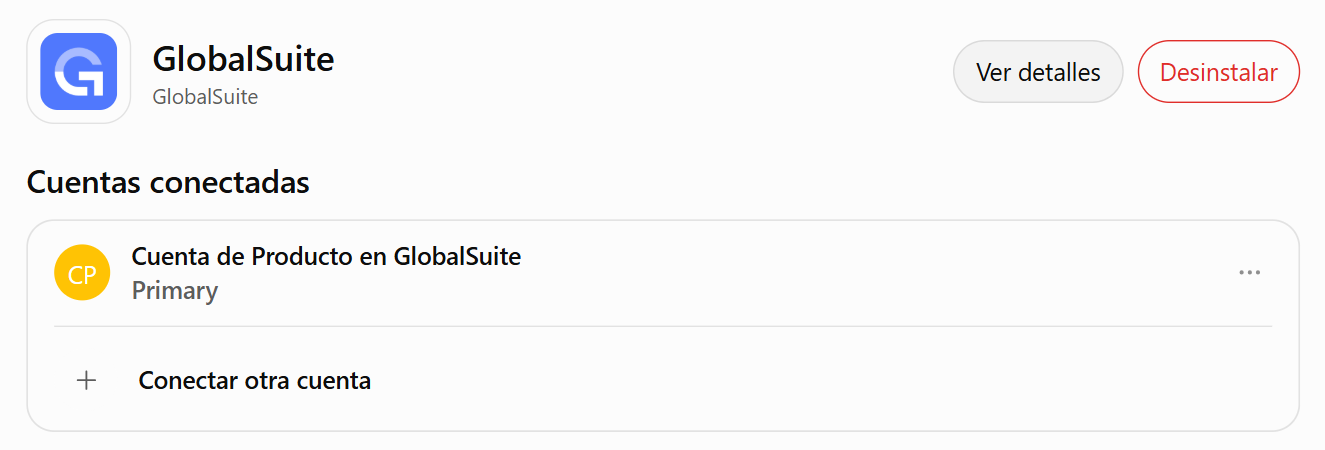
Plugin tab in ChatGPT, with the connected GlobalSuite® account.
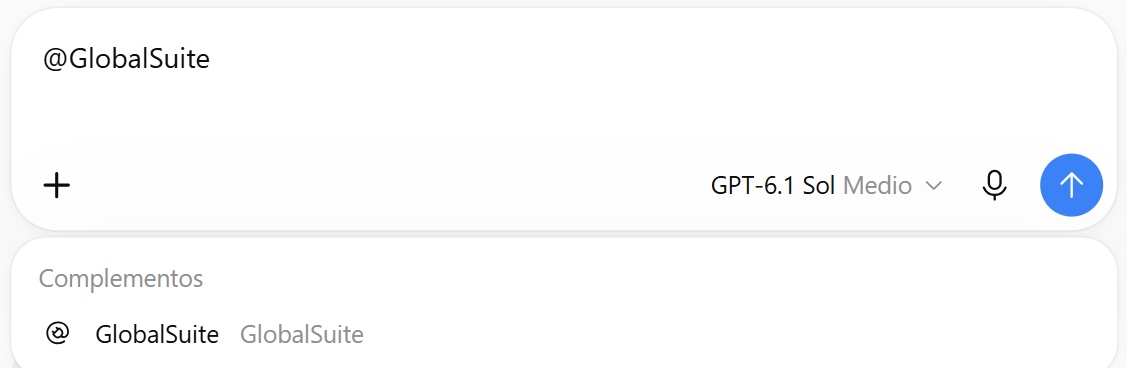
Plugin selection in a ChatGPT conversation with @GlobalSuite.
Cursor
-
Open the configuration file mcp.json : global in ~/.cursor/mcp.json (on Windows, %USERPROFILE%\.cursor\mcp.json ) or per project in .cursor/mcp.json . You can also do this from Cursor Settings → MCP → New MCP Server.
-
Add this block, replacing the address with that of your environment, and save:
-
Restart Cursor. The first time, the browser will open for you to log in to GlobalSuite®. When the server appears with a green dot, it is connected.
Gemini Enterprise
The team administrator adds the MCP GlobalSuite as a connected application:
-
In Gemini Enterprise, select your team and go to Manage team → Connected apps → Add MCP Server.
-
Enter the MCP address of your environment and choose OAuth 2.0 as authentication. Complete the authorization URL, token URL, and scopes from the connection data table, the client identifier gemini-enterprise and the client secret provided by GlobalSuite® Support.
-
Each user logs in with their GlobalSuite® account the first time they use the connector.
Microsoft Copilot Studio
-
Open your agent in Copilot Studio and go to Tools → Add a tool → New tool → Model Context Protocol.
-
Enter a name and description, and paste the MCP address of your environment.
-
In authentication, choose OAuth 2.0 → Manual and complete the client identifier microsoft-copilot , the client secret provided by GlobalSuite® Support, the authorization URL, the token URL, the refresh URL (same as the token URL), and the scopes. The return URL generated by Copilot Studio is already authorized in GlobalSuite®.
-
Save the tool and publish the agent. The first time it is used, it will prompt you to log in to GlobalSuite®.
Microsoft 365 Copilot
To use GlobalSuite® from Microsoft 365 Copilot, create the agent in Copilot Studio as indicated above and publish it to the Microsoft Teams and Microsoft 365 Copilot channel. Users will find the agent in Copilot and, for the first time, log in with their GlobalSuite® account.
Check that it works
With the connector active, type in your assistant:
If everything is fine, the assistant will show you the list of your risk analyses. You will find many more examples in Use cases and prompt examples .
Disconnect the MCP
|
Assistant |
How to disconnect it |
|
Claude |
Customization → Connectors → GlobalSuite → Disconnect. To stop using it only in a conversation, deactivate it in the + button → Connectors. |
|
ChatGPT |
Settings → Plugins → GlobalSuite → Uninstall. |
|
Cursor |
Remove the "globalsuite" block from the configuration file and restart the application. |
|
Copilot Studio and Gemini Enterprise |
The administrator removes the tool from the agent or the connected application. |
In corporate accounts, administrators of Claude and ChatGPT can also limit which connectors are allowed in the organization.
From GlobalSuite®, to cut off a user's access, simply deactivate or remove them: their assistant will no longer be able to query the platform no later than the next access renewal (60 minutes).
Troubleshooting
|
Problem |
What to do |
|
The option to add connectors does not appear |
Check that your plan allows it. In ChatGPT, activate developer mode. In corporate accounts, ask the administrator to add or enable the connector; in Claude, the "Add custom connector" option appears disabled if your organization only allows administrators to add them. |
|
Connection fails |
Check that the address is exactly that of your environment, including the final path /mcp/mcp . |
|
Error logging in |
Check that your account is active and that you can log in to GlobalSuite® via the web using the same method. If you use two-factor authentication, have the code ready. |
|
Connects, but does not respond with data |
Disconnect and reconnect the MCP, log in, and start a new conversation with the connector activated. |
|
Cannot find an analysis, requirement, or document |
Type its name exactly as it appears in GlobalSuite® and check that your account has access. Documents are searched by file name, not by their content. |
|
The response seems incomplete |
With a large volume of data, ask the assistant to review all pages of results, narrow the question (by analysis, category, or item), or use your assistant's research mode. |
|
Too many requests warning |
You have exceeded the usage limit per minute. Wait a moment and try again. |
|
Prompts to log in again |
This is normal if the connector has not been used for more than 7 days. Log in again. |
Keep in mind: the configuration screens belong to each AI provider and may change without prior notice. If any step does not match, consult your assistant's official help or contact GlobalSuite® Support.