
Clicking on the name of an item opens its detail in a side panel (sidepanel), from which it is possible to view and edit the associated information.
This panel can expand to facilitate visualization.
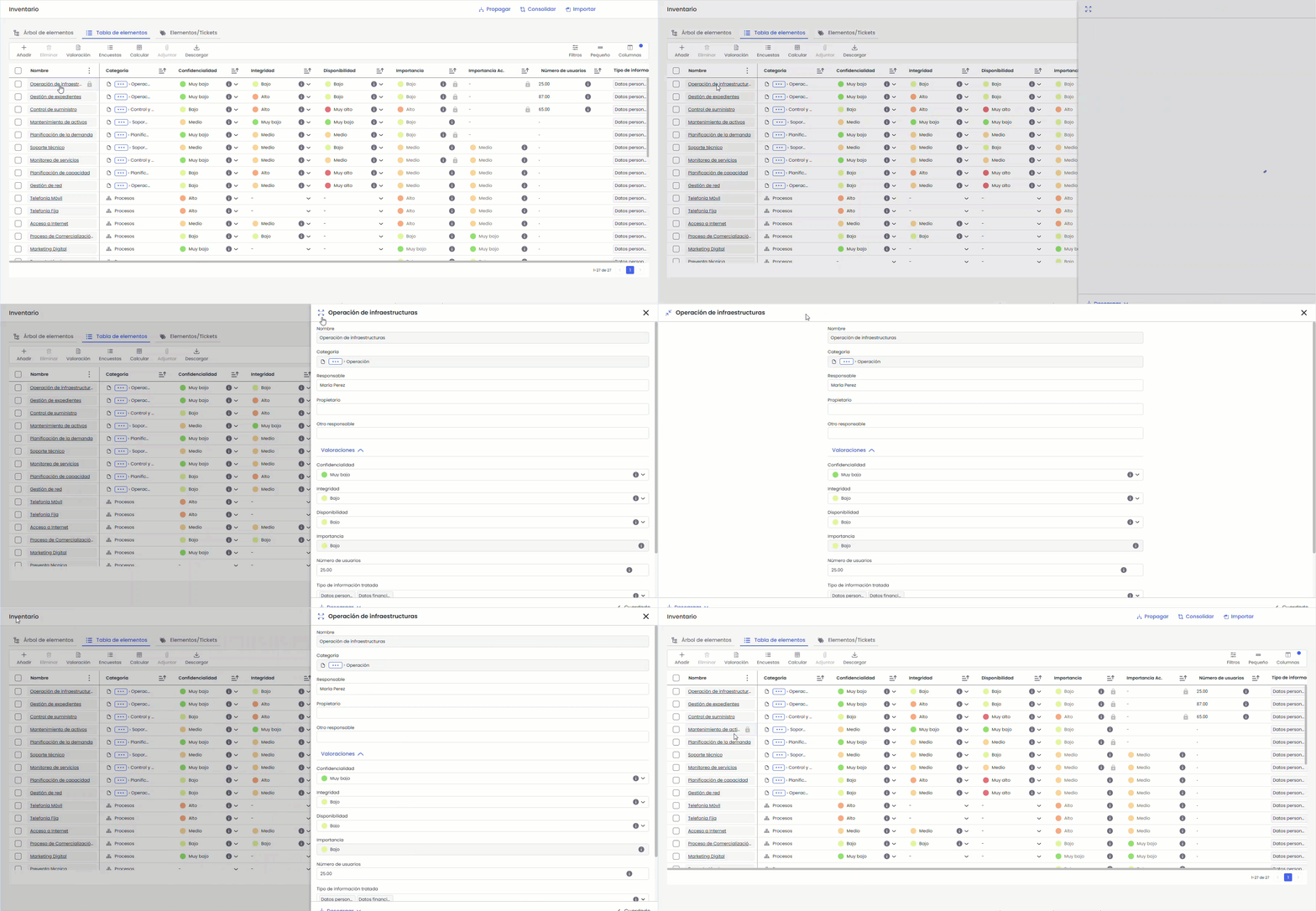
Item Detail
The side panel displays the information structured in different blocks:
General item data
At the top, the general data of the item is displayed, such as the name, category, and responsible parties.
The editing behavior depends on the type of item:
-
Name: not editable for items belonging to special categories.
-
Category: can be modified, but for items in special categories, it is only possible to select categories of the same type (sibling or child categories) without changing the item type.
Evaluations
Next, the evaluations are displayed, corresponding to the dimensions defined in the methodology. These can be edited directly, and their format will depend on the configuration (selector, numeric, etc.).
Documentation
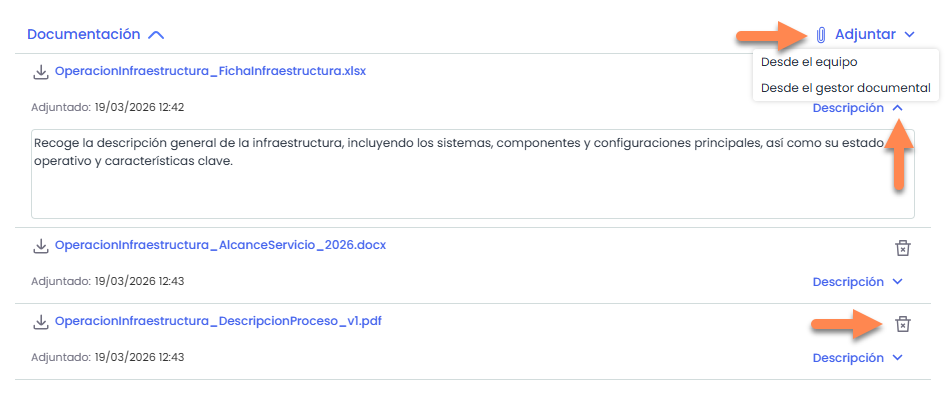
The Documentation block allows managing the files associated with the item. This block will only be visible when the option “ Visible in form” is activated in Settings > Item Methodology > Documentation.
From this section, it is possible to:
-
Add documents: Documents can be added from the device (up to 10 documents at a time) or from the document manager.
-
Edit the description of each document.
-
Delete documents using the trash icon.
Configurable Attributes
The Configurable Attributes block will only be available in those MS that have attributes defined in Settings > Item Methodology > Configurable Attributes.
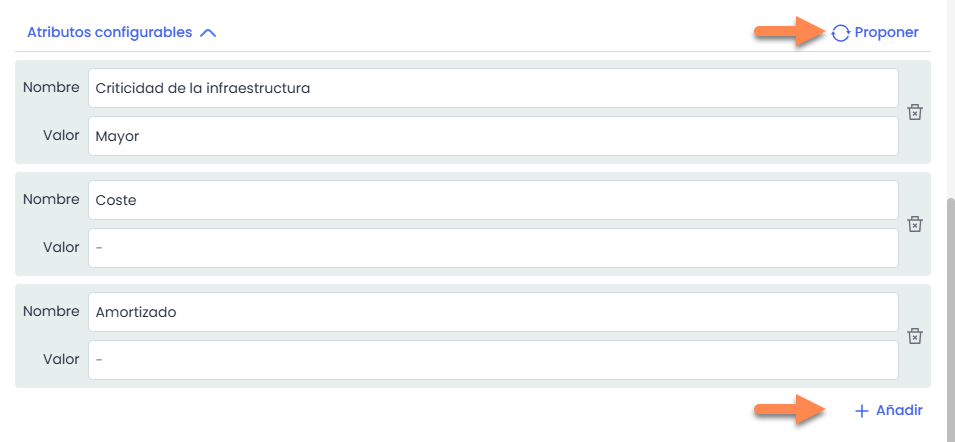
From this section, it is possible to:
-
Add attributes: Allows incorporating new specific attributes to this item.
-
Propose: Adds all the attributes defined in Settings > Item Methodology > Configurable Attributes
-
Delete attributes using the trash icon.
Associated Metrics
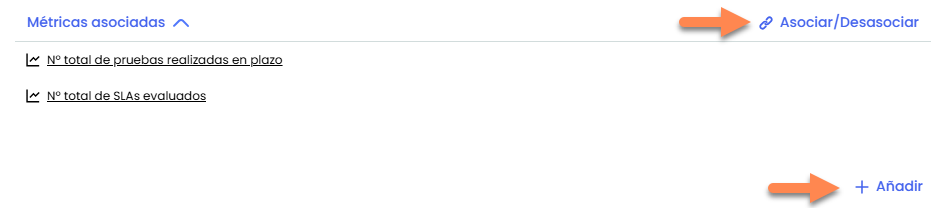
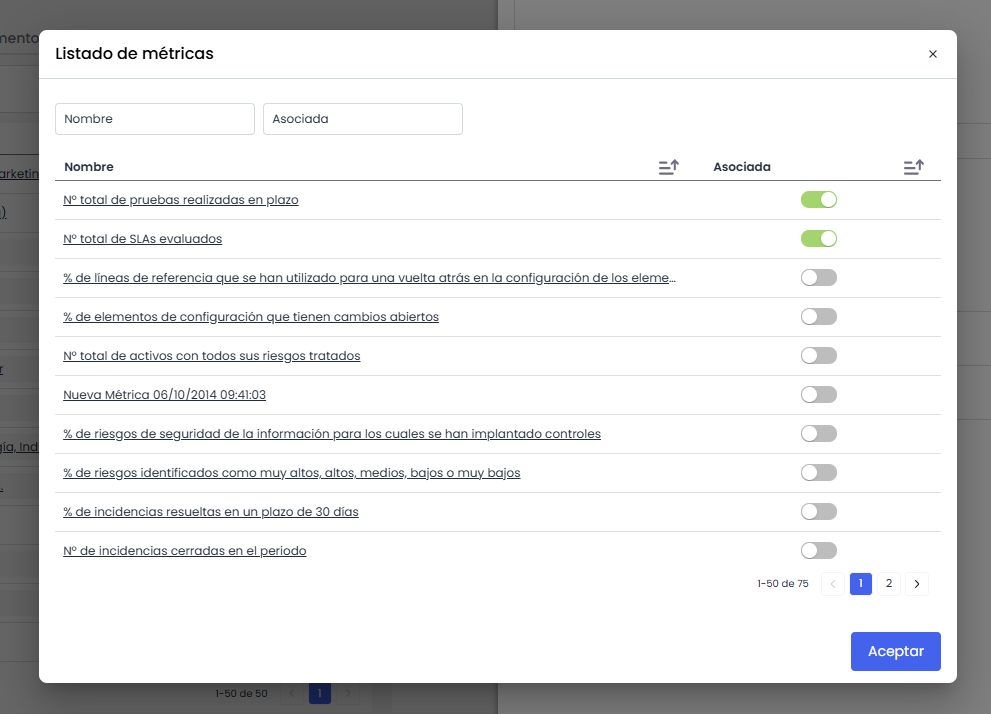
The Associated Metrics block allows viewing and managing the metrics linked to the item.
-
Associate/Disassociate: Opens a modal window showing the available metrics defined in Scorecard > Metrics , from where it is possible to associate or disassociate them from the item.
-
Add creates a new metric. Clicking on the name of a metric opens the metric detail in a new window for configuration.