
The Import option allows you to upload and update records in the asset inventory using an Excel file.
It is possible to import both the information of the items and their dependencies or valuations. The only mandatory data is the item name, while the rest of the information is optional and will depend on each client's configuration.
Before importing, it is necessary to download the import template from Inventory > Item table > Download > Import template, which serves as a reference for the file structure.
Import
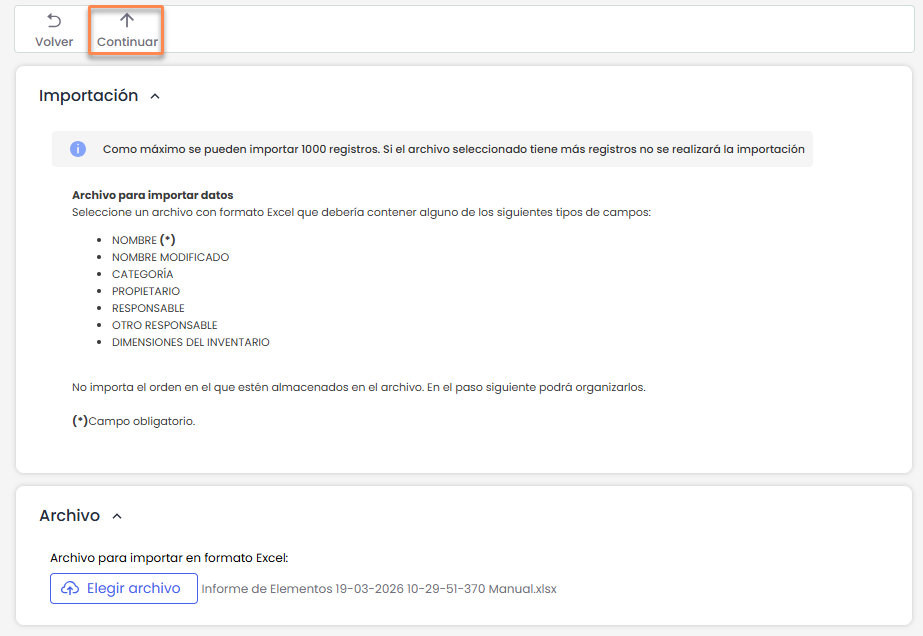
When accessing the option, an informational screen is displayed with the import conditions:
-
You can import a maximum of 1000 records.
-
The file must be in Excel format.
-
It is not necessary for the columns in the file to be in a specific order, as they can be mapped later.
The file selection is done using the Select file button, and then you must click Continue to proceed to the next step.
When clicking Continue, the tool performs validations on the uploaded file, verifying aspects such as:
-
The file format.
-
The structure required for the import.
-
The consistency of the included information.
For this reason, it is recommended to use the import template provided by the tool.
Field Mapping
In the next step, the mapping screen between the file fields and those of GlobalSuite is displayed.
-
On the left side, the GlobalSuite fields are displayed.
-
On the right side, you must select the Excel file columns that correspond to each field.
If the column name in Excel matches the field name in GlobalSuite, the system automatically performs the mapping.
The user can manually adjust the mappings before executing the import.
Actions
Import
Executes the data import according to the defined mapping.
The import is performed in the background. Once completed, the system generates a log file in Pending downloads, which contains the process result.
If there are automatic valuation dimensions that were not calculated during the import, it will be necessary to execute the Calculate RA option from the inventory to obtain them.