
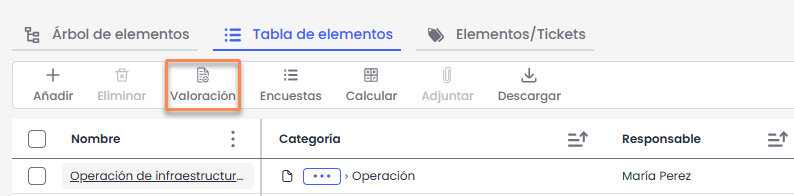
The Assessment functionality allows assigning values to the dimensions configured as manual in the asset categories. These dimensions correspond to those defined in the settings of the item methodology.
The assessment can be performed individually for each item or applied massively across multiple categories when they share the same criteria.
When accessing this option, a window opens where assessments are managed centrally.
Category Tree
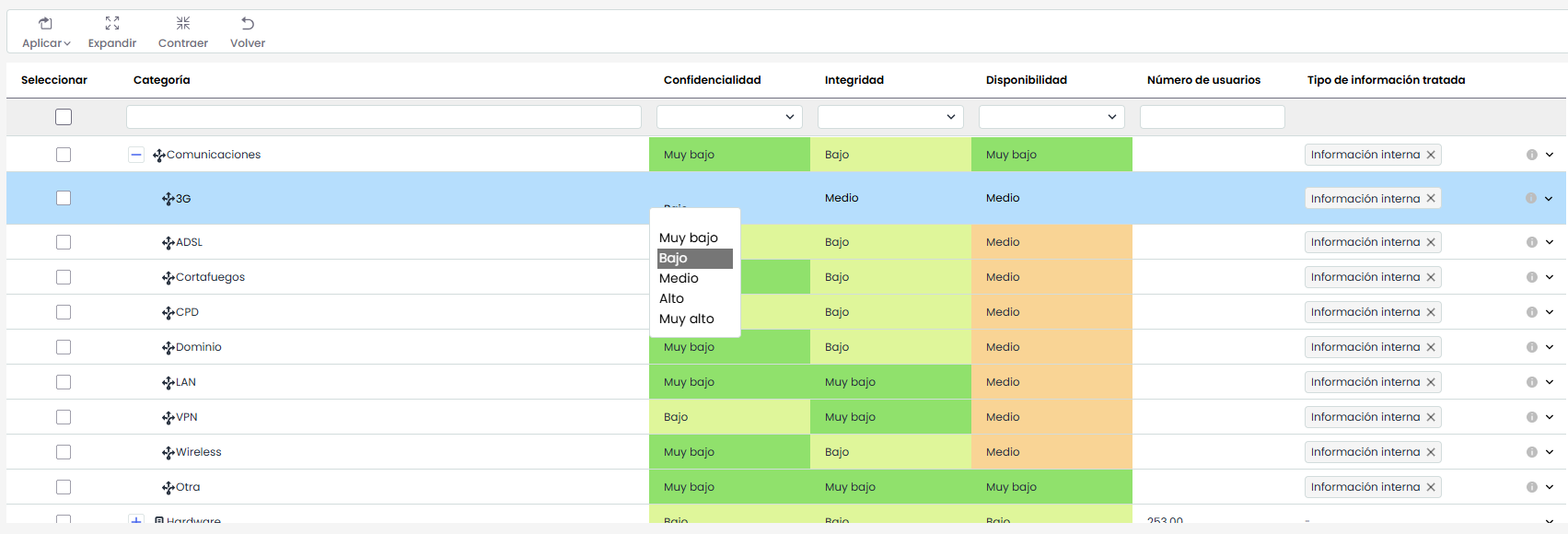
The screen displays a hierarchical table of categories and subcategories of assets, along with the dimensions defined in the item methodology.
-
Each row corresponds to a category or subcategory.
-
The columns represent the dimensions available for assessment. Only non-textual dimensions can be assessed.
-
It is possible to assign values directly to each dimension cell.
The value editing is done directly on the cell, and the field type will depend on the dimension configuration (qualitative, quantitative, and multilevel).
Actions
Apply
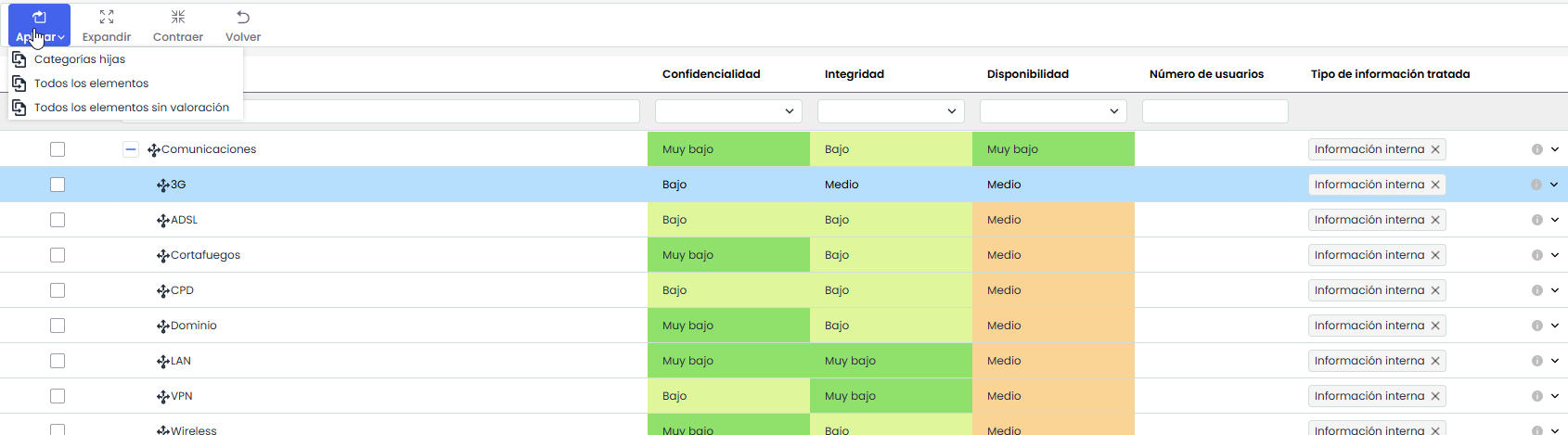
This button displays a menu with mass application actions for the selected categories.
-
Child Categories
Applies the assessment of the dimensions of the selected categories to all their associated subcategories.
It is necessary to select one or more categories beforehand. -
All Items
Applies the assessment of the dimensions of the selected categories to all inventory assets belonging to those categories.
It is necessary to select one or more categories beforehand.
When executed, a confirmation window is displayed, allowing the decision to generate an inventory history before applying the new assessment. -
All Items Without Assessment
Applies the assessment of the dimensions of the selected categories only to inventory assets belonging to those categories that do not have a prior assessment.
It is necessary to select one or more categories beforehand.
This action does not overwrite existing assessments.
When executed, a confirmation window is displayed, allowing the decision to generate an inventory history before applying the new assessment.