
The application allows surveys to be sent directly from the Item Table using pre-configured submission templates.
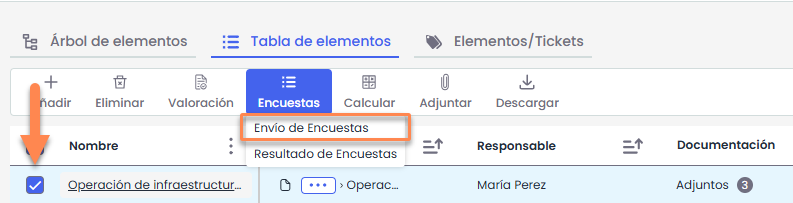
To do this, it is necessary to select one or more items from the inventory and click the option Surveys> Survey Submission.
Submission Configuration
-
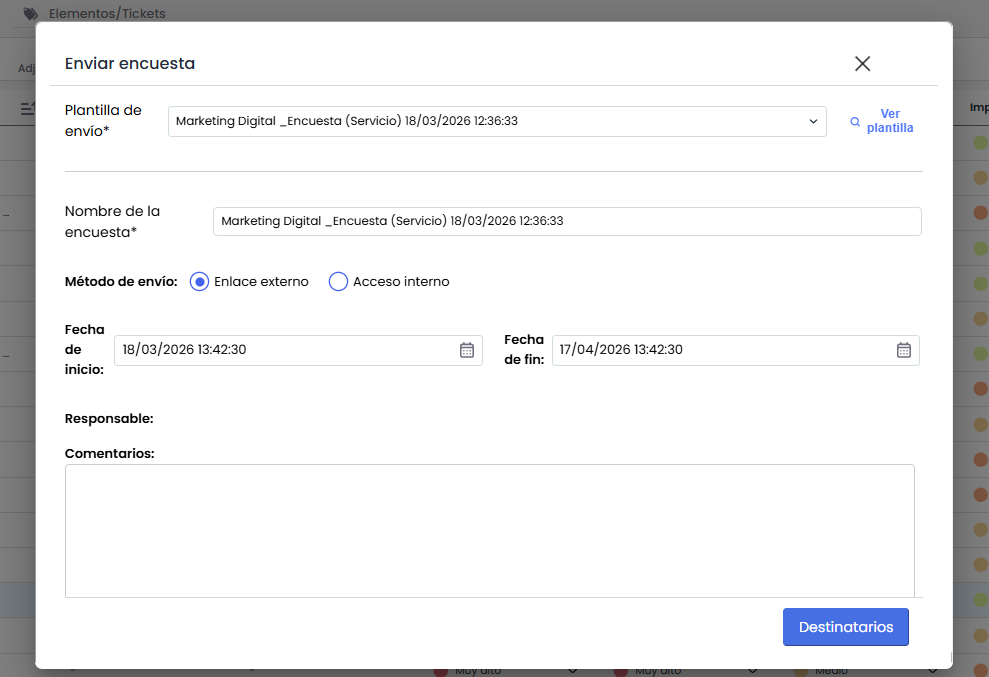
Submission Template: All templates created for surveys based on a configuration of a model of type “Item Survey” are listed.
-
View Template: Opens the template details in Survey Configuration
-
Survey Name: The name of the template is displayed. It can be modified, but this does not change the name of the template, only the name of the surveys to be sent.
-
Submission Method:
-
Send Surveys Internal Access: Sends the survey without publication
-
Send Surveys External Link: Sends the survey with publication
-
In this case, the fields Start Date and End Date are displayed
-
-
-
Responsible: The responsible party configured in the Template.
-
Comments: This section displays the text associated with the template, which can be edited. This text will be visible on the landing page of completed surveys. If the field is left empty, a default text will be automatically added.
Recipient Selection - Template without states.
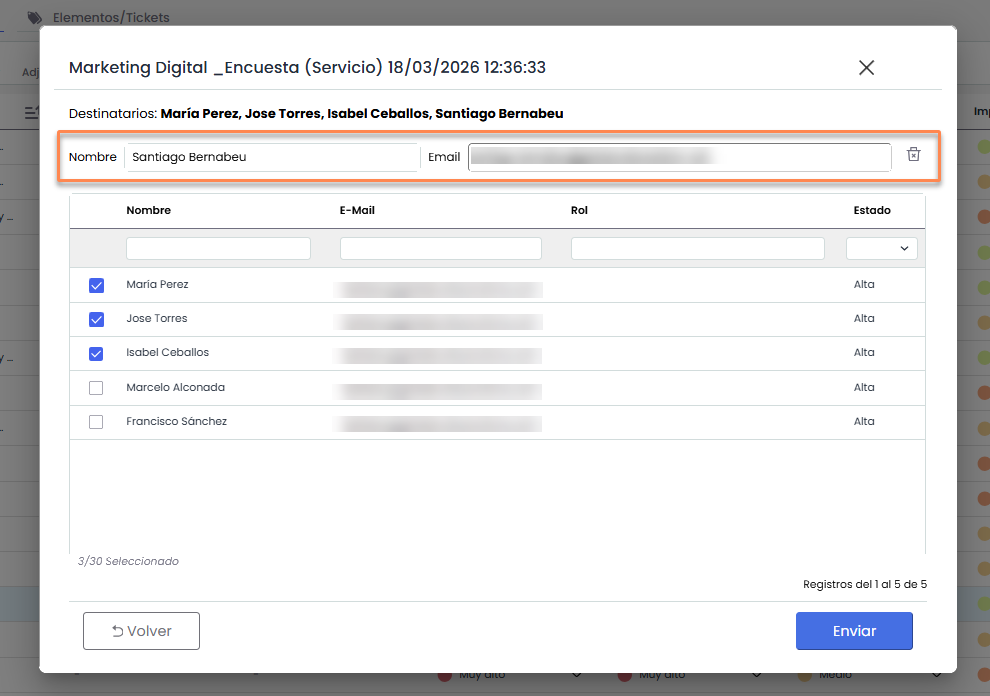
Recipients: In this section, survey recipients can be selected. This field may be pre-filled if the template includes it. If the field is empty, it will automatically be assigned to the responsible party of the item, provided all items have the same responsible party. If this condition is not met, the field will remain empty, and it will be mandatory to select at least one recipient to enable the "Send" button.
-
Add New: If it is necessary to include a recipient who is not an employee of the company, their email address can be manually entered to add them.
Recipient Selection - Template with states
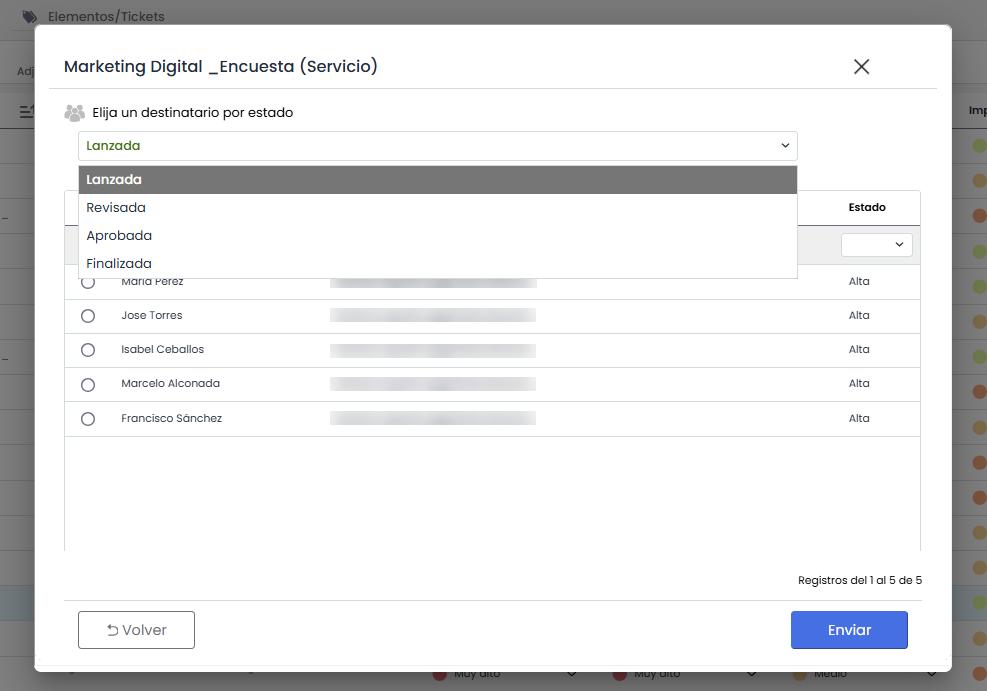
If the survey includes states, the recipient table will be pre-filled according to the template configuration.
If no recipients are assigned for the first state, which is mandatory, the responsible party of the item will automatically be taken, provided all selected items have the same responsible party. If this condition is not met, the field will remain empty, and it will be mandatory to select at least one recipient for the first state of the flow to enable the "Send" button.
Survey Submission
When pressing the "Send" button, the system performs the following actions:
-
Configuration Creation: The corresponding configuration for the survey is generated.
-
Survey Generation: The system creates a survey for each recipient, linked to the items selected from the analysis.
-
Source "Risk Analysis": Risks and all controls linked to those risks in the risk analysis will be associated with each item.
-
Source "Catalog": Only the selected risks that match the category will be associated with each item. If the item's category does not match the risk's category, it will not be included.
-
-
Publication: If the submission method is "External Link," the system also creates the publication that includes the surveys.