
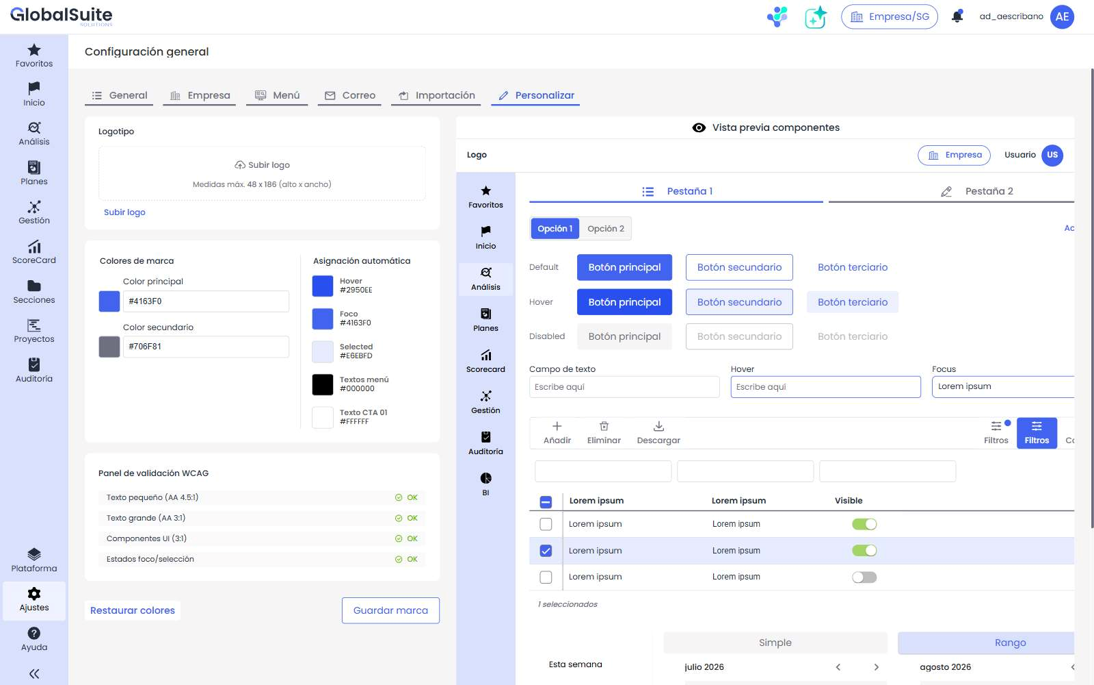
The Customize tab brings together the company's corporate image settings within GlobalSuite®: the logo and brand colors. It can be accessed from Settings > General Settings > Customize.
Interface customization is unified in this section and expanded with the corporate color settings, which are consistently applied across the company's interface.
Logo
Allows you to upload, replace, or delete the corporate logo displayed on the platform. The logo supports a maximum size of 48 x 186 px (height x width).
The logo settings have been moved from Company Settings to this Customize tab.
Brand colors
Two base colors are defined to represent the company's identity. Each color can be specified using the visual selector or by directly entering its hexadecimal value:
-
Primary color — dominant corporate color (default #4163F1).
-
Secondary color — supporting color (default #706F81).
If the company does not have saved customization, the default colors of GlobalSuite® are displayed.
Automatic assignment
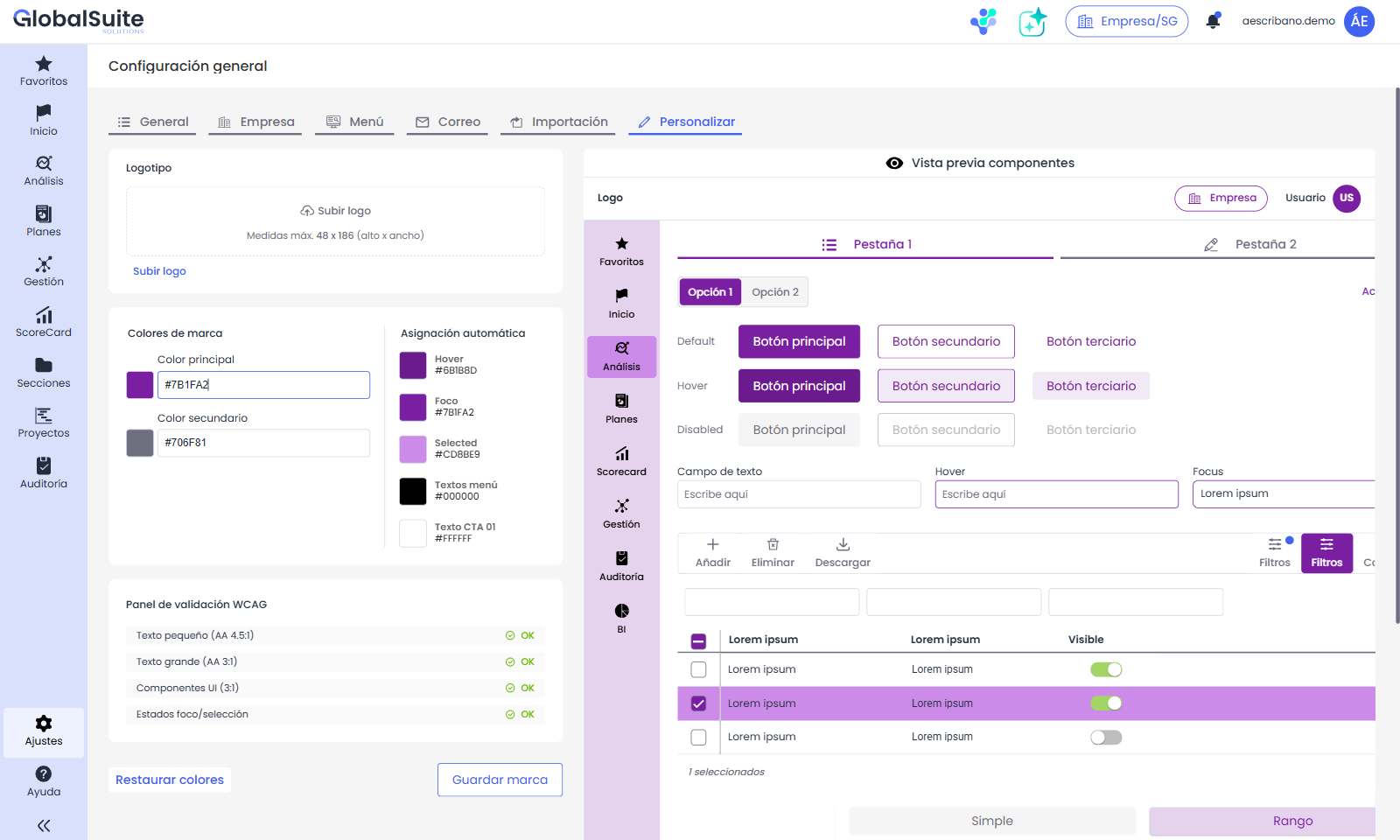
Based on the base colors, the system automatically calculates the rest of the colors needed for the interface. These values cannot be manually edited and are recalculated when the base colors are changed. They include, among others:
-
Hover — state when hovering the cursor.
-
Focus — item with active focus.
-
Selected — selected item.
-
Menu texts and CTA text — text and icon colors on colored surfaces, automatically chosen (white or black) to ensure contrast.
Accessibility validation (WCAG 2.2 AA)
The WCAG Validation Panel checks in real-time that the color combination meets contrast and readability thresholds:
-
Small text — minimum contrast 4.5:1.
-
Large text — minimum contrast 3:1.
-
UI components and graphic indicators — minimum contrast 3:1.
-
Focus / selection states.
Each check is displayed as correct or not met. When a combination does not meet, the Correct action appears, which automatically adjusts the colors to achieve an accessible combination while maintaining the closest possible match to the brand.
Component preview
The right side of the screen displays a preview with representative components of GlobalSuite® (menus, tabs, buttons, text fields, filters, tables, toggles, date picker, etc.). The preview updates in real-time when modifying any color or the logo, without needing to save, allowing you to evaluate the result before applying it.
Save and restore
-
Save brand — jointly persists the logo and colors for the active company and applies the customization to the platform.
-
Restore colors — resets the settings to the default colors of GlobalSuite®.
Save and restore actions are displayed when there are unsaved changes.
Application across the platform
The saved customization is applied transversally across the company's operational interface: top menu, side menu and submenus, modules, and common components (modals, tables, buttons, filters, date pickers, etc.). For multitenant users, colors and the logo are loaded according to the active company; if a user switches companies, the interface updates with the corresponding customization.
Color customization does not modify typography nor affect login/logout screens, reports, or email templates, which are configured separately. For a complete customization guide (logo, colors, emails, and login), check the tutorial How to Customize GlobalSuite®?