
The Requirement Detail screen allows you to consult and manage the information of a requirement within the Compliance catalog.
This detail applies to both final requirements and intermediate levels (chapters, sections, or others), although some functionalities vary depending on the type.
Requirement Detail
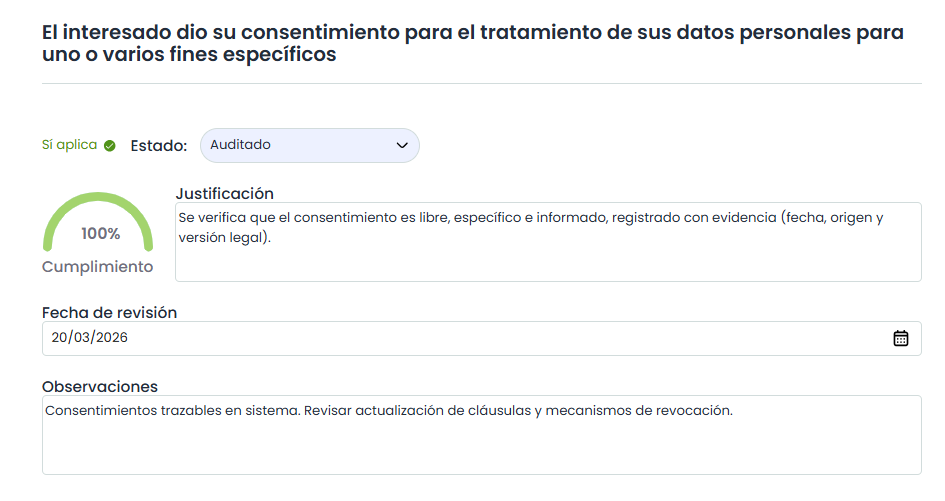
This screen displays the information of the requirement, including its status, justification, review date, and observations.
-
Justification: Allows indicating a justification for the applicability or non-applicability of the control.
-
Review Date: Allows setting a date for the requirement or control. This date can be used, for example, to identify the date of the requirement evaluation or its implementation date (as desired).
-
Observations: Allows including observations and relevant data to justify the status of the control.
-
Compliance Level and Status: Available only for final requirements. The compliance percentage is determined by the status of the requirement.
In the detail of intermediate sections, they function as a grouping structure and do not have direct evaluation.
Actions
-
Applicability: Allows identifying whether the requirement or control applies or does not apply within the organization. This configuration can be done both at the block level, from the corresponding block header, and at the individual level, for each requirement or control.
When setting applicability at the chapter or section level, the value will automatically apply to all requirements included in that block.
-
Status: Allows indicating the implementation status of the requirement or control within the organization. Options will be displayed to define the status according to those configured in the compliance catalog. The tool offers a series of default statuses for catalogs, but these statuses are configurable both in the Settings option> Compliance Catalogs and in the catalog itself. See more information in Status Configuration . Available only for final requirements.
-
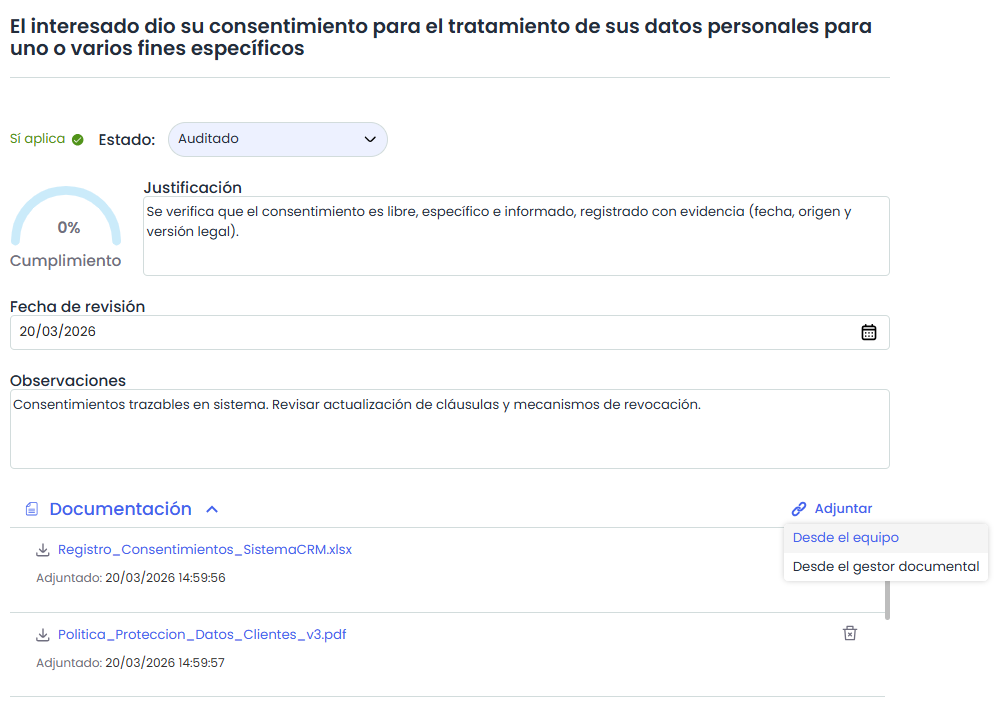
Documentation: Allows associating documents to the requirement.
From this section, it is possible to:-
Add Documents: Documents can be added from the device (up to 10 documents at a time) or from the document manager.
-
Delete documents using the trash icon.
-
-
Controls: Allows associating one or more controls, registered in the "Control Management" option, to the requirements of the compliance catalog.
To do this, click on the 'Associate' button where the list of controls defined in the Analysis> Control Management section is displayed.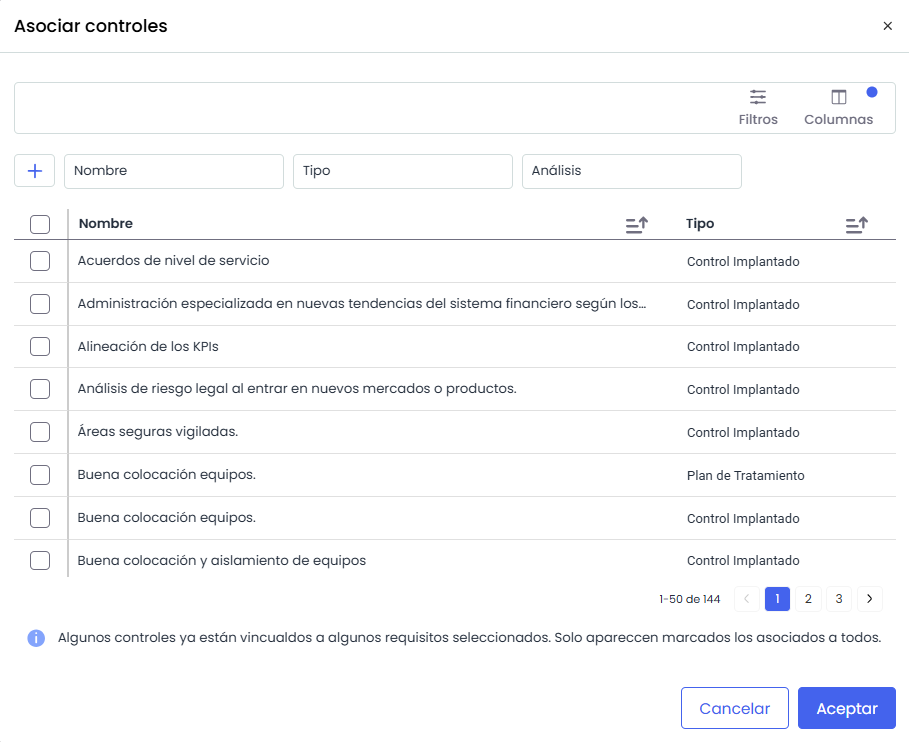
-
Tickets: Allows associating one or more tickets to the requirements of the compliance catalog.