
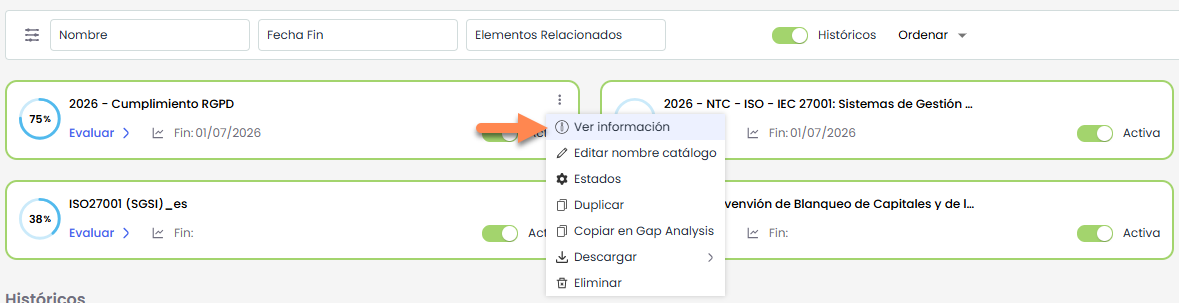
From the main panel, accessing the contextual menu of each evaluation, the option “View Information” allows you to consult the details of the Compliance catalog.
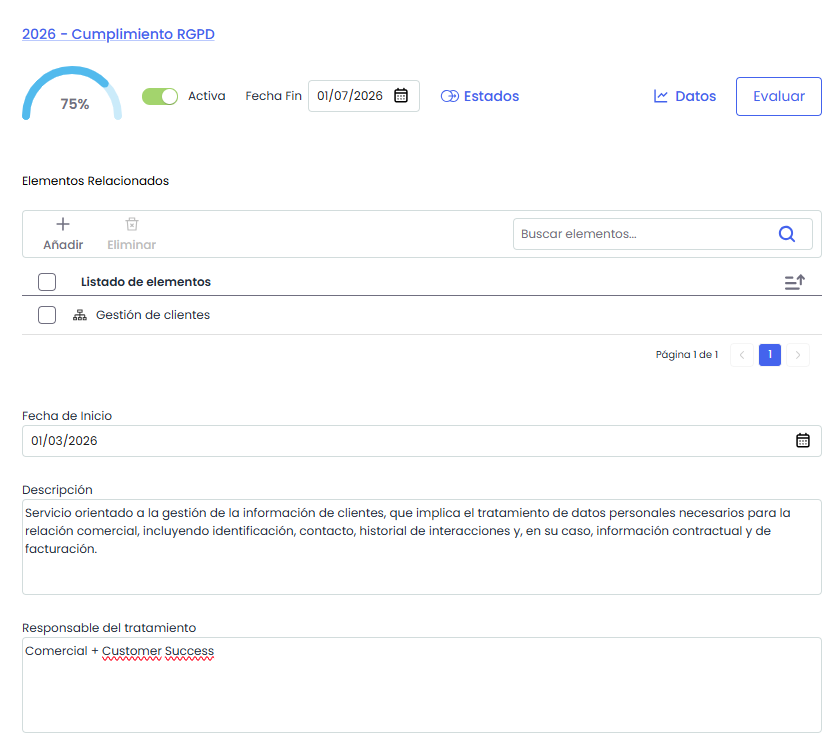
In this view, the general data of the Compliance is displayed, including the fields configured in Settings > Configuration > Compliance.
Related Items
Within the Compliance details, there is a section called Related Items, which allows you to associate the items to be evaluated.
-
Add: Pressing Add opens a window where you can select the items to associate.
-
Delete: Select one or several selected items from the table and press Delete.
Actions
-
Set End Date
-
Activate / Historical: The catalog status is managed through a switch:
-
When deactivated, the catalog changes to Historical status, becoming non-editable.
-
To reactivate it, simply activate the switch again, restoring its editable status.
-
-
States: Allows you to configure the catalog states. More information at Configure States
-
Data: This option allows you to obtain comparative graphs of the status of different compliances within the same catalog. More information at Graphs and Comparisons
-
Evaluate: Allows access to the Compliance evaluation. More information at Requirement Management