
This guide explains how to adapt GlobalSuite® to your organization's corporate image: the logo, the interface colors, the email template, and the login screen.
All visual customization options are managed from Settings > General Configuration, except for the login screen, which is configured at the environment level.
1. Customize the logo and colors
The logo and corporate colors are configured in the Customize tab ( Settings > General Configuration > Customize).
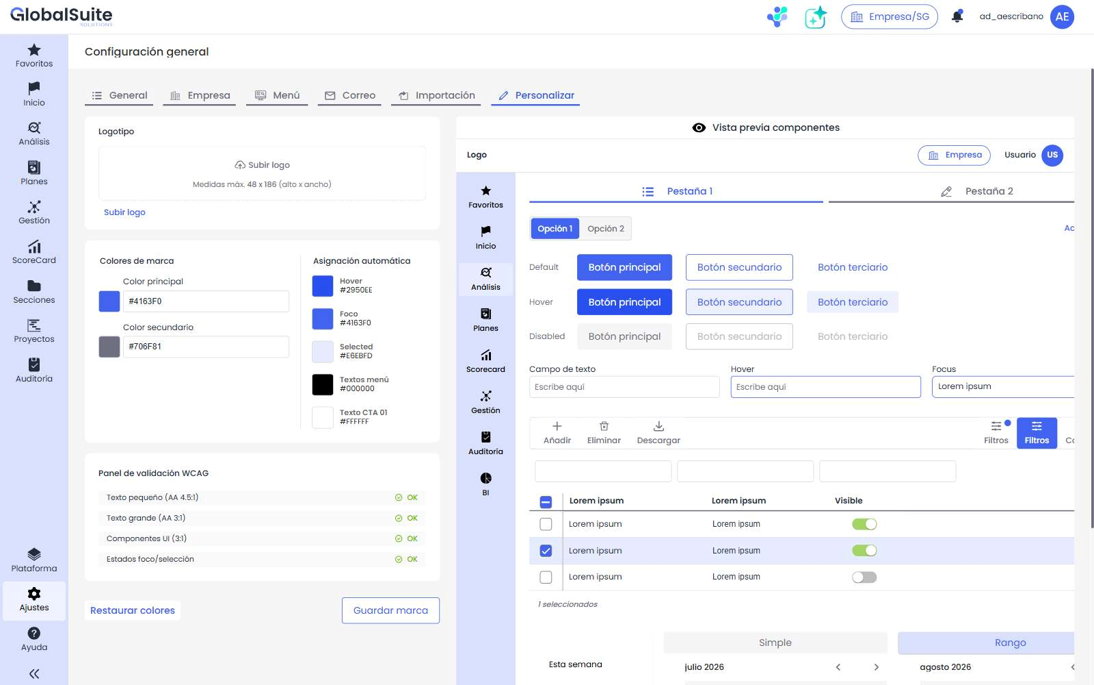
Steps:
-
Go to Settings > General Configuration > Customize.
-
In Logo, click Upload logo and select the image (maximum size 48 x 186 px, height x width). You can replace or delete it whenever needed.
-
In Brand Colors, define the Primary Color and Secondary Color using the visual selector or by entering their hexadecimal value.
-
Review the Automatic Assignment (derived colors) and the WCAG Validation Panel. If any contrast check fails, click Correct to automatically adjust the colors.
-
Check the result in the Component Preview (updates in real-time).
-
Click Save brand to apply the customization. With Restore colors, you can revert to GlobalSuite®'s default values.
For the complete details of this screen, see Customization. The customization is applied per company and is included in the company copy. The typography remains as Poppins.
2. Customize the email template
The format of the emails sent by GlobalSuite® is configured in the Email tab ( Settings > General Configuration > Email), in the block HTML Configuration for Sending Emails.
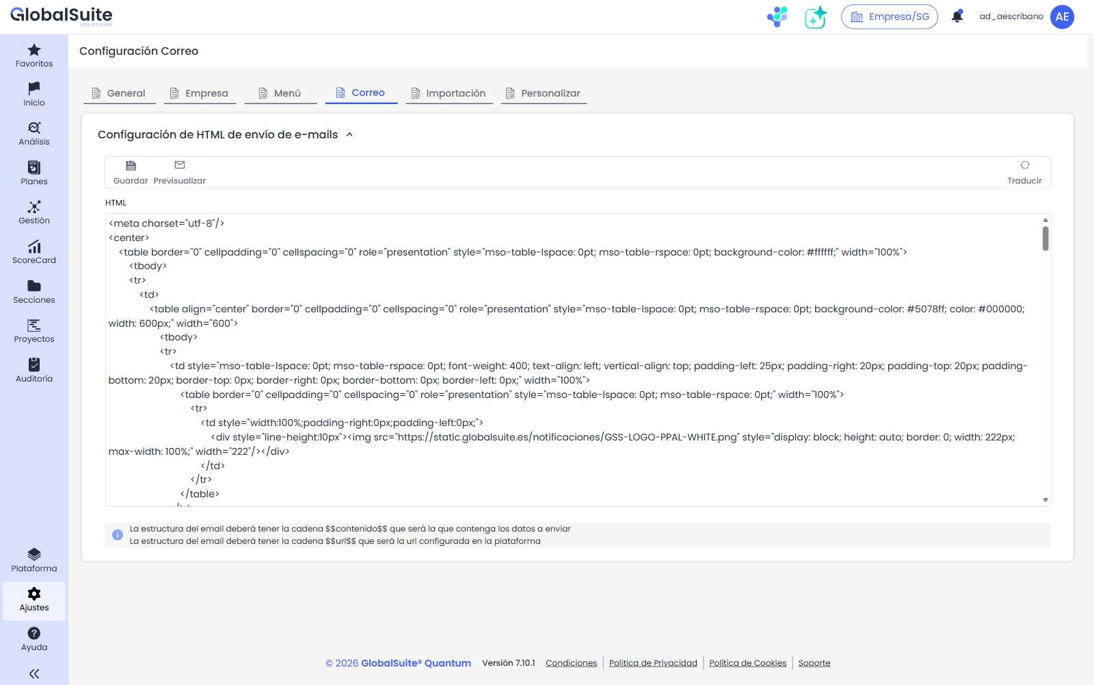
Steps:
-
Go to Settings > General Configuration > Email.
-
Edit the HTML of the template (header, colors, email logo, footer, etc.).
-
Ensure you keep the mandatory variables: $$contenido$$ (where the message content will be inserted) and $$url$$ (the configured platform URL).
-
Use Preview to check the result and click Save.
If you delete the variables $$contenido$$ or $$url$$, the emails will not be generated correctly.
3. Customize the login screen
The appearance of the login screen — background, image, welcome texts, etc. — is configured at the environment/installation level, not from the company configuration.
To customize the login screen, contact the Support team at GlobalSuite Solutions, specifying the items to be adapted. This configuration is additional to the company color customization described in the previous sections.