
Rule Actions
|
The action is the task that GlobalSuite® executes when the rule is triggered and the configured conditions are met. For a rule to be activated, there must be at least one correctly configured action. |
Initial Action Catalog
|
Action |
Description |
Usage Example |
|
Send an email |
Sends a notification to one or more recipients, with configurable subject and content. |
Notify the responsible party when a new risk is created. |
|
Create a ticket |
Generates a task or ticket for operational follow-up. |
Create a ticket when criticality exceeds a threshold. |
|
Send survey item / Send IRC survey |
Launch a survey to responsible parties, employees, defined users, or dynamic recipients that the system resolves during each execution via variables (responsible for the item or supplier contacts). |
Request an update when a critical item is modified. Send the evaluation survey to each supplier when their item is modified. |
|
Add risk analysis |
Associates an item with a risk analysis. |
Prepare the evaluation of a new asset. |
|
Modify dimension |
Updates a manual dimension of the affected object. |
Reclassify an item after a category change. |
|
Associate catalog controls |
Adds controls defined in a catalog. |
Propose controls when a risk reaches a high level. |
|
Add threats and catalog controls |
Associates threats and controls from configured catalogs. |
Apply a standard base to new assets. |
|
Copy threats and controls |
Copies threats and controls from another configured context. |
Reuse an already validated configuration. |
|
Copy data into consolidated BIA |
Copies information from the individual BIA to the consolidated BIA. |
Consolidate information upon completing a BIA survey. |
Configure an action
When selecting an action in the builder, the side panel displays the necessary fields to complete it. Mandatory fields must be filled out before activating the rule.
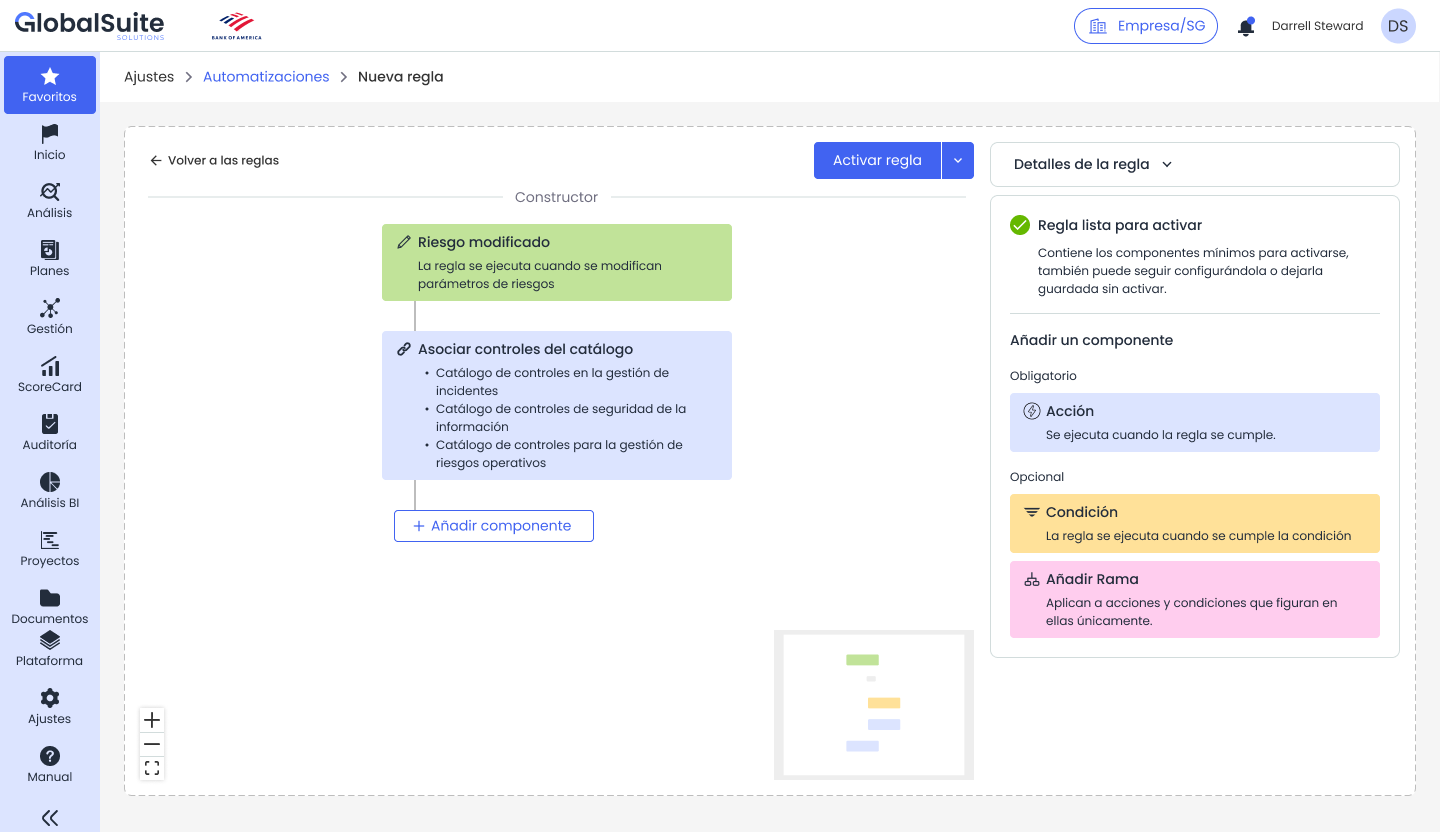
Selection panel of available actions for the selected point in the flow.
Example: send an email
The Send an email action allows defining recipients, CC, subject, and content. Recipients can be specific users or variables available in the rule's context.
|
Field |
Type |
Description |
|
Recipients |
User or variable selector |
Users, responsible parties, or dynamic values to whom the notification will be sent. |
|
CC / BCC |
Optional selector |
Allows adding recipients in CC or BCC. |
|
Subject |
Mandatory text field |
Title of the email the recipient will receive. |
|
Content |
Mandatory text field |
Email message. It can explain the event that occurred and the expected action. |
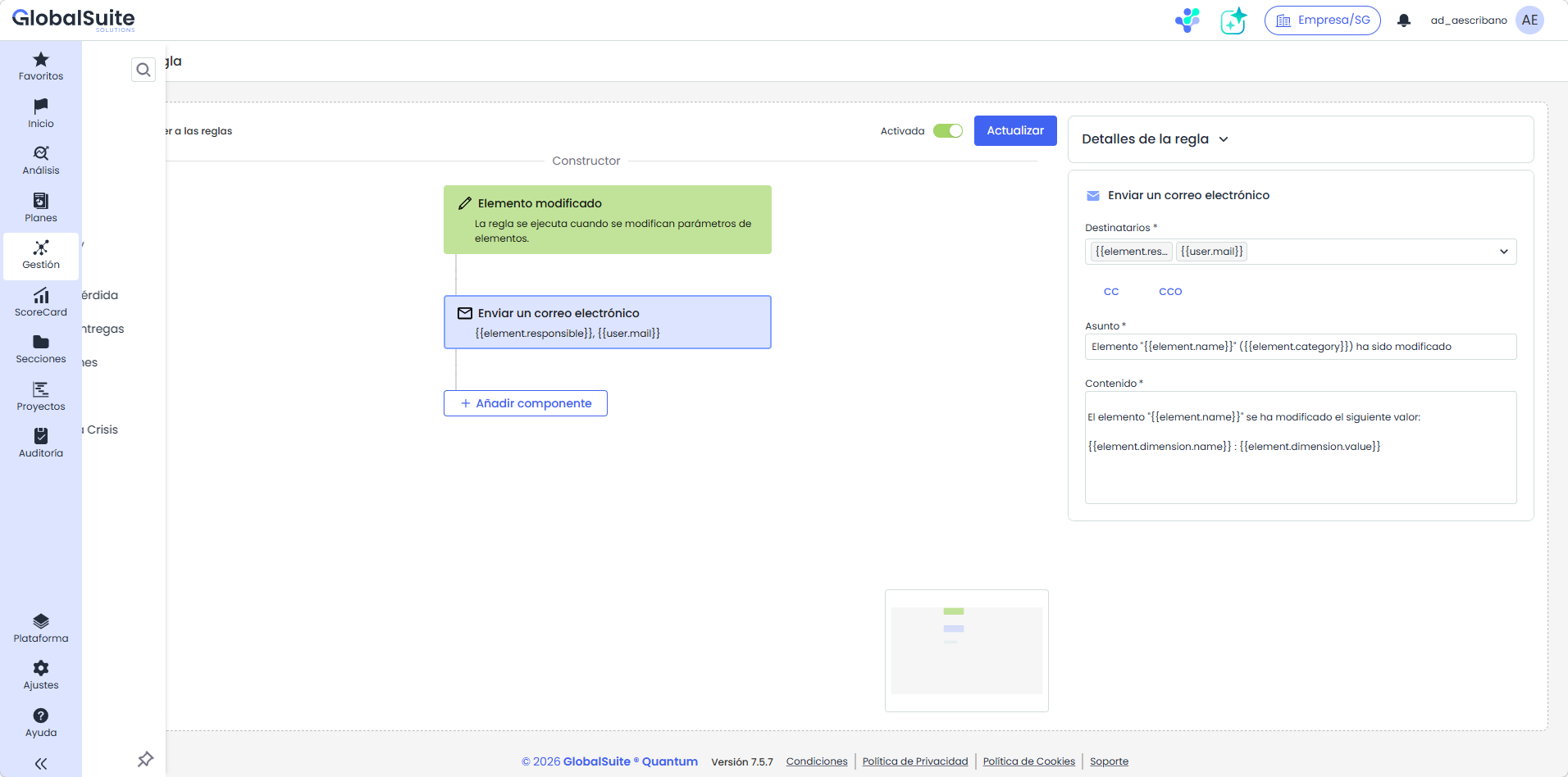
For configuring the subject and email message, there are a series of available variables that will be replaced and allow personalizing the message. The available variables are:
-
{{user.mail}}: Email address (email field) of the user performing the action that triggers the rule.
-
{{element.responsible}}: Email address (main email field) of the employee responsible for the item affected by the trigger.
-
{{threat.responsible}}: Email address (main email field) of the employee responsible for the risk/threat affected.
-
{{user.name}}: Name of the user performing the action that triggers the rule.
-
{{element.name}}: Name of the item affected by the trigger. Also applies when the trigger is a process.
-
{{element.category}}: Name of the category assigned to the affected item.
-
{{element.dimension.name}}: Name of the dimension modified for the item. For example, Confidentiality, Importance, etc.
-
{{element.dimension.value}}: Assigned value of the dimension of the affected item. If quantitative, it will be a numeric value; if qualitative, it will be the corresponding level label (High, Medium, Low…); and if textual, it will be the full entered text.
-
{{analysis.name}}: Name of the risk analysis to which the threat or risk belongs.
-
{{threat.name}}: Name (Main Field) of the affected threat.
-
{{threat.dimension.name}}: Name of the dimension modified for the risk. For example, Probability, Impact, etc.
-
{{threat.dimension.value}}: Assigned value of the dimension of the item. If quantitative, it will be a number; if qualitative, it will be the corresponding level label (High, Medium, Low…).
-
{{bia.name}}: Name of the BIA on which the survey that triggered the rule has been consolidated.
-
{{survey.name}}: Name of the BIA survey that has been consolidated.
-
{{survey.recipient}}: Name of the recipient assigned to the affected survey.
Example: send a survey
The actions Send survey item and Send IRC survey generate a survey from a sending template and send it to the indicated recipients. Recipients can be specific employees, manually written addresses, or variables that the system resolves during each execution based on the item that triggered the rule. Thus, the same rule applies to the entire inventory: each survey reaches the person corresponding to that item.
Unknown Attachment
|
Field |
Type |
Description |
|---|---|---|
|
Sending template |
Mandatory selector |
Survey template generated during each execution. |
|
Survey name |
Text field |
Name assigned to the generated surveys. It is preloaded with the template name and supports the variable {{element.name}}. The system always adds the generation date and time. |
|
Dynamic recipients |
Optional variable selector |
Recipients that the system resolves during each execution based on the affected item. While it contains no variable, it displays the text "Add recipients." |
|
Recipients |
Employee table with checkboxes |
Employees who receive the survey in all executions. Allows manually adding an email address. |
You can combine variables and fixed recipients in the same action. If multiple variables or recipients resolve to the same address for the same item, the system generates a single survey for that address.
Recipient variables
-
{{element.responsible}}: Primary email address of the employee responsible for the affected item.
-
{{element.contact}}: Addresses of the contacts of the supplier linked to the affected item who have the Survey contact checkbox marked in their profile (see Home > Suppliers). The supplier is identified by its Related Item field. The system generates one survey for each contact marked with a valid address.
The variable {{element.contact}} is only offered if the company has the Suppliers option and there is at least one category of items of type Suppliers in Settings > Methodologies > Items .
Variable in the survey name
The field Survey name supports the variable {{element.name}} (name of the affected item). You must write it to use it. The defined name applies only to surveys generated by the rule; the sending template does not change.
Actions with catalog or analysis selection
Some actions require selecting a risk analysis, a catalog, specific controls, or applicable dimensions. If the mandatory selection is not completed, the rule remains pending configuration or displays a validation in the side panel.
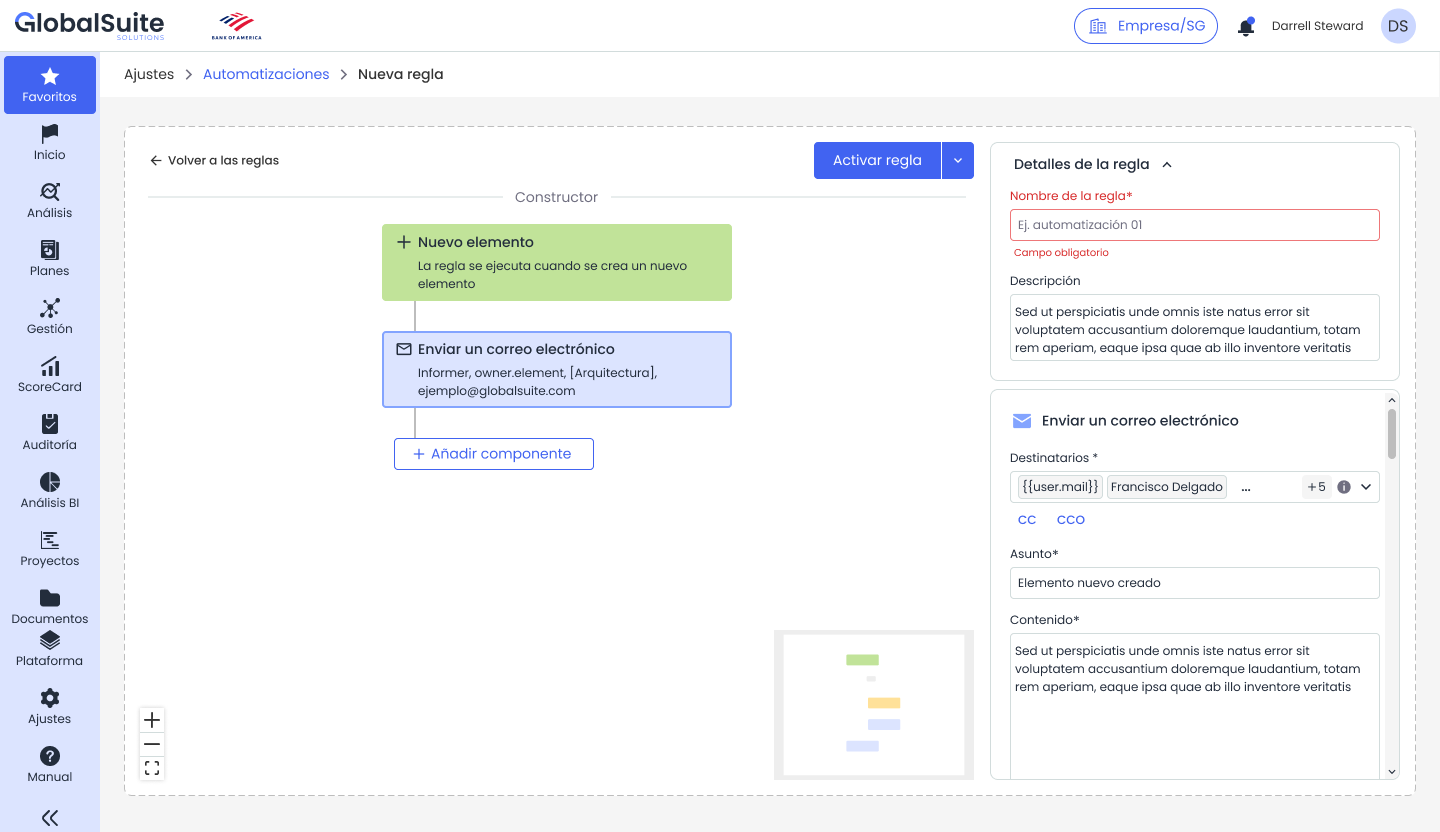
Example of an action with pending selection and mandatory field validation.