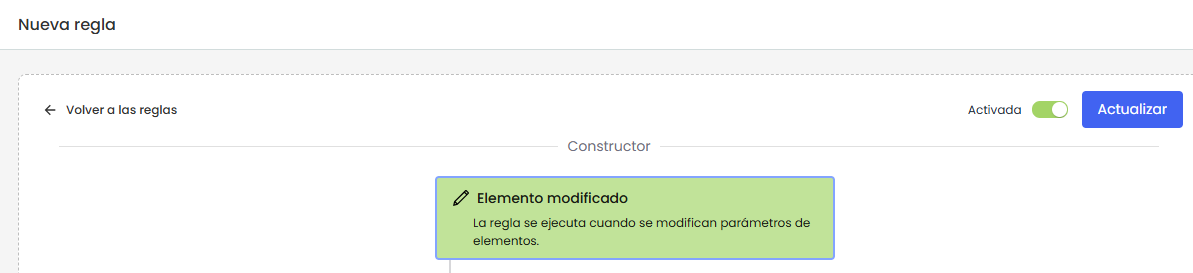
Create and configure a rule
|
A rule is built visually. The user first defines the trigger, adds the necessary components, and completes the fields for each action or condition from the side panel. |
When accessing the rule configuration view, we have a screen where we can edit and model the rule.
Structure of the editing screen
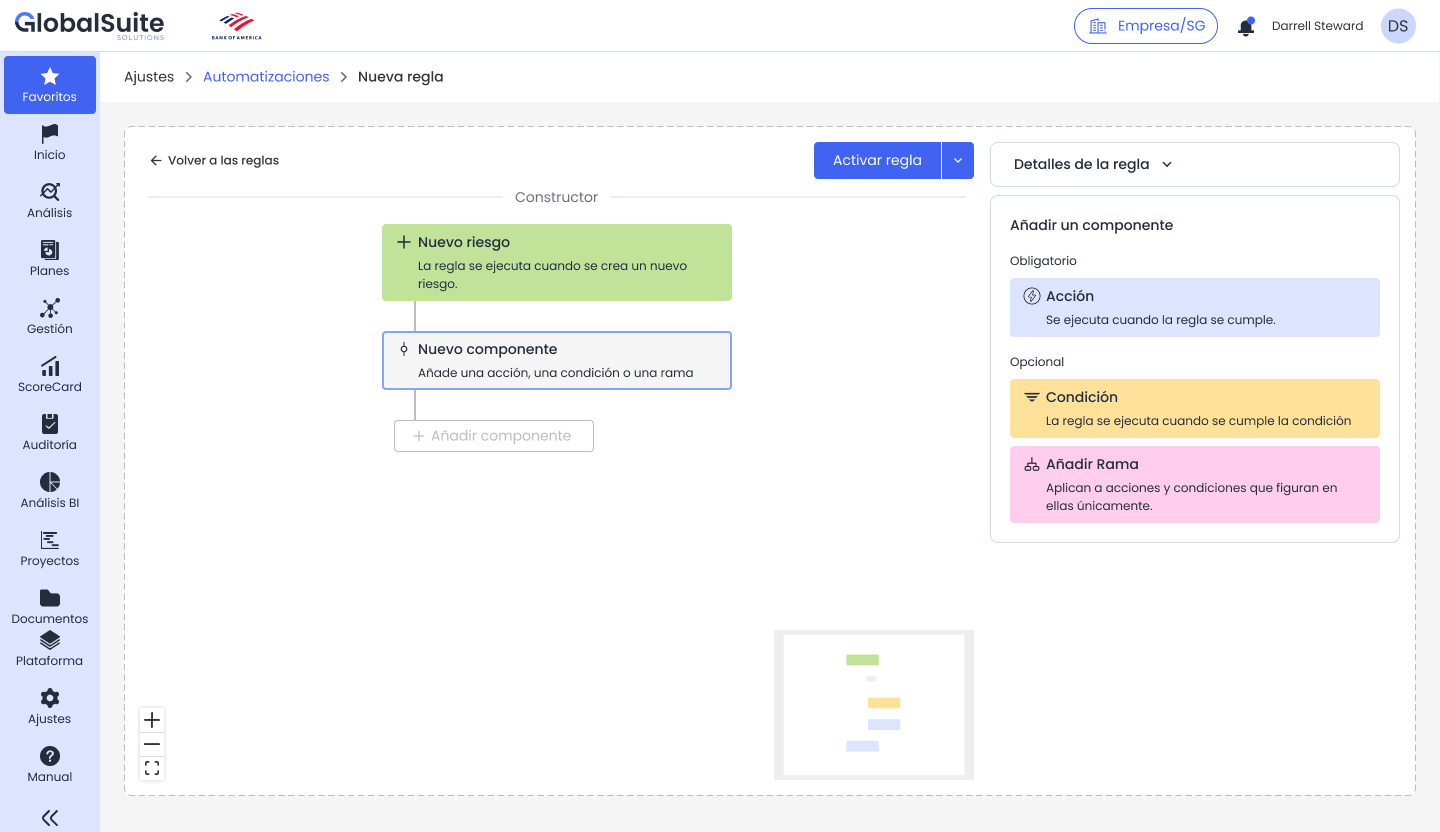
The screen for a new rule is organized into three main areas:
-
Builder: Central area where the rule flow is visualized and components are added.
-
Side panel: Right area where the rule details or the configuration of the selected component are displayed.
-
Top actions: Buttons to save, update, activate the rule.
Step 1. Complete the rule details
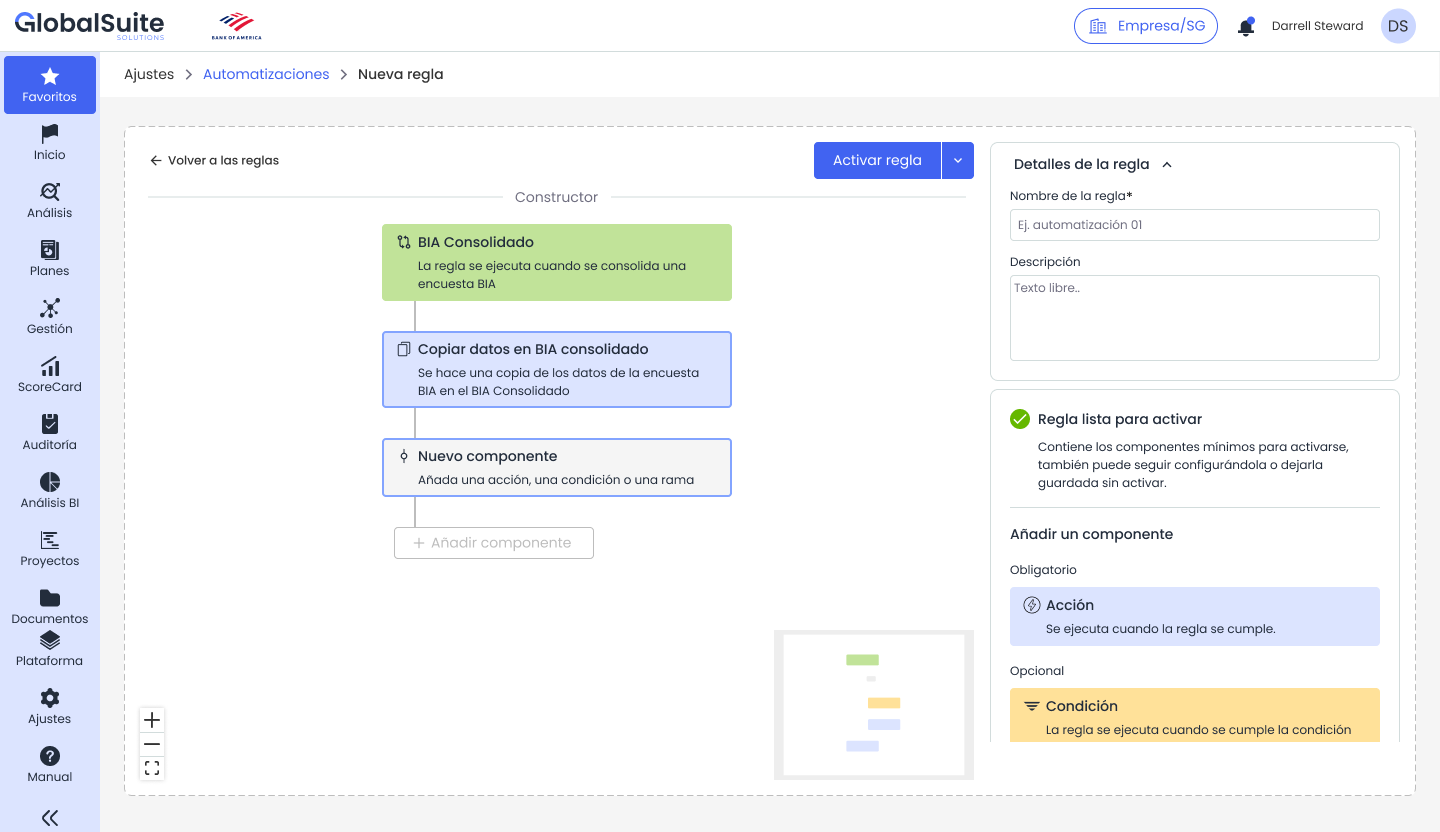
In the “Rule Details” panel, general data is defined. These fields help identify the purpose of the automation and facilitate its subsequent maintenance.
-
Rule name: Should briefly identify the use case. Example: High risk - associate controls and notify. This field is mandatory.
-
Description: Allows explaining the objective of the rule, the functional context, the affected stakeholders, and the expected outcome.
Step 2. Review the trigger
The trigger determines when the rule should be evaluated. The rule always starts from an initial event, such as the creation of an item or the modification of a risk. The catalog of available conditions and actions depends on the selected trigger.
Step 3. Add components
To add a component, select the “Add component” button located below the corresponding step of the builder. The side panel will display the components available for that point in the flow.
-
Action: mandatory component to activate the rule. ( see more)
-
Condition: optional component that allows limiting the flow to specific cases. ( see more)
-
Add branch: optional component to create parallel or alternative execution paths. ( see more)
Step 4. Save or activate the rule
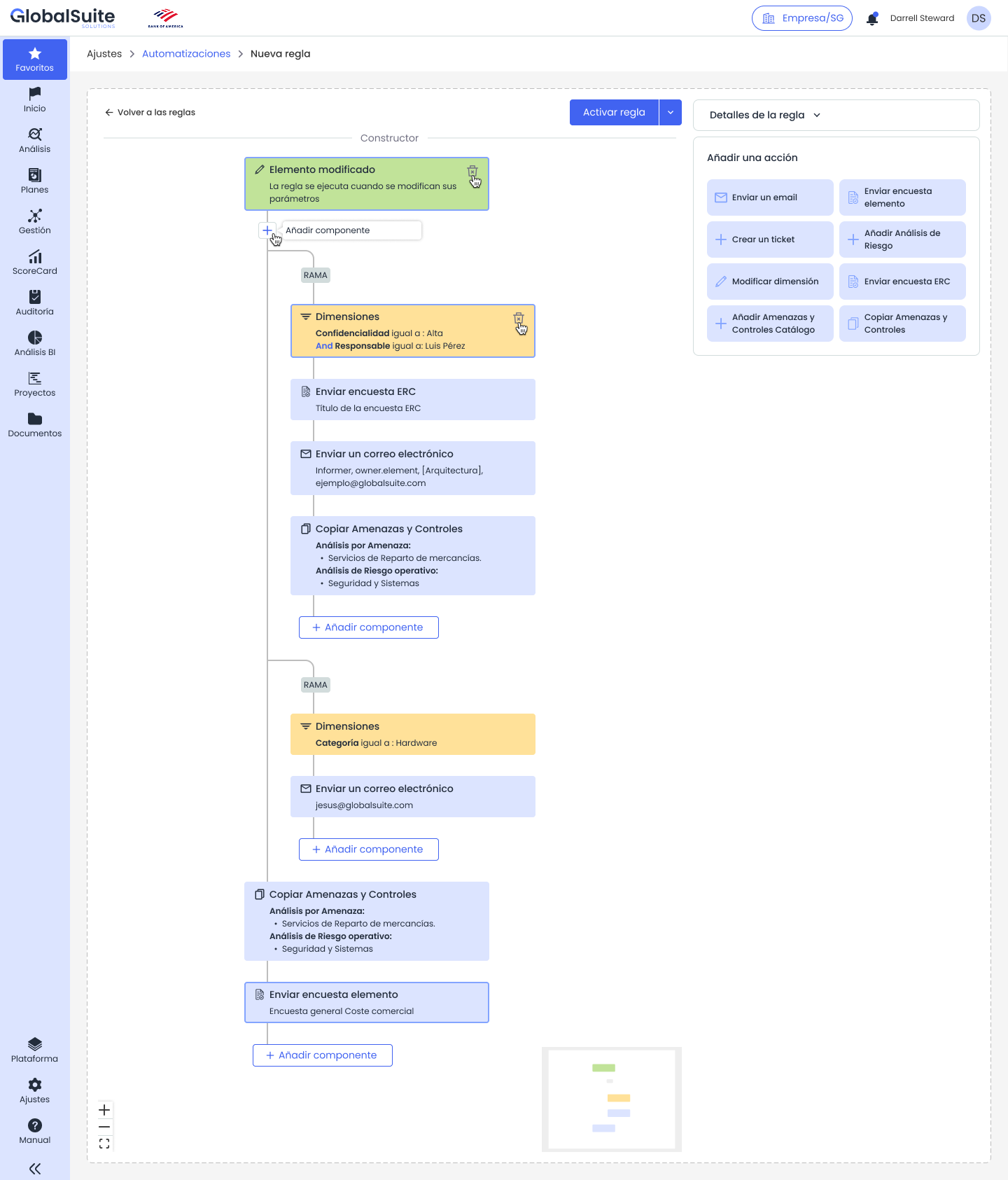
The rule can be saved without being activated. This option allows the automation to be prepared as a draft or pending review.
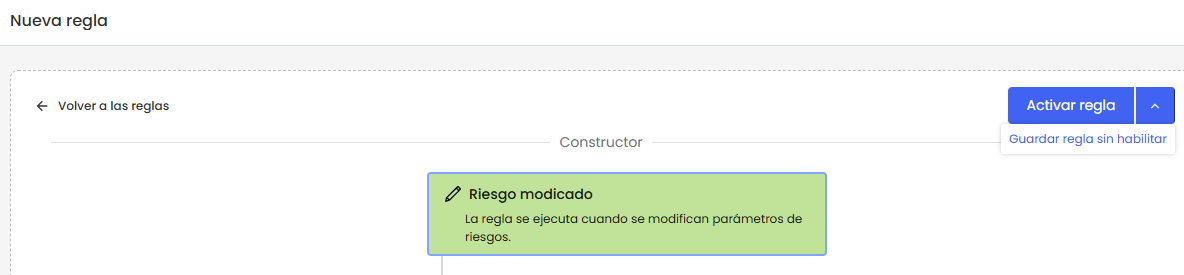
To activate it, the system checks that all mandatory items are included, as an operational rule must at least include a correctly configured trigger and action.
|
NOTE: If a rule is saved without being activated, it will not execute actions even if the configured event occurs. |
When accessing an already activated rule, we can modify it live with the “Update” button or deactivate it by checking the corresponding box.