
In this article, we will address the different types of fields that can be configured in GlobalSuite® tickets, and how each one allows adapting forms to the needs of recording and managing incidents, requests, or events.
In GlobalSuite®, tickets can be customized using different types of fields that define the information to be recorded in each form. These fields allow capturing texts, dates, selections, relationships with other system elements, or automatically calculated data.
Below, all available field types and their behavior are detailed both in the Settings area and in the usage view of GlobalSuite®, facilitating the configuration and design of forms tailored to each management process.
Below is the complete list of available field types, which you can review in detail further down in this guide.
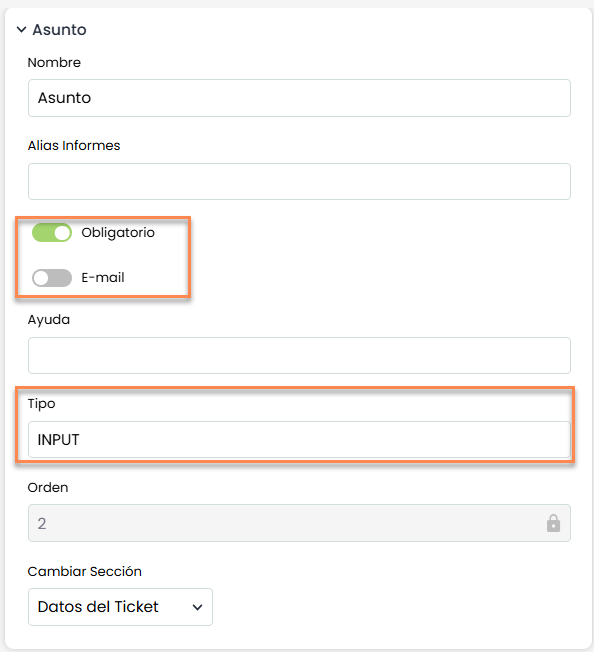
INPUT
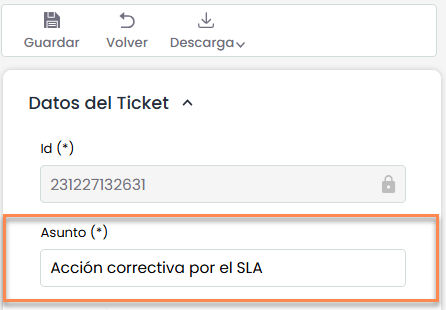
Allows adding a text field to the ticket, this text must have a short to medium length.
-
Name: Field label that will be displayed on the form.
-
Report alias: Unique identifier for the field (alphanumeric, max. 5) to be used in Ticket report templates.
-
Mandatory: Marks this field as required. Without completing it, you will not be able to create or update the ticket.
-
E-mail: When enabled, indicates that the entered field must be in email format. E.g.: name@mail.com
-
Help: The text entered here will be displayed as a guide to complete the field.
-
Order: Defines the position in which the field will appear within the section.
-
Change section: Indicates the current section of the field and allows moving it to another. When doing so, the field will be placed at the end of the new section.
|
View in Settings |
View in GlobalSuite® |
|---|---|
|
|
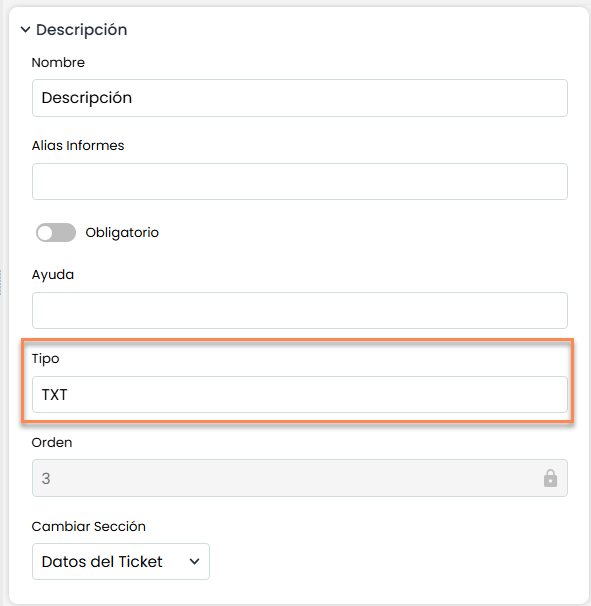
TXT
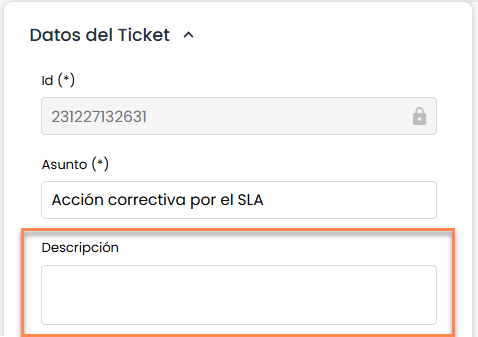
Allows adding a text field to the ticket, the field will adapt to the size of the inserted text.
-
Name: Field label that will be displayed on the form.
-
Report alias: Unique identifier for the field (alphanumeric, max. 5) to be used in Ticket report templates.
-
Mandatory: Marks this field as required. Without completing it, you will not be able to create or update the ticket.
-
Help: The text entered here will be displayed as a guide to complete the field.
-
Order: Defines the position in which the field will appear within the section.
-
Change section: Indicates the current section of the field and allows moving it to another. When doing so, the field will be placed at the end of the new section.
|
View in Settings |
View in GlobalSuite® |
|---|---|
|
|
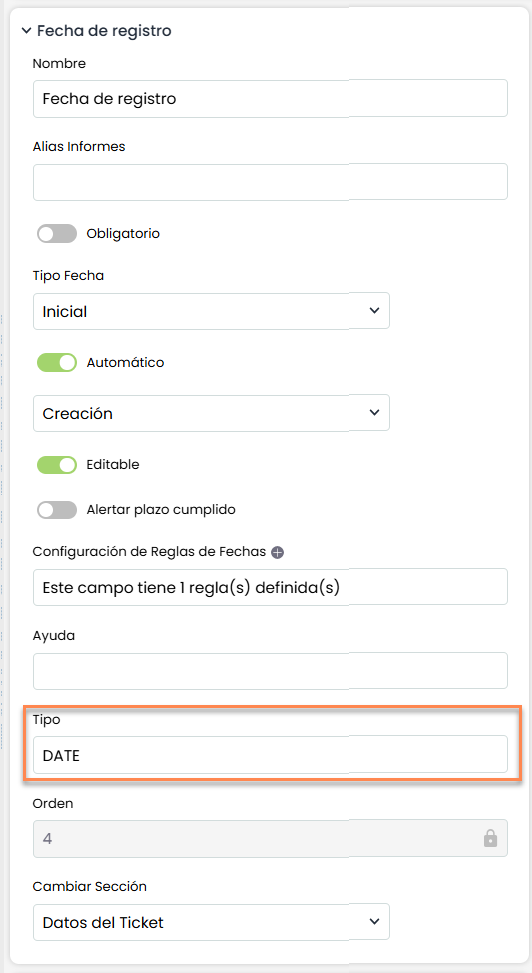
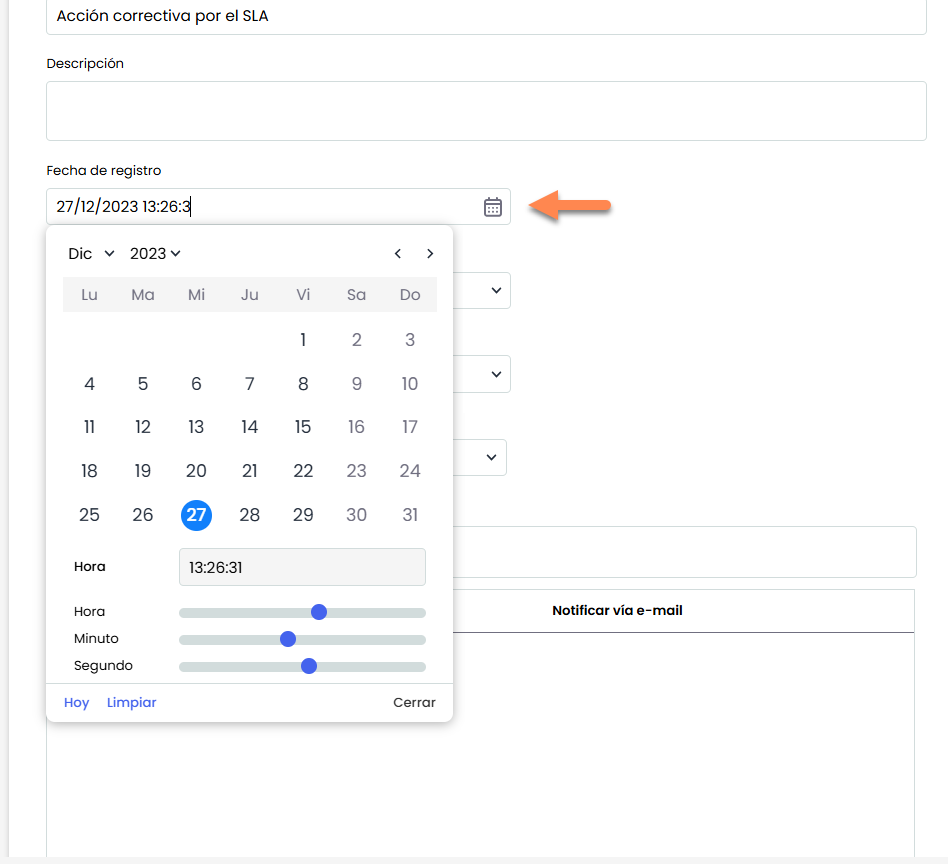
DATE
Allows adding a date field to the ticket for time records.
-
Name: Field label that will be displayed on the form.
-
Report alias: Unique identifier for the field (alphanumeric, max. 5) to be used in Ticket report templates.
-
Mandatory: Marks this field as required. Without completing it, you will not be able to create or update the ticket.
-
Date Type: Allows configuring different date references such as: initial (can be used in graphs and for sending alerts), final, planned start, and planned end (the last 3 types can be used in graphs).
-
Automatic: Allows indicating if it is completed automatically. When checked, it allows selecting with which date. The available options are: Creation, Last modification, Closure, and Reopening.
-
Editable: Activating this check will allow the user to edit the date of this field.
-
Alert deadline met: Activating this check shows the date in red in the ticket list, alerting that today's date is later than the date registered in this field.
-
Date Rules Configuration: Allows defining validations on this field. For example, that the end date cannot be earlier than the start date.
-
Help: The text entered here will be displayed as a guide to complete the field.
-
Order: Defines the position in which the field will appear within the section.
-
Change section: Indicates the current section of the field and allows moving it to another. When doing so, the field will be placed at the end of the new section.
|
View in Settings |
View in GlobalSuite® |
|---|---|
|
|
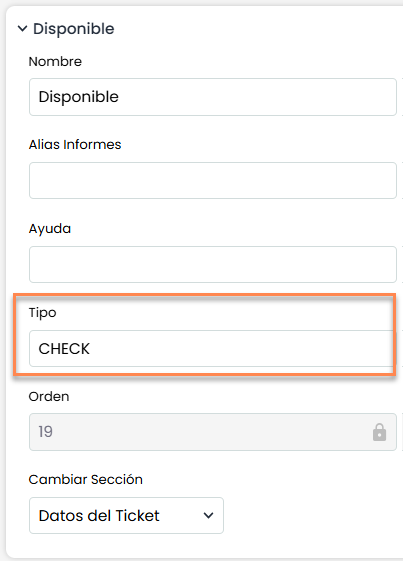
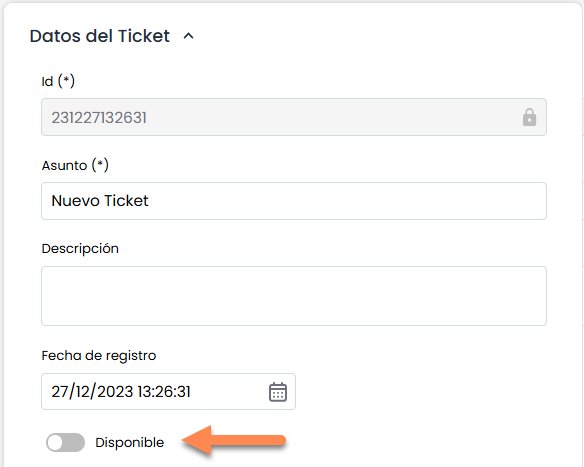
CHECK
Allows adding a Check field to the ticket, which will provide the possibility of completing the ticket form with quick Yes/No (check activated) questions.
-
Name: The name of the field, which will be displayed on the form.
-
Report alias: Unique identifier for the field (alphanumeric, max. 5) to be used in Ticket report templates.
-
Help: The text entered here will be displayed as a guide to complete the field.
-
Order: Defines the position in which the field will appear within the section.
-
Change section: Indicates the current section of the field and allows moving it to another. When doing so, the field will be placed at the end of the new section.
|
View in Settings |
View in GlobalSuite® |
|---|---|
|
|
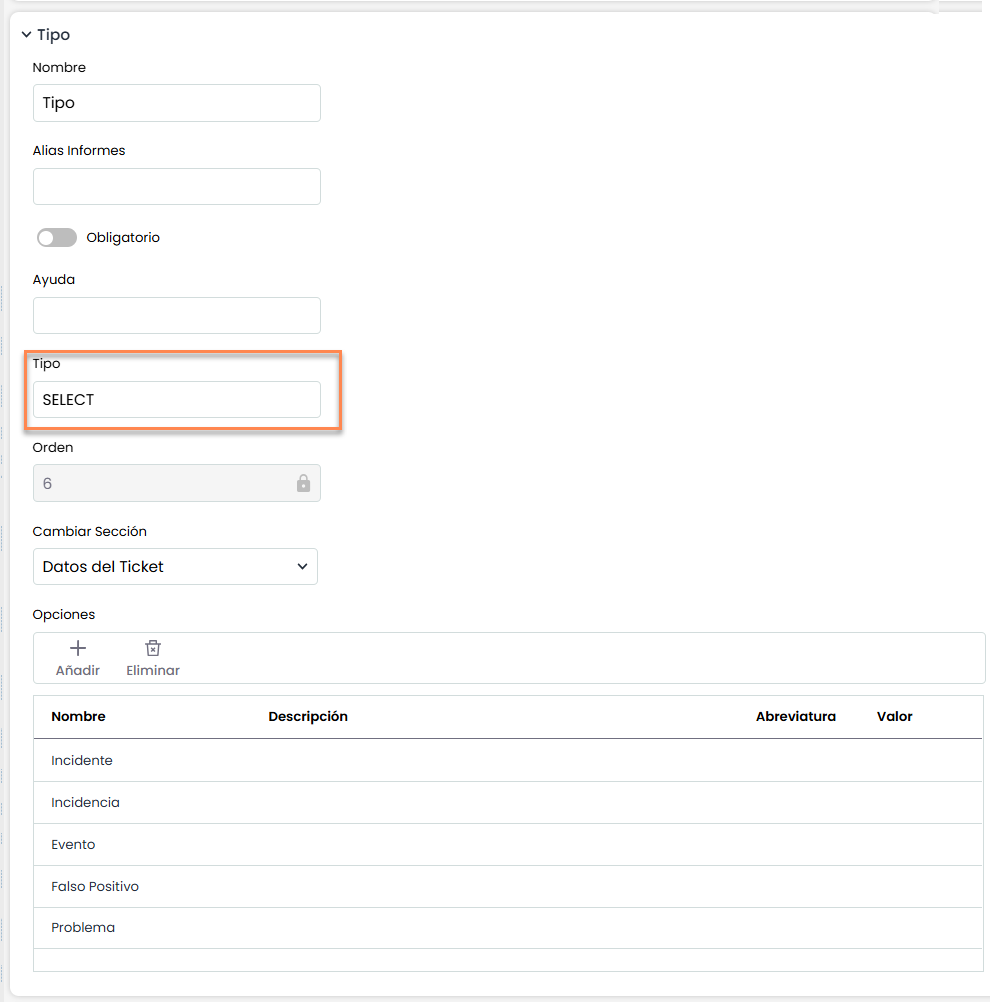
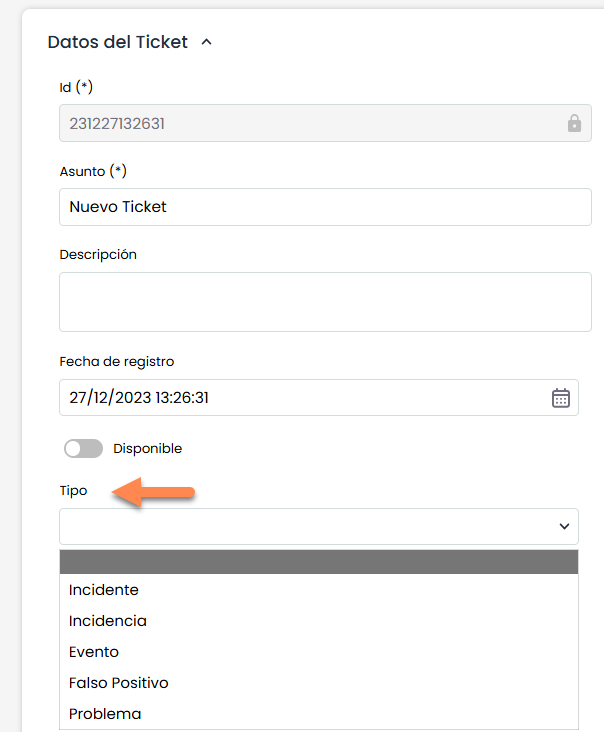
SELECT
Allows adding a selection-type field to the ticket, where different options will be available to choose from.
-
Name: The name of the field, which will be displayed on the form.
-
Report alias: Unique identifier for the field (alphanumeric, max. 5) to be used in Ticket report templates.
-
Mandatory: Marks this field as required. Without completing it, you will not be able to create or update the ticket.
-
Help: The text entered here will be displayed as a guide to complete the field.
-
Order: Defines the position in which the field will appear within the section.
-
Change section: Indicates the current section of the field and allows moving it to another. When doing so, the field will be placed at the end of the new section.
-
Options: Table where different options can be added to be available in the select. A specific description can also be added for each of the added options and a numeric value for each one.
|
View in Settings |
|---|
|
|
View in GlobalSuite® |
|
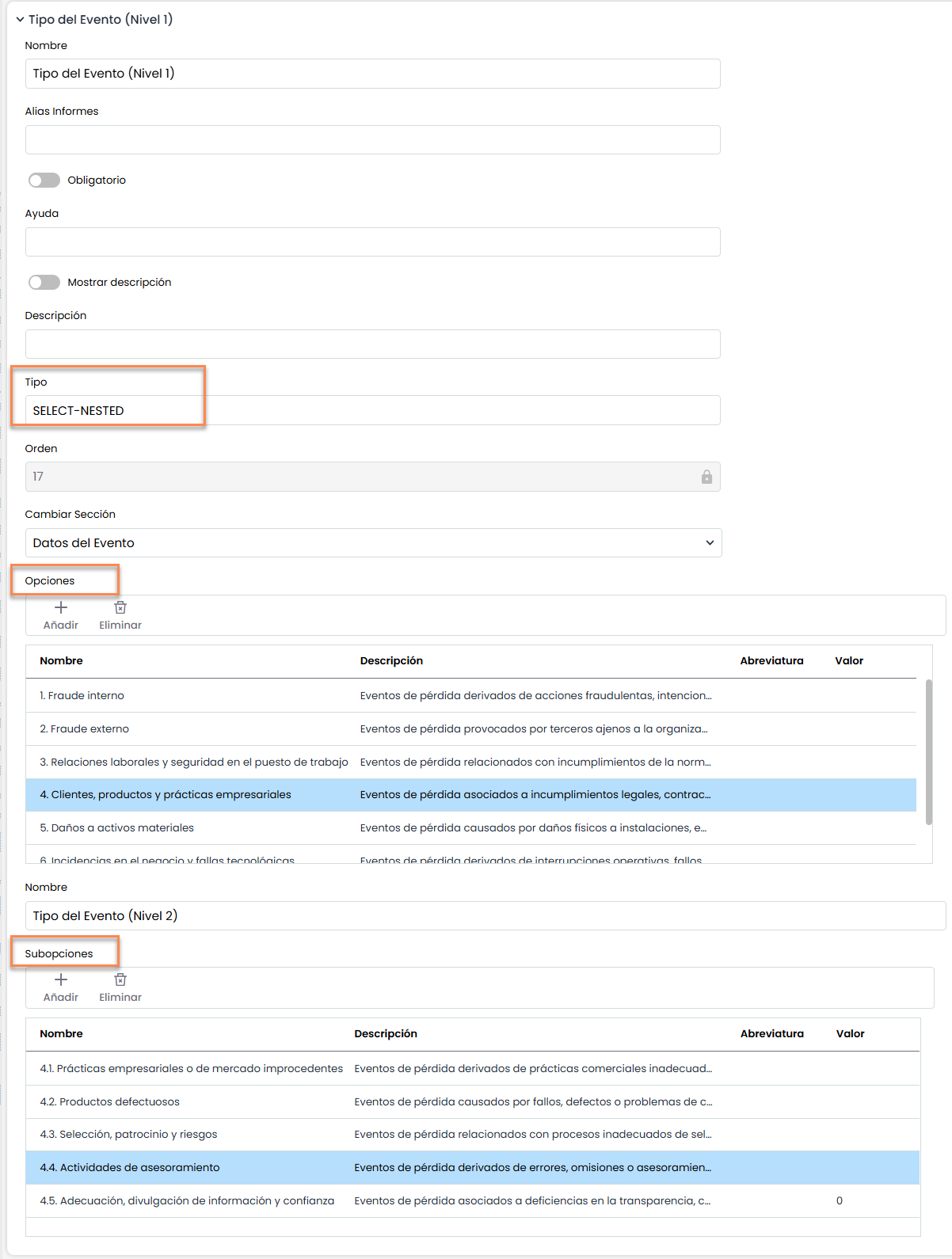
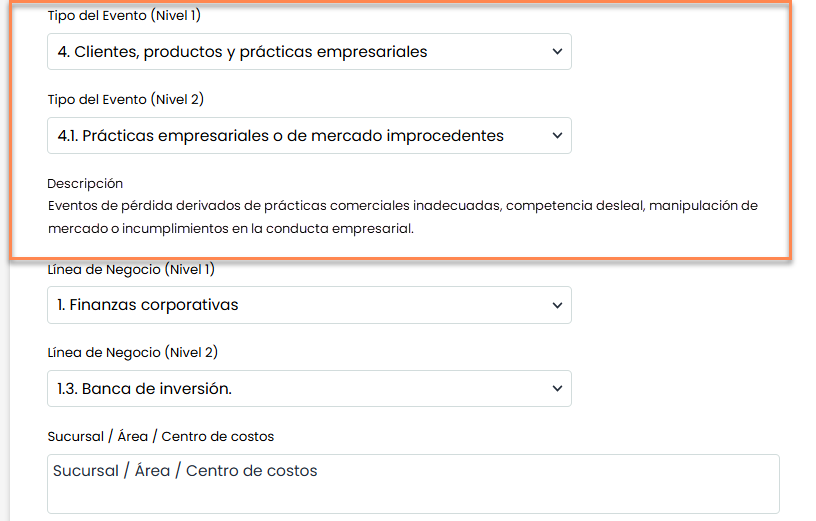
SELECTED-NESTED
Allows adding a Nested Select field, which provides the possibility of adding a select dependent on another select.
-
Name: The name of the field, which will be displayed on the form.
-
Report alias: Unique identifier for the field (alphanumeric, max. 5) to be used in Ticket report templates.
-
Mandatory: Marks this field as required. Without completing it, you will not be able to create or update the ticket.
-
Help: The text entered here will be displayed as a guide to complete the field.
-
Order: Defines the position in which the field will appear within the section.
-
Change section: Indicates the current section of the field and allows moving it to another. When doing so, the field will be placed at the end of the new section.
-
Show description: Check that shows the field description if activated and filled.
-
Options: Different selectable options that can be modified.
-
Suboptions: Selecting an option adds them in the second table for each option.
|
View in Settings |
|---|
|
|
View in GlobalSuite® |
|
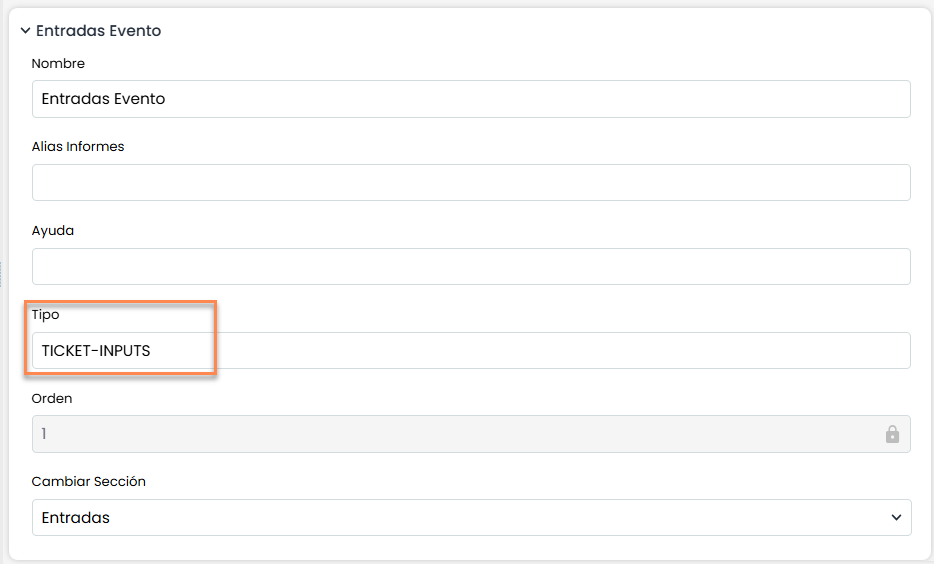
TICKETS-INPUTS
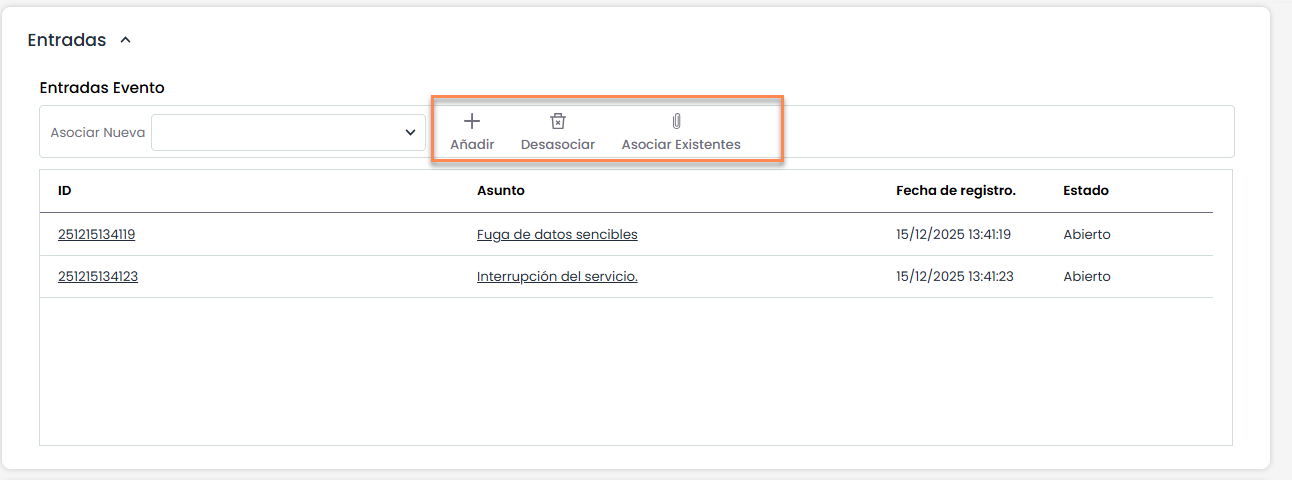
Allows associating existing or new Tickets to each ticket.
-
Name: The name of the field, which will be displayed on the form.
-
Report Alias: Unique identifier of the field (alphanumeric, max. 5) to be used in Ticket report templates.
-
Help: The text entered here will be displayed as a guide to complete the field.
-
Order: Defines the position in which the field will appear within the section.
-
Change Section: Indicates the current section of the field and allows moving it to another. When doing so, the field will be placed at the end of the new section.
-
In GlobalSuite®
-
Add: Allows including new tickets in the ticket created from this option.
-
Unlink: Allows unlinking tickets in the ticket
-
Associate Existing: Allows associating already created tickets
-
The parameterization of the fields displayed in the tickets with this field is done in the "Common Screen" option.
|
View in Settings |
View in GlobalSuite® |
|---|---|
|
|
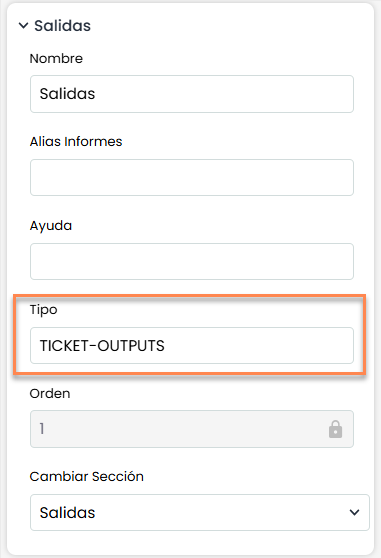
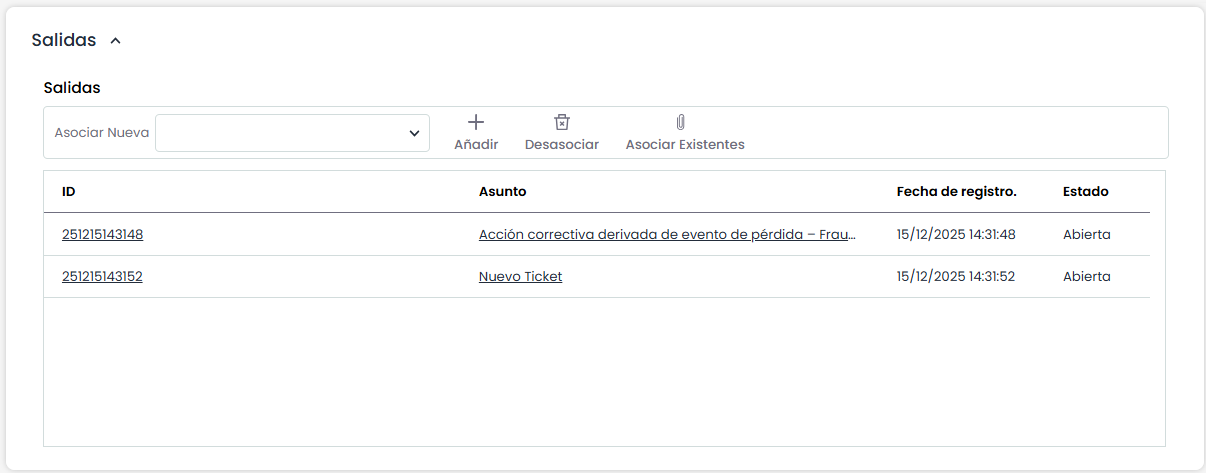
TICKETS-OUTPUTS
-
Add: Allows including new tickets in the ticket created from this option.
-
Unlink: Allows unlinking tickets in the ticket
-
Associate Existing: Allows associating already created tickets
|
View in Settings |
View in GlobalSuite® |
|---|---|
|
|
NOTE: The parameterization of the fields displayed in the tickets with this field is done in the "Common Screen" option.
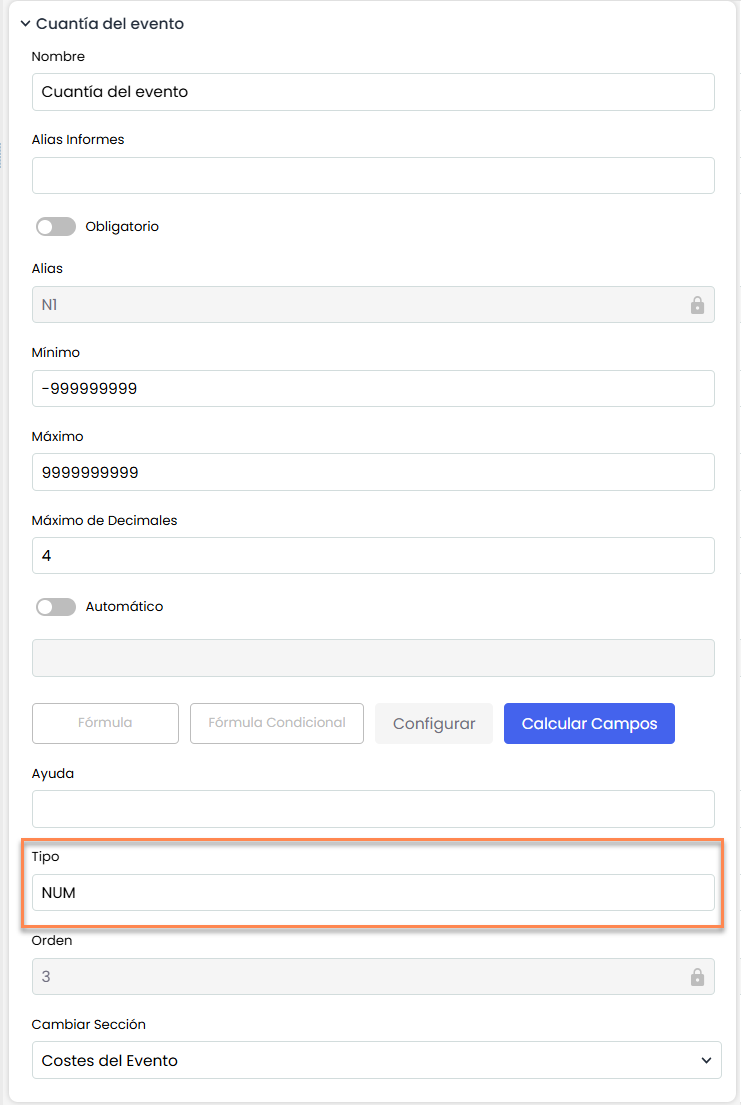
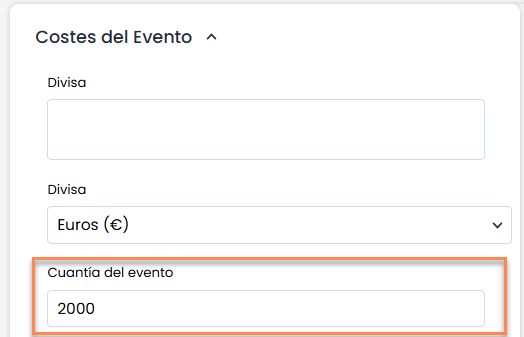
NUM
Field of type numeric that restricts input to numbers only.
-
Minimum/Maximum: Allows limiting the input range.
-
Maximum Decimals: Delimits the number of decimals allowed to be entered.
-
Automatic: If enabled, allows entering formulas using numeric fields.
|
View in Settings |
View in GlobalSuite® |
|---|---|
|
|
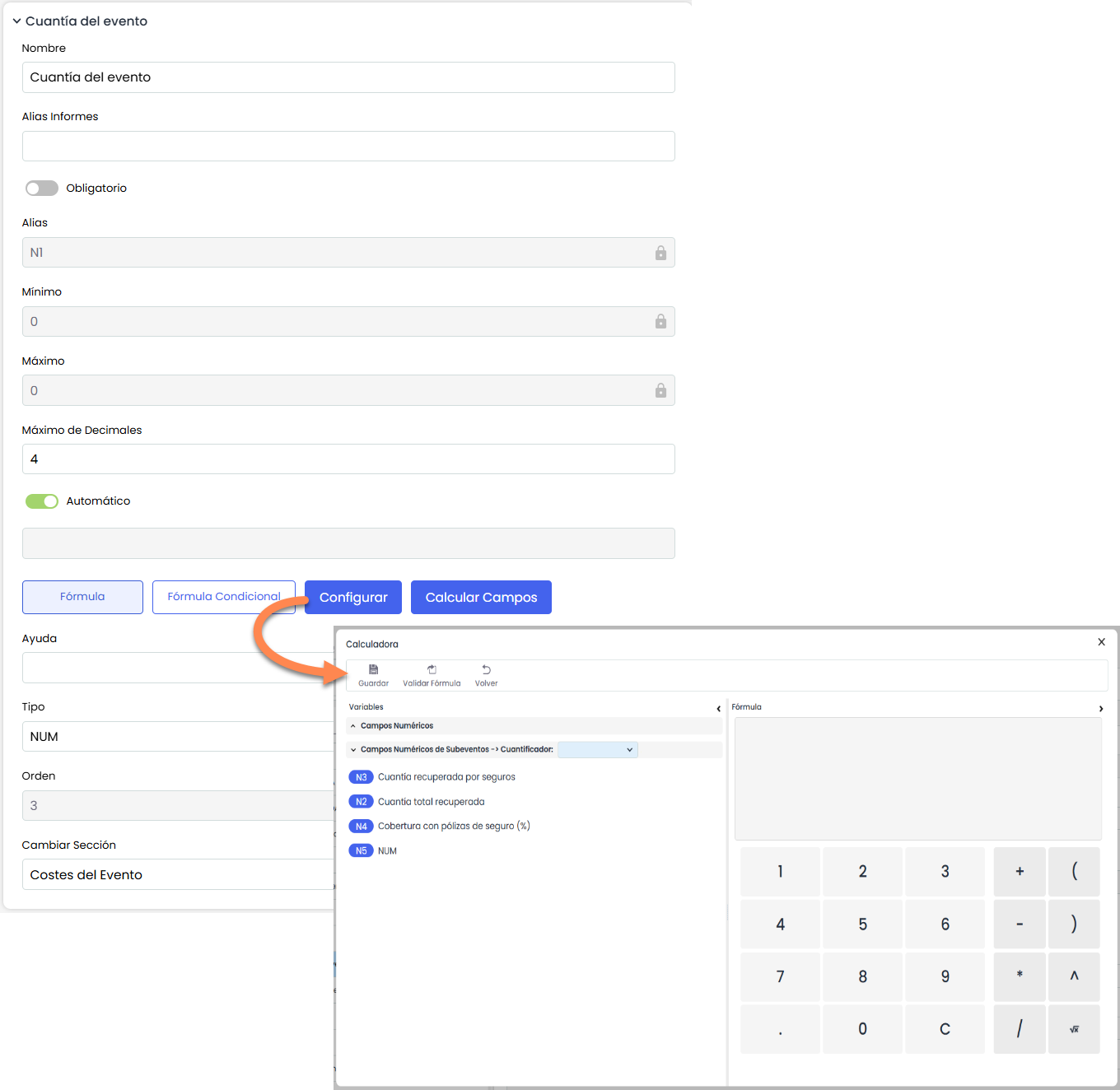
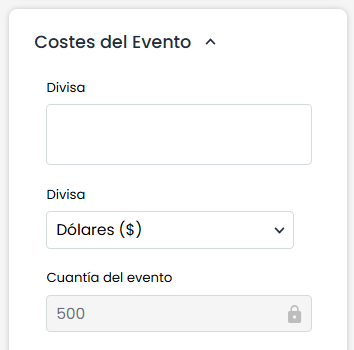
CONFIGURE FORMULA
Numeric-type field with an automatic formula. The configure button must be pressed.
-
Numeric Fields: Allows mathematical operations with NUM type fields.
-
Validate Formula: After configuring the formula, it must be validated without errors to be saved.
-
Conditional Formula: Allows using conditionals (IF) for advanced field comparisons.
|
View in Settings |
|---|
|
|
View in GlobalSuite® |
|
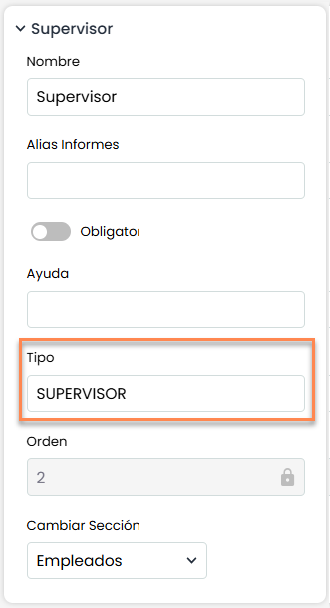
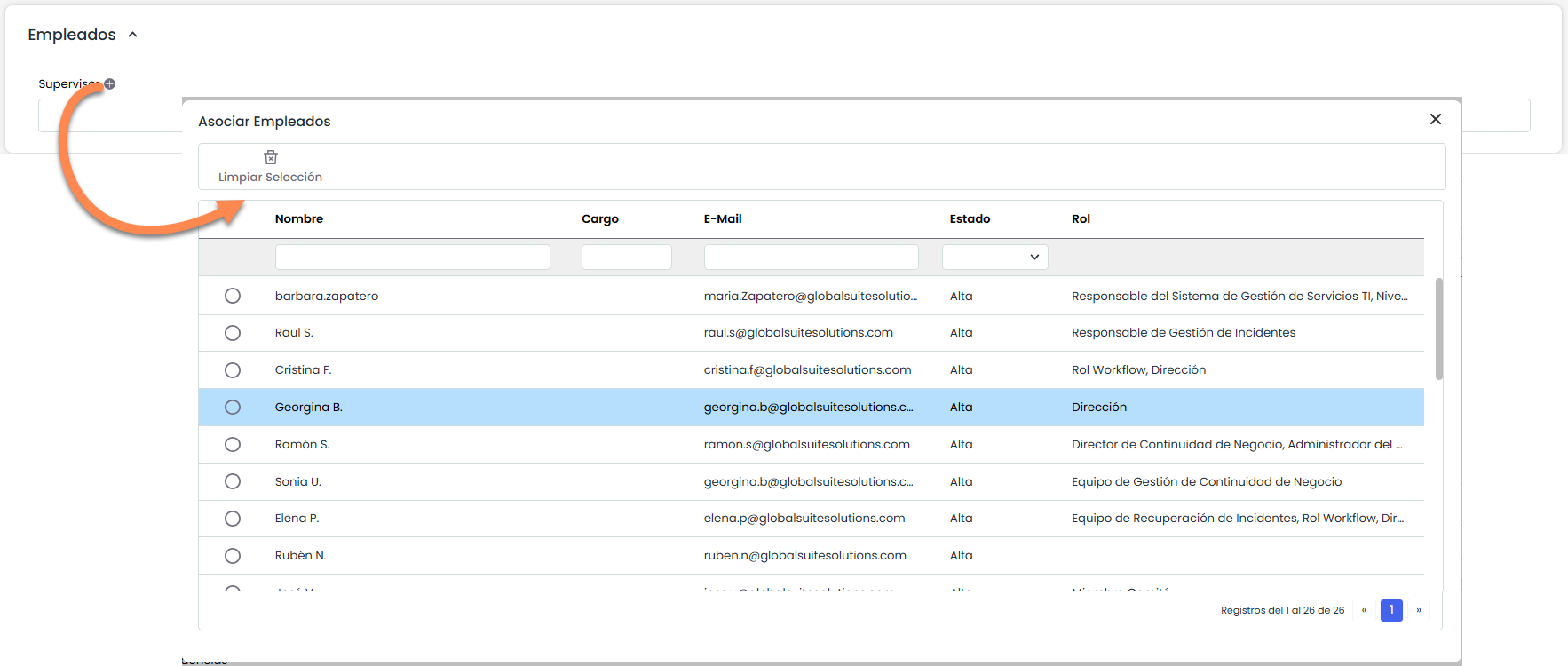
SUPERVISOR
Allows adding a supervisor-type field, which allows relating an employee to the ticket, and also provides the possibility of sending alerts to this related employee.
-
Mandatory: This checked box requires the field to be filled.
|
View in Settings |
|---|
|
|
View in GlobalSuite® |
|
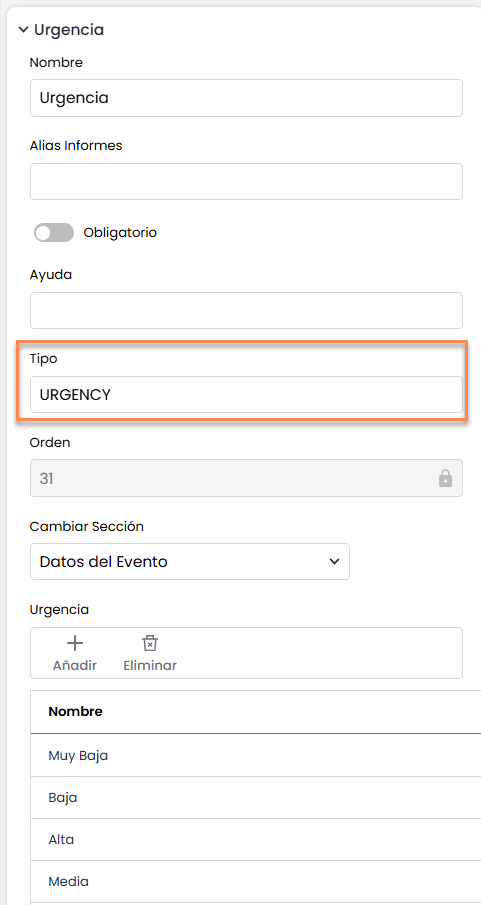
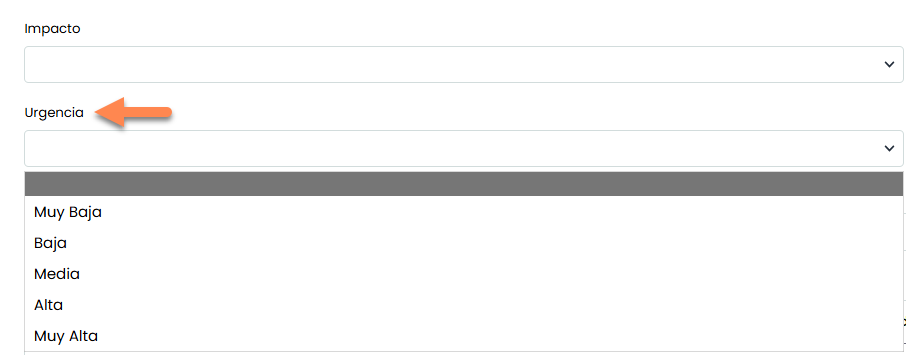
URGENCY
Allows adding a Select field with configurable options to assess urgency.
-
Urgency: Configuration table of the different options of the field, their values, and descriptions.
NOTE: Related to Impact and Priority fields.
|
View in Settings |
View in GlobalSuite® |
|---|---|
|
|
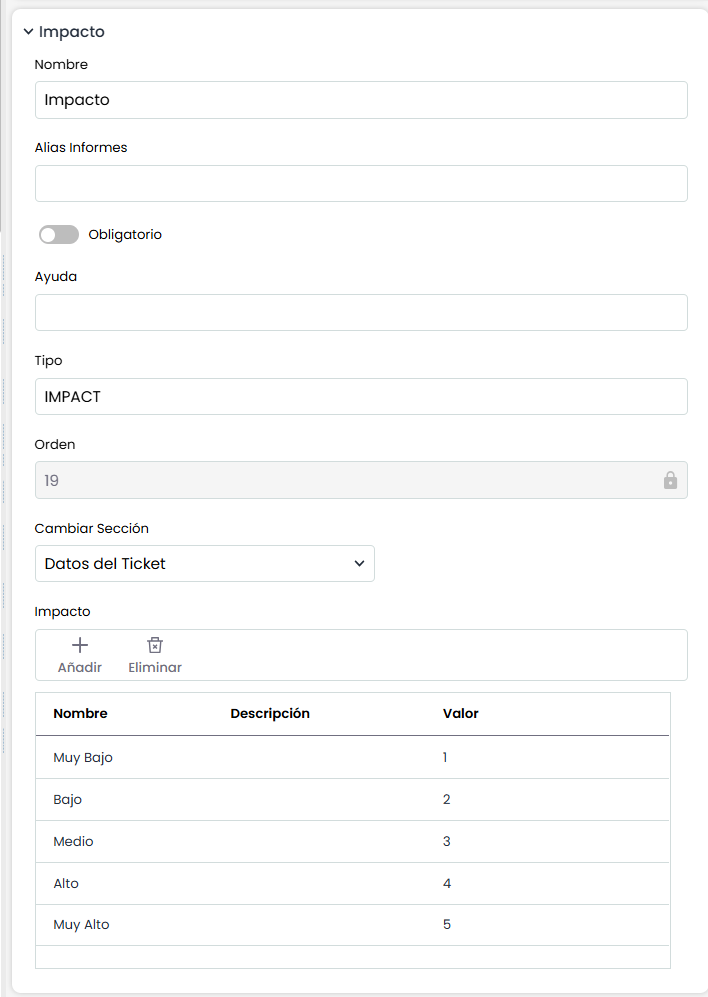
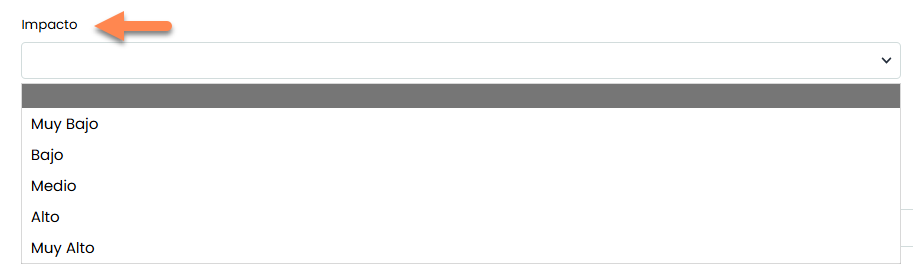
IMPACT
Allows adding a Select field with configurable options to assess the impact.
-
Impact: Configuration table of the different options of the field, their values, and descriptions.
NOTE: Related to Urgency and Priority fields.
|
View in Settings |
View in GlobalSuite® |
|---|---|
|
|
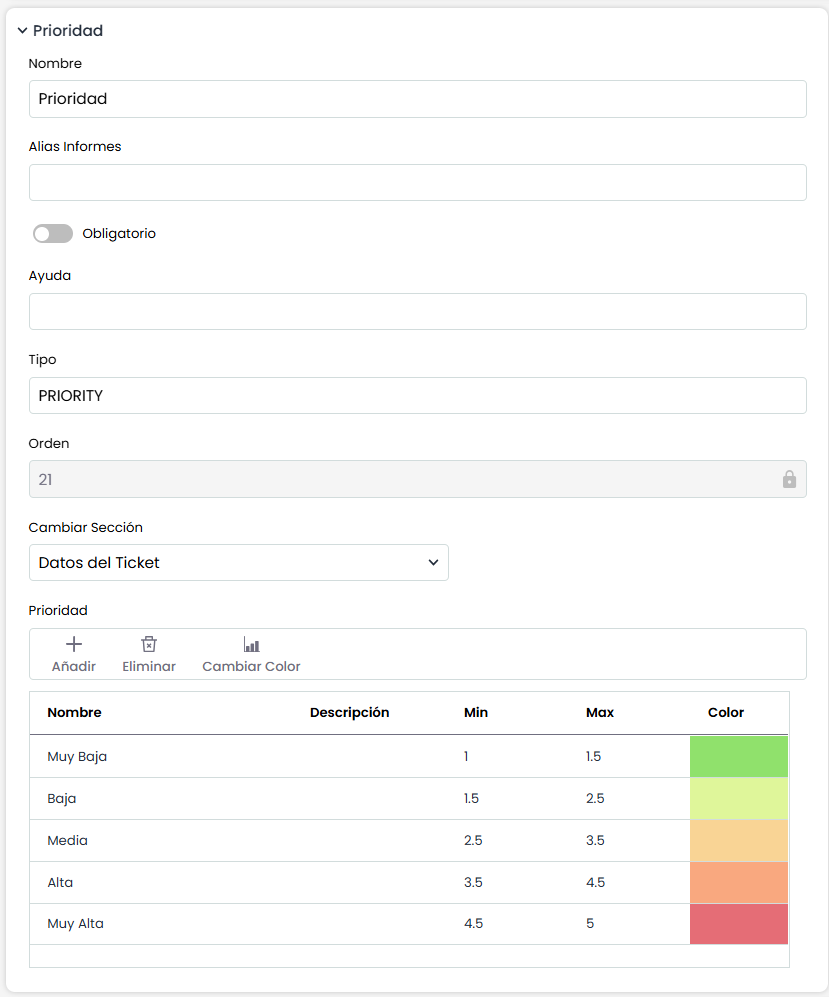
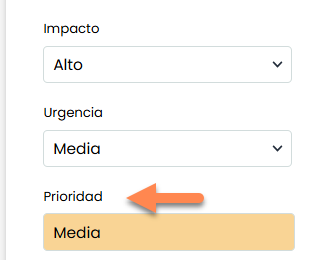
PRIORITY
Adds a valuation by multiplying the Impact and Urgency fields. It will allow configuring a series of values dependent on valuation ranges to define the desired priority result.
-
Priority: Levels are configured with their maximum and minimum valuation range and descriptions in each case. Additionally, a color for each level.
NOTE: Related to Impact and Urgency fields, it will be an average (sum divided by 2) of the values of the 2 fields.
|
View in Settings |
View in GlobalSuite® |
|---|---|
|
|
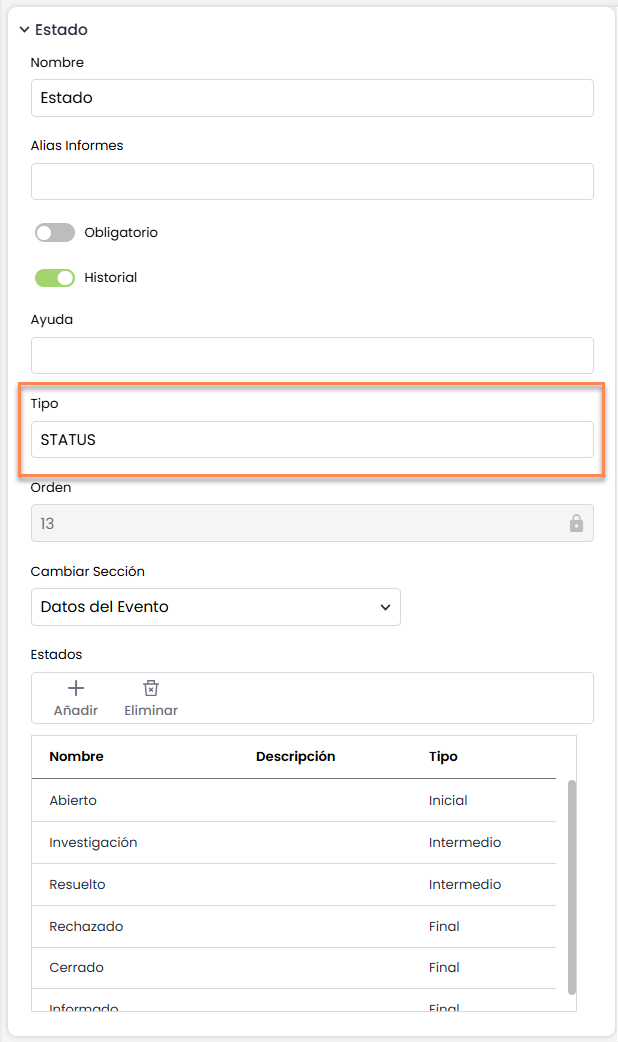
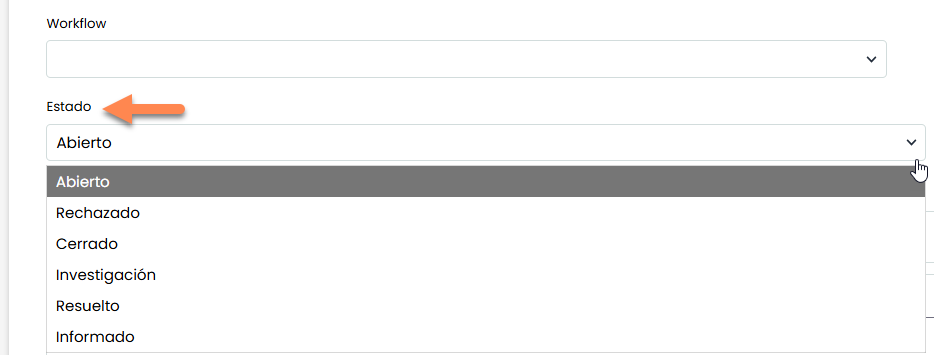
STATUS
Allows adding a selection field with the different possible statuses of a ticket. The statuses can be configured in terms of name, description, and type.
-
States: Configuration table of the different states of the ticket.
-
State Types: They can be of 3 types,
-
Initial (unique)
-
Intermediate (multiple)
-
Final (multiple, locks state to read-only and allows reopening by sending a notification).
-
|
View in Settings |
View in GlobalSuite® |
|---|---|
|
|
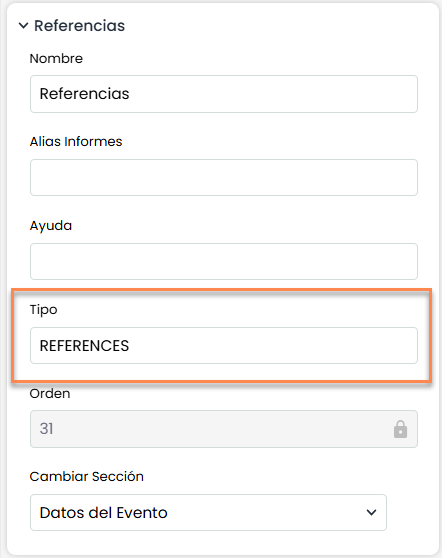
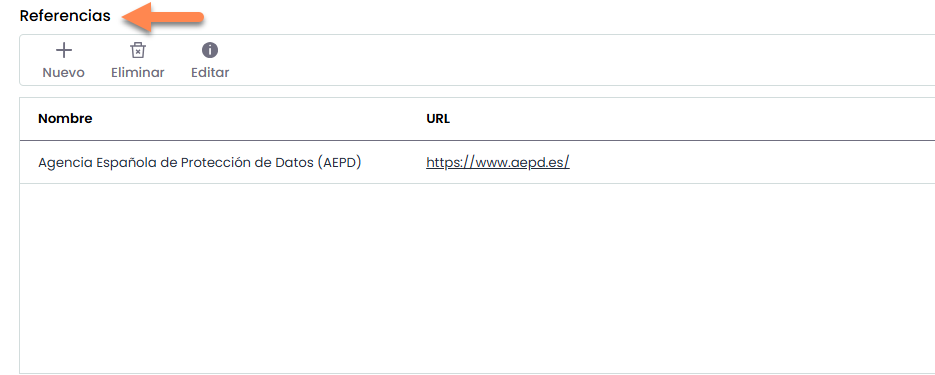
REFERENCES
Allows adding a table of records, which will be references with a link or URL to a web page.
|
View in Settings |
View in GlobalSuite® |
|---|---|
|
|
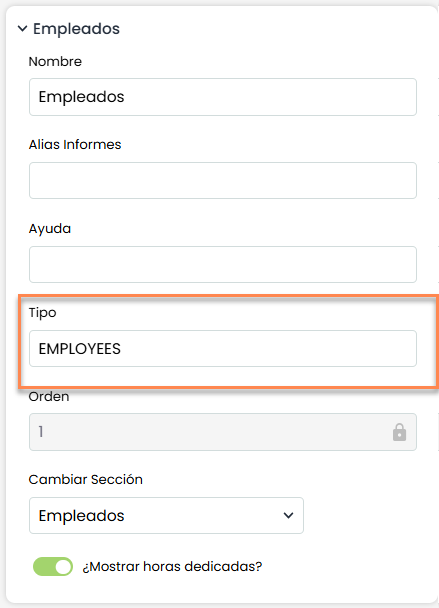
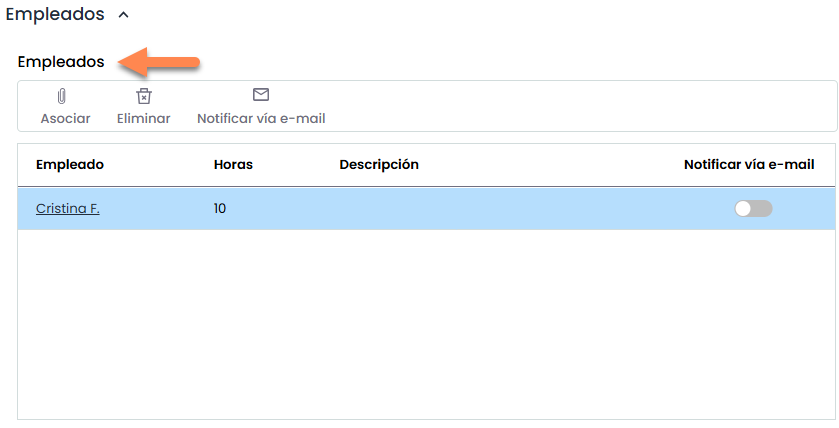
EMPLOYEES
Allows adding a table of employee records from the tool, which will be associated with the ticket.
-
Show dedicated hours?: Allows entering hours each employee has dedicated.
-
Notify via email: Allows sending notifications to the employee via email when they have been added to the ticket. Additionally, this employee can be alerted about Ticket Creation, Modification, and Closure actions.
|
View in Settings |
View in GlobalSuite® |
|---|---|
|
|
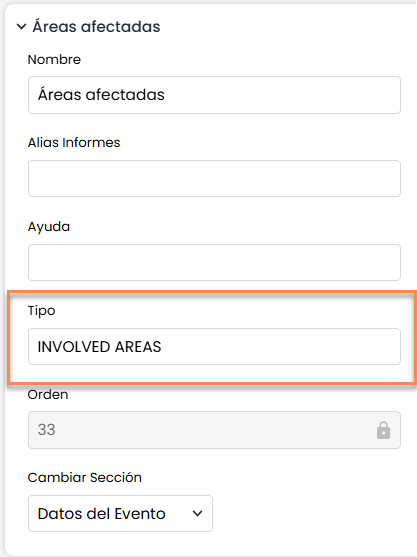
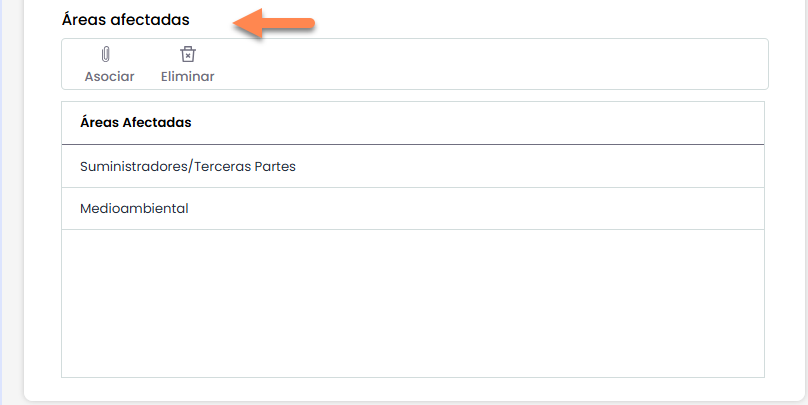
INVOLVED AREAS
Allows adding a record table, these records will be company areas related to the ticket. They can be configured in the Settings > Configuration > General section under Management Configuration Properties > Affected Areas.
-
Associate: Allows associating affected areas to the ticket.
|
View in Settings |
View in GlobalSuite® |
|---|---|
|
|
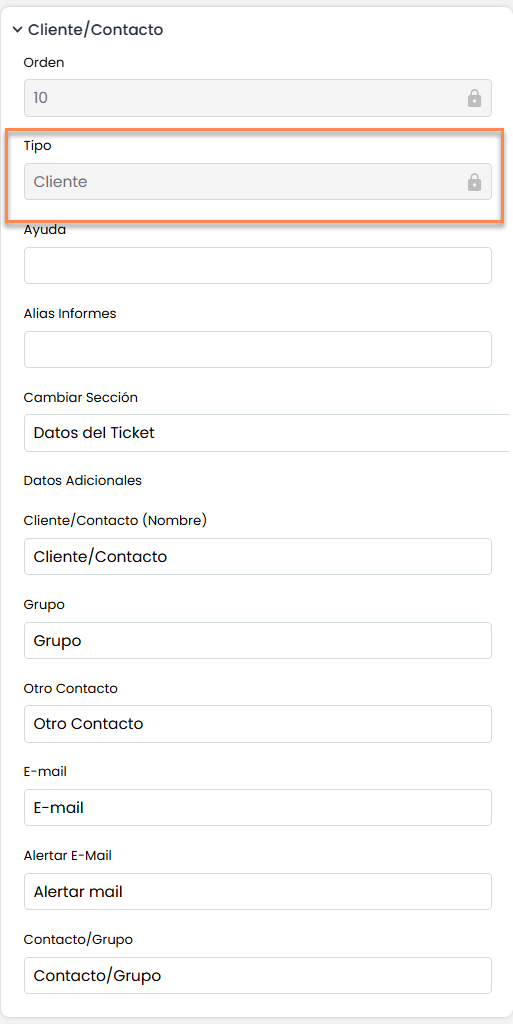
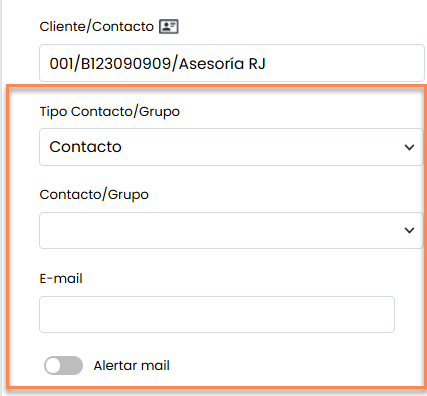
CLIENT
Allows adding a set of contact fields with different variants. A name, contact email, or an existing one in the " Business Relationships " option can be directly associated.
-
Client Field Set: Those that are filled will appear on the ticket.
NOTE: In addition to those seen in the image, there is Email, Email Alert, and Contact/Group.
|
View in Settings |
View in GlobalSuite® |
|---|---|
|
|
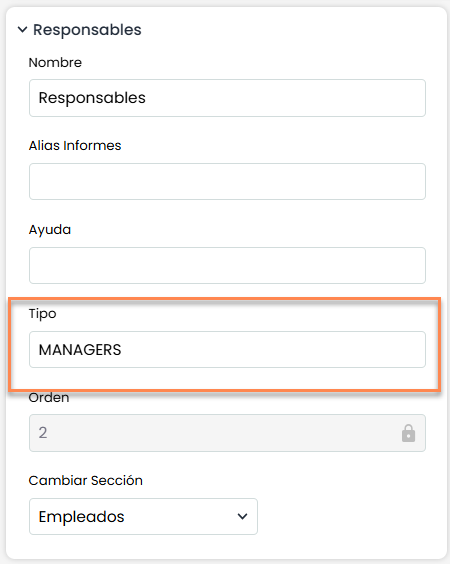
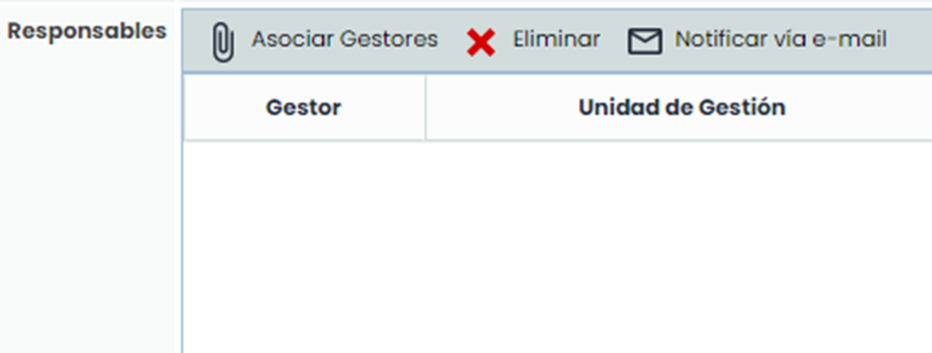
MANAGERS
Allows adding a table of senior managers, these records will be roles with employee/user from higher entities. Therefore, the table will appear in the form only if it is in a child entity.
To use this field, entities must be used.
|
View in Settings |
View in GlobalSuite® |
|---|---|
|
|
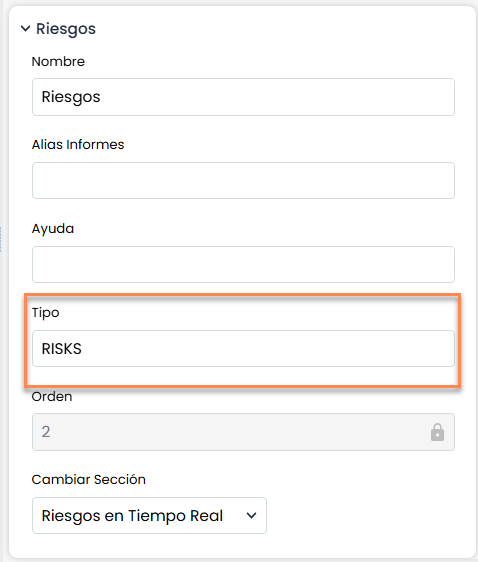
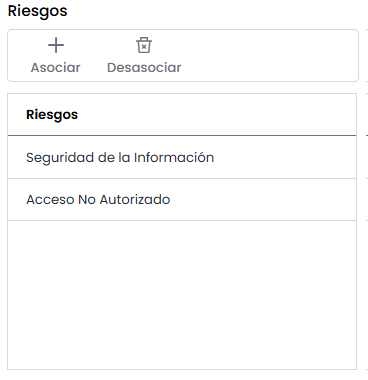
RISKS
Allows adding a record table, which will be risks created in the configuration section in the Risk Category table (Settings> Methodologies Elements).
|
View in Settings |
View in GlobalSuite® |
|---|---|
|
|
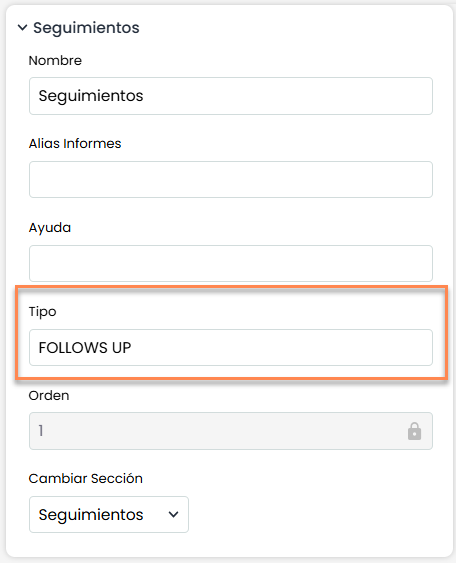
TYPES FOLLOW-UP
Allows adding a table of records, these records will be ticket follow-ups, where a date, type, and observations of the follow-up can be added.
-
New: Creates a new follow-up.
|
View in Settings |
|---|
|
|
View in GlobalSuite® |
|
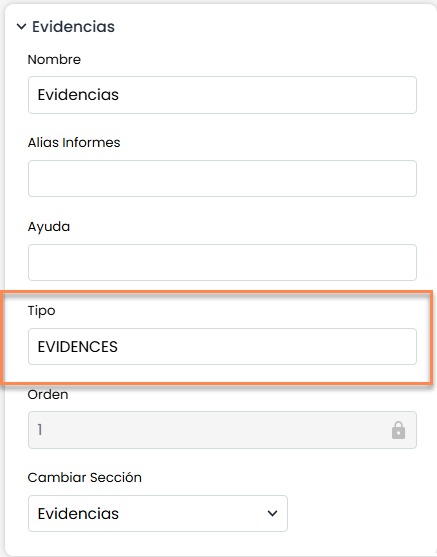
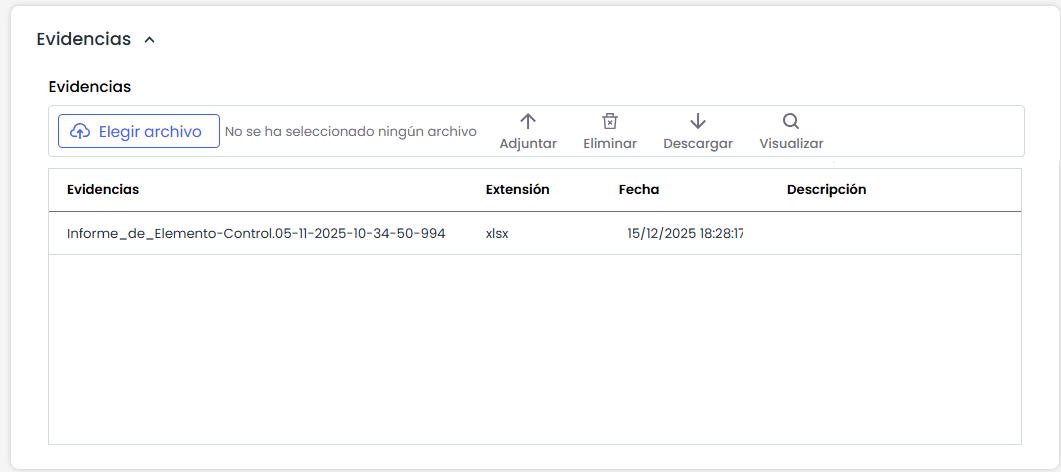
EVIDENCES
Allows adding a table of records, these records will be documentation associated with the ticket, allowing documents to be attached, a date to be added, and a series of descriptions to have full control of the registered evidence.
-
Evidences: Allows attaching evidence files to the ticket.
NOTE: It can only be added once
|
View in Settings |
|---|
|
|
View in GlobalSuite® |
|
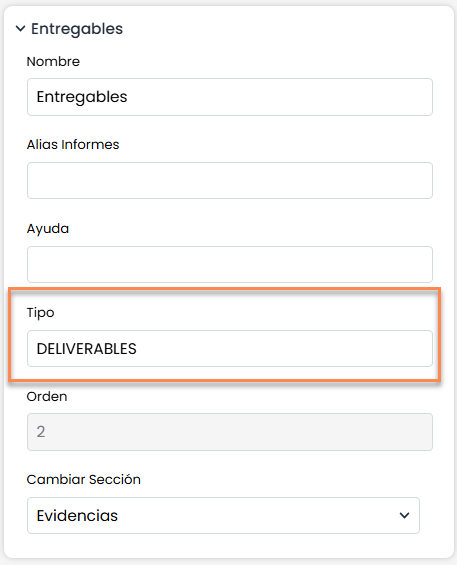
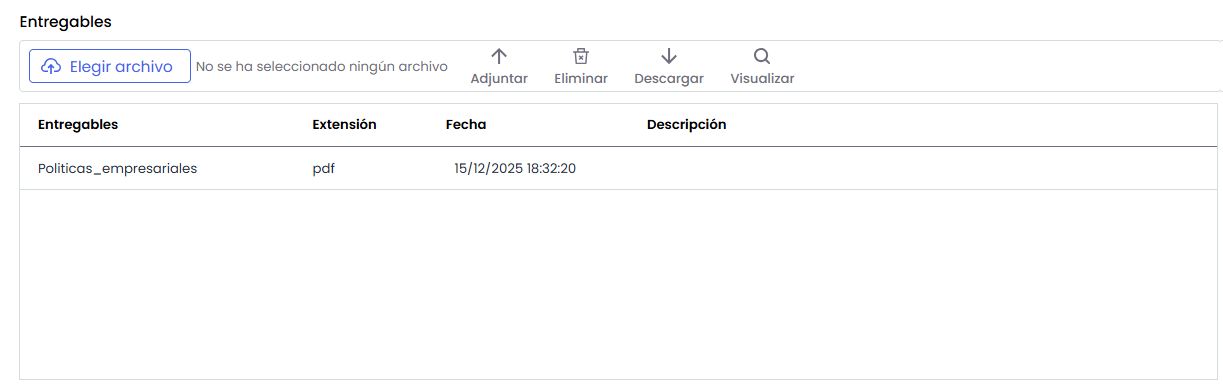
DELIVERABLES
Allows adding a table of records, these records will be documentation associated with the ticket, allowing documents to be attached, a date to be added, and a series of descriptions to have full control of the deliverables.
-
Attach: Allows attaching evidence files to the ticket.
|
View in Settings |
View in GlobalSuite® |
|---|---|
|
|
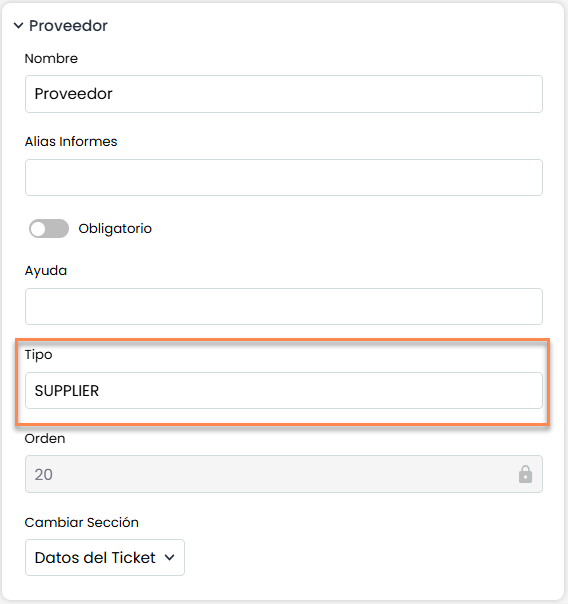
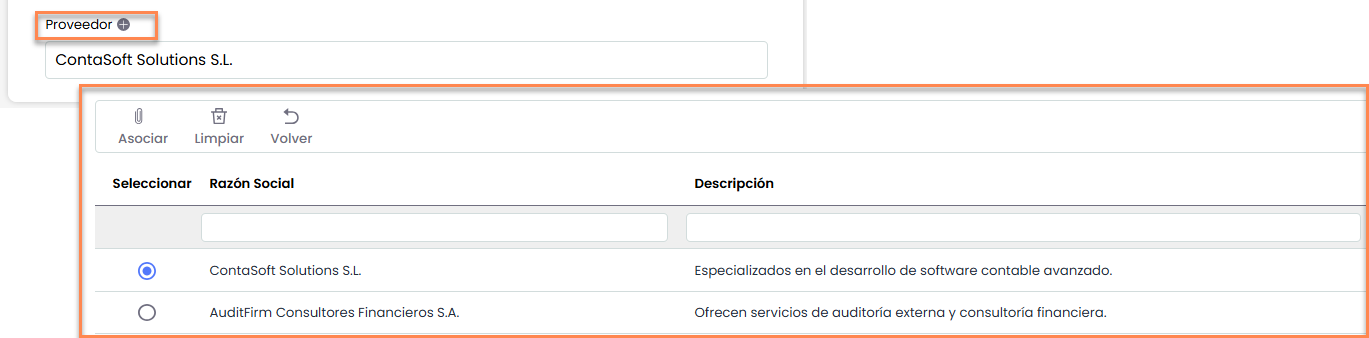
SUPPLIER
Allows associating a supplier from the loaded list in the Suppliers option with the ticket. More than one field of this type can be added to register the suppliers related to the ticket.
|
View in Settings |
|---|
|
|
View in GlobalSuite® |
|
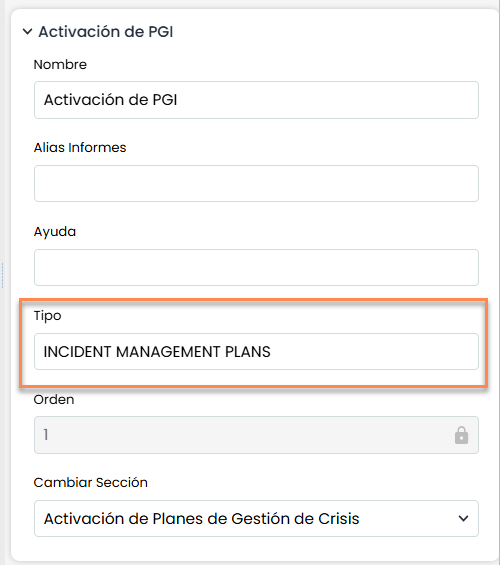
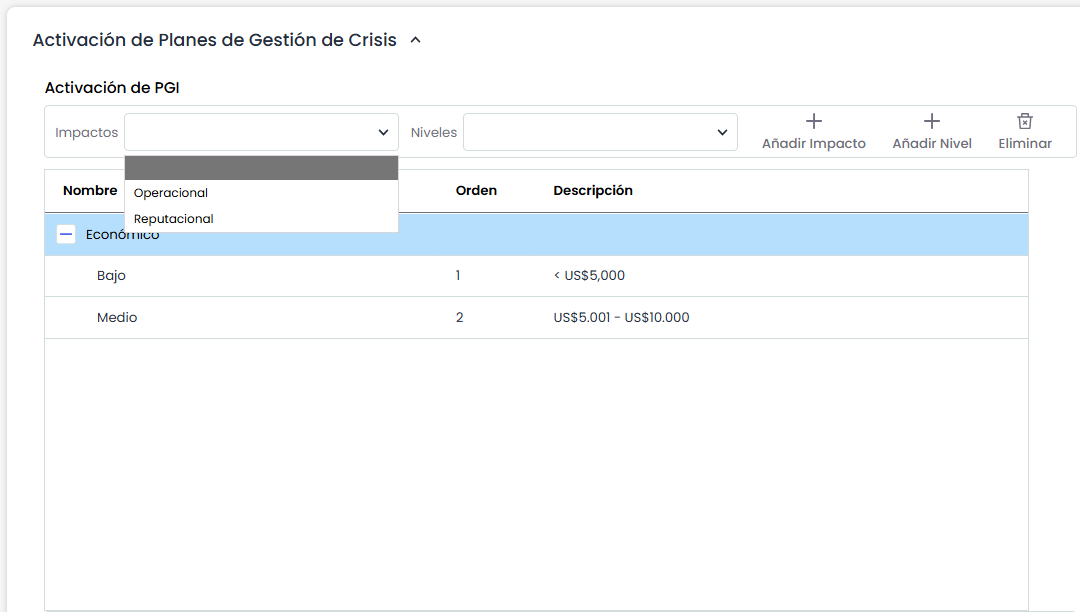
INCIDENT MANAGEMENT PLANS
Allows adding a table of records, these records will be an incident management plan. It will allow associating a series of impacts and levels with the ticket.
-
Impacts/Levels: Valuations can be added to form the Plan to then activate it.
|
View in Settings |
View in GlobalSuite® |
|---|---|
|
|
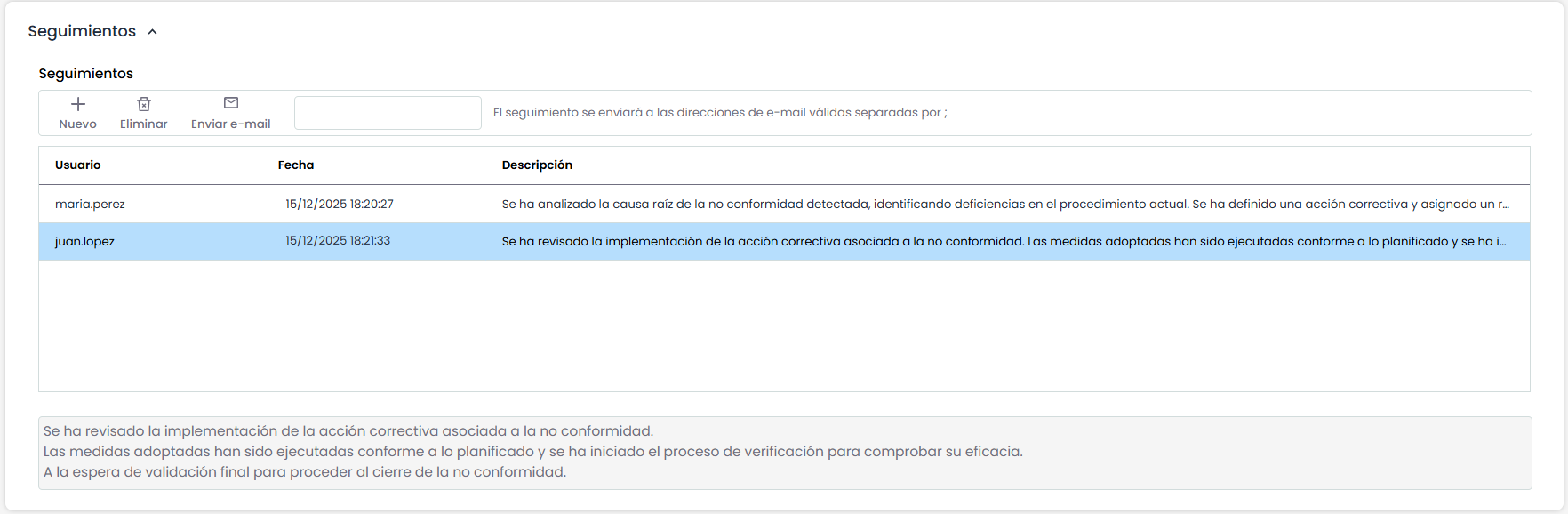
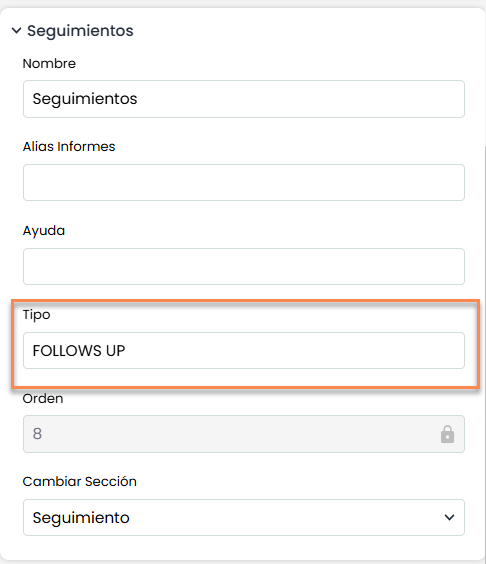
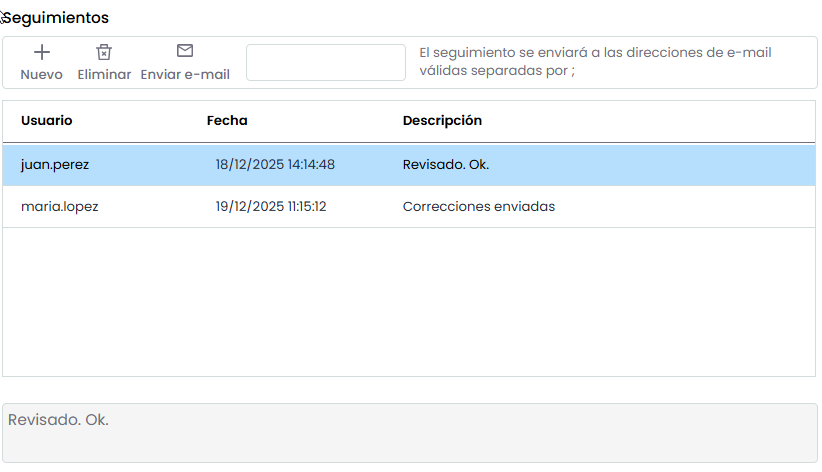
FOLLOWS UP
Allows adding a table of records, these records will be ticket follow-ups, where it will be recorded which user performed the follow-up, with a date and description. It will also provide the possibility to send the follow-up to a list of emails defined by ";".
-
Send Email: To send follow-up emails after entering the email in the blank space.
|
View in Settings |
View in GlobalSuite® |
|---|---|
|
|
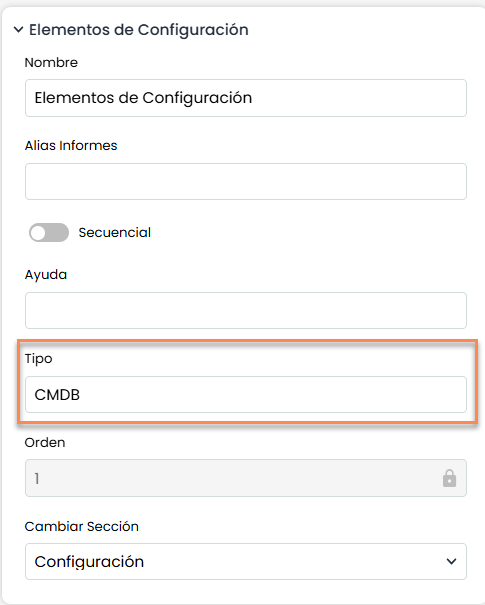
CMDB
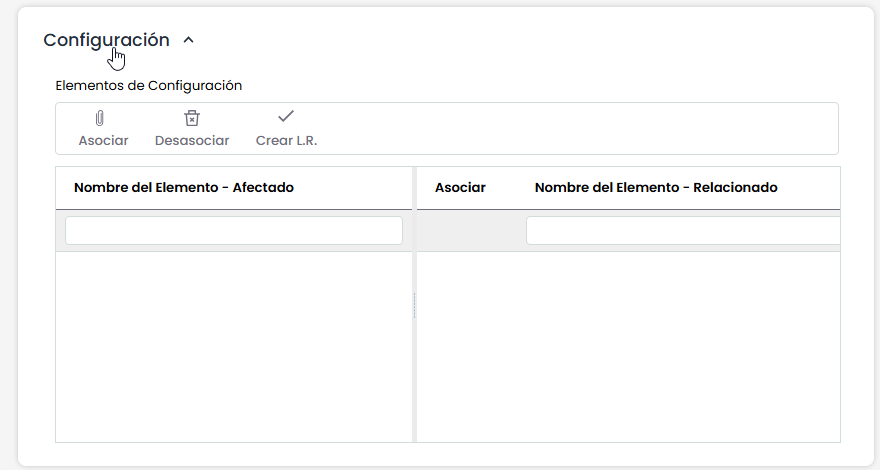
This field allows associating elements, which will be related to the CMDB through the ticket. It will allow associating a series of elements with the ticket and storing their history.
-
Create B.L.: You can create histories (baseline lines) of the associated items.
|
View in Settings |
View in GlobalSuite® |
|---|---|
|
|
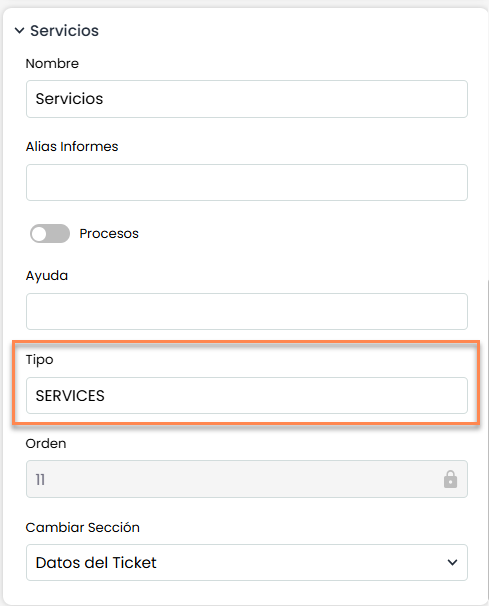
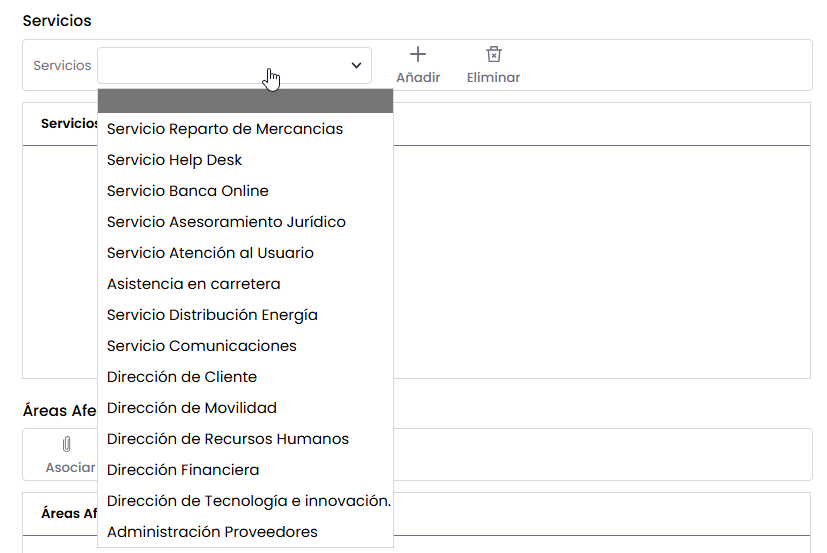
SERVICES
Allows adding a table of records, these records will be services defined in the Service Catalog on the Home tab. This table can associate a ticket with the services it affects or is related to.
-
Add/Remove: Services from the predefined list are added or removed to the ticket related to it.
|
View in Settings |
View in GlobalSuite® |
|---|---|
|
|
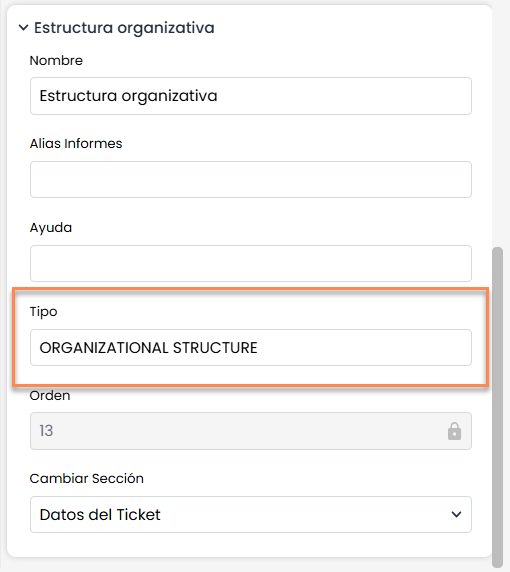
ORGANIZATIONAL STRUCTURE
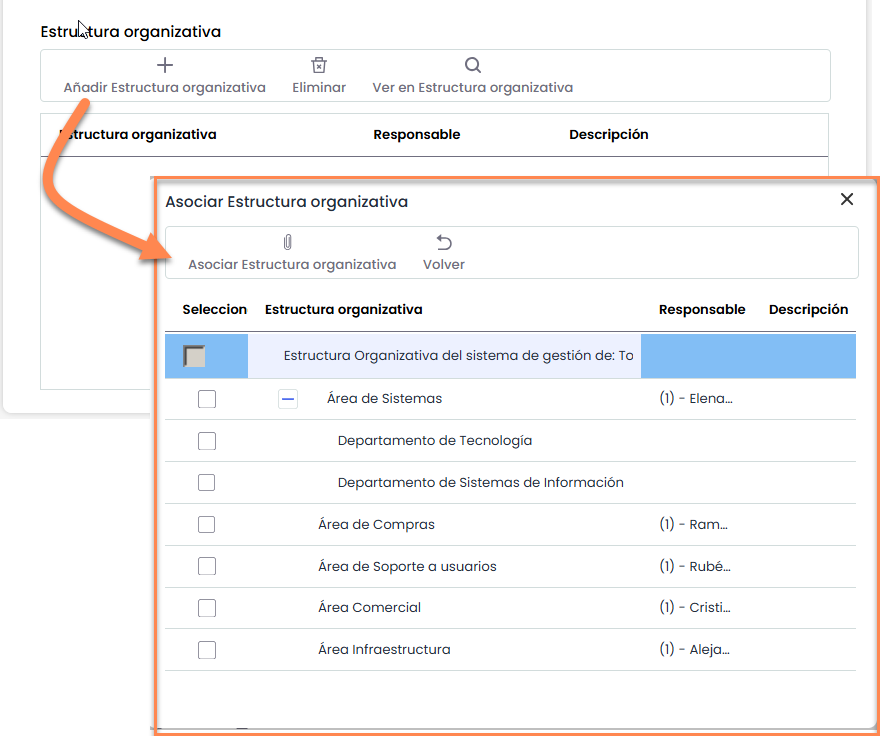
Allows adding a record table, which is part of the Organizational Structure tree defined in the Home> Organizational Structure option.
A ticket can be associated with this table, with the area of the company it affects or is related to.
-
Add O.S.: Allows adding predefined Structures.
|
View in Settings |
View in GlobalSuite® |
|---|---|
|
|
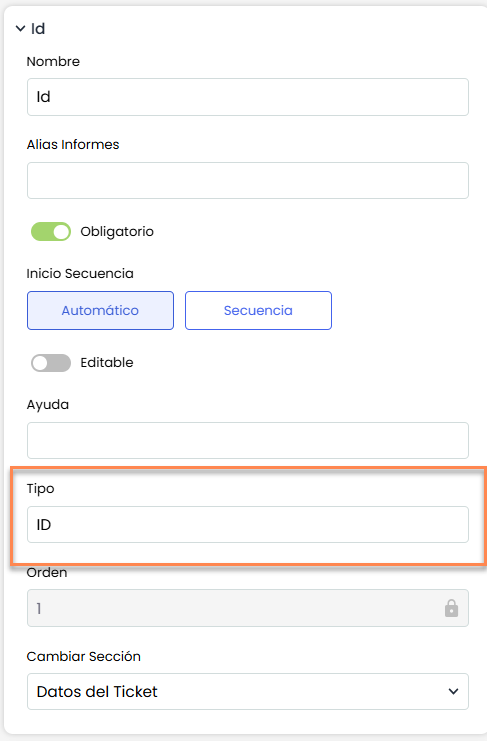
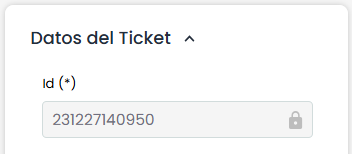
ID
Allows adding a text field that will generate a unique numbering for each ticket.
-
Sequence Start: Allows defining whether the sequence is Automatic, where a number will be generated automatically, or Sequence, where the numbering pattern to start with will be defined.
-
Editable: Allows defining whether, once the ticket is created with a unique numbering, it can be modified.
|
View in Settings |
View in GlobalSuite® |
|---|---|
|
|
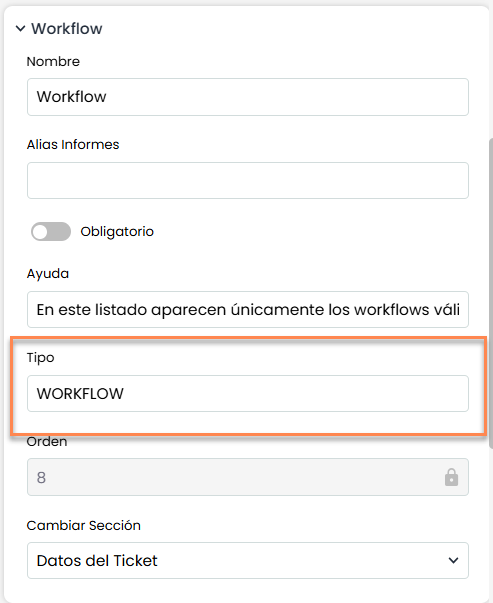
WORKFLOW
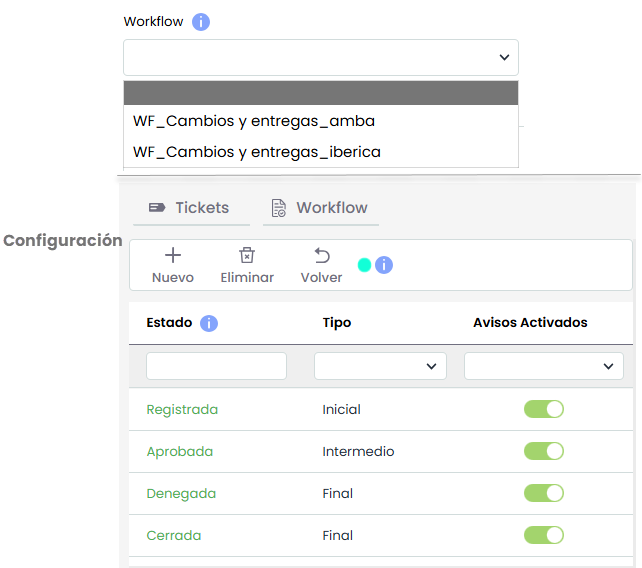
Allows adding a selection field where the workflows defined for each ticket will appear. Once a Workflow is selected for the ticket, the state field will modify the default states to the states of the selected Workflow.
NOTE: For the WF configuration to appear, it is necessary to first add the "STATUS" field and the "WORKFLOW" field.
|
View in Settings |
View in GlobalSuite® |
|---|---|
|
|
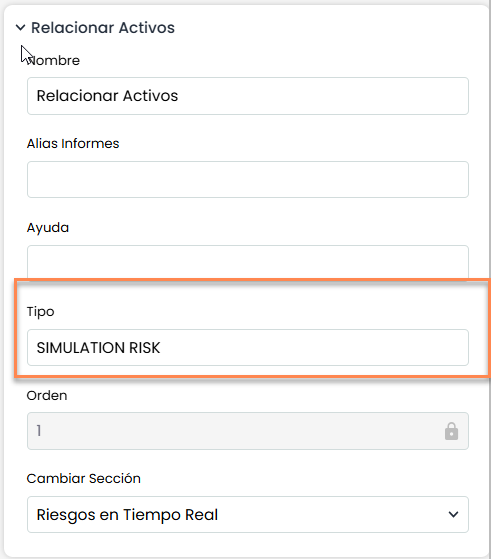
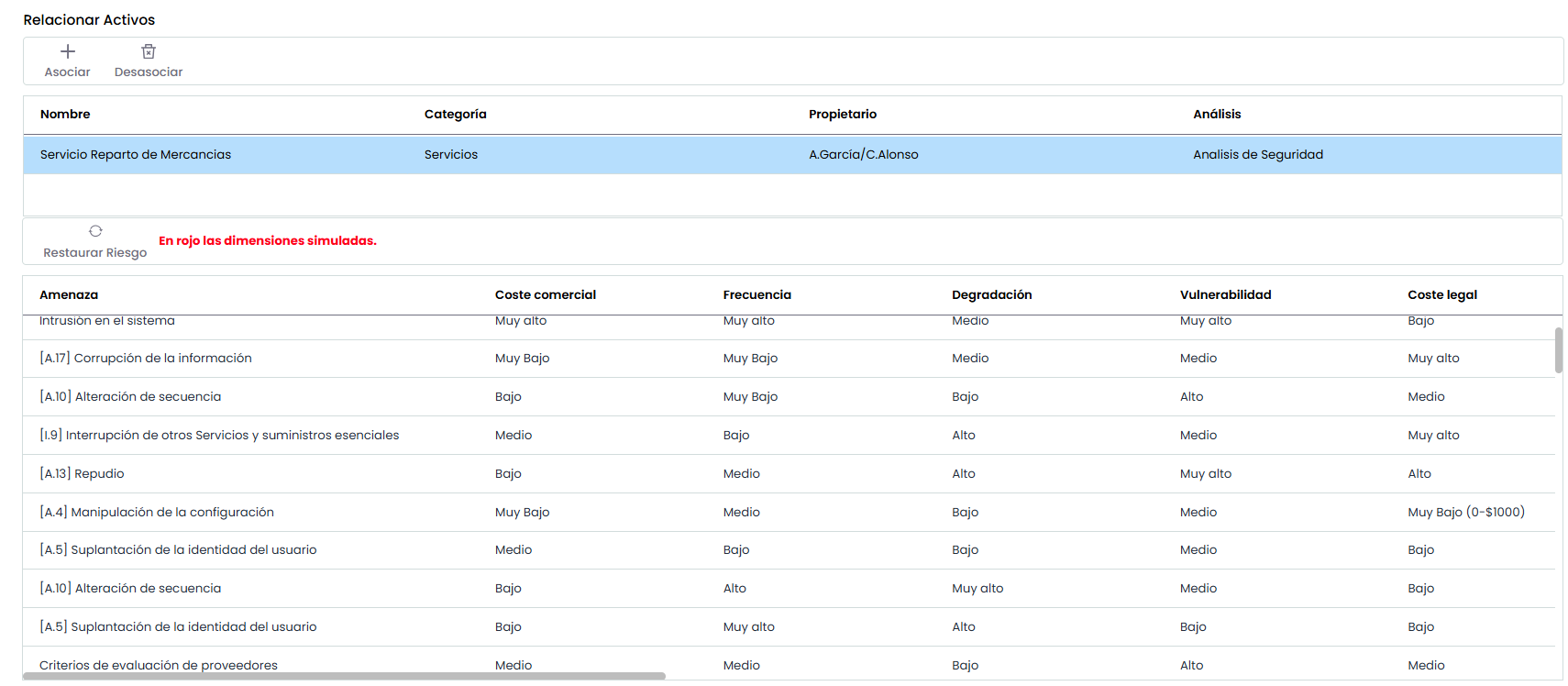
SIMULATION RISK
Allows adding a table of records, where it can be defined for a specific incident or ticket how it affects the elements of a specific risk analysis. Simulation and subsequent incorporation into the analysis can be performed to affect the general values.
-
Associate/Dissociate: Allows associating/dissociating risks.
-
Restore risk: Allows restoring the risk values to those of the Risk Analysis.
|
View in Settings |
|---|
|
|
View in GlobalSuite® |
|
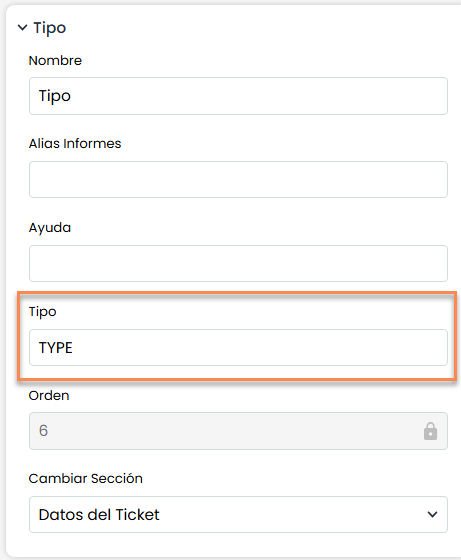
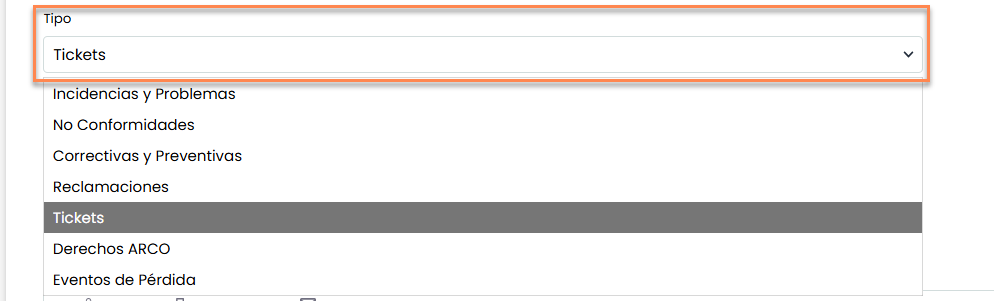
TYPE
Allows adding a selection field where all SG ticket types will appear. With this field, tickets can be categorized according to how they were registered, to later “transform” this ticket into “Non-conformity,” “Corrective Action,” “Incident,” etc.
NOTE: It can only be added once and in a single type of ticket, from where categorization can be performed.
|
View in Settings |
View in GlobalSuite® |
|---|---|
|
|
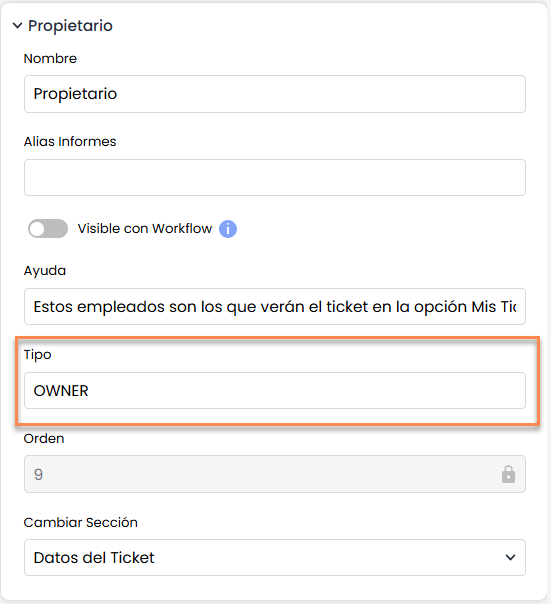
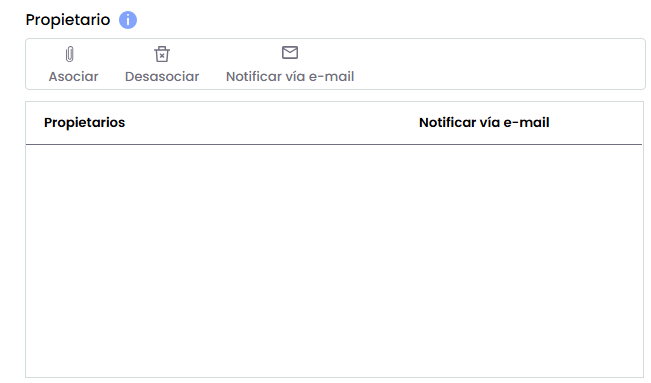
OWNER
Allows adding a table of records, where it can be defined which Employees (with related user) are ticket owners, and therefore, should have access to it.
-
Notify via Email: To send follow-up emails after entering the email in the blank space.
|
View in Settings |
View in GlobalSuite® |
|---|---|
|
|
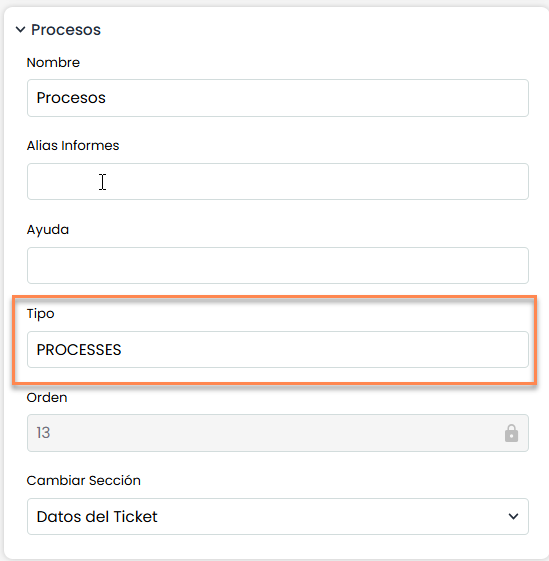
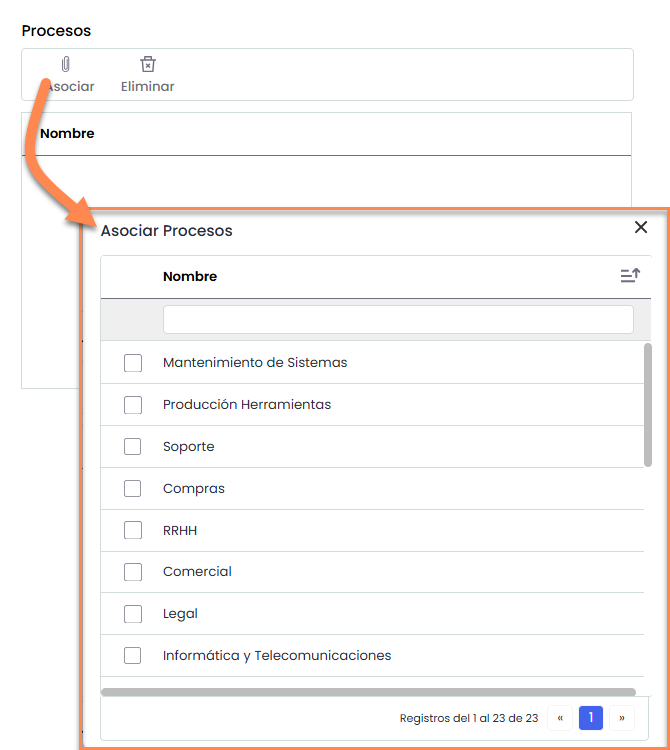
PROCESSES
Allows adding a record table, these records will be processes defined in the Home> Processes of GlobalSuite®. A ticket can be associated with this table, with the processes it affects or is related to.
-
Associate/Remove: Processes from the predefined list are added or removed to the ticket related to it.
|
View in Settings |
View in GlobalSuite® |
|---|---|
|
|
THREATS
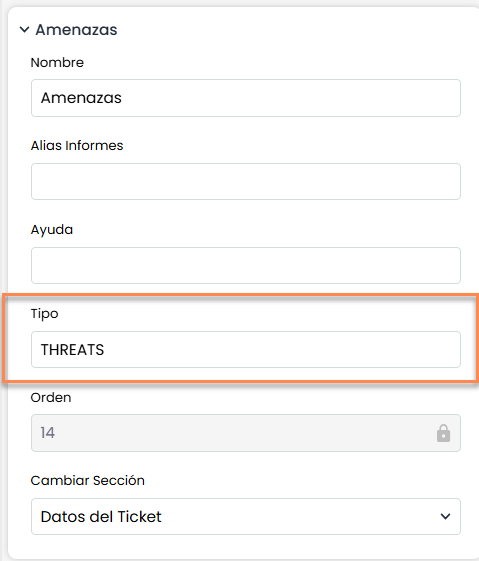
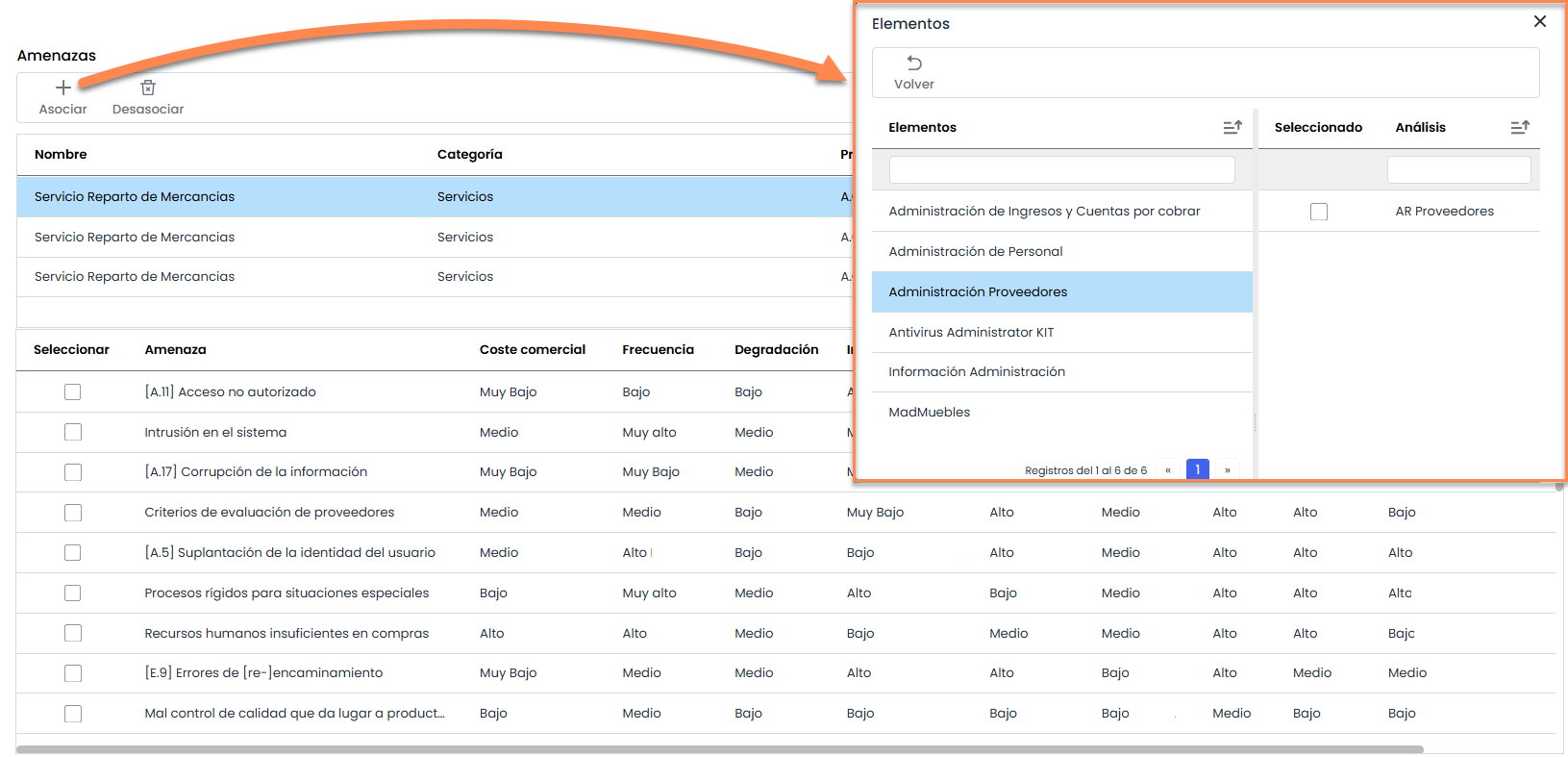
Allows adding a record table, these records will be items defined in the Risk Analysis of GlobalSuite. These threats can be associated with the ticket they affect or are related to.
-
Associate/Dissociate: Allows associating/deleting items.
|
View in Settings |
|---|
|
|
View in GlobalSuite® |
|
AUDIT-WORKS
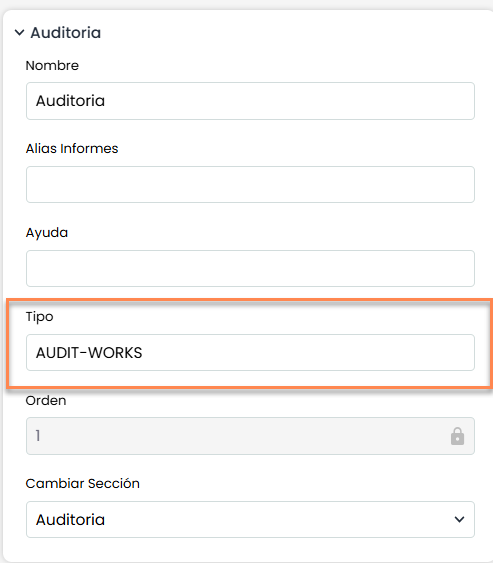
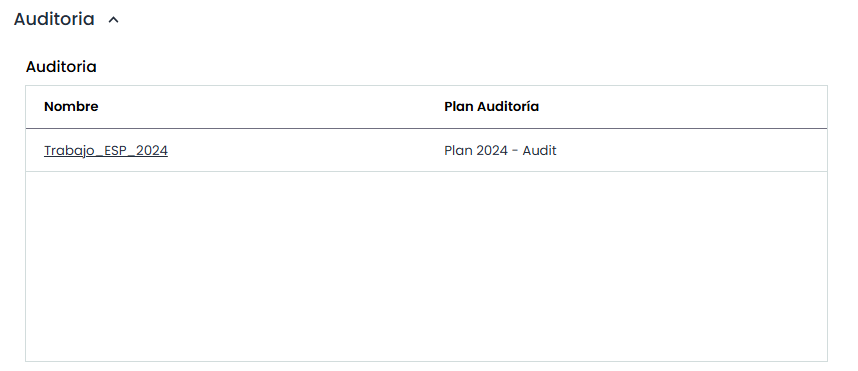
Allows adding a record table, these records will be audit tasks defined in Audit Program of GlobalSuite. Allows accessing the task through the link.
|
View in Settings |
View in GlobalSuite® |
|---|---|
|
|