
In this article, we will cover the comprehensive configuration of Tickets: types, sections, fields, and permissions, as well as the main table, common screen, graphs, and email mapping.
Ticketing types
GlobalSuite® offers different ticketing types, allowing each of these options to be configured independently through the specific “Tickets” Settings option.
The default specific ticketing options are as follows:
-
Tickets: generic option for all types.
-
Service Requests: user request records based on the services of an area.
-
Incidents and Problems: related to any type of MS, detected incidents within them.
-
Changes and Deliveries: linked to incidents, these are change or delivery actions at both the physical asset level and the procedural level.
-
Non-Conformities: tickets related to non-conformities detected at the compliance or audit level.
-
Corrective and Preventive: linked to NCs, these are corrective actions after detecting an NC or preventive actions upon identifying a potential improvement.
-
Claims: related to internal or external communications regarding claims about a service a user receives (customer or employee).
-
Rights: In this section, you can manage all types of rights, leaving evidence of their treatment and being able to establish communication and resolution of the request directly with the applicant.
All these options are flexible and will vary depending on the modules contracted in GlobalSuite®.
Ticket Configuration
General configuration
The phases to carry out in ticket configuration are as follows:

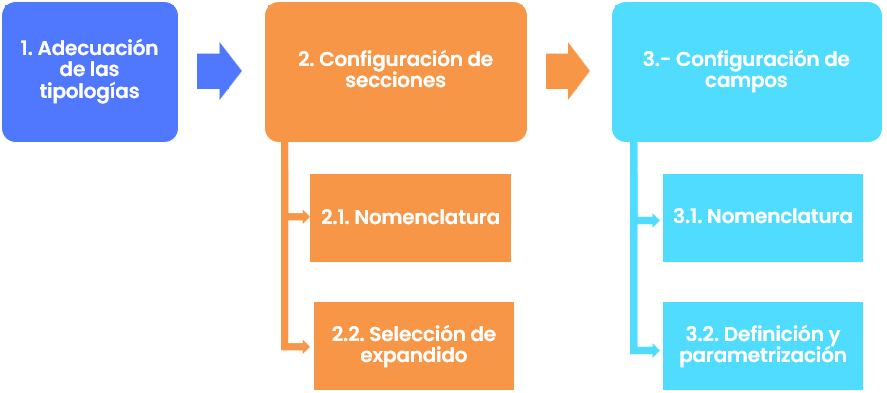
Type configuration.
The first step in configuring a ticket is to define the nomenclature for each of them, as GlobalSuite® allows renaming and/or translating each of the tool's options for all possible uses of each functionality.
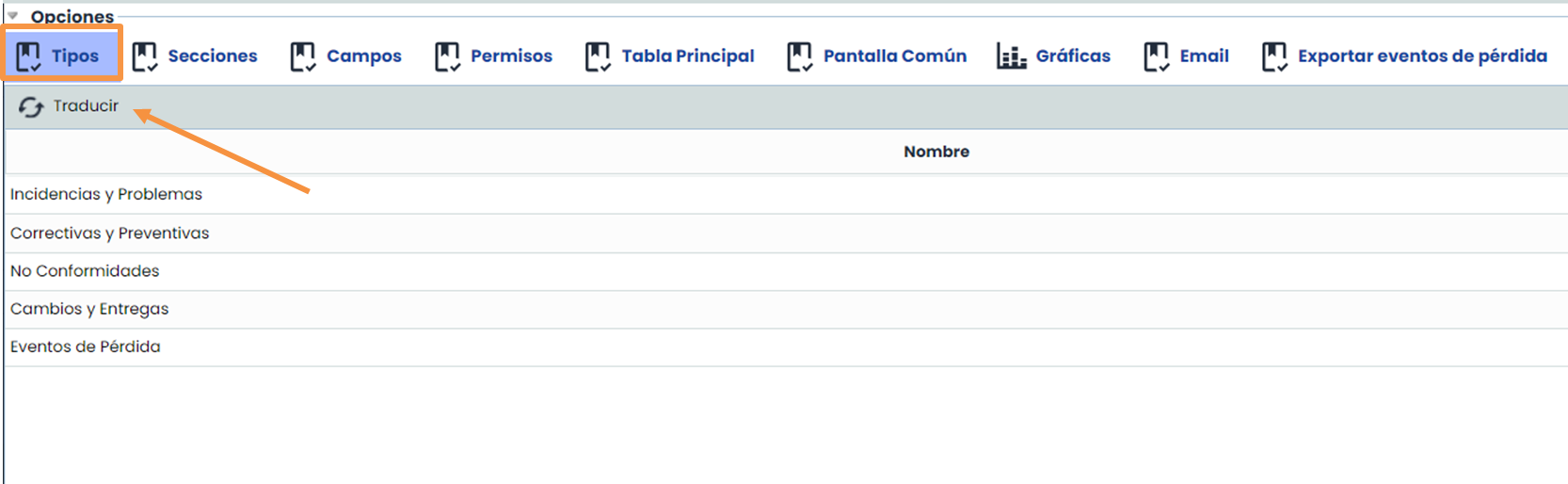
By double-clicking on the name, the tool allows you to edit it.
In each step of the configuration, there is a “ Translate” button at the top (right or left), which allows translating all the configuration that has been done into any of the languages contracted on the platform.
Section configuration
GlobalSuite® allows configuring the sections of each ticket type individually and customized:

By selecting each type, the tool allows adding new sections using the “New” button, defining their name in both Spanish and other languages:
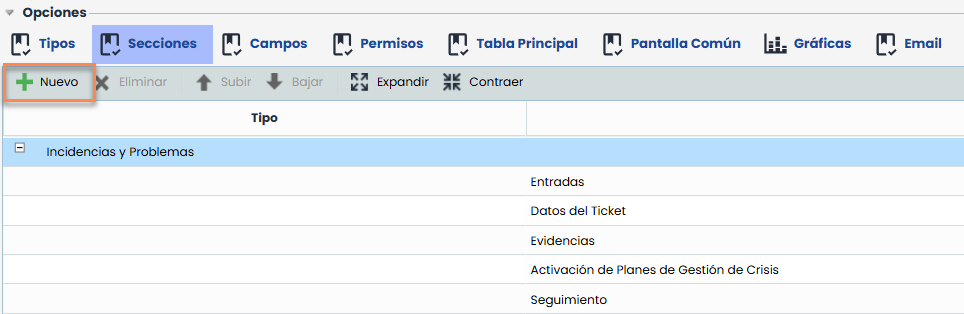
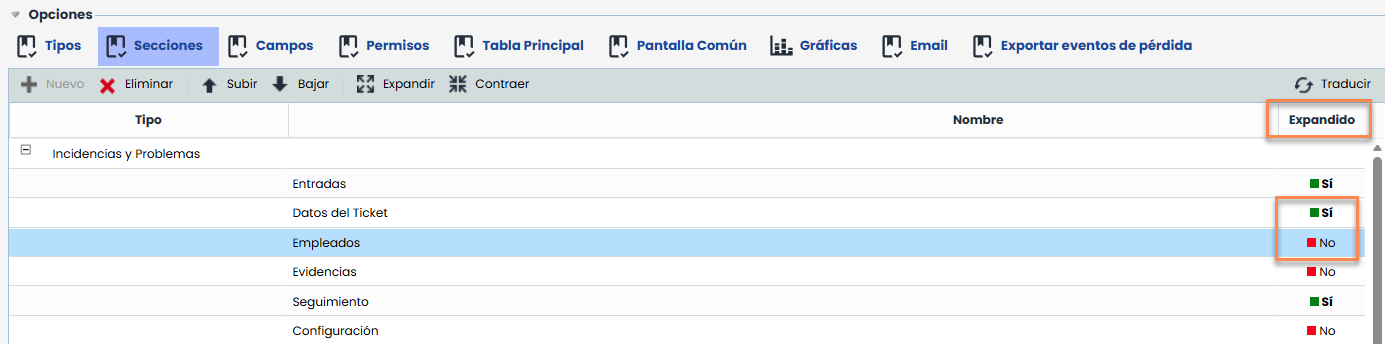
It is also possible to delete or relocate sections using the top button bar once the specific section to be edited or deleted is selected:
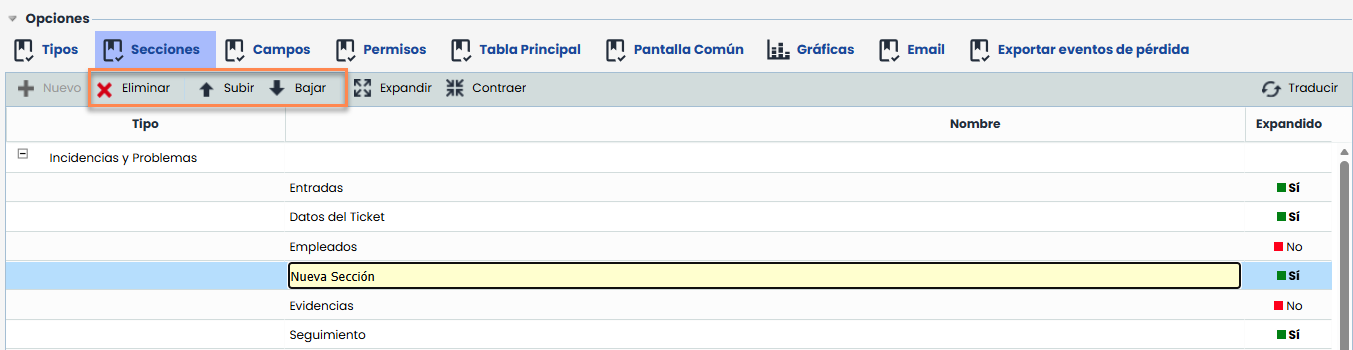
It also allows the user to define whether the section should be displayed expanded or collapsed by default.
Field Configuration
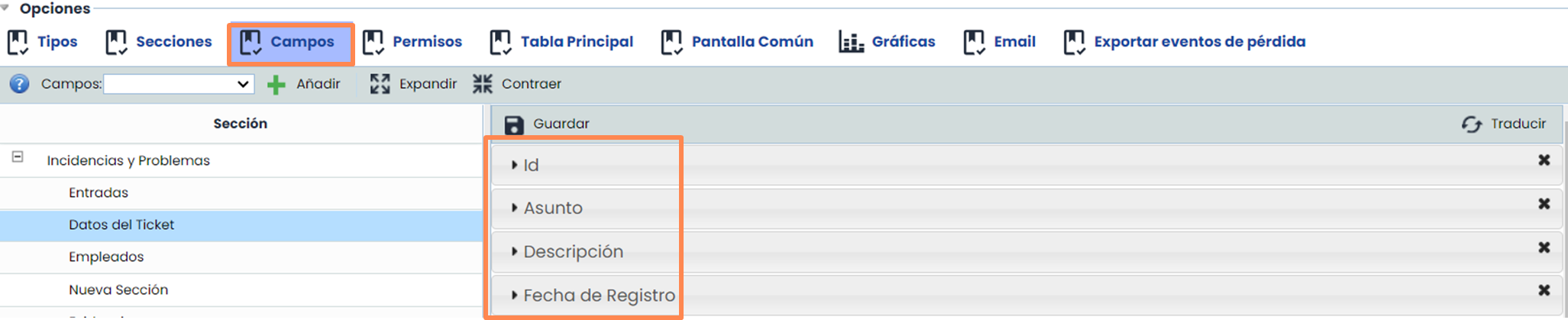
From the field configuration option, GlobalSuite® will allow configuring the fields that will be part of each section. By selecting a section, the tool will display the fields that make it up in the right section.
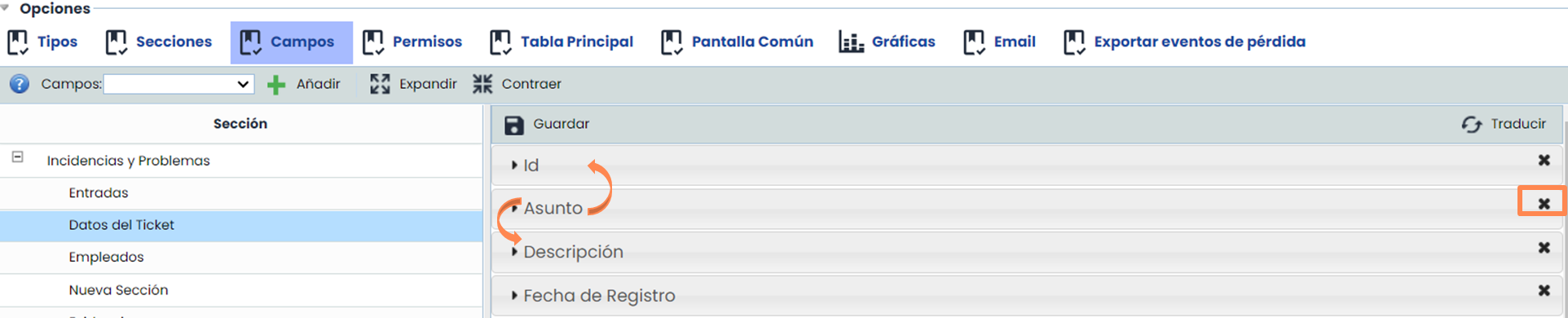
Each field can be dragged to the desired location or deleted using the right cross marked on each field.
Note: If a field is deleted from a ticket type, all data contained in that field will also be deleted.
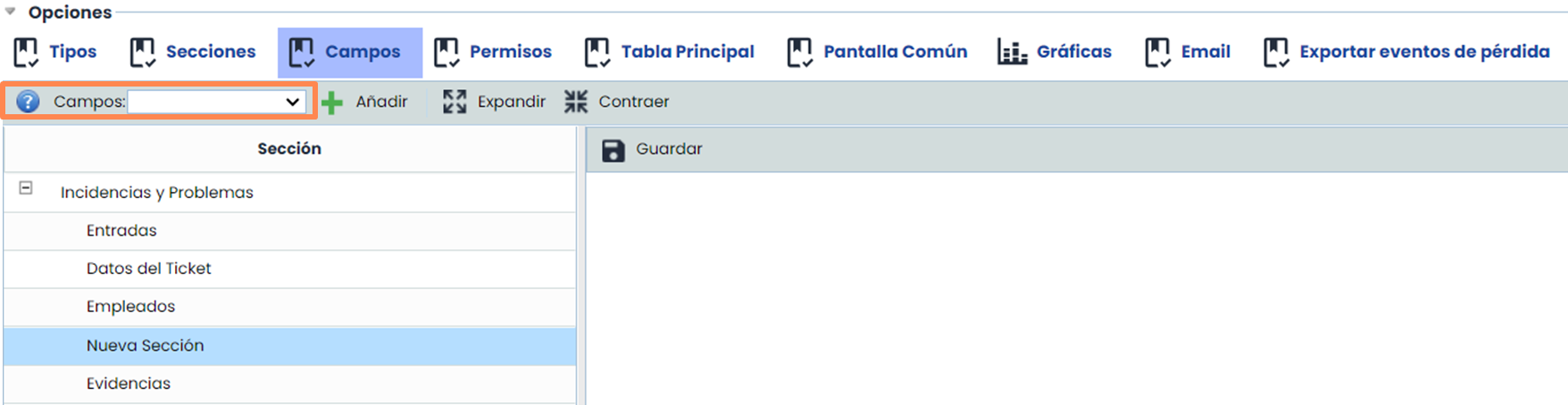
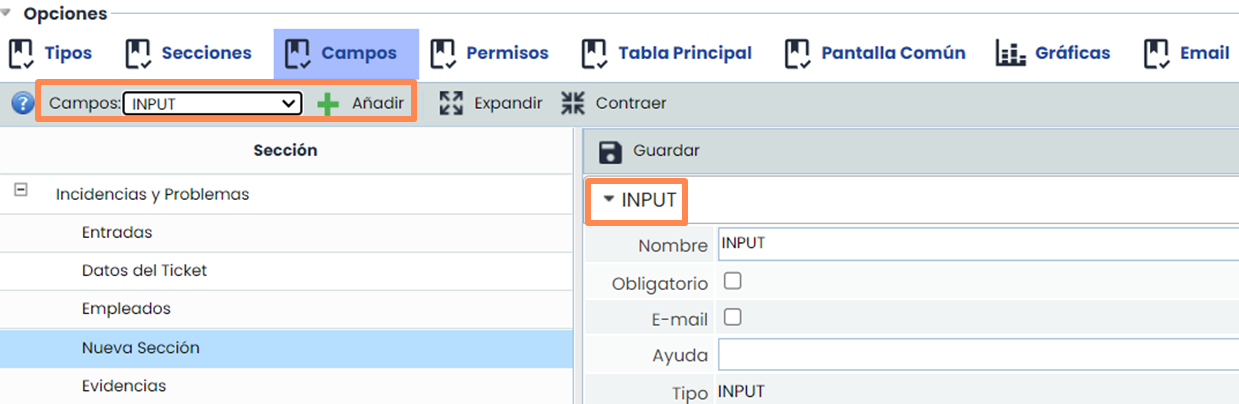
To add fields, we must first select the section where we want to insert it and use the left dropdown, selecting the desired field type and then clicking the “Add” button.
After adding the field, it will be displayed in the right area for configuration:
Permissions
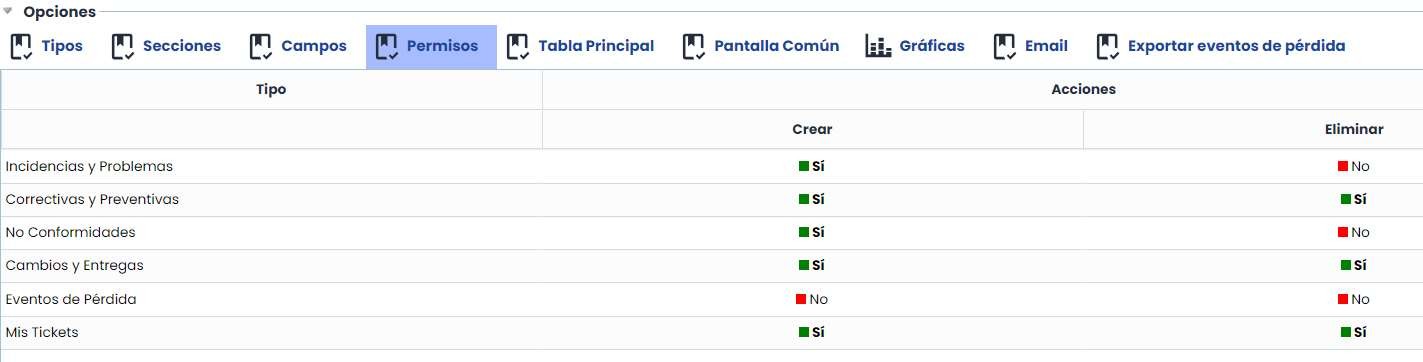
The “Permissions” section allows managing user privileges with access to My Information, avoiding possible errors or unwanted changes in the different ticket types. Specifically, it allows defining who can create or delete tickets based on the type. Creation and deletion permissions are independent of each other and also affect ticket creation in input and output tables.
Main table management
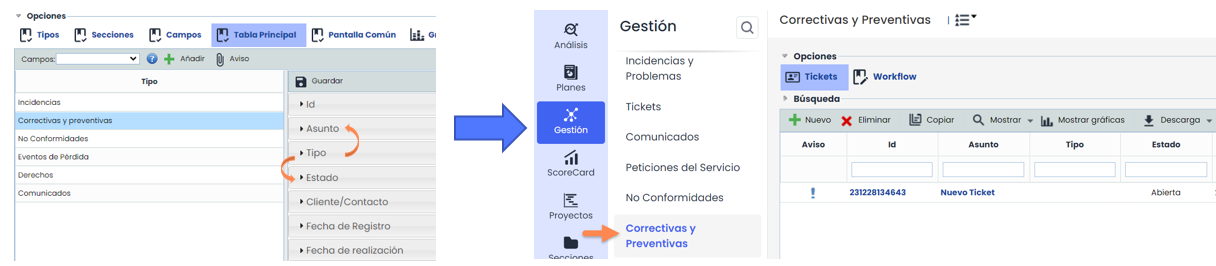
It will be possible to add any of the fields configured in the previous sections and remove any of them so that they are not visible in the main table:

The tool allows editing their order to display each field in column format in the desired position (drag and drop the fields):
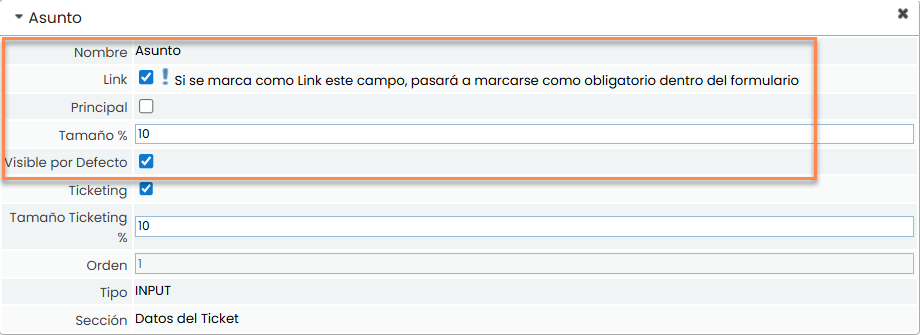
In the field details displayed in the right area, GlobalSuite® allows defining different parameters:
-
Link: Allows setting the field as a link to redirect to the ticket form from this column.
-
Main: Allows defining the field as Main, only one is allowed per ticket type, and with this, we can establish which field will appear to select the ticket within other options.
-
Size: Allows defining the size of each column based on the field.
-
Visible by Default: Allows defining the field as initially visible, or if it will be available in the main table but not shown by default.
Common screen configuration
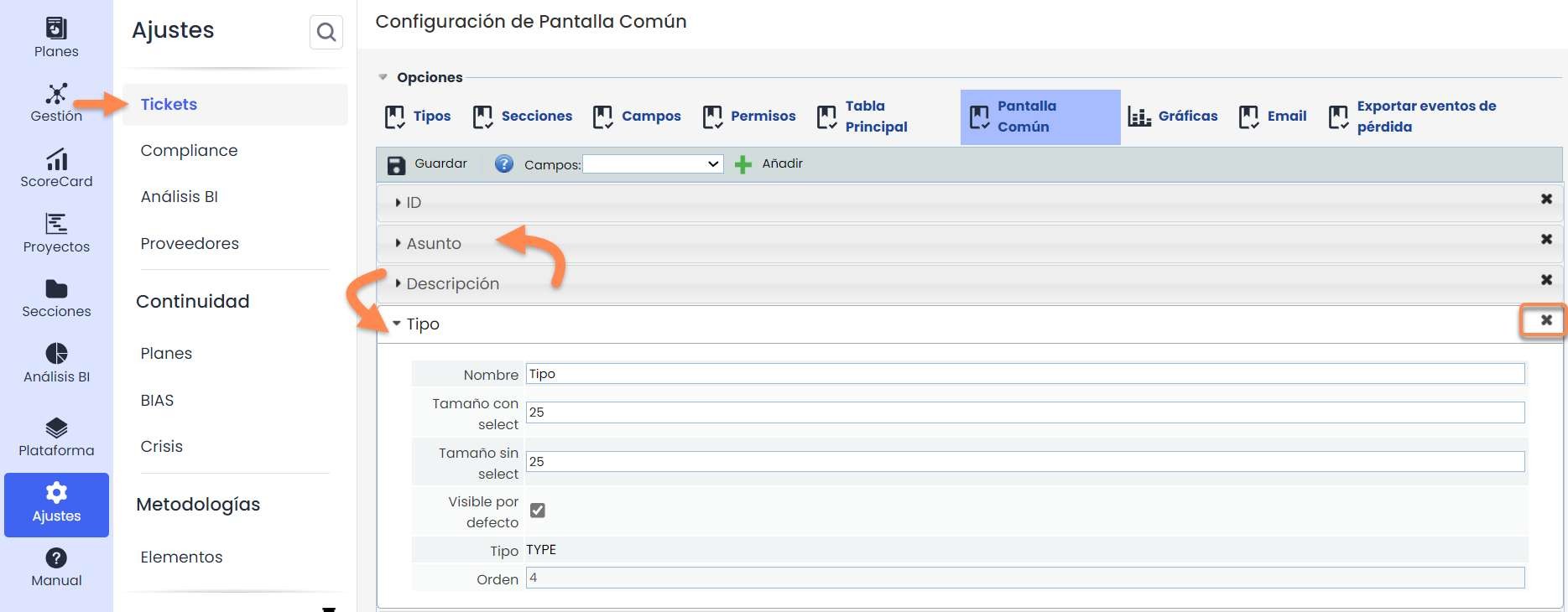
This option allows defining which fields and in what order they should appear in the Common Screen Table (table to associate tickets in many tool options):
Similar to the previous points, it is possible to add new fields, edit their position, or even delete them.
A characteristic option of the common screen is that all ticket types diverge, so it is necessary to perform a “mapping” of the fields of each ticket onto the column that will be displayed in this screen's table.
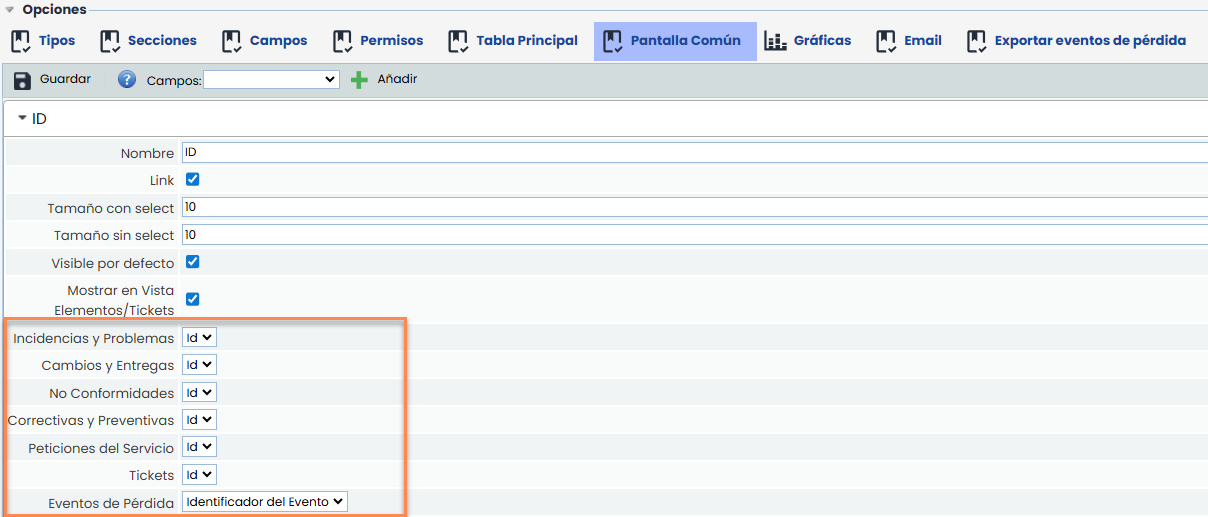
The detailed options for Link, size, and visible by default will have the same effect as mentioned in previous sections.
Graph configuration
It is possible to configure a series of graphs to see a summary of the status of the different ticket types concerning some of their fields.

There are different general graph options or types available in tickets to add:
-
States: graph based on the records of the "Status" or "Select" field. (By default, the "Status" field)
-
Registered: based on the records of "Status" or "Select," organized monthly.
-
Registered by Year: based on the records of “Status" or "Select" organized annually.
A special type is graphs with consolidation.
-
Grouping by Select: Creates a graph based on the records of the "Status" or "Select" field.
-
Outputs: based on "Status" or “Select," related to Output Tickets specified in "Tickets-outputs."
Outputs by Deadline: graph based on the records of the "Status" or "Select" field, related to Output Tickets from "Ticketsoutputs""Date." Note: it must have 4 “Date” fields configured, each with one of the available types "Initial," "Final," "Planned Start," "Planned End."
The tool also allows configuring the details of each available graph:

This detailed definition is based on three parameters:
-
Ticket Type: Allows defining in consolidated graphs which type of output ticket the records are compared with.
-
Record: Allows indicating which field we want the graphs on, whether the "Status" field or all "Select" fields configured in the Ticket.
-
Option: Allows filtering the graph with a specific value of the "Status" or "Select" fields of the Ticket.
Email configuration
This option allows synchronizing external email accounts with the tool's tickets. To do this, email-type connections must be configured in the Settings section, and in this tickets tab, define which fields will be used for email mapping.
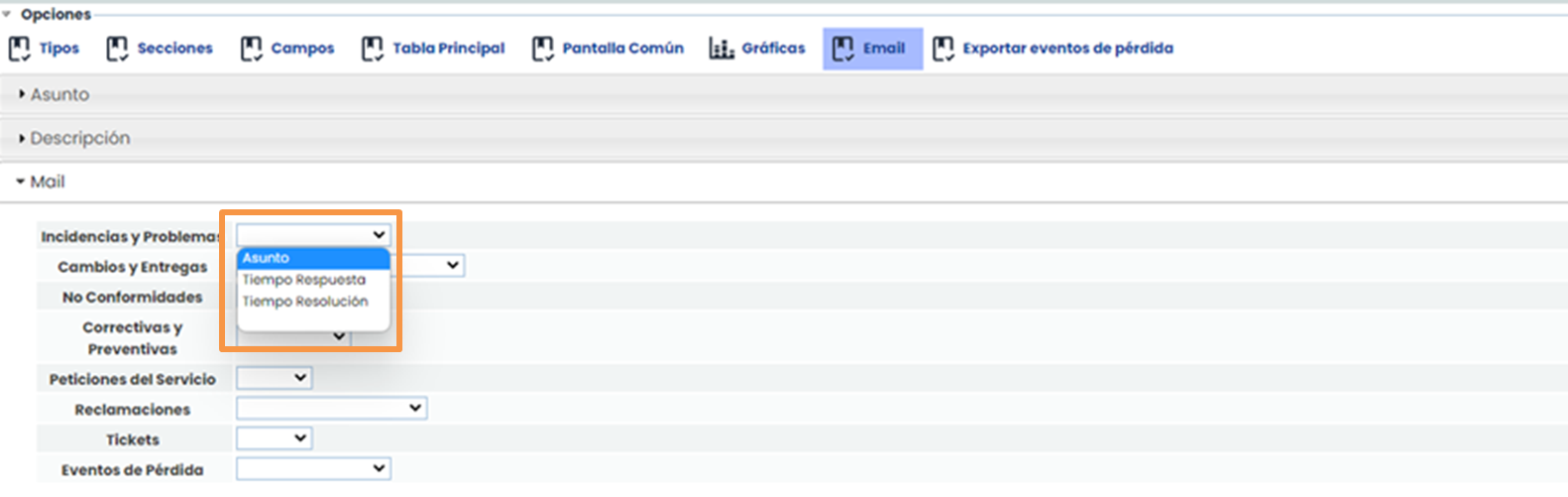
-
Subject: allows defining in which field of each ticket the email title/subject will be saved when synchronization occurs.
-
Description: allows defining in which field of each ticket the email body will be saved when synchronization occurs.
-
Mail: allows defining in which field of each ticket the email sender will be saved when synchronization occurs.