
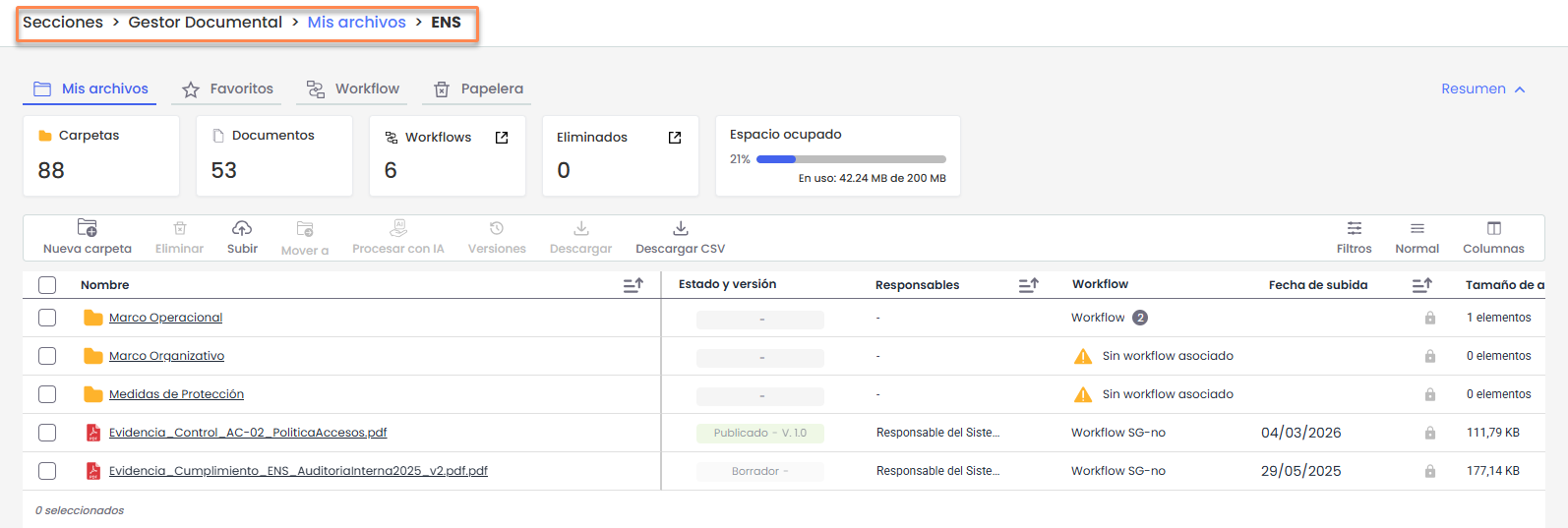
The My Files tab displays the repository of folders and documents that the user has access to.
The screen is composed of the following elements:
Top indicators
Show summarized information about the stored content:
-
Number of folders
-
Number of documents
-
Number of workflows
-
Number of deleted items
-
Occupied space in the document manager

This section can be shown or hidden by clicking the Summary option located at the top right of the screen. When collapsed, the indicators are hidden to provide more viewing space in the file table.
Folder navigation
The document manager organizes information through a folder structure.
To access the contents of a folder, simply click on its name in the table. This allows navigation between different folder levels.
At the top of the screen, the navigation path is displayed, allowing users to return to previous locations by clicking on them.
Actions
Allows actions to be performed on selected items, such as:
-
New folder: create a new folder.
-
Delete: delete the selected items.
-
Upload: upload files from the user's device.
-
Move to: move documents or folders to another location.
-
Process with AI: allows automatic processing to be applied to the document.
-
Versions: view the versions of a document.
-
Download: download the selected file.
-
Download CSV: export the list of items in CSV format.
File and folder table
Displays the list of stored folders and documents. This table shows data such as:
-
Name: name of the file or folder.
-
Status and version: current status of the document and corresponding version.
-
Responsible users: users responsible for the document.
-
Workflow: associated approval flow.
-
Upload date: date the document was uploaded.
-
Size: for folders, it shows the number of items they contain, and for files, the file size.
Below is a detailed explanation of the functionality of each available action in the Document Manager.
Create a folder
Allows the creation of a new folder within the current location. This option will only be available when no folders or documents are selected.
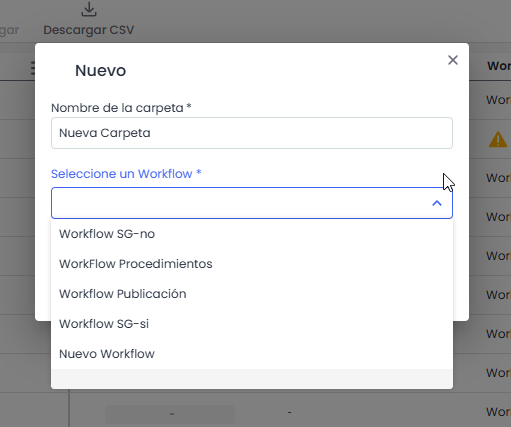
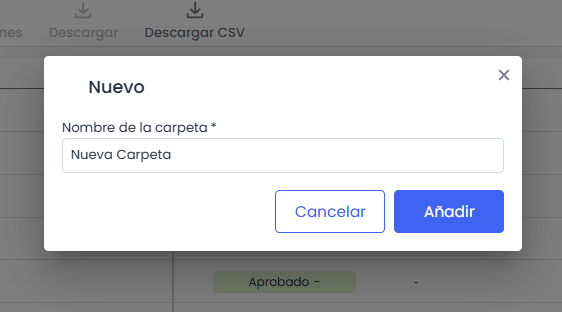
Clicking on New folder will open a window where the following must be specified:
Folder name: Mandatory field where the folder name must be specified. It cannot contain special characters or match the name of another existing folder in the same location.
Workflow: A workflow is the flow of states a document goes through within the document manager. It defines the document stages (e.g., draft, reviewed, or published) and the users responsible for approving or reviewing each state. For more information, see Workflow Configuration | GlobalSuite Solutions
-
If the document manager has active workflows, the workflow or workflows for the folder must be selected. Only workflows inherited from the parent folder can be chosen.
-
If there are no active workflows, no selection will be necessary.
Upload
Allows uploading one or more documents to the current folder. This option will be active when no items are selected.
Clicking on Upload allows the selection of up to 10 files from the device via the file explorer.
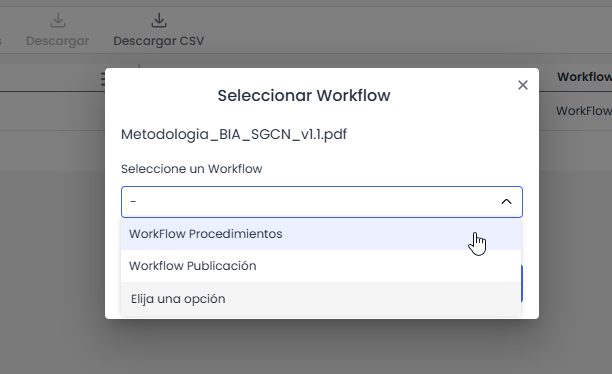
If the document manager has active workflows, when uploading the file, it will be necessary to select the workflow to be applied to the document. Only workflows available in the folder where the file is uploaded can be selected.
Allowed file formats
-
Documents: PDF, DOC, DOCX, DOT, TXT, RTF
-
Spreadsheets: XLS, XLSX, XLSM, CSV
-
Presentations: PPT, PPS, PPTX, PPSX
-
OpenOffice: ODT, ODP, ODS, ODG
-
Images: JPG, JPEG, PNG, BMP, SVG, MGR
-
Modeling and diagrams: VSD, VST, BPM, BPMC
-
Project management: MPP, MPT
-
Emails: MSG, EML
-
Compressed files: ZIP, RAR, 7Z
Move to
Allows moving one or more selected documents or folders to another location within the document manager.
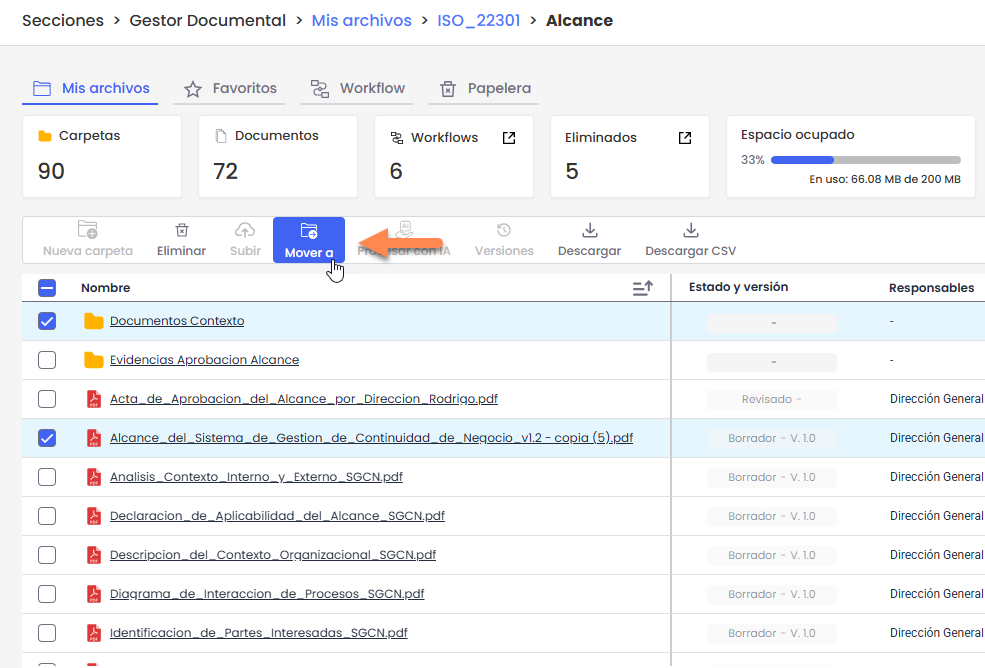
When selecting Move, a window will open where the destination folder must be chosen. To do this, navigate to the desired location and click Move here to confirm the move.
If the document manager has active workflows, items can only be moved to folders with the same workflows applied to maintain the assignment of responsible users. For this reason, the destination selector will only display folders compatible with the selected items.
Users of type Enterprise or Entity can only perform this action if they have permissions to create files in the destination folder.
Process with AI
Allows automatically analyzing the content of a document using the artificial intelligence assistant. Based on the selected file, the assistant can generate summaries, extract relevant information, answer questions about the content, or compare it with regulatory models.
This option only allows processing one file at a time.
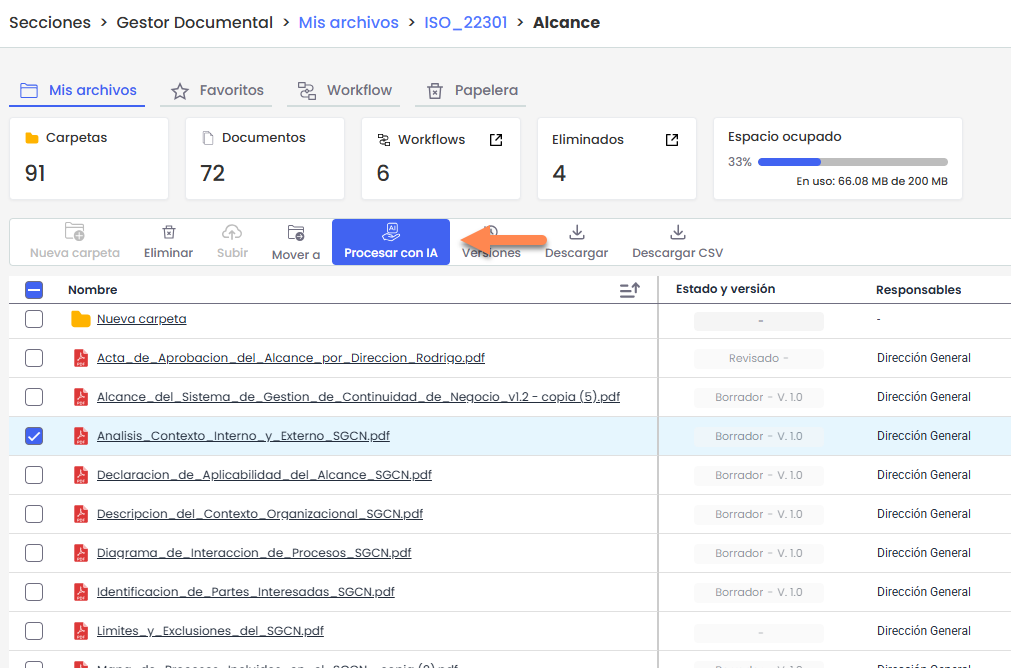
For more information about this functionality and its use, see the article How to process documents with AI from the GlobalSuite® Document Manager? | GlobalSuite Solutions
Versions
Allows viewing the version history of a document and accessing information about each version. This option is only enabled when a file is selected. More information in Document details
Download
Allows downloading selected documents or folders from the document manager. This option is enabled when at least one file or folder is selected.
Clicking on Download, the system will perform the download based on the type of selection:
-
A single file: the file will be downloaded directly.
-
One or more folders, or a mixed selection of files and folders: a compressed file (.zip) will be downloaded, including all selected items, maintaining their internal structure (subfolders and files).
It is also possible to download an individual item from the context menu of the corresponding row or from the Versions panel of the document.
When the download generates a compressed file (.zip), it will be prepared in the background and available in User Profile > Downloads.
Download CSV
Allows exporting the information displayed in the table to a CSV file.
The Download CSV button is always available, regardless of whether items are selected.
Clicking it, the system will generate a CSV file that includes the visible data in the table, respecting:
-
the column order
-
the field visibility
-
the applied filters
The file generation is performed in the background, and when completed, it will be available in User Profile > Downloads.
Edit folder and document information
Folder and document information can be managed from different points in the document manager, depending on the type of item and the action to be performed.
For folders, editing can be done from the context menu of the table or from the details side panel.
In the documents, some actions are available from the table, but editing their data is mainly done from the details side panel .
Edit folder information
Folder information can be modified from the table's context menu or from the details side panel.
From these locations, it is possible to:
-
Change the folder name.
-
Modify associated workflows, when the document manager has active workflows. Only workflows compatible with the folder's location can be selected, following the inheritance rules of the document manager.
The folder name cannot contain special characters or match the name of another existing folder in the same location.
Edit document information
Document information can be modified from the table's context menu or from the details side panel.
From these locations, it is possible to:
-
Change the document name.
-
Add or modify the description.
-
Check the version date.
-
Modify the workflow, when the document manager has active workflows and the document is in the first state of the flow.
-
Add tags
-
View the approval status when the document manager has active workflows
-
Manage the follow-ups associated with the version.
The available options will depend on the user's permissions and the workflow configuration.
Favorites
Allows marking documents or folders as favorites for quick access.
This action is performed from the context menu of the item, using the option Mark as favorite.
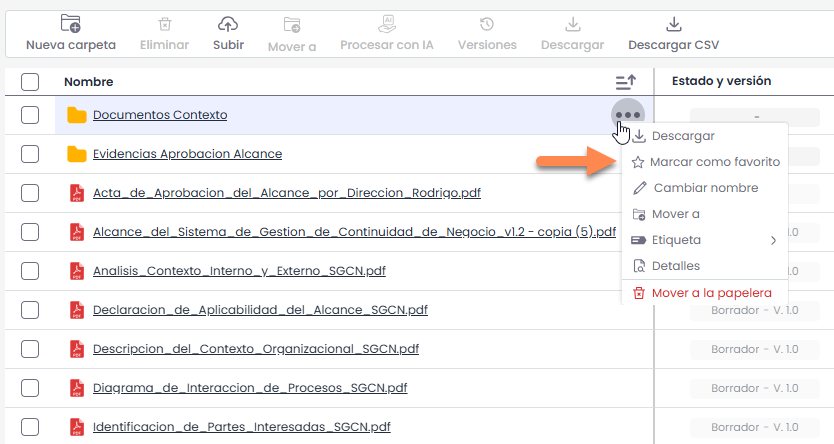
It is possible to mark as favorites folders, documents, and any other type of item in the document manager.
From this same option, it is also possible to remove an item from favorites.
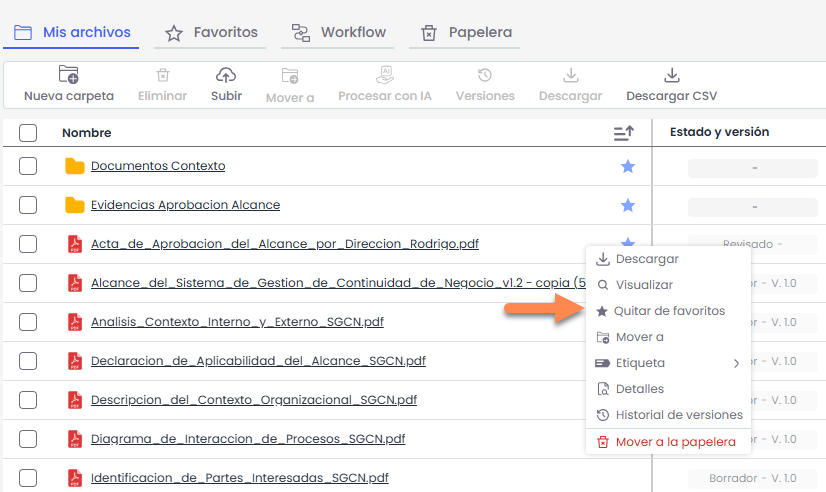
Items marked as favorites can later be accessed from the Favorites tab in the document manager.
For more information on managing favorites, see the section Favorites .
Tags
Allow classifying and organizing documents using tags.
Tags can be assigned to documents from the table's context menu or from the details side panel.
Each document can have up to five tags. The assignment field includes a search tool to easily locate available tags.
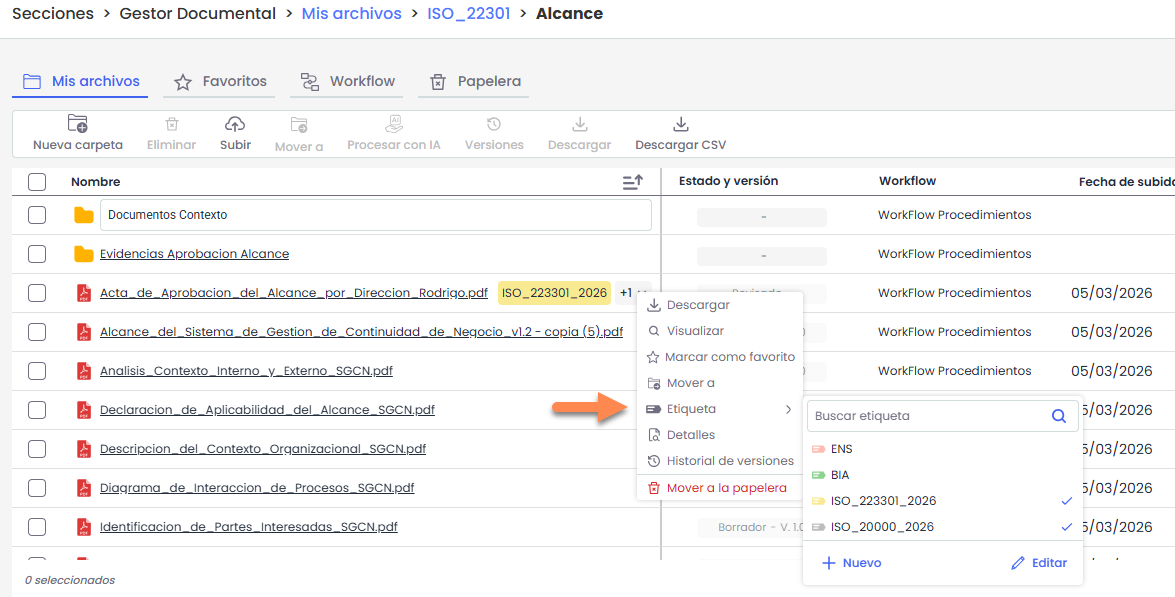
Users accessing the repository can assign or remove tags from an item. However, only administrator users can create new tags or delete existing ones.
Tags can be created from the context menu or from Settings > General Configuration > Document Manager Configuration > Tags.
Tags can also be used later as a filtering criterion in the document manager.
Delete
Allows deleting one or more documents or folders from the repository.
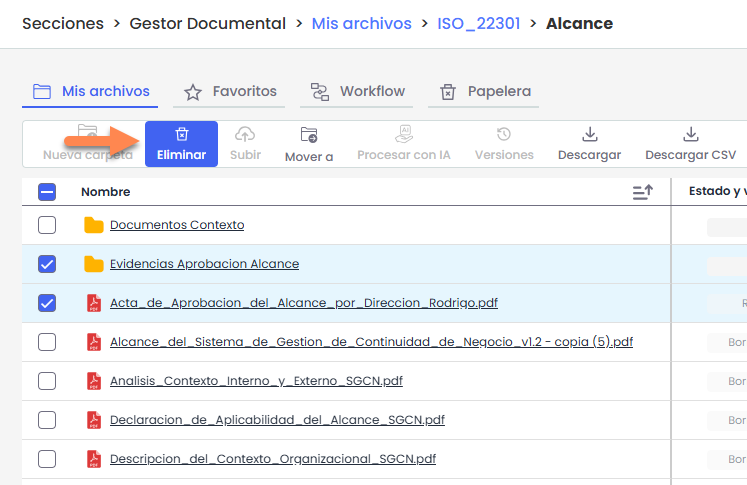
Deletion can be performed in two ways:
-
Generally, by selecting one or more items in the table and clicking Delete in the action bar.
-
Individually, from the context menu of the item.
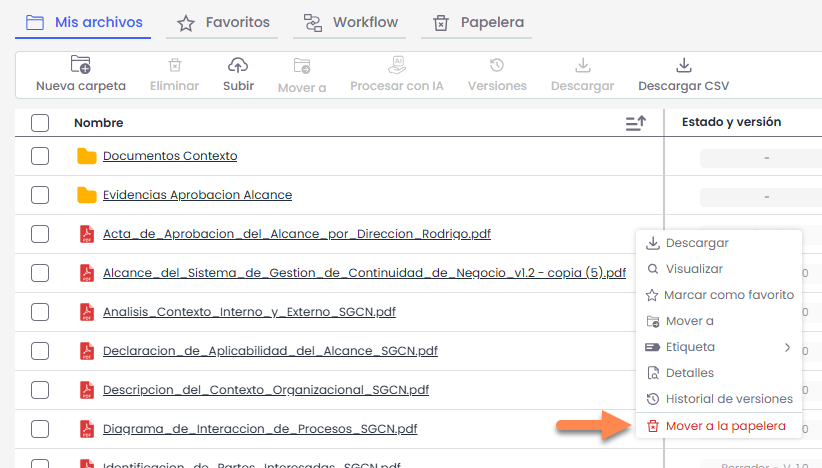
When an item is deleted, it is not permanently deleted, but is moved to the Trash tab, from where it can be restored or permanently deleted.
For more information on managing deleted items, see the section Trash.
Version deletion
When a document is sent to the trash, the active version along with all its associated versions is moved.
It is not possible to send intermediate versions to the trash individually.
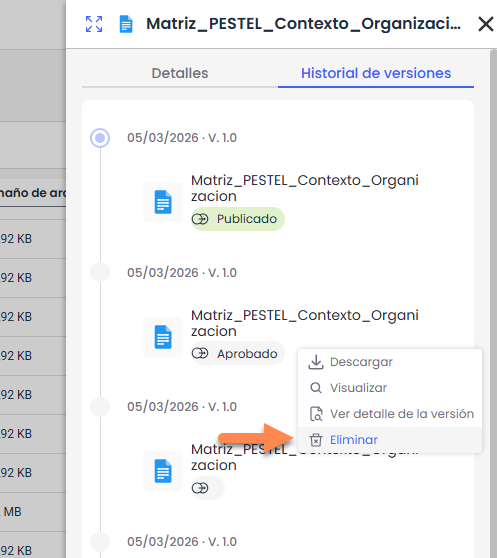
If a specific version is deleted from the Version History, it is permanently deleted and does not go to the trash.
Filters and search
The Document Manager allows filtering the information displayed in the table using different criteria.
By default, the following filtering fields are displayed:
-
Responsible parties
-
Workflow
-
Tags
By clicking the “+” button, all additional fields available for filtering will be displayed (e.g., version, upload date, or other configured fields).
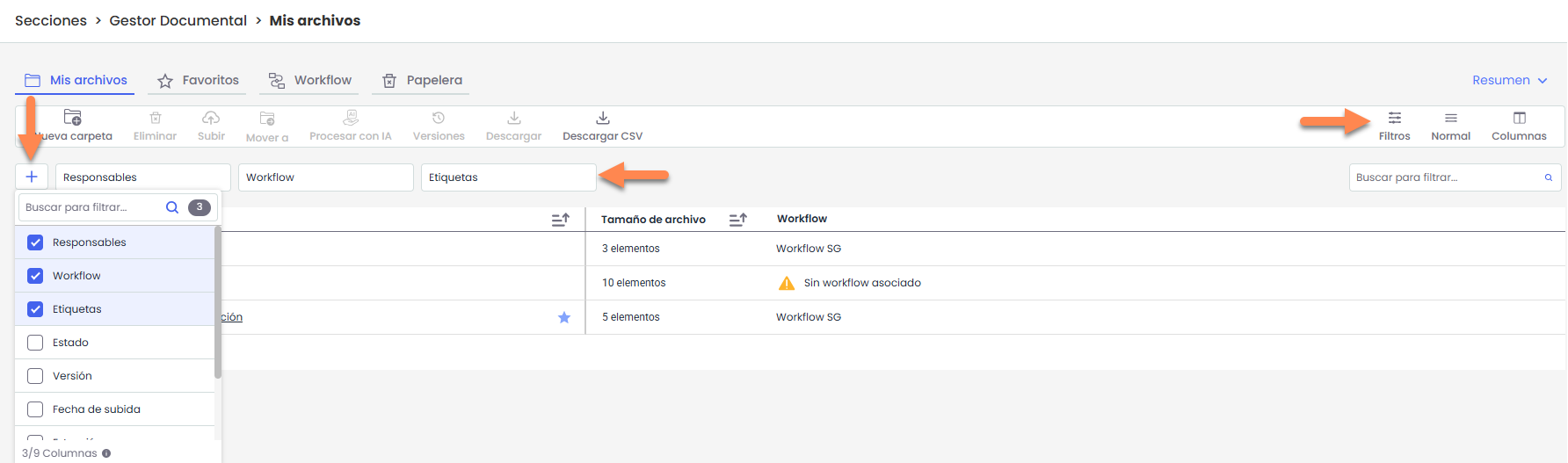
Depending on the type of field selected, the system will display different filtering options. For example:
-
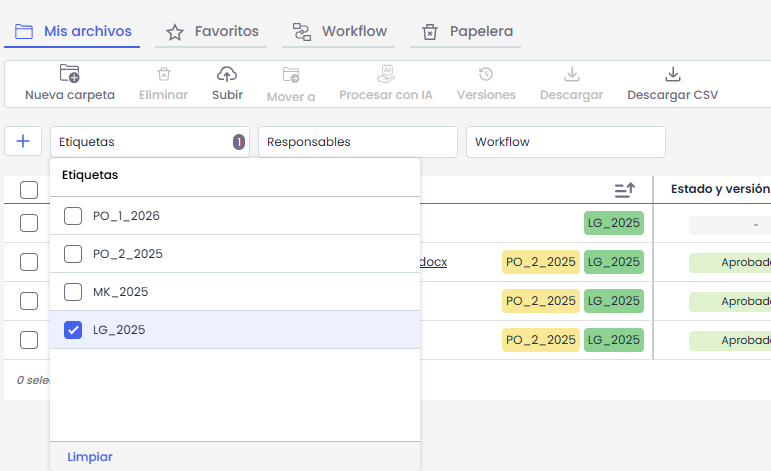
In list-type fields (such as Tags or States), the available values for selection will be displayed.
-
In date fields (such as Upload Date), the option to filter by a specific date or by a date range will be enabled.
The range can be selected manually using the calendar or through predefined ranges displayed on the left (e.g., This week, Current month, Last 3 months, etc.).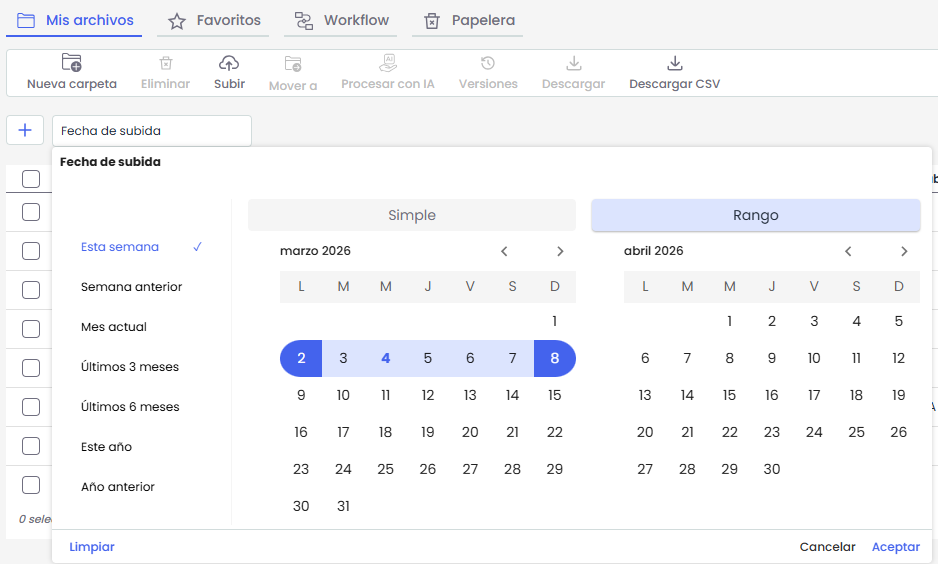
-
In text fields, it will be possible to manually enter values.
Quick search by name
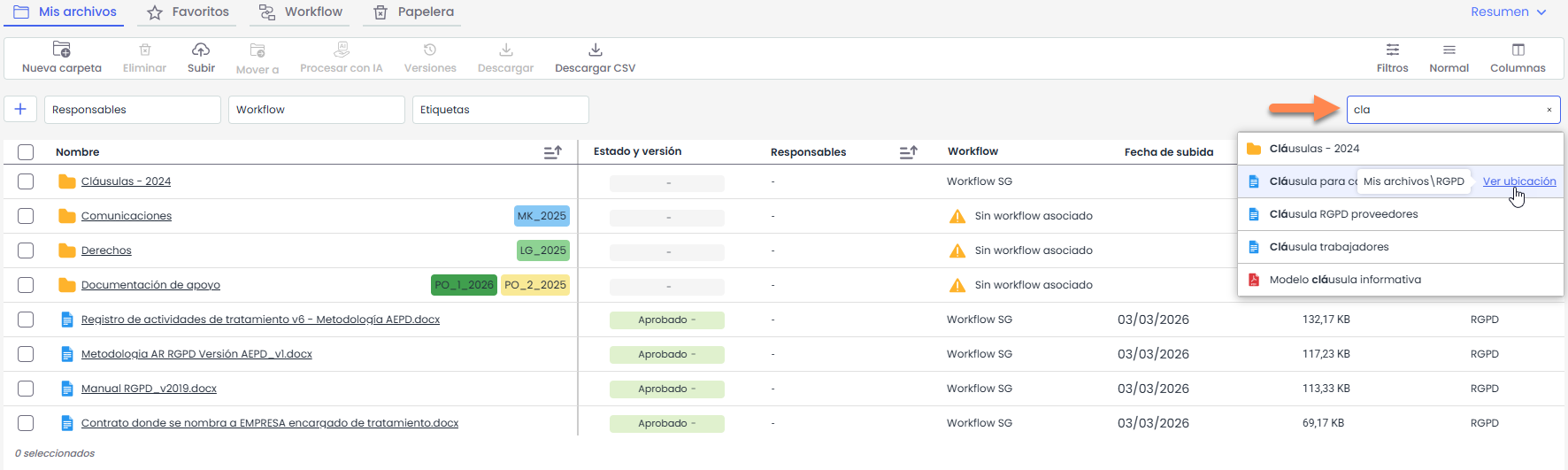
On the right side, there is the field “Search to filter…”, which allows a quick search by folder or file name.
When entering the first letters, the system will automatically display the matches found.
In the displayed results:
-
Hovering over an item will display the option “View location”, which allows direct access to the folder where the file is located.
-
Clicking on the file name will open the document if the format is compatible with viewing. Otherwise, it will be automatically downloaded.
-
Pressing Enter will display all matches in the table.
Scope of filters and searches
Filters and searches are applied from the location where the user is positioned, including its subfolders.
Searches are not performed in higher-level folders.
When filters or searches are applied, the table automatically adds the column “Location”, which indicates the folder where each file or folder matching the applied criteria is located.
To return to the original view, it will be necessary to clear the active filters.