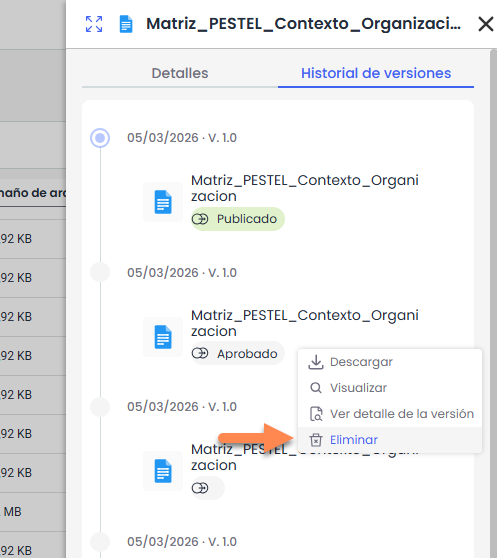
The document details allow you to consult and manage the information of a document within the document manager, as well as the control of its versions.
Access is available from the document's contextual menu (three dots icon), through the options Details or Version History, opening a side panel with both tabs.
From this panel, it is possible not only to consult the document's information but also to manage its workflow and approve or reject versions.
Document Details
This tab displays the document's information and its current status.
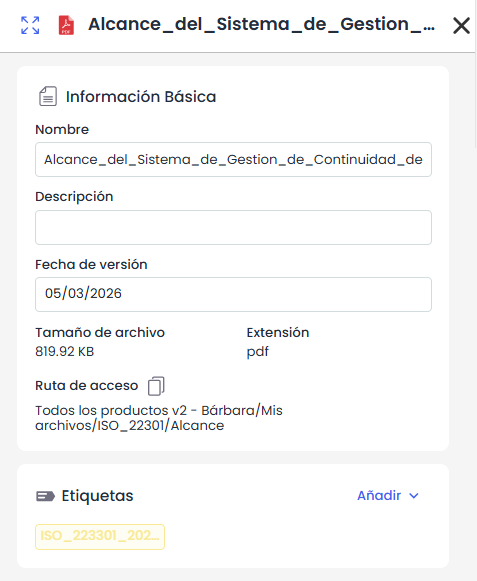
Data such as name, description, version date, size, extension, and access path are displayed.
Next is the Tags section, where new tags can be added. For administrators, new tags can also be created from here.
Information about the workflow (if WF usage is enabled in the
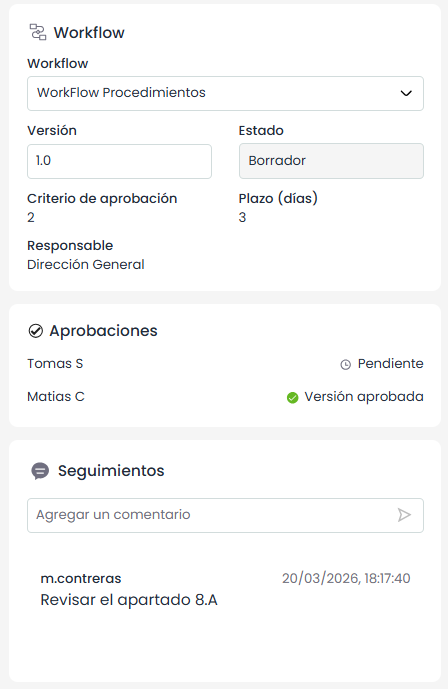
document manager), including the status, version, approval criteria, deadline, and responsible party, if configured.
The Approvals section shows the current status of the document's approvals for each responsible party.
The Tracking section allows comments to be recorded about the current version, maintaining traceability with date, time, and user.
Actions
-
Modify Information: allows editing the name, description, and version date.
-
Assign Workflow: allows associating or modifying the document's workflow. Only available when the document is in the first state.
-
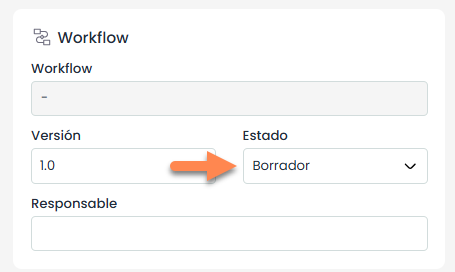
Change Document Status: If WF usage is disabled, status changes can be made from here.
-
Approve / Reject Version: allows managing the document's approval within the workflow. This option will appear if the logged-in user is responsible for the document's current state.
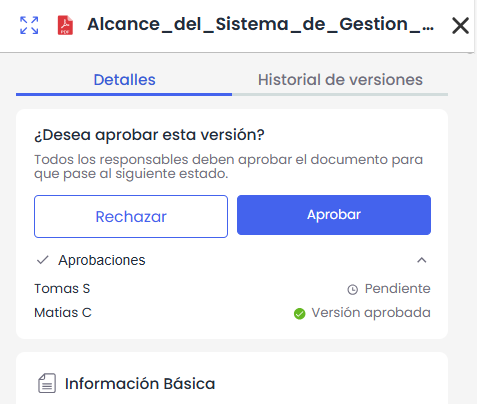
If the version is rejected, the document will return to its previous state.
-
Add Tags: allows assigning tags to the document. (See “Tags” section)
-
Add Comments: allows recording comments in the tracking.
Version History
Allows consulting the version history of a document and accessing the information of each version. This option is only enabled when a file is selected.
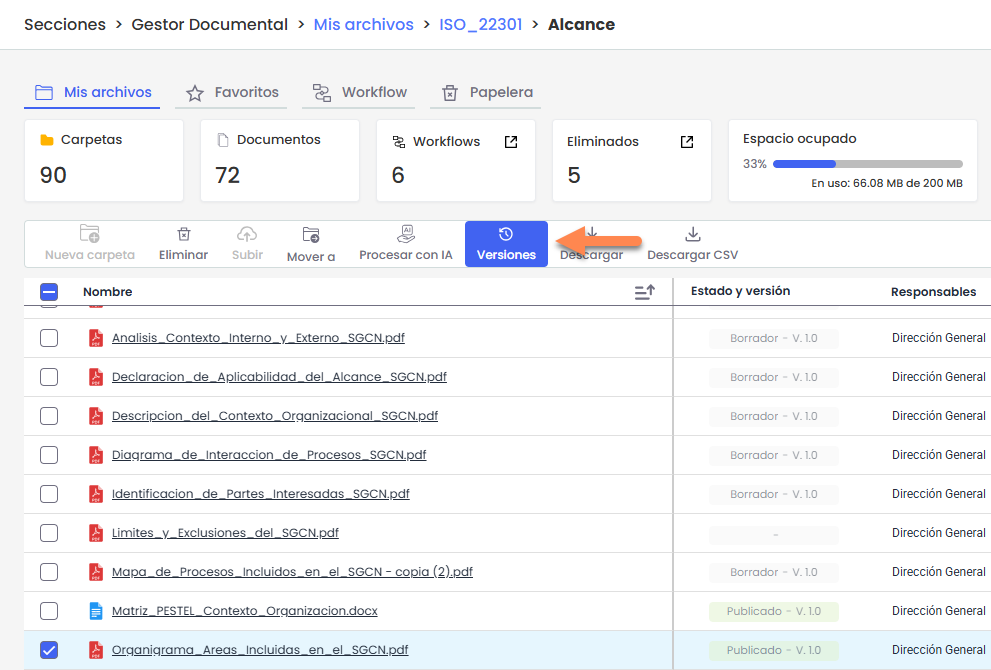
By clicking Versions, a side panel will open, showing all document versions, ordered from the most recent to the oldest. This panel can be expanded to view more information.
From this panel, different actions can be performed on each version, such as download, view, view version details, or upload a new version of the document.
View Version Details
The behavior depends on the selected version:
-
If the current version is selected, the panel will directly display the document's information in the Details tab.
-
If a previous version is selected, the details view of that version will open from the version list.
To return to the version list, click the return icon located at the top of the panel.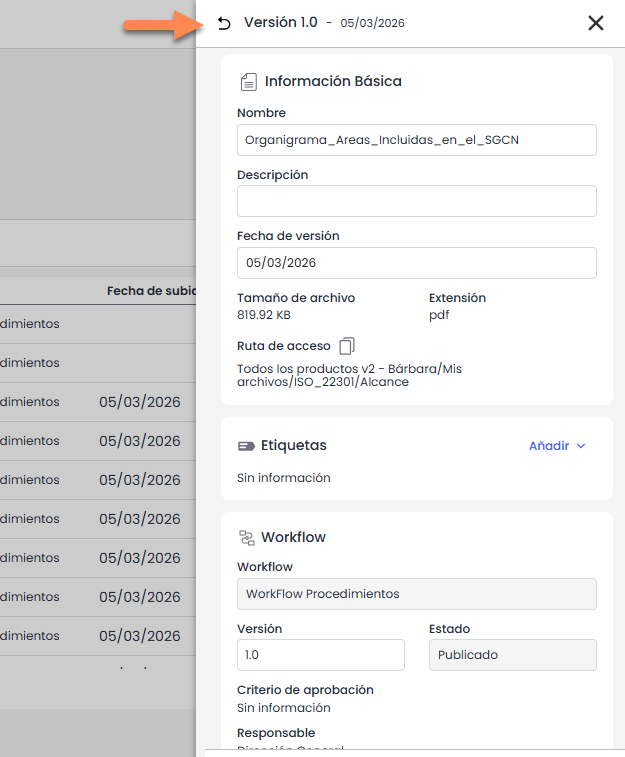
The information available for each version includes:
-
Basic Information
-
Tags
-
Workflow
-
Approvals
-
Version Tracking
The Approvals section will only be displayed when the document has an active workflow.
Permissions and Version Visibility
The visible versions and the available actions for them depend on the user's permissions and the document's workflow configuration.
Based on these permissions:
-
The user can view only the versions in which they have participation or visibility according to the workflow.
-
Some fields may be editable or view-only.
-
Administrator users can access all versions of the document.
Upload a New Version
From the version panel, it is also possible to upload a new version of the document.
To do this, click New Version, which will open the file explorer on the computer to select the file to be uploaded. In this case, only one file can be selected.
The new file will be registered as a new version of the existing document.
Version deletion
Deleting documents from the Version History depends on the version being acted upon.
If the current (active) version is selected, the option Move to Trash will be available.
Executing it sends the entire document to the trash, including the active version and all its associated versions.
If an intermediate version is selected, the option Delete will be available.
In this case, only that specific version of the document is deleted, without affecting the other versions.
Deleted intermediate versions do not go to the trash; they are permanently deleted.