This tutorial explains how to use the Audit module in GlobalSuite® to plan, execute, and monitor audits within the management system.
The objective is to show how to create audit plans and programs, associate methodologies and items, record findings, and manage non-conformity, requirements, and corrective or preventive actions tickets, thus ensuring complete control of the audit cycle within the platform.
Audit
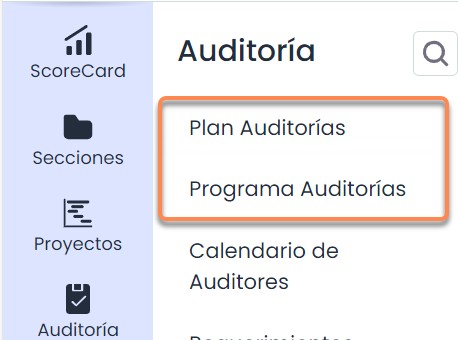
Before mentioning the use of Audit management, the first two options of the tool will be explained below:
1-. Audit Plan : Its functionality is to “plan” the different audits of items/risks/controls of the organization. Past, present, or future audits to be carried out can be registered. In this section, the audit methodology to be used and the corresponding risk analysis can be selected; in addition to “Planning the Work,” where the items to be audited can be selected.
2-. Audit Program : In this section, you will “Plan,” “Execute,” and obtain a “Report” on each of the items previously selected in the “Audit Plan.” Additionally, for each item, the dimensions configured in the execution methodologies of items/risks/controls can be observed.
To execute an Audit Program, an Audit Plan must first be created. To create an Audit Plan, Audit Methodologies must first be configured. Before configuring the Audit Methodologies , a Risk Analysis must be configured and created. Finally, before creating a Risk Analysis, the Methodologies for Items, Risks, and Controls must be created.
Audit Plan
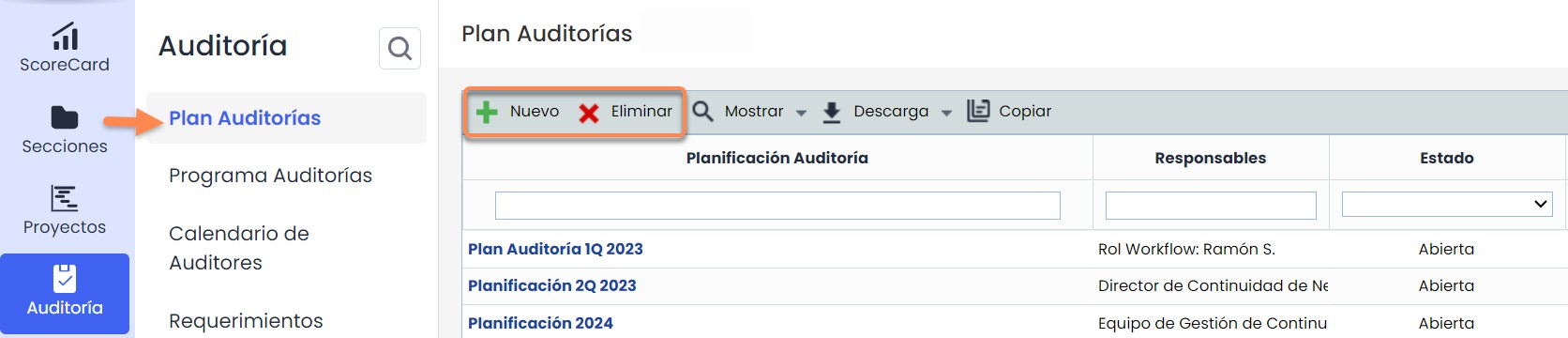
In the Audit Plan option, audit planning records and their work will be created, allowing you to create and delete the desired plans using the top buttons:
The tool allows configuring the details of each audit planning by clicking on the created one. The “Audit Plan” option will be displayed, as well as the “Work Planning” option:
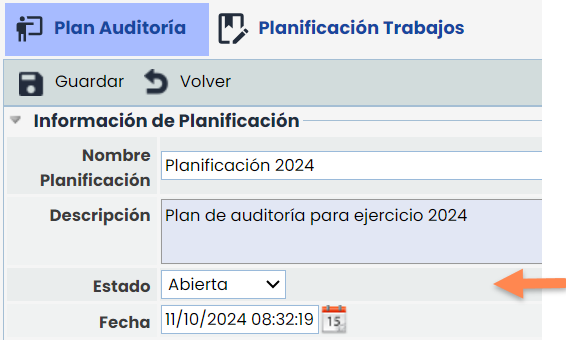
From the audit plan option, you can configure the name, description, status, date, and those responsible for the audit.
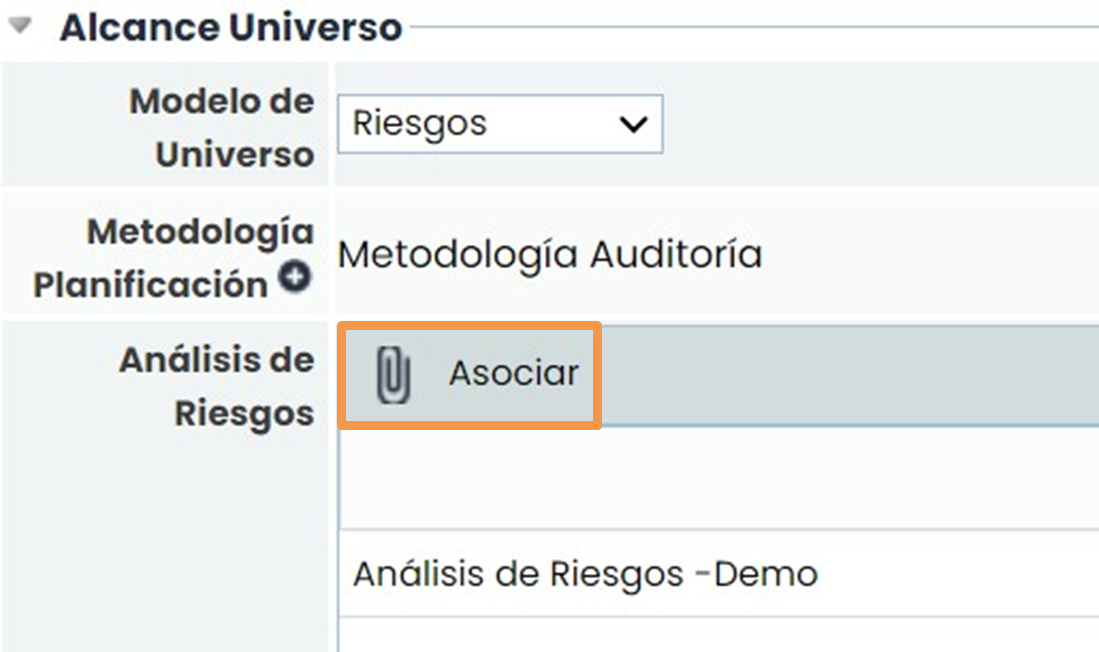
The “Universe Model” section will be the one configured in the audit methodology. Once the Planning Methodology is clicked, the risk analyses on which the audit will be conducted can be chosen.
Note
The risk analyses that can be chosen must have the analysis methodology associated with the Audit Planning Methodology in Settings.
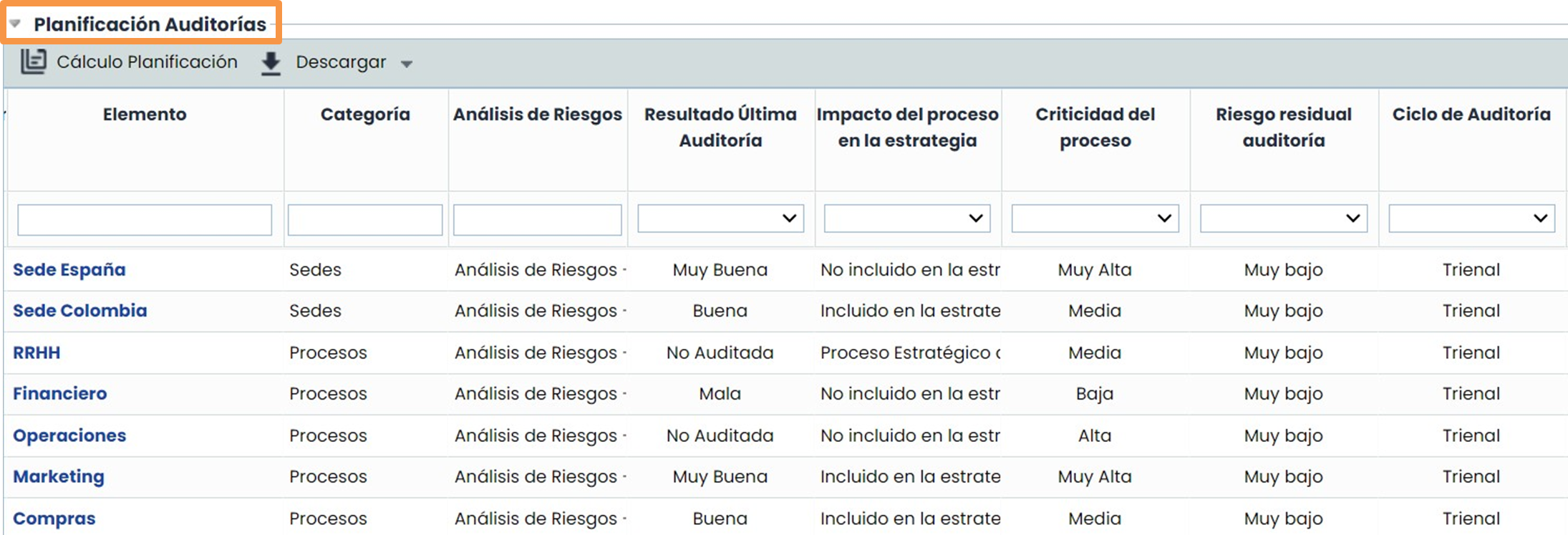
Within the “Audit Planning,” you can observe the items involved in the previously selected risk analysis. Additionally, the tool allows configuring the details of each item concerning the created audit methodology.
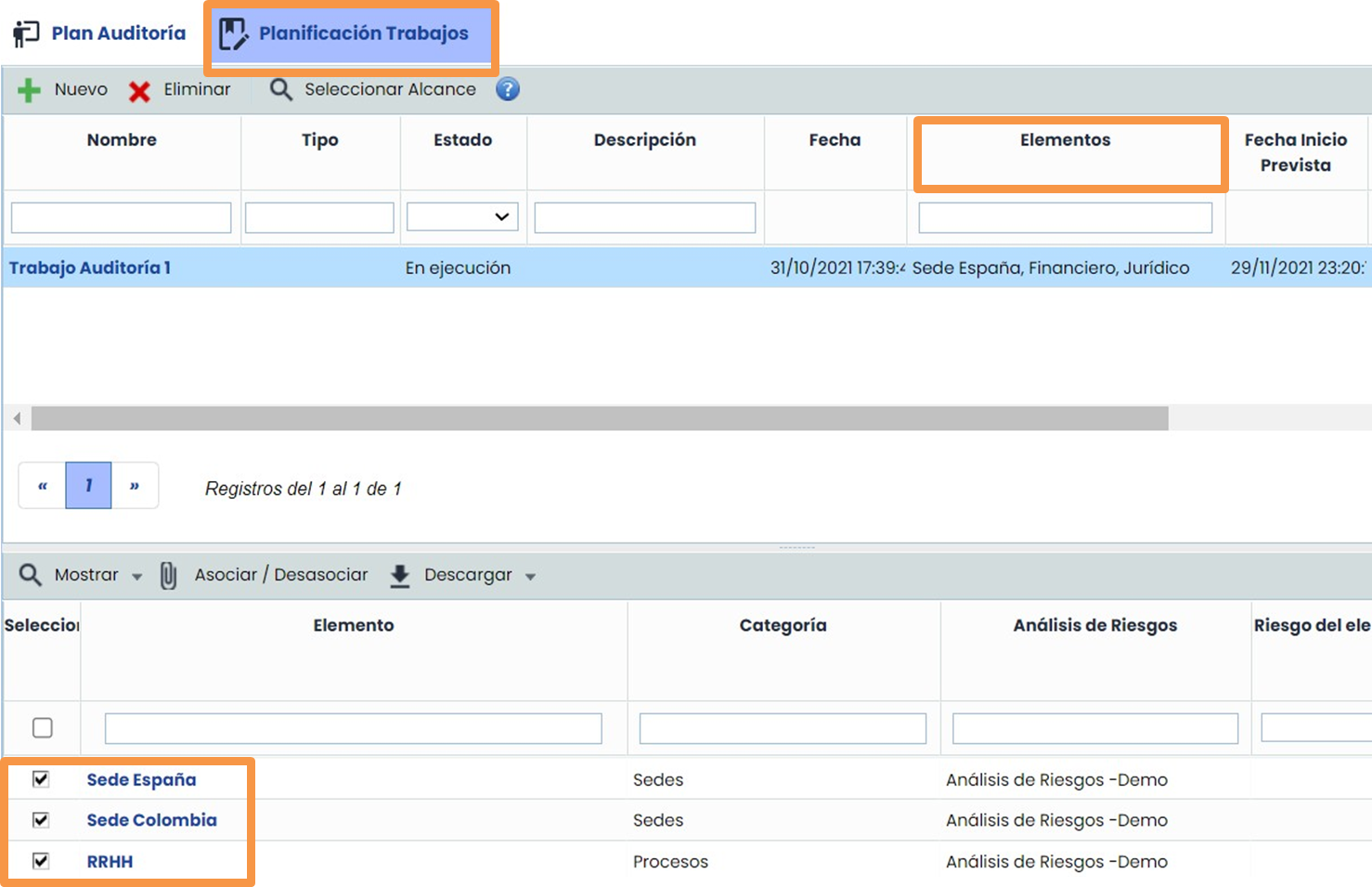
To associate the items with the audit work, you must click on the Audit Plan/Work Planning option. Subsequently, a new Audit Work must be created, and finally, you must click on the items in the lower table, select the audit work at the top, and associate. The associated items can be seen in "ITEMS."
Audit Program
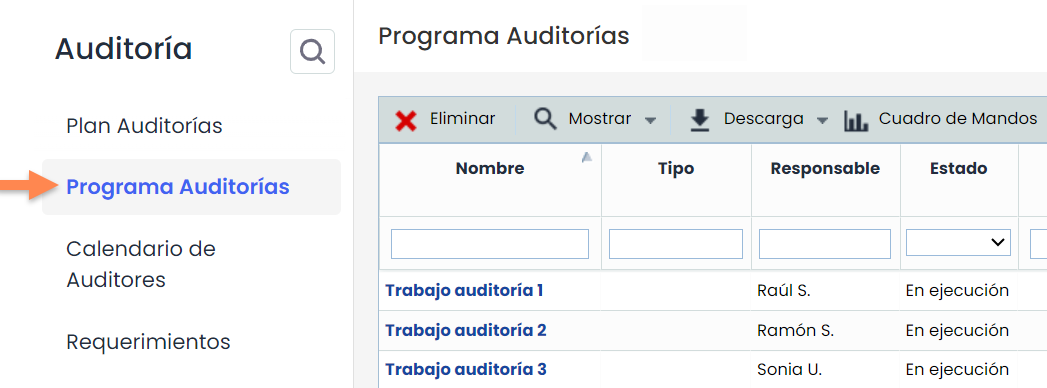
The “Audit Program” option will display the record of all existing work or activities in each of the audits created in the previous “Audit Plan” option. Additionally, it allows individual monitoring of each program and provides an overview of ongoing or future activities.
Finally, you can observe the dashboards that will have been configured in the "General" option previously seen in the tutorial How to configure an audit methodology?
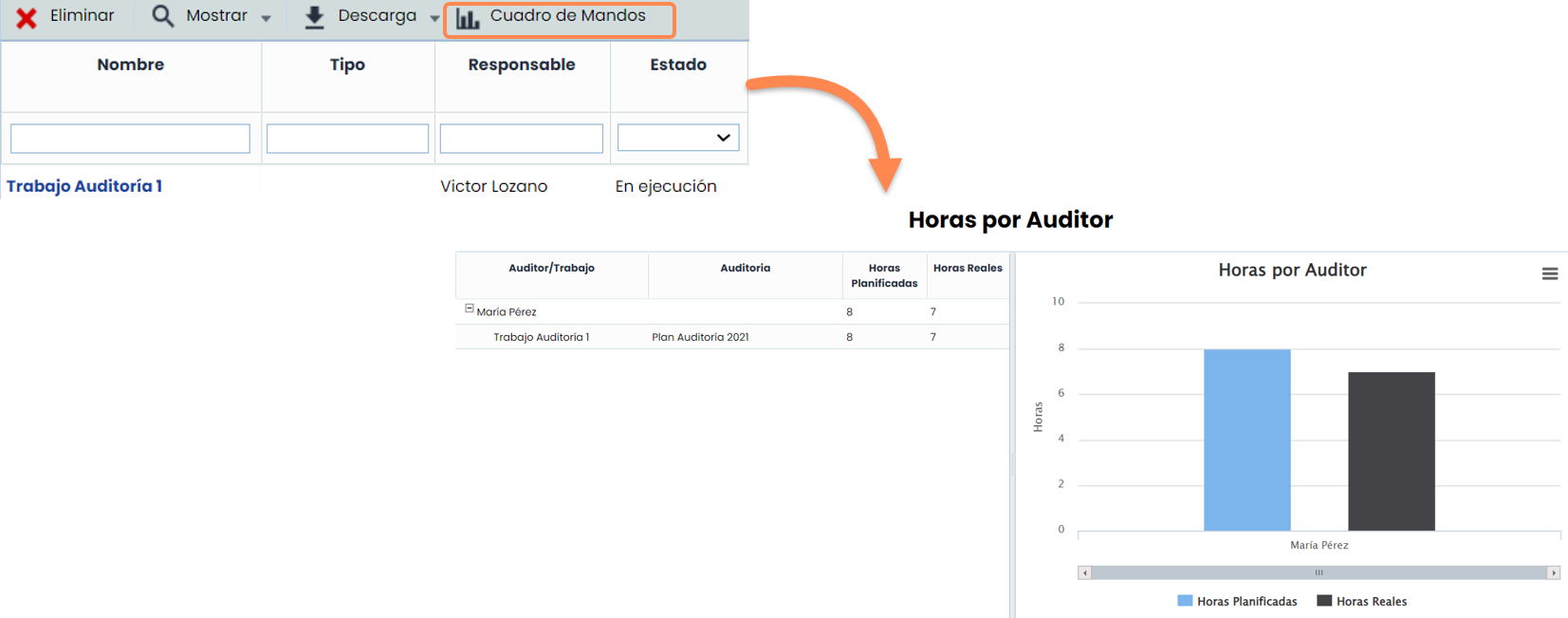
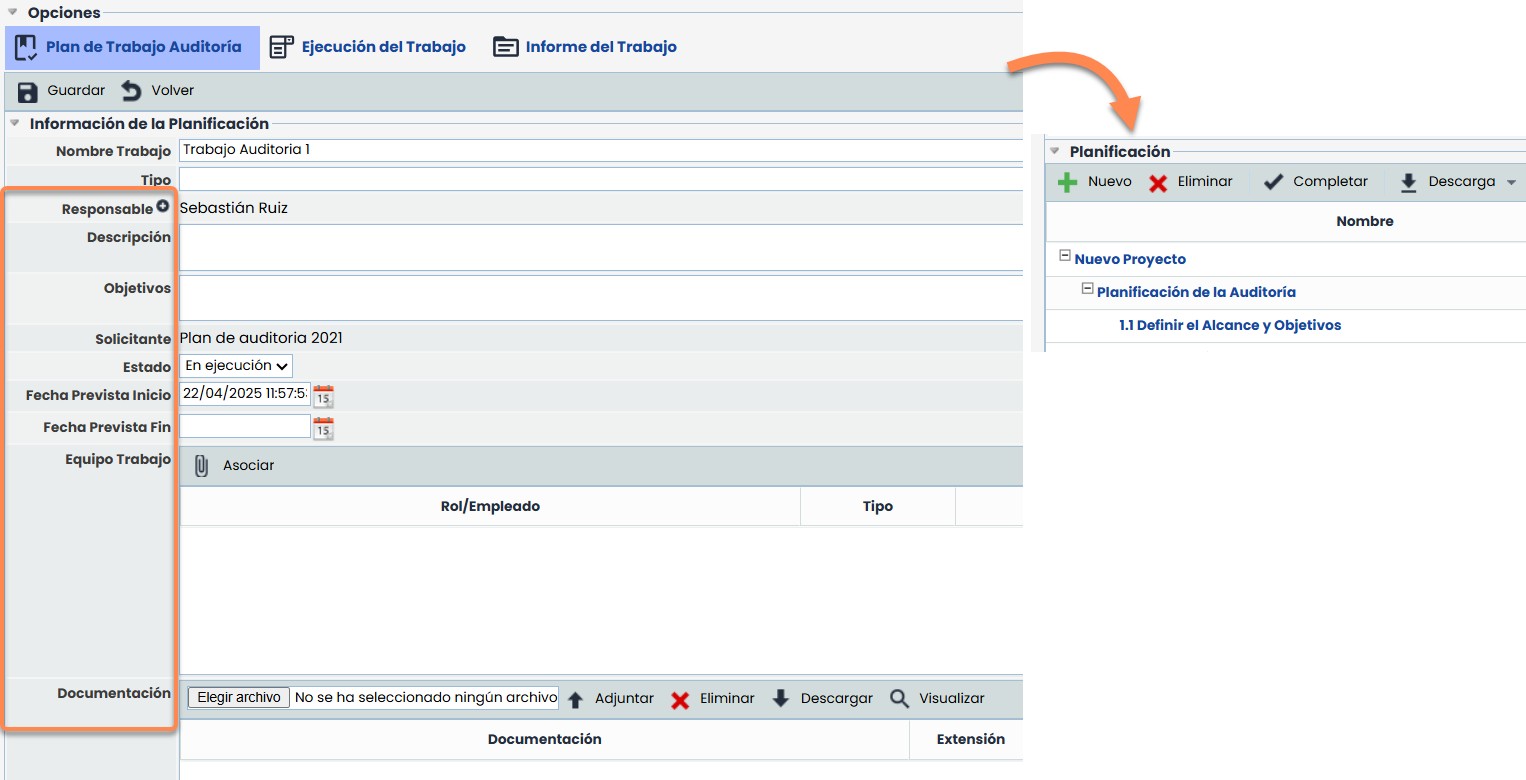
Accessing each of the programs will by default display the “Audit Work Plan” screen, where the work details will be managed with options such as the status itself, the work team in charge, the work documentation, and even the possibility of creating a project with the tasks to be performed.
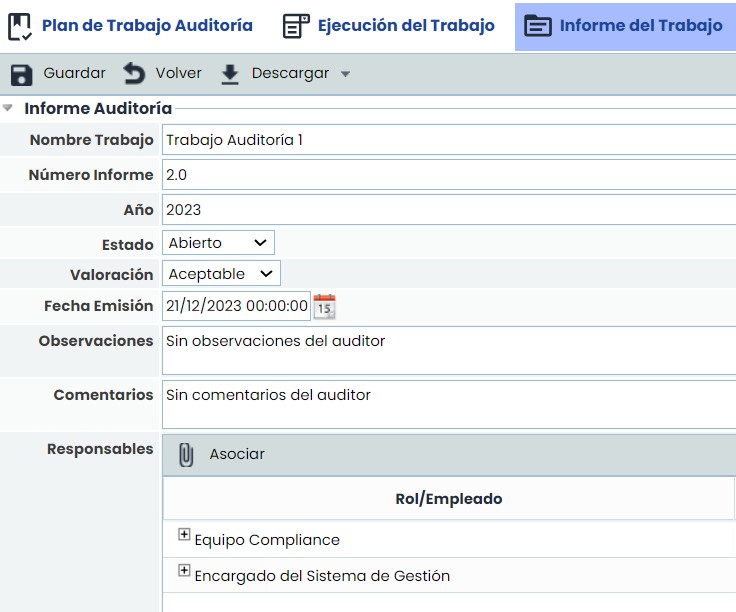
To view the options for “Work Execution” and “Work Report,” the status of the “Audit Work Plan” must be “In Execution.”

In the “Work Report” option, a complete report of the work performed can be obtained.
The Work Execution section will show the details of the audited items, as well as their associated risks and controls along with their respective execution methodology previously configured. After the audit, all information will be completed at the documentation level in the working papers, as well as the creation of appropriate recommendations or non-conformities.
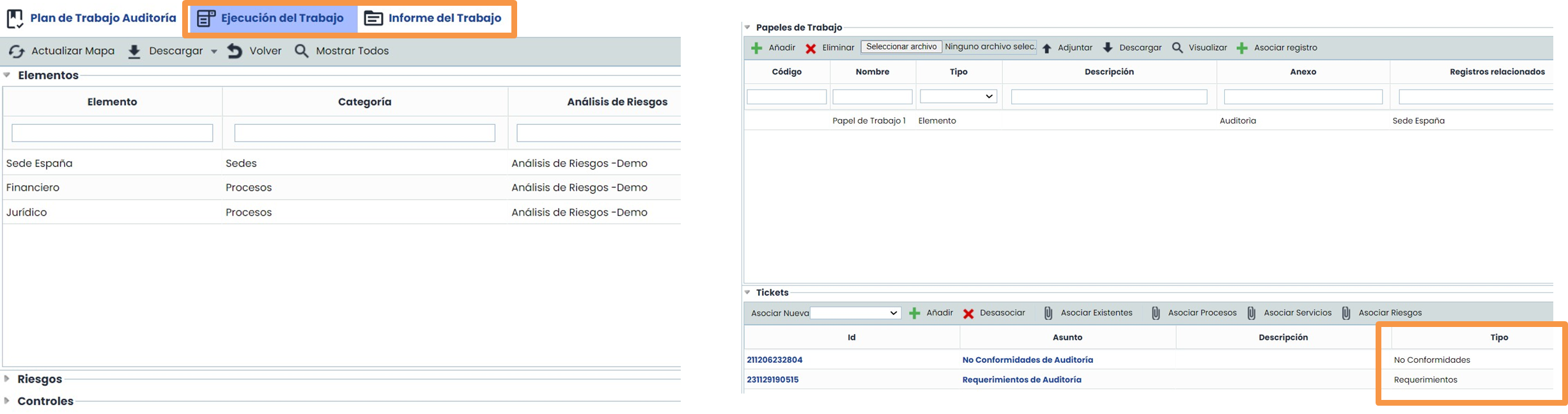
To view the information of the item, you must click on the row of the table, and the risks will be loaded. If you click on the risk, the controls will be loaded.
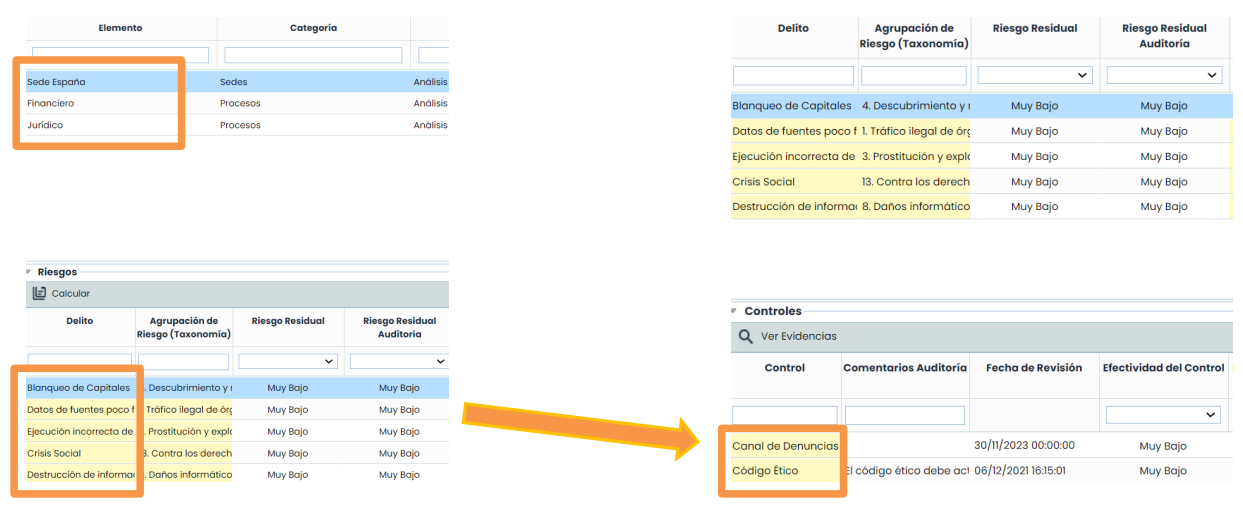
To associate the work with items, a document will be uploaded, the type of association can be chosen, and the Associate Record button will be clicked. A pop-up window will appear with all the records to associate.

Ticketing
Tickets can be created in two ways:
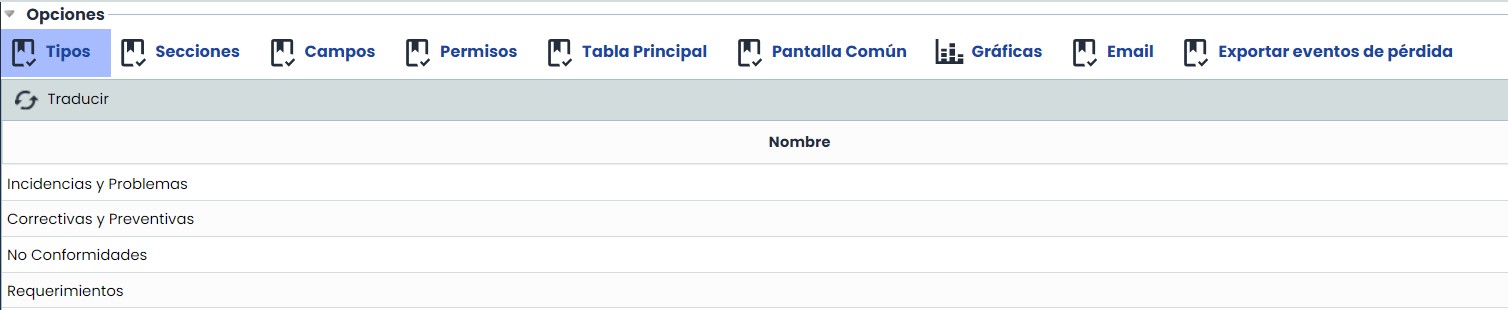
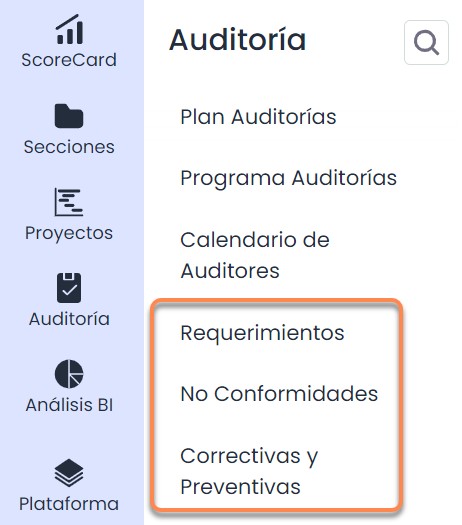
1- Directly from the “Requirements,” “Non-Conformities,” or “Corrective and Preventive” sections, where all tickets that can be related to each other (Input or Output Tickets) can be viewed, as well as relate them as Existing Tickets from the Audit (next slide).
The following ticketing options exist:
-
Requirements/Recommendations : Record of all action plans or recommendations arising from the audit for subsequent treatment and execution.
-
Non-Conformities : Any error detected in the audit.
-
Corrective and Preventive : Corrective or preventive actions related to non-conformities.
2-. Any type of ticket can also be created to resolve Non-Conformities, Observations, Requirements, improvements, etc., generated from the audit performed.
First, you must choose the type of ticket, for example, Non-Conformities, and click the “Add” button. In this way, a new ticket or record will be added to the table.

In addition to creating new ones, it is also possible to link existing tickets to reuse the audit findings by clicking on the “Associate Existing” button. A pop-up window will open with the information of all available tickets.


The tickets created in the Audit Report section can not only be viewed in that section but also individually in their corresponding ticket type section.
Within the form, the new field “AUDIT-WORK” can be added, which informs about the audit work to which the ticket is linked. This field can also be added and viewed in the Main Table.
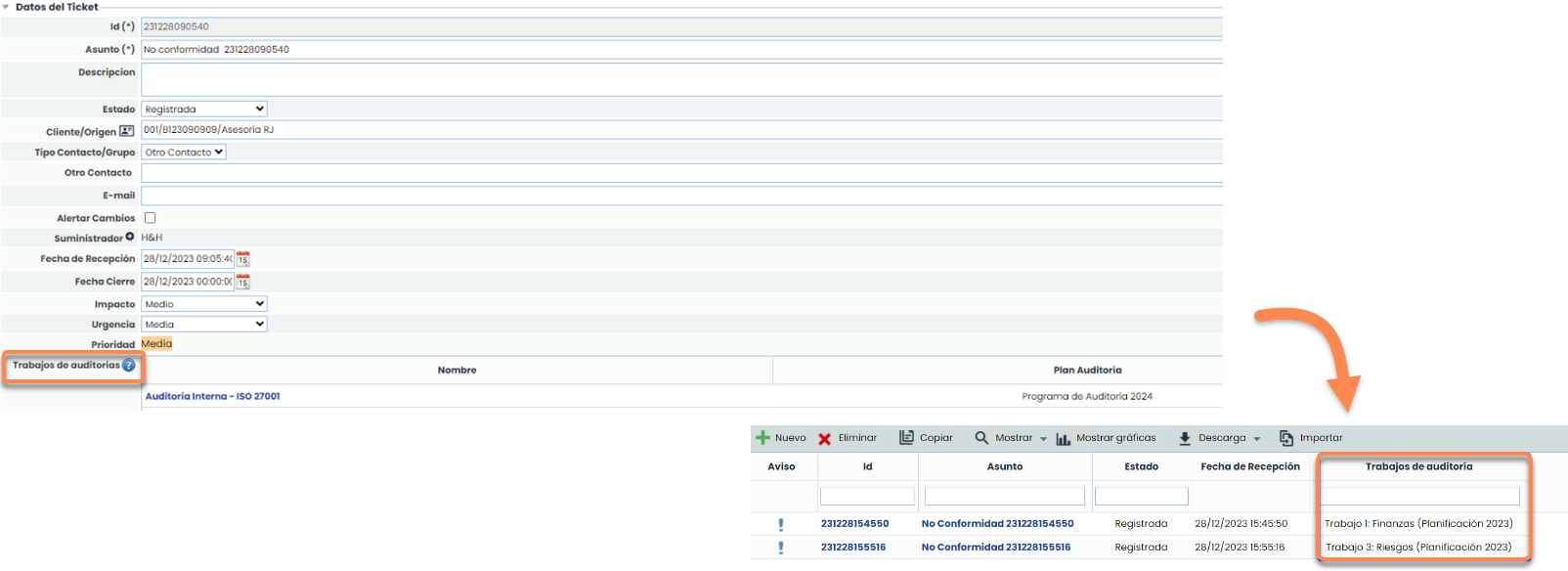
For more information on Ticket configuration, there are specific quick guides:
-
TICK.03. Ticket Configuration
-
TICK.04. Ticket Field Types