
AI Assistant for drafting and reviewing documents
GlobalSuite® extends the AI document assistant to work within the Document Manager's editor. In addition to answering questions about the file's content, the assistant can write directly in the document and apply quick actions to the selected text.
The assistant opens in a docked panel that keeps the document visible and editable, allowing consultation and drafting to be done on the same screen. No proposal is applied to the document without explicit user action.
What is it for?
-
Draft or complete sections of a document based on natural language instructions.
-
Review the wording, spelling, and tone of an already written text.
-
Summarize or expand a fragment and translate it into the active languages in the company's settings.
-
Consult the document's content without leaving the editor.
Key features
-
Docked panel next to the document, which can be collapsed or expanded without losing the conversation or the document's state.
-
Actions to bring each response to the document: insert it at the end, add it at the cursor's position, replace the selection, or copy it to the clipboard.
-
Contextual menu with quick actions when selecting text in the editor.
-
Preview window with the original text and the AI's proposal, editable before applying it.
-
Preservation of the formatting supported by the editor when applying the content: headers, bold, italics, and lists.
-
Translation into the languages available in the company's settings, with automatic detection of the source language.
Where is it located?
The assistant has two entry points.
From the Document Manager
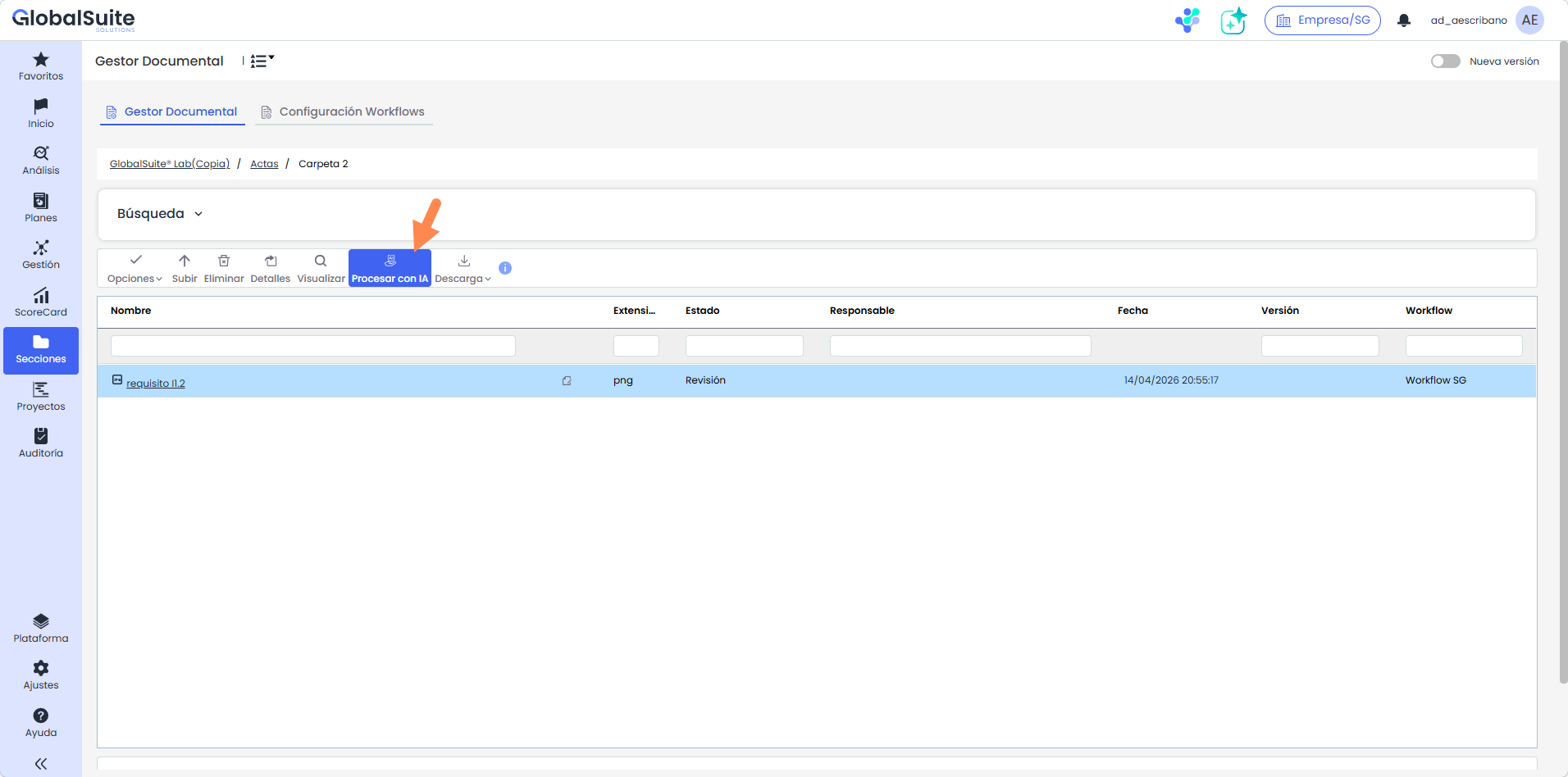
Select a document from the list and click "Process with AI." This option is available for all document types supported by the document assistant and opens the assistant in consultation mode.
From the document editor
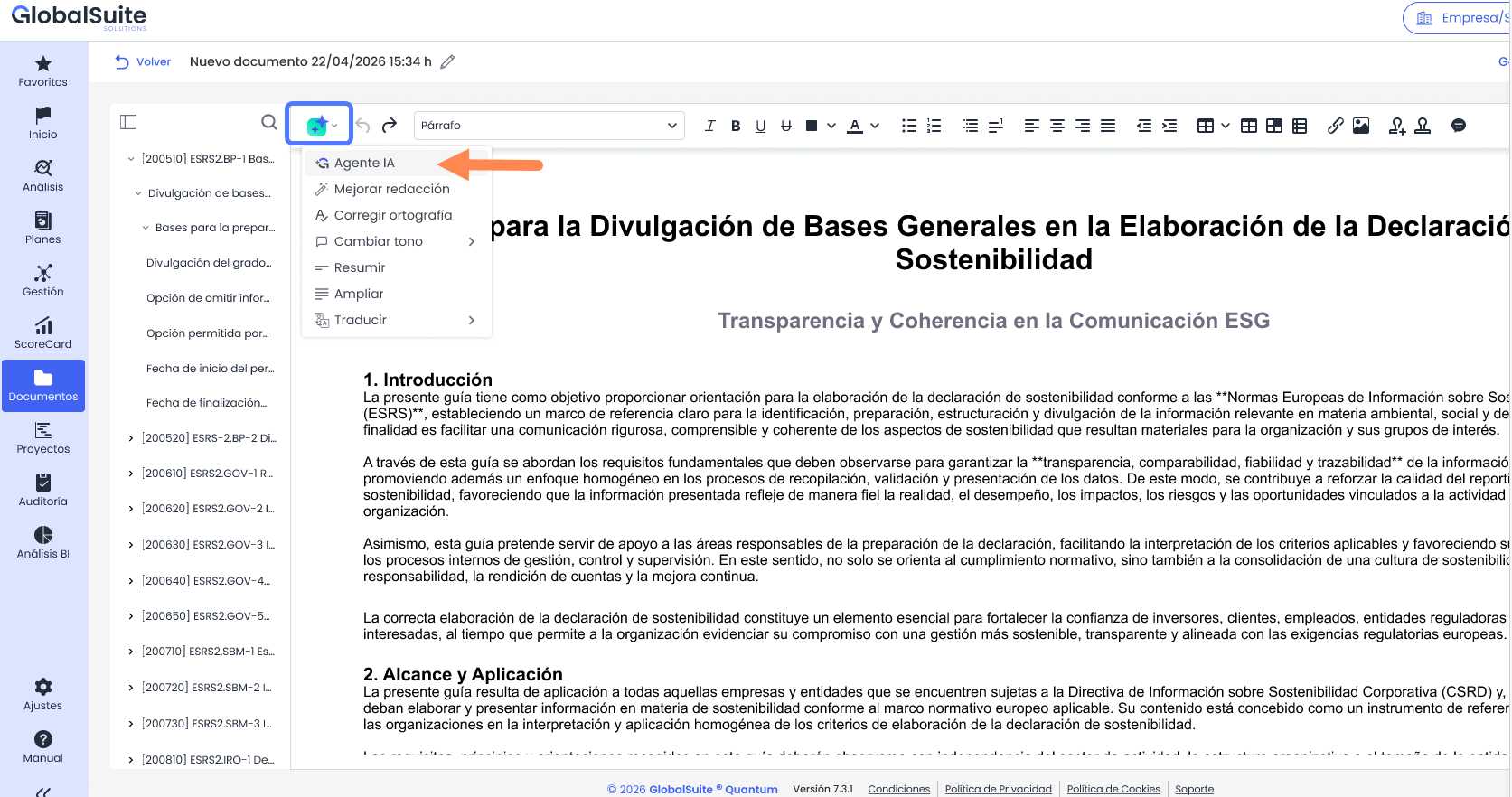
When opening a document in the editor, the toolbar includes an AI button. Its menu provides access to "AI Agent" and quick actions on the text.
The writing capabilities on the document and the contextual menu are only available in .docx documents.
How does it work?
1. Open the AI Agent
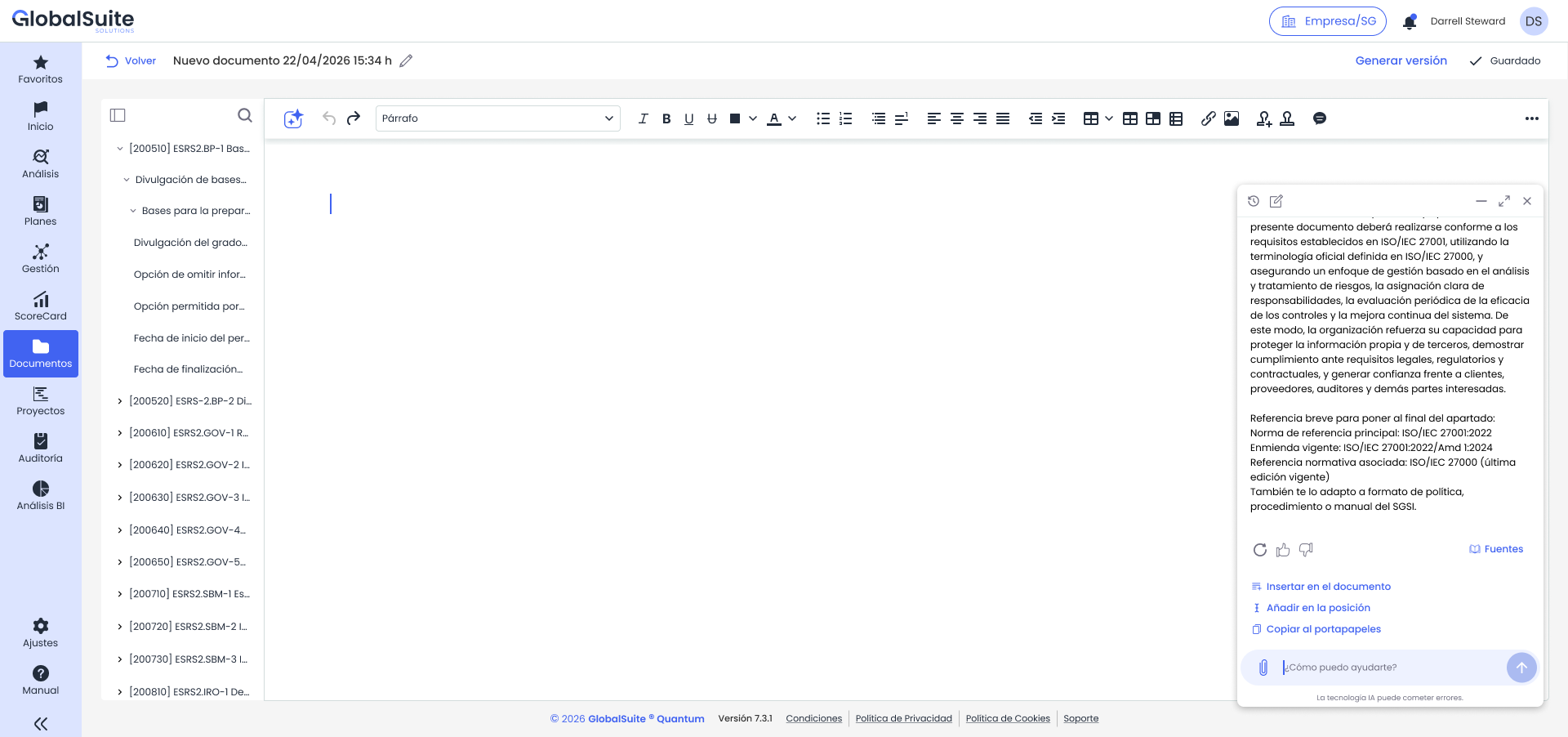
Click the AI button in the editor and select "AI Agent." The assistant opens in a docked panel, and the document adjusts to share the space without hiding the editable content.
Type your request in the lower field. The assistant uses the document from which it was invoked as context and responds within the panel. If text is selected when opening it, the selection is transferred as the initial context of the conversation.
2. Bring the response to the document
Each response from the assistant includes the necessary actions to apply it to the document. Writing actions are only displayed when the assistant is opened from the editor on a .docx document.
|
Action |
What it does |
|
Insert into the document |
Adds the full content of the response to the end of the document, even if it's empty. |
|
Add at the position |
Inserts the content at the current cursor position without deleting the existing text. |
|
Replace selection |
Replaces the text selected in the editor with the content of the response. Requires an active selection. |
|
Copy to clipboard |
Copies the content of the response to paste it wherever you decide, inside or outside GlobalSuite®. |
The document reflects the change immediately, without reloading the screen, and the conversation remains open to continue working.
3. Use quick actions on a selection
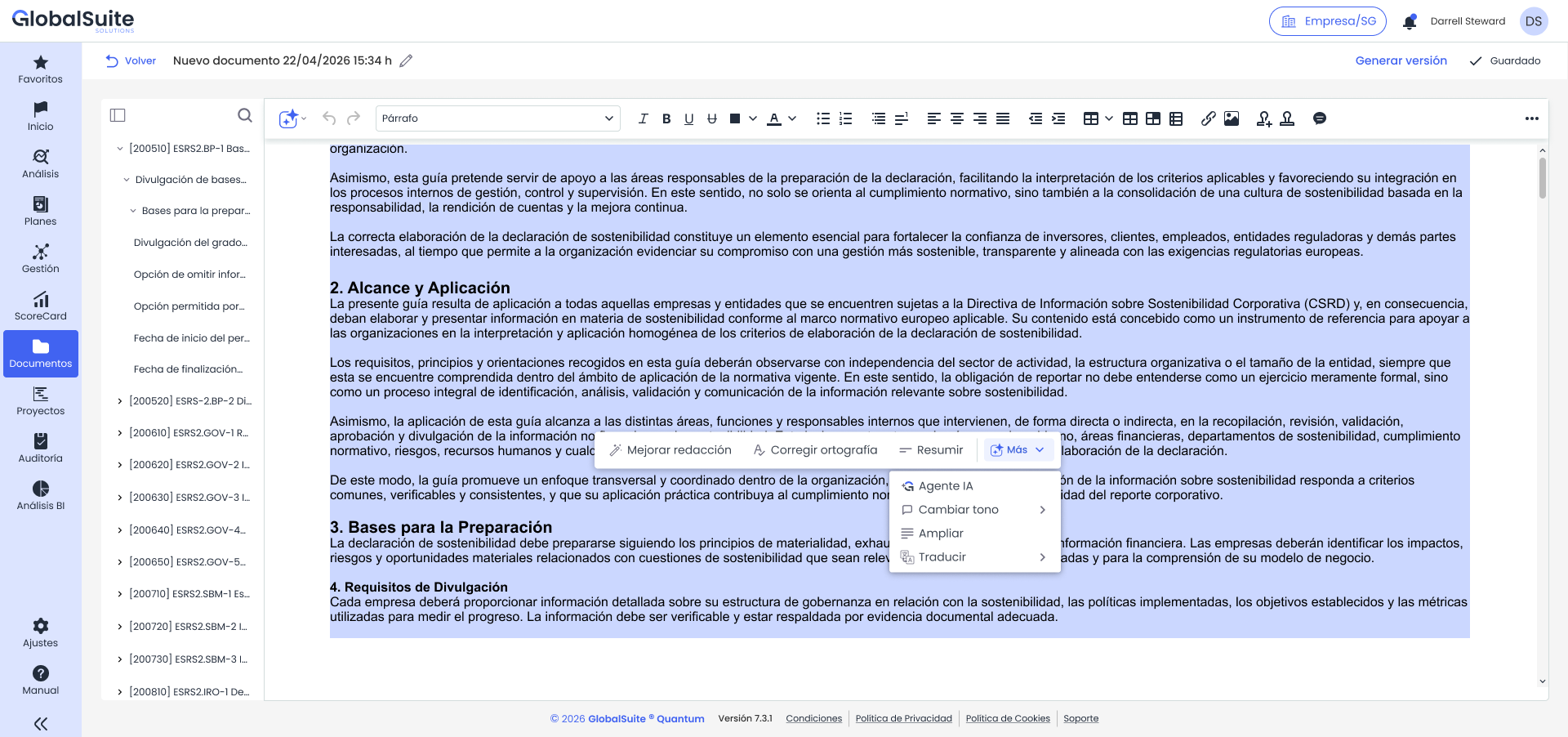
Select a word, a sentence, a paragraph, or the entire text of the document. A contextual menu appears over the selection with the most frequent actions directly and the rest grouped under "More."
|
Action |
Result |
|
AI Agent |
Opens the assistant using the selection as context for requests not covered by quick actions. |
|
Improve wording |
Adjusts vocabulary, spelling, syntax, structure, and clarity of the selected text. |
|
Correct spelling |
Corrects only the lexical or syntactic errors detected, without rewriting the content. |
|
Change tone |
Rewrites the text with the chosen tone: "More professional," "More casual," or "More empathetic." |
|
Summarize |
Returns a shorter version that retains the main ideas. |
|
Expand |
Returns a more developed and detailed version of the original text. |
|
Translate |
Detects the source language and translates it into the chosen target language. Only the active languages in the company's settings are offered. |
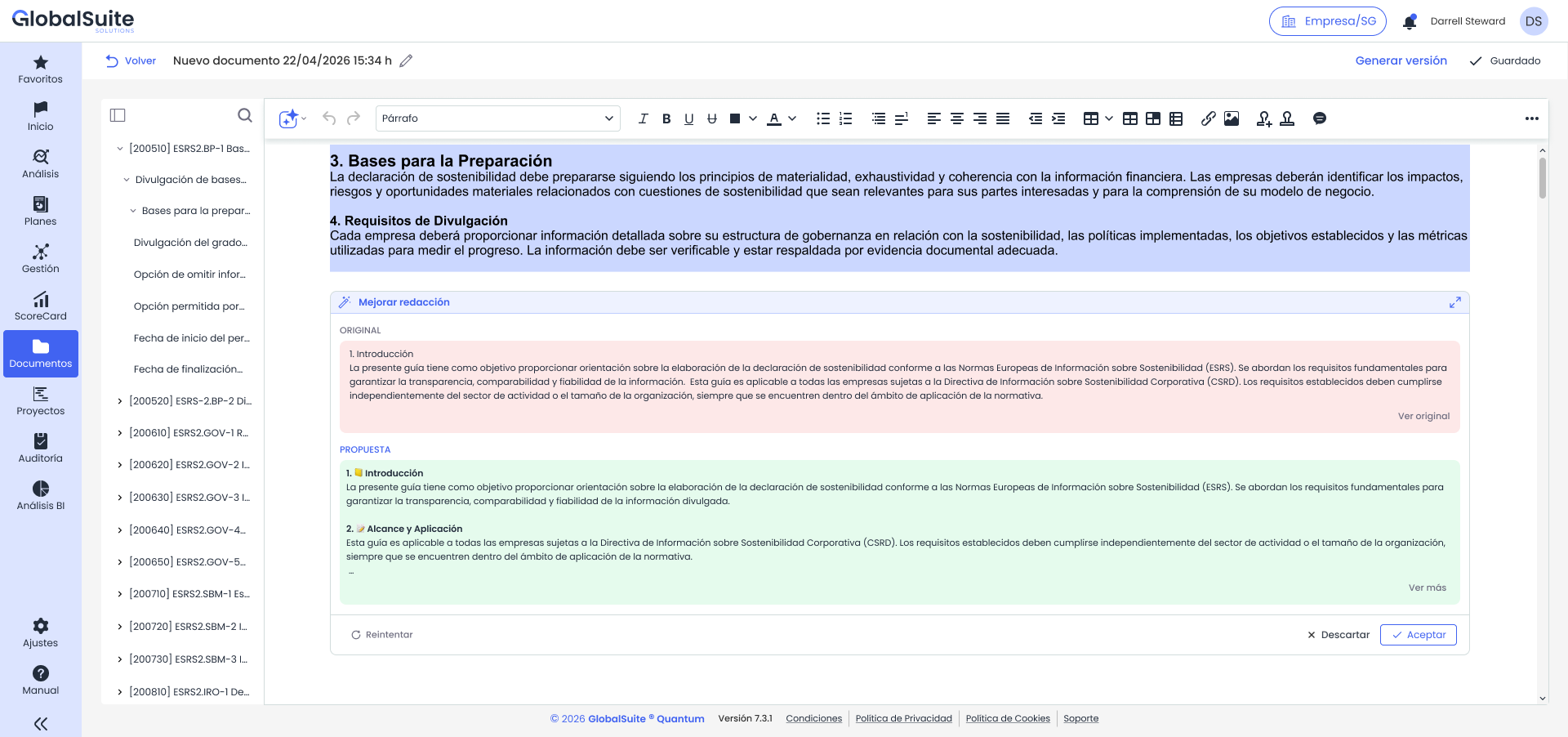
4. Review the proposal before applying it
All quick actions, except "AI Agent," open a preview window with two blocks:
-
Original. The selected text, as a reference.
-
Proposal. The AI's result. This block is editable, allowing you to adjust the text before applying it.
From the preview window, you can "Retry" to generate a new proposal, "Discard" to close it without modifying the document, or "Accept" to replace the original selection with the final content of the proposal block.
5. Close the assistant
You can collapse the panel to regain workspace without losing the conversation. If you close it completely, the system warns that the conversation will not be preserved.
Permissions and availability
-
Access to the assistant respects the permissions, license, and modality already in place for GlobalSuite®'s AI document capability.
-
The assistant's labels and messages are displayed in the user's active language.
-
The assistant works only with the document's content: it does not perform internet searches or incorporate external sources.
Note: the assistant is a drafting aid and does not replace user review. Always review the proposal before accepting it and check the resulting document before generating a version.