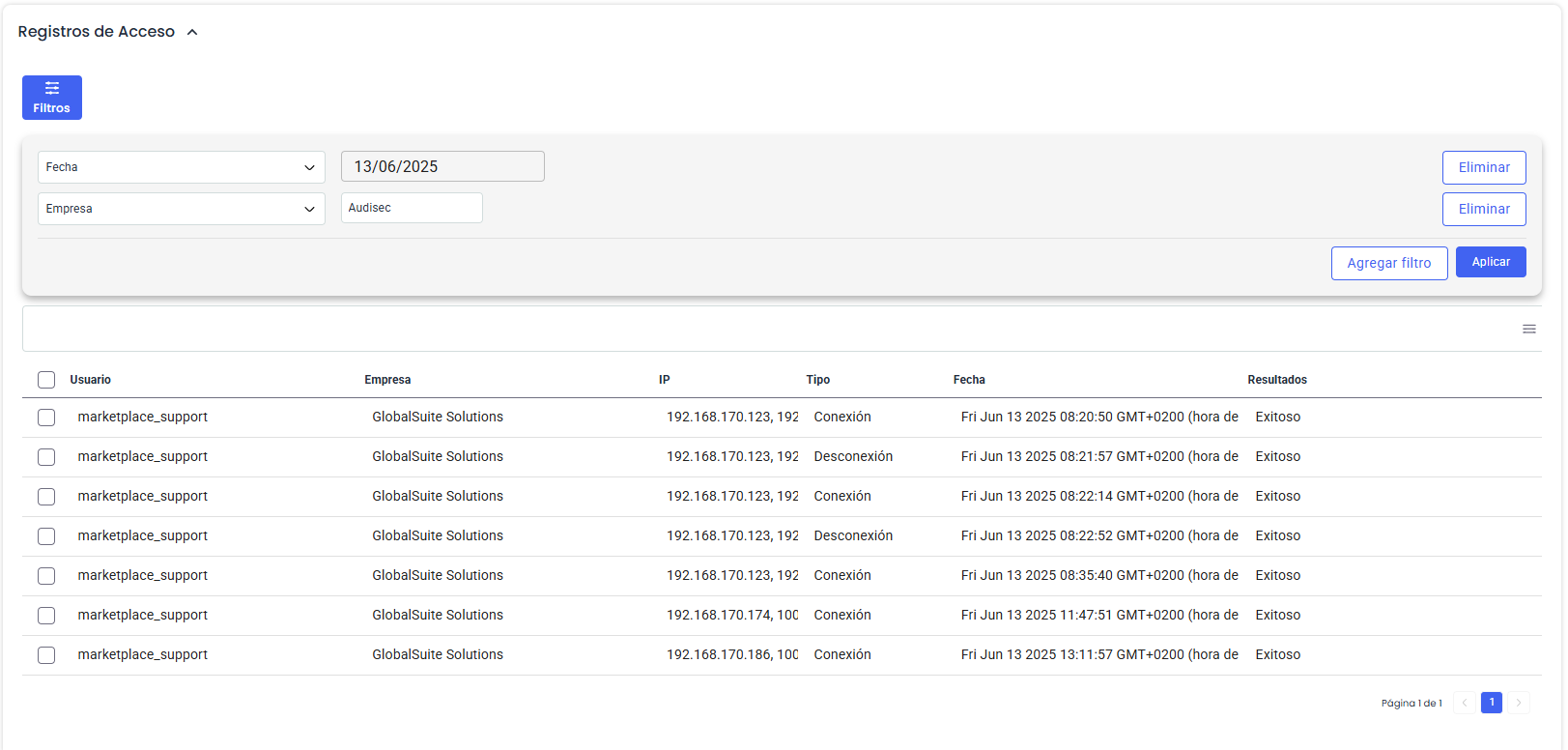
In this section, you can view the logs that support the traceability of the information and are collected in the solution.
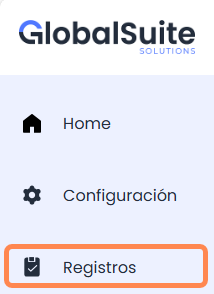
In the GlobalSuite Marketplace, all actions are recorded to provide evidence and can be consulted at any time.
There are three types of records specified below.
Access Records
In this section, all authentication attempts, both successful and failed, by authorized users in the Marketplace are displayed, as well as logouts (disconnections), centralizing the information on the platform.
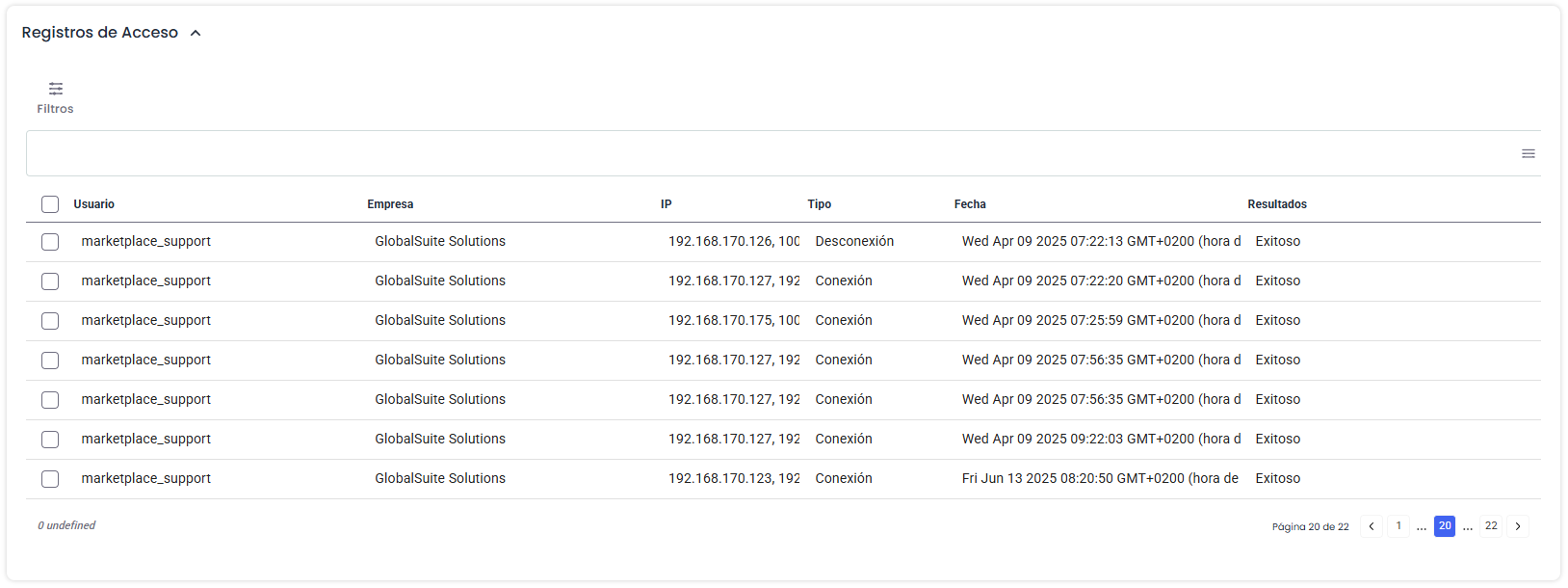
The recorded information includes these fields:
-
User: Name of the user who connects to the Marketplace
-
Company: Name of the company to which the user belongs
-
IP: IP address from which the process is carried out
Note: if a proxy or VPN is used, it may not be the originating address from which access is made -
Type: Indicates whether the record is a Connection or Disconnection (logout) of the user
-
Date: Date and time when the connection is made
-
Results: Whether the connection attempt was Successful or Failed
Action Records
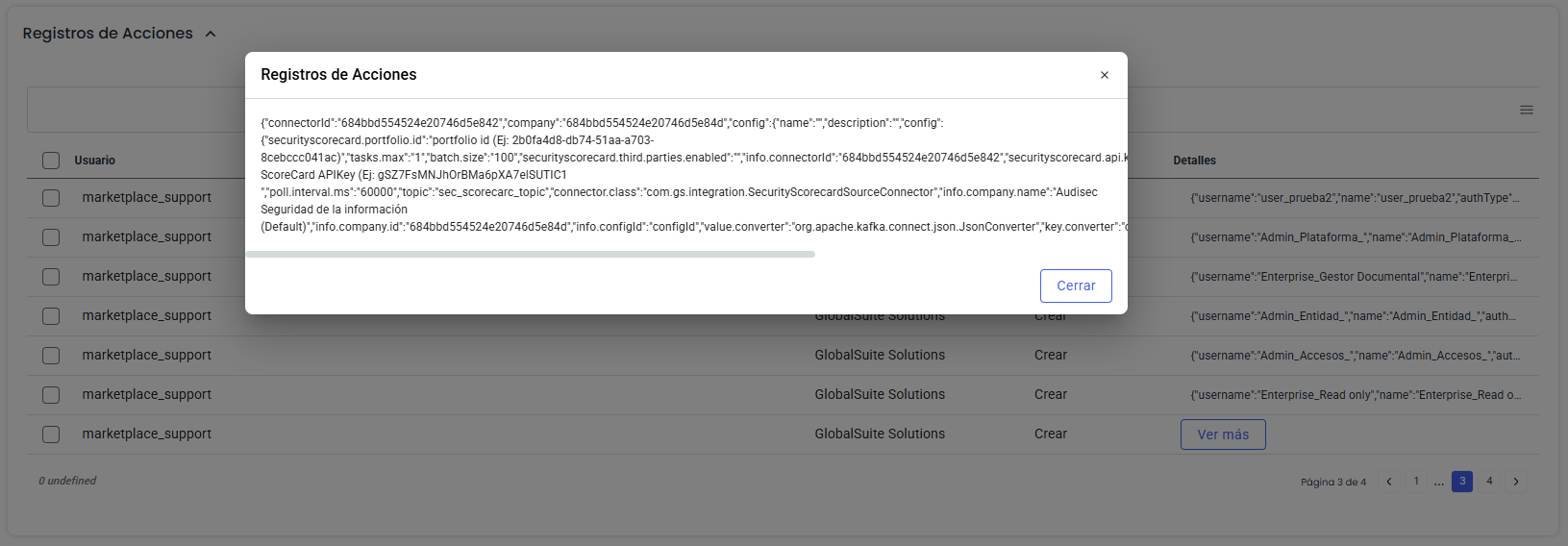
This table shows all actions performed on the Marketplace, indicating which user performed the action.
Within the scope of this information, it includes changes to the company, users (activations/deletions), connectors, and their instances.
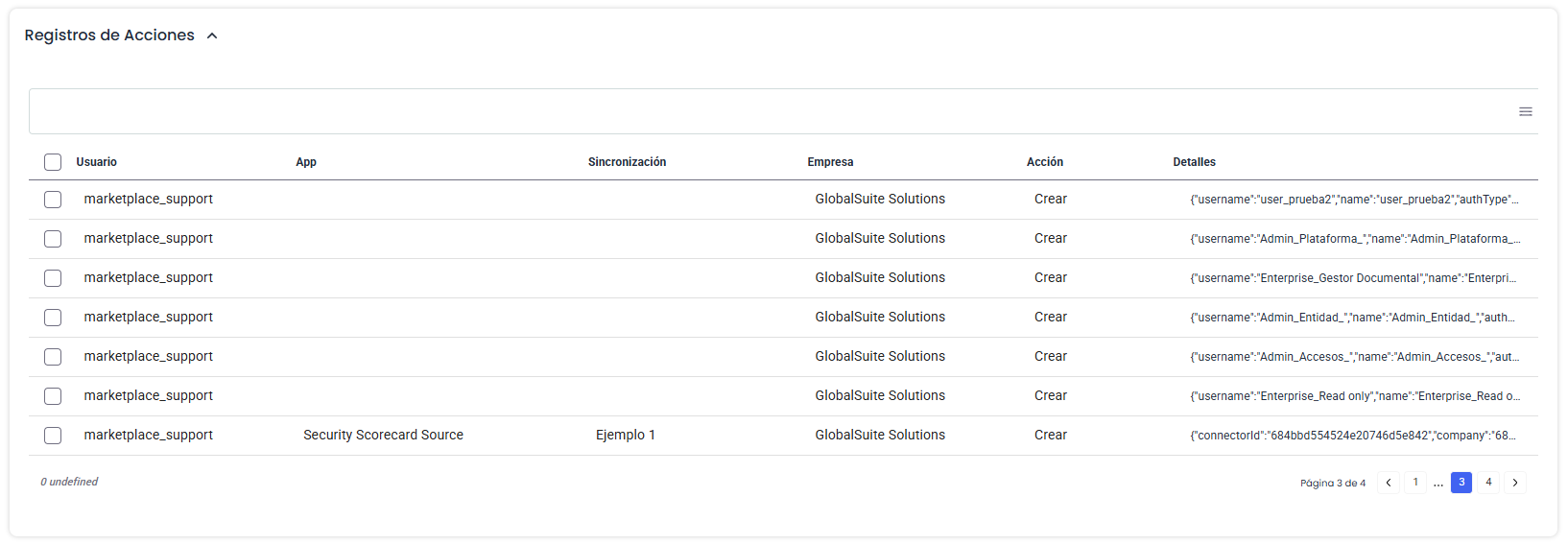
The information included in these logs is:
-
User: Name of the user who performs the action
-
App: Name or type of the Connector on which changes are being made (if it is not an action on a connector, it will be empty)
-
Synchronization: Specific name of a connector instance (if it is not an action on a connector, it will be empty)
-
Company: Name of the company on which the action is performed
-
Action: Indicates whether the record reflects the Creation, Modification, or Deletion of a record
-
Date: Date and time when the connection is made
-
Details: Displays details of the information included in the record. To view it completely, you can click the View more button, which appears when hovering over that row.
Error Records
If a problem occurs during the execution of information synchronization in a connector instance, the error details can be consulted in this table to adjust the configuration if necessary.
-
App: Name or type of the Connector where the error occurred
-
Synchronization: Specific name of a connector instance that failed
-
Company: Name of the company to which the connector belongs
-
Date: Date and time when the error occurred
-
Details: Displays details of the error that occurred to analyze the cause. To view it completely, you can click the View more button, which appears when hovering over that row.

Filters
It is possible to apply filters on one or more of the fields included in the records to locate or narrow down the displayed information.
To do this, you must click the Filters button that appears at the top and select a field to filter.
Depending on the type of field, the filter will be a selectable set of values or a text field to filter by the content entered there.
If you want to add additional filters, click the “Add filter” button, and if you want to remove one, click “Remove.” If more than one filter is applied, only the results that match all of them will be displayed.
By clicking Apply, the created filters will be applied, and the results matching the search will be displayed in the table.