
This synchronization mechanism allows configuring or modeling a connector with the different parameters or fields that are necessary in each step-by-step and guided manner.
At any time, you can switch to the other synchronization mechanism, which is Automatic Synchronization.
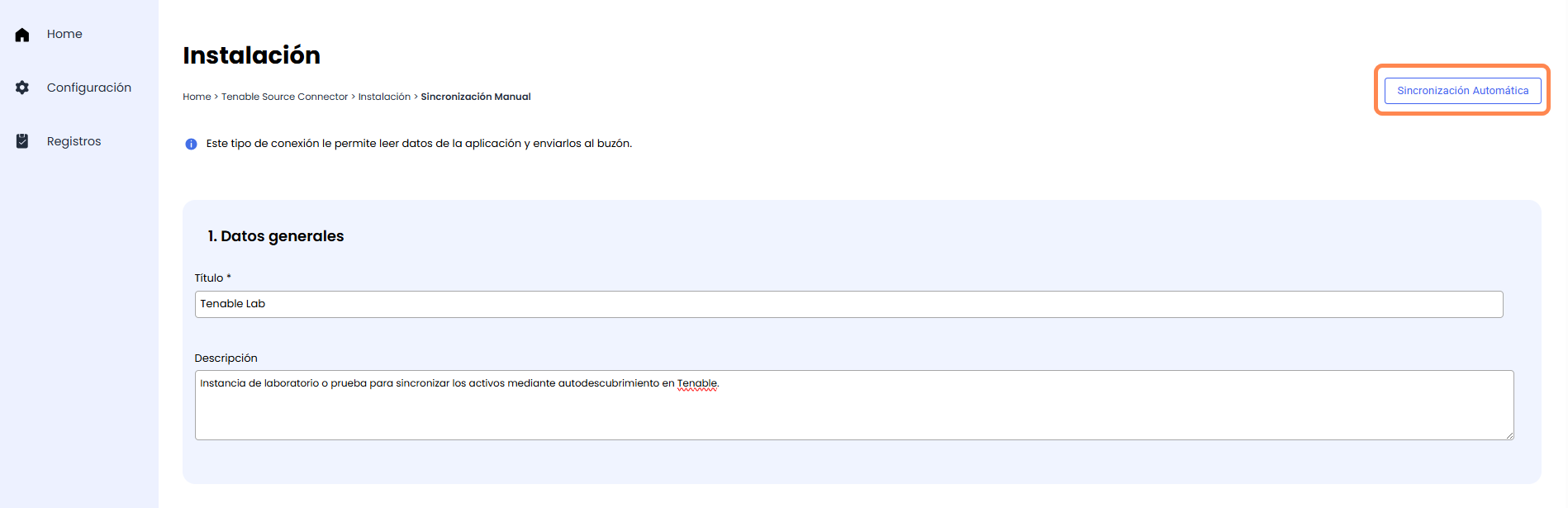
Sections of the Manual Synchronization form
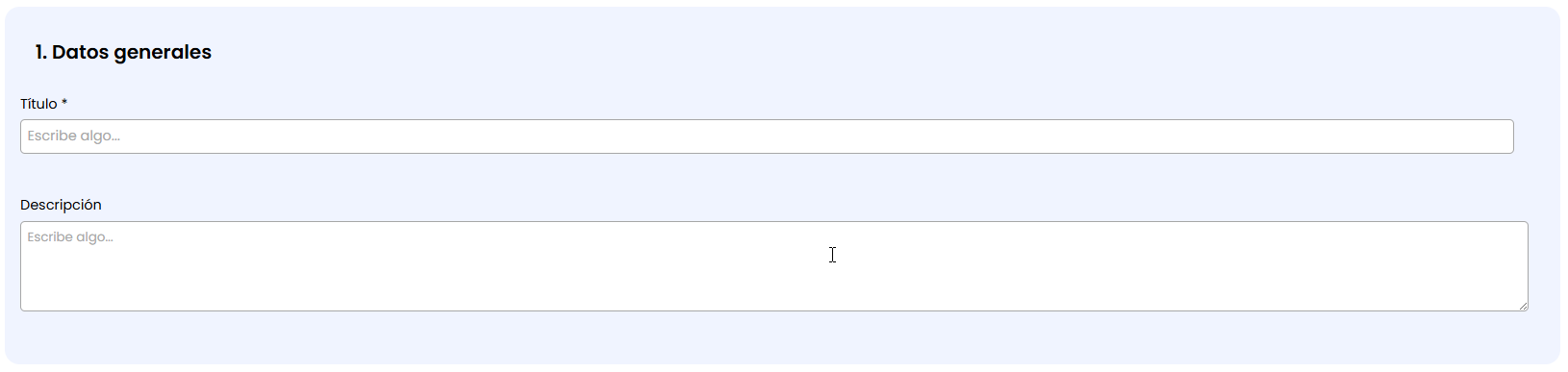
General Data
This first section allows completing two textual fields:
-
Title: This is a mandatory field and is used to identify the specific instance or synchronization with a short text. This name will identify the configuration in different parts of the Marketplace, including in the Records section.
NOTE: It is important to use a descriptive name as there may be multiple instances or synchronizations of the same type of connector. -
Description: Allows adding additional information or explaining the objective or scope of the synchronization in an extended manner.
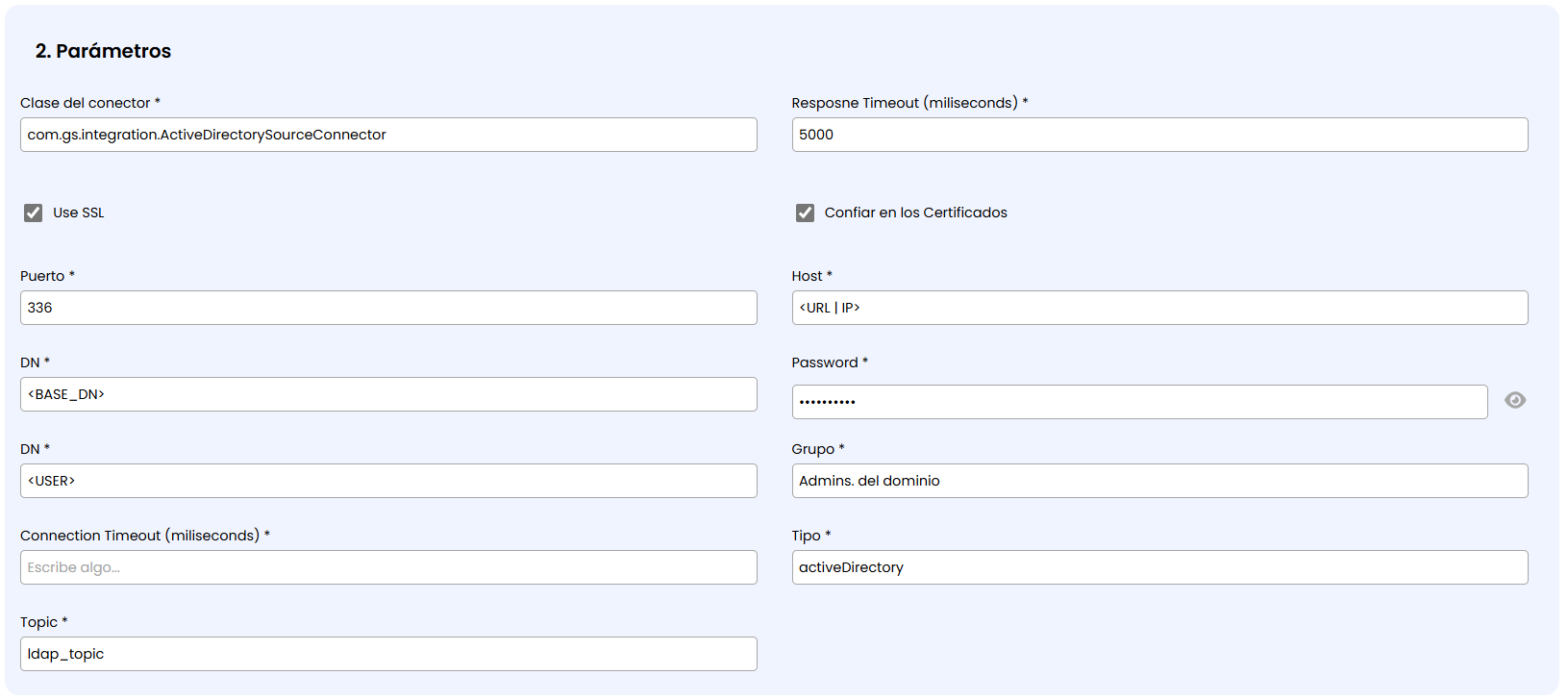
Parameters
In this section, the general configuration fields of the connector must be completed. Among others, the following must be configured:
-
Topic: Identifier of the source from which the data to be synchronized in GlobalSuite must be obtained.
-
For Source connectors, it will be the space where the periodic information read will be dumped.
-
For Sink connectors, it will be the source from which the data to be loaded will be taken.
NOTE: This topic must match one of the Source connectors that read information from external tools for it to work correctly.
-
-
URL: The URL or IP of the application or system with which the Marketplace will connect.
-
APIKey: API usage key. In other cases, other credential mechanisms such as Username and Password will be used.
-
Additional Parameters: Depending on the type of connector, specific parameters will be required.
-
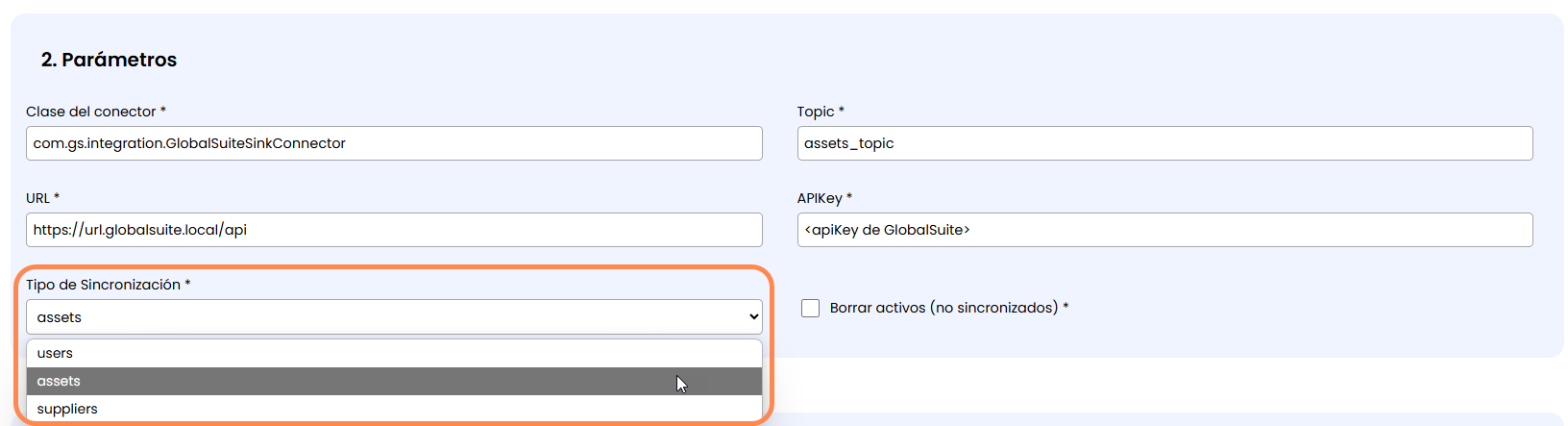
Synchronization Type: Field that will only be available for Sink connectors and indicates what information will be written. Currently, it is possible to load Assets, Users, or Suppliers.
Manual Synchronization
This section is only available for Sink type connectors and allows modeling the relationship or mapping of which source parameters will be loaded into which GlobalSuite field.
NOTE: For Source (read) type connectors, there is no mapping or field selection as all available fields described in each connector's documentation are obtained.
New parameters to map can be added by clicking the Add button at the bottom of the section.
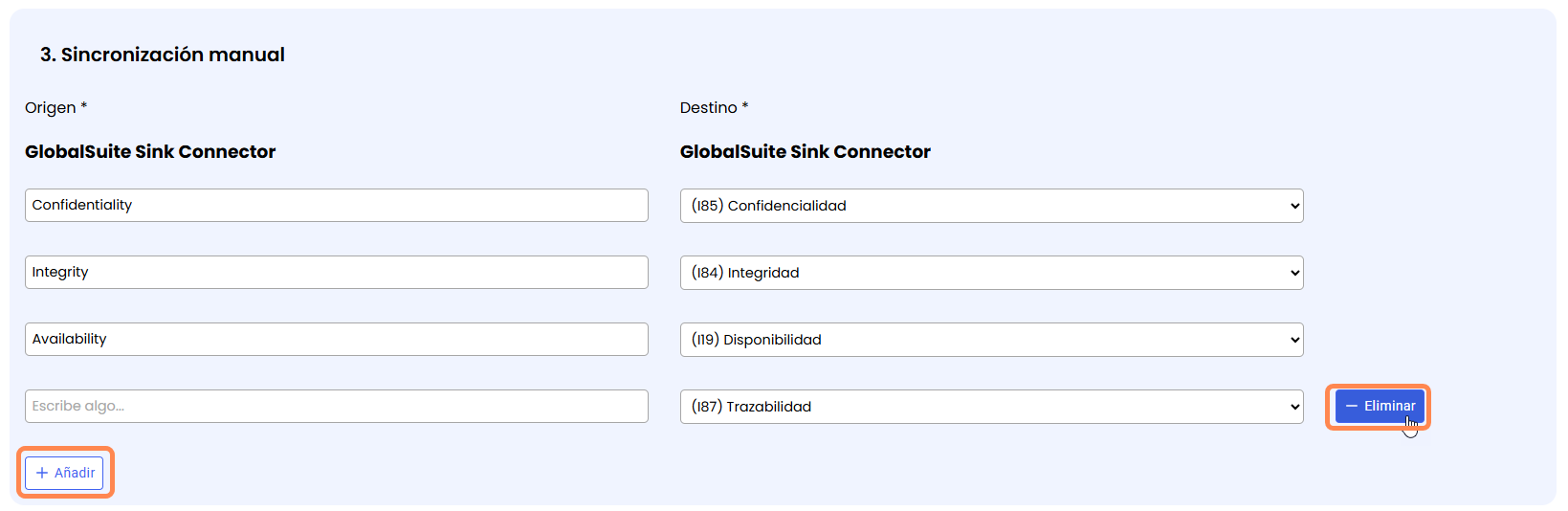
If you want to delete any of these relationships, you can remove it by clicking the Delete button that appears when hovering over each row.
The fields to be mapped will depend on the type of connector, which may include general fields or dimensions configured in the methodology.
Schedule Update
In this last section of the form, you can define the synchronization frequency with the following parameters.
-
Start: Indicates the date from which it will be executed periodically.
-
Repeat every: Indicates the frequency, which can be of different types.
-
Day: The synchronization will run continuously every day, allowing you to choose how many hours apart it runs.
-
Week: You can select which days of the week the connector synchronization will run.
-
Month: It will run monthly on the same day of successive months starting from the synchronization start date.
-
In all cases, you can define the time zone in which the connector will execute.

In addition to scheduling, there is a Update Now button to force synchronization execution at that moment (for testing or validation purposes).
General Actions
With the Manual Synchronization form of a Connector, the following actions can be performed:

-
Cancel: Clicking it will not make any changes to the synchronization, whether it is a modification of an existing synchronization or the creation of a new instance.
-
Save: Clicking it will save all the data entered in the synchronization. If there is any inconsistency or a mandatory field is not completed, an error message will be displayed.

Activate: This is only possible for already created synchronizations with all mandatory fields completed and saved.

When a synchronization is activated, it is forcibly executed to continue running at the defined frequency.