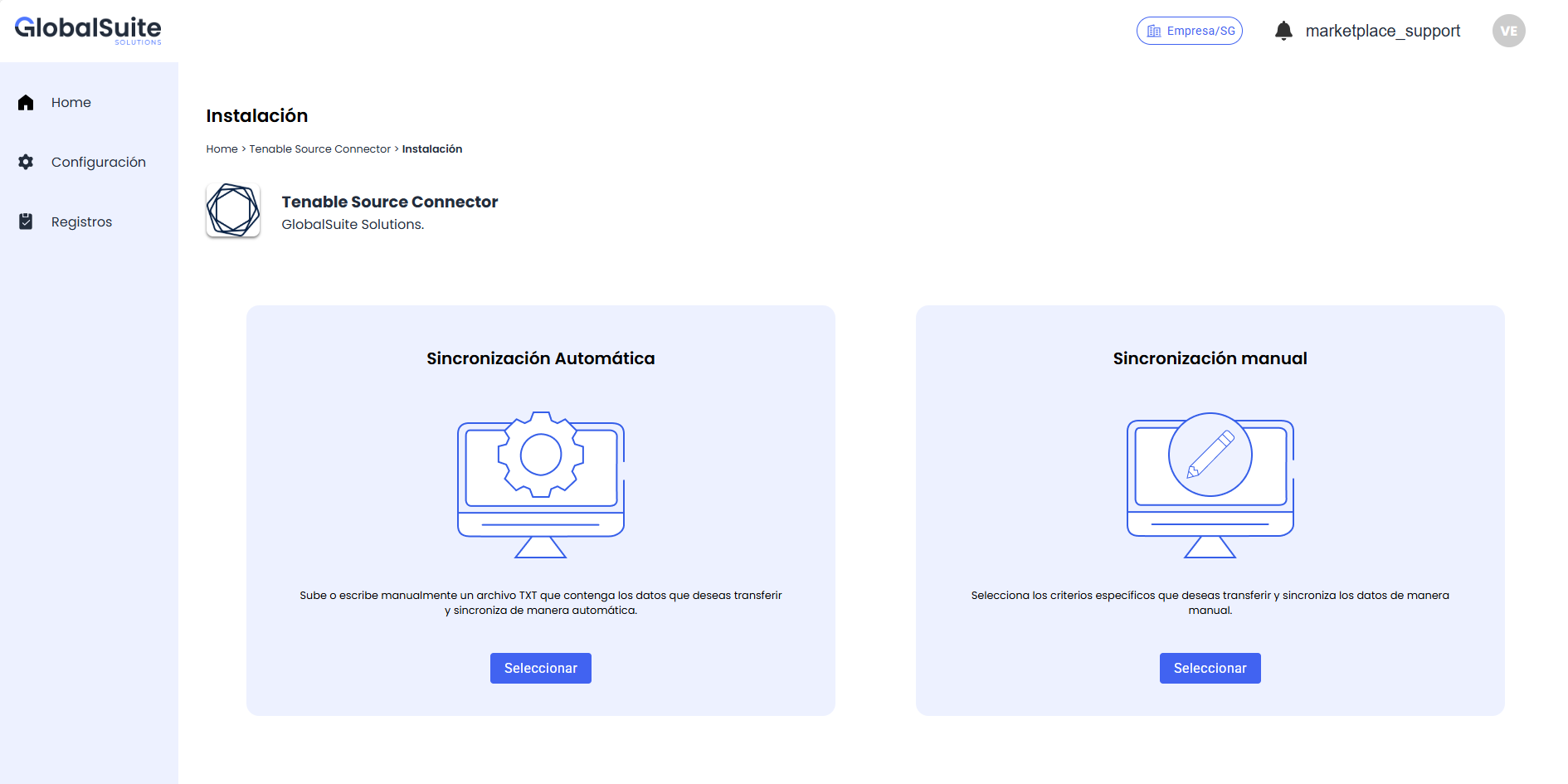
Once authenticated in the Marketplace, you access the initial page or Home, where different sections of information are structured as follows:
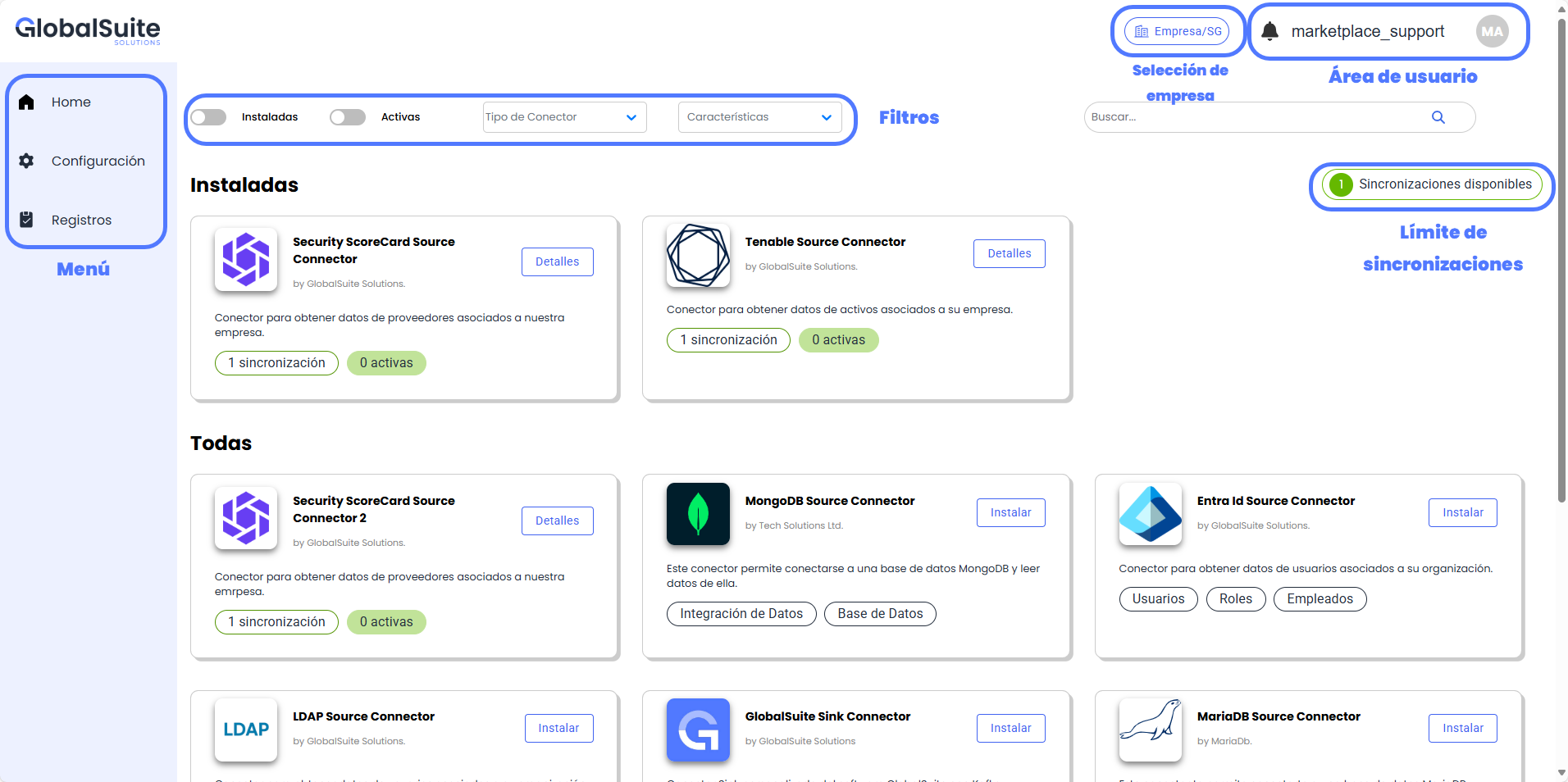
User area
In this section, you can view the name and email of the user currently logged into the marketplace, and it is also possible to log out of the application.
NOTE: If authenticated with a GlobalSuite user authorized in the marketplace, the session will be closed in both solutions.

In this area, there is also a section to check relevant Notifications about the system:
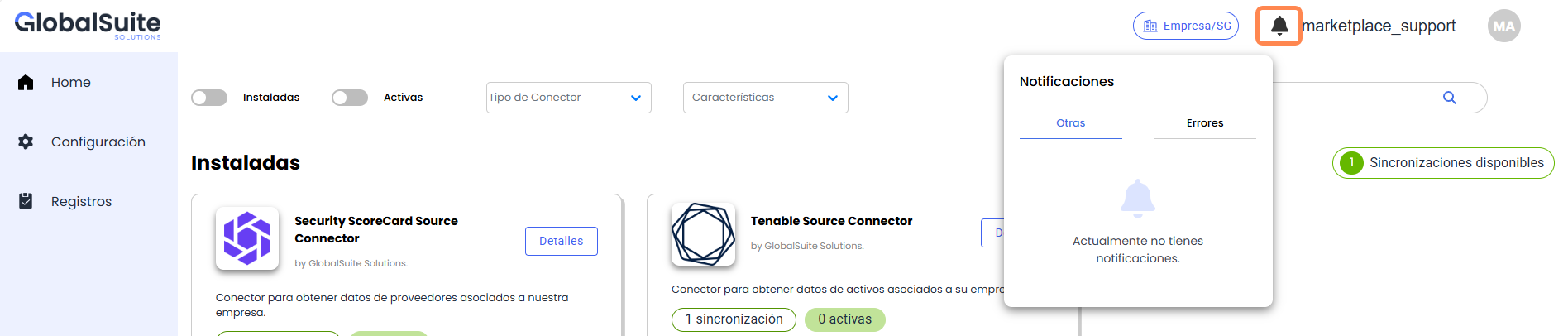
The history of these notifications can be consulted at any time in the Logs section.
List of Connectors
In this Home view, it is possible to see the connectors available in the Marketplace.
There is the possibility to apply various filters and searches to locate the ones of interest.

-
Installed: If selected, it will only show the connectors that have some saved configuration in the Marketplace (whether active or inactive).
-
Active: Connectors currently running.
-
Connector Type: Allows narrowing down the list of connectors based on whether they are for reading (Source) or updating (Sink).
-
Features: Allows filtering and searching connectors by scope or related keywords.
-
Search Field: Allows searching by free text in any section of the connector to locate the ones of interest.
Types of connectors
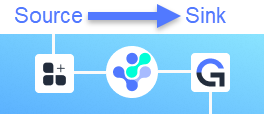
Within the Marketplace, there are two main types of Connectors, related to each other:
-
Source Connectors (reading): These connectors will periodically obtain information from the source application.
These connectors will mainly be from third-party applications or systems, to load that information into GlobalSuite. -
Sink Connectors (synchronization/update): These connectors allow reading information from these source applications, for which you must choose from which connector the data will be read, and they allow
These connectors have greater power and configuration capacity, as they:-
Allow choosing the configuration or field mapping where the information will be stored in GlobalSuite, due to its high parameterization capacity.
-
Allow deciding what to do with records that are no longer in the source application (keep them, delete them).
-
Installed Connectors and Available Synchronizations
If there are installed connectors, they will be displayed first, and they will also indicate how many synchronizations of that type have been created and how many are active:
-
Created Synchronizations: Instances of the connector with an existing configuration (both active and inactive).
-
Active Synchronizations: Instances of the connector that are activated and running, executing at the indicated frequency. These count towards the limit of available synchronizations in the licensing.
Connector Information
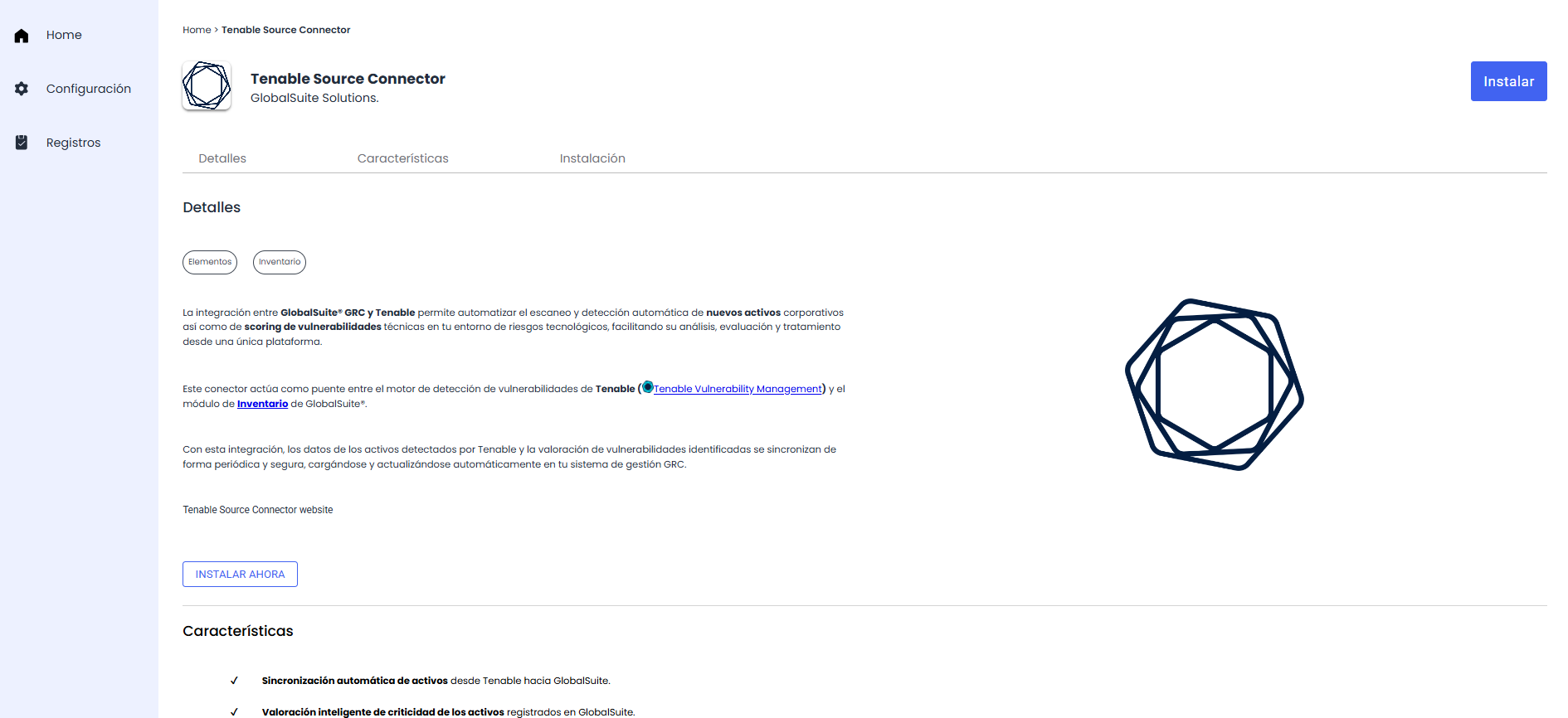
When accessing a connector in the Marketplace, the information is displayed in different sections:
-
Tags: Allows identifying the connector based on its type or related keywords.
-
Details: Explanation of the use case implemented in the connector.
-
Features: List of the most important points included in the connector, including the benefits it provides.
-
Installation: Guide or summary of the steps to follow and parameters needed to activate the synchronization.
Instances of Already Installed Connectors (Ongoing Synchronizations)
When a connector has created synchronizations, within the form there is a first section with the existing instances, allowing actions to be performed on them:
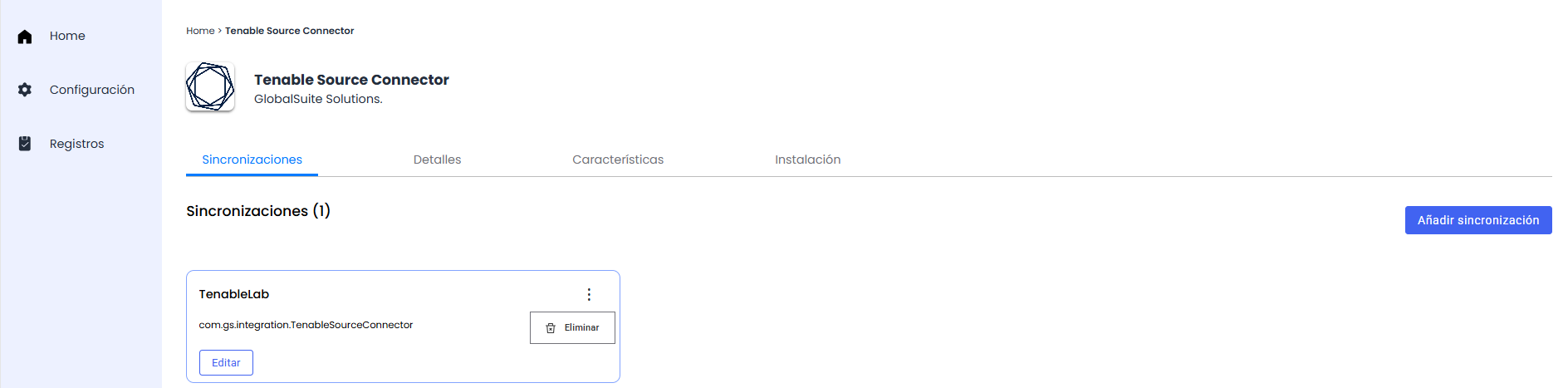
By clicking the Edit button, you will access the form (for Manual Synchronization) to modify some of the configuration parameters.
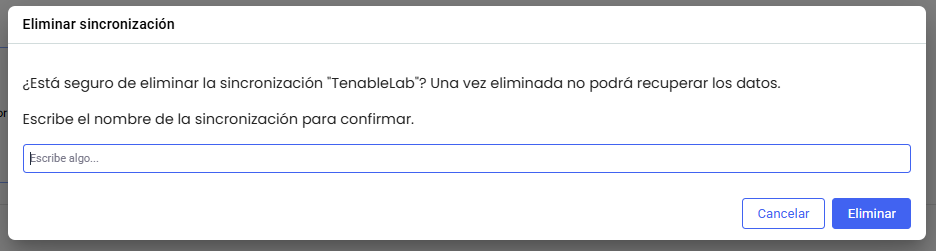
It will also be possible to Delete this instance, in which case a confirmation message will be displayed to ensure no accidental deletions occur.
Activation of a New Connector
If you want to activate a connector, you can do so from its details, using the Install Now button.
This will only be possible if the Synchronization Limit defined in the licensing has not been reached.
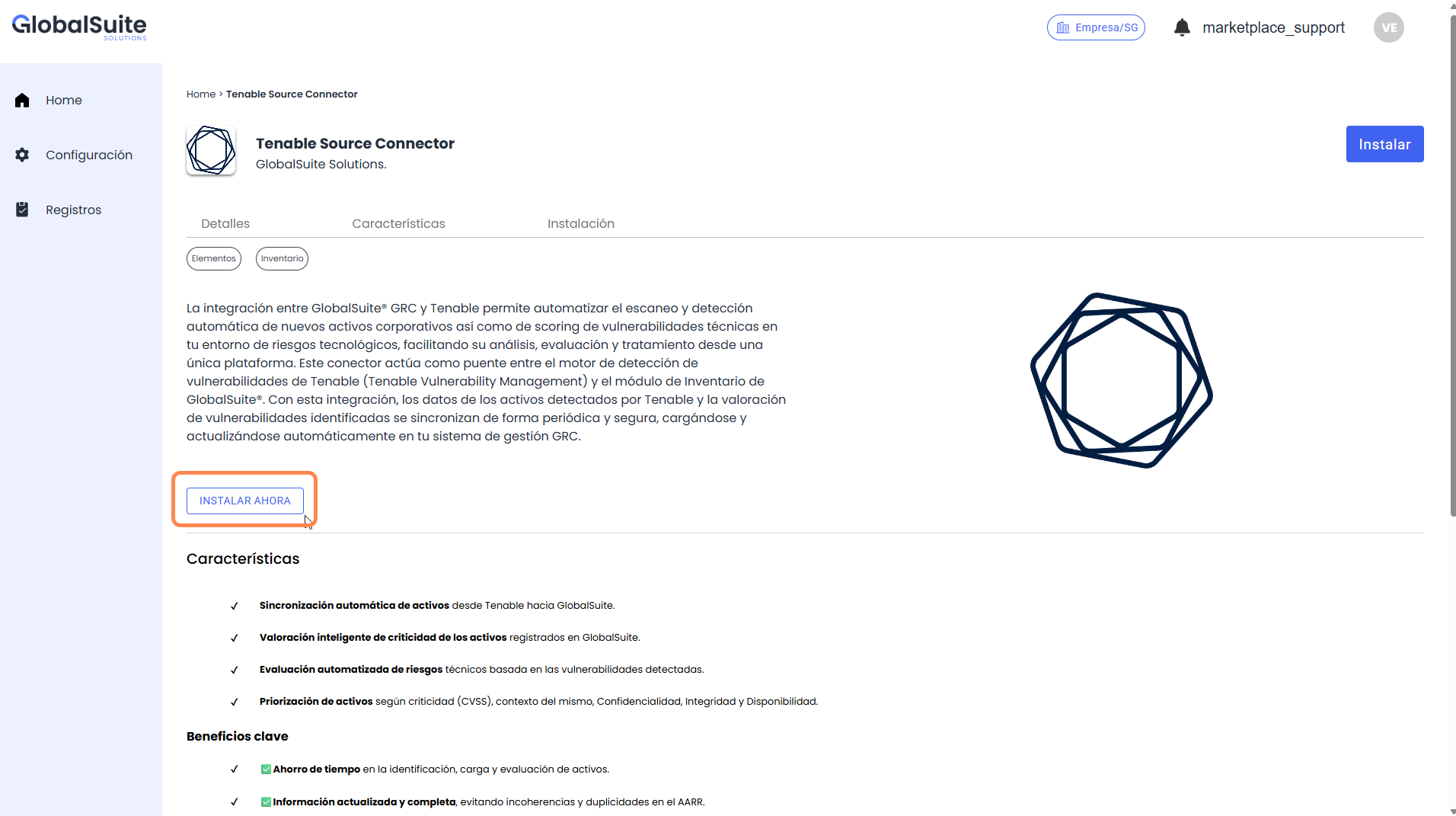
There are two ways to configure and activate a new Connector. You can see the explanation of each in the corresponding section:
-
Automatic Synchronization: Used to directly load a pre-defined configuration in JSON format.
-
Manual Synchronization: Allows configuring through a guided form, the necessary fields for synchronization, including authentication mechanisms, mappings, update frequency, etc.