
NOTE: This option is available for Global Administrator, Administrator, and Consulting users. The latter can only create users of the "Manager" type.
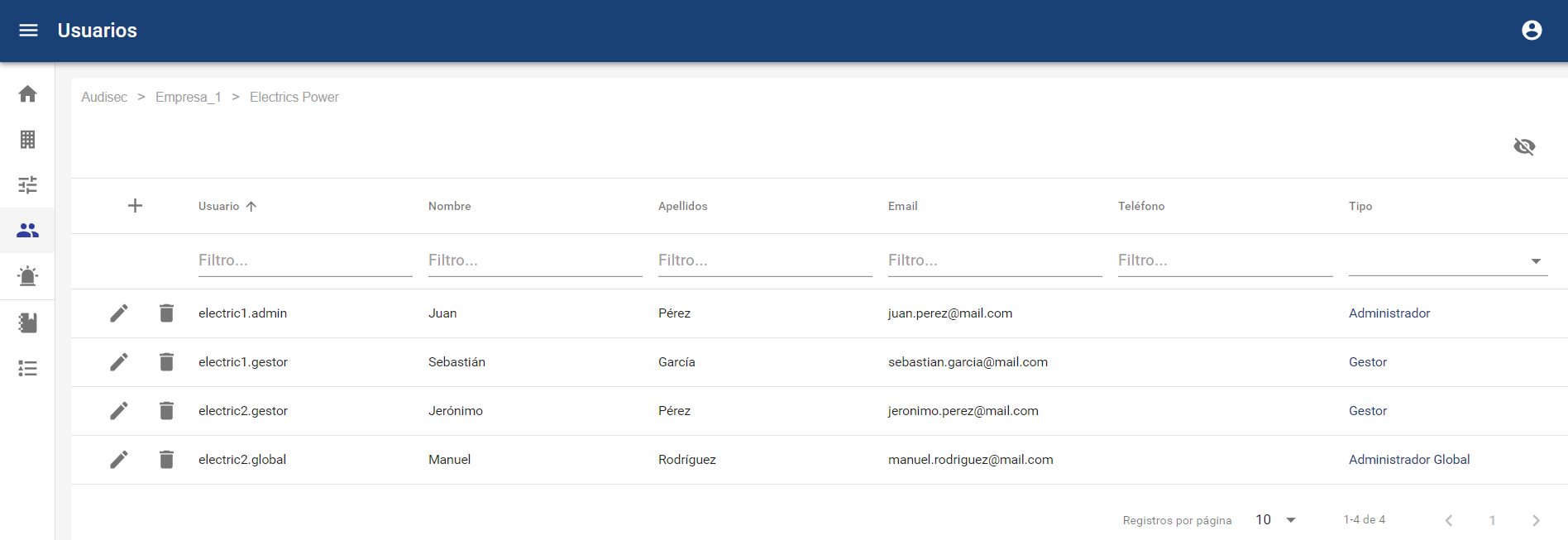
In this type of company, it is possible to create three types of users:
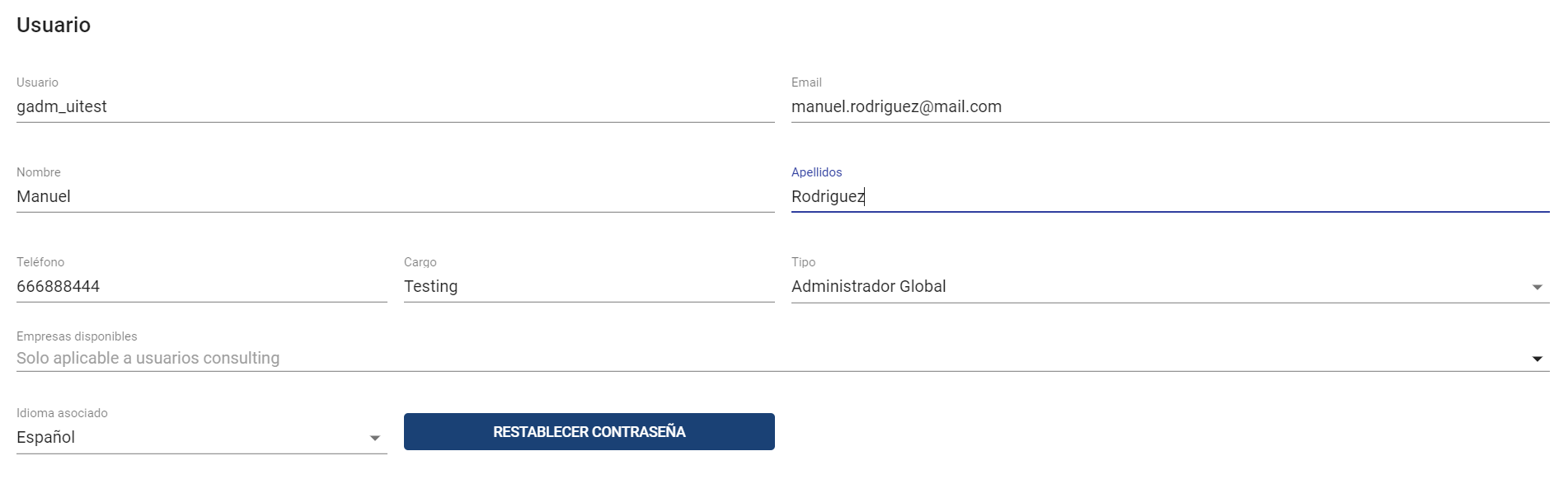
Global Administrator
This is the user role with all permissions to manage and configure the environment. Additionally, it will have access to view and manage communications. It can assign reports to managers.
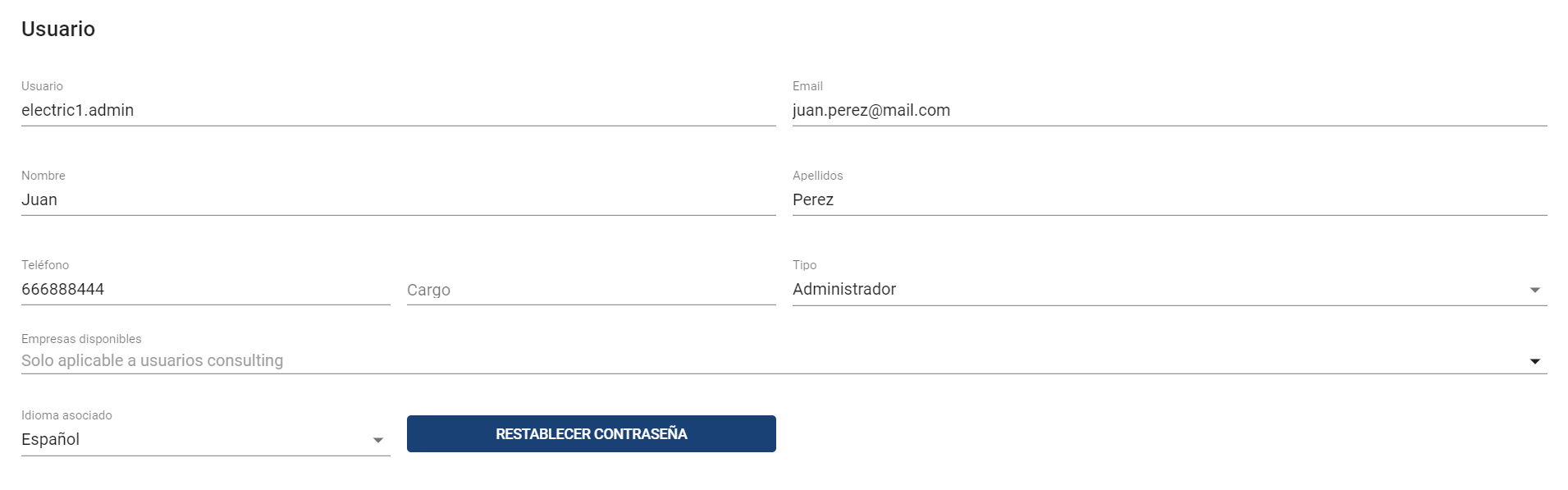
Administrator
This is the user role with all permissions to manage and configure the environment. Unlike the previous role, it will not have access to view communications or assign them to managers.
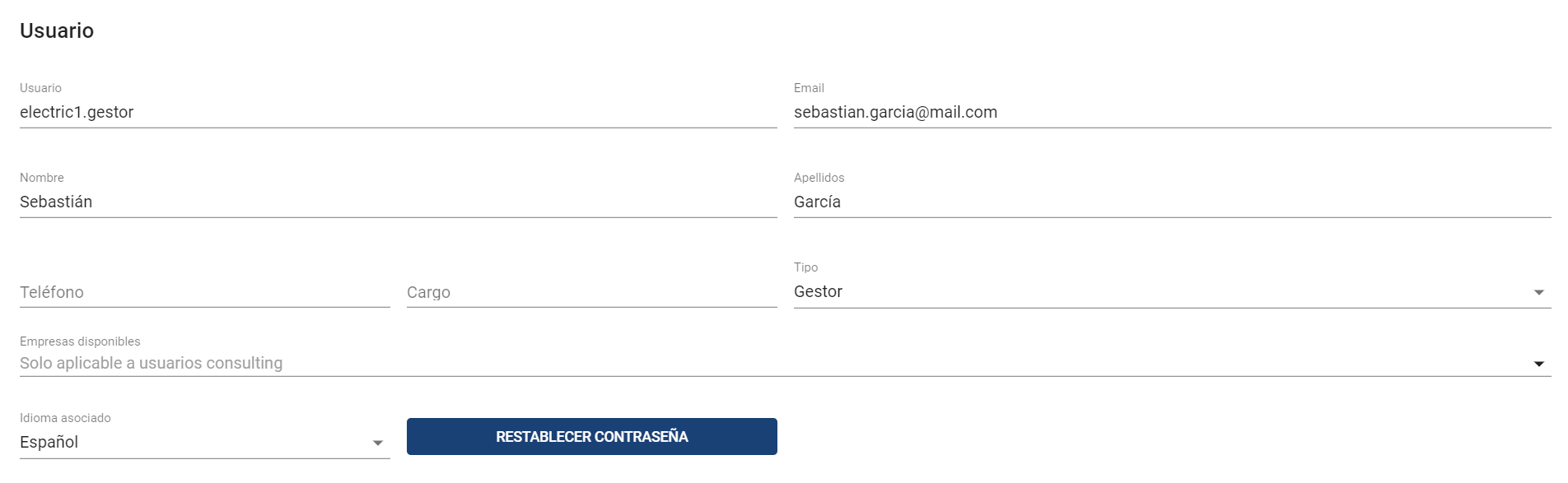
Manager
This is the role that allows the management of communications. Initially, it will not have access to any communication; a Global Administrator or a Consulting user will need to grant access to the communications that need to be managed.
Notifications:
-
You will receive notifications when new communications are assigned to you.
-
You will receive notifications when communications previously assigned to you are unassigned.
Reset Password
It is possible to reset a user's password through the corresponding button available in their profile. By pressing it, a new temporary password will be generated and sent to them via email (the user must change it on their first login).
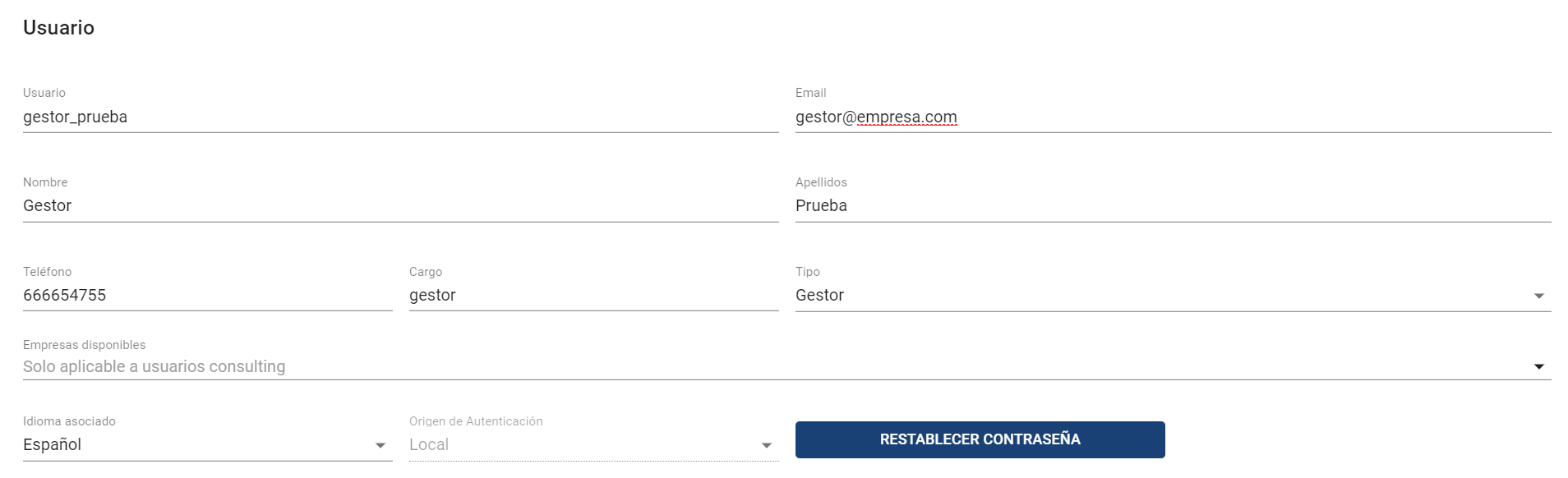
This is only possible for users who access through local authentication (with a username and password specific to the application).
The entered passwords must comply with the following secure password policy for local users:
-
Expiration: passwords will have a maximum expiration of 180 days (6 months).
-
Complexity: Must have at least 13 characters and contain lowercase letters, uppercase letters, numbers, and symbols ($, &, @, ., #).
-
Password history: When requesting a password change, the new one must be different from the current one and must not match the last five passwords used.
-
User lockout: After a number of consecutive failed attempts during the authentication process, the user will be temporarily locked out.
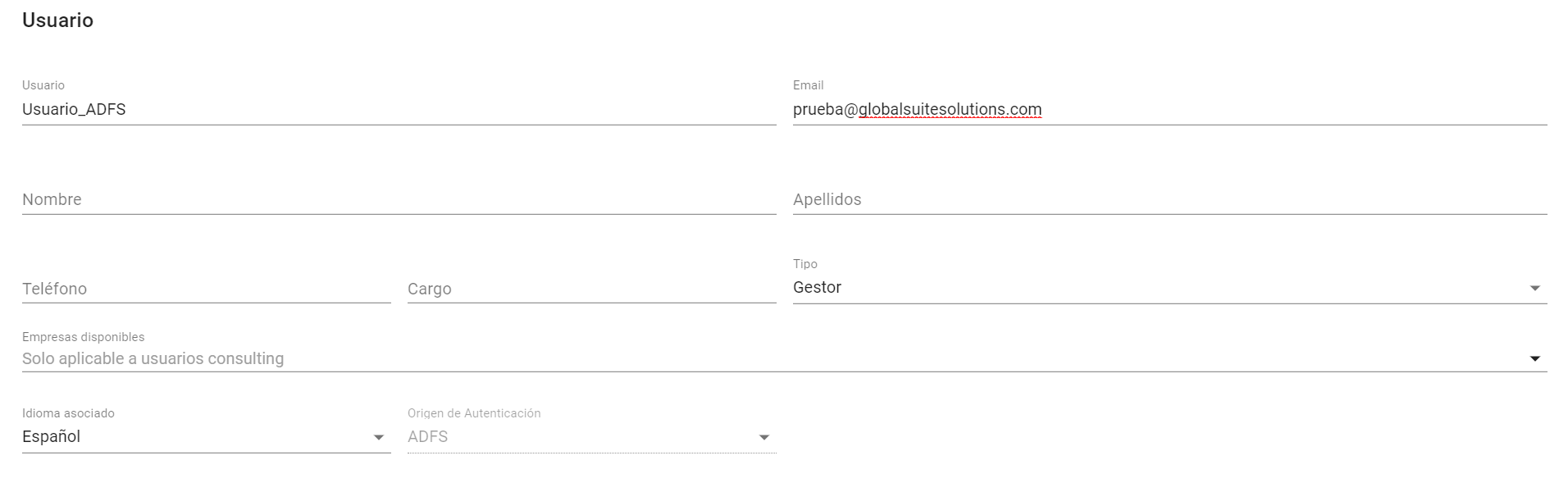
If the user has authentication through another mechanism (such as ADFS), the password cannot be reset.
Notifications
Apart from the notifications that Managers receive when a communication is assigned to them, all user types will receive the notifications configured in each environment (see section Settings).
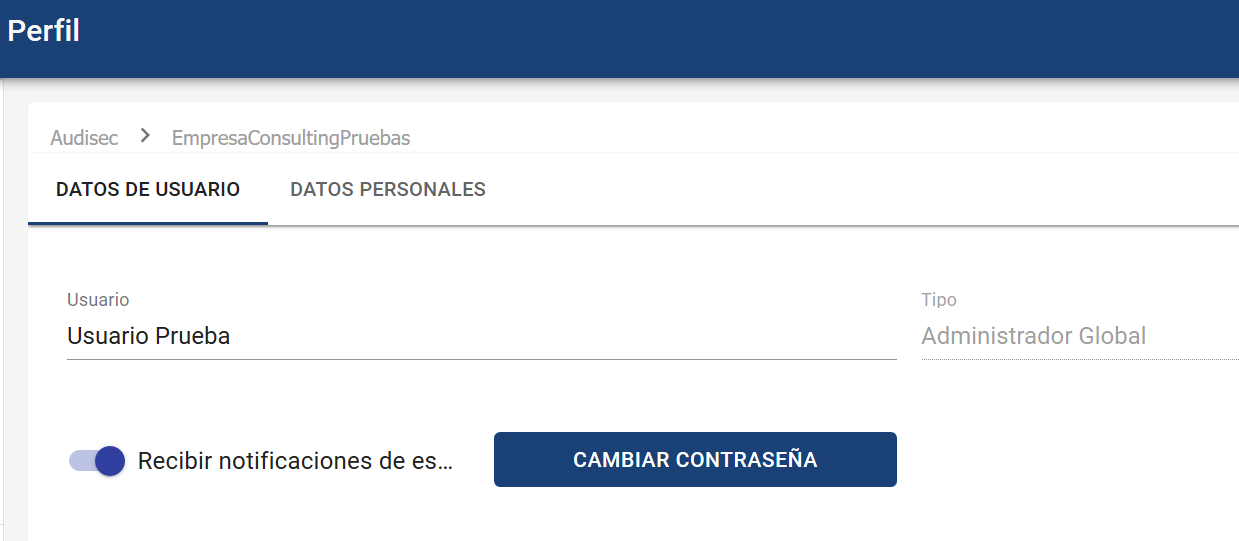
In any case, each user can centrally disable the notifications they receive in the My Profile section, as well as change their password:
Two-Factor Authentication
Allows enabling the Two-Factor Authentication option when it is enabled in the Settings but not mandatory.

-
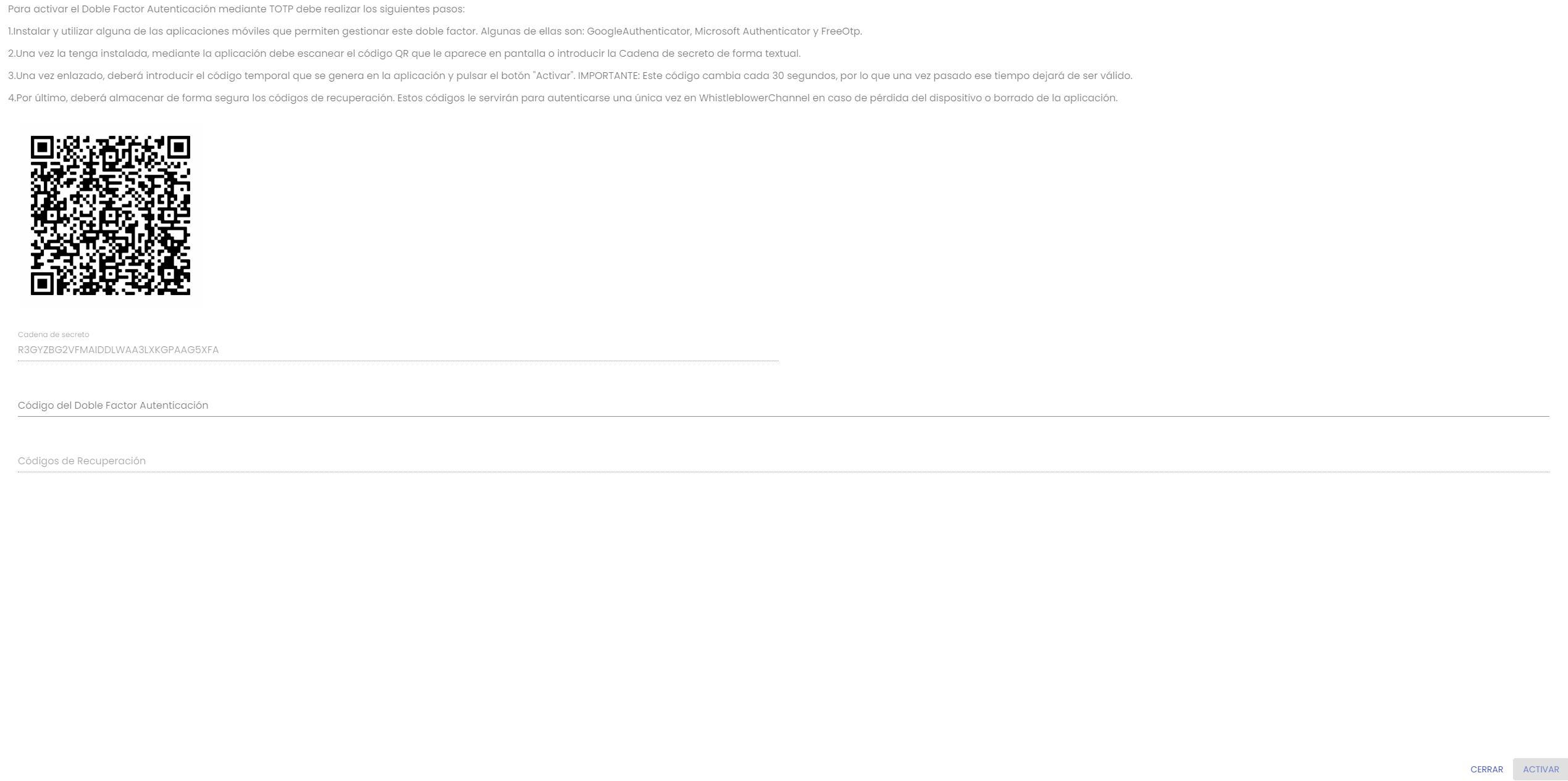
You must press the "ACTIVATE" button and follow the steps indicated on the screen.
-
Once the indicated steps are completed, you must press the "ACTIVATE" button. Recovery codes will be generated, which can be used in case the device or application generating the codes is lost. Each of these codes is single-use.
-
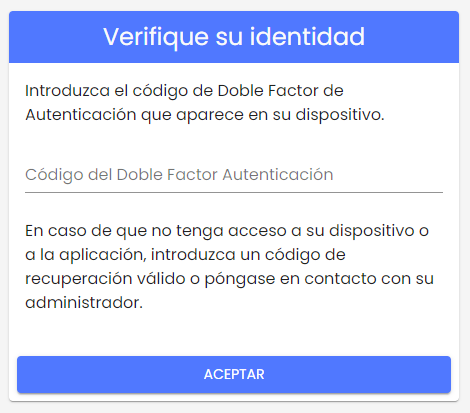
When the user logs back into the Whistleblowing Channel, they will be asked to enter a code. To do this, they must go to the application that generates it and enter the code displayed on the device's screen.
-
If you want to deactivate Two-Factor Authentication, you must go back to your Profile and press the "Deactivate" button.
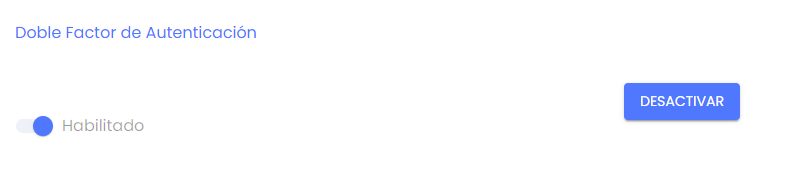
NOTE: If Two-Factor Authentication has been configured as mandatory, it cannot be deactivated.
Conflict of Interest
Additionally, when the Conflict of Interest is enabled in the Settings > Questions section, it is possible to configure which users with access to reports (the Global Administrator, Manager, or Consulting roles at a higher organizational level in case of multiple channels) will be included in the conflict of interest and visible to the whistleblower.
To do this, by accessing the form of these users (except for those with the Administrator role, who in no case have access to reports), it will be possible to enable or disable their susceptibility to having a conflict of interest.
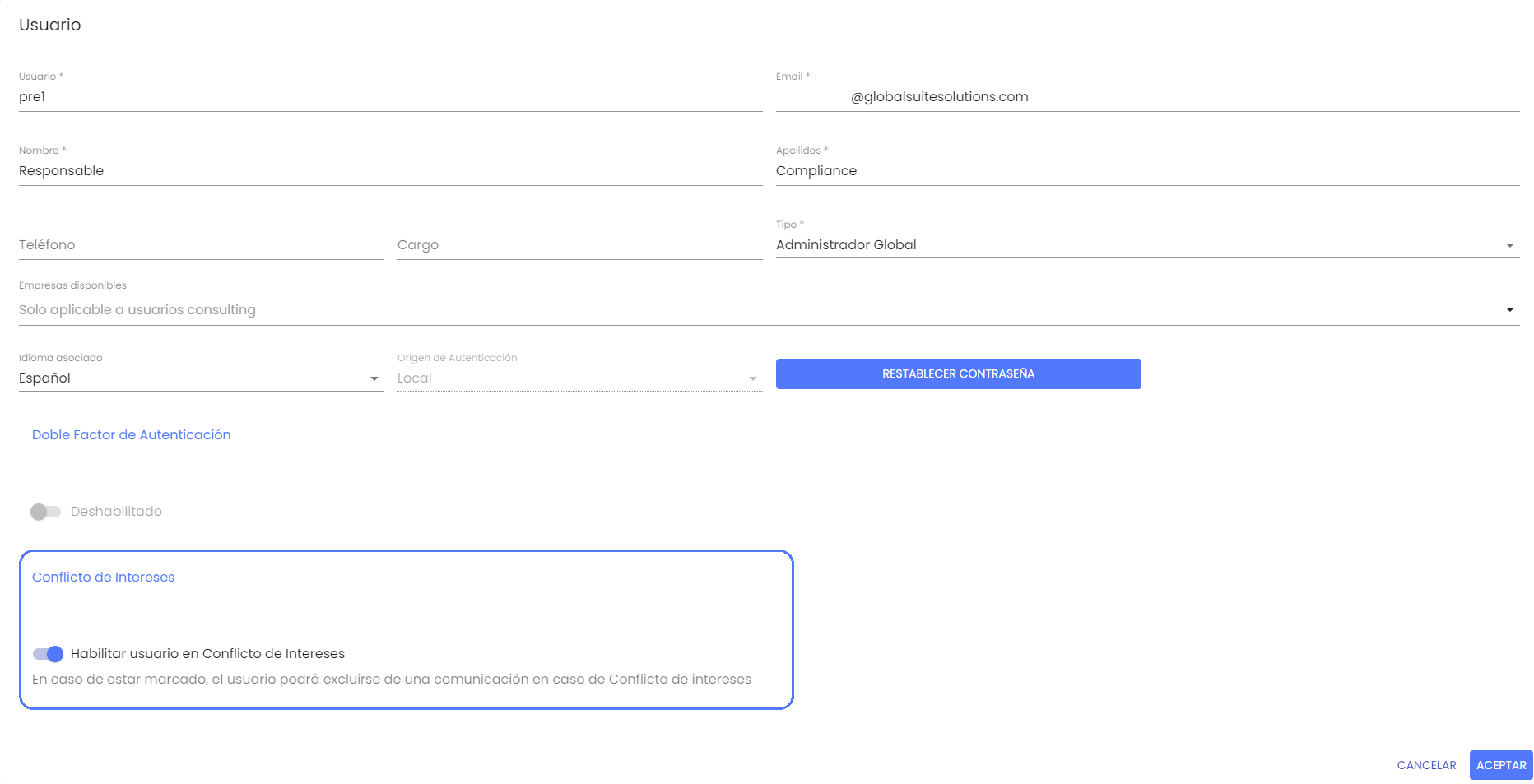
This is to ensure that independent or third-party users who are not involved do not appear to the whistleblower.