
List of Expired Communications
This option allows viewing the entire list of communications that are expired, meaning those that were registered before the deadline (in days) configured in the section Settings > System.
In this first view, we can see the communication ID, Managers assigned to the communication, Current status, and Creation date.
The fields in this section are as follows:
-
Identifier, an alphanumeric code randomly generated by the system.
-
Managers, the people assigned to the communication who can access its management.
-
Current status, the different statuses of the communication. They can be as follows:
-
Pending
-
Processed
-
Investigating
-
Resolved → Status in which the communication is locked except for the status dropdown, which can be modified to reopen the communication.
NOTE: These statuses are proposed by default but can be modified in the section Consulting Settings
-
-
Category, displays the category (or categories, if multiple assignment is allowed) assigned to each communication.
-
Registration date, the day the communication was created.
-
Questions from the communication form. Questions configured in the section Consulting Settings (Questions) can be added, which can be consulted, filtered, or downloaded in this view.
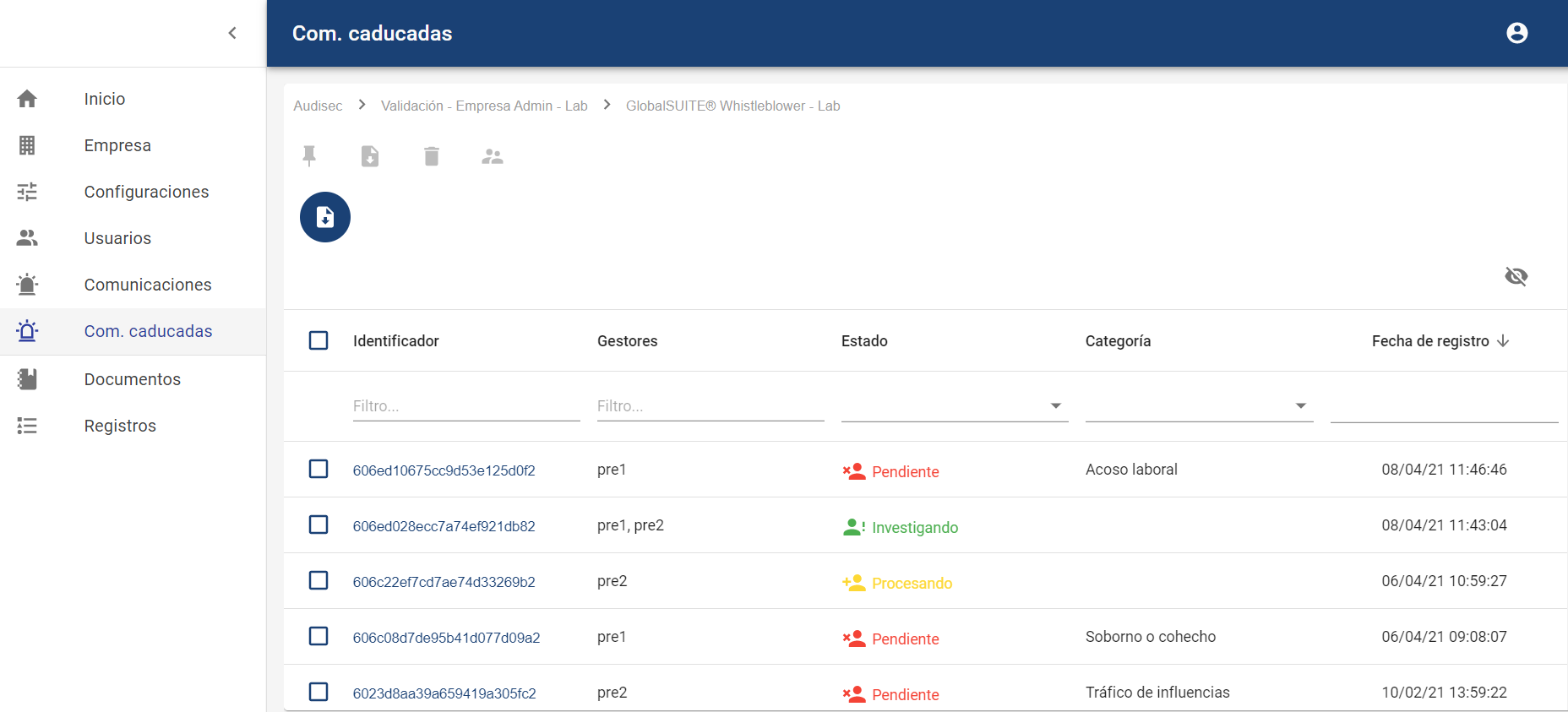
It is possible to download the list of expired communications through the button 
that appears at the top, in CSV format, for storage or further processing. This report takes into account the filters and column selection applied to the view.
In this view, multiple communications from those that are expired can be selected.
For these selected communications, it is possible to mark them so they do not appear in this view by clicking the "Keep Communications" button. Once clicked, they will disappear from the expired communications view but will still appear in the general Communications view.
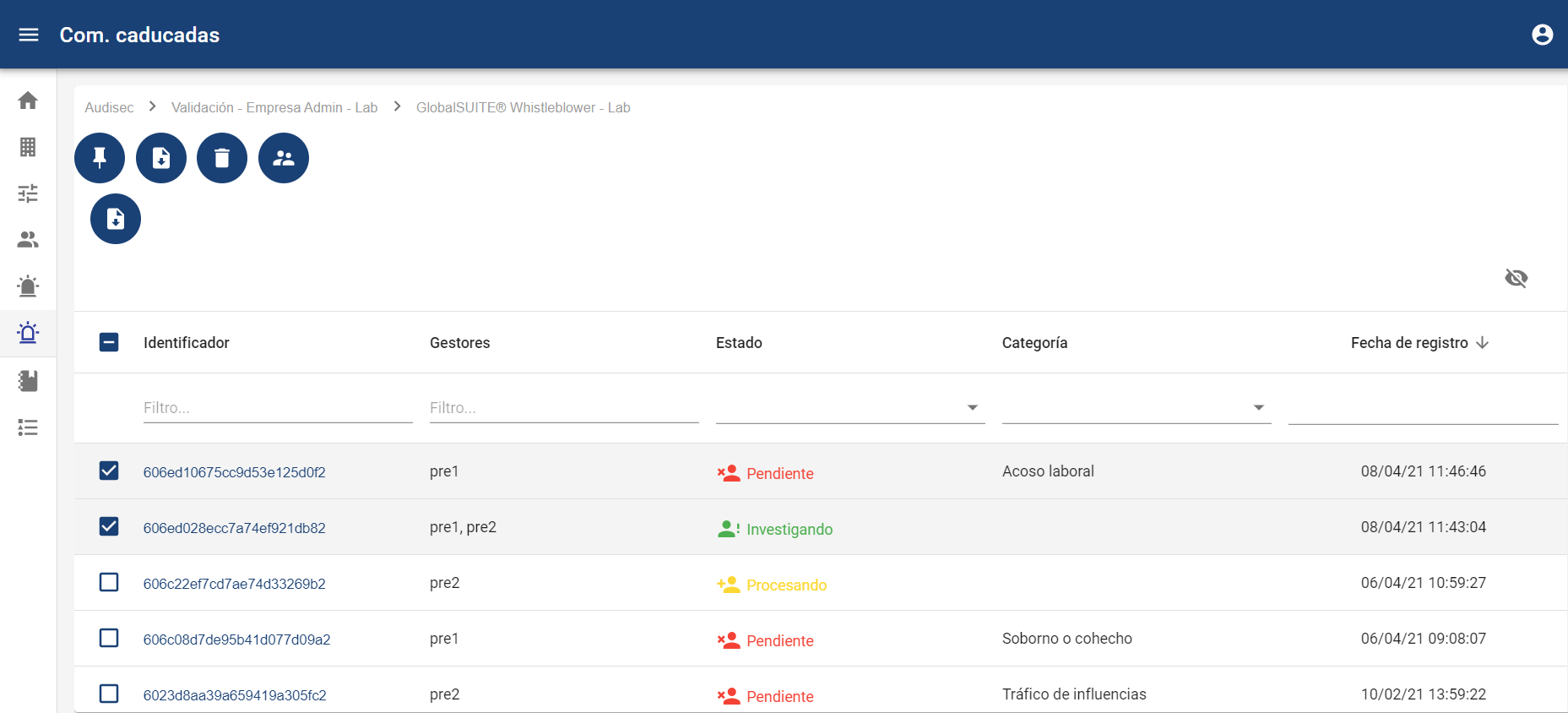
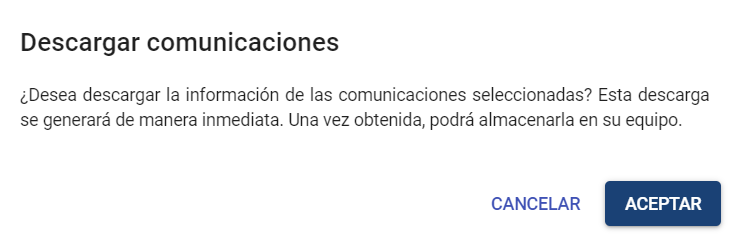
Similarly, it is possible to download these selected communications by clicking the "Download Communications" button.
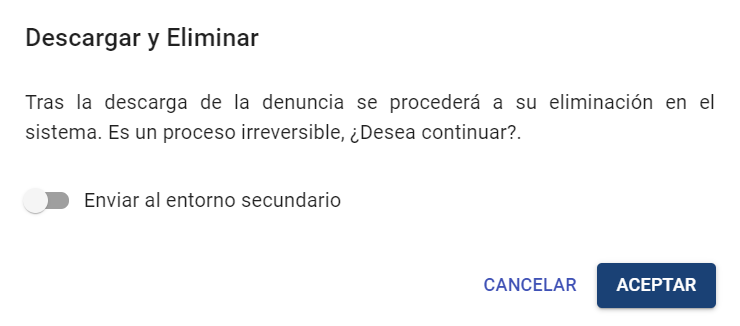
As well as permanently delete the selected communications using the "Download and Delete Communications" button.
If the Secondary Environment is enabled (see Settings), in the confirmation request, it will be possible to mark that before deleting the communication, it should be sent to the enabled secondary environment.
Finally, we can access the details of the communication by clicking on the link that appears in the "Identifier" column, and manage them individually.