
NOTE: This option is available for Global Administrator, Consulting, and Manager users.
Communications List
This option allows viewing the entire list of channel communications. In this initial view, we can see the communication ID, Managers assigned to the communication, its current Status, and Creation Date.
The fields in this section are as follows:
-
Identifier, an alphanumeric code randomly generated by the system.
-
Managers, the people assigned to the communication who can access its management.
-
Current status, the different statuses of the communication. They can be as follows:
-
Pending
-
Processed
-
Investigating
-
Resolved → Status in which the communication is locked except for the status dropdown, which can be modified to reopen the communication.
-
Open → This is a filter applied by default when entering this view, showing all communications that are not in the Resolved status (they are pending or in process).
-
NOTE: These statuses are proposed by default but can be modified in the Consulting Settings section.
-
Subject: displays a summary or code to facilitate the management of the communication if the option is enabled in Settings > System. Additionally, searches can be performed on it to simplify its identification or location, and it will be included in the CSV download available in this view.
NOTE: If the subject field is completed with the same value as another communication, the system will display an informational warning but will allow you to proceed.
-
Managers: displays the manager or managers assigned to the communication.
-
Excluded Administrators: If the Conflict of Interest is enabled in the Settings > Questions section, it will show which users have been excluded from the communication and do not have access to it.
-
Category, displays the category (or categories, if multiple assignment is allowed) assigned to each communication.
-
Creation Date, the day and time the communication was created.
-
Communicator: the email of the communicator can be viewed for non-anonymous communications. Additionally, it can be filtered by this field, and it will be included in the CSV download available in this view.
-
Questions from the communication form. Configured questions from the Consulting Settings (Questions) section can be added, which can be consulted, filtered, or downloaded in this view.
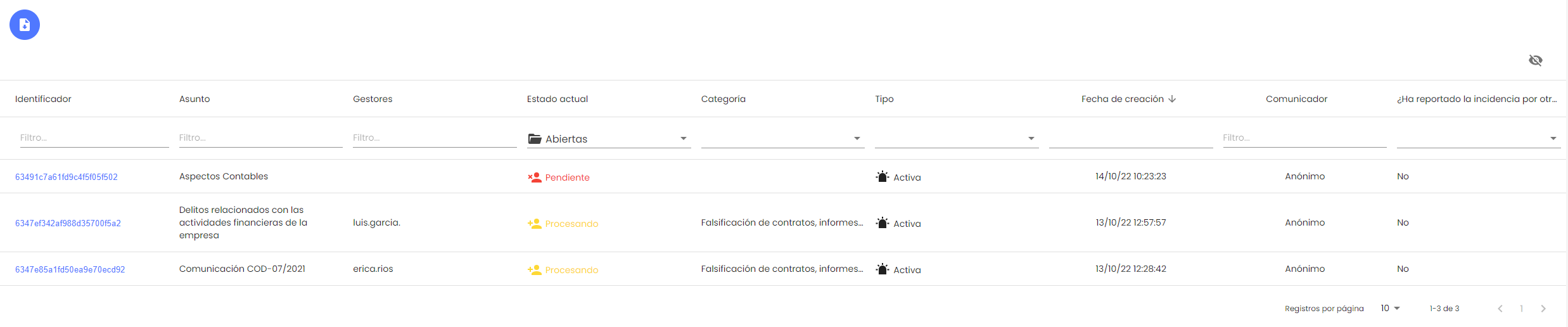
In addition to these columns that appear visible by default, it is possible to display an additional column called "Type." This column can be viewed with the icon 
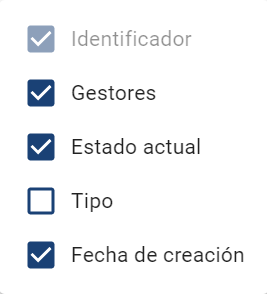
The Type column allows filtering communications by the following parameters:
-
Active → These are communications that are in the process of being managed.
-
Anonymized → In these communications, the anonymization process has been carried out to remove personal data.
-
Archived → These are communications that have exceeded the defined maximum period and have been marked to remain in the environment from the Expired Communications section.
-
Anonymized and Archived → These communications, which exceeded the defined maximum period, have been marked to remain in the environment, and the personal data they contained have also been anonymized.
NOTE: The columns that have been selected or hidden will remain so throughout the session.
It is possible to download the list of communications through the 
General view of the Communication, Status, Communication ID, and communicator/sender.
By clicking the link that appears in the Communication Identifier, the detailed view of the communication will appear.
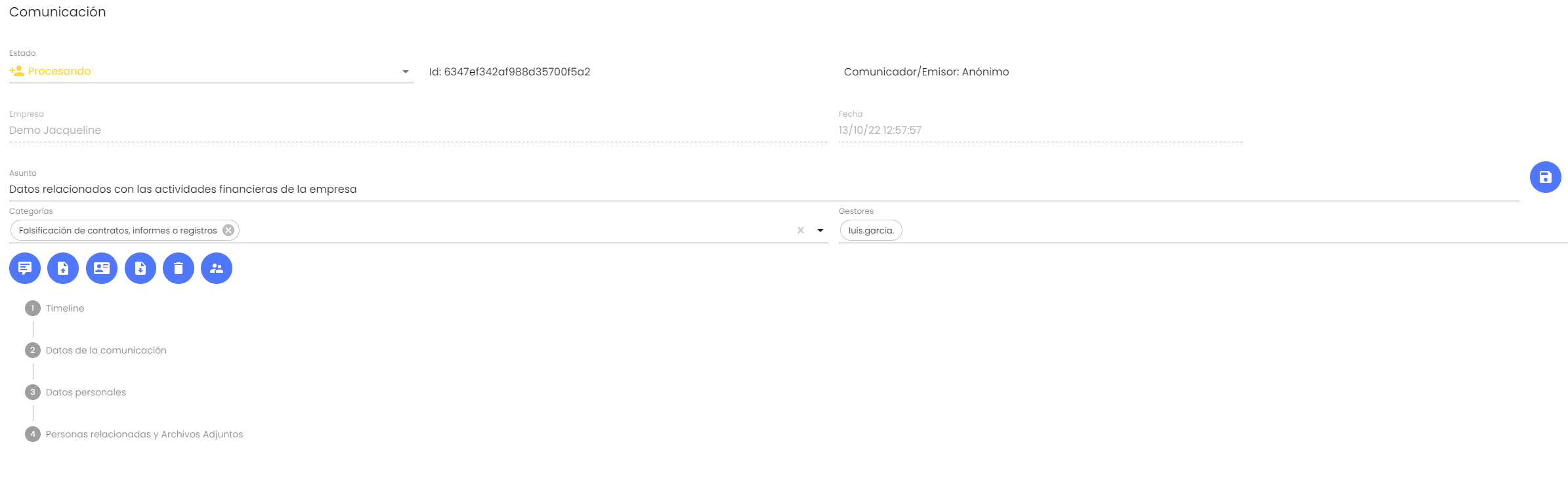
In this section, the communication can be managed. Here, we can see the general form completed by the communicator, responsible persons for the incident, informants, and attached documentation.
The "Subject" field can also be used to indicate a summary or code to facilitate the management of the communication if enabled (in Settings > System). This field will be visible in the main Communications list, and searches can be performed on it to simplify its identification or location. Additionally, if enabled, it will also be included in the reports that can be obtained from the tool, both in CSV format and the detailed PDF report of a case.
The communication can also be transitioned to another status, or categories can be assigned and removed from the communication, if enabled.
Additionally, we will have four buttons for:
-
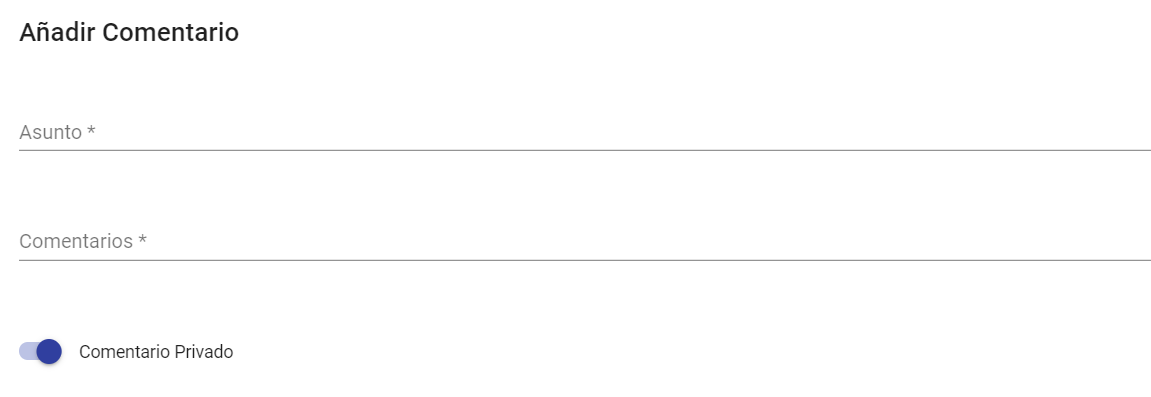
Add Comment → Comments can be made on the management of communications, which will be reflected in the Timeline. This comment can be made visible to the Communicator/Sender if the "Private Comment" checkbox is unchecked, in which case it will be visible in their Timeline. If the checkbox remains checked, it will only be visible to the communication managers, as it is a Private Comment.
-
Attach Documentation → Documentation can be attached for the management of communications, which will be accessible from the Timeline. If we want the document to be downloadable by the Communicator/Sender, we must uncheck the "Private Comment" checkbox. Otherwise, it will only be available to managers and administrators of the environment.
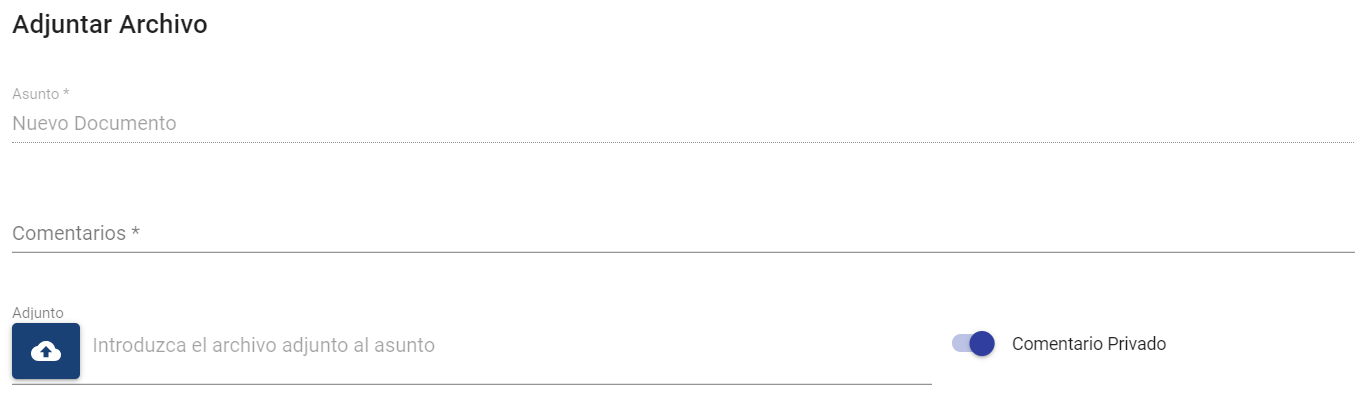
The files that can be included in the communication must be of one of the allowed types:
.7z, .ac3, .avi, .bmp, .bpm, .bpmc, .csv, .doc, .docx, .dot, .jpeg, .jpg, .mgr, .mkv, .mov, .mp3, .mp4, .mpp, .mpt, .msg, .odg, .odp, .ods, .odt, .pdf, .png, .pps, .ppsx, .ppt, .pptx, .rar, .rtf, .txt, .vsd, .vst , .wav, .wma, .wmv, .xls, .xlsm, .xlsx, .zip
If the comment or attachment is not marked as private, the Communicator/Sender will see it in their Communication Timeline.
The name of the responsible person who added it will appear or not, depending on the Configuration (System / Communications).
-
Manager Management → Allows assigning or unassigning a communication to a manager for them to handle it. (Only Global Administrator and Consulting users can do this). It is also possible to see the managers assigned to a communication without opening the selection window.
Within this list, users with the Consulting Manager role belonging to the parent company and assigned to this channel will also appear, if any. These users will only see the communications assigned to them with this button.
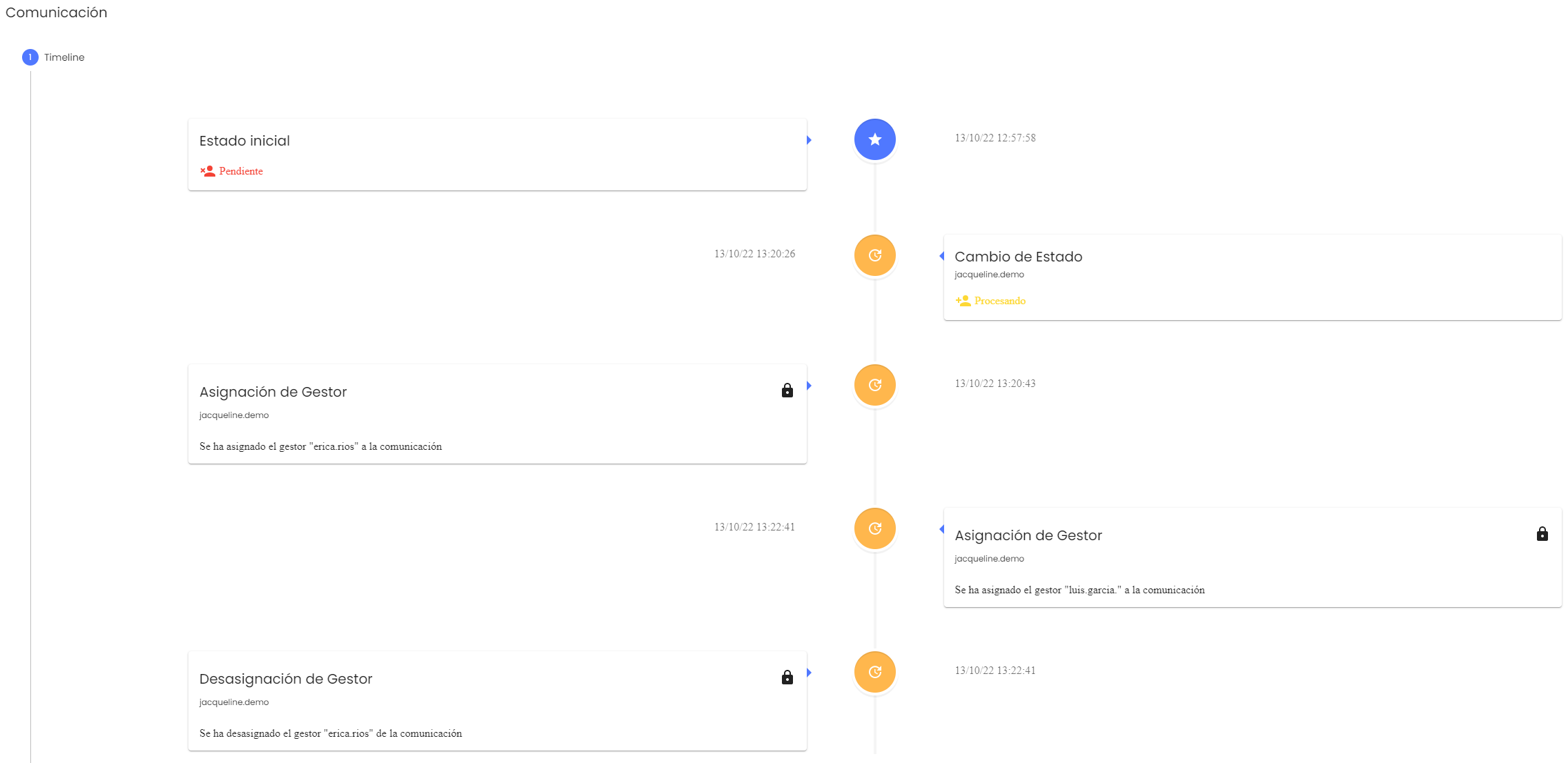
The action of assigning or unassigning a manager from the communication will generate an entry in the Timeline of the same, to visualize when it was done.
-
Download Communication → Allows downloading all the information of the communication stored in the tool. Once the button is pressed, a confirmation message will appear:
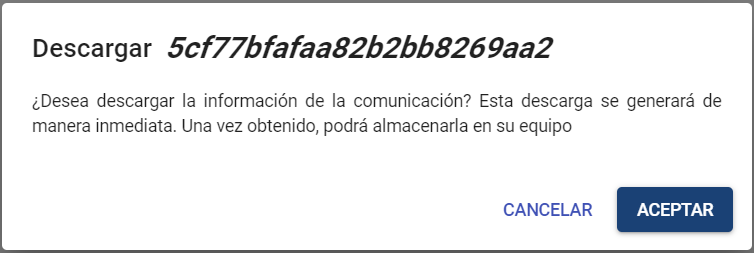
When we accept the message, a .zip file will be generated with all the information of the communication, which includes:
-
-
-
PDF report with all the information provided by the communicator, the Timeline, comments, and list of attachments.
-
In an attachments folder, the attachments provided to the communication will be included.
-
In a commentsAttachments folder, the attachments provided to the communication will be included.
-
-
-
Delete Communication → Allows deleting a communication from the tool, and automatically generates the download of all the information of said communication. Once the button is pressed, a confirmation message will appear:
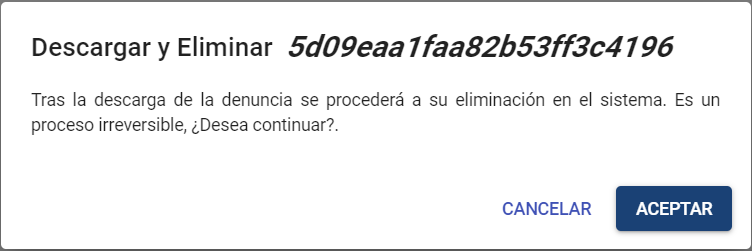
When we accept the message, a .zip file will be generated with all the information of the communication, which includes:
-
-
-
PDF report with all the information provided by the communicator, the Timeline, comments, and list of attachments.
-
In an attachments folder, the attachments provided to the communication will be included.
-
-
Finally, it permanently deletes all the information of the communication from the system, leaving a log record of this action.
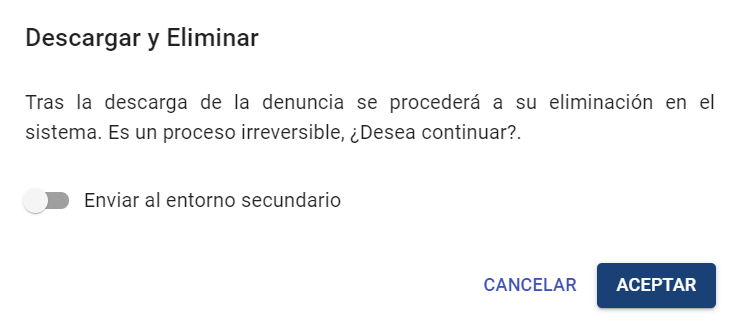
If the Secondary Environment is enabled (see Settings), in the confirmation request, it can be marked to send the communication to the enabled secondary environment before deleting it.
Communication Sections
1 - Timeline
In this tab, we can see the entire progress of the report, with a Timeline of everything that happened, status changes, comments, attached documentation, the assignment of Managers, as well as the detail of which user made each progress.
2 - Communication Data
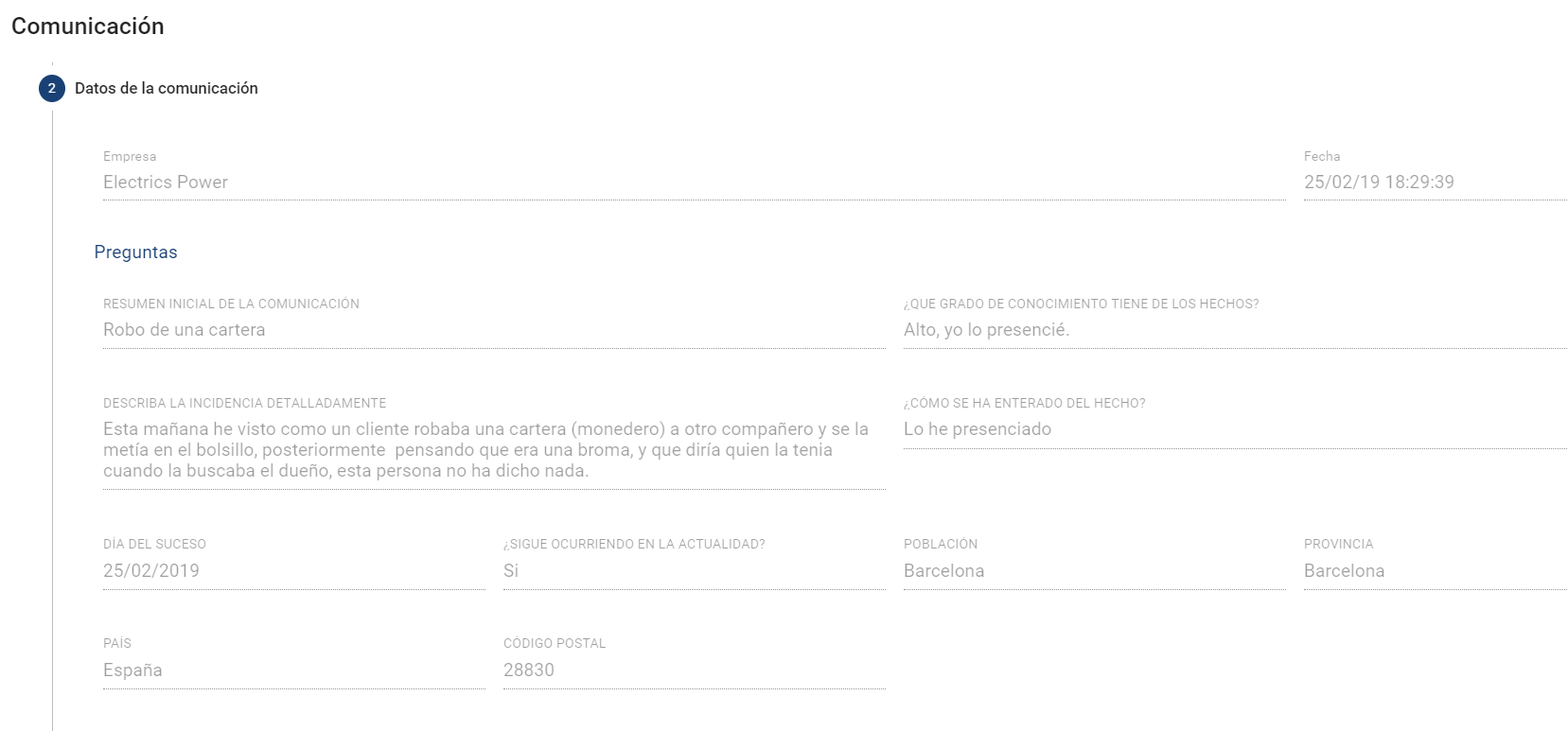
This section refers to the form completed by the person who sent the communication.
Example of a sent communication:
3 - Communicator Data
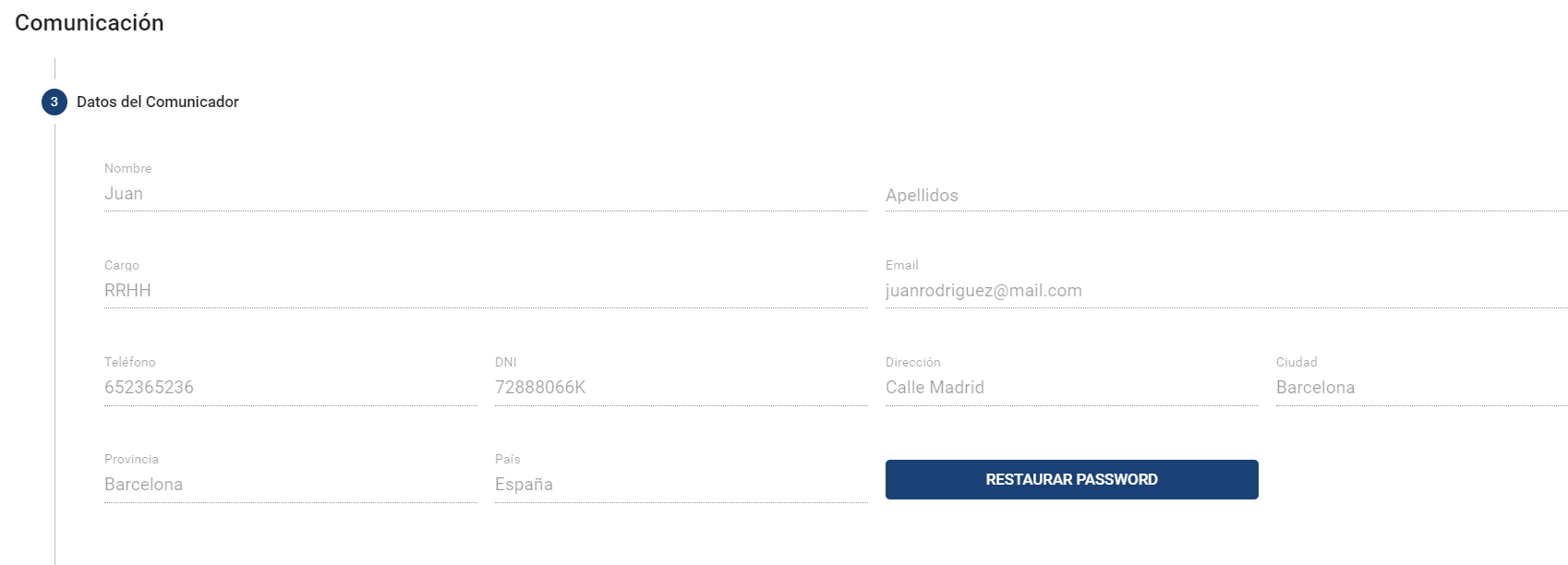
In this section, we can view, if the communication is not anonymous, the data of the person who sent the communication. In the case of non-anonymous communications, we can reset the communicator's password if necessary, in addition to consulting the different fields that the communicator can complete, which are:
-
First and Last Name
-
Position in the company
-
Email (This is the only mandatory field)
-
Phone
-
NID
-
Address
-
City
-
Province
-
Country
4 - Related Persons
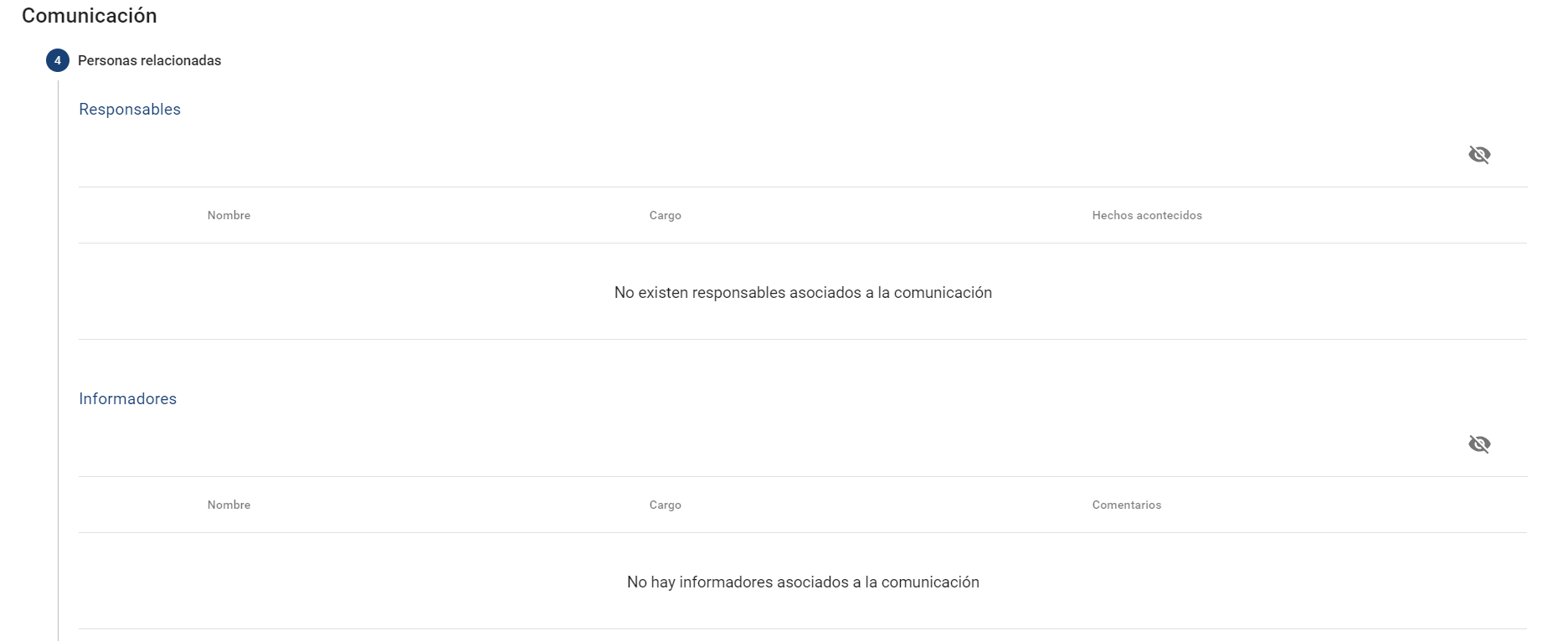
In this tab, we can see the responsible persons added to the communication, the informants, and the files attached to it by the communicator.
-
Responsible Persons → People who participated in the reported incident.
-
Informants → People who might know more about the incident.
5 - Attachments
In this tab, we can see the documentation attached by the communicator at the time of sending the communication.

Anonymization
Once the management of the communication is completed, or if it has exceeded the maximum allowed period (the communication is Expired), it is possible to anonymize the personal data contained in it.
To do this, you will need to click the Anonymization button located in the top menu.
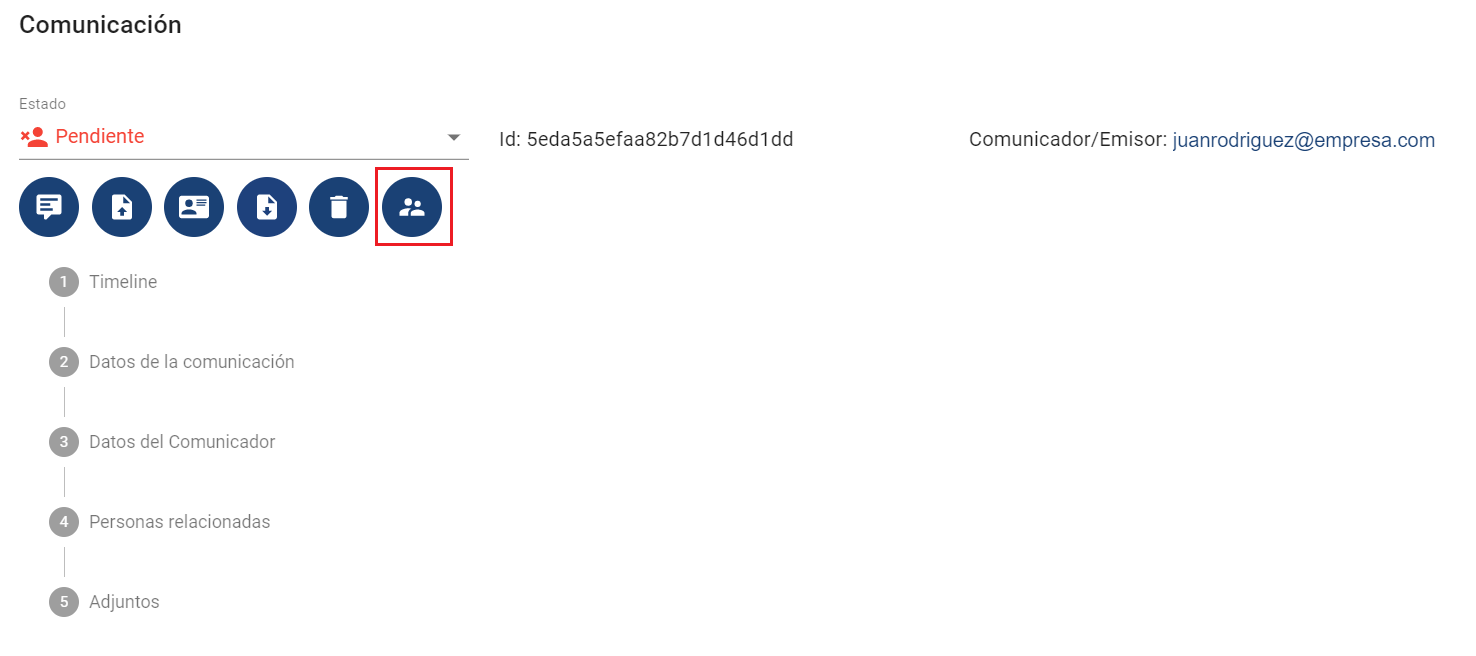
When clicked, a confirmation message will be displayed:
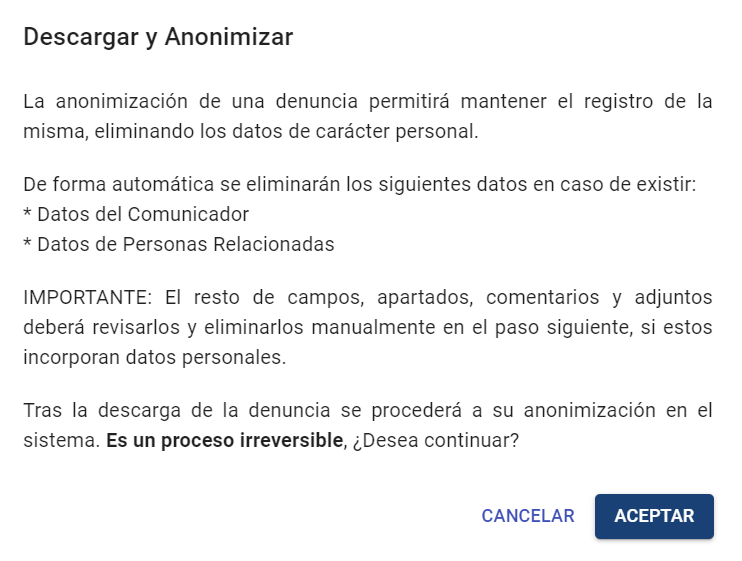
Upon acceptance, the communication will automatically delete the data of the communicator and related individuals, if any.
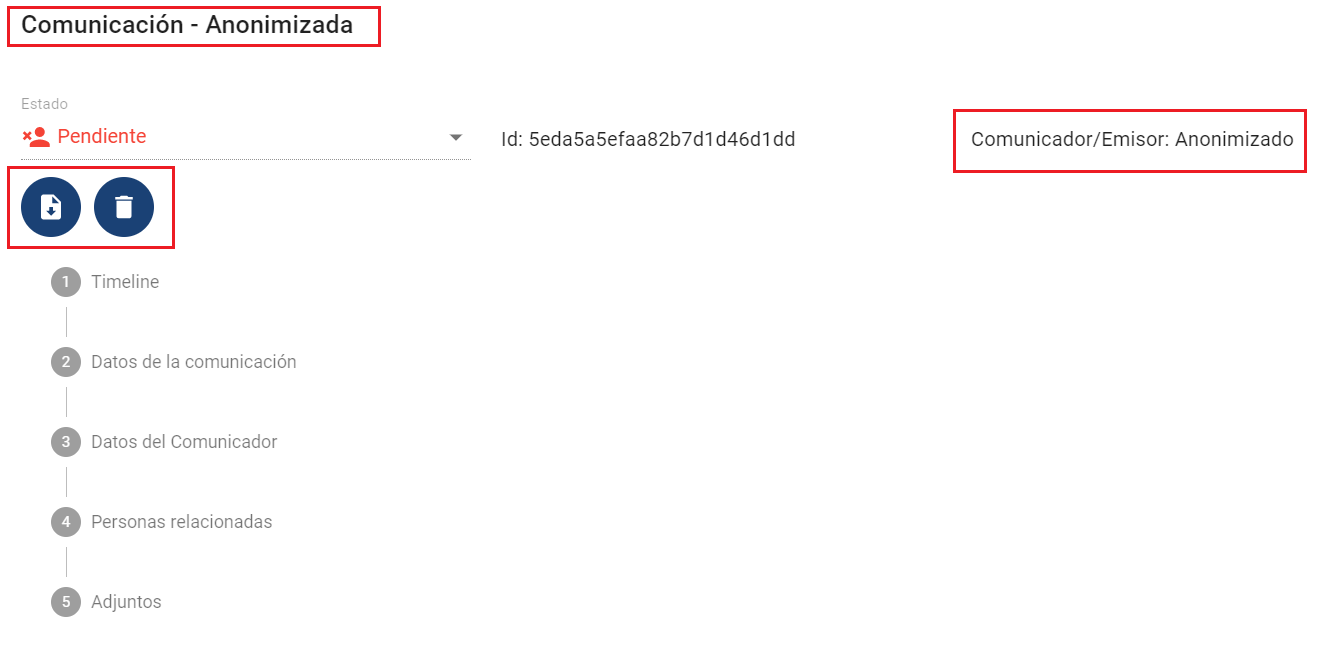
Only the Download and Delete buttons for the communication will then be enabled.
The rest of the fields that may contain personal data must be reviewed manually. However, the fields containing data of these types will be highlighted:
-
Email address
-
NID / NIF
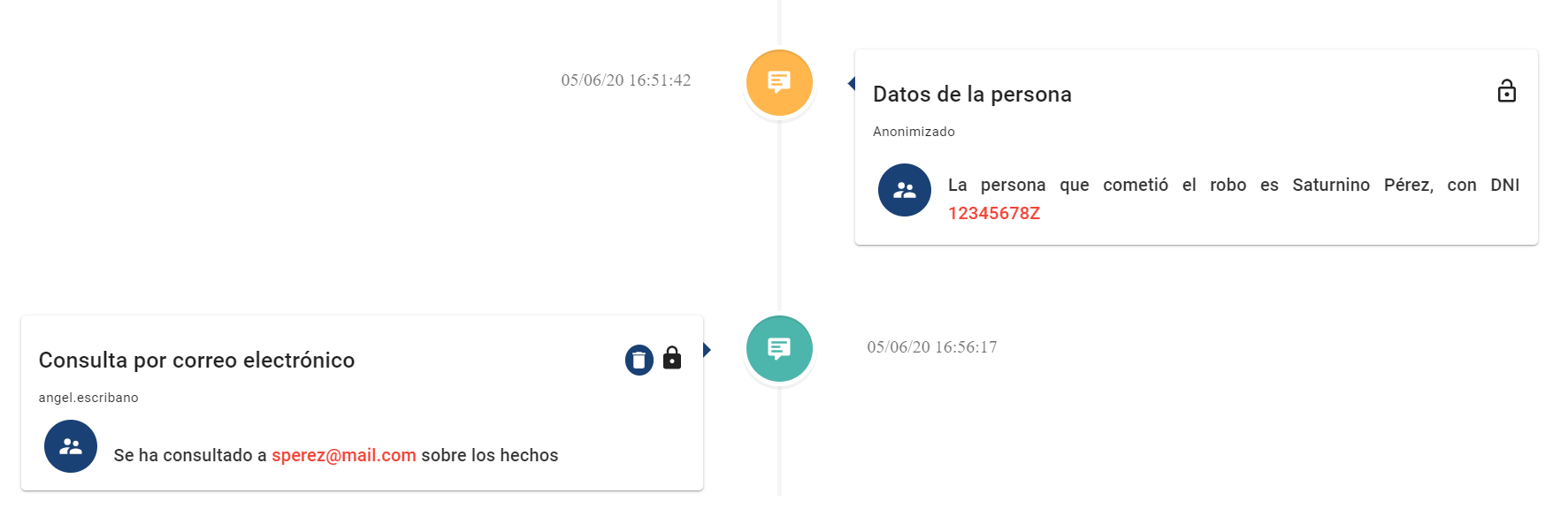
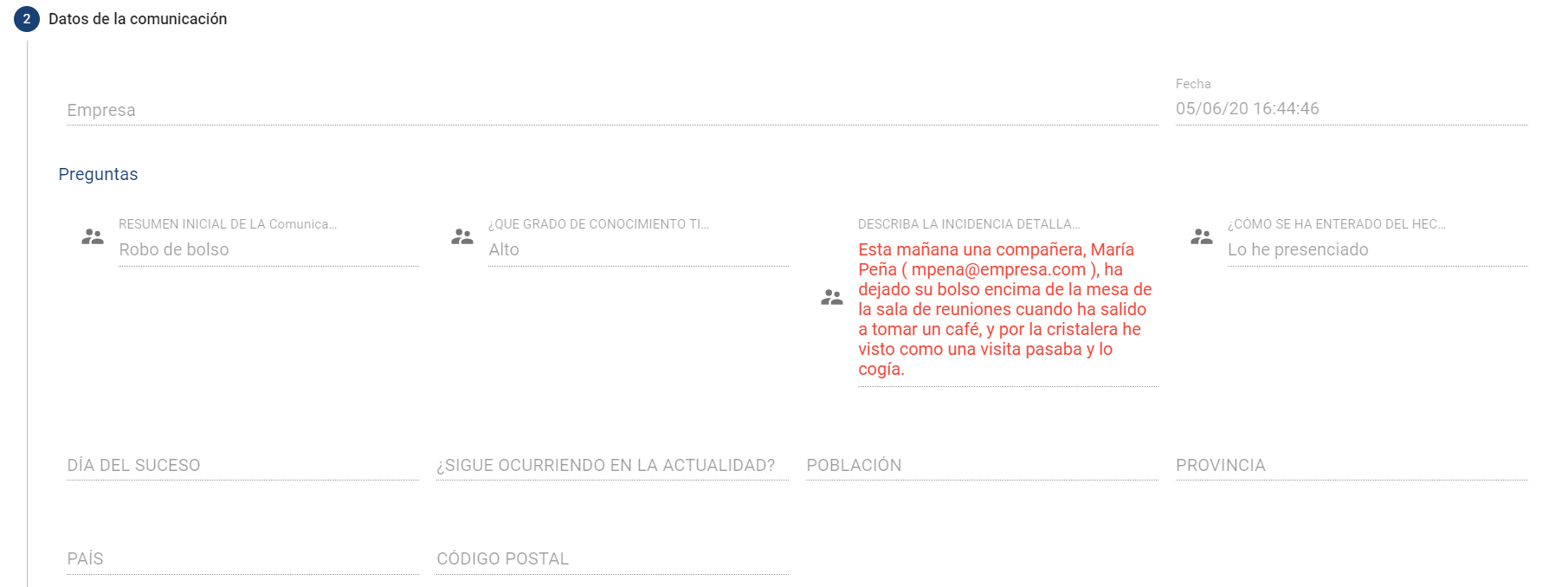
Similarly, the attached files can be downloaded to review their content to ensure they do not include personal data.

These fields can be anonymized manually by clicking the button 
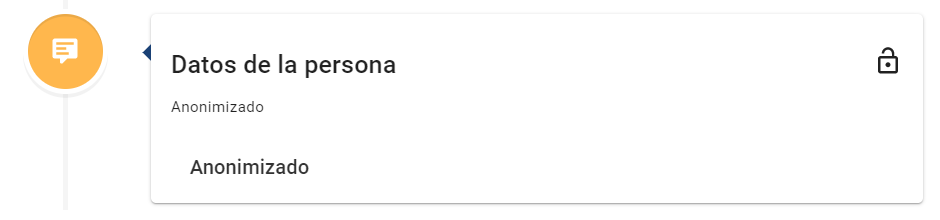
When the communication is anonymized, it can still be managed internally, with new comments or documents added and its status changed. However, it will not be possible to communicate with the complainant (as personal data will have been deleted), nor can it be consulted by the communicator from the portal.
Once fully reviewed and anonymized, the communication can be retained in the production environment, downloaded and deleted, or sent to the secondary environment.