
This tutorial explains how to use the Document Manager with Workflow enabled in GlobalSuite®, allowing you to manage documentation through configurable approval workflows.
The guide details how to associate workflows with folders, upload documents by selecting the corresponding workflow, manage the different approval states, approve or reject versions, receive automatic notifications, and administer the updating and deletion of documents within the complete approval cycle.
1. Configurable Options in Settings
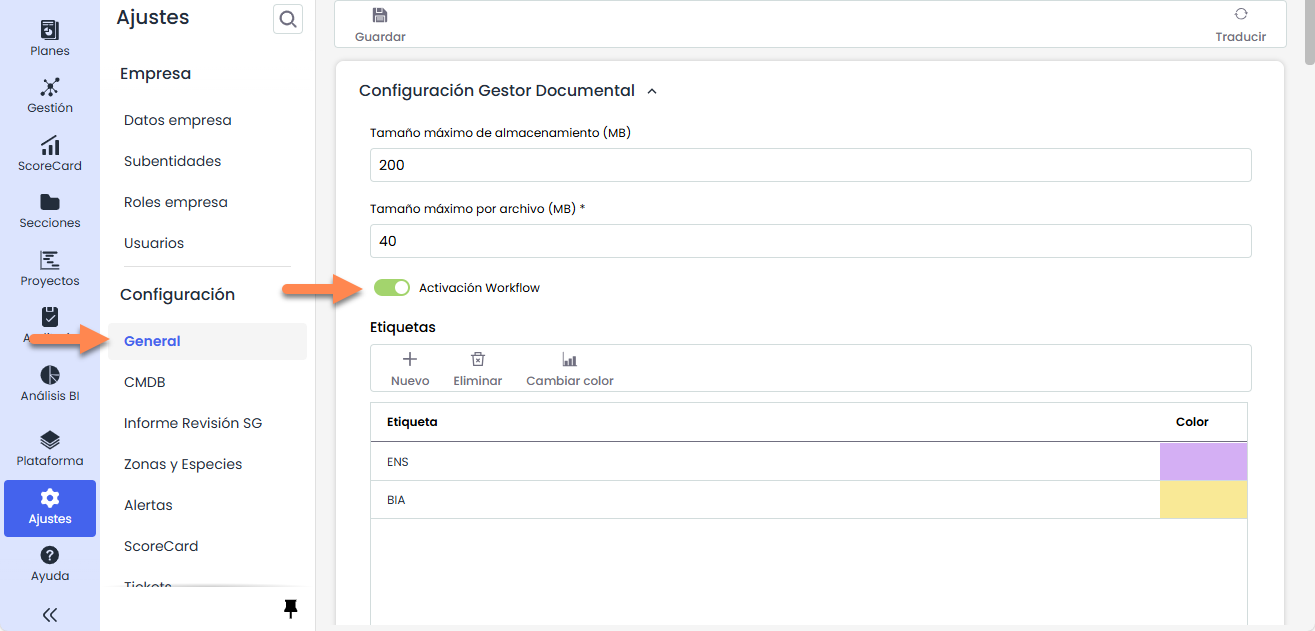
In the section Settings>General Configuration > Document Manager Configuration you can enable “Workflow Activation,” which allows the use of Approval Workflows, so that multiple users can review files in the Document Manager and approve the documents.
This guide explains the functionality of the Document Manager with workflow enabled.
2. Document Manager Option
All solutions that make up GlobalSuite® include the associated functionality of the document manager.
This Document Manager allows both a shared and unique repository to concentrate all documentation derived from the organization's Management System and the approval of documents through Approval Workflows configurable by each organization. This guide will explain the use of the Document Manager with workflow enabled.
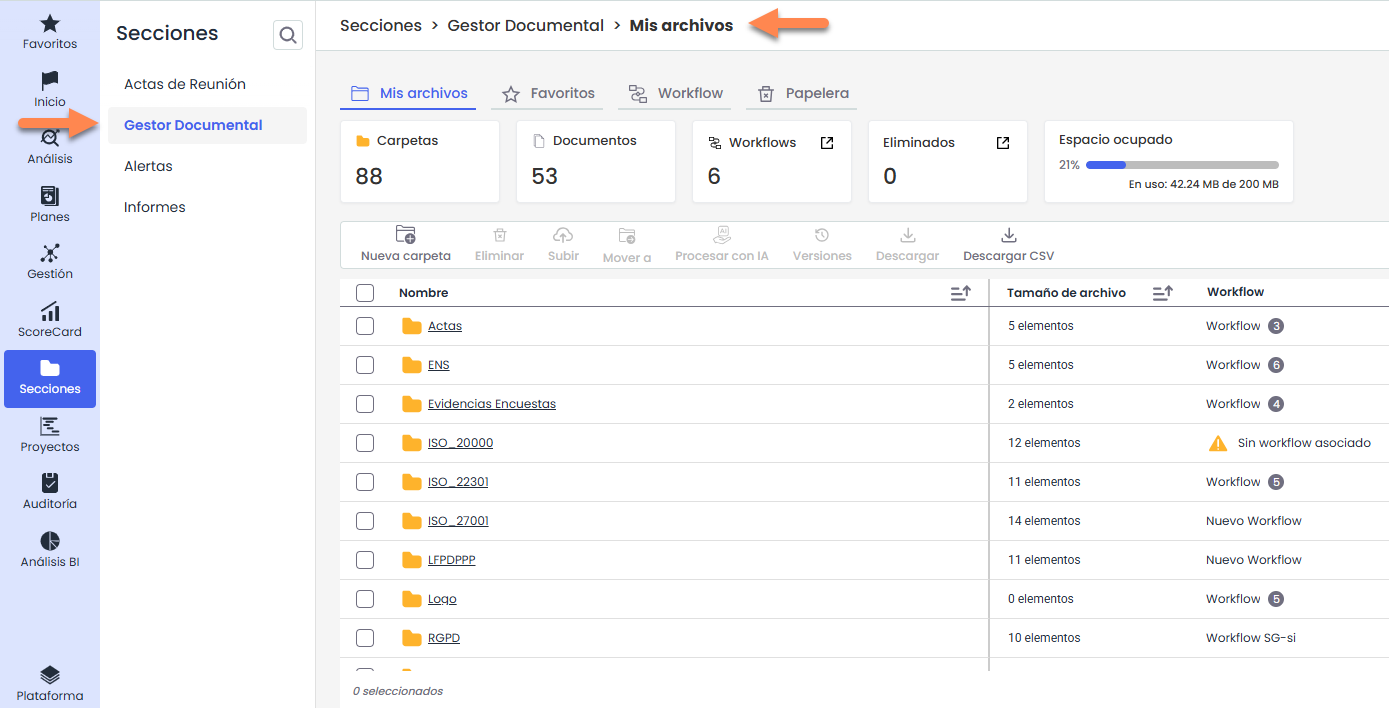
When accessing the option, the My Files tab will display the entire folder and document structure represented by the manager.
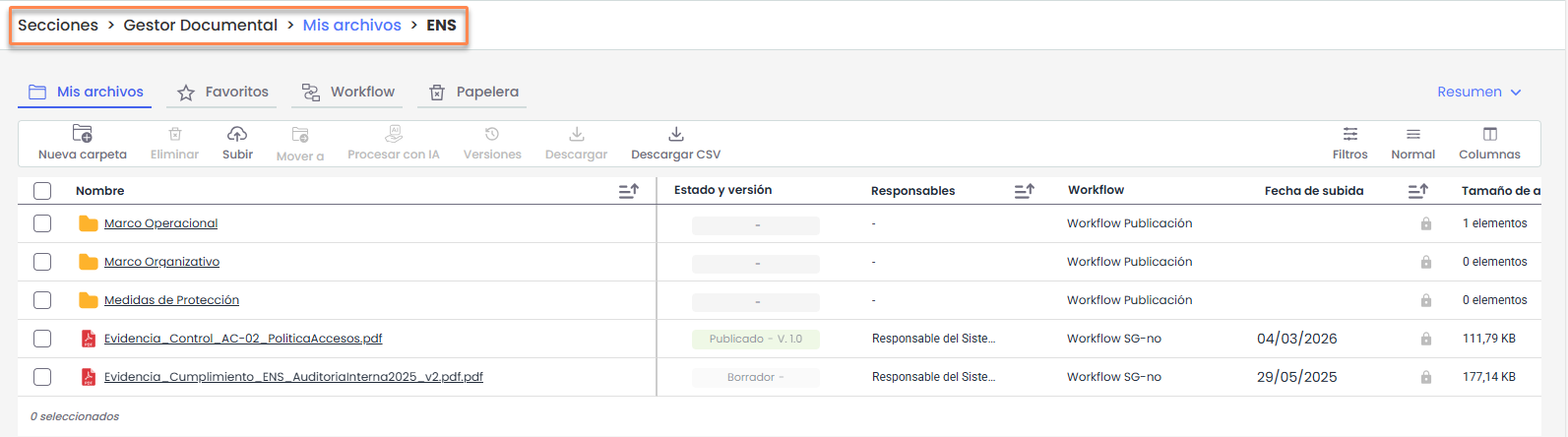
Using the navigation bar, you can see which folder you are in, and by clicking on the blue names, you can go back to previous levels.
On the main screen, it is possible to:
-
Navigate between folders by clicking on the folder name.
-
View the documents contained in each folder.
-
Check information such as status, responsible parties, and workflow.
-
Access quick actions on folders and documents from the table.
Options for folders
When hovering over a folder, the icon of three dots (…) will appear on the right side of the record.
Clicking on this icon will display a menu with the different options available for folder management.
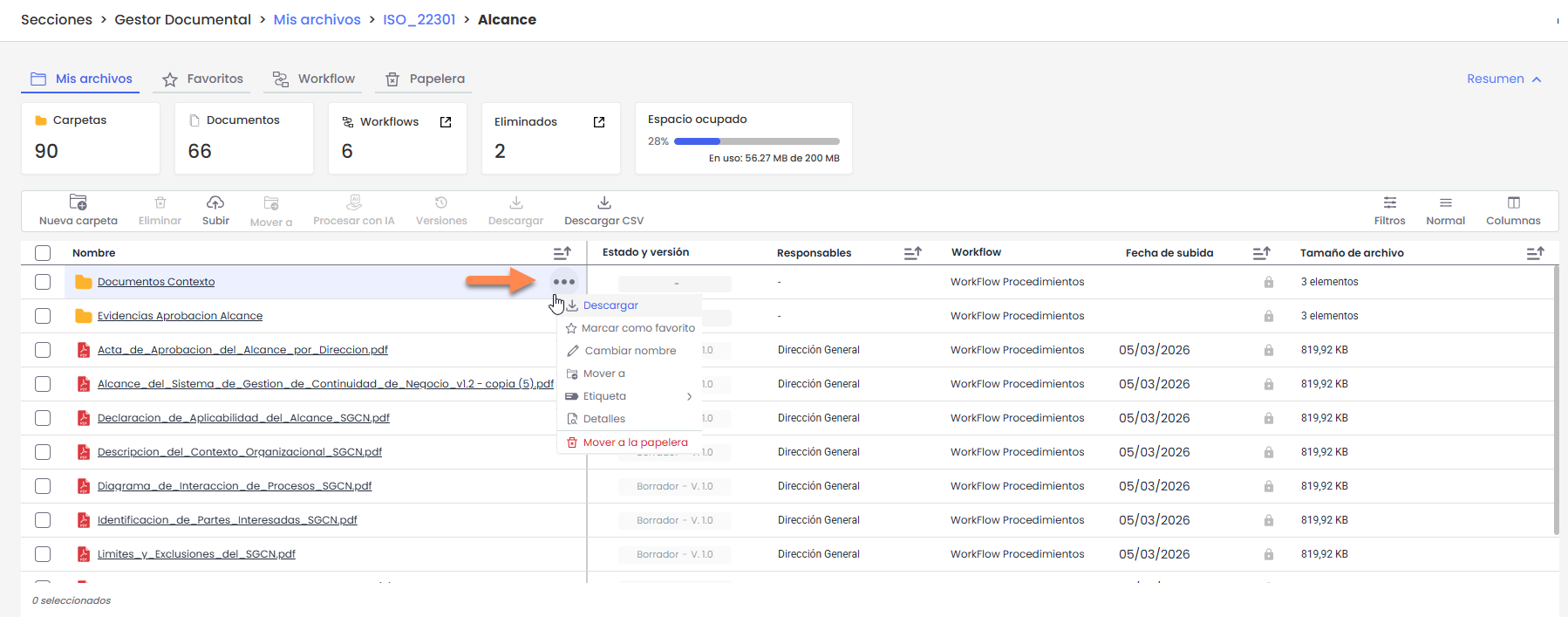
Each of these options is explained below:
-
Download: Allows downloading the entire folder content in .zip format. Once the process is complete, the file will be available in User Profile > Downloads.
-
Mark as favorite: Adds the folder to the favorites section for quick access.
-
Rename: Allows modifying the folder name.
-
Move to: Allows relocating the folder to another location within the Document Manager.
-
Tags: Allows associating or managing tags linked to the folder.
-
Details: Displays detailed information about the folder.
-
Move to trash: Sends the folder to the trash, where it can be managed later according to available permissions.
Options for files
For files, the functionality is the same.
When hovering over the document, the icon of three dots (…) will appear on the right side of the record.
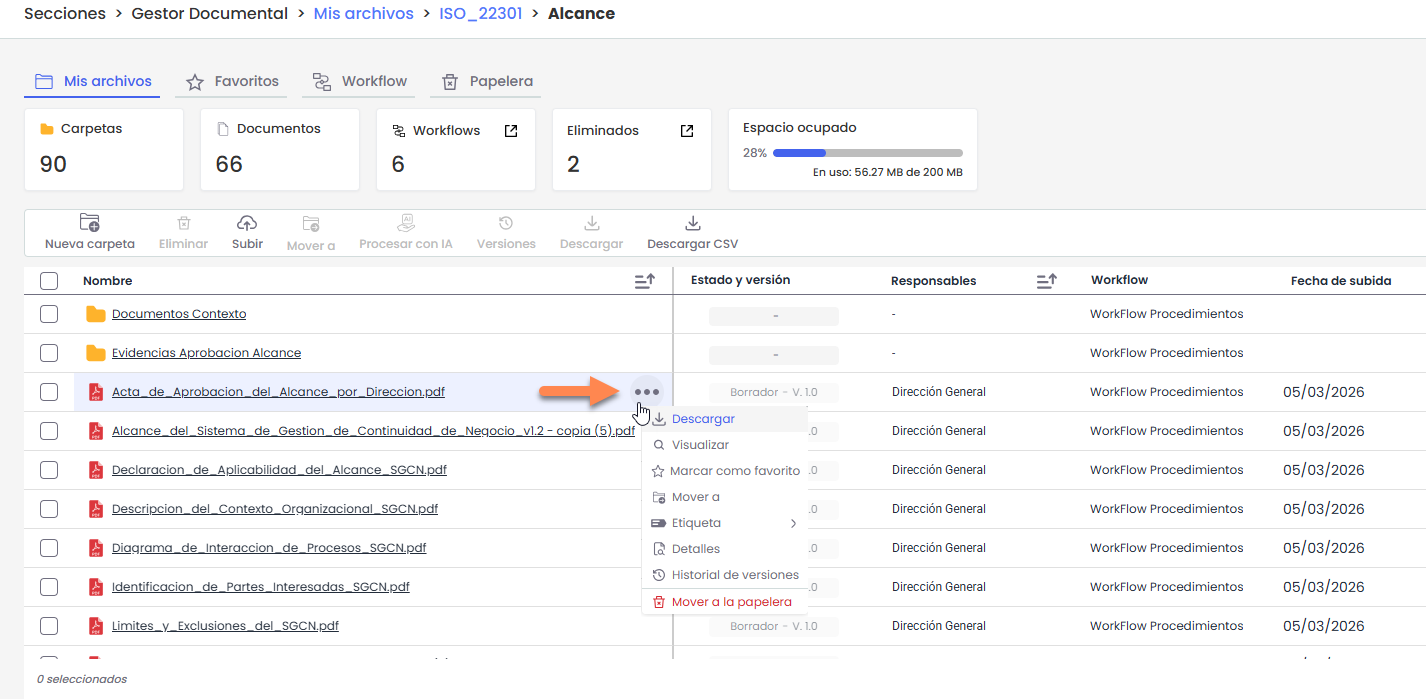
Clicking on this icon will display the menu with the following options:
-
Download: Allows downloading the file in its original format. The download is direct.
-
View: Allows previewing the document without needing to download it (available for files with PDF, JPEG, JPG, BMP, or PNG extensions).
-
Mark as favorite: Adds the document to the favorites section for quick access.
-
Move to: Allows relocating the document to another folder within the Document Manager.
-
Tags: Allows associating or managing tags linked to the document.
-
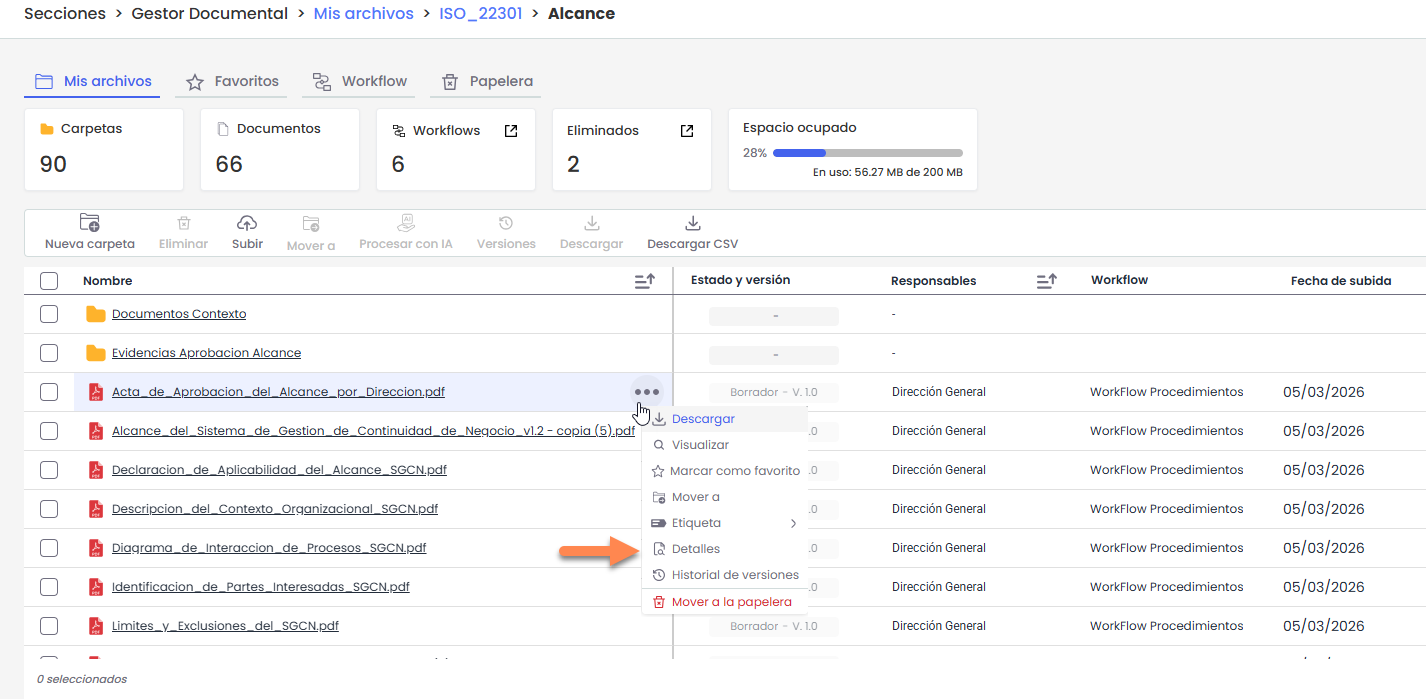
Details: Displays general information about the document and allows access to its configuration.
-
Version history: Allows consulting the different versions of the document, as well as its status and associated changes.
-
Move to trash: Sends the document to the trash, where it can be managed later according to available permissions.
Actions available in the top bar
At the top of the Document Manager, you will find the different action options available for the elements displayed in the table.
These options are enabled or disabled depending on whether elements are selected and the number of selected elements.
-
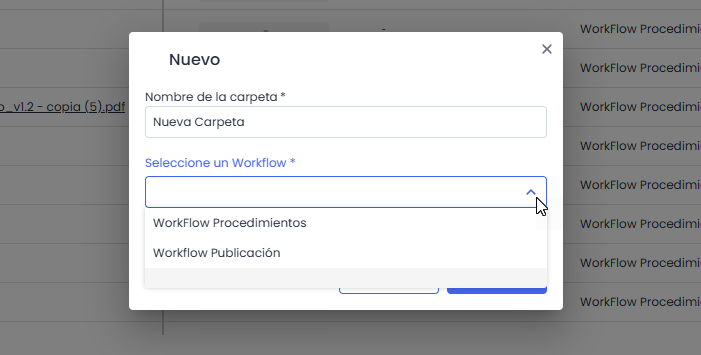
New folder: Allows creating a new folder within the current location. It will only be active when no documents or folders are selected.
Clicking on New folder will open a window where the following is required:
-
Enter the folder name.
-
Select the workflow or workflows to be assigned to the folder.
-
-
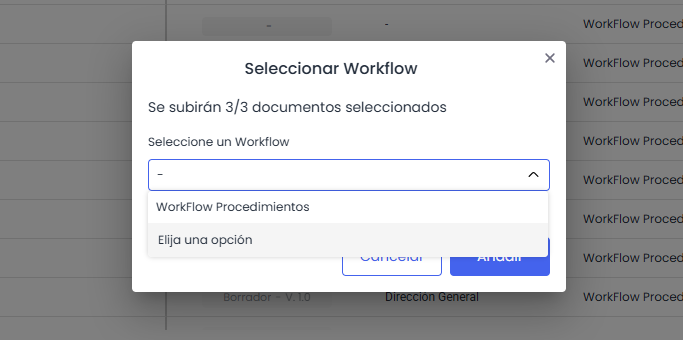
Upload: Allows uploading one or more documents to the current folder. This option will be active when no items are selected.
Clicking Upload allows selecting up to 10 files from the device.
Once selected, the system will display a window where it is necessary to choose the workflow to be assigned to the entire upload (i.e., the same workflow for all selected files).
-
Process with AI: Allows executing the automatic processing of the document using Artificial Intelligence functionalities (if enabled). This option is only activated when a single document is selected. For more information: How to process documents with AI from the Document Manager of GlobalSuite®? | GlobalSuite Solutions
-
Versions: Allows accessing the version history of the selected document. It is enabled only when a single document is selected.
-
Delete: Allows deleting one or more selected documents and/or folders simultaneously. Deleted items are always sent to the Trash.
-
Move to: Allows relocating one or more selected documents and/or folders to another location within the Document Manager.
Selecting this option will open a window to choose the destination folder. It will be necessary to navigate to the desired location and click “Move here” to confirm the relocation.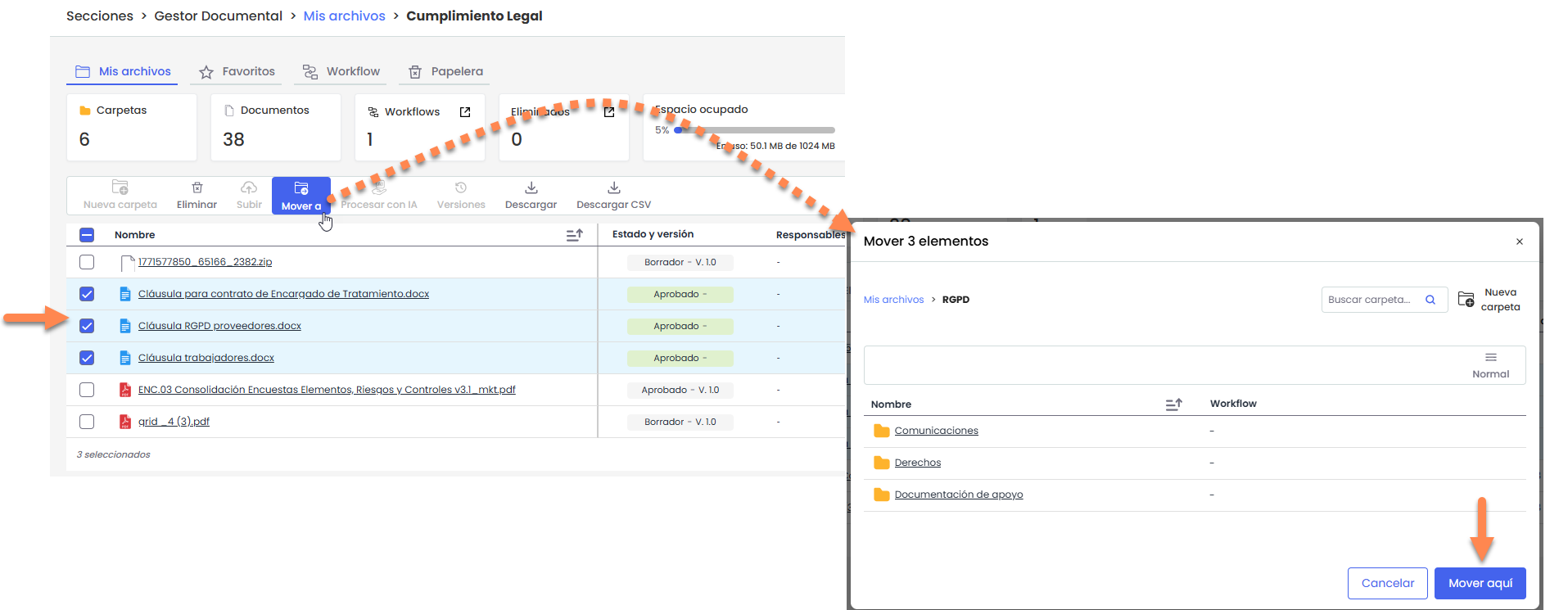
In the destination selector, only folders compatible with the selected items will be displayed. To perform the relocation, the source and destination folders must have the same workflows associated.
-
Download: Allows downloading one or more selected items simultaneously.
-
Download CSV: Generates a CSV file with the information of the items displayed in the current view. This option is always available, regardless of the selection.
Filters and search
The Document Manager allows filtering the information displayed in the table using different criteria.
By default, the following filtering fields are displayed:
-
Responsible parties
-
Workflow
-
Tags
Clicking the “+” button will display all additional fields available for filtering (e.g., version, upload date, or other configured fields).
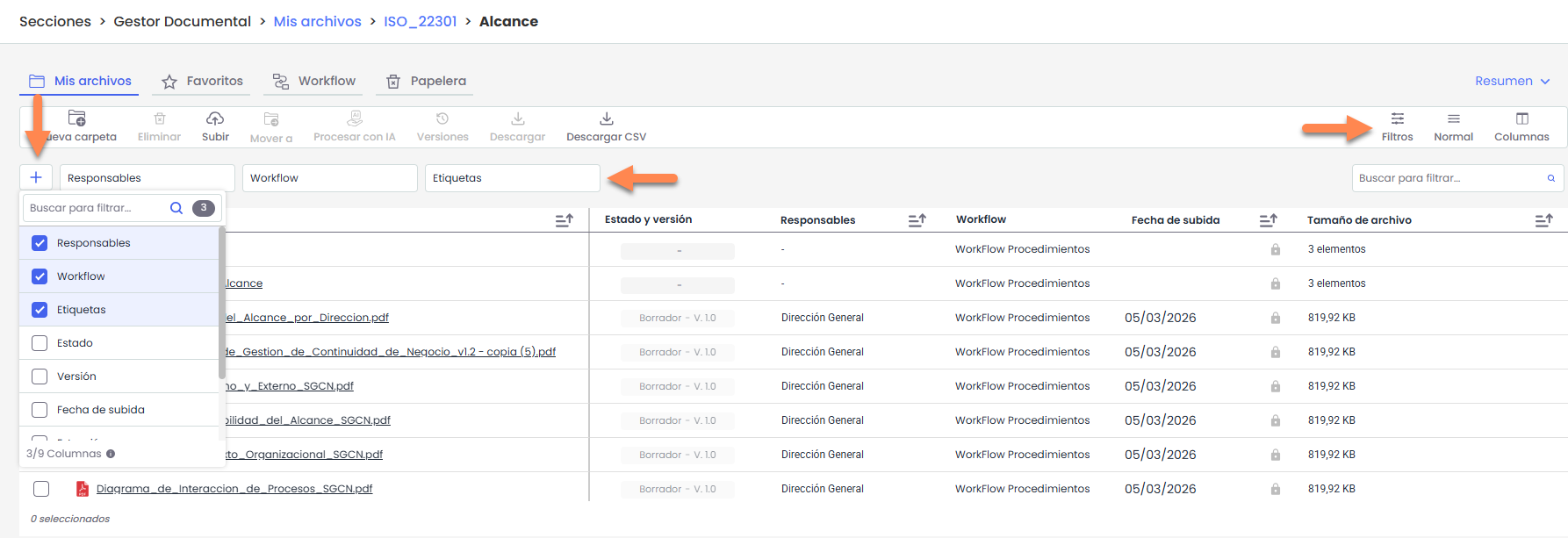
Depending on the type of field selected, the system will display different filtering options. For example:
-
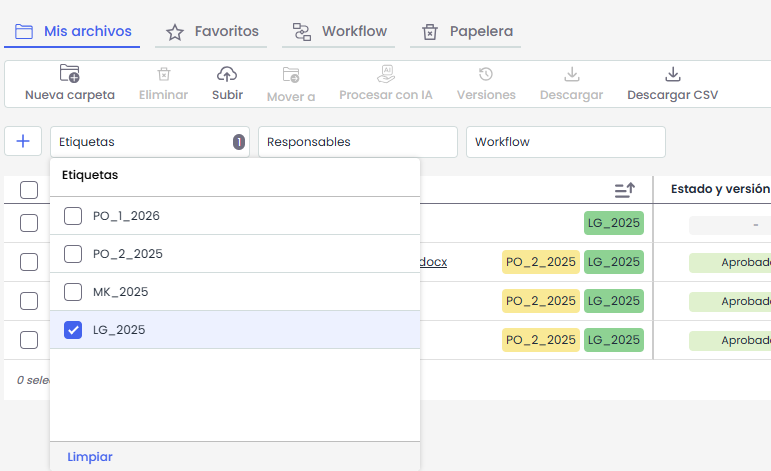
In list-type fields (such as Tags or States), the available values for selection will be displayed.
-
In date fields (such as Upload Date), the option to filter by a specific date or by a date range will be enabled.
The range can be selected manually using the calendar or through predefined ranges shown on the left (e.g., This week, Current month, Last 3 months, etc.).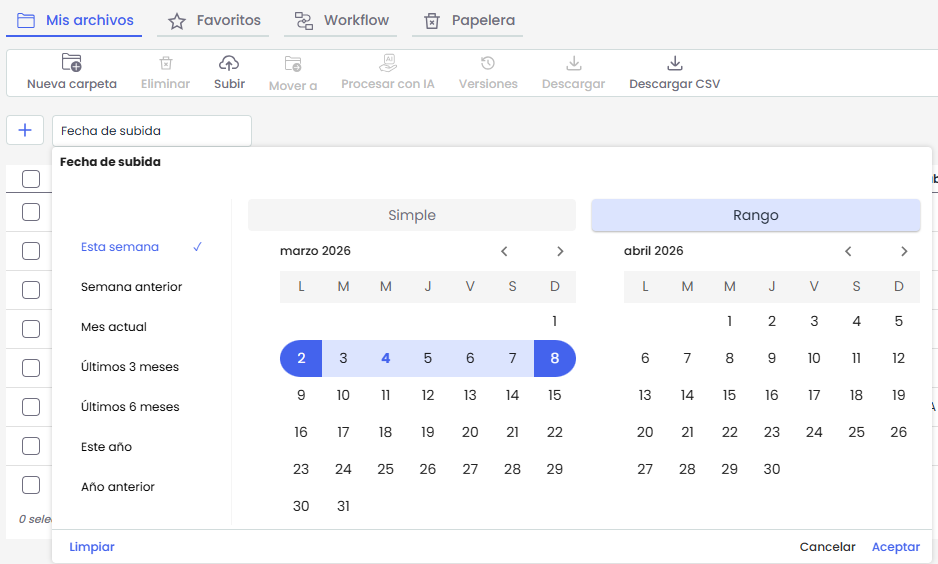
-
In text fields, it will be possible to manually enter values.
Quick search by name
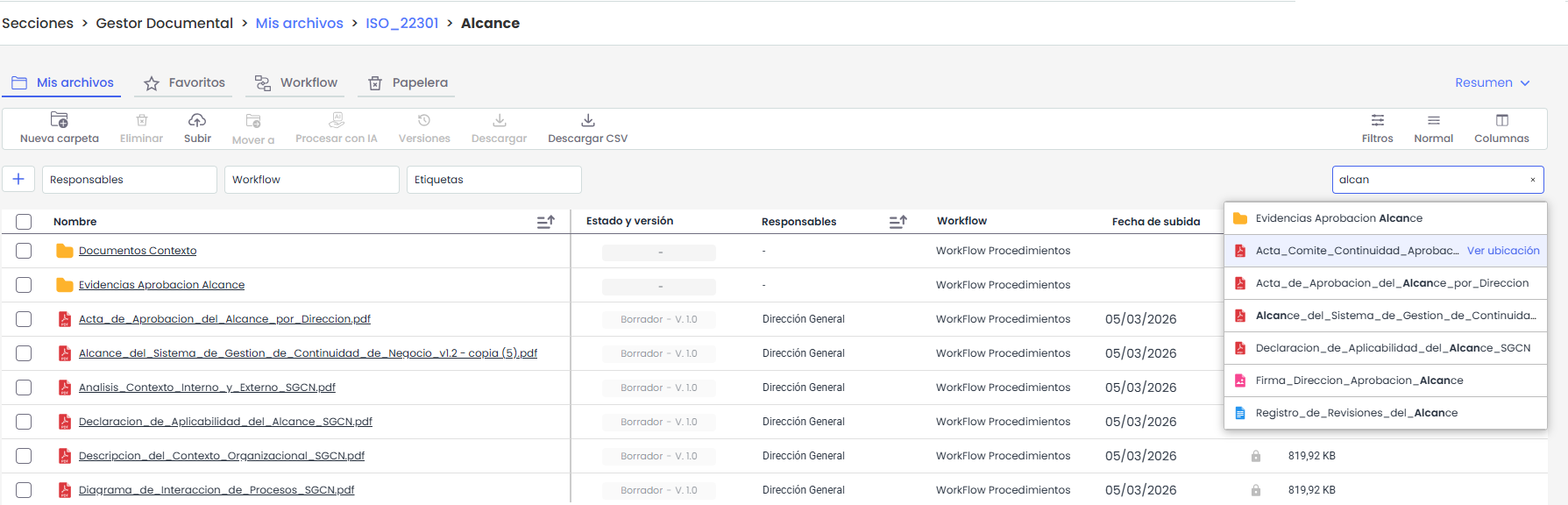
On the right side is the field “Search to filter…”, which allows a quick search by folder or file name.
When entering the first letters, the system will automatically display the matches found.
In the displayed results:
-
When hovering over an item, the option “View location” will appear, allowing direct access to the folder where the file is located.
-
Clicking on the file name will open the document if the format is compatible with viewing. Otherwise, it will be automatically downloaded.
-
Pressing Enter will display all matches in the table.
Scope of filters and searches
Filters and searches are applied from the location where the user is positioned, including its subfolders.
Searches are not performed in higher-level folders.
When filters or searches are applied, the table automatically adds the column “Location”, which indicates the folder where each file or folder matching the applied criteria is located.
To return to the original view, it will be necessary to clear the active filters.
3. Permissions and Folders
-
The Document Manager is configured with a set of default folders based on the management systems the company has. These folders can be modified, deleted, or new ones created by the responsible parties (Document Manager administrators).
-
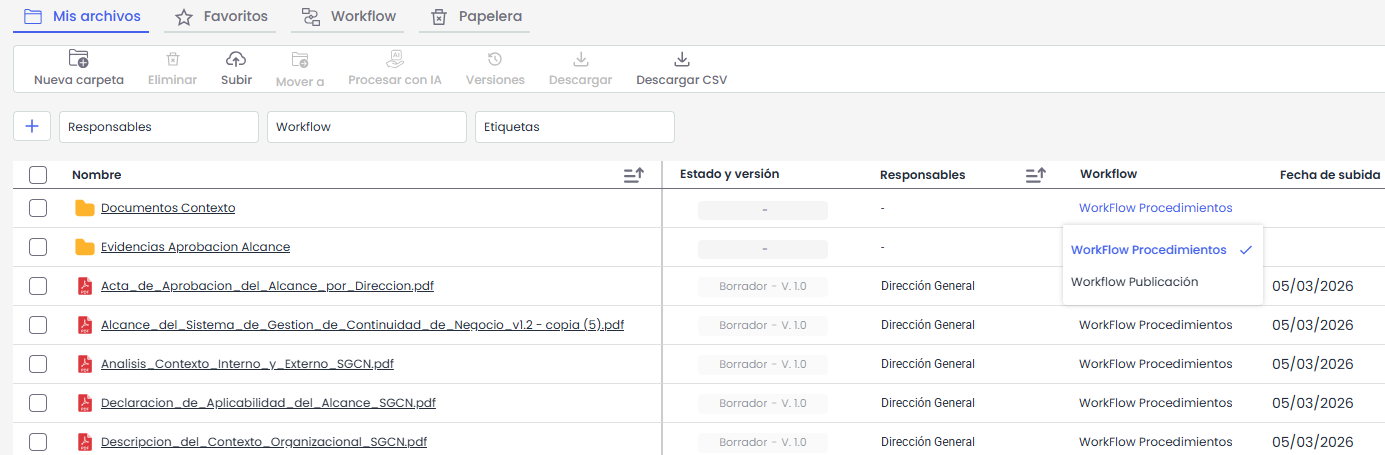
Each folder can be associated with one or more Workflows, meaning it can be specified which approval flow or flows can be used in a particular folder. The WF will be chosen by clicking on the “Workflow” field.
4. Approval Flow
Users only see folders associated with approval flows where they are responsible for one of the states.
To explain the functionality of the approval flows in the document manager, an example with a pre-configured approval flow will be shown below.
The flow has the following states:
-
Draft. First state. Employees with the “Workflow Role” profile can view it. To move the state forward, one of the people with this role must approve the document in this state.
-
Reviewed. Second state. Employees with the “Workflow Role” profile can view it. To move the state forward, two of the people with this role must approve the document in this state.
-
Approved. This state is automatic and will be approved directly without user intervention.
-
Published. Document viewing state. All system users identified in this state can view it.
Step 1
As explained earlier, documents can be uploaded by selecting the folder where the file is to be loaded and clicking the “Upload” button.
First, a window will open to select the document you want to upload. Next, the system will prompt you to select the workflow (WF) corresponding to it.
Once selected, the document will be uploaded to the chosen folder.
Step 2
Only organization administrators or responsibles for the first stage of the selected approval workflow can upload documentation to the Document Manager.
In the given example, only users associated with the “Draft” stage can upload documentation.
When a user uploads a document, other users associated with the same stage can view it in that stage (in this case, Draft).
From the “Details” option of the document, you can access the information about its revisions.
Step 3
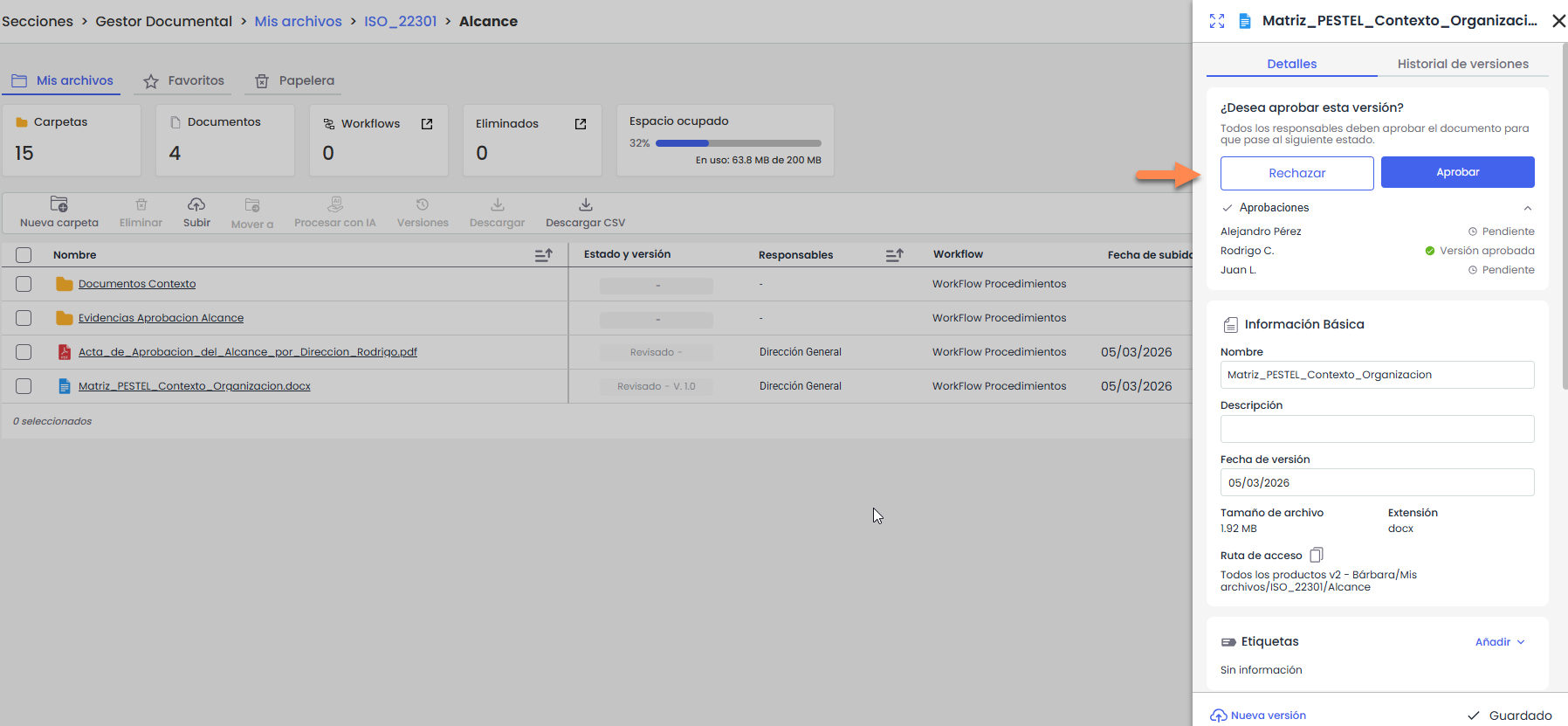
By selecting the “Details” option, a sidebar will open with information about the current version of the document.
If the user who is logged in is one of the responsibles for the current stage of the workflow, an additional section will appear with the options “Approve” or “Reject”.
From this screen, each of the involved users can approve or reject the document, triggering the corresponding stage change within the approval workflow.
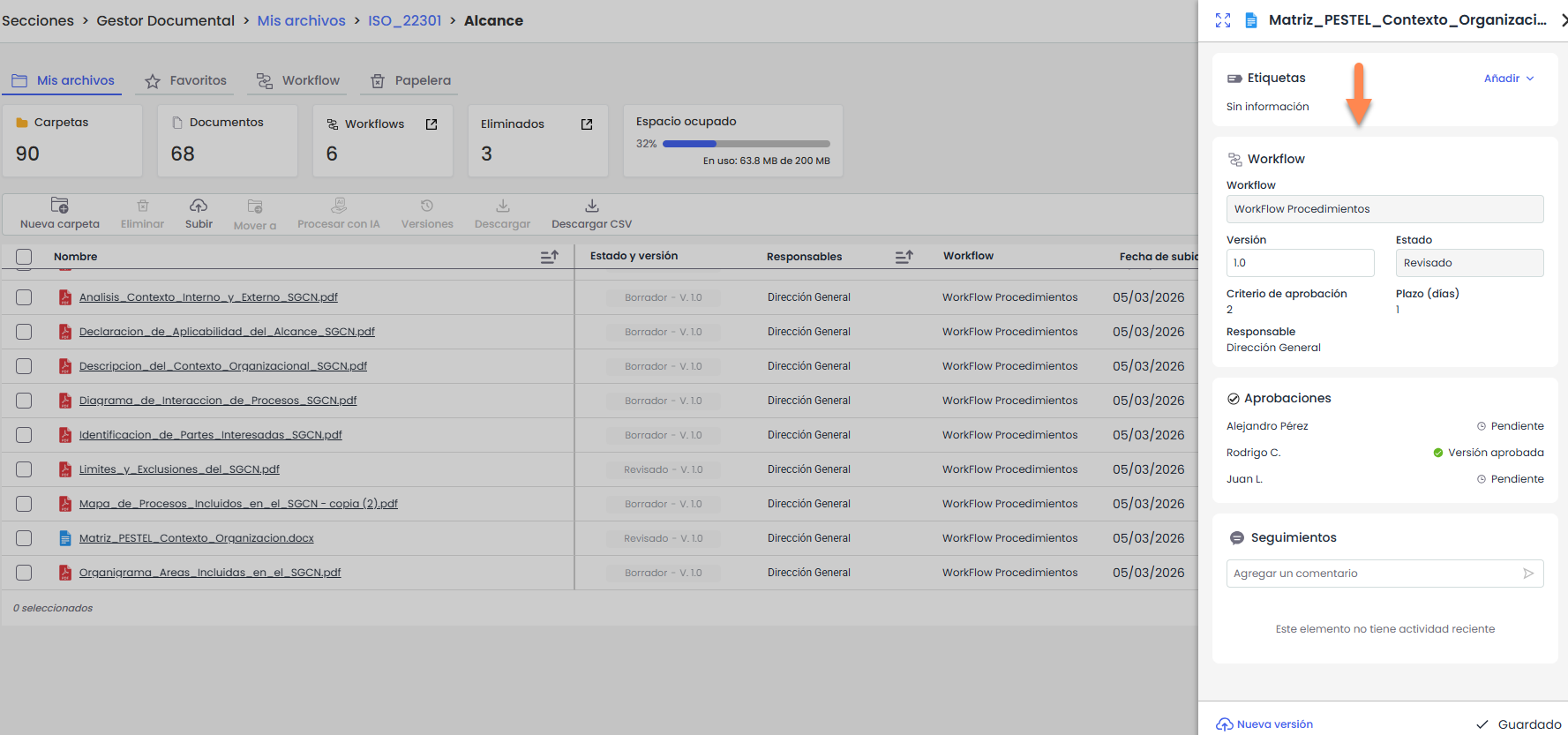
If you are an administrator and want to see the progress of approvals, there are Workflow and Approvals sections where you can view details of the current status of the document.
Step 3
In the applied example, the responsibles for the “Draft” stage can approve the stage change. Once the approval criteria are met, the document will move to the “Reviewed” stage.
Subsequently, the responsible for the “Reviewed” stage can approve the document again, which will automatically pass through the “Distributed” stage until it reaches its final stage “Published”.
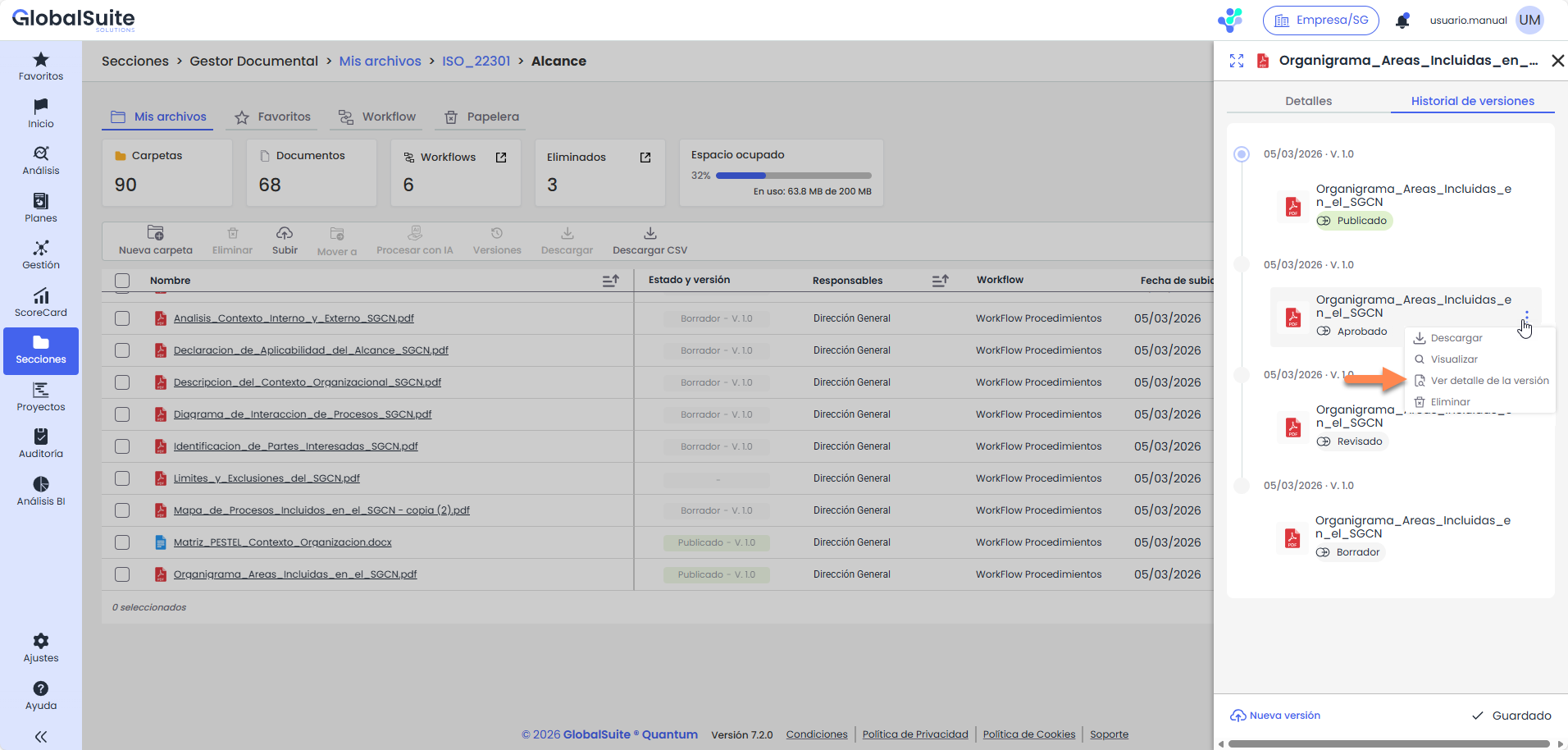
The active version of the document is the one marked in green, and it is the one displayed by default in the Document Manager.
To view or modify previous versions, you must access its contextual menu and select the option “View version details”.
Step 4
This procedure is repeated in each of the stages the approval workflow goes through.
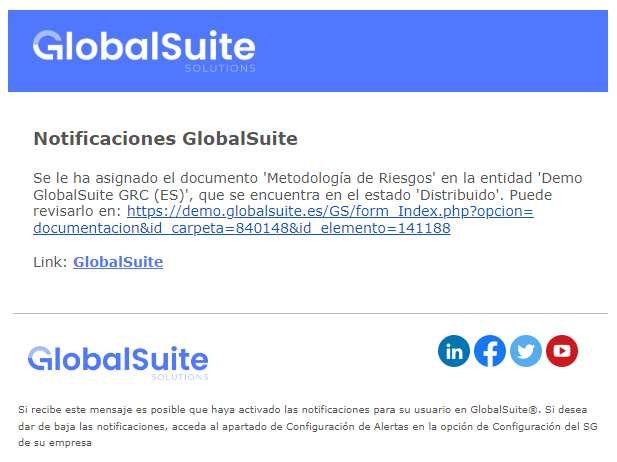
When a document changes stages, the responsibles for the next stage receive an email notification informing them of the new stage. The message includes a link to access GlobalSuite to review and approve (if applicable) the document.
Step 5
Once all the stages of the workflow assigned to the document have been completed and it reaches the last stage (Published stage), the document will be accessible to all roles and individuals assigned to this stage.
In the applied example, once in the “Published” stage, all users in the organization with access to GlobalSuite® will be able to view the document (as they have all been associated with the stage).
5. Document deletion
The deletion of documents and folders is done through the “Move to trash” option, available:
-
From the context menu (three-dot icon).
-
From the Details panel.
-
From the top bar, by selecting one or more items.
By selecting this option, the documents or folders will be moved to the Trash.
Trash
Documents and folders sent to the Trash will remain there for 30 days before being automatically deleted.

From the Trash tab, you can:
-
Restore: returns the document or folder to its original location.
-
Delete: permanently deletes the selected item.
-
Download CSV: downloads a file with the list of items in the trash.
When a folder is sent to the trash, it is moved completely with all its contents (files and subfolders).
In the trash, it is not possible to explore its contents; only the folder is displayed as a single item.
When restoring a folder or document, they return to their original location and retain the same status they had before being sent to the trash.
The occupied space is not freed until the item is permanently deleted from the trash.
Version deletion
When a document is sent to the trash, the active version along with all its associated versions is moved.
It is not possible to send intermediate versions to the trash individually.
If a specific version is deleted from the Version History, it is permanently deleted and does not go to the trash.