
This article covers how to use the Propagation and Consolidation functions of the ScoreCard in GlobalSuite® to send objectives, indicators, and metrics to subordinate entities, maintain their traceability, and consolidate results between the parent company and its sub-entities in a centralized manner.
Propagation
The propagation functionality appears in environments with licensing for entities.
Propagation is the action of sending objectives, indicators, and/or metrics to the entities below our company.
This guide explains the propagation of:
Propagation - Business Objectives
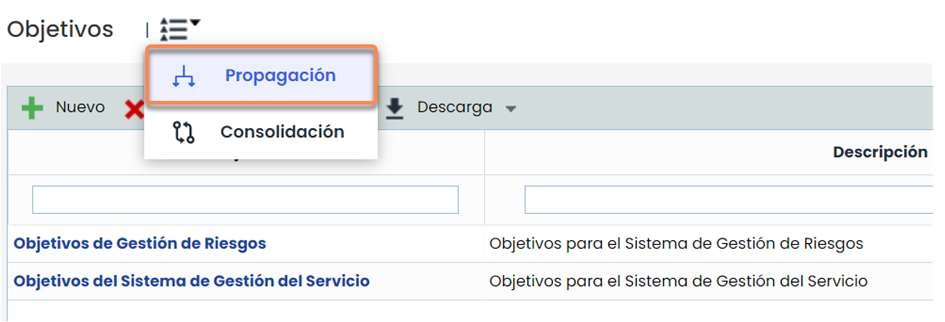
Currently, the propagation button is only available for Objectives found in the Home option. The steps to create and propagate an objective, along with its associated objectives, are:
-
Create the objective in Home -> Objectives, and fill in its information.
-
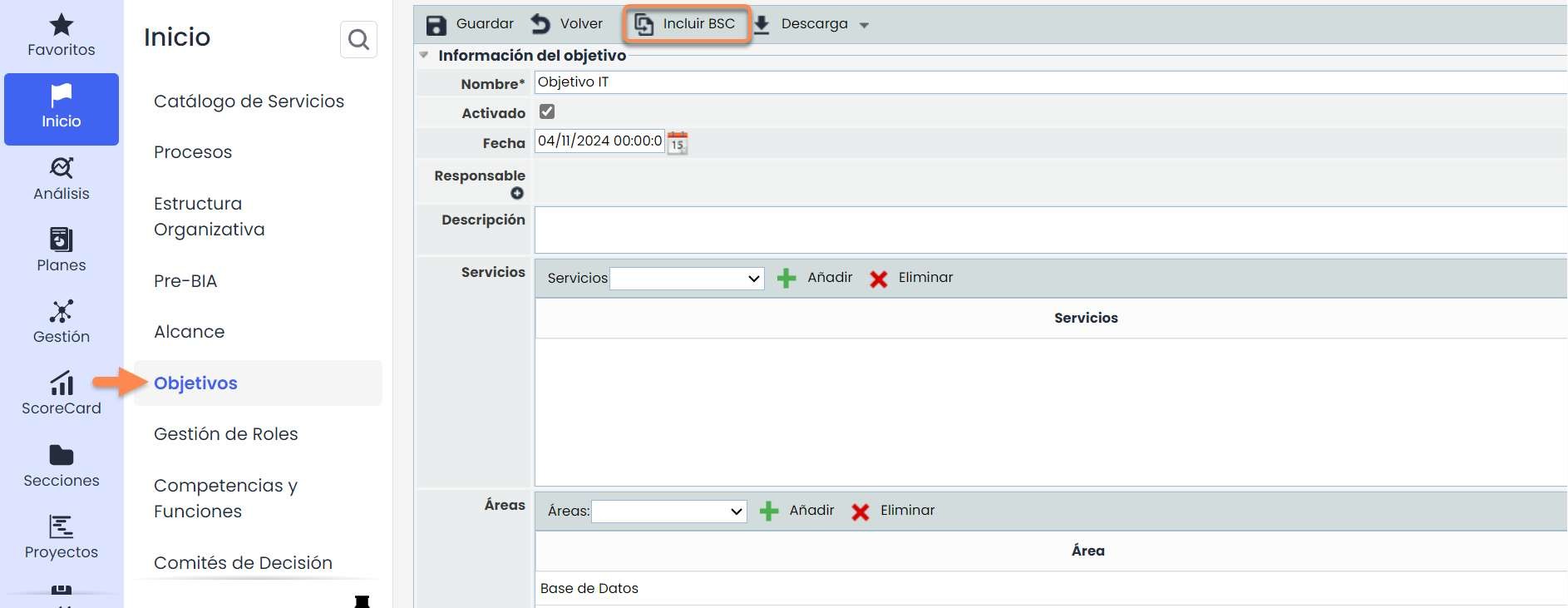
In the Objective form, click the “ Include BSC” button so it appears in both options.
-
Propagate the Objective to the desired entities.
From that moment, in the child entities, those objectives cannot be modified; they will have the same information as their parents, except for the specific fields of the child entities: Activated, Perspective, Specific Objectives, Documents, Frequency, and Evaluations.
Note: If they are deleted in the parent, they are also deleted in the children.
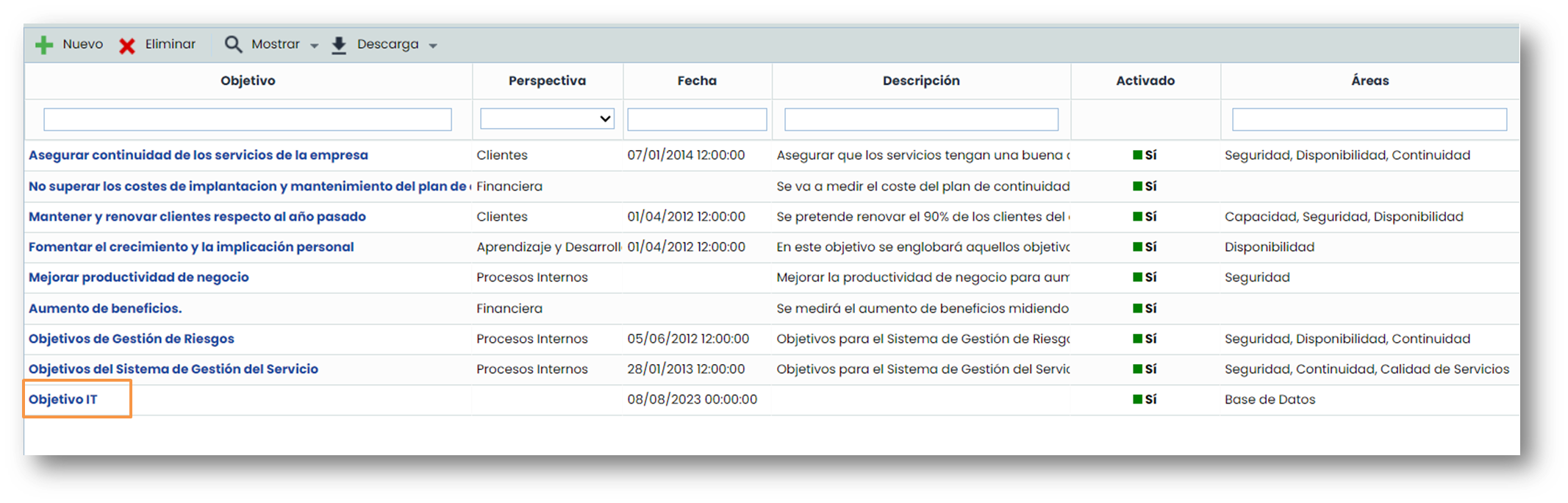
Once included in BSC, it will also appear in Business Objectives , where the remaining missing information, such as the perspective, must be filled in.
Once created and included in BSC, go back to Home > Objectives, and propagate.
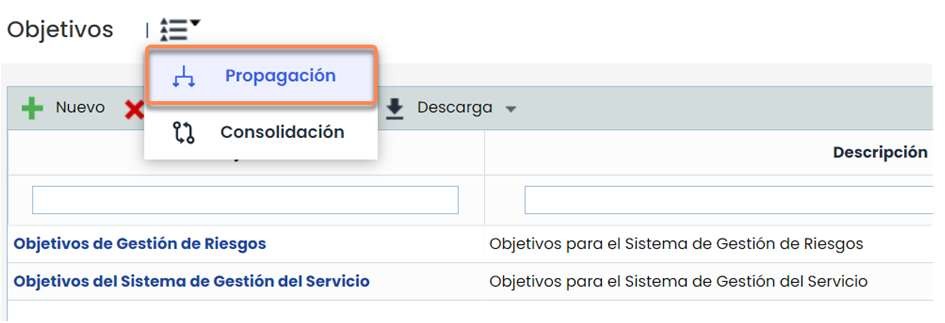
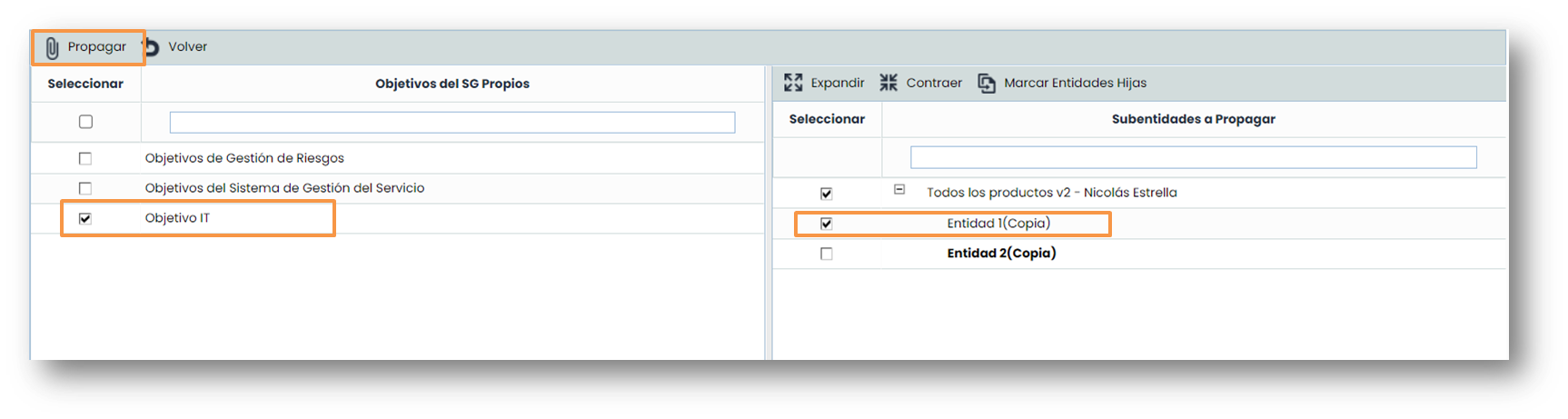
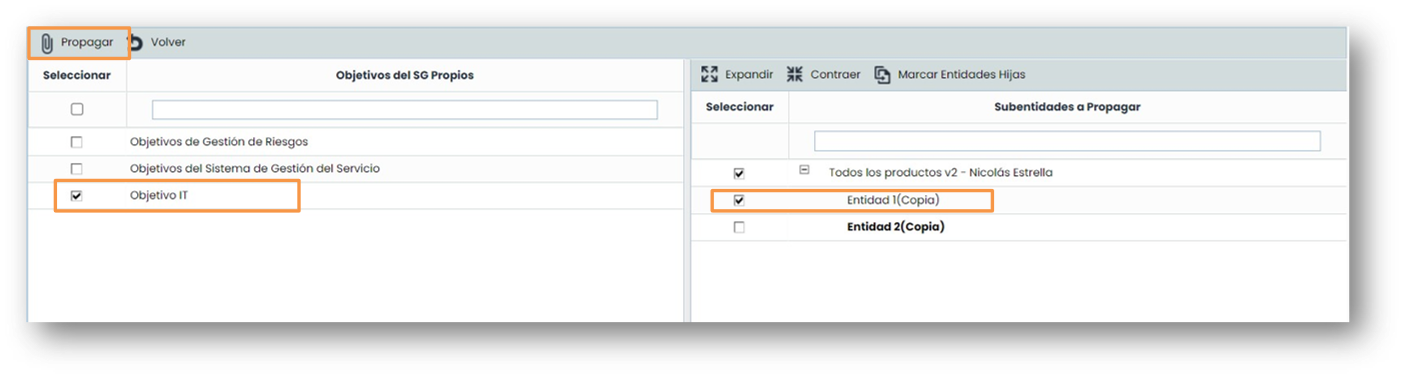
To do this, select the Propagation option, and mark the objectives you want and the entities where you want to propagate them.
Propagation - Specific Objectives

The Specific Objectives. are propagated the first time (if their Business Objective is propagated), but then they are autonomous in the child entities, meaning they are essentially COPIES.
Therefore, since they function autonomously in the children, all fields can be edited in the child entities (name, dates, description, etc.).
Note: If they are deleted in the parent, it does not affect the children at all.
Since the Objective created has Specific Objectives and a Business Objective, the way to Propagate it is the same as if it only had a Business Objective.
To do this, select the Propagation option, mark the objectives you want and the entities where you want to propagate them, and click the Propagate button.
Propagation - Indicators

Once propagated, in the child entities they can be modified, and the modifications made in the parent company do not affect the children (i.e., they are independent). However, they still maintain an internal relationship that allows proper visualization of the CONSOLIDATION.
Note: If in the parent company, they are deleted from the LIST, they remain autonomous (independent) in the children.
If deleted from the PROPAGATION form (bottom right table), they are deleted in that entity and its children.
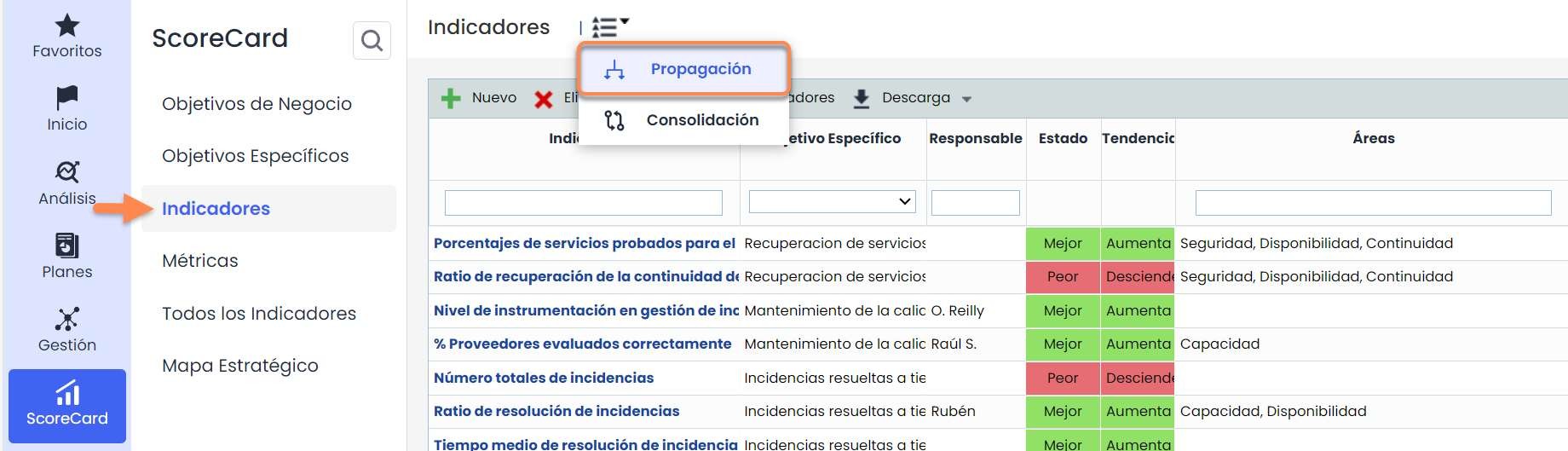
To propagate an indicator, follow these steps:
-
Go to the Indicators option.
-
Go to the Propagation option.
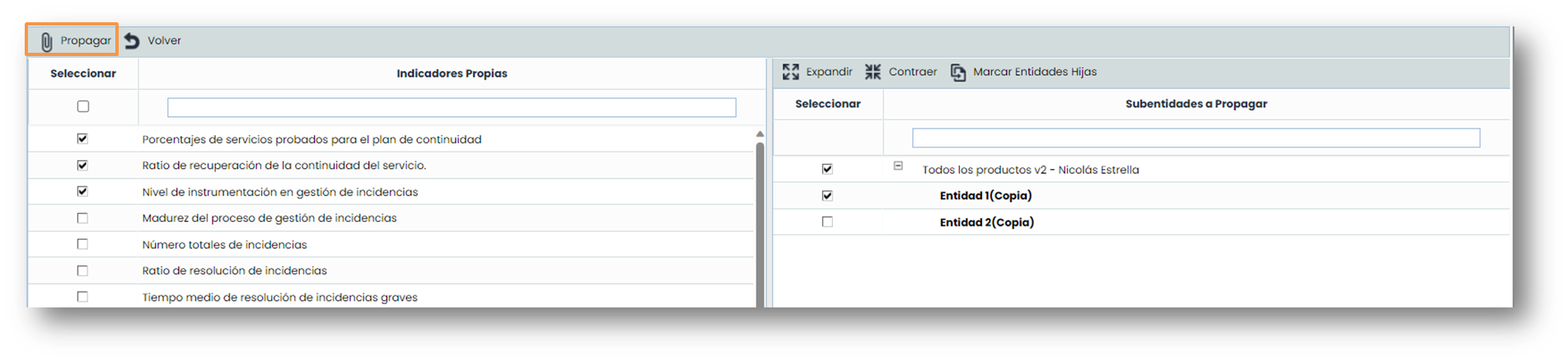
Once inside, select the indicators you want to propagate and the entity where you want them to be propagated.
Once selected, click the propagate button.
Propagation - Metrics

Once propagated, in the child entities, the metrics cannot be modified; they will have the same information as their parents, except for the fields Metric Responsible Selection, Responsible (Employees), and Alert.
Note: If in the parent company, they are deleted from the LIST, they are also deleted in the children.
If deleted from the PROPAGATION form (bottom right table), they are deleted in that entity and its children.
To propagate a metric, follow these steps:
-
Go to the Metrics option.
-
Go to the Propagation option.
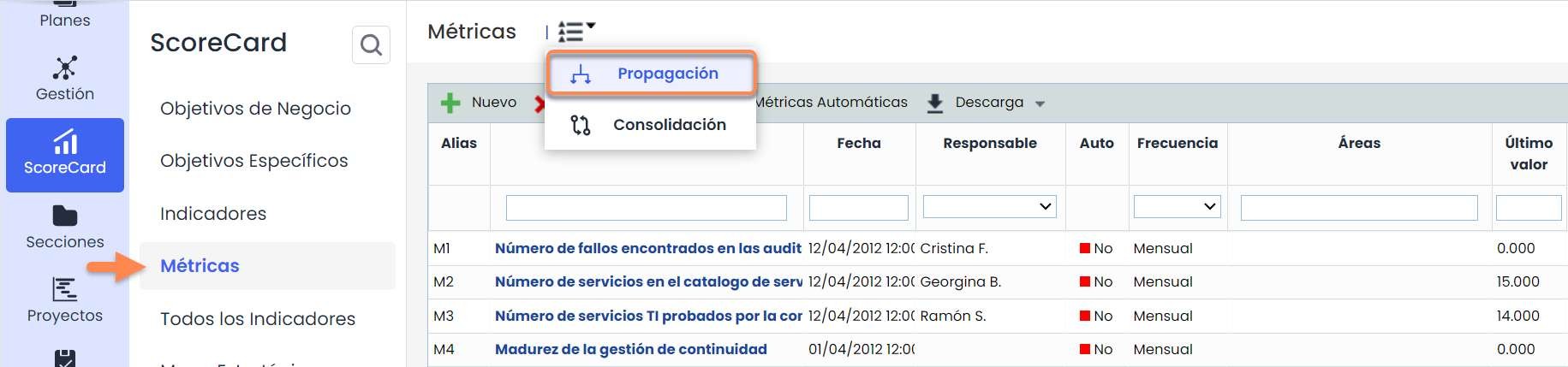
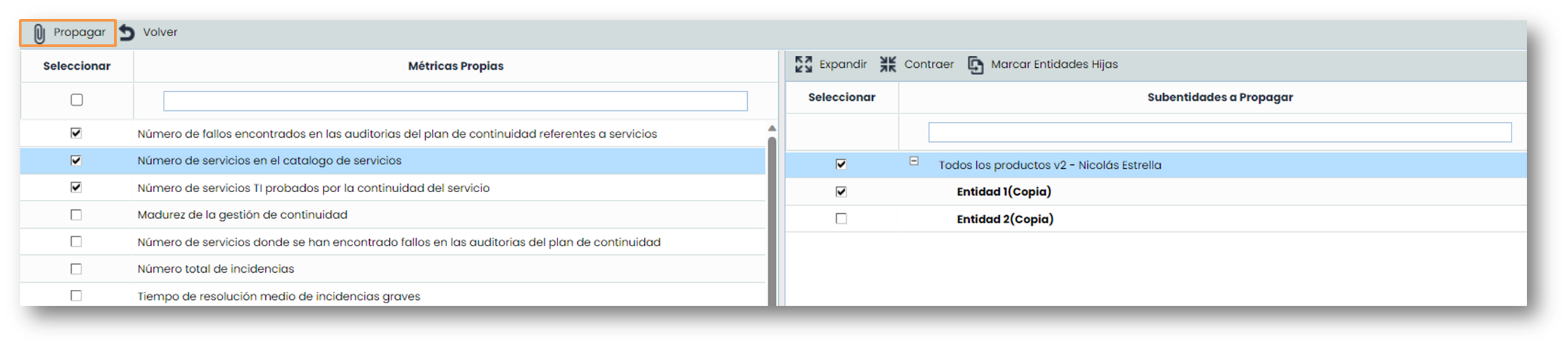
Once inside, select the metrics you want to propagate and the entity where you want them to be propagated.
Once selected, click the propagate button.
Consolidation
The consolidation functionality appears in environments with licensing for entities.
This guide explains the consolidation of:
Consolidation - Objectives
This option allows a summarized view of the different objectives associated with the entity and sub-entities. To consolidate an objective, follow these steps:
-
Go to Home > Objectives
-
Go to the Consolidation option.

-
Services Table: Allows the user to filter the scopes associated with the selected Services.
-
Sub-entities Table: Offers the possibility to filter the scopes defined in the selected sub-entities.
-
Tag/Value Table: Allows visualization of the scopes associated with a specific tag.
-
Specific Filters: Offers the possibility to select whether the objective is active, inactive, or both, and even perform specific filtering by evaluation date range.
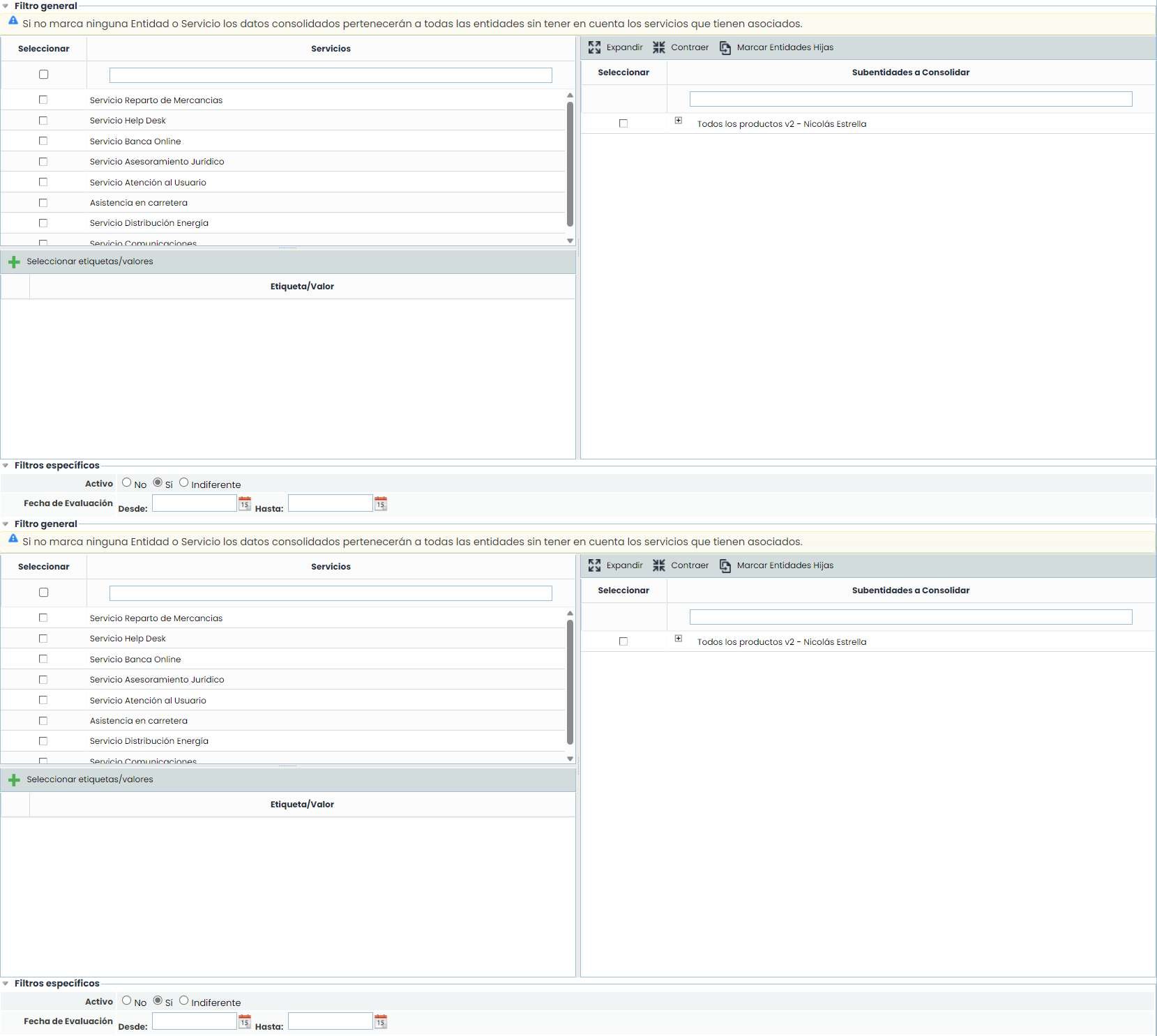
Once the necessary filters have been established, the query must be generated. To do this, the following options are available:
-
Consolidate: Once the button is clicked and based on the established filters, it allows a summarized view of the objectives in the lower table.
-
Back: Offers the possibility to return to the initial objectives list.
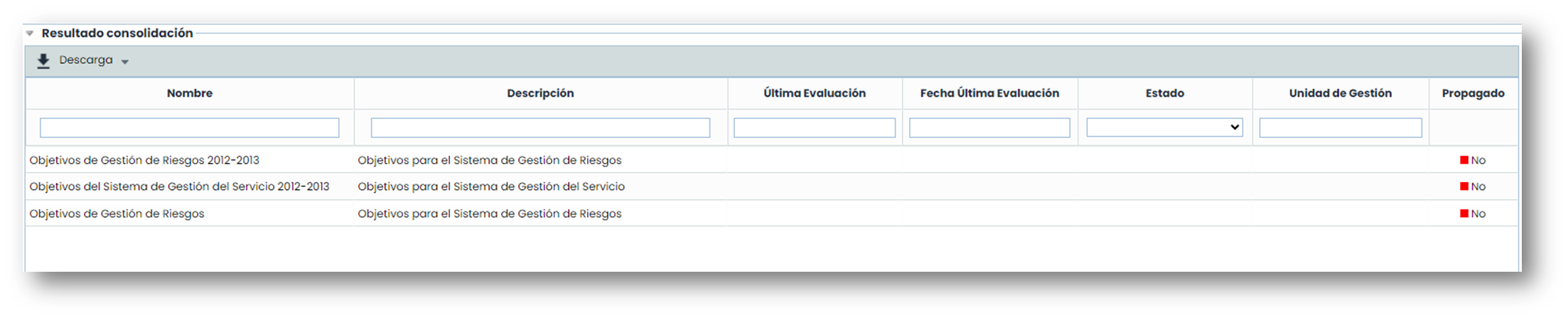
The consolidation results are displayed in the lower table ' Consolidation Results’.
-
Name: Report on the name of the objective.
-
Description: Allows visualization of the most specific description established for each of the objectives.
-
Last evaluation: Displays the information of the last evaluation of the objective.
-
Last evaluation date: Allows visualization of the date of the last evaluation of the objective.
-
Status: Informs the user of the evaluation status.
-
Management unit: Allows visualization of the entity or sub-entity it is associated with.
-
Propagated: Informs the user if the objective has been propagated to sub-entities.
Consolidation - Indicators

This option allows the consolidation of indicators defined in the parent company with the indicators of the sub-entities that depend on it. To consolidate an indicator, follow these steps:
-
Go to the Indicators option.
-
Go to the Consolidation option.

Upon entering, we see two sections:
Graph. Displays the different evaluations performed on the indicators of the parent company and the sub-entities.
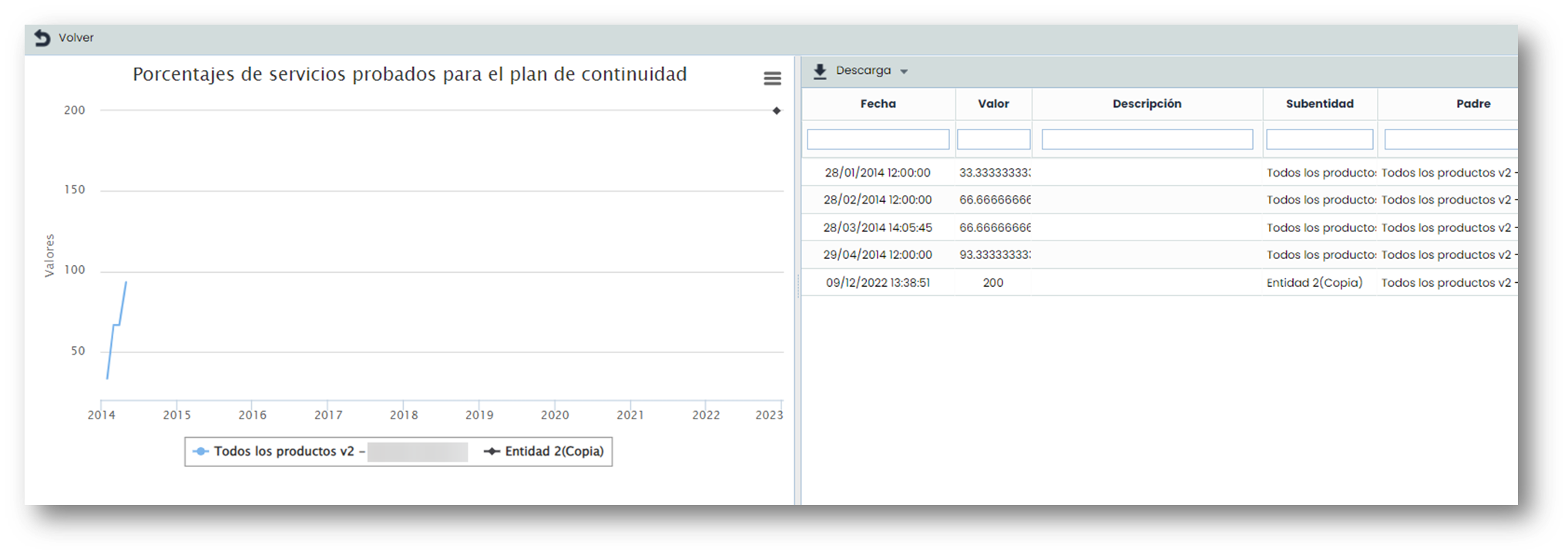
Own Indicators Table. Allows visualization of the list of indicators of the parent company that have been associated with one or more sub-entities.

Propagated Indicators Table. Allows visualization of the sub-entities to which the selected indicator has been associated. The information provided by the table is as follows:
-
Show. Offers the possibility to visualize the indicator results in the upper graph.
-
Formula. Indicates the calculation formula of the indicator.
-
Indicator. Reports the name of the indicator associated with the sub-entity.
-
Sub-entity. Displays the sub-entity to which the indicator has been associated.
-
Parent. Indicates the parent company from which the indicator has been propagated.
Consolidation - Metrics

This option allows the consolidation of metrics defined in the parent company with the metrics of the sub-entities that depend on it. To consolidate a metric, follow these steps:
-
Go to the Metrics option.
-
Go to the Consolidation option.

Graph. Displays the different evaluations performed on the metrics of the parent company and the sub-entities.
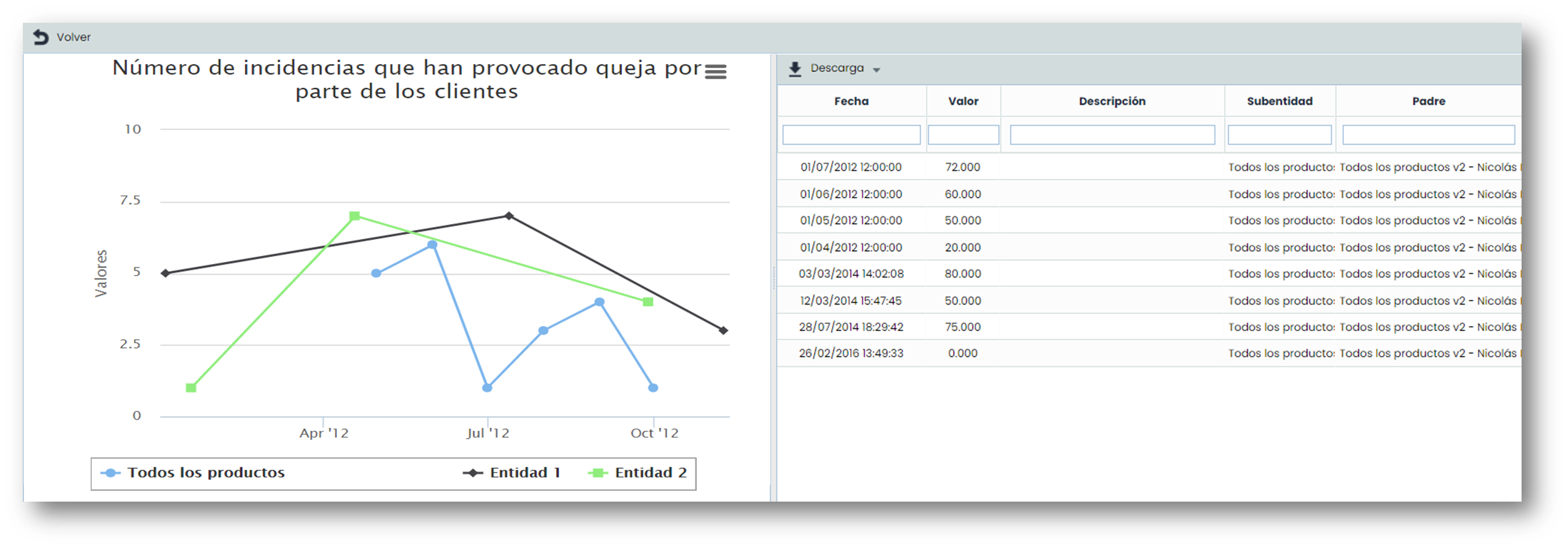
Own Metrics Table. Allows visualization of the list of metrics of the parent company that have been associated with one or more sub-entities.
Propagated Metrics Table. Allows visualization of the sub-entities to which the selected metric has been associated. The information provided by the table is as follows:
-
Show. Offers the possibility to visualize the metric results in the upper graph.
-
Alias. Indicates the alias assigned to the metric in the sub-entity.
-
Metric. Reports the name of the metric associated with the sub-entity
-
Sub-entity. Displays the sub-entity to which the metric has been associated
-
Parent. Indicates the parent company from which the metric has been propagated.