
In this article, we address how to create, associate, and evaluate specific objectives within the GlobalSuite® dashboard, linking them with weighted indicators and analyzing their value through performance graphs and ranges configured in the tool.
Definition of Specific Objectives
In the “Specific Objectives” option, concrete goals are created whose achievement ensures the success of the entity.
By clicking on the objective's name, we access the form that allows detailing, graphically representing, and updating its monitoring through indicators and periodic evaluations.
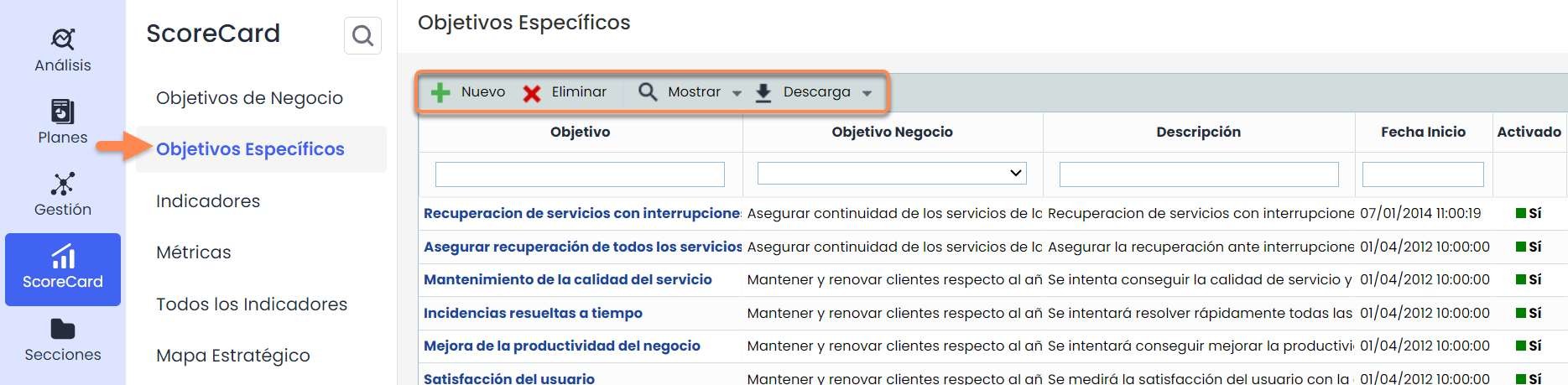
The GlobalSuite® options allow executing the following actions:
-
New: Allows generating new Specific Objectives.
-
Delete: Allows deleting previously created Specific Objectives.
-
Show: Allows visualizing only the activated objectives or all of them.
-
Download: Allows downloading the list of Specific Objectives in different formats.
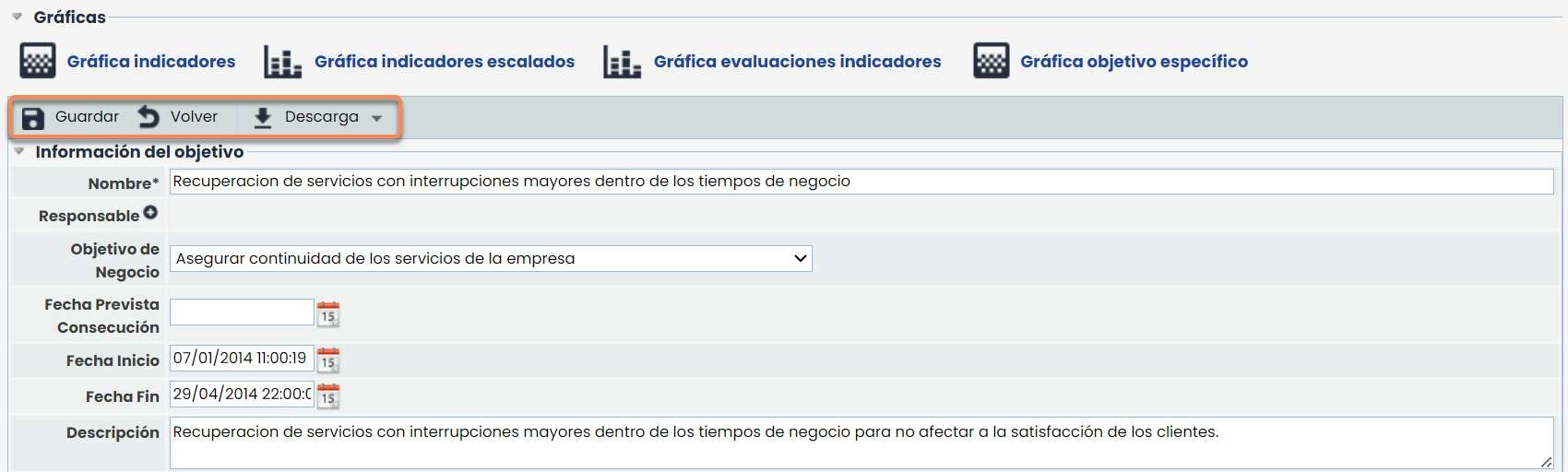
By clicking on the objectives, you access the GlobalSuite® screen that allows the detailed registration of specific objectives. The registration consists of five sections:
-
Graphs: Representation of the performance of Specific Objectives through the association of Indicators.
-
Objective information: General description of the objective, associated services and areas, associated Business Objectives, etc.
-
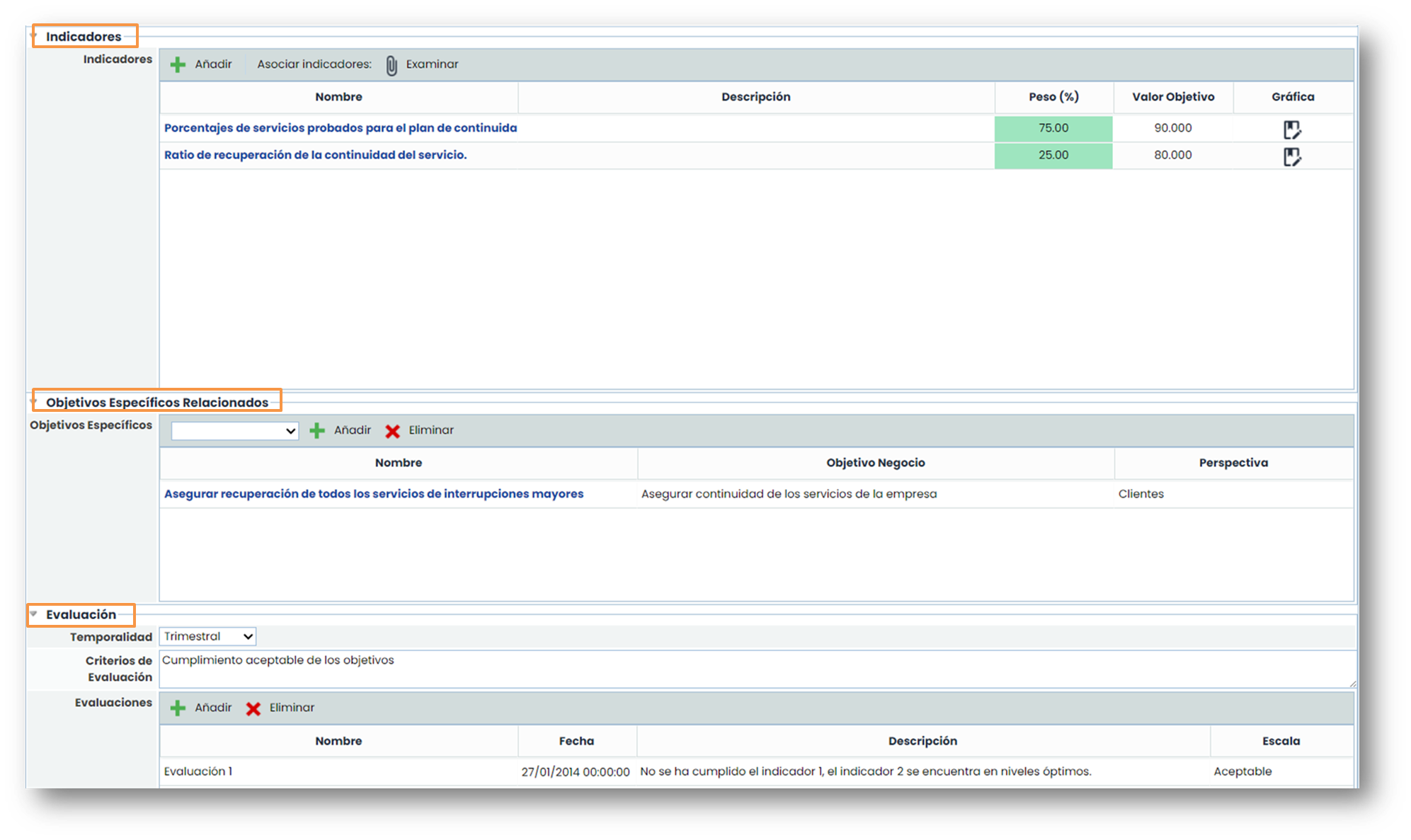
Indicators: To quantify the progress in achieving the objectives, these parameters can be created and associated with the entity's Specific Objectives.
-
Related specific objectives: Other associated specific objectives.
-
Evaluation: Where periodic assessments of the Specific Objectives are described.
Calculation of the value of specific objectives
The value calculated is the graph's value, as it is where the following can be consulted:
To begin, the specific objective must have associated indicators. These indicators must have a defined weight whose sum is 100. The target value that appears in the table is the value defined by the indicator itself.
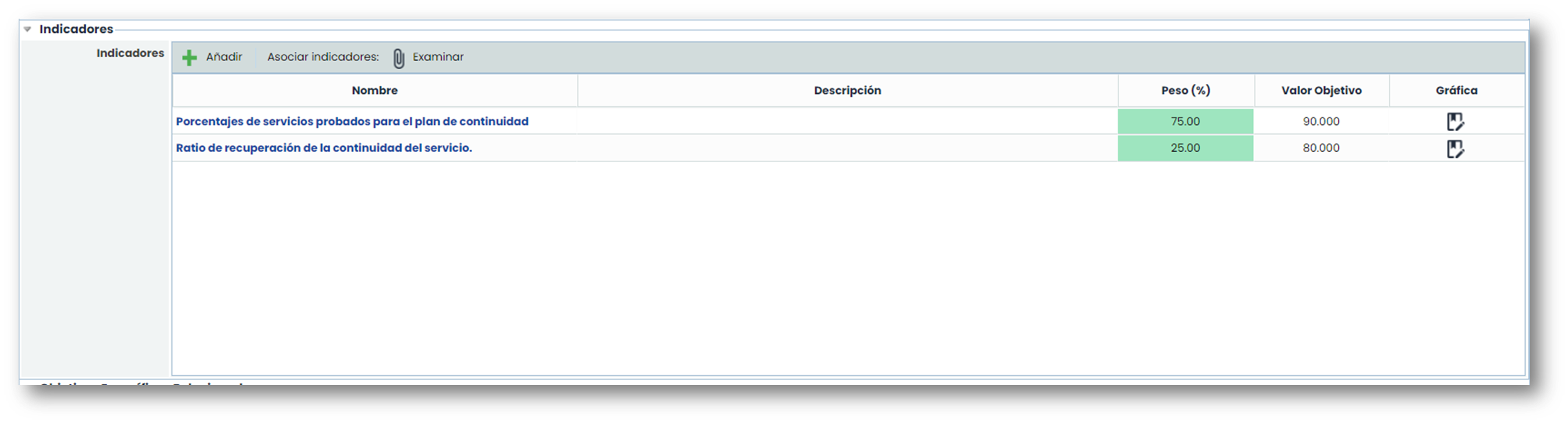
These indicators can only be used once, meaning that once an indicator is associated with a specific objective, that indicator will no longer be available for use in another specific objective.
-
Considering the weights of the indicators and their assessments, the specific objective is calculated. To access the resulting graph, click on the “Specific Objective Graph” button located at the top of the form.
-
Once accessed, the graph with the results will appear.
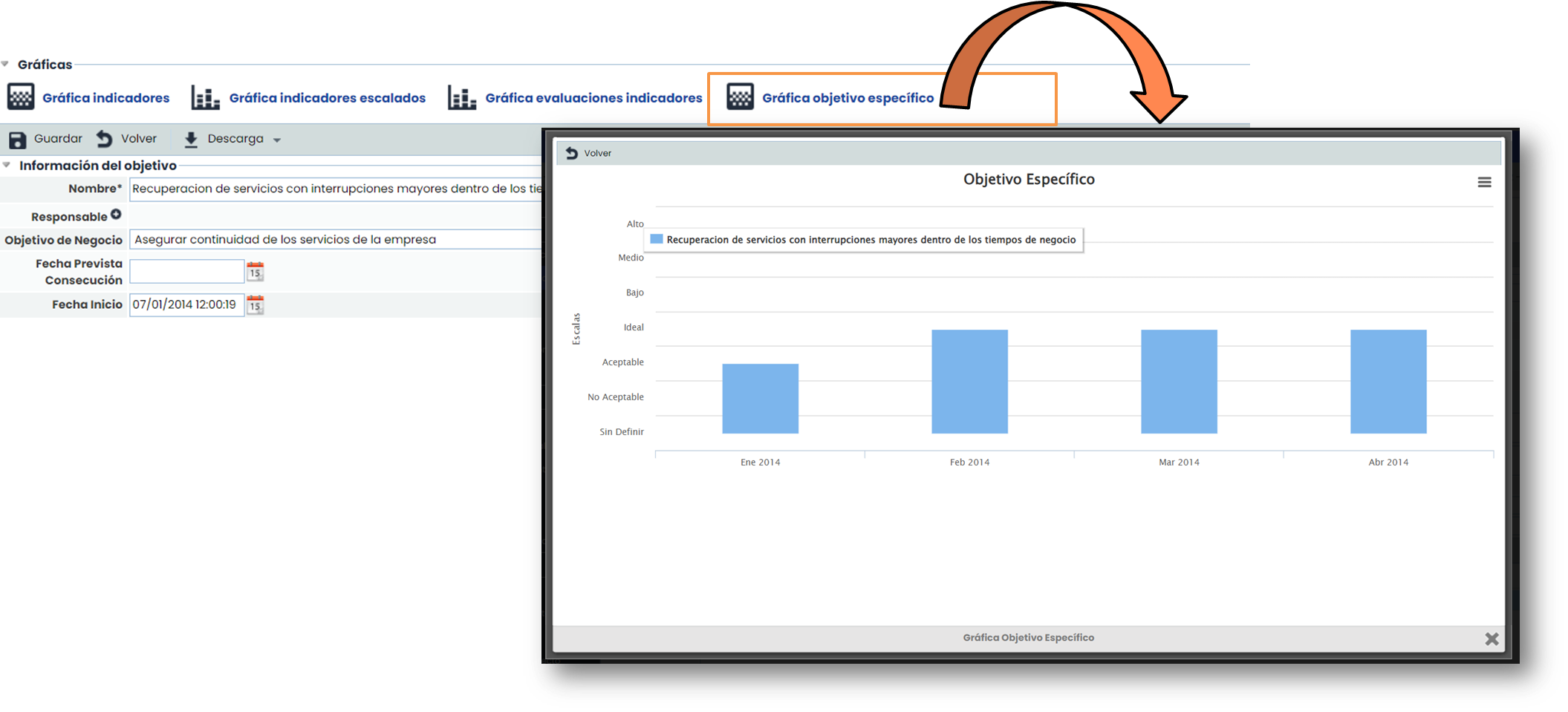
5. The calculations performed are as follows:
The ranges configured in Settings are divided by 100 to determine the range size. Then, for each range, the midpoint is taken. For example, in a case of 4 ranges, we would have:
-
IDEAL: 70-100 (85)
-
ACCEPTABLE: 40-70 (55)
-
NOT ACCEPTABLE: 10-40 (25)
-
UNDEFINED: 0-10 (5)
To calculate the value of the objective, both the indicator values and the assigned weights are considered. For example:
We have a Specific Objective with 3 Indicators:
-
Indicator A (Weight 50%): IDEAL (85)
-
Indicator B (Weight 25%): ACCEPTABLE (55)
-
Indicator C (Weight 25%): IDEAL (85)
For the calculation of the Specific Objective, the following operation would be performed: 85x0.5 + 55x0.25 + 85x0.25 = 77.5
Therefore, 77.5 falls within the IDEAL range (70-100).