In this article, we discuss how to perform a GAP Analysis in GlobalSuite® to assess the level of compliance with a regulation, applying requirements, defining statuses, and evaluating results through graphs. Additionally, we explain how to generate an Adequacy Plan from unmet requirements, associate indicators, define actions, and monitor their implementation.
GAP Analysis
This option allows for a gap analysis on the organization's compliance with any regulation that needs to be evaluated. It generates a starting point from which the company can determine what needs to be done to fully comply with the required standard.
To start performing the GAP Analysis, a catalog must be configured in Settings> Compliance Catalogs
See guide How to create and configure a Compliance catalog in GlobalSuite®?
Screen configuration
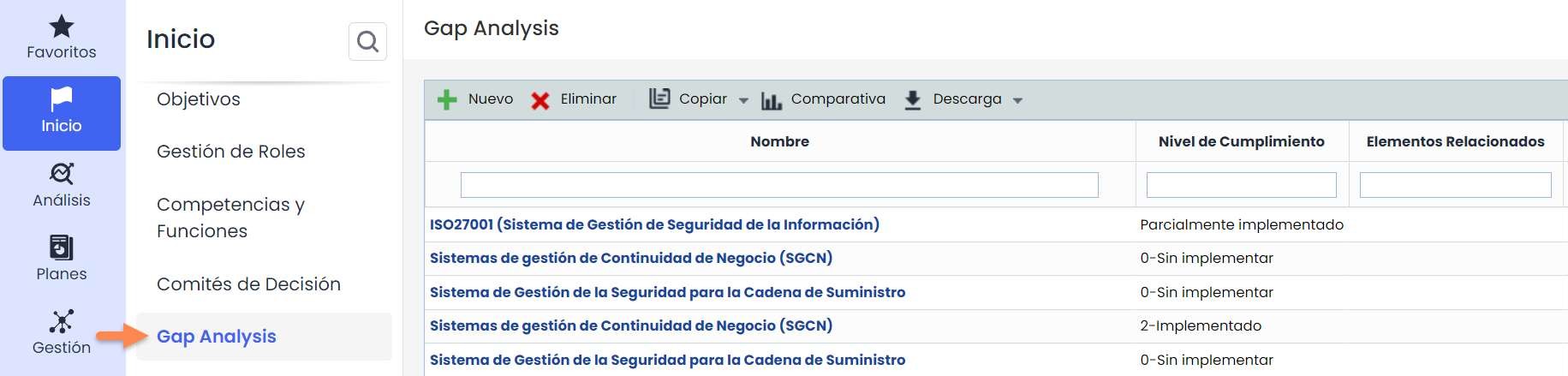
The fields shown in the following image are the default ones in the GAP Analysis option.

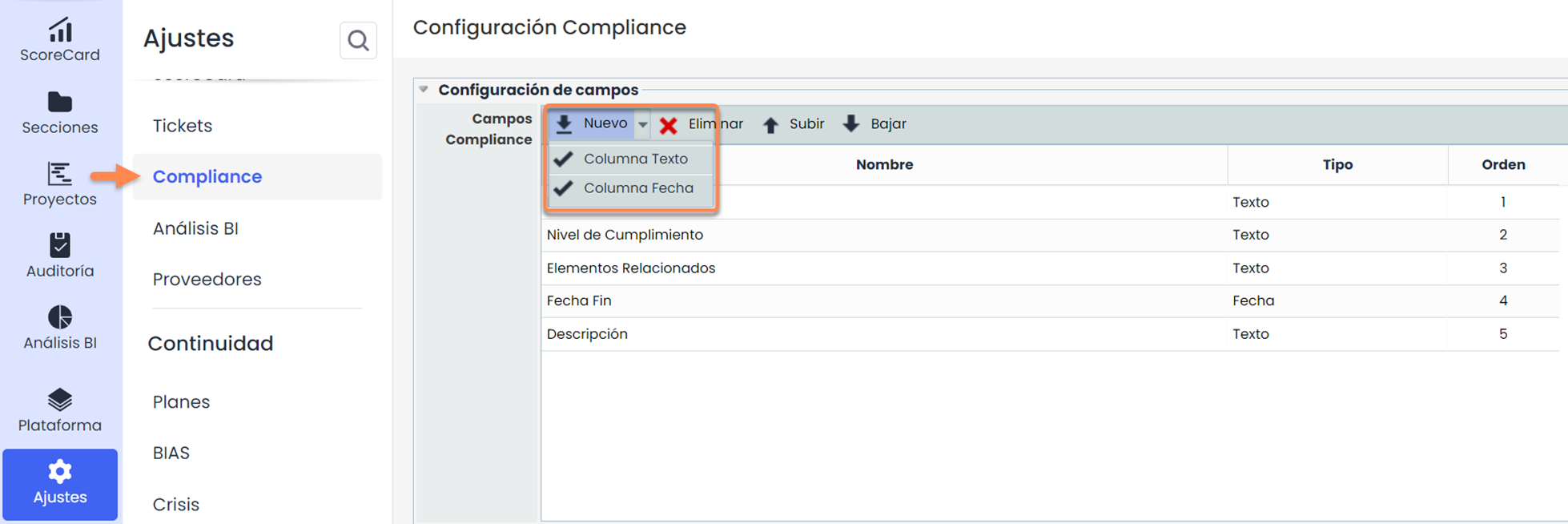
However, they can be configured (removed, added, reordered) from Settings > Configuration > Compliance . Columns with text or date fields can be added. This view is common for the GAP Analysis and Compliance sections.
Create GAP Analysis
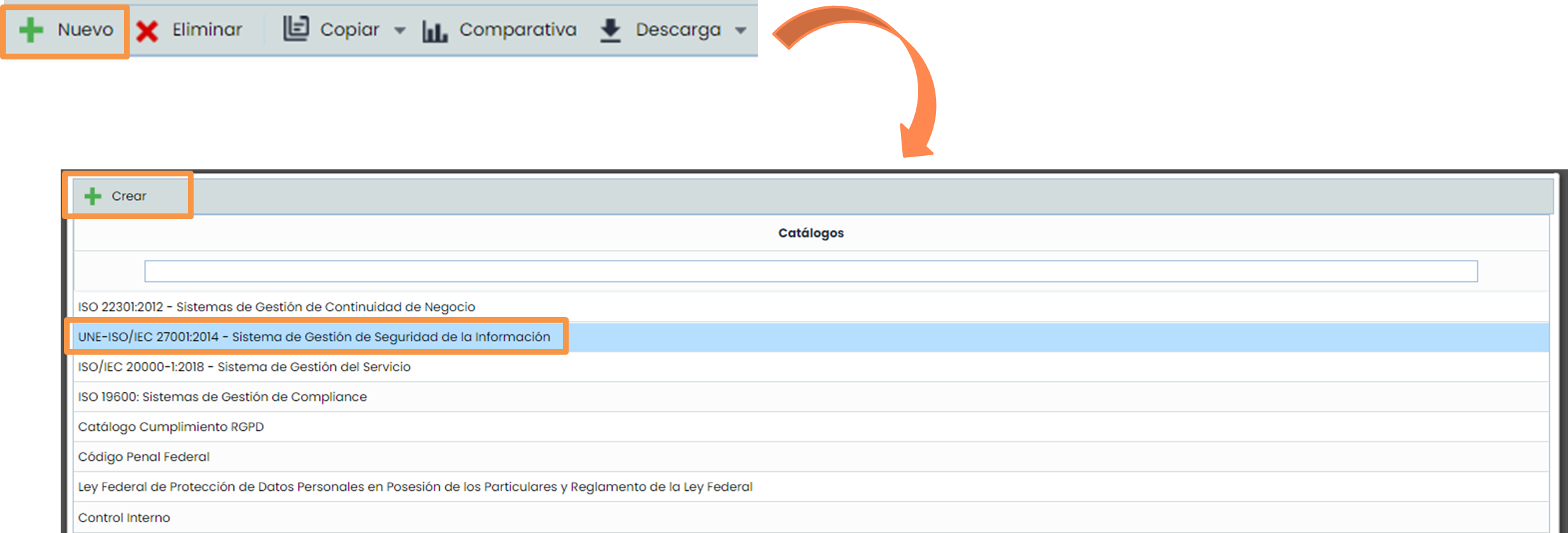
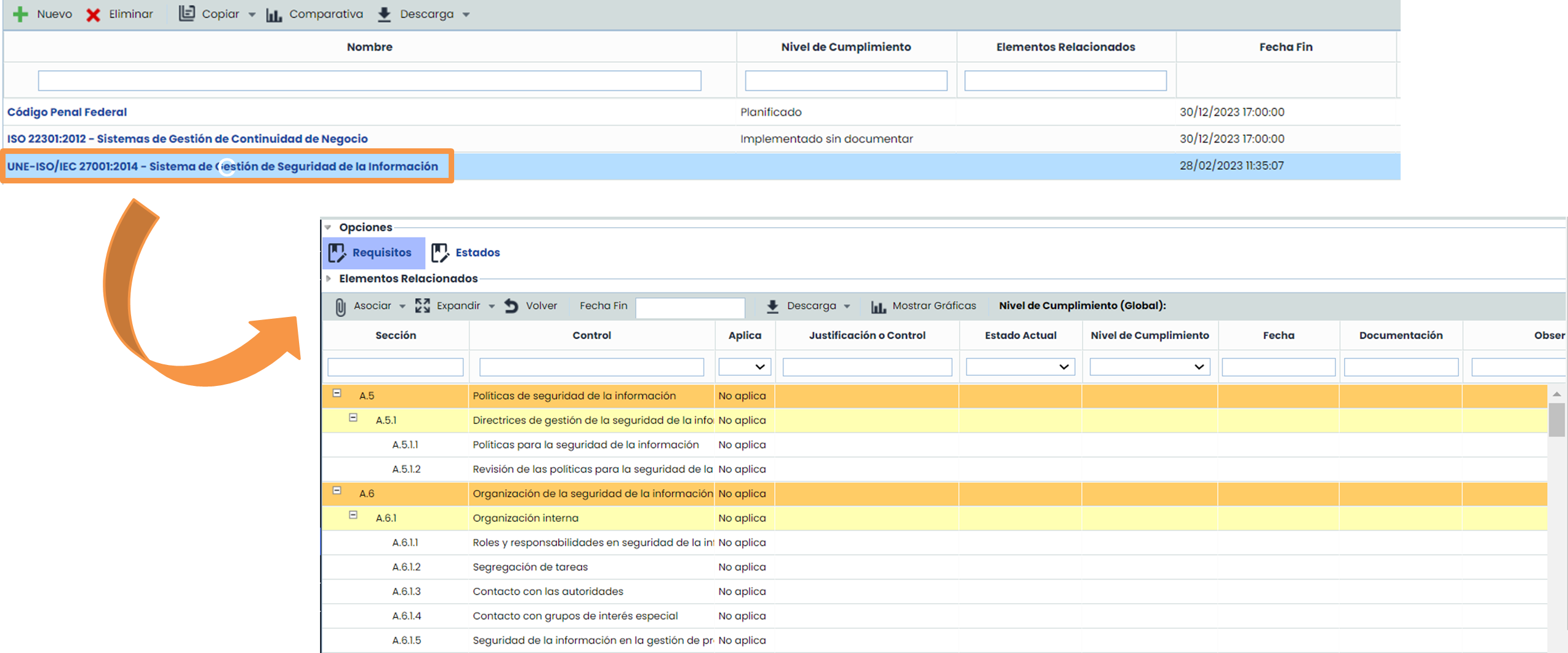
Once it is verified that the necessary Compliance catalog is configured, go to Home > Gap Analysis and click New. Select the catalog from the list (previously configured in Settings > Compliance Catalogs ), click Create, and close the pop-up window to return to the initial screen.
To access the Gap Analysis, once created in the previous step, click on its name.
Apply and modify requirements
To perform the GAP Analysis, the applicable requirements for the organization must first be identified. By double-clicking on the requirement column, you can choose between “Applies” and “Does not apply.”
-
Applies: The requirement can be met by the organization or is included in the scope of this initial adequacy to the standard.
-
Does not apply: The requirement cannot be met by the organization or is not included in the scope of this review of the standard.
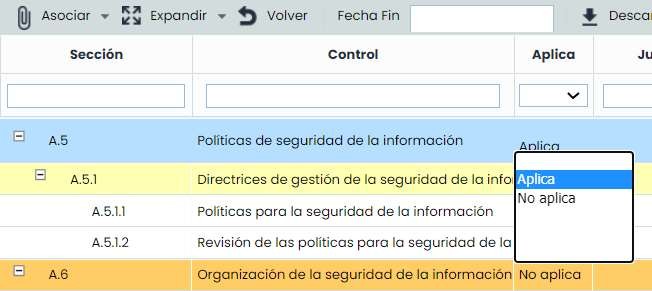
Once the applicability of the requirement is chosen, you can modify the rest of the columns.
-
Justification or Control: Text field where you can explain the applicability of the requirement.
-
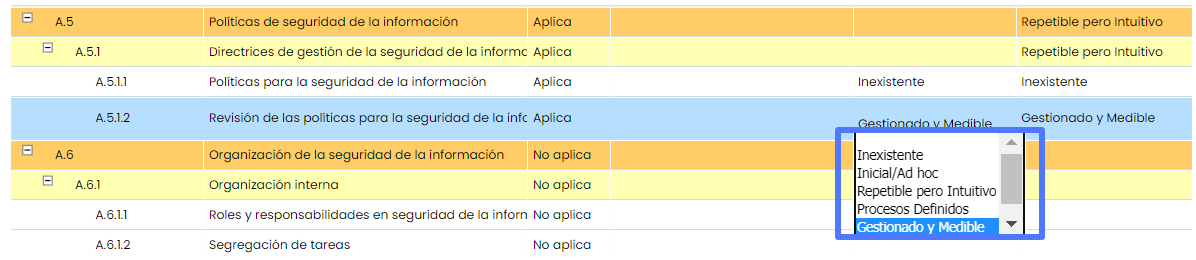
Current Status: Dropdown list to select the degree of completeness of the requirement. These statuses can be defined in the “Statuses” tab (name and percentage of completeness).
-
Compliance Level: At the requirement level, it shows the Current Status; at the subgroup or group level, it shows the result of the formula selected in the “Statuses” tab (see step 5).
-
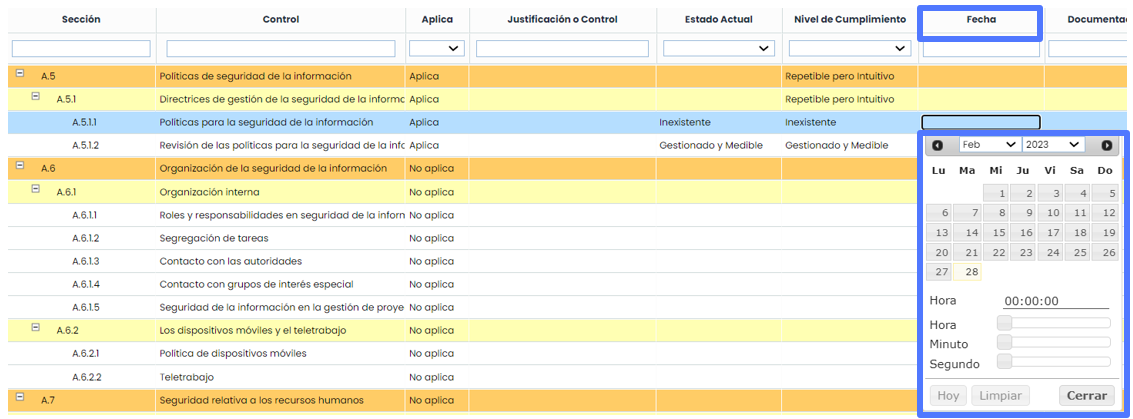
Date: Record of the requirement's completion date.
-
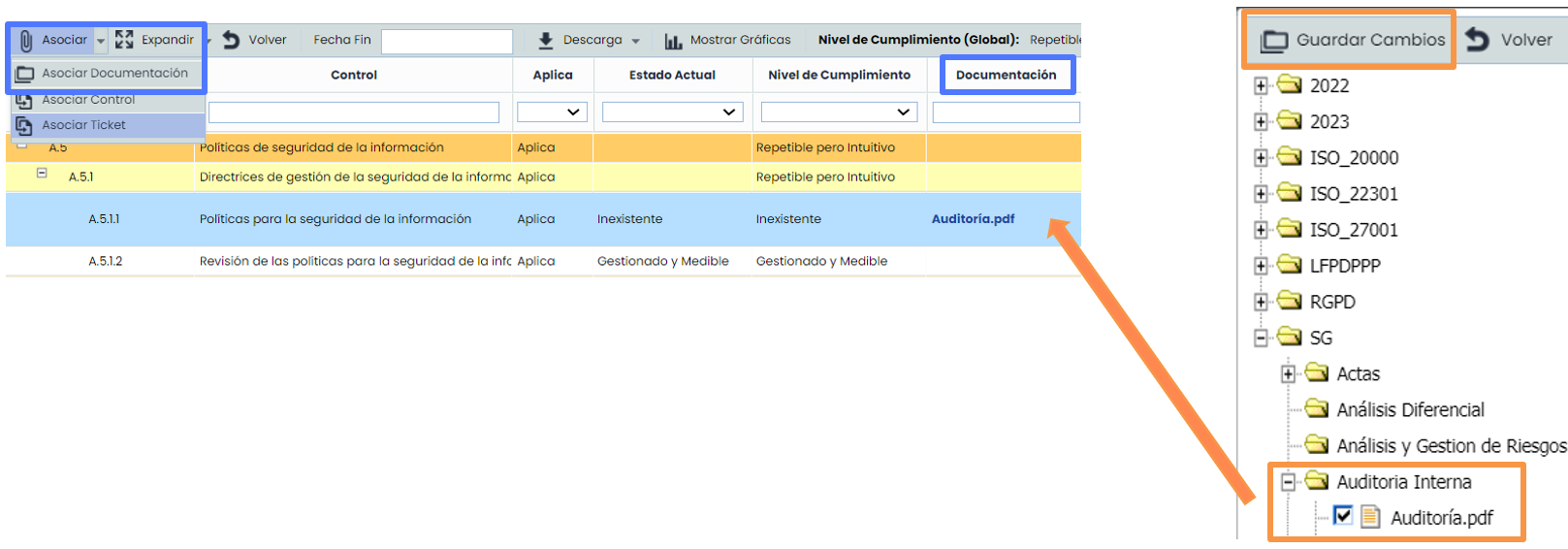
Documentation: Allows associating documentation to evidence the requirement's compliance.
-
Observations: Text field where any comment on the requirement can be added.
-
Grouped Controls * : Allows associating the controls from the risk analyses that the organization has implemented to evidence compliance.
-
Tickets *: Allows associating tickets of any type to a requirement (Incidents, Non-Conformities, Requirements, Corrective and Preventive Actions, etc.)
* These options are hidden by default at the table level; to view them, right-click on any column title and check them in the dropdown.
The previous options are explained in detail below.
Define GAP Analysis statuses
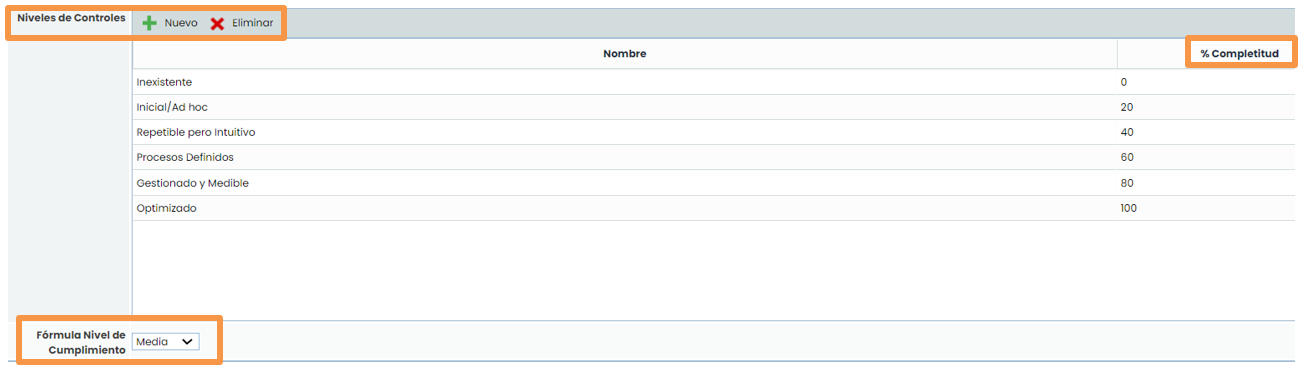
The statuses are predefined but can be modified by clicking the Statuses option.

On this screen, you can add, delete, modify the Name and % of Completeness. These names can be selected in the GAP Analysis requirements. The % of Completeness will be used to calculate the percentage of a set of requirements and the associated graphs.
Additionally, you must select from the dropdown Compliance Level Formula how you want the Compliance Level of the GAP Analysis groups and subgroups to be displayed.
Evaluate requirements
To assess the % of Compliance within the GAP: double-click on the “Current Status” column.
Date Definition.
By clicking on the Date column, a calendar will appear where you can choose the month, day, and time of the control's compliance:
Documentation Association.
You must select the requirement you want to associate. Click the Associate – Associate Documentation button. A pop-up window with the tool's document manager will open (image on the right).
By clicking the Save Changes button, it will be linked to the requirement.
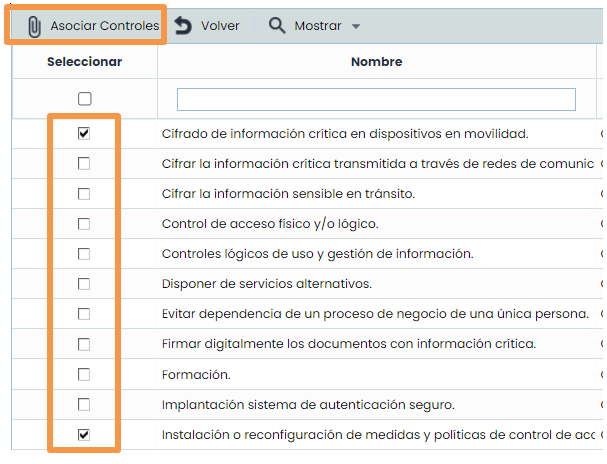
Associate Controls
Select the requirement in the table, click the Associate > Associate Control button.

A pop-up window will open with the organization's controls (these controls are managed in Analysis > Control Management ). You must check the controls in the left column and click Associate Controls
Associate Tickets.
Select the record in the table, click the Associate> Associate Tickets button (tickets are registered in Management > Tickets / Incidents / Loss Events / etc.)

The following pop-up window will appear; you must select the tickets by checking the left column and click the X to return to the requirements screen.

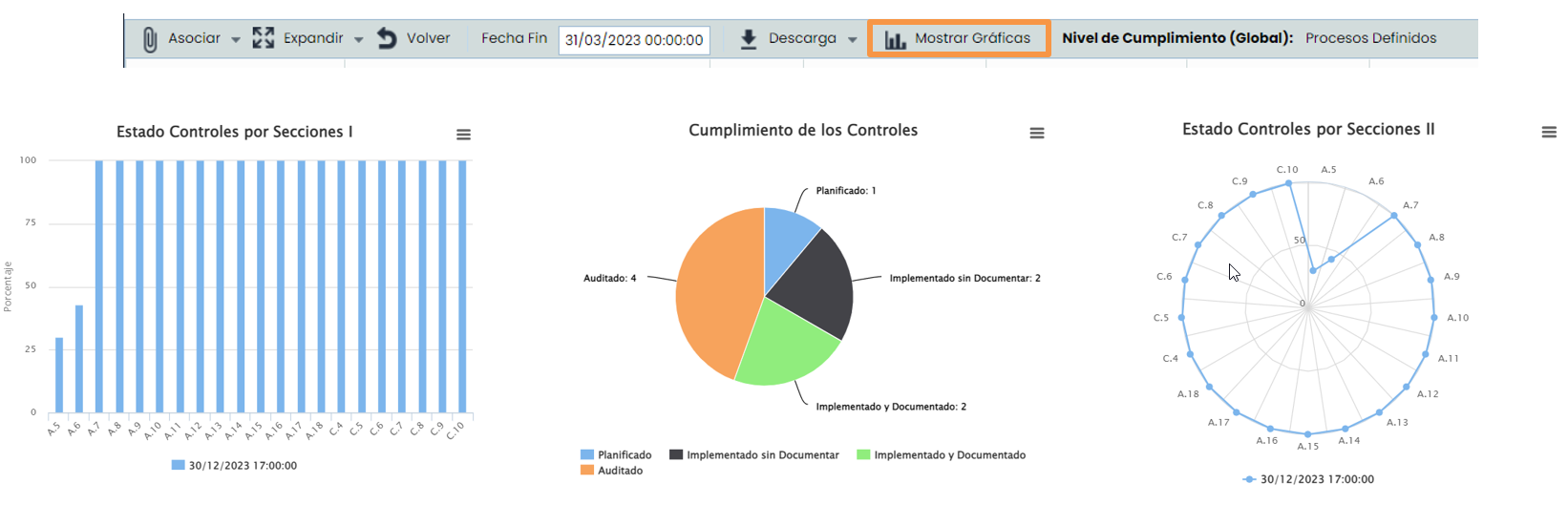
Evaluate results
By clicking the “Show Graphs” button, you can visually see the results of the GAP Analysis.
Copy GAP Analysis
Once the gap analysis of the GAP Analysis is completed, GlobalSuite® allows two types of copies with the following purposes:
-
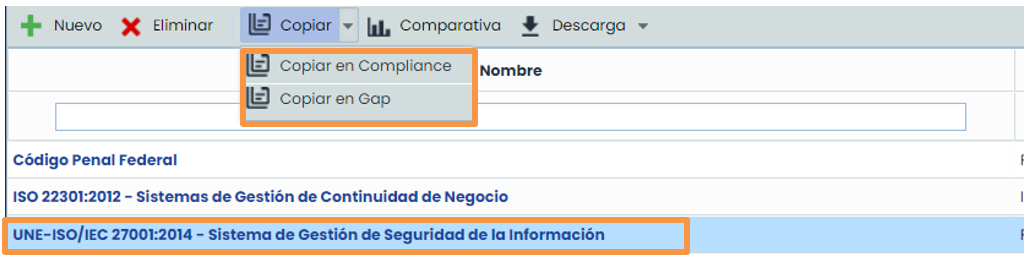
Copy to Compliance: If the organization wants to continuously monitor the standard for which the GAP was performed, it can click the Copy – Copy to Compliance button. A new Compliance will be created, which can be modified in the Analysis – Compliance option.
-
Copy to GAP: If the company needs to perform a similar GAP Analysis, it must click the Copy – Copy to GAP button.
Adaptation Plan
Creation of the Adequacy Plan
Once the GAP Analysis is completed, GlobalSuite® allows creating a plan with those requirements that the organization does not meet and, therefore, the gap analysis manager must address to comply with the standard.
In Home > Adequacy Plan , you can choose which standard the plan will be based on. The dropdown list will show the standards for which a GAP Analysis has been performed.
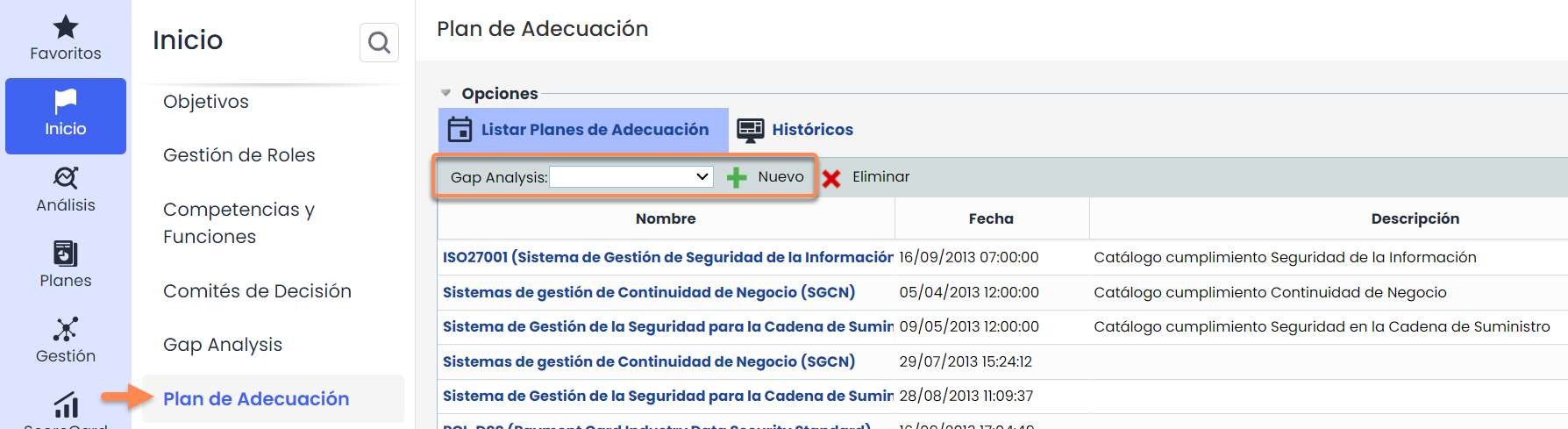
After selecting a GAP Analysis from the dropdown list and creating it, click on the name, and a window will open with those requirements of the standard that are not 100% implemented in the organization, meaning those controls that are not yet in the final state (100%) of the statuses defined in the GAP will be displayed.
Upon entering, you can see two options to manage the Adequacy Plan:
-
Adaptation Plan
-
Monitoring
Once the requirements are displayed, click on the name of each one to access and edit its record:
Additionally, there will be an option to Associate Indicators that have been previously defined in the ScoreCard> Indicators option. If there are no indicators, proceed to the Actions tab.
Monitoring the Adequacy Plan
Finally, it will be necessary to establish the actions required to achieve each requirement and monitor the progress of the adequacy plan.
By clicking the New button, the desired actions can be added.

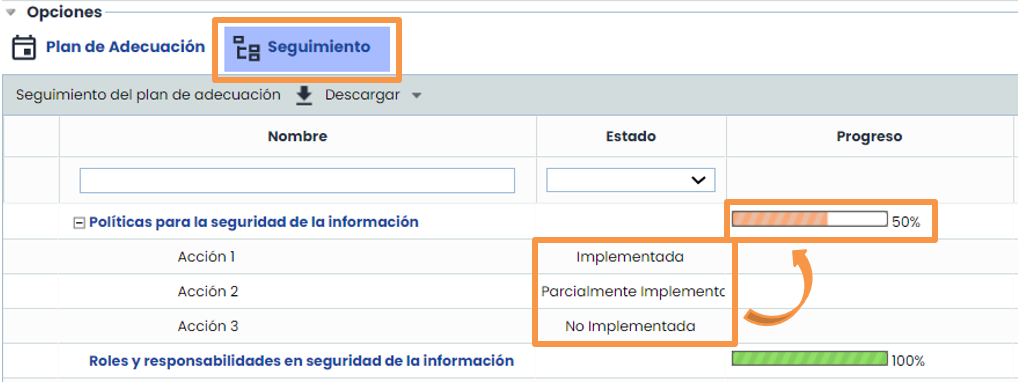
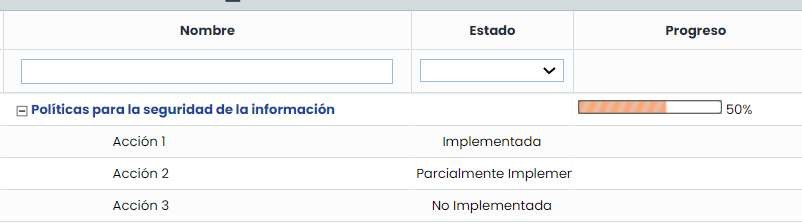
The result of the above can be summarized as follows in the Monitoring option:
To perform the monitoring, go to the top submenu Monitoring.
Next, the requirements of the treatment plan will appear along with the actions determined for each one; this way, the degree of implementation of each action in the organization can be assessed (configurable in Settings > Methodologies > Elements ).
Additionally, the progress of the set of Actions will be displayed, calculated based on their statuses.