
In this article, we address how to configure the Compliance catalog in GlobalSuite®, by copying an existing one or creating an empty one from scratch, adding and organizing controls, adjusting its sections and aids, and defining progress states that will allow evaluating the compliance level in the different options of the platform.
Phases for configuring the Compliance catalog.

Compliance Configuration
This option allows configuring the Compliance catalog that will be used in the different compliance options (GAP Analysis, Adaptation Plan, Compliance, and Surveys).
Once the catalog is configured in Settings, a gap analysis can be performed on the selected catalog in the aforementioned options. Whenever this catalog is used, a copy of it will be made.
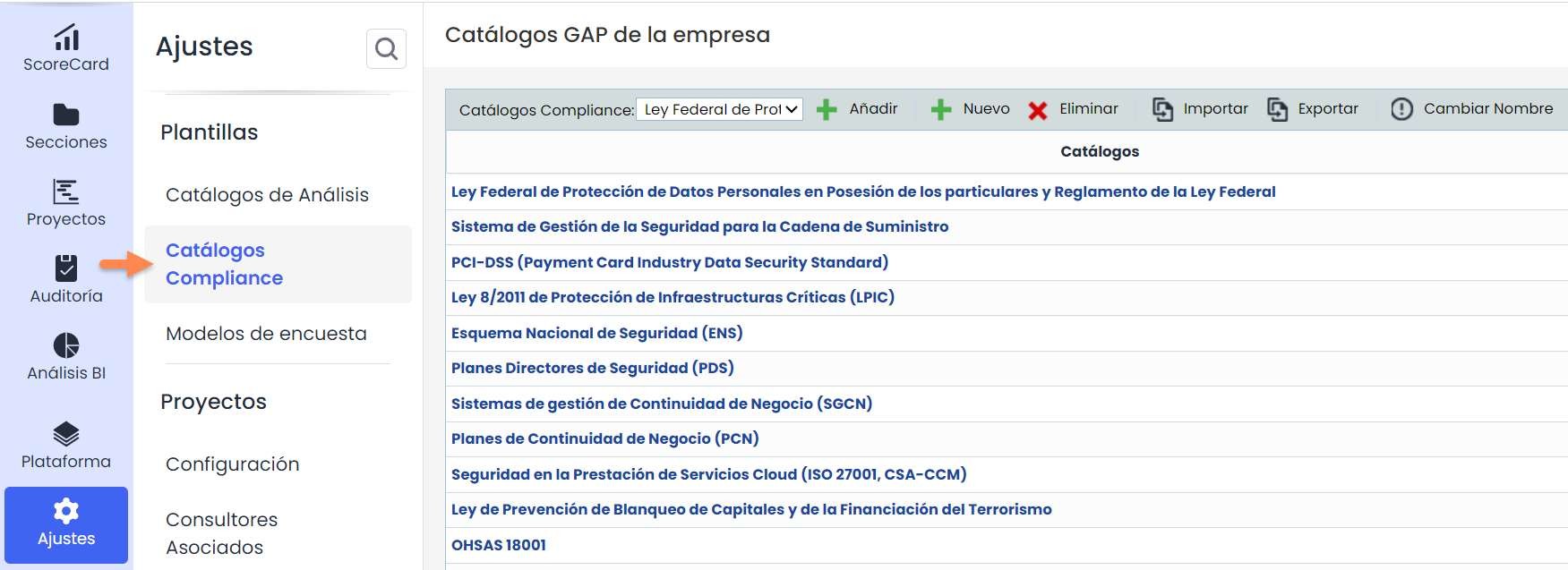
There are two different ways to create a catalog: Copy Catalog or Create an empty catalog.
Copy Catalog.
-
If a catalog very similar to one already configured in the environment is to be set up, the desired catalog will be selected, and the Add button will be clicked. A new entry will be created where the associated catalog name can be changed.
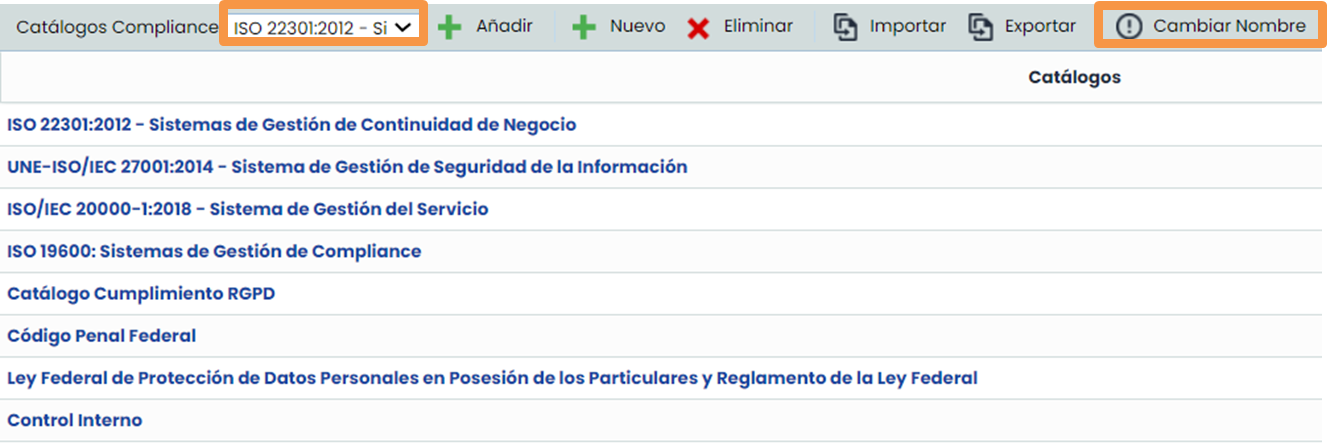
-
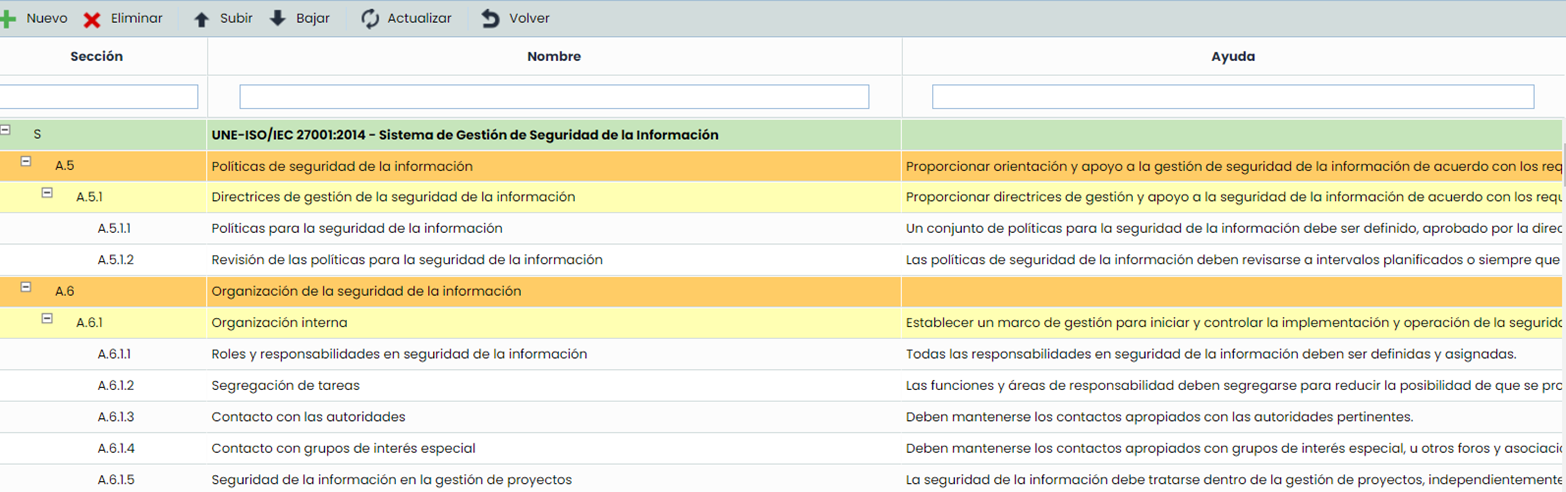
By clicking on the catalog name, the copied catalog with the controls of the chosen standard will appear. This catalog can be modified according to the standard to be defined.
Creating an empty catalog.
-
If you want to start a catalog from scratch, you need to click the New button, and an entry with a default name will be created.
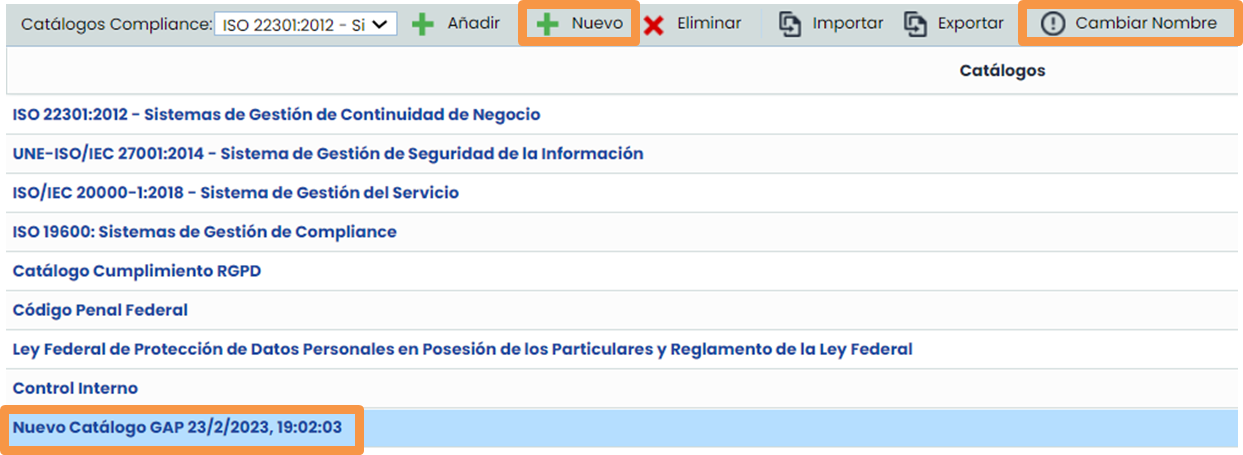
-
By clicking on the catalog, an empty window will appear, and you can add all the controls you need.
-
To create a new control, click on the row where you want the control to depend and press the New button. A new entry will be created in the table.
For example, if the GAP row “Execution” was selected, “Strategic Execution” and “Support” would be created. If “Strategic Execution” was clicked, the controls below the selected row would be created.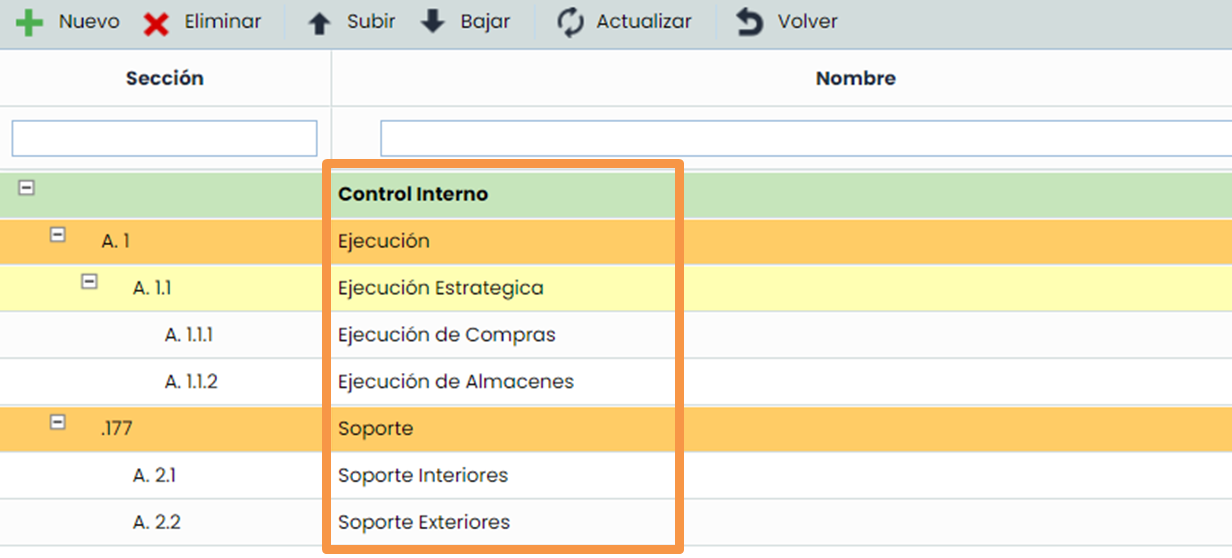
-
You can modify the section column and the section of the new control will be automatically calculated. If the section of the green row is changed, whenever a new control is added, the section of the new control will be automatically calculated.
-
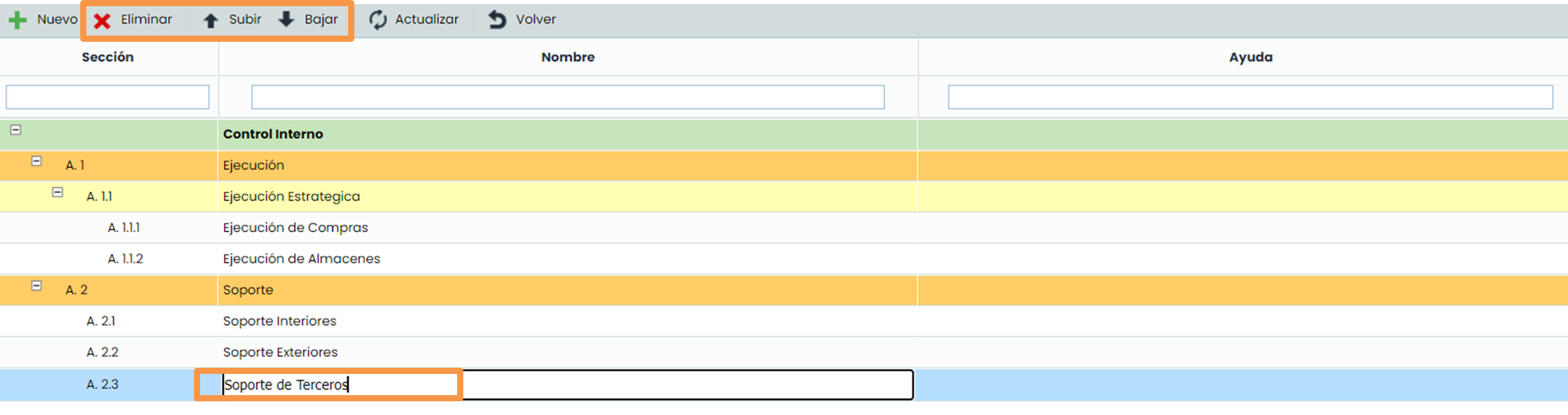
By double-clicking on the cell of the control names, you can modify the name of a control.
-

You can move controls up and down in the catalogs.
-
You can change the help associated with each control, by double-clicking on the cell in the help column.
-
You can delete Controls by selecting the row of the control you want to delete and pressing the Delete button. The associated controls below it will also be deleted. For example: If control A.1.1 is deleted, controls A.1.1.1 and A.1.1.2 will also be deleted.
Defining Progress States
Within any Compliance catalog, default states can be defined. These states will be used to calculate the percentage of control completion in the organization.
If the States icon is clicked within the top submenu, the States screen will open.
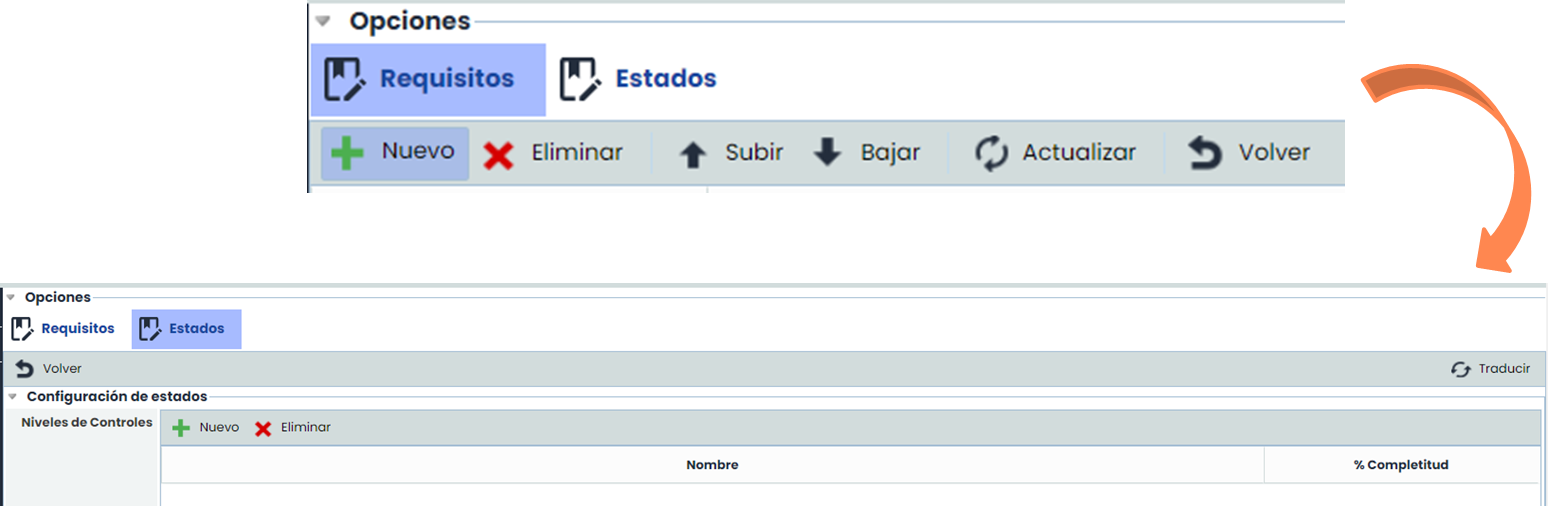
By clicking the New and Delete buttons, the table can be configured with the desired states. Additionally, the % of completion must be defined with a number. A possible result could be:
