
In this article, we address how to identify services and processes, define roles, perform the assessment of assets (CIDAT), obtain the system categorization, manage security measures and the adaptation plan, and how to rely on inventory, document manager, incidents, and ScoreCard for monitoring the ENS in GlobalSuite®.
1. Start
1.1. Service Catalog
GlobalSuite® ENS allows identifying the organization's services or products to which the measures established by ENS will be applied and on which a future assessment will be conducted. This will be done through the “Service Catalog” option.
Subsequently, dependencies will be established with the different areas or departments that make up the organization. To define these service or product catalogs, you must configure them by clicking the button and defining the information related to the company.

1.2. Business Processes
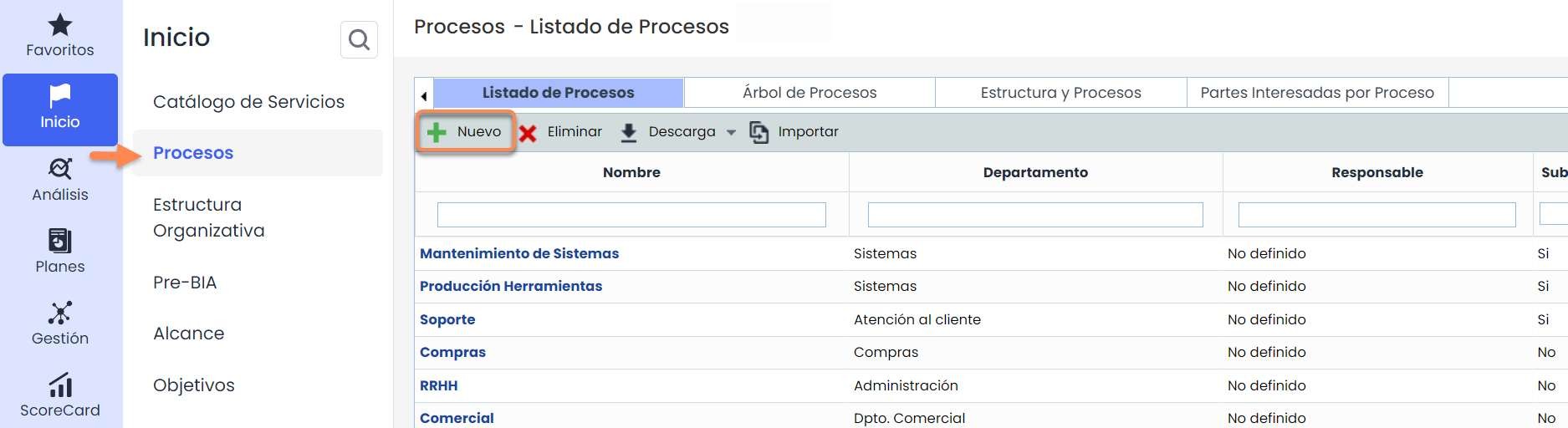
GlobalSuite® ENS allows the organization to define the services or products that make up the company, which have been registered in the “Service Catalog” option. Based on them, the organization can be broken down into a lower level, including processes, areas, departments, divisions, or managements through the “ Processes” option.
To define these processes, access the “ Process List” tab and click the “ New” button to create them.
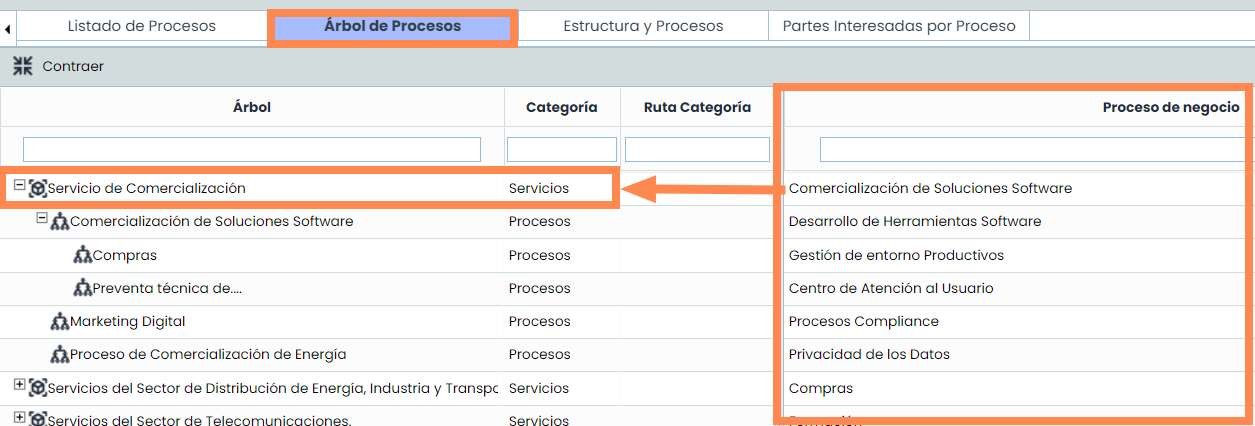
Once this list of processes/areas is completed, they can be associated with the services as defined in the next transparency.
Once the processes/areas are defined, they can be included in the Services created in the Service Catalog. This will be done through the “ Process Tree” option, where the organization's structure can be established in a tree form, linking the created services with the processes. To do this, simply drag the processes from the right table to the hierarchy in the left table until the dependencies between the different areas of the organization are formed.
1.3. Roles and Responsibilities
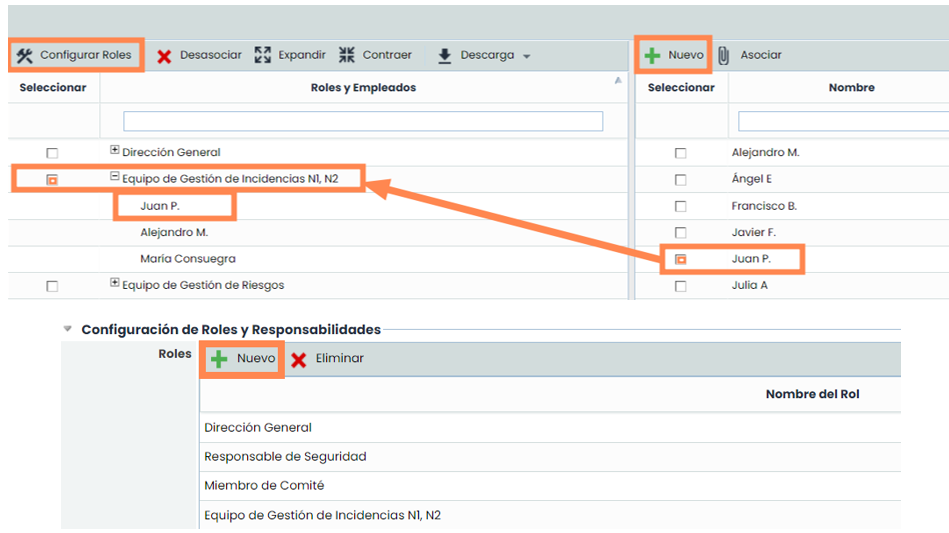
This option allows creating the roles involved in ENS management. For this, GlobalSuite® ENS allows configuring new types of profiles through the “Configure Roles” menu and, subsequently, in the new tab, defining the profiles required by the organization using the “ New” button.
After that, an employee can be assigned or associated with each role as its responsible party.
1.4. Assessment
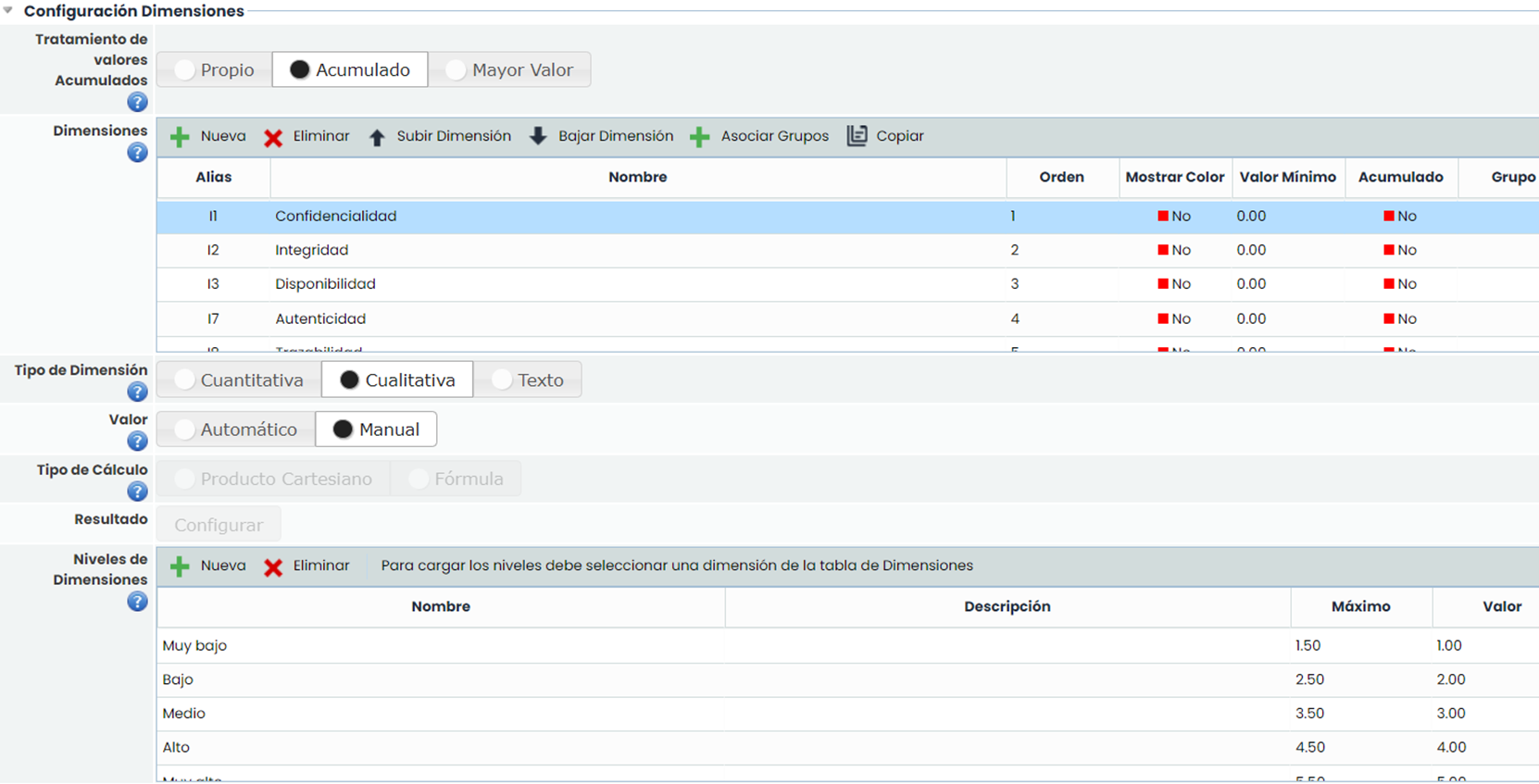
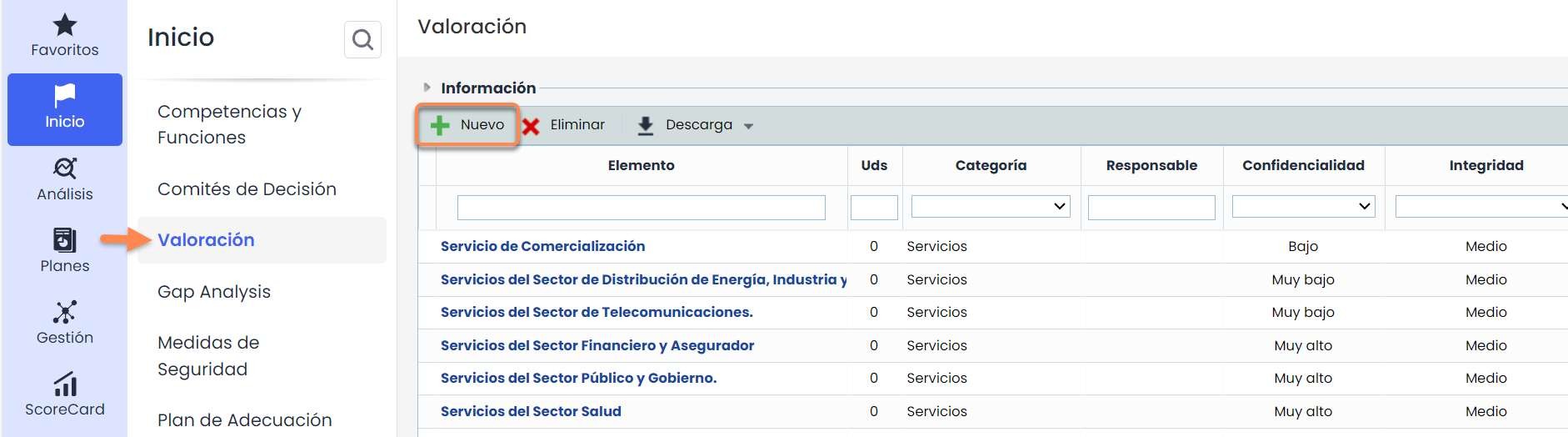
The “ Assessment” option in GlobalSuite® ENS allows assessing the different assets belonging to the “ Services” and “ Information” categories. The assessment of these assets is done through 5 dimensions (Confidentiality, Integrity, Availability, Authenticity, and Traceability), each with 5 different levels (Very Low, Low, Medium, High, Very High). These dimensions and levels are pre-configured in Settings > Methodologies > Elements and should not be deleted or edited to avoid altering the module's functionality.
To perform the assessment, go to the “ Assessment ” option and assess each asset by selecting the corresponding level in each dimension.
In addition to assessing existing assets, new Information-type assets can be created using the “New” button, and they can also be assessed.
This assessment is very important for GlobalSuite® ENS, as without it, it will not be possible to determine the “ System Categorization ”.
1.5. System Categorization (Sections)
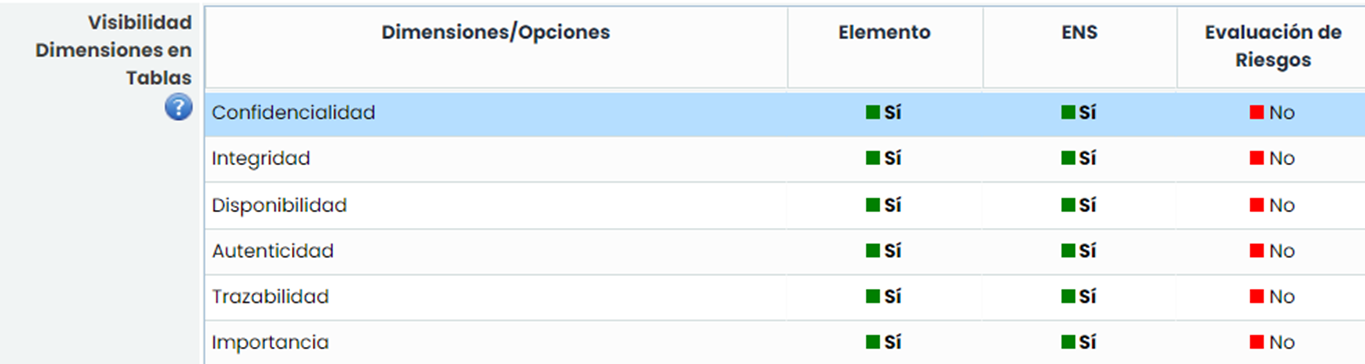
This is one of the most important options in GlobalSuite® ENS, where the maximum value of the previously assessed assets appears by default. Additionally, the dimensions to be displayed in this option can be selected. To do this, go to Settings > Methodologies > Elements , and in the Dimension Visibility in Tables option, click “Yes/No” in the ENS column to indicate whether or not to display that column.
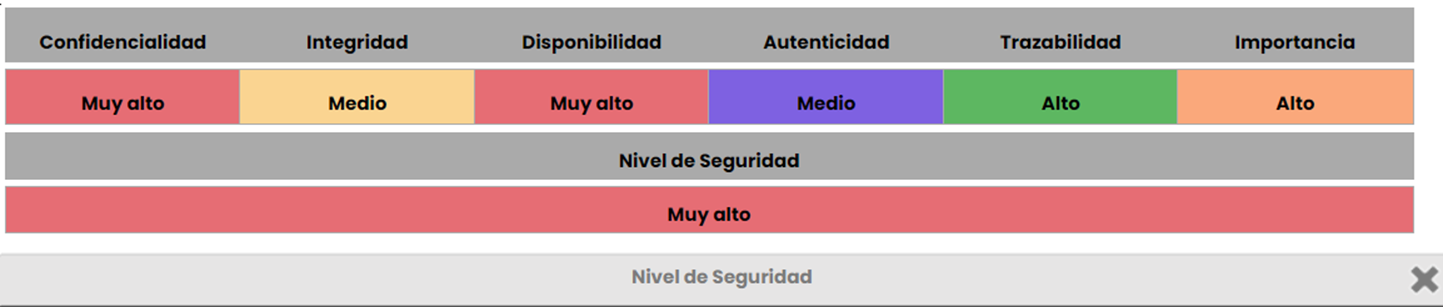
Once selected, if you click on the “ System Categorization” found in the Sections option (which can be found in any of the GlobalSuite® tabs), a window will appear with the required information and the Security Level that applies to the company.
1.6. Security Measures
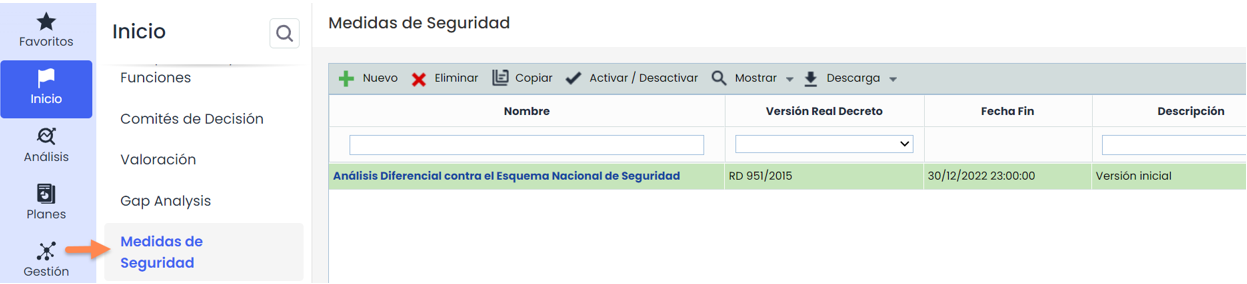
The ENS Differential Analysis aims to establish the principles and security requirements for the use of electronic means, thus ensuring the adequate protection of information. To comply with the National Security Framework, each applicable area of action for the company must be fulfilled. It should be noted that there are currently two versions of the ENS Differential Analysis, the 2015 version and the new 2022 version.
GlobalSuite® allows creating copies and storing histories of the different analyses using the Copy and Activate/Deactivate buttons. Records highlighted in green are active, while those with a white background are inactive versions. To view all versions, click the Show button.
For security measures, the system categorization must first be configured, which requires assessing the services and information-type elements in the assessment tab beforehand. Once done, the different sections will appear with colors depending on whether their assessment was low, medium, or high. Based on these levels, it will indicate whether they apply or not, considering the assessment of the aforementioned elements.
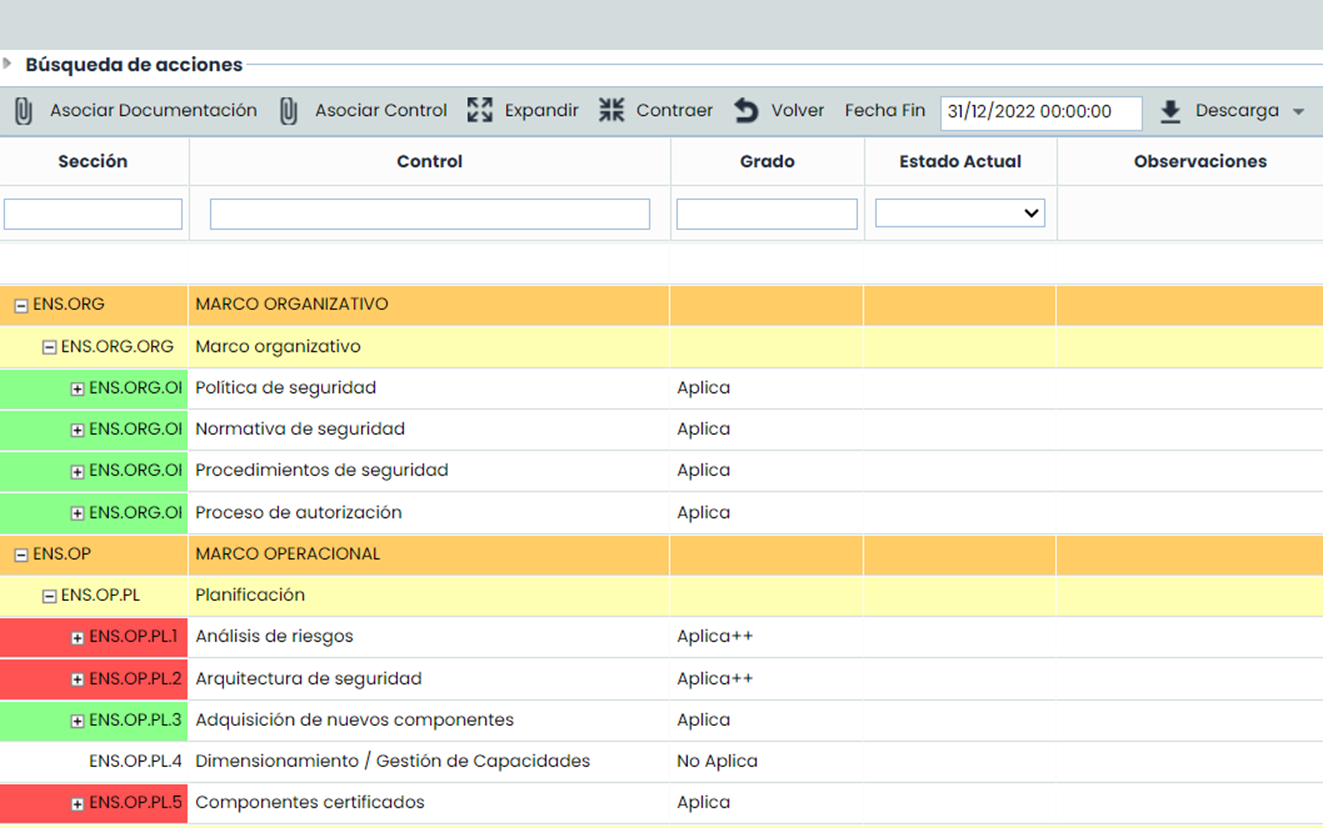
The "Action Search" section (click to expand) can be used to search for requirements or security measures (rows without color) within the controls, as the column filters only allow filtering controls, which are the colored rows.
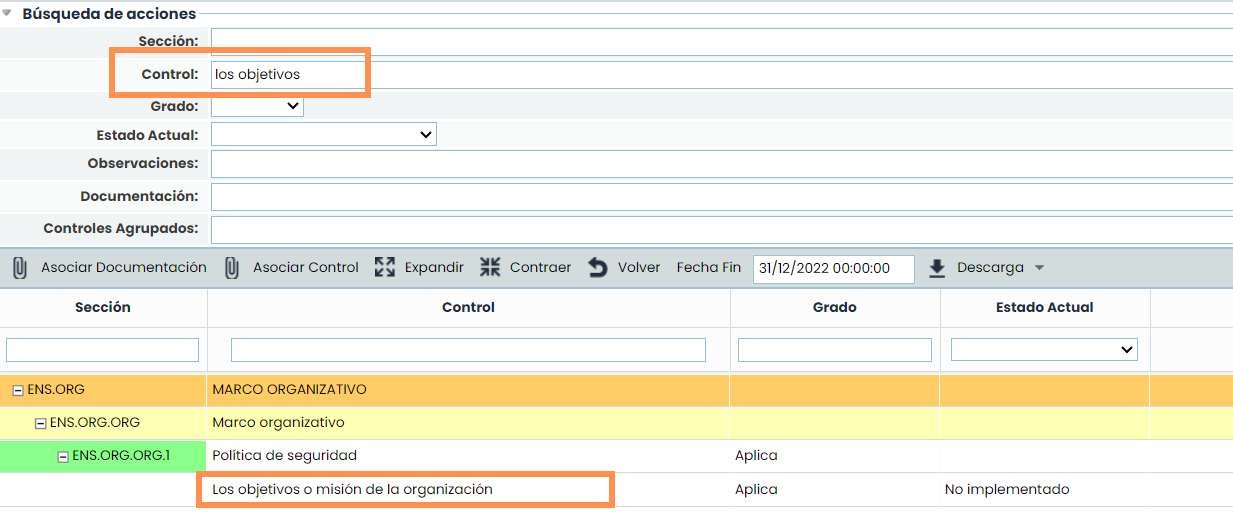
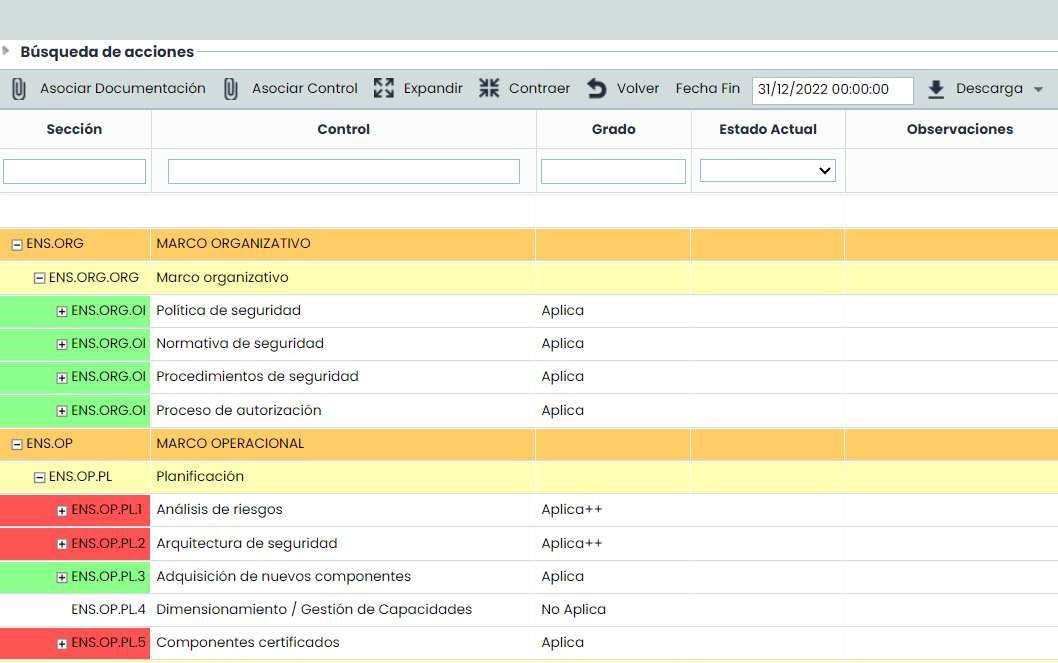
Within the requirements or security measures, in the Degree column, their applicability (rows without color) can be edited, but not the ENS controls (colored rows), which are imposed by the system categorization level. The compliance status of each measure must be indicated in the Current Status column.
1.7. Adaptation Plan
The ENS Adaptation Plan is used to identify the ENS controls that apply to the company and whose security measures are not 100% implemented. To do this, they will be implemented, the action search filter will be used, and the column filter can also be used.
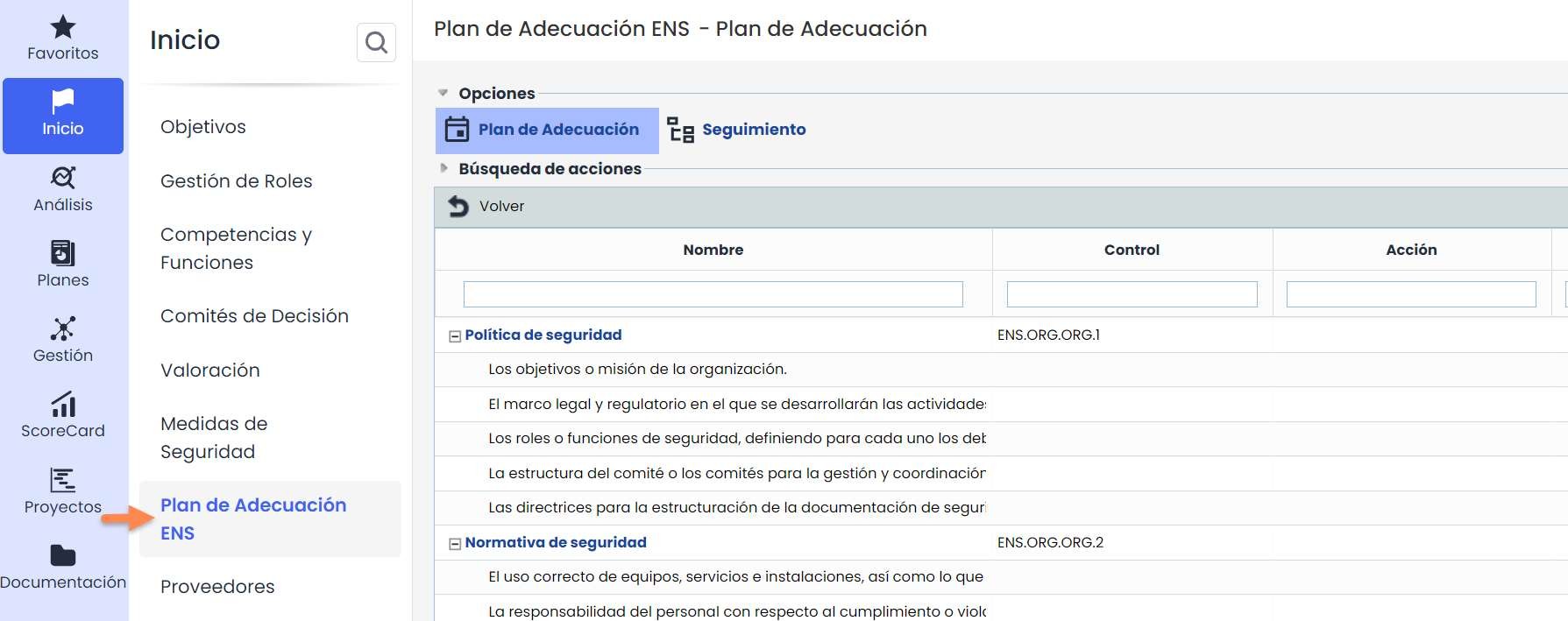
For those requirements that have not been implemented in the organization, GlobalSuite® allows establishing actions to achieve compliance and tracking them from the “ Tracking” menu.
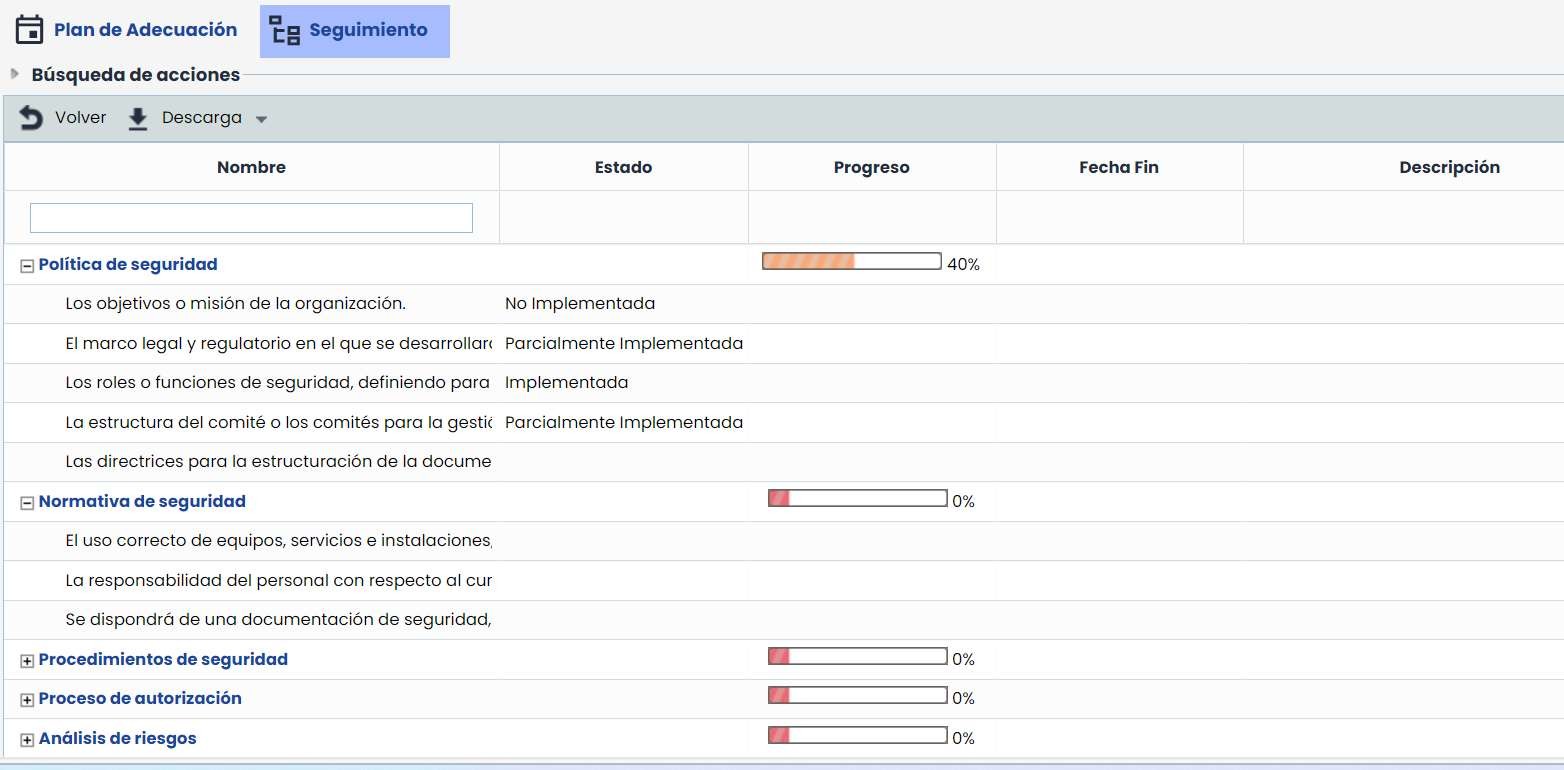
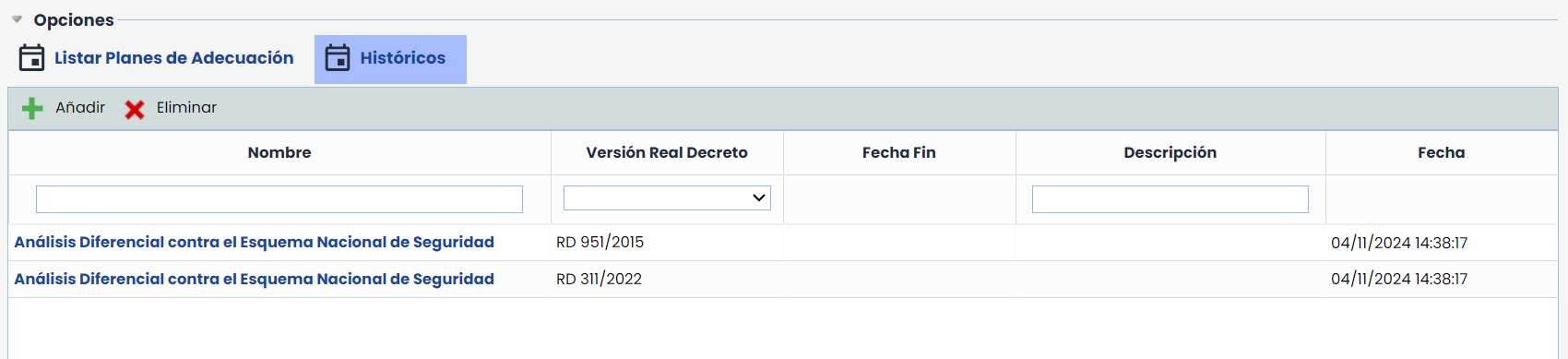
In addition to all this, “ Histories” of the Adaptation Plan can be created to see the changes that have occurred between one date and another. These histories are read-only, meaning the information they contain cannot be modified.
To do this, click the “New” button, and the new history with the current information will be saved.
2. Analysis
2.1. Inventory
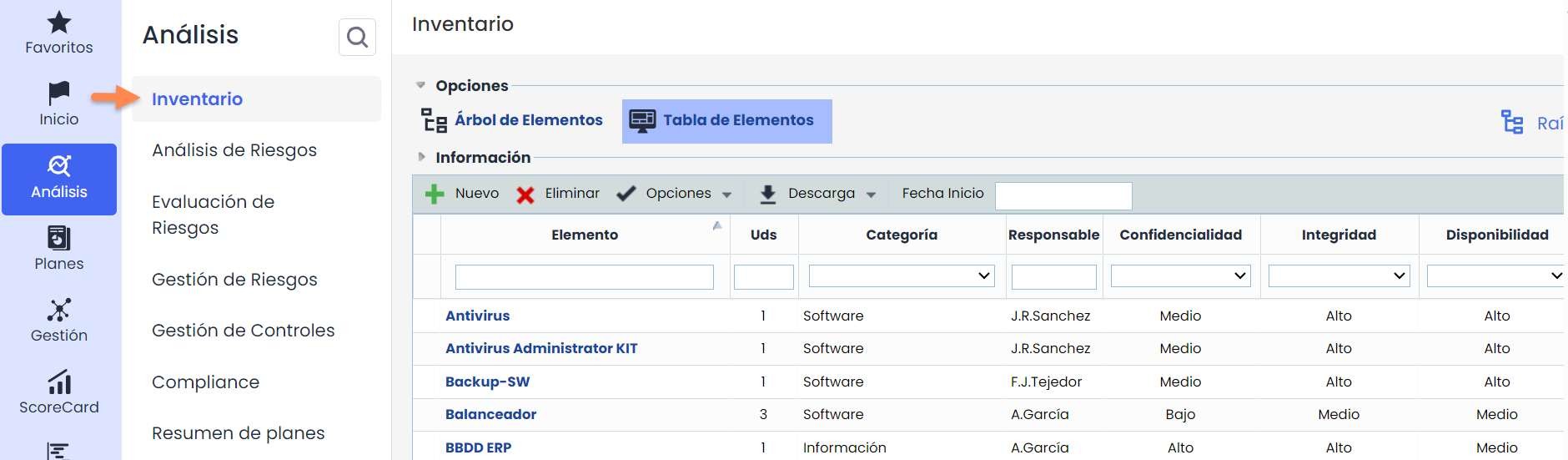
The Inventory contains all the organization's assets, which can be added to the Element Tree according to the existing hierarchy. This option is very important because it is where “ Information” assets, among others, will be added. All information assets in the inventory can be assessed for subsequent categorization.
Additionally, it will be possible to indicate which applications, servers, or infrastructures support these assets, and they can also be assessed, even if that assessment is not categorized. For more information, you can consult the quick guide “ Element Inventory”.
2.2. Risk Analysis
GlobalSuite® ENS allows conducting a complete Risk Analysis through the Risk Analysis Menu. In this analysis, the company's different assets can be analyzed, and all assets appearing in the Inventory are subject to analysis.
To carry it out, several steps must be followed, which are detailed in the quick guide “ Risk Analysis”.

2.3. Risk Assessment
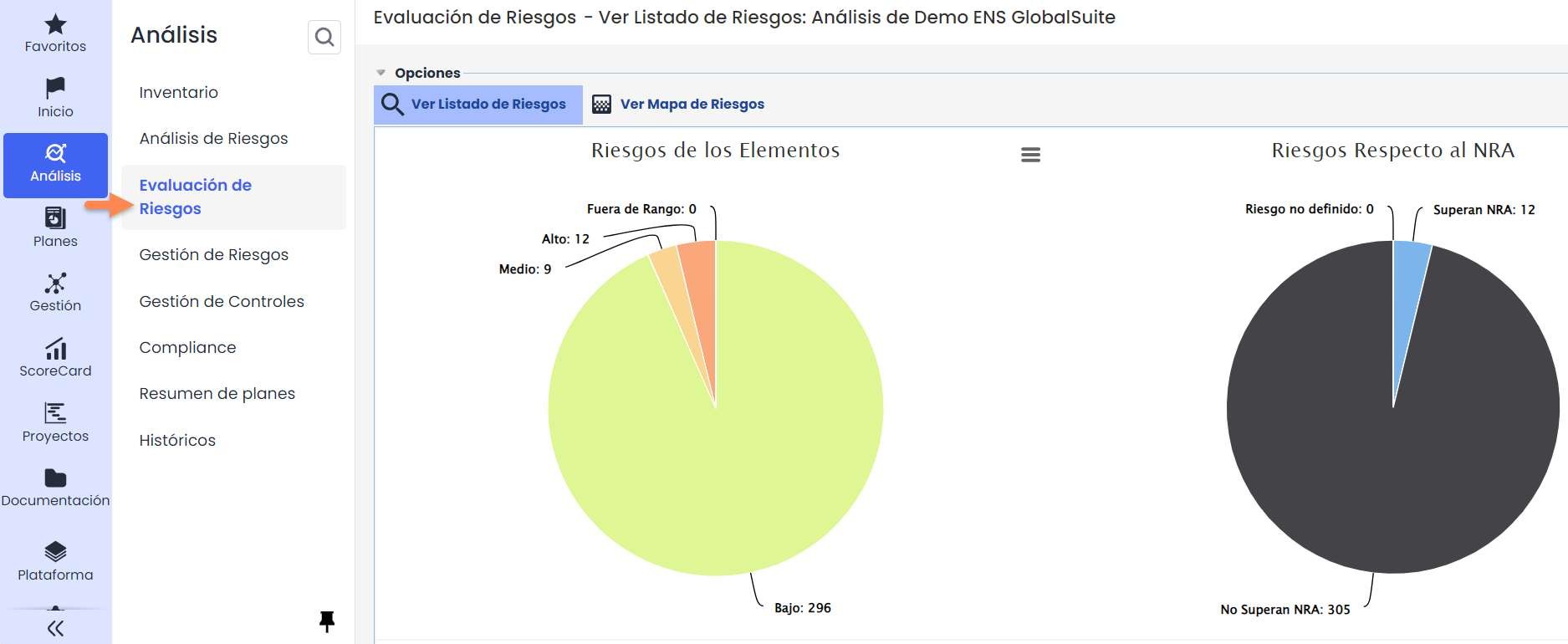
In the “ Risk Assessment” menu, a summary of the results obtained in the risk analysis can be viewed. Various graphs display the results visually, allowing these graphs to be downloaded for inclusion in different documents.
2.3. Risk Assessment (Risk Map)
GlobalSuite® offers the possibility of displaying the risk analysis, among other options, through a “heat map” representation. All this data can be exported using the “Download” button located above the map.
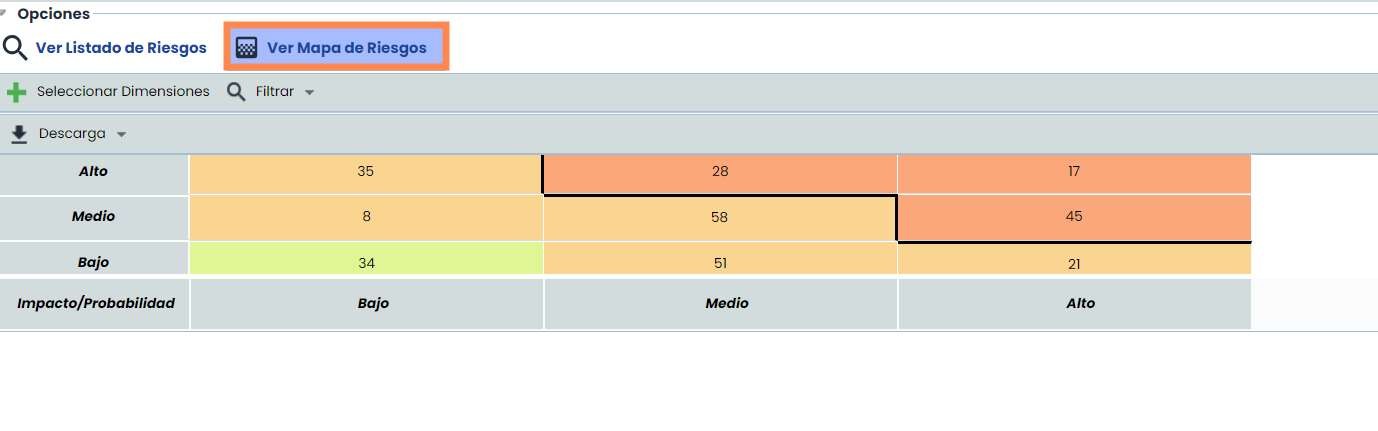
For more information on Risk Assessment, you can consult the quick guide “ Risk Assessment ”.
2.4. Risk Management
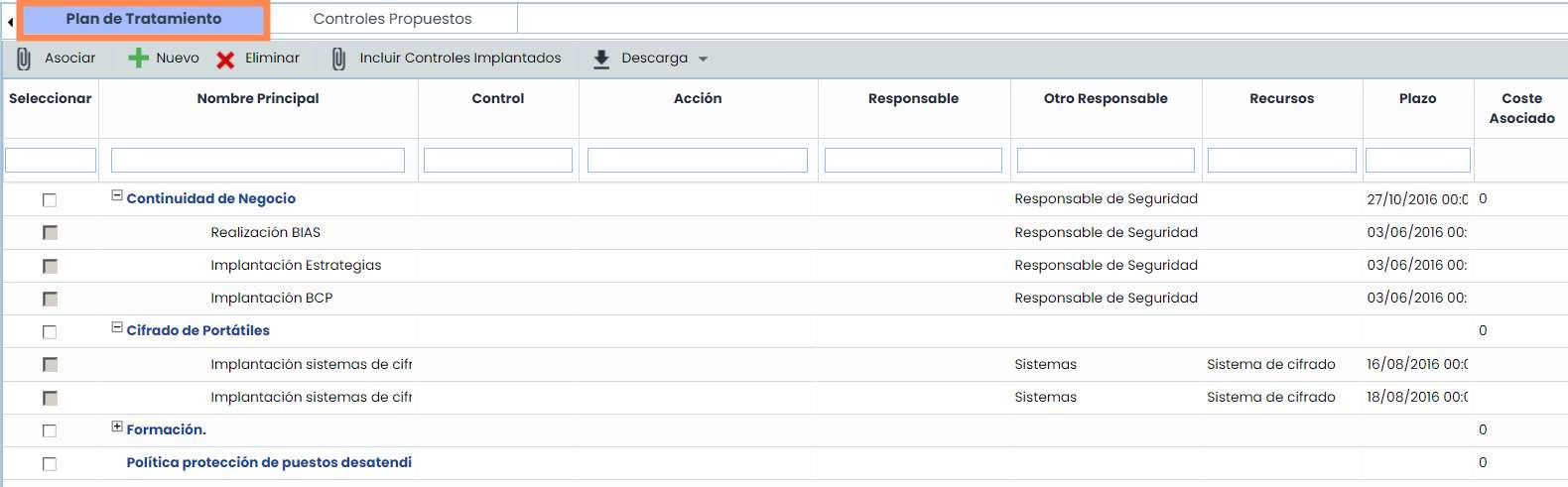
Once the threats have been evaluated, it will be necessary to establish the different controls that mitigate the detected risks exceeding the defined Acceptable Risk Level (Risk Appetite), which will form the Treatment Plan.
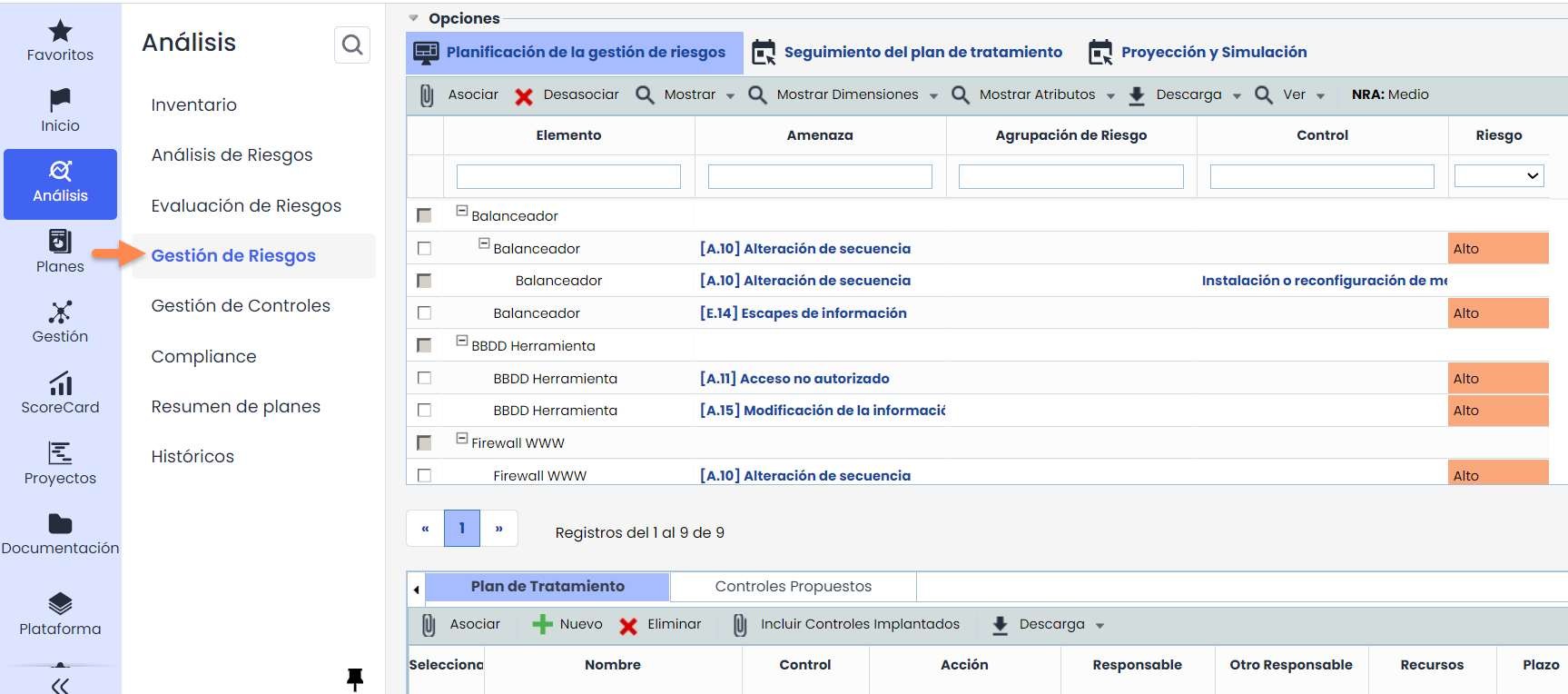
For the treatment plan, new controls can be proposed using the “ New” button, include already implemented controls through the “ Include Implemented Controls” option, or include new proposed controls according to the defined Risk Catalog configuration by selecting the “Proposed Controls” tab.
For more information on Risk Management , consult the quick guide “Risk Management”.
3. Document Manager
This Document Manager allows both having a shared and unique repository to concentrate all the documentation derived from the organization's Management System and performing document approval through configurable Approval Flows (Workflows).
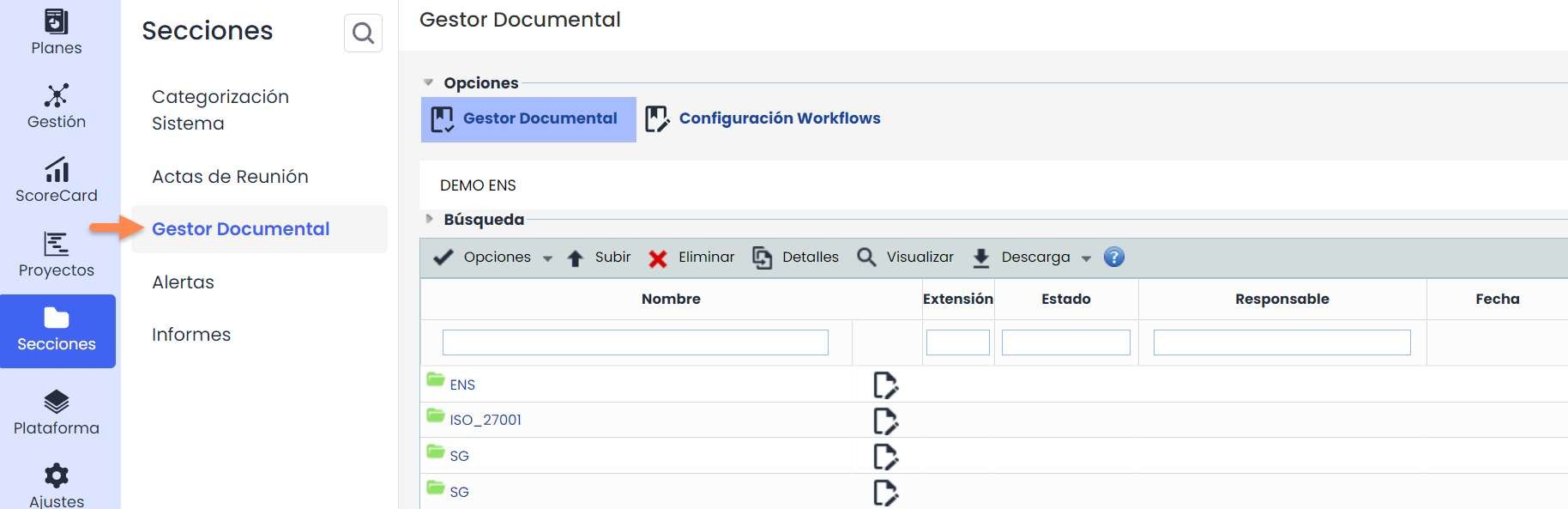
When accessing the option, the entire folder and document tree representing the organization's document manager will be displayed.
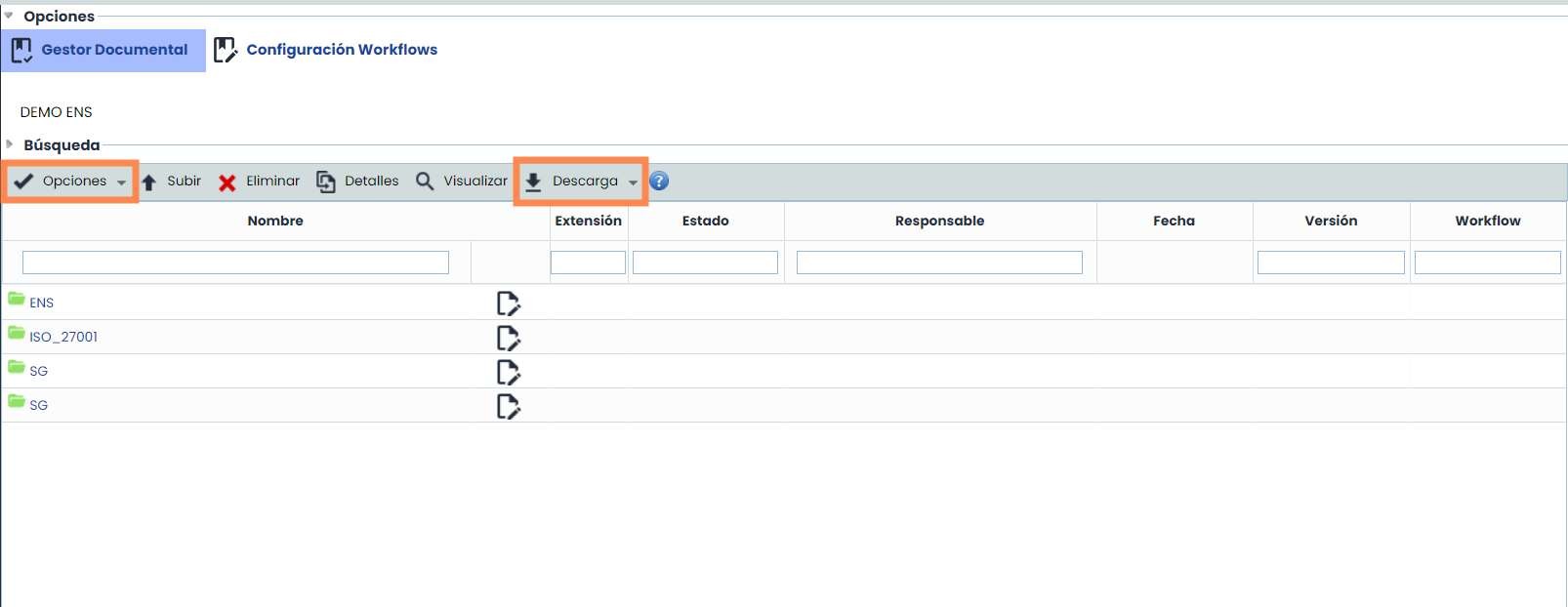
At the top, several buttons can be found, such as the following:
-
Options for the manager: New Folder and Move folders in the Document Manager.
-
In the Download menu, the options are: “Folder” to download the selected folder, “CSV Report” to download the report in CSV format, which can be opened with Excel or a similar editor.
3. Document Manager
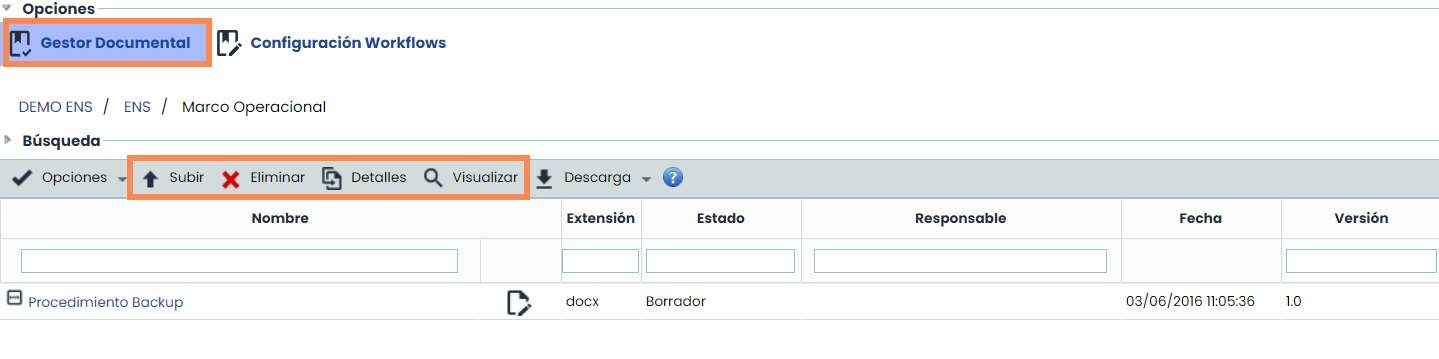
Additionally, when one of the elements in the Document Manager is marked or selected, the specific options shown below are also activated:
-
Upload allows attaching a new File (previously selecting the Workflow if there is one).
-
Delete to delete one of the elements in the Manager.
-
Details to enter the details of a record, and within it, consult or modify the different versions.
-
View the Document online. To preview it, the files must be PDF, JPEG, JPG, BMP, or PNG.
For more information about these options in the Document Manager, refer to the quick guide “ Document Manager”.
4. Incidents
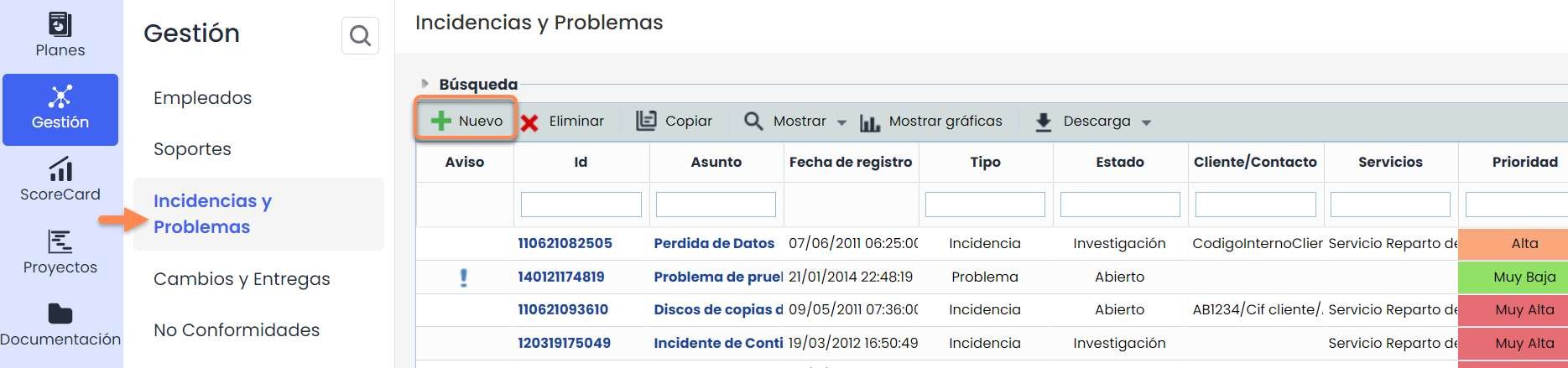
GlobalSuite® includes a Management section where Incidents, Non-Conformities, Changes and Deliveries, Corrective and Preventive actions are managed. All these options belong to Ticketing, so their functionality is the same, but they can be used for different purposes. For example, if there is an incident, a new ticket can be opened by clicking the “ New” button and filling out the form. Once this is done, the information will appear on the screen:
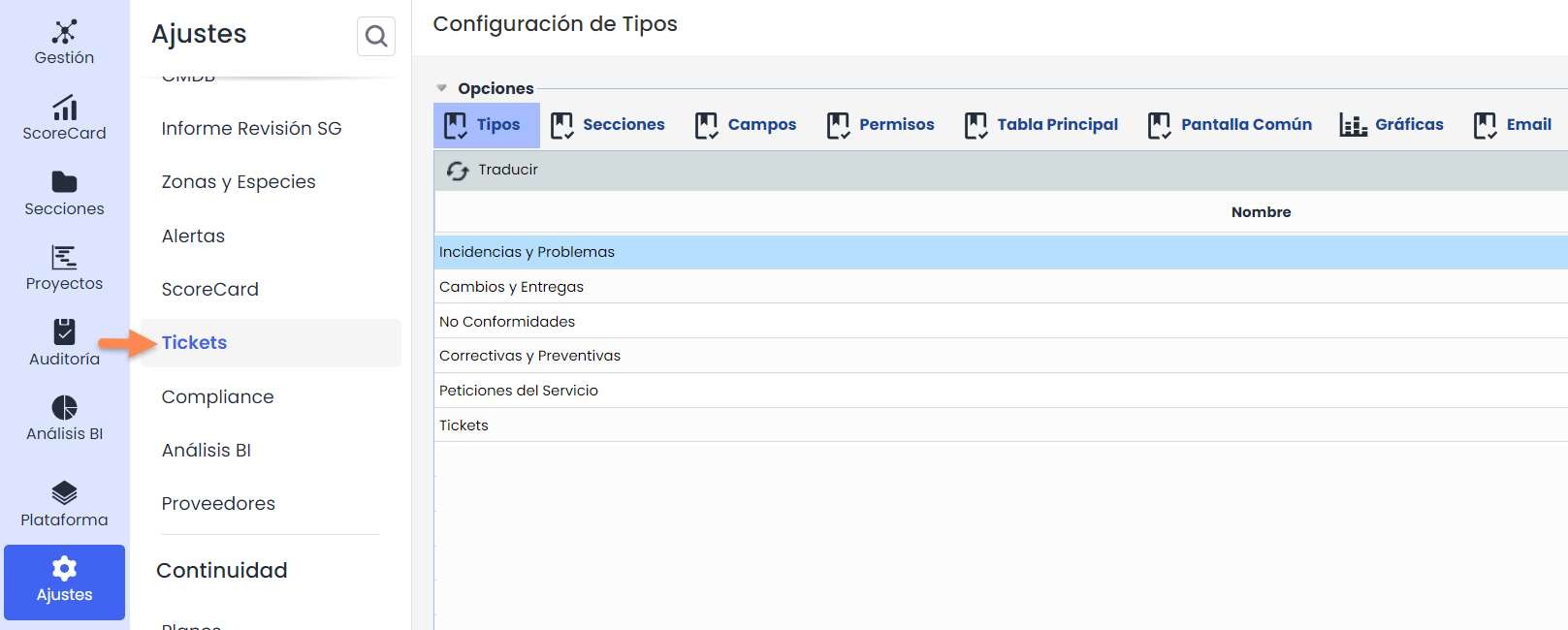
Both the information displayed in the table and the information within each ticket's form is fully customizable. Even the name of the tickets can be modified. All of this can be done from the Settings > Configuration > Tickets .
For more information about these Management options, refer to the quick guide “¿ How to configure tickets in GlobalSuite®? ”.
5. ScoreCard
5.1. Metrics
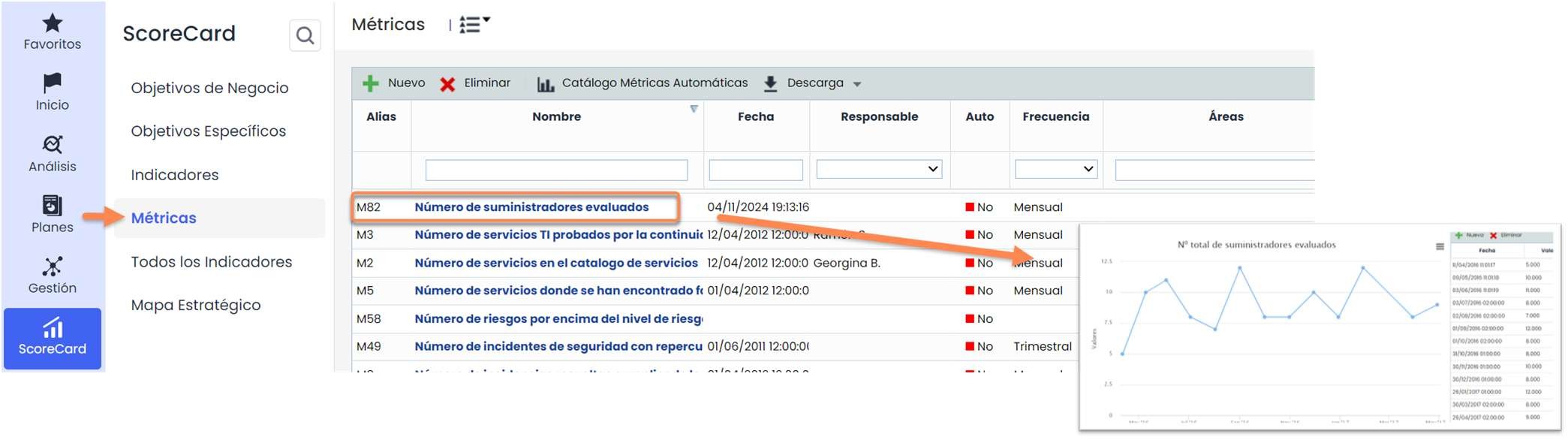
GlobalSuite® allows establishing metrics to collect different data in the tool. The data of each metric will be represented depending on its date and value. In the next stage, indicators will be established based on the combination of the metrics.
For more information about the indicators, refer to the quick guide “ How to create and manage indicators and metrics in the GlobalSuite® ScoreCard?”
5.2. Indicators
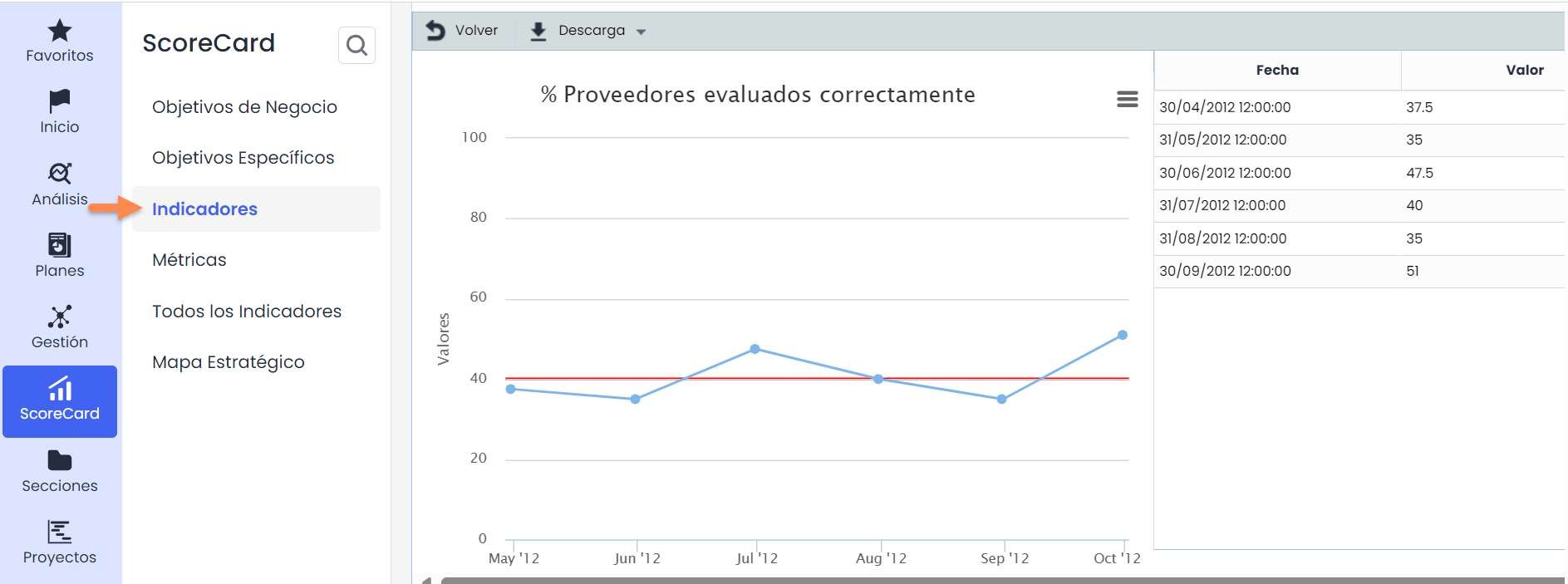
Based on the combination of the previously established metrics, the indicators will be developed. To do this, their relationship must be established through a formula. To use the data entered in the metrics, the indicators must have the same collection frequency. These indicators can be used in report extraction (Sections/Reports).
For more information about the indicators, refer to the quick guide “ How to create and manage indicators and metrics in the GlobalSuite® ScoreCard?”