In this article, we explain how to register business services and processes in GlobalSuite®, create their catalogs, define dependencies between them, and visualize their relationship with the organizational structure and stakeholders. Managing services and processes in GlobalSuite® allows documenting the services (and products) offered by the organization and the processes that support them. All these options are available from the Home section.
Initial Configuration
Phases for the initial configuration of the Continuity System
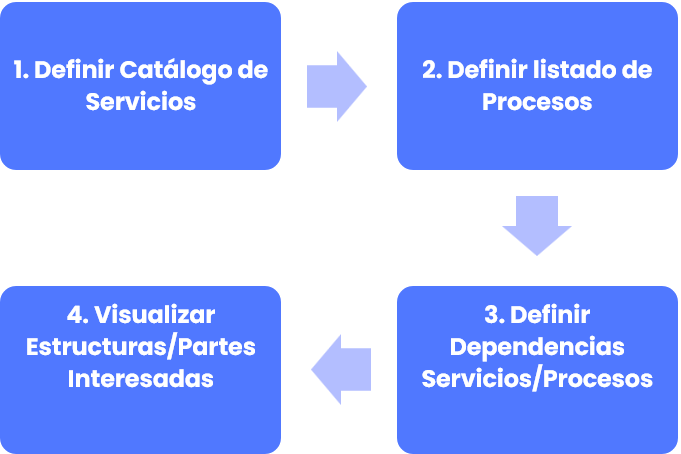
1. Define Service Catalog
The “ Service Catalog” option allows the generation and consultation of the entity's services, while the “Processes” option allows managing the organization's processes.
Both options are linked through the “Process Tree” tab included within the “Processes” option. This tab allows determining the relationships between services and processes, identifying which processes are necessary to provide the services or deliver the products.
Define Service Catalog
To manage the entity's service and product catalog, select the “ Service Catalog ” option, available in the “ Home” section of GlobalSuite®.
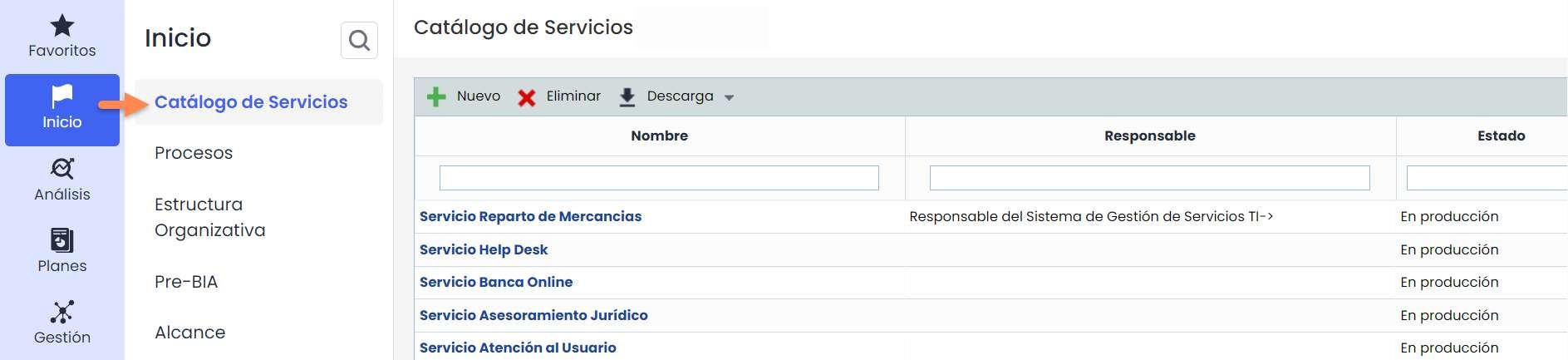
When accessing the “ Service Catalog” option, the list of the entity's services and products is displayed. In this option, services can be created, deleted, and modified.
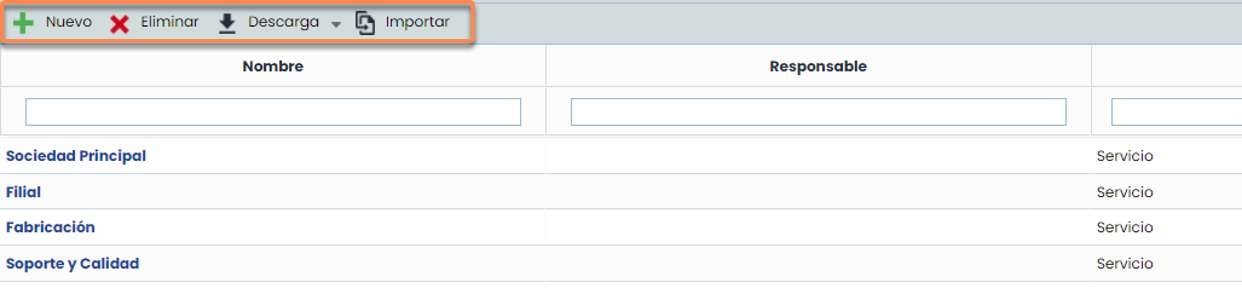
As part of the main screen, GlobalSuite® allows executing the following actions:
-
New: allows generating new services and products.
-
Delete: allows deleting existing services and products.
-
Download: allows downloading the list of services and products in different formats. It also includes a template file used for bulk data import.
-
Import: allows importing a list of Services in bulk. It is necessary to use the template file from the “Download” tab to perform the upload.
Bulk Service Upload. (Available only with the Data Import license.)
-
Download Import Template
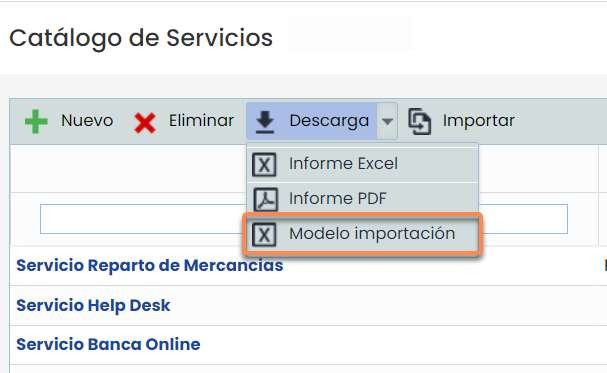
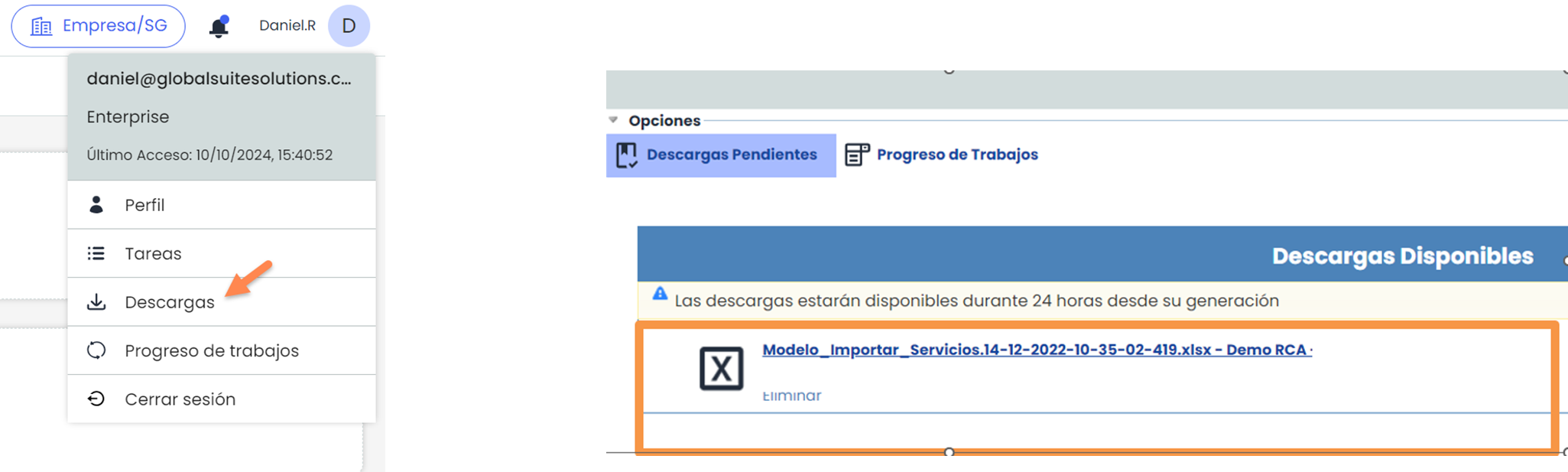
The download of the “Import Template” file will run in the background, and you must access the pending downloads section to open it.
-
Import
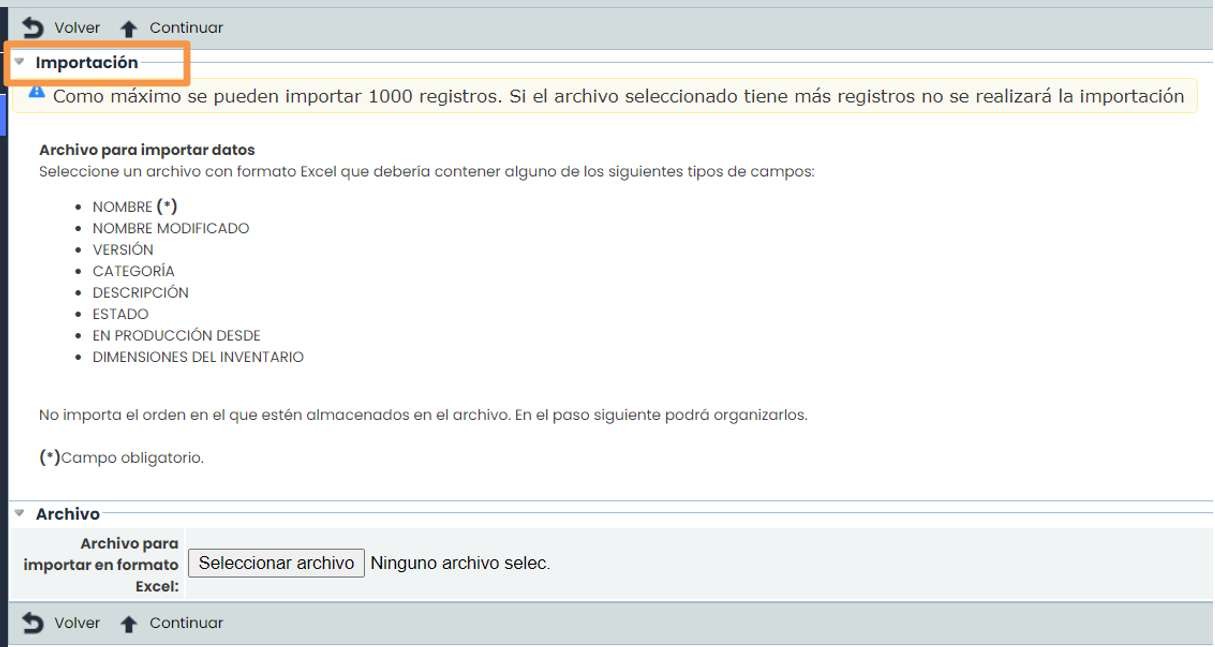
When clicking the “Import” button, the import screen will appear. The file to be uploaded must be in XLSX format, must not exceed 1000 records, and mandatory fields will be marked with an asterisk. Once the file you want to upload is selected, click the “Continue” button.
New service
The definition of a new service is done by clicking on the “ New” button. To register the corresponding information, click on the link in the service's name.
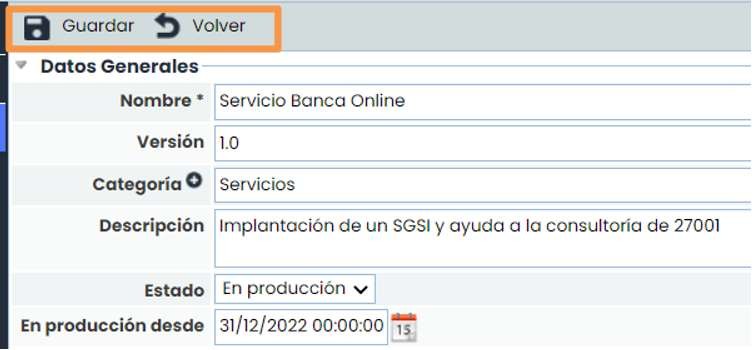
Clicking on the name of a service opens a form that allows defining all related information.
Once the information has been registered, it is necessary to click the “Save” button to store the changes. To return to the list, click the “Back” button.
2. Define Process List
To manage the entity's business process list, select the “ Processes” option, available in the “ Home” tab of GlobalSuite®.
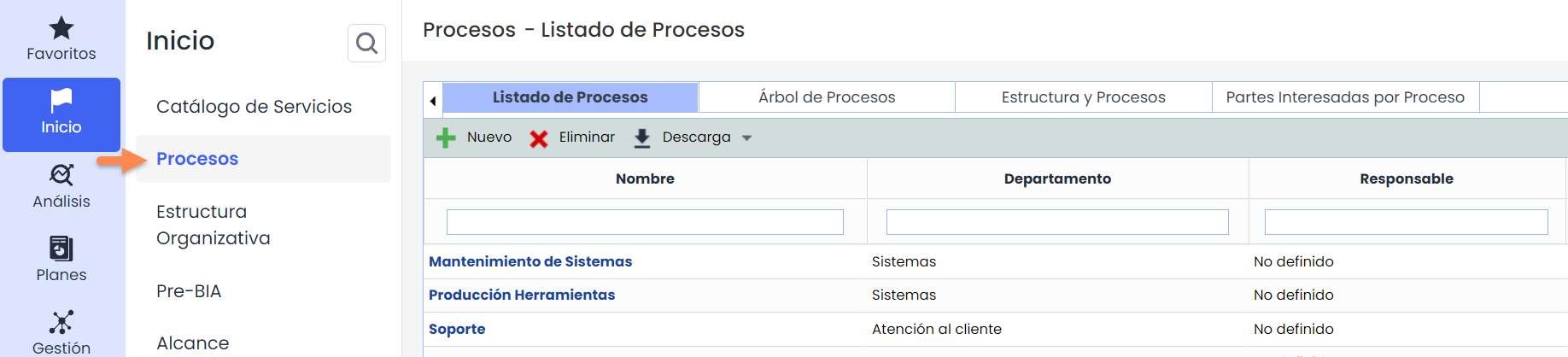
When accessing the “Processes” option, the entity's process list is displayed within the “Process List” tab. In this option, processes can be created, deleted, and modified.
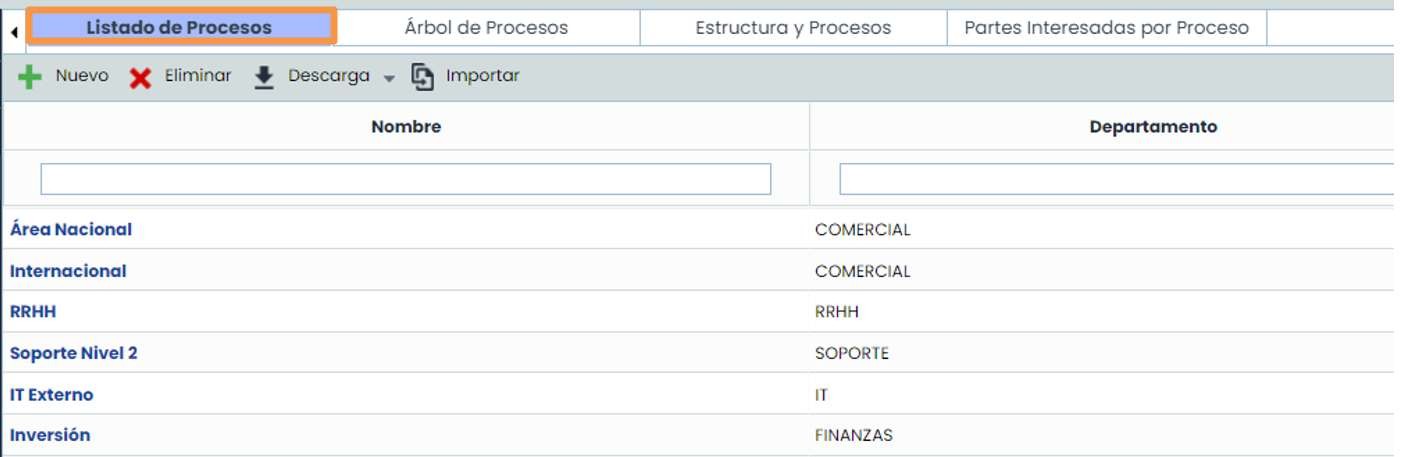
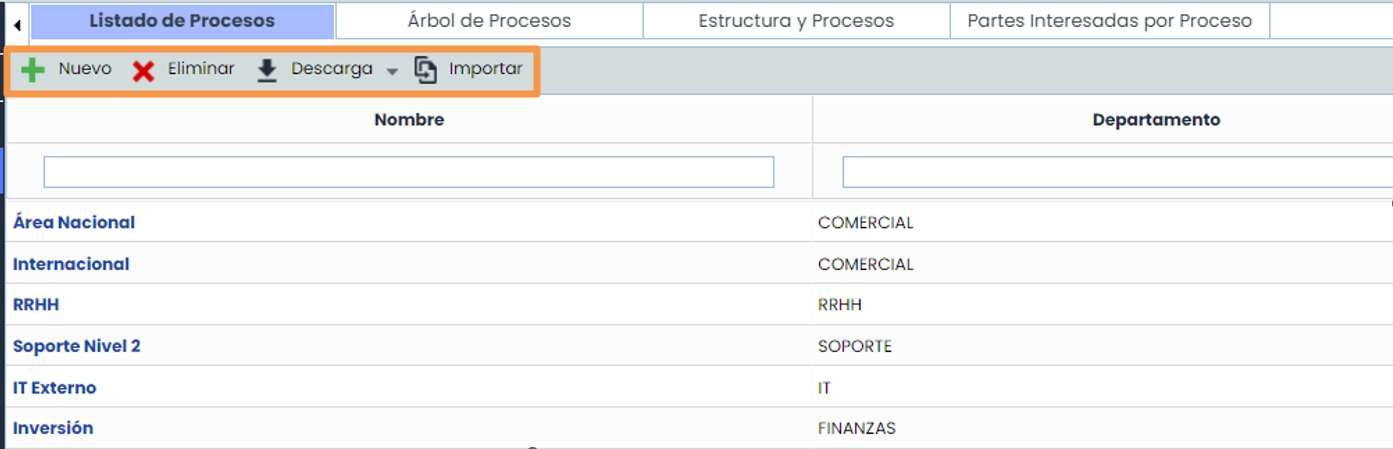
From the main “Process List” tab, GlobalSuite® provides the following options:
-
New: Allows generating new business processes specific to the entity.
-
Delete: Allows deleting existing processes.
-
Download: Allows downloading the list of available processes in different formats and a template file for bulk data import (xml).
-
Import: allows importing a list of Services in bulk. It is necessary to use the template file from the “Download” tab to perform the upload. Available only with the Data Import license.
To complete the definition of a process, click on the link of the Process name to access the form where all additional information related to the process can be completed.
Fields marked with an asterisk are mandatory. You can manually fill in all fields at the form level, except for selectable ones configured in other tabs and/or in the Settings section:
-
“Category”
-
“Responsible Parties”
-
“Organizational Structure”
-
“Stakeholders”
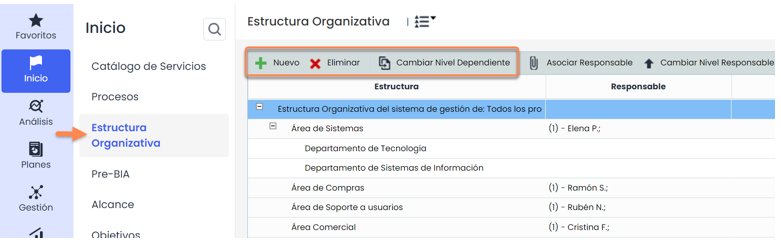
“Organizational Structure”: you can link the Process with the sections of the Organization involved. If you need to make any changes to the organizational chart, go to Home>Organizational Structure to add, delete, or change dependency levels.
Additionally, if you need to add or delete Levels of the Organizational Structure, you must do so in Settings > General Configuration > Organizational Structure Levels.
“Stakeholders”: you can define the stakeholders in the process by clicking the “Associate” button, although you must define them beforehand in Settings > General Configuration > Stakeholders.
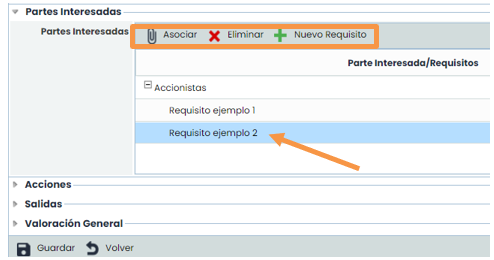
Additionally, you can specify the requirements of these Stakeholders regarding the process and indicate their type, whether they are an expectation or a need.
3. Define dependencies between Services and Processes
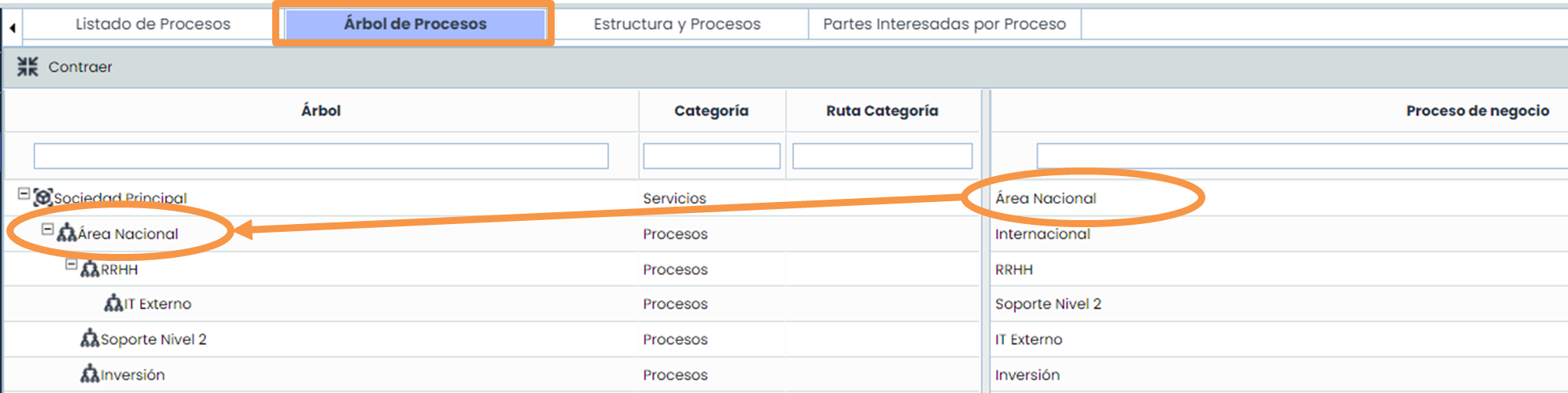
The “ Process Tree” tab, located next to the “Process List,” allows associating processes and services by defining the relationships and dependencies between the entity's different activities, enabling the final service delivery to clients or the delivery of a specific product.
To associate processes and services, follow these steps:
Select the process in the right column that you want to relate to other processes or directly to services.
Drag the process to the left column in the appropriate order, establishing the relationship.
4. Visualize Structures and Stakeholders
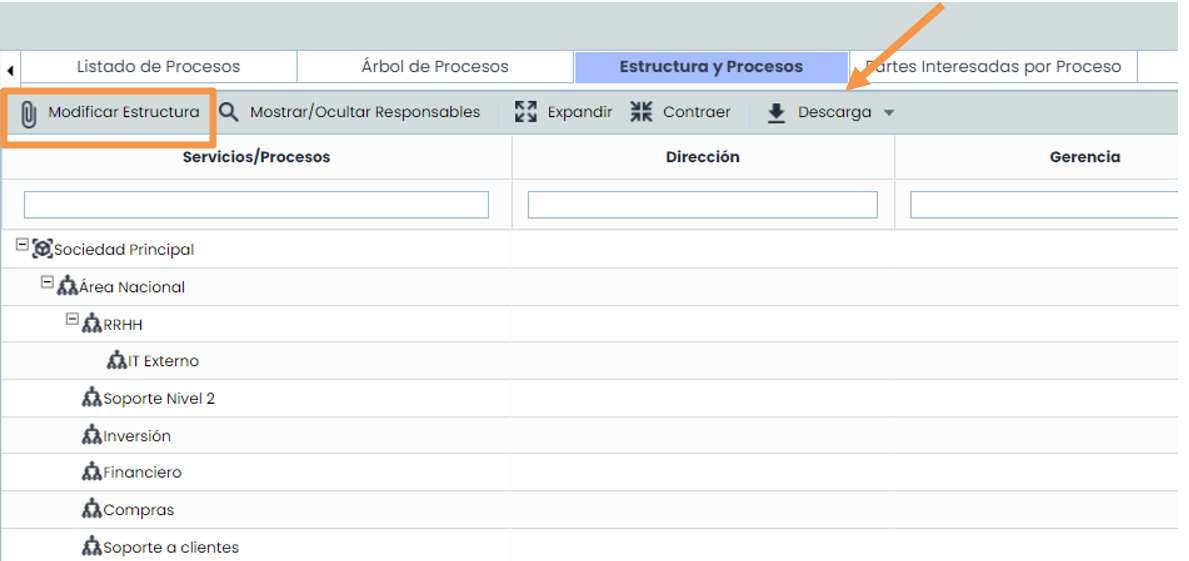
The “ Structure and Processes” tab, located next to the “Process Tree,” provides an overview of the entire service/process dependency tree, including information about the organizational structure to which they belong. This tab is read-only. If you need to update the information, it must be done in the “Process List” or “Process Tree” tabs.
Stakeholders
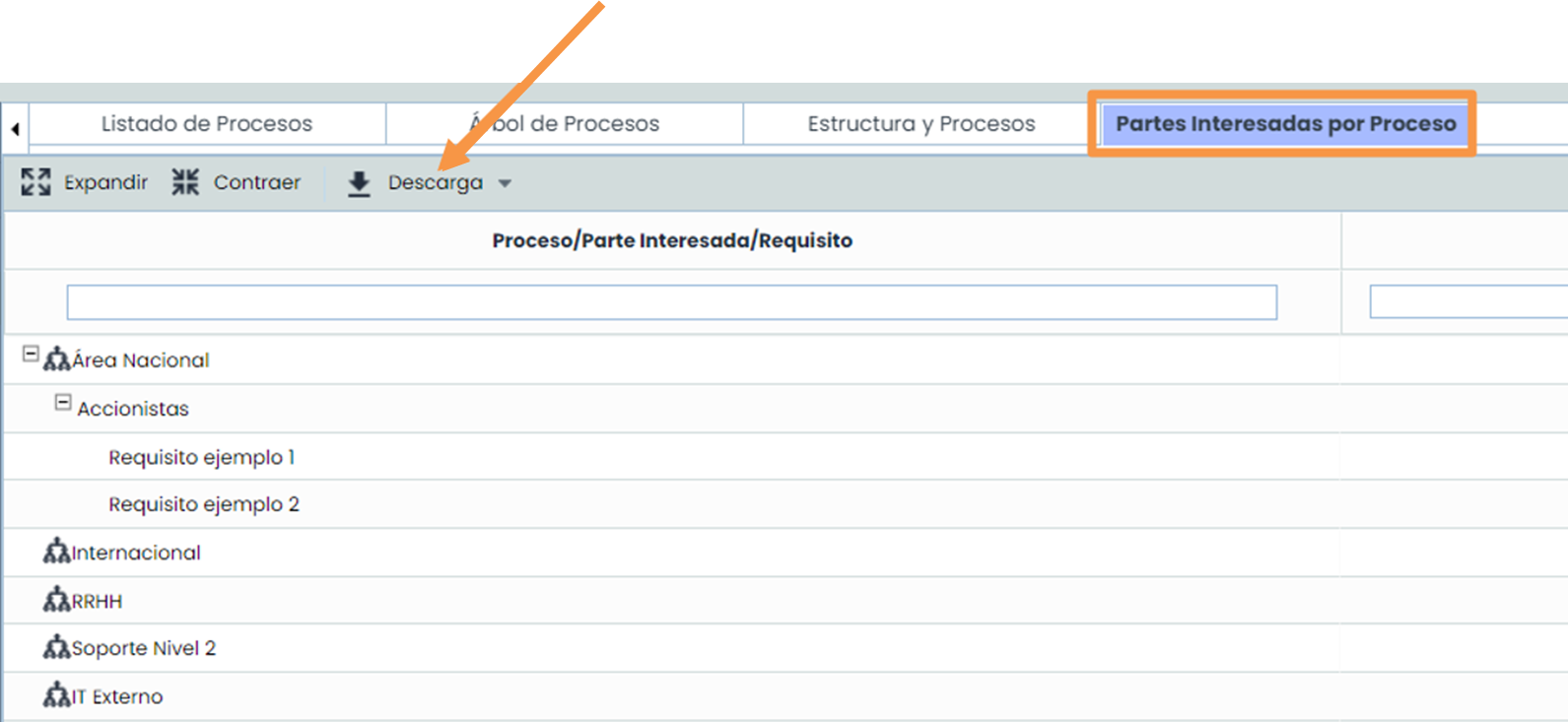
The “Stakeholders by Process” tab, located next to “Structure and Processes,” allows viewing if Stakeholders have been associated with a Process in the form. It also shows the Requirements linked to the Stakeholder. All information can be downloaded in different formats.