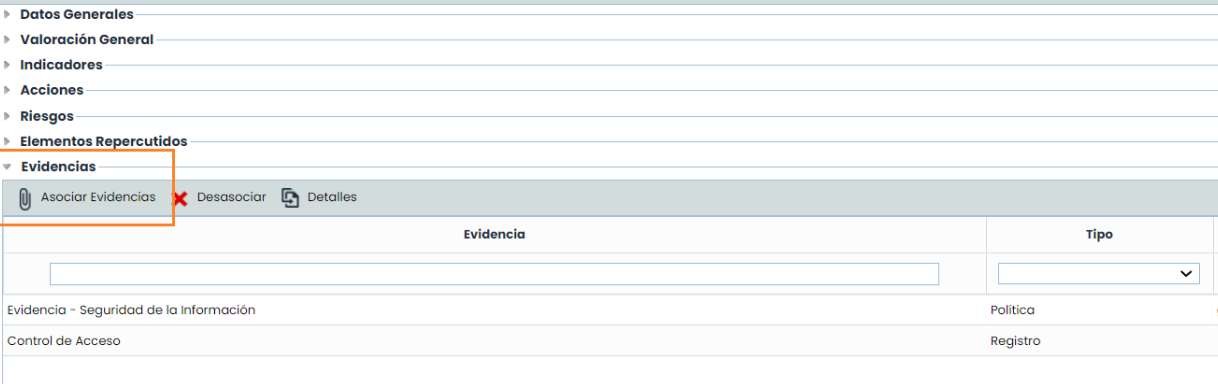
In this article, we address how to register and organize evidence in GlobalSuite®, relate it to documents from the Document Manager , and link it to controls and treatment plans within the Risk module, allowing the demonstration of the implementation and monitoring of the organization's controls.
Evidence Management aims to register and manage the organization's evidence so that it can later be linked to controls and treatment plans.
Below, you will find a manual of its function and how it relates to the following sections:

1. Document Manager
In the Document Manager section, you will see the folder structure and the documentation that has been uploaded and associated with its corresponding folder. At the top, you will find:
-
Options: Displays New Folder and Move (move files/folders to another path, for more details see the specific guide for the Document Manager).
-
Upload: Upload a document to its corresponding folder.
-
Details: View the specific details of the document.
-
Preview: A preview of the document can be performed (applies to PDF, JPG, JPEG, BMP, and PNG documents).
-
Download: A CSV report or the folder's content can be downloaded (for more details, see the specific guide for the Document Manager).
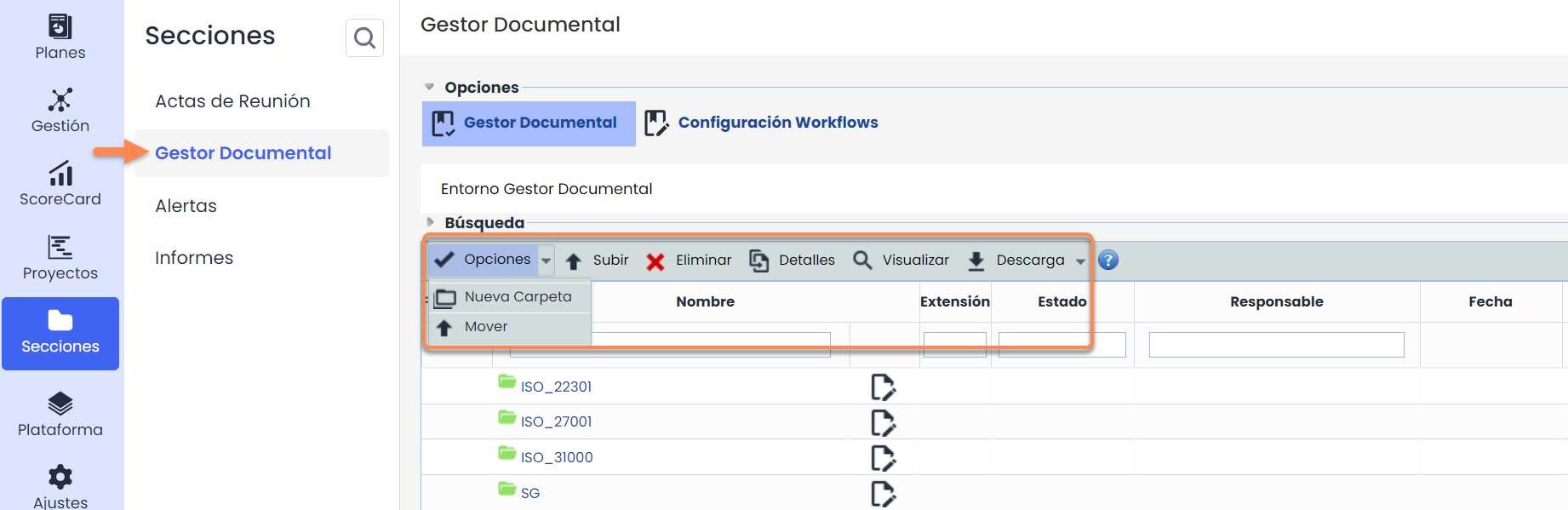
For each document, there are a series of fields that can be consulted. The main fields are:
-
Status: Its functionality is to define and know the status of each document.
Remember that the configuration of the statuses is in the Workflow Configuration section and according to the preferred statuses of each organization.
-
Version: The latest version of the document that has been published.
Finally, at the top, you will see the breakdown of all the folders you have entered, so if you want to return to a specific folder or the root folder, you can click on the previous folder.
2. Evidence Management
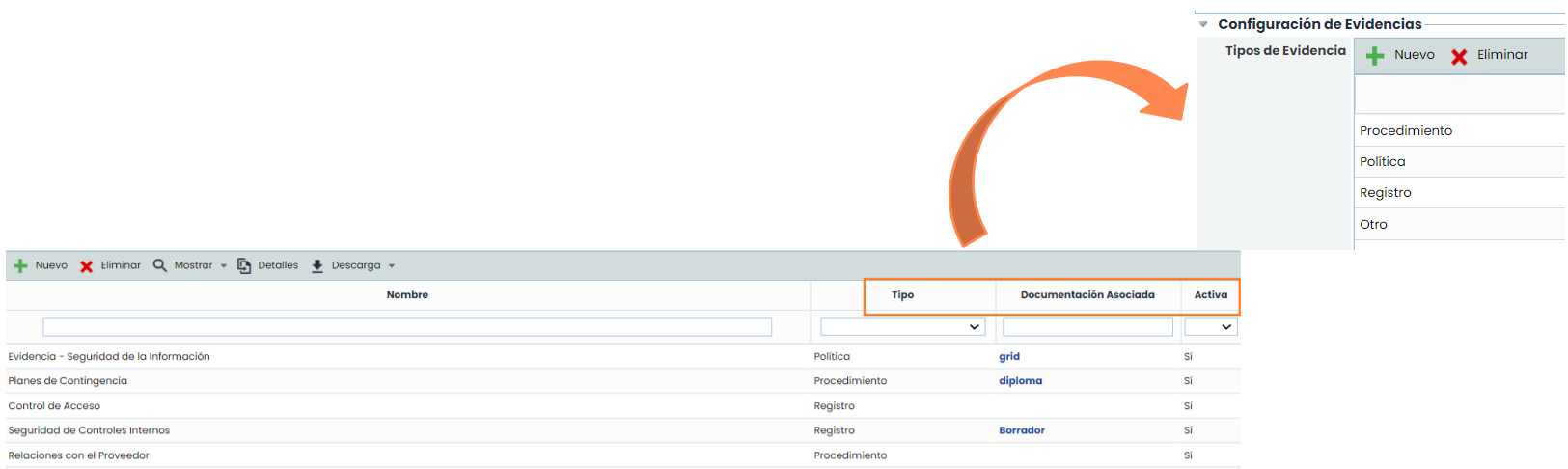
As mentioned earlier, in the Analysis > Evidence Management section, you can create evidence (some with their respective documents) that will later be linked to the implemented controls or risk treatment plans. Upon entering, the following options are available:
-
Type: In Settings > General > Evidence Configuration > Evidence Type , you can configure the types of evidence with which the records will be classified.
-
Associated Documentation: Displays the document that has been associated with the evidence.
-
Active: Indicates whether the evidence is currently active or not.
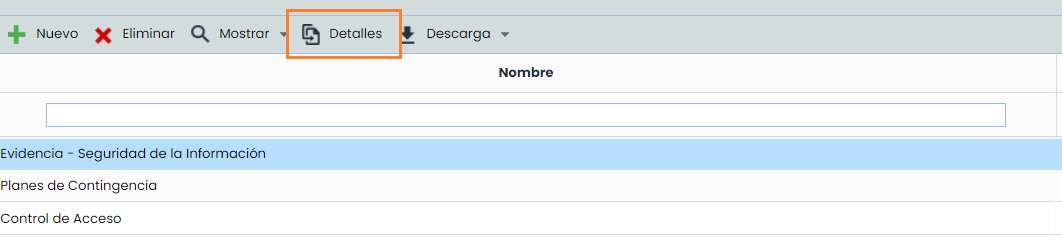
To access the details of the evidence, you need to select a row and click on Details:
Upon entering, a form with the following fields will appear:
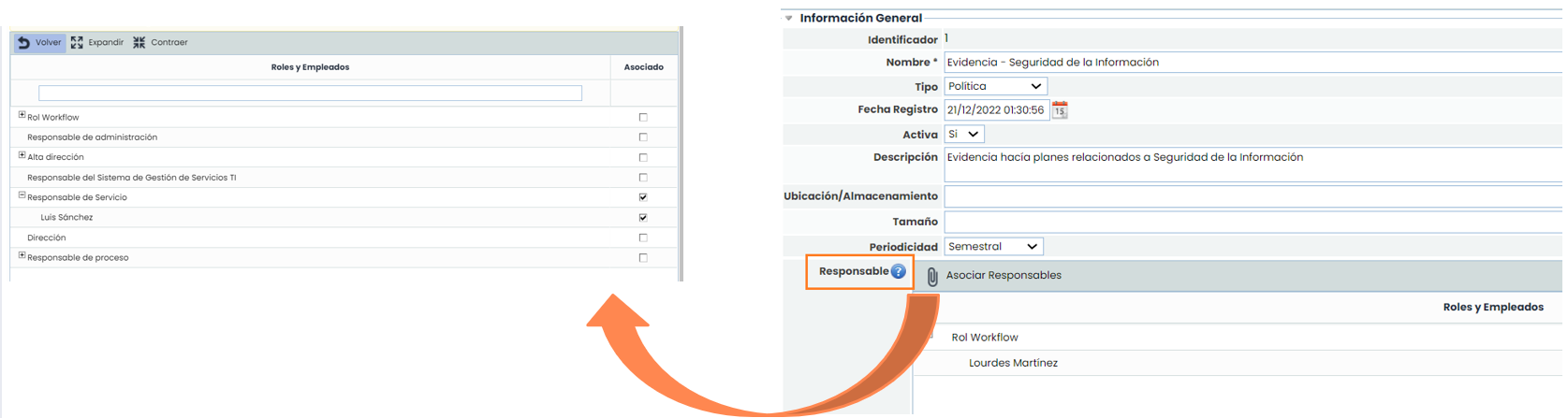
-
Responsible: The person responsible for managing the evidence.
-
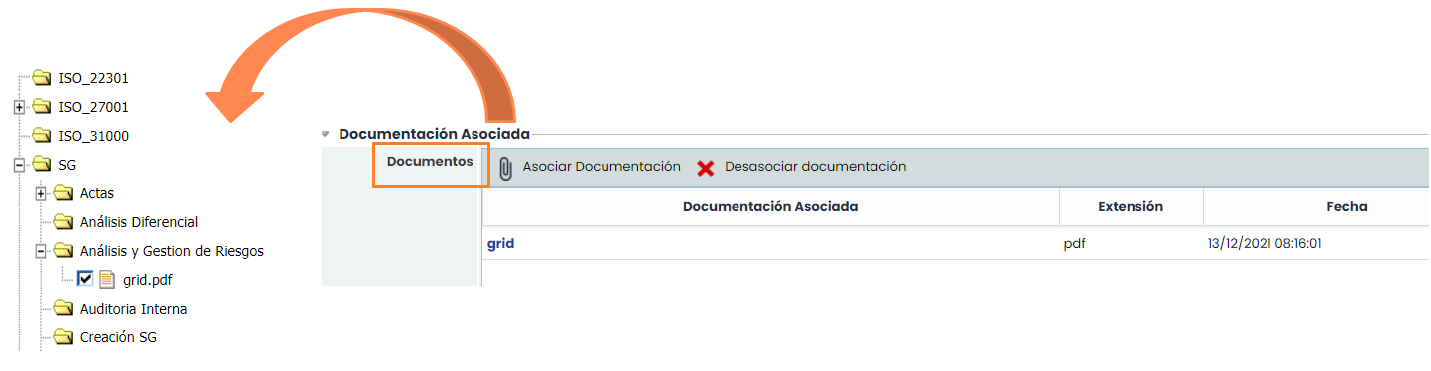
Documents: One or more documents can be linked. These must have been previously uploaded to the Document Manager.
-
Controls: The evidence can justify the existence/execution of a control or treatment plan. It can be associated with more than one control/plan.

3. Control Management
From the Analysis > Control Management section, existing evidence can also be associated.
You must select the control and enter details:
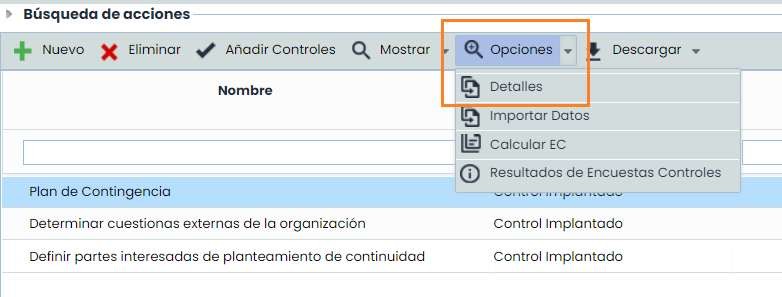
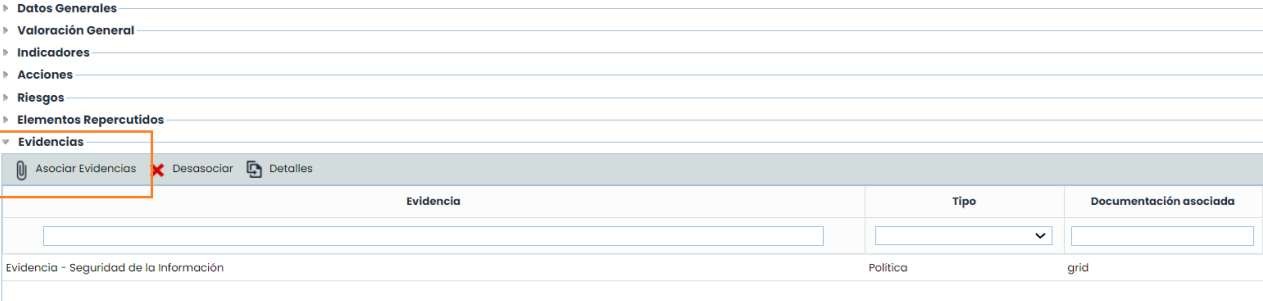
One or more pieces of evidence can be associated with the same control, as long as they have been previously registered and configured in the “ Evidence Management ” option. The Dissociate button allows you to unlink evidence from a control. If you click on Details, the evidence details will open directly.
4. Risk Management
Evidence can also be associated with Treatment Plans through the Risk Management option. To do this, go to: Analysis > Risk Management > select the Risk Analysis > click on the name of the Treatment Plan.
As in Control Management, one or more pieces of evidence can be associated with the same control, as long as they have been previously registered and configured in the “Evidence Management” option. The Dissociate button allows you to unlink evidence from a treatment plan. If you click on Details, the evidence form will open directly.